Introduction
In a previous article, I shared a reusable prompt template for generating Apple HIG-compliant iOS app icons with AI image tools.
This time, I put that template to practical use — redesigning the icons for 3 published App Store apps using Gemini.
The Design Trend Shift
The previous template assumed flat design, but looking at Apple's native apps from iOS 18 onward, the trend has shifted.
| Style | Characteristics | Era |
|---|---|---|
| Flat | Solid backgrounds, no shadows, no gradients | iOS 7+ |
| Modern iOS | Soft gradients + subtle highlights + gentle depth | iOS 17+ |
| Skeuomorphism | Photorealistic 3D textures | Pre-iOS 6 |
Apple's own apps (Photos, Maps, Weather) have moved from pure flat to soft gradients with subtle highlights. So I updated the prompts accordingly.
Key Changes: Flat → Modern iOS
Main differences from the previous template:
- Fill the entire canvas edge-to-edge with a uniform {{BACKGROUND_COLOR}} background.
+ Fill the entire canvas edge-to-edge with a rich {{BACKGROUND_COLOR}} background
+   featuring a smooth radial gradient from a slightly brighter tone at the
+   top-center to a deeper tone at the edges.

- Style: elegant, minimal color palette, flat design, no gradients on
-   illustration, no shadows, no 3D effects.
+ Style: modern iOS aesthetic — smooth gradient background, soft lighting
+   from above, minimal color palette. Subtle depth through lighting,
+   NOT through drop shadows or 3D extrusion.

+ The overall feel should be premium and refined, similar to Apple's
+   native app icons (smooth gradients, gentle highlights, no hard edges).
Key additions:
- Background changed from solid color to radial gradient
- "Soft lighting" and "gentle highlights" for subtle depth
- Drop shadows and 3D extrusion remain explicitly prohibited
- "Similar to Apple's native app icons" as a concrete reference
Results: 3 App Redesigns
1. KotenOCR (Classical Japanese OCR)
An app that recognizes classical Japanese cursive script (kuzushiji) offline using on-device AI.
Prompt:
A polished, square 1024x1024 app icon for an iOS app called "KotenOCR"
that recognizes classical Japanese cursive script (kuzushiji) and
modern printed/handwritten text using on-device AI.

Design requirements:
- Fill the entire canvas edge-to-edge with a rich deep navy background
  featuring a smooth radial gradient from a slightly brighter navy
  (#243B55) at the top-center to a deep navy (#0F1C2E) at the edges.
  No white areas, no transparency, no empty corners.
- Do NOT include frames, borders, or decorative edges of any kind.
- Center illustration: a stylized classical Japanese kanji character
  "典" (meaning "classic/canon") drawn in elegant brushstroke
  calligraphy style, rendered in white (#FFFFFF) with a very subtle
  soft glow effect behind it to give gentle luminosity.
- Include one teal (#4DB6AC) scanning viewfinder bracket (two
  L-shaped corner marks, top-left and bottom-right) surrounding the
  character to suggest OCR recognition. The brackets should have a
  subtle inner glow.
- A few faint, partially visible kuzushiji characters scattered in
  the background at very low opacity (#1A2A3A) to evoke a classical
  manuscript atmosphere, as if emerging from the dark background.
- Style: modern iOS aesthetic — smooth gradient background, soft
  lighting from above, minimal color palette (deep navy gradient +
  white calligraphy + teal accent). Subtle depth through lighting,
  NOT through drop shadows or 3D extrusion.
- The overall feel should be premium and refined, similar to Apple's
  native app icons (smooth gradients, gentle highlights, no hard
  edges).
- The central character should be bold and dominant, clear at small
  sizes (29px). Medium-to-bold weight brushstrokes.
- Do NOT add any text, letters, or labels other than the central
  kanji character.
- Do NOT pre-round corners — perfectly square image. iOS applies
  rounded corners automatically.
- Output: square PNG, 1024x1024 pixels.
Before / After:
| Before | After |
|---|---|
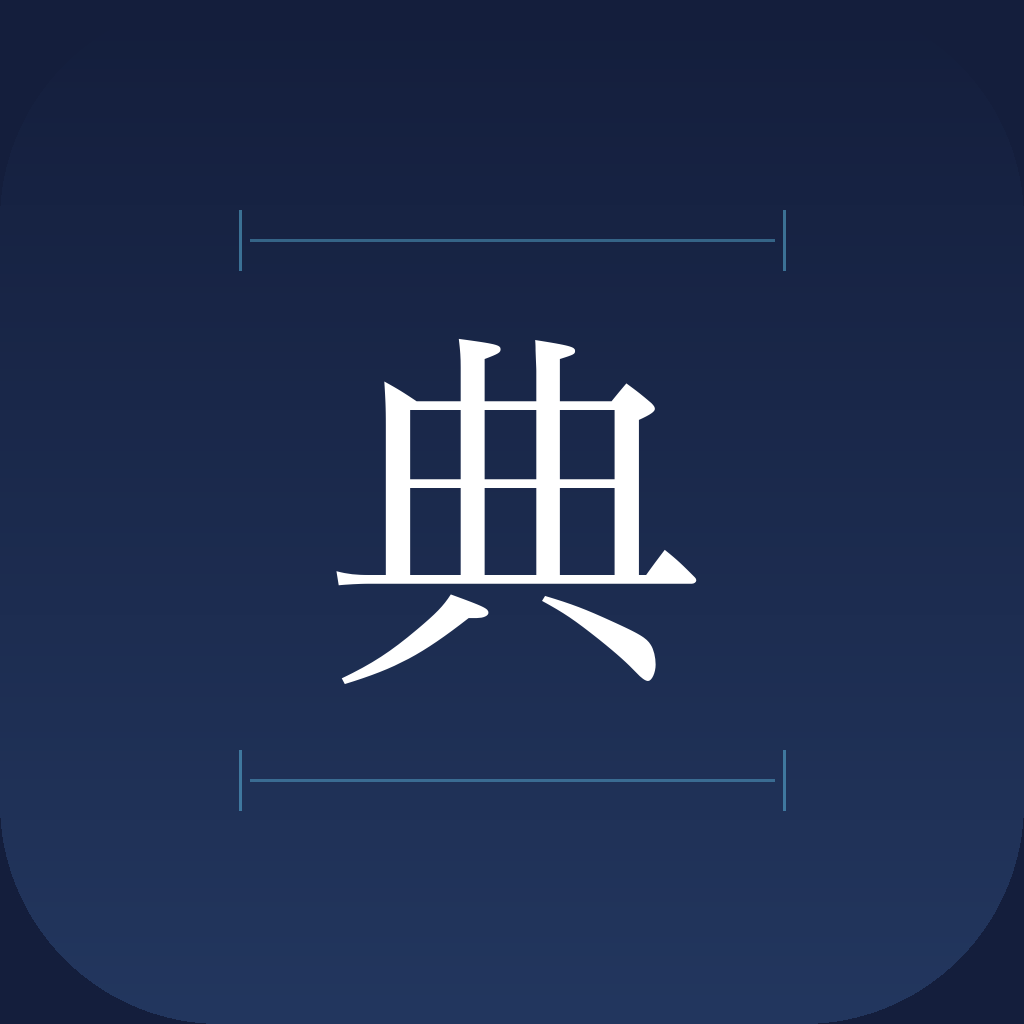 |  |
The soft glow behind the kanji character and the teal scanning brackets create a modern, polished look. The faint kuzushiji characters in the background add atmosphere.
2. IIIF AR (Historical Map AR Viewer)
An app that places high-resolution historical maps in AR at real-world scale.
Prompt:
A polished, square 1024x1024 app icon for an iOS app called "IIIF AR"
that places high-resolution historical Japanese maps and illustrations
in augmented reality at real-world scale.

Design requirements:
- Fill the entire canvas edge-to-edge with a rich warm background
  featuring a smooth radial gradient from a slightly brighter warm
  tone (#3A2F28) at the top-center to a deep dark brown (#1A1410)
  at the edges. No white areas, no transparency, no empty corners.
- Do NOT include frames, borders, or decorative edges of any kind.
- Center illustration: a stylized composition of overlapping
  historical Japanese maps and scrolls — one partially unrolled scroll
  and one flat map, showing fragments of traditional ink landscape art
  (mountains, rivers, architecture in East Asian brushwork style),
  rendered in warm cream/gold (#E8D5A8) line art with a subtle soft
  glow behind the composition.
- Include one teal-blue (#1E88E5) AR location pin marker placed on
  the map to suggest spatial AR placement. The pin should have a
  subtle inner glow.
- Below the maps, include a faint perspective grid (3-4 thin lines
  in #2A2420) to represent the AR floor plane detection.
- Style: modern iOS aesthetic — smooth gradient background, soft
  lighting from above, minimal color palette (dark warm brown
  gradient + cream/gold illustration + one blue accent). Subtle depth
  through lighting, NOT through drop shadows or 3D extrusion.
- The overall feel should be premium and refined, similar to Apple's
  native app icons (smooth gradients, gentle highlights, no hard
  edges).
- The illustration should be detailed enough to be interesting but
  clear at small sizes (29px). Medium-weight lines.
- Do NOT add any text, letters, or characters.
- Do NOT pre-round corners — perfectly square image. iOS applies
  rounded corners automatically.
- Output: square PNG, 1024x1024 pixels.
Before / After:
| Before | After |
|---|---|
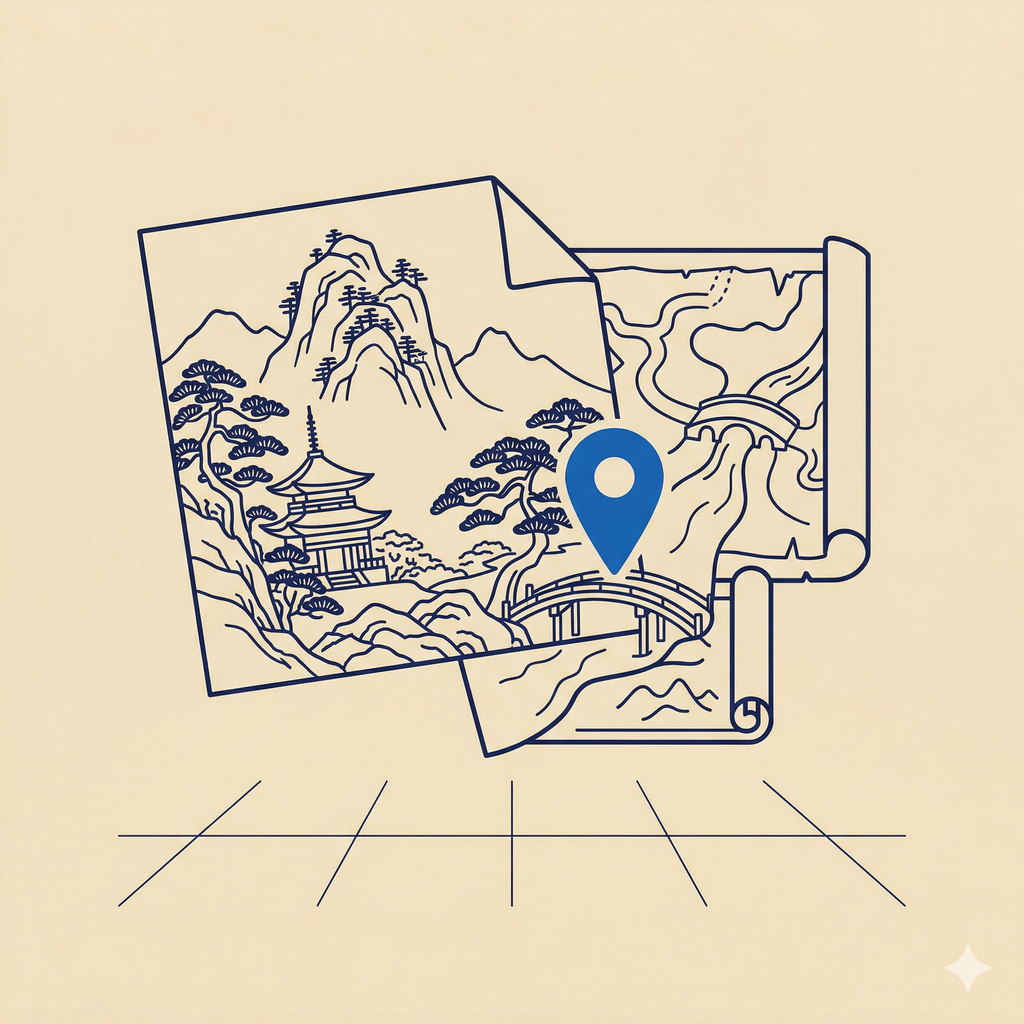 | 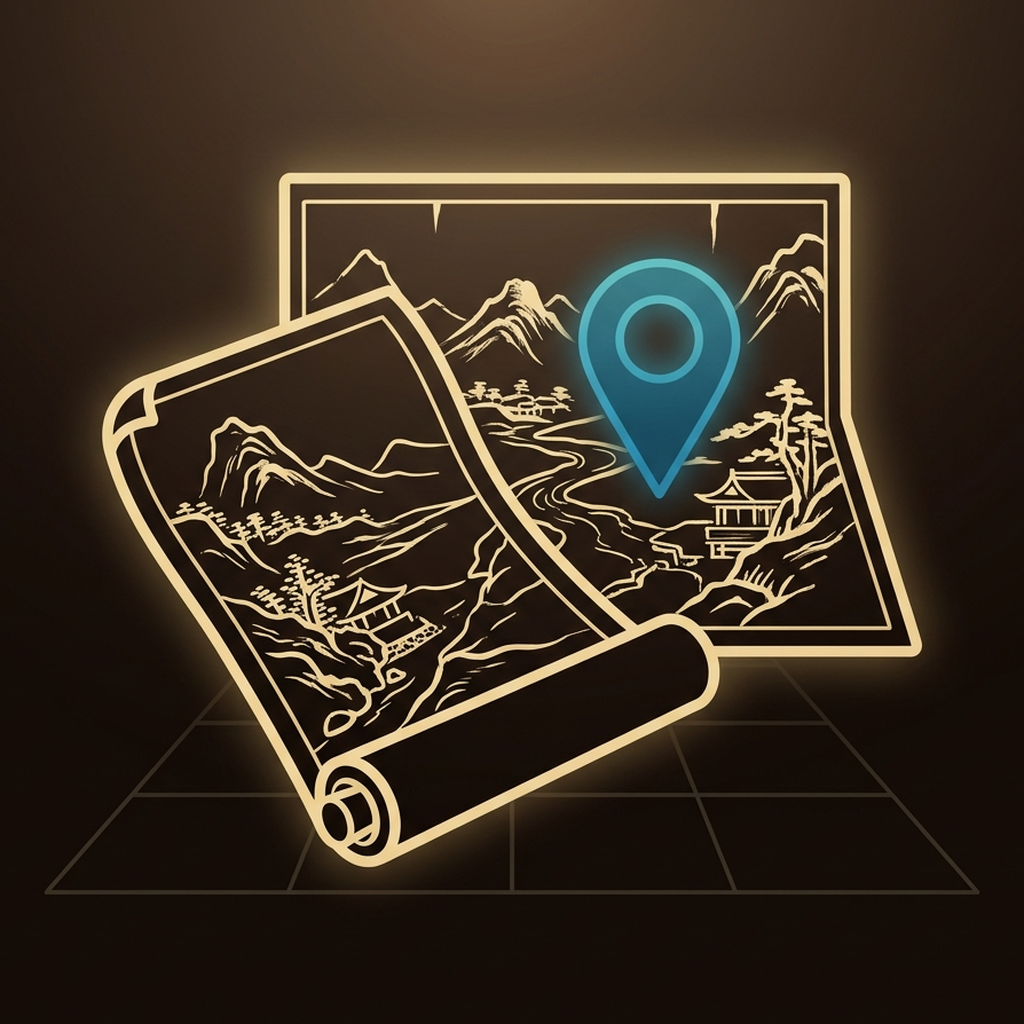 |
The overlapping scroll and map with a glowing blue AR pin effectively communicate the app's purpose. The floor grid subtly suggests AR placement.
3. JPS Explorer (Japan Search Explorer)
An app for discovering Japan's cultural heritage collections through Japan Search.
Prompt:
A polished, square 1024x1024 app icon for an iOS app called
"JPS Explorer" that lets users discover and explore Japan's cultural
heritage collections through Japan Search.

Design requirements:
- Fill the entire canvas edge-to-edge with a rich deep navy background
  featuring a smooth radial gradient from a slightly brighter navy
  (#1E3450) at the top-center to a deep navy (#0C1A2E) at the edges.
  No white areas, no transparency, no empty corners.
- Do NOT include frames, borders, or decorative edges of any kind.
- Center illustration: a stylized magnifying glass tilted slightly
  (handle pointing to bottom-right), with a polished gold/brass frame
  and handle rendered with smooth metallic gradients and soft
  highlights to convey premium quality.
- Inside the magnifying glass lens: a traditional Japanese seigaiha
  (青海波 / blue ocean wave) pattern in gold (#C8A85C) lines on a
  slightly lighter navy background, visible through a subtle glass
  lens effect (very mild refraction/distortion).
- Behind the magnifying glass, faintly visible: a few scattered
  fragments of Japanese cultural imagery at very low opacity
  (#152540) — such as a partial ukiyo-e wave, a torii gate outline,
  or a maple leaf — to suggest the breadth of the collection.
- Style: modern iOS aesthetic — smooth gradient background, soft
  lighting from upper-left, metallic gold with gentle reflections.
  Subtle depth through lighting and metallic sheen, NOT through hard
  drop shadows or 3D extrusion.
- The overall feel should be premium and refined, similar to Apple's
  native app icons (smooth gradients, gentle highlights, elegant
  materials).
- Clear at small sizes (29px) — the magnifying glass shape should
  be immediately recognizable.
- Do NOT add any text, letters, or characters.
- Do NOT pre-round corners — perfectly square image. iOS applies
  rounded corners automatically.
- Output: square PNG, 1024x1024 pixels.
Before / After:
| Before | After |
|---|---|
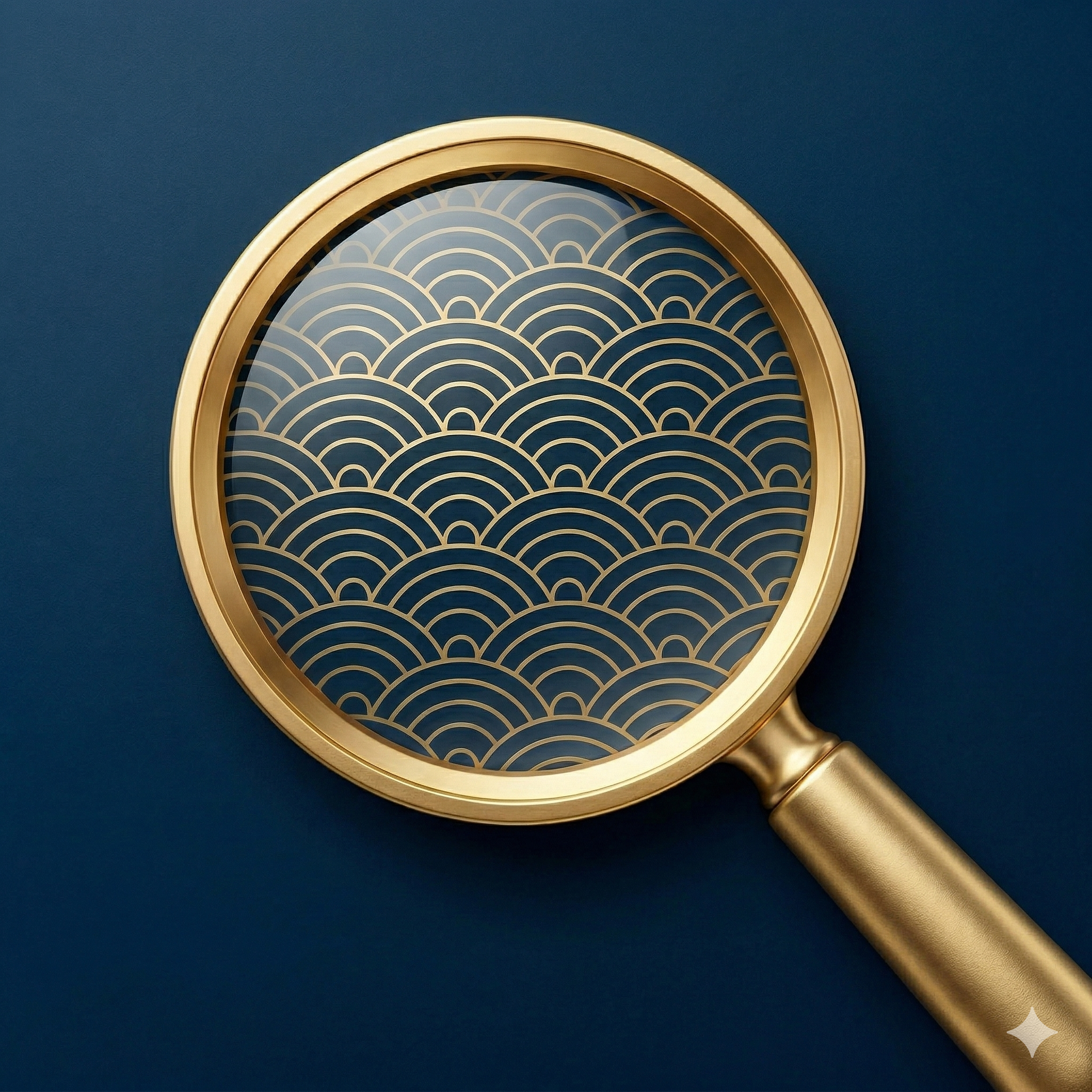 |  |
The richest output of the three — a gold magnifying glass with seigaiha pattern, backed by ukiyo-e waves, a torii gate, and maple leaves. However, pre-applied rounded corners required post-processing.
Visual Consistency Across Apps
| App | Background | Motif | Accent |
|---|---|---|---|
| KotenOCR | Deep navy gradient | Kanji + scan frame | Teal |
| IIIF AR | Dark brown gradient | Scrolls + AR pin | Blue |
| JPS Explorer | Deep navy gradient | Magnifying glass + seigaiha | Gold |
The shared structure — dark gradient + soft glow + single accent color — creates visual cohesion across the app suite.
Post-Processing
Gemini-generated icons required some post-processing before use.
1. Removing Gemini's Watermark
Gemini adds a small sparkle mark (✦) in the bottom-right corner. Symmetric cropping removes it:
from PIL import Image

img = Image.open("generated_icon.png")

# For 2048x2048 source
margin = 130
cropped = img.crop((margin, margin, 2048 - margin, 2048 - margin))
resized = cropped.resize((1024, 1024), Image.LANCZOS).convert("RGB")
resized.save("AppIcon.png", "PNG")
2. Removing Pre-Applied Rounded Corners
The JPS Explorer icon came with pre-applied rounded corners and white edges. A larger crop margin fixes this:
from PIL import Image

img = Image.open("generated_icon.png")  # 2048x2048

# Cut past the rounded corner area (~180px)
margin = 180
cropped = img.crop((margin, margin, 2048 - margin, 2048 - margin))
resized = cropped.resize((1024, 1024), Image.LANCZOS).convert("RGB")
resized.save("AppIcon.png", "PNG")
3. RGB Conversion
App Store icons require RGB (no alpha channel). Gemini sometimes outputs RGBA, so always include .convert("RGB").
Lessons Learned
- "Similar to Apple's native app icons" works well — Giving the AI a concrete reference improves output quality significantly
- Rounded corners can't always be prevented — Even with explicit instructions, some outputs have pre-applied corners. Plan for post-processing
- Gemini's ✦ watermark is unavoidable — Symmetric cropping is the most reliable solution
- Color palette consistency matters — To create a "same developer" feel across multiple apps, keep the structure (dark gradient + glow + accent) consistent while varying the specifics
- AI confuses kuzushiji with modern hiragana — Background characters meant to be classical cursive script sometimes come out as modern hiragana. Specifying exact characters may help
Related Articles
- A Reusable Prompt Template for Generating iOS App Icons with AI — The flat design template this article builds upon
- KotenOCR: An iOS App for Offline Kuzushiji Recognition