Introduction
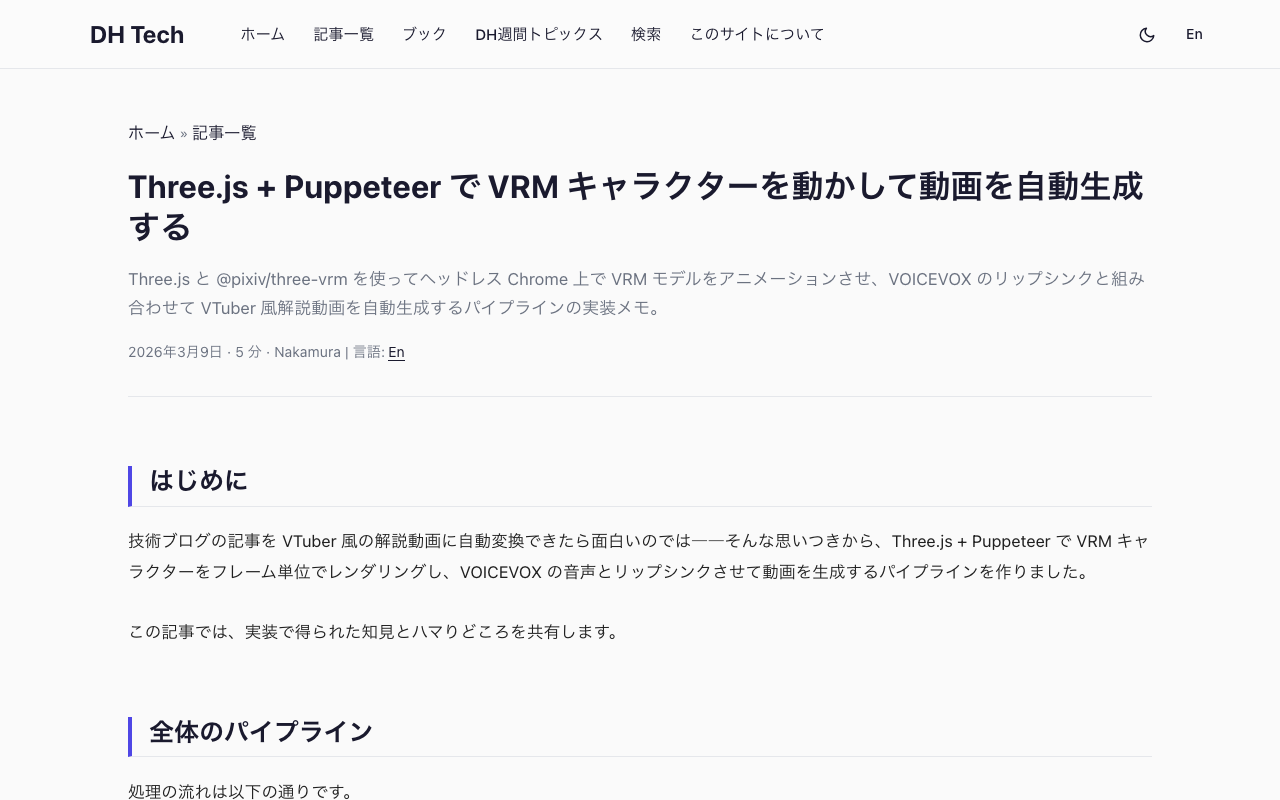
What if we could automatically convert tech blog posts into VTuber-style explainer videos? Starting from that idea, I built a pipeline that renders VRM characters frame-by-frame using Three.js + Puppeteer, syncs them with VOICEVOX speech, and produces finished videos.
In this post, I'll share the lessons learned and pitfalls encountered during implementation.
Overall Pipeline
The processing flow is as follows:
- Load a Markdown article → Generate a section-divided script using an LLM (OpenRouter API)
- VOICEVOX generates speech audio (WAV) and phoneme timing for each section
- Three.js + @pixiv/three-vrm renders a VRM model on headless Chrome, outputting lip-synced animation as sequential PNG frames based on phoneme data
- Auto-generate slide images (HTML → headless Chrome → PNG)
- FFmpeg composites the slide background + VRM animation + audio into an MP4 video
A Python script serves as the orchestrator, invoking the Node.js VRM rendering script as a child process.
Technologies Used
| Role | Technology |
|---|---|
| 3D Rendering | Three.js v0.172 |
| VRM Loading | @pixiv/three-vrm v3.3.3 |
| Headless Browser | puppeteer-core (SwiftShader) |
| Speech Synthesis | VOICEVOX Engine (Docker) |
| Video Compositing | FFmpeg |
| Pipeline Control | Python |
| VRM Model | AvatarSample_C (VRoid Hub / Free License) |
Loading VRM in Headless Chrome
Problem: CORS Restrictions with file://
The first hurdle was loading VRM files in headless Chrome. Attempting to load a local .vrm file via the file:// protocol results in a CORS error.
Solution: Base64 Encoding
I worked around this by encoding the VRM file to Base64 on the Node.js side and embedding it as a string in the HTML template.
// Node.js side: Convert VRM to Base64
const vrmData = readFileSync(resolve(opts.vrm));
const vrmBase64 = vrmData.toString("base64");
// Embed this string in the HTML template and pass it via page.setContent()
On the browser side, the Base64 string is decoded into an ArrayBuffer and passed to GLTFLoader.parse().
// Browser side: Base64 → ArrayBuffer → GLTFLoader
const binary = atob(b64);
const bytes = new Uint8Array(binary.length);
for (let i = 0; i < binary.length; i++) bytes[i] = binary.charCodeAt(i);

const loader = new GLTFLoader();
loader.register((parser) => new VRM.VRMLoaderPlugin(parser));

loader.parse(bytes.buffer, '', async (gltf) => {
  const vrm = gltf.userData.vrm;
  VRM.VRMUtils.removeUnnecessaryVertices(vrm.scene);
  VRM.VRMUtils.combineSkeletons(vrm.scene);
  scene.add(vrm.scene);
});
VRM files can be tens of megabytes, so the Base64 string is quite large too. However, since we set the HTML directly via page.setContent(), no network transfer occurs, and it works fine in practice.
The Bone Manipulation Trap: vrm.update() Call Order
Problem: Broken Neck with setNormalizedPose
In @pixiv/three-vrm v3, you can specify bone rotations using humanoid.setNormalizedPose(). However, when I used this to set arm poses, the neck would bend unnaturally. It seems that unintended rotations accumulate during the conversion between the normalized coordinate system and the actual bone hierarchy.
Solution: getRawBoneNode() + Apply After vrm.update()
The solution was to get bone nodes directly using getRawBoneNode() instead of the normalized API, and to set rotations after calling vrm.update().
// Get bone nodes (during initialization)
const humanoid = vrm.humanoid;
const getBone = (name) => humanoid.getRawBoneNode(name);
const bones = {
  lua: getBone('leftUpperArm'),  lla: getBone('leftLowerArm'),
  rua: getBone('rightUpperArm'), rla: getBone('rightLowerArm'),
  spine: getBone('spine'),       chest: getBone('chest'),
  head: getBone('head'),         neck: getBone('neck'),
};
In the render loop, always call vrm.update() first, then set bone rotations. Since vrm.update() resets normalized poses, reversing the order would cause your poses to be overwritten.
window.__render = function(dt) {
  if (currentVrm) {
    // 1. Call vrm.update() first (normalized pose reset runs here)
    currentVrm.update(dt);

    // 2. Then manipulate bones
    const b = window.__bones;
    if (b) {
      // Arms-down pose
      if (b.lua) b.lua.rotation.z = 1.05;
      if (b.rua) b.rua.rotation.z = -1.05;
      // ... other bone operations
    }
  }
  renderer.render(scene, camera);
};
The key point is to manipulate bones after vrm.update(). This is documented, but it's easy to miss until you actually run into the issue.
Camera Setup: Bust-Up Composition
For VTuber-style videos, it's natural to frame the character's upper body (bust-up shot). VRM models are generally scaled to about 1.6–1.7m tall along the Y axis, so I used the following settings to align with the face height.
const camera = new THREE.PerspectiveCamera(35, W / H, 0.1, 100);
camera.position.set(0, 1.45, -1.3);  // Face height, slightly behind
camera.lookAt(0, 1.45, 0);            // Look at the face
Setting the PerspectiveCamera FOV to a narrow 35 degrees produces a telephoto-like compression effect, reducing facial distortion.
Getting Lip Sync Data from VOICEVOX
Extracting Phoneme Timing
The VOICEVOX audio_query API returns per-phoneme timing information along with speech synthesis parameters. This is the key to lip sync.
def extract_phonemes(audio_query: dict) -> list[dict]:
    """Generate a phoneme timing list from accent_phrases."""
    phonemes = []
    current_time = 0.0

    for phrase in audio_query.get("accent_phrases", []):
        for mora in phrase.get("moras", []):
            # Consonant portion (mouth mostly closed)
            consonant_len = mora.get("consonant_length")
            if consonant_len and consonant_len > 0:
                phonemes.append({
                    "time": round(current_time, 4),
                    "duration": round(consonant_len, 4),
                    "vowel": "N",  # Mouth closed during consonants
                })
                current_time += consonant_len

            # Vowel portion
            vowel = mora.get("vowel", "N")
            vowel_len = mora.get("vowel_length", 0.1)
            if vowel_len and vowel_len > 0:
                phonemes.append({
                    "time": round(current_time, 4),
                    "duration": round(vowel_len, 4),
                    "vowel": vowel.lower(),
                })
                current_time += vowel_len

        # Pause between phrases
        pause = phrase.get("pause_mora")
        if pause:
            pause_len = pause.get("vowel_length", 0.2)
            phonemes.append({
                "time": round(current_time, 4),
                "duration": round(pause_len, 4),
                "vowel": "pau",
            })
            current_time += pause_len

    return phonemes
The output JSON looks like this:
[
  {"time": 0.0,    "duration": 0.08, "vowel": "N"},
  {"time": 0.08,   "duration": 0.12, "vowel": "o"},
  {"time": 0.20,   "duration": 0.06, "vowel": "N"},
  {"time": 0.26,   "duration": 0.10, "vowel": "a"},
  ...
]
Mapping Vowels to VRM Expressions
VRM expressions include mouth shapes corresponding to aa, ih, ou, ee, and oh. The mapping from VOICEVOX vowels is straightforward:
const vowelToExpr = {
  'a': 'aa',   // "a" → wide open mouth
  'i': 'ih',   // "i" → stretched horizontally
  'u': 'ou',   // "u" → pursed lips
  'e': 'ee',   // "e" → slightly open
  'o': 'oh',   // "o" → rounded open
  'N': null,   // Consonant / nasal → mouth closed
  'cl': null,  // Geminate consonant
  'pau': null, // Pause
};
Switching mouth shapes instantly would look unnatural, so I interpolate the weight per frame for smooth transitions.
window.__setPhoneme = function(vowel, dt) {
  const em = currentVrm.expressionManager;
  const targetExpr = vowelToExpr[vowel] || null;
  const speed = 15;

  // Reset all mouth expressions
  for (const name of ['aa', 'ih', 'ou', 'ee', 'oh']) {
    em.setValue(name, 0);
  }

  // Interpolate toward the target expression
  if (targetExpr) {
    weight = Math.min(1.0, weight + dt * speed);
    em.setValue(targetExpr, weight);
  } else {
    weight = Math.max(0, weight - dt * speed);
    if (prevExpr) em.setValue(prevExpr, weight);
  }
};
Idle Animation: Making the Character Feel Alive
Lip sync alone makes the character look like a stiff mannequin. Adding subtle movements creates a sense of life.
// Apply after vrm.update(dt)

// 1. Breathing: slight forward/backward rotation of the chest bone
const breath = Math.sin(breathPhase) * 0.01;
if (bones.chest) bones.chest.rotation.x = breath;

// 2. Body sway: lateral swaying of the spine bone
const sway = Math.sin(totalTime * 0.6) * 0.015;
if (bones.spine) bones.spine.rotation.z = sway;

// 3. Head movement: slight tilting while speaking
const headTilt = Math.sin(totalTime * 0.8) * 0.02;
const headNod = Math.sin(totalTime * 1.5) * 0.015;
if (bones.head) {
  bones.head.rotation.z = headTilt;
  bones.head.rotation.x = headNod;
}

// 4. Arm sway: natural micro-movements
const armSwing = Math.sin(totalTime * 1.2) * 0.03;
if (bones.lua) bones.lua.rotation.z = 1.05 + armSwing;
if (bones.rua) bones.rua.rotation.z = -(1.05 + armSwing);
Key points for each animation:
- Vary the frequencies: Breathing (0.8Hz), body sway (0.6Hz), head (0.8Hz / 1.5Hz), arms (1.2Hz) — using different frequencies avoids mechanical repetition
- Keep amplitudes subtle: Around 0.01–0.03 rad. Making them too large looks unnatural
- Blinking: Blink over 0.15 seconds at random intervals of 3–6 seconds
Blinking uses the blink Expression:
blinkTimer += dt;
if (!blinkState && blinkTimer > 3 + Math.random() * 3) {
  blinkState = true;
  blinkTimer = 0;
}
if (blinkState) {
  const p = blinkTimer / 0.15;
  const v = p < 0.5 ? p * 2 : p < 1 ? (1 - p) * 2 : 0;
  em.setValue('blink', v);
  if (p >= 1) { blinkState = false; blinkTimer = 0; }
}
Frame-by-Frame Rendering Architecture
Rather than real-time rendering, I use Puppeteer to take a screenshot for each frame.
// Node.js side: frame loop
for (let frame = 0; frame < totalFrames; frame++) {
  const currentTime = frame / opts.fps;
  const currentPhoneme = findPhoneme(phonemes, currentTime);

  await page.evaluate(
    (phoneme, dt) => {
      window.__setPhoneme(phoneme, dt);
      window.__render(dt);
    },
    currentPhoneme,
    1.0 / opts.fps
  );

  await page.screenshot({
    path: `${outputDir}/frame_${String(frame).padStart(6, '0')}.png`,
    omitBackground: true,  // Transparent background
  });
}
The benefits of this approach:
- No dropped frames: Since it's not real-time, every frame is reliably rendered regardless of GPU performance
- Transparent background:
omitBackground: trueoutputs transparent PNGs, which FFmpeg can composite over any background - SwiftShader: Using
--use-angle=swiftshaderenables rendering even in GPU-less environments (CI/CD, etc.)
The downside is speed — capturing 1,800 screenshots for 30fps x 60 seconds takes a fair amount of time.
Compositing with FFmpeg
Finally, FFmpeg composites the slide background, VRM frames, and audio together.
ffmpeg -y \
  -loop 1 -i slide.png \                          # Slide background
  -framerate 30 -i frames/frame_%06d.png \         # VRM frame sequence
  -i audio.wav \                                    # Audio
  -filter_complex "[1]scale=360:360[vrm];[0][vrm]overlay=x=W-w-20:y=H-h-20:shortest=1[vout]" \
  -map "[vout]" -map "2:a" \
  -c:v libx264 -preset fast \
  -c:a aac -b:a 192k \
  -pix_fmt yuv420p \
  output.mp4
The VRM frames are scaled to 360x360 and placed in the bottom-right of the slide. After generating a video for each section, they're concatenated into a single video using concat.
About the VRM Model
For this project, I used AvatarSample_C published on VRoid Hub. Sample models on VRoid Hub are licensed for both personal and commercial use, making them easy to experiment with.
You can also create your own original model using VRoid Studio and export it in .vrm format.
Conclusion
Using the combination of Three.js + @pixiv/three-vrm + Puppeteer, I was able to generate VRM character animation videos in a fully programmatic way.
Here's a summary of the implementation pitfalls:
- VRM Loading: Headless Chrome has
file://CORS restrictions, so use Base64 encoding as a workaround - Bone Manipulation: Use
getRawBoneNodeinstead ofsetNormalizedPose, and apply rotations aftervrm.update() - Lip Sync: Extract vowels from VOICEVOX's
accent_phrases→moraand map them to VRM Expressions - Natural Movement: Achieve breathing, body sway, head tilting, and blinking using sine waves at different frequencies
Auto-generating VTuber-style explainer videos is still rough around the edges, but it's quite fun to feed in a blog post and get a video out. Don't forget to include the VOICEVOX credit.