JPS Explorer is an iOS/Android app for browsing over 32 million Japanese cultural heritage items through the Japan Search (jpsearch.go.jp) Web API. This article covers what was learned during API investigation, app implementation with Flutter, and automating the App Store release process.
Japan Search API
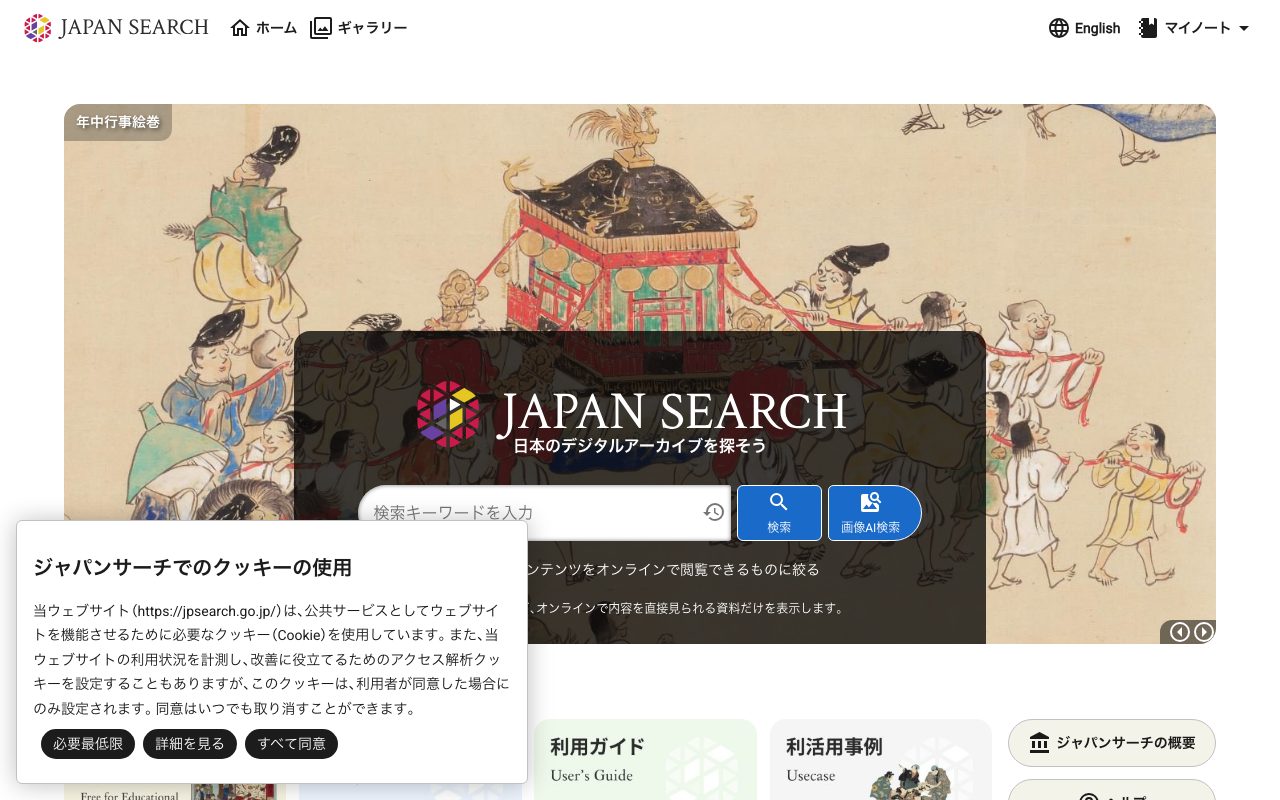
Japan Search is operated by the National Diet Library of Japan and provides cross-search access to metadata for over 32 million digital cultural resources. A public Web API supports the following search parameters:
| Parameter | Function |
|---|---|
keyword | Keyword search |
text2image | Image search by text-based motif description |
image | Similar image search using an existing item ID |
g-coordinates | Location search by latitude, longitude, and radius |
r-tempo | Era search by year range |
Findings from API investigation
Coordinate field key name
In the response from location-based search (g-coordinates), coordinate data is stored in common.coordinates. The longitude key is lon, not lng or longitude.
"coordinates": {
  "lat": 35.669,
  "lon": 139.764
}
Multilingual fields in gallery API
The gallery search endpoint (/api/curation/search) returns title and summary as objects rather than strings.
"title": {"ja": "耳鳥斎", "en": "Jichosai"},
"image": {"url": "https://...", "thumbnailUrl": "https://..."}
Calling .toString() directly would display something like {ja: 耳鳥斎, en: Jichosai} in the UI.
Gallery detail item structure
In the gallery detail endpoint (/api/curation/{id}), items are nested in a parts array rather than contents. Items of type jps-curation-list-item need to be collected by recursively traversing the structure. Some galleries also contain items in subPages.
Image upload for similar search (undocumented API)
The official API guide does not document image-upload-based similarity search, but inspecting the Web UI's network traffic revealed a three-step process:
POST /dl/api/imagefeatures/-- sends Base64 image, returns a 64-dimensional feature vectorPOST /api/item/create-image-feature-- sends feature vector, returns a temporary search IDGET /api/item/search/jps-cross?image={ID}-- standard similar image search
Step 2 requires the X-Requested-With: XmlHttpRequest header. The response is a plain-text ID.
This mechanism makes it possible to search Japan Search using a photo taken with the device camera. Further details are covered in a separate article.
Rights and database name ID resolution
Search results contain code values like pdm and ccby in common.contentsRightsType. Fields such as common.database and common.provider are also IDs. Displaying human-readable labels requires separate calls to /api/database/{id} and /api/organization/{id}, with results cached locally.
App implementation
Technology stack
- Flutter + Riverpod (state management)
- flutter_map + OpenStreetMap (map display)
- CachedNetworkImage (image caching)
- Japanese/English localization
Mobile-specific features
The following features take advantage of mobile capabilities beyond what the browser-based Japan Search offers:
| Feature | API used | Mobile technology |
|---|---|---|
| Camera-based similar search | Undocumented API (imagefeatures) | Camera / image_picker |
| Nearby cultural resource notifications | g-coordinates | Background location monitoring + local notifications |
| Map exploration | g-coordinates | flutter_map + Geolocator |
| Offline favorites | -- | Local storage + image cache |
| Spotlight integration | -- | CoreSpotlight (iOS MethodChannel) |
| Haptic feedback | -- | HapticFeedback |
| Today's Pick | keyword (random offset) | SharedPreferences for daily cache |
Nearby notifications
The app monitors location in the background and triggers a Japan Search API query when the user moves more than 500 meters. If new cultural resources are found nearby, a local notification is sent. Battery usage is kept low by using LocationAccuracy.low and distanceFilter: 500. Duplicate notifications are suppressed by keeping the most recent 100 item IDs in SharedPreferences.
Spotlight integration
To index items in iOS CoreSpotlight, the app calls native Swift code through a MethodChannel. The implementation was placed directly in AppDelegate rather than in a separate file (e.g., SpotlightPlugin.swift), because adding a separate Swift file requires updating the Xcode project file (.pbxproj), which is difficult to automate from the command line.
Tip feature
The app includes a Tip Jar powered by StoreKit for in-app purchases, implemented in tip_jar_service.dart.
App Store release automation
Automated tasks
The script scripts/release.py handles the following from the command line:
python3 scripts/release.py build      # Build and upload
python3 scripts/release.py screenshots # Capture screenshots
python3 scripts/release.py submit      # Set metadata and submit for review
| Task | Method |
|---|---|
| Bundle ID registration | POST /v1/bundleIds |
| Build and upload | flutter build ipa then xcrun altool --upload-app |
| Metadata configuration | PATCH /v1/appStoreVersionLocalizations/{id} |
| Screenshot capture | xcrun simctl io screenshot + Pillow for marketing images |
| Screenshot upload | Three-step process (reserve, upload binary, commit) |
| Age rating | PATCH /v1/ageRatingDeclarations/{id} |
| Category and copyright | PATCH /v1/appInfos/{id}, PATCH /v1/appStoreVersions/{id} |
| Build association | PATCH /v1/appStoreVersions/{id}/relationships/build |
| Encryption compliance | PATCH /v1/builds/{id} |
| Review details | POST /v1/appStoreReviewDetails |
| Review submission | POST /v1/reviewSubmissions + reviewSubmissionItems |
Tasks that could not be automated
| Task | Reason |
|---|---|
| App creation | The OpenAPI spec only defines GET for /v1/apps. The API error message confirms: "CREATE is not allowed. Allowed operations are: GET_COLLECTION, GET_INSTANCE, UPDATE" |
| App Privacy (data usage declarations) | A thorough search of the OpenAPI spec confirmed no endpoints for appDataUsages, appDataUsageCategories, or any privacy-related paths in v1 or v2 |
| In-App Purchase product registration | Initial product creation must be done through the browser |
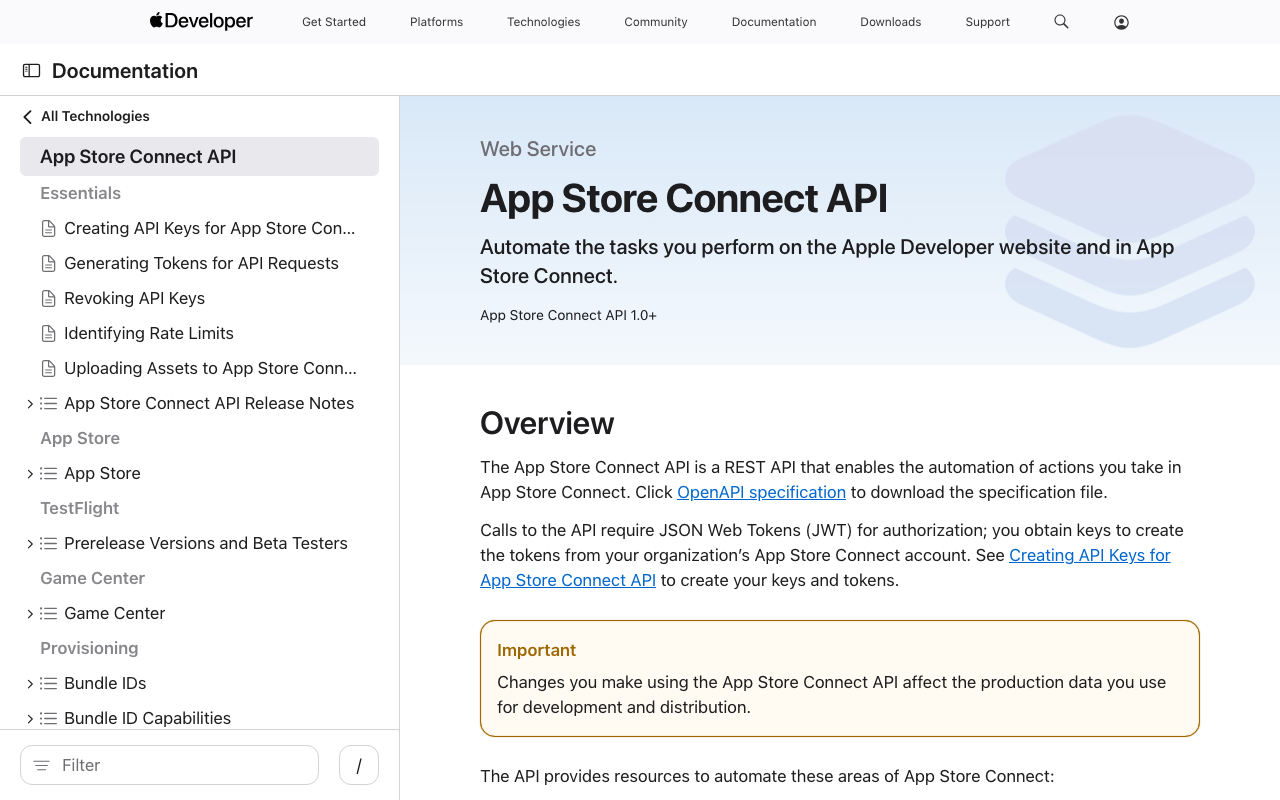
For App Privacy, the official OpenAPI JSON (openapi.oas.json) was searched exhaustively for keywords such as privacy, dataUsage, consent, and declaration, confirming that no corresponding endpoints exist.
Configuration via .env
API keys and contact information are loaded from a .env file rather than being hardcoded. A .env.example template is provided in the repository with placeholder values.
Release pitfalls
Settings that are easy to miss
Even after configuring all fields via the API, the following tend to be overlooked. A pre-submission check script is recommended.
| Field | API | Notes |
|---|---|---|
| Promotional Text | promotionalText in appStoreVersionLocalizations | Optional but recommended. Can be changed at any time without review |
| Marketing URL | marketingUrl in appStoreVersionLocalizations | Optional |
| Privacy URL (English) | appInfoLocalizations | Easy to accidentally set the same URL as the Japanese version. Needs the English-language path |
| Pricing | appPriceSchedules | Must be explicitly set even for free apps. Use appPricePoints to get the FREE (price=0) ID |
whatsNew is unavailable for the first version
Setting whatsNew (release notes) on the initial release returns a 409 STATE_ERROR. This field is only available from the second version onward.
Phone number format for review details
The contactPhone field in review details requires +country_code-number format. Placeholder numbers are rejected as invalid. A reliable approach is to retrieve contact details from an existing app's review detail via GET /v1/appStoreVersions/{id}/appStoreReviewDetail and reuse them.
Screenshot capture and marketing images
Flutter integration_test is used to automatically capture screenshots of each screen. The test taps ActionChip and NavigationBar icons to navigate through five screens: explore, search results, detail, map, and gallery.
final binding = IntegrationTestWidgetsFlutterBinding.ensureInitialized();
// ... app.main() -> pumpAndSettle -> takeScreenshot
The simulator language is switched between Japanese and English, and tests are run on both iPhone and iPad simulators, producing 5 screens x 2 languages x 2 devices = 20 screenshots.
Marketing images are generated using a Python script based on a reference project. Key aspects include:
SCREENSHOT_PRIORITYcontrols which screenshot maps to which theme. Matching is done by filename prefix (e.g.,02_search,05_gallery)- The
countparameter infind_best_screenshots()must match the number of themes bleed_fraction = 0.35creates a layout where the bottom 35% of the device bleeds off-screen- Font sizes and screenshot scaling automatically adjust for iPhone (aspect ratio ~0.46) vs iPad (~0.75)
- Separate
--input-iphoneand--input-ipadflags allow using resolution-optimized images for each device type
Screenshots cannot be changed after submission
Once an app is submitted for review (Waiting For Review status), screenshots cannot be deleted or added. Screenshot quality should be verified before submission.
Screenshot language considerations
When capturing Flutter app screenshots automatically, the simulator's language setting determines the app's UI language. Taking Japanese screenshots requires switching the simulator to Japanese. Reusing identical screenshots across multiple slots may lead to rejection during review. Adding a hash-based duplicate detection check is advisable.
Project structure
jps_explorer/
├── lib/
│   ├── models/jps_item.dart
│   ├── services/
│   │   ├── jps_api_service.dart      # JPS API client
│   │   ├── label_service.dart        # DB/org/rights label resolution
│   │   ├── daily_pick_service.dart   # Daily random item
│   │   ├── nearby_notification_service.dart
│   │   ├── image_cache_service.dart  # Offline images
│   │   ├── spotlight_service.dart    # iOS Spotlight
│   │   ├── favorites_service.dart
│   │   └── tip_jar_service.dart      # Tip
│   ├── views/                        # Screen widgets
│   └── providers/app_providers.dart  # Riverpod
├── scripts/
│   ├── release.py                    # Build and submission automation
│   ├── capture_screenshots.sh        # Screenshot capture
│   └── generate_marketing_screenshots.py  # Marketing image generation
├── .env                              # Configuration (gitignored)
└── .env.example                      # Configuration template