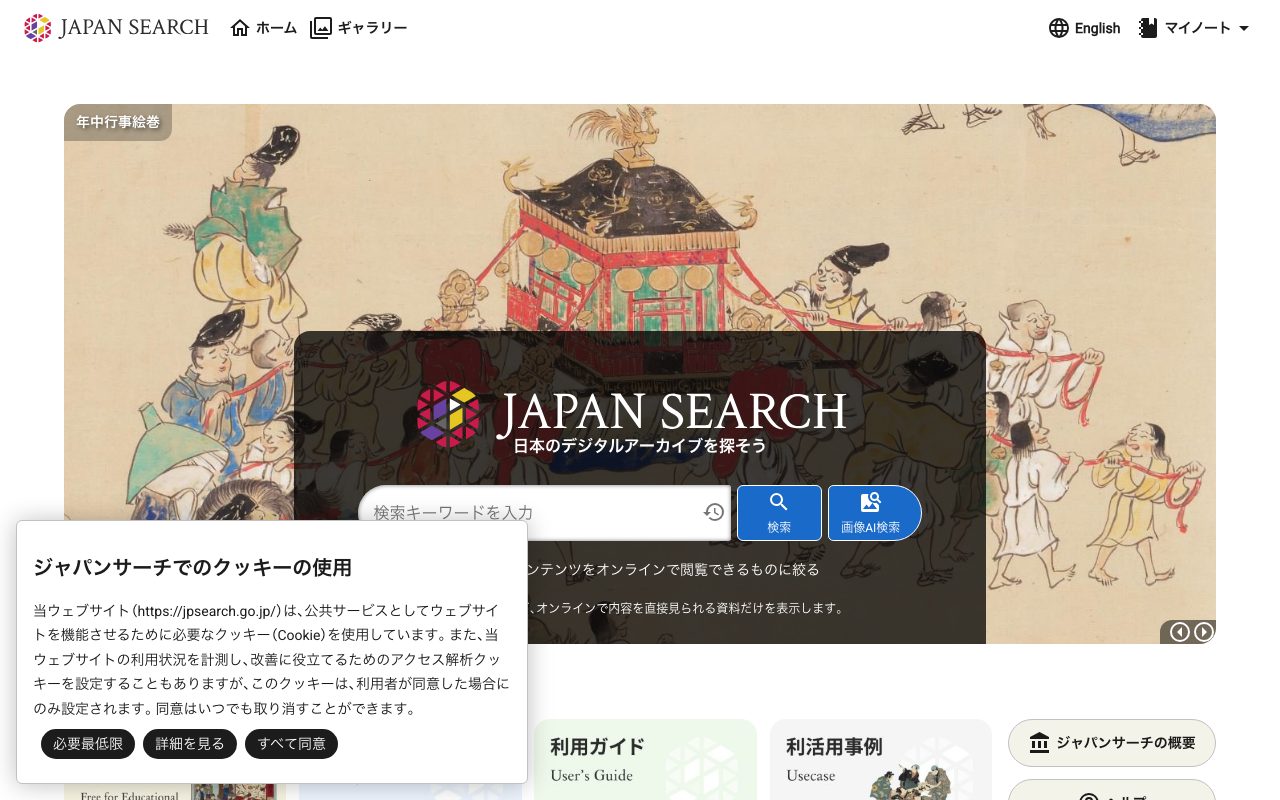
Japan Search (https://jpsearch.go.jp) provides an “Image AI Search” feature that supports both text-based motif search and image upload similarity search. The official API guide documents text search (text2image parameter) and searching by existing item ID (image parameter), but says nothing about searching by uploading an image file.
Inspecting the Web UI’s network traffic revealed that image upload search is implemented through a 3-step API flow.
The 3-step API flow
Step 1: Extract a feature vector from the image
Endpoint: POST https://jpsearch.go.jp/dl/api/imagefeatures/
Send the image as a Base64-encoded data URI. The response contains a 64-dimensional feature vector.
Request:
{
  "img_b64": "data:image/jpeg;base64,/9j/4AAQ..."
}
Response:
{
  "body": [-0.0879, -0.0091, -0.0712, ...(64 dimensions)]
}
Step 2: Create a temporary search ID from the feature vector
Endpoint: POST https://jpsearch.go.jp/api/item/create-image-feature
POST the feature vector array from Step 1. The response is a plain text temporary ID.
Request:
[-0.0879, -0.0091, -0.0712, ...]
Response (plain text):
jpsxt-Wnl3p6dJJ8b
This request requires the X-Requested-With: XmlHttpRequest header.
Step 3: Search using the ID
Endpoint: GET https://jpsearch.go.jp/api/item/search/jps-cross?image={ID}&size=20
Pass the temporary ID from Step 2 to the standard image parameter. The ID is treated the same way as an existing item ID, so the regular search API works as-is.
The response follows the standard item search JSON format.
Verification
Searching with the app’s icon image (a magnifying glass illustration) returned 1,932 hits. The top results were textile items from the National Museum of Ethnology: bags, garments, and woven fabrics. The similarity appears to be computed based on color and shape features.
Required headers
| Header | Step 1 | Step 2 | Step 3 |
|---|---|---|---|
| Content-Type: application/json | Required | Required | Not needed |
| Origin: https://jpsearch.go.jp | Required | Required | Not needed |
| X-Requested-With: XmlHttpRequest | Not needed | Required | Not needed |
Steps 1 and 2 are POST requests. Step 3 is GET.
text2image vs. image upload search
| text2image | Image upload search | |
|---|---|---|
| Input | Text (“crane painting”, etc.) | Image file |
| Feature extraction | Server-side, implicit | Explicit via Step 1 |
| Search parameter | text2image=text | image=temporaryID |
| Multilingual | Japanese, English, French, etc. | Language-independent |
text2image likely computes text-image embeddings internally for cross-modal similarity. Image upload search compares image feature vectors directly.
Flutter implementation
With this flow, a mobile app can search Japan Search using photos taken with the device camera.
Future<SearchResult> searchByImageBytes({
  required Uint8List imageBytes,
  String mimeType = 'image/jpeg',
}) async {
  // Step 1: Extract features
  final b64 = 'data:$mimeType;base64,${base64Encode(imageBytes)}';
  final featuresResponse = await client.post(
    Uri.parse('https://jpsearch.go.jp/dl/api/imagefeatures/'),
    headers: {'Content-Type': 'application/json'},
    body: jsonEncode({'img_b64': b64}),
  );
  final features = jsonDecode(featuresResponse.body)['body'];

  // Step 2: Get temporary ID
  final idResponse = await client.post(
    Uri.parse('https://jpsearch.go.jp/api/item/create-image-feature'),
    headers: {
      'Content-Type': 'application/json',
      'X-Requested-With': 'XmlHttpRequest',
    },
    body: jsonEncode(features),
  );
  final featureId = idResponse.body.trim();

  // Step 3: Search
  return searchSimilarImages(itemId: featureId);
}
Note
The endpoints in Steps 1 and 2 are not documented in the official API guide. They are internal APIs used by the Web UI and may change without notice.