This article explains how to use Omeka.net. From Chapter 3 onward, the instructions are common to Omeka Classic.
Creative Commons - BY -- 2014
Use Case: Scholars, Omeka.net, http://info.omeka.net/omeka-net-help/use-case-scholars/
(Translation & revision: Satoru Nakamura)
This plugin is available for all accounts.
The Simple Pages plugin allows you to easily create web pages for your public site using a simple form. It requires no programming knowledge, and optionally allows users to add basic HTML markup.
Once you have installed the plugin, navigate to Simple Pages. Click the "Simple Pages" tab in the left navigation of the admin dashboard to browse pages, where you can create, view, edit, and manage pages.
Creating a Simple Page
To create a new page:
-
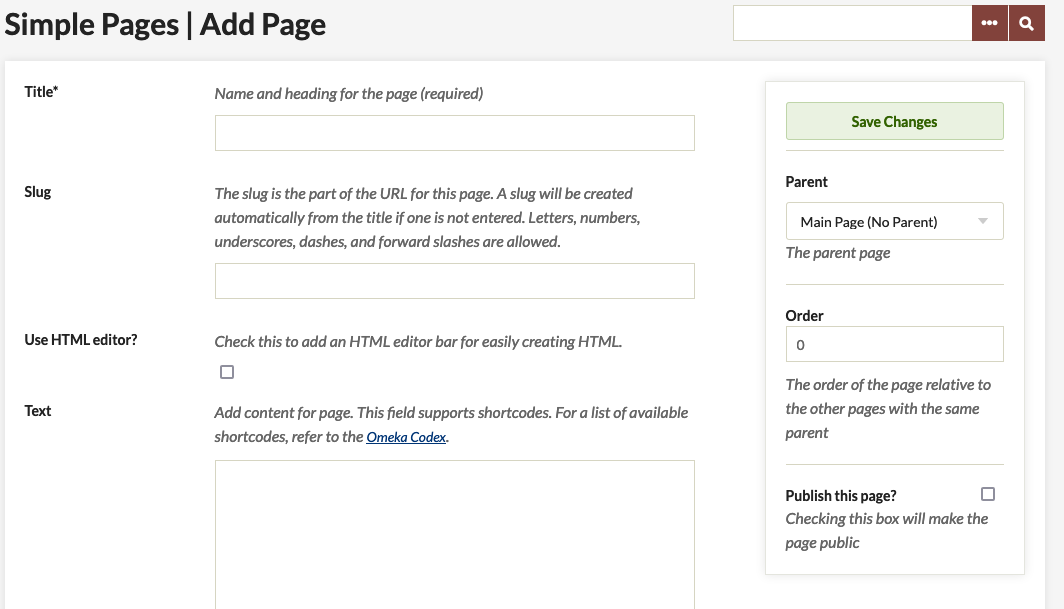
Click "Add Page" under the "Simple Pages" tab.
-
Start building your page by adding a title (required). Fill in the form as you like. For example, add a unique URL slug for the page. For instance, "about" would be the slug in the URL: youromekasite/about
Add the text you want to display on the page in the designated box.
-
If you want to format the text, use the buttons displayed at the top of the box to apply bold, italic, underline, links, or add bullet points. For more details on adding basic HTML to a page, see Using the HTML Editor (http://info.omeka.net/use-the-html-editor/). Note: You can paste iframe embed codes from approved sites, but you cannot paste objects.
To create a page hierarchy or nested pages, use the dropdown menu on the right side of the screen to select a page to serve as the "parent." If you choose not to nest the page, select the main page (no parent) option. You can also create nested page hierarchies by managing site navigation.
-
Just below the parent page dropdown, you can reorder the page relative to other pages with the same parent (1 being first).
-
When the page is ready to be published, click the "Save Changes" button.
Simple Pages now allows you to embed content from your database, plugins, and more using shortcodes. These can be used to easily customize your homepage, for example. For more information on shortcodes, see here (http://info.omeka.net/shortcodes/).