This article was written with the assistance of generative AI. Factual claims have been checked against official documentation where possible, but errors may remain. Please verify with primary sources before making important decisions.
Audience: researchers in the humanities, history, art history, library and information science, and related fields who want to leave annotations on digital historical sources. No programming knowledge required.
IMMARKUS is an open-source image annotation tool for adding annotations to IIIF images. It is developed within the ERC project Regionalizing Infrastructures in Chinese History (RegInfra), centered at KU Leuven in Belgium, and is aimed mainly at researchers, digital humanists, and cultural heritage professionals.
When you want to leave annotations on a source image — "what is this yokai?", "who does this passage refer to?" — you could also write them in the footnotes of a paper or in a spreadsheet. In that form, however, the annotations are not tied to the image region itself, and sharing or aggregating them takes extra effort. IMMARKUS is a tool for tying annotations directly to regions on the image and storing them in a W3C standard format.
This article describes, step by step, the operations involved in using IMMARKUS for the first time, up to creating your first annotation and exporting it in a W3C standard format. As source material, we use the IIIF manifest of the "Hyakki Yagyo" (Night Parade of One Hundred Demons) scroll, published by the University of Tokyo Digital Archive.
1. Characteristics of IMMARKUS
Image annotation tools for research include CVAT, Label Studio, VIA, and Recogito, and Mirador also has a IIIF annotation layer. Among these, IMMARKUS has the following three characteristics.
- Native handling of IIIF and W3C Web Annotation
Annotations are stored from the start as Linked Data with
@context: http://www.w3.org/ns/anno.jsonld. There is no later step of converting them into a research-data format. - Local-first Using the browser's File System Access API, all data is saved into a folder the user chooses. No server registration is required, and unpublished materials can be handled locally.
- Schema-driven The design has you first build entity classes and properties — such as "person," "bridge," "city wall," "yokai" — and only then annotate. Compared with adding classification tags after the fact, this makes it easier to keep the dataset consistent from the start.
2. Two Specifications to Know (the Minimum)
IIIF (International Image Interoperability Framework)
This is a standard for image delivery adopted by libraries, museums, and universities around the world. The point to keep in mind here is that there are two kinds of URL.
- Image API: the image itself. You can retrieve a tiled, high-resolution image for just the region and scale you need.
- Presentation Manifest: a JSON that bundles a set of images and their metadata. Pass it to a viewer and you can page through it as a single work.
What IMMARKUS reads is the latter — the Presentation Manifest URL.
W3C Web Annotation Data Model
This is a W3C Recommendation that models the structure of "associating some content with a certain region of a certain resource." A minimal example looks like this.
{
  "@context": "http://www.w3.org/ns/anno.jsonld",
  "type": "Annotation",
  "target": { "source": "...", "selector": { "type": "FragmentSelector", "value": "xywh=..." } },
  "body":  [ { "purpose": "classifying", "source": "Person" } ]
}
target represents "where," and body represents "what." Every JSON that IMMARKUS exports follows this same form.
3. Setup (about 5 minutes)
3.1 Recommended browser
The File System Access API is required, so use the desktop version of Chrome or Edge. As far as we checked, some features do not work in Safari or Firefox.
3.2 Prepare a working folder
Create an empty folder under your home directory. For example:
~/Documents/immarkus-hyakkiyagyou/
IMMARKUS writes the following management files into this folder (actual output examples).
| File | Role |
|---|---|
_immarkus.model.json | The data model: entity classes, properties, relationship types, etc. |
_immarkus.folder.meta.json | Folder-level metadata |
_immarkus.relations.json | Relationship annotations between entities |
_iiif.<id>.json | Normalized information for an imported IIIF manifest |
_iiif.<id>.annotations.json | The array of annotations made on that IIIF resource |
If you share or back up the whole folder, you can reproduce the same state in another environment. It can also be managed with Git.
3.3 Open IMMARKUS
- Go to https://immarkus.xmarkus.org/.
- Click Open New Folder and select the folder you prepared.
- The browser asks for permission to edit the folder, so grant Edit files.
Your workspace is now up and running.
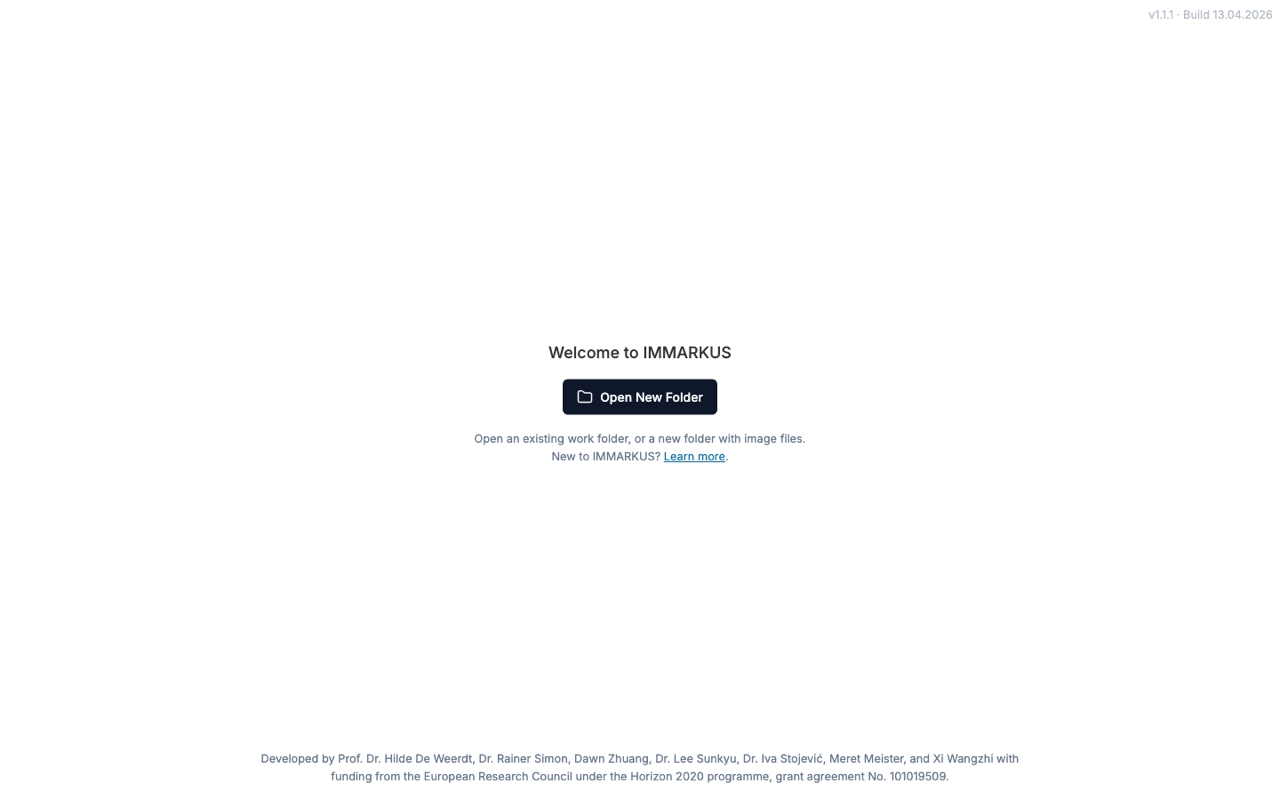
The verification in this article was done on the public release v1.1.1 (Build 13.04.2026). The repository's
package.jsonmentions a next version, v1.2.0, but as of our check it did not appear to be deployed.
4. Build the Data Model First
How much you refine the schema before annotating affects how easy the research data is to handle later. In IMMARKUS you design it from the Data Model tab in the left sidebar. The Data Model screen consists of the following four sub-tabs.
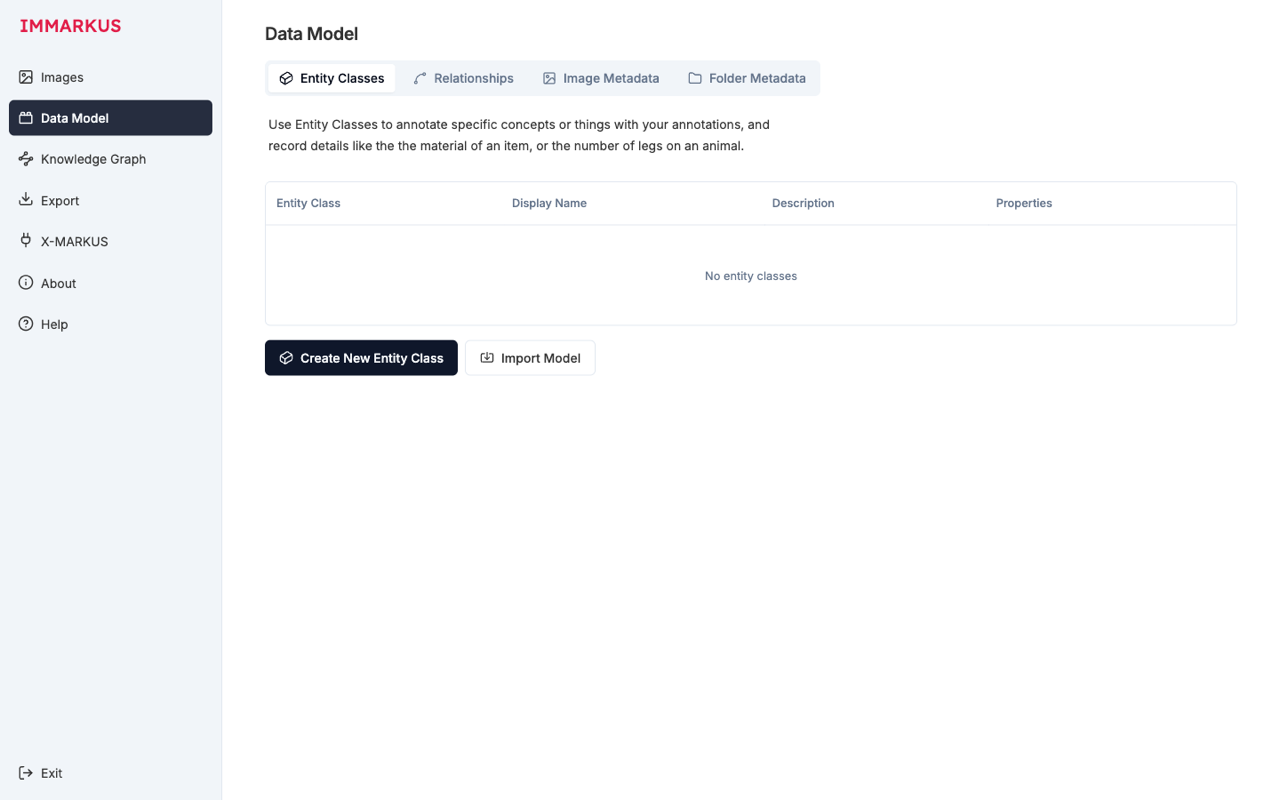
| Sub-tab | Role |
|---|---|
| Entity Classes | A class hierarchy of concepts such as "person" and "yokai" |
| Relationships | Relationship types between entities (directed / undirected) |
| Image Metadata | A metadata schema at the image level (title, holding institution, date of photography, etc.) |
| Folder Metadata | A metadata schema at the folder level (a unit of a source collection) |
You can structure not only the subject itself (Entity) but also image metadata and folder (source-collection) metadata. Library-catalog-style information can be handled as well.
4.1 Entity classes
An entity class represents a concept you want to identify within an image. Pressing "Create New Entity Class" brings up a form with an entry preview.
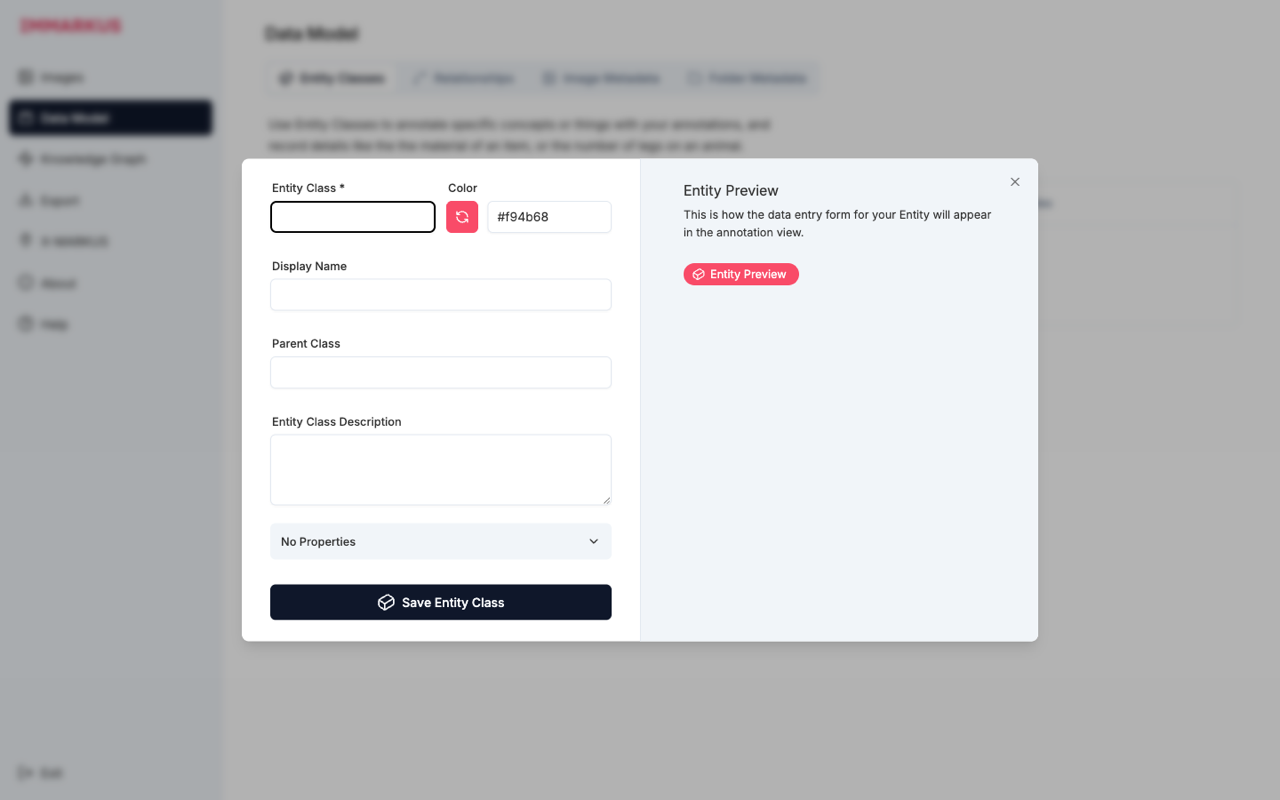
The Entity Preview on the right shows how this class will look when annotating. You can check the appearance while deciding the color and label.
For the Hyakki Yagyo scroll here, you could design something like the following.
Being
├─ Person
└─ Yokai
   ├─ Tsukumogami
   └─ Oni
Object
├─ Container
└─ Tool
In the hierarchy, child classes inherit the properties of their parent class. If you put a gender property on Being, then Person and Yokai automatically have it too.
4.2 Property types
The property types IMMARKUS provides are as follows.
| Type | Example use |
|---|---|
| Text | Free-form description, notes |
| Number | Count of individuals, estimated age |
| Options | Choose one from a predefined set of choices (gender, season, etc.) |
| Number Range | A range for an estimated value (estimated period, etc.) |
| URI | External link |
| Geo-coordinates | Geographic information |
| Measurement | A measured value with units |
| Color | Color picker |
| External Authority | References to authority files such as Getty AAT, VIAF, Wikidata |
If you want to cross-reference research data later, using Options or External Authority rather than free-form Text makes it easier to handle.
4.3 Relationship types
You can define relationships between entities — such as "A holds B" or "A is behind B" — as directed or undirected. These are later visualized as a Knowledge Graph.
Tip: A project can have only one data model. When you use separate data models for different studies, start a separate project in a separate folder. By loading a model JSON with Import Model, you can reuse it later.
5. Import an Image: The Hyakki Yagyo Scroll
This time, instead of a local image, we use an IIIF manifest from the University of Tokyo Digital Archive.
-
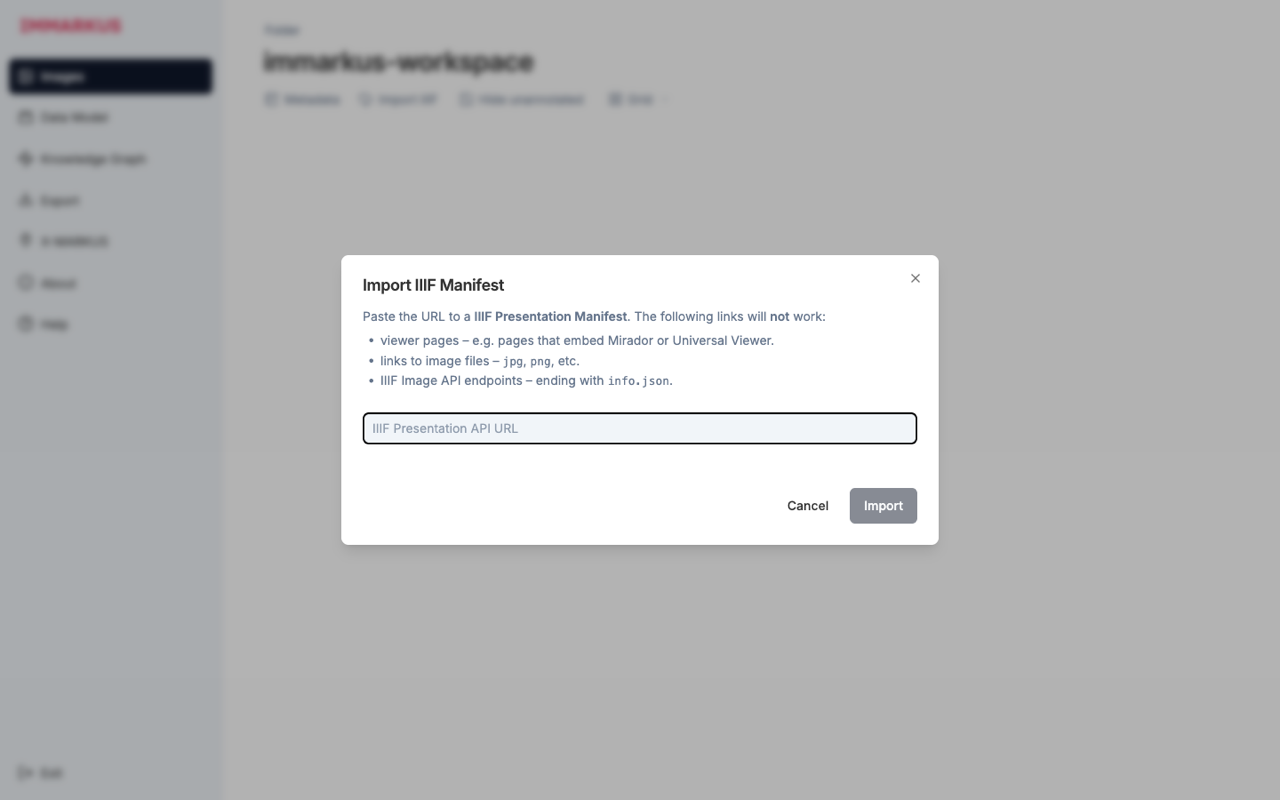
Click Import IIIF in the menu. The following dialog opens.
-
Paste the following URL.
https://da.dl.itc.u-tokyo.ac.jp/portal/repo/iiif/fbd0479b-dbb4-4eaa-95b8-f27e1c423e4b/manifest -
Press Import. If a IIIF icon appears on the thumbnail after the import completes, it succeeded.
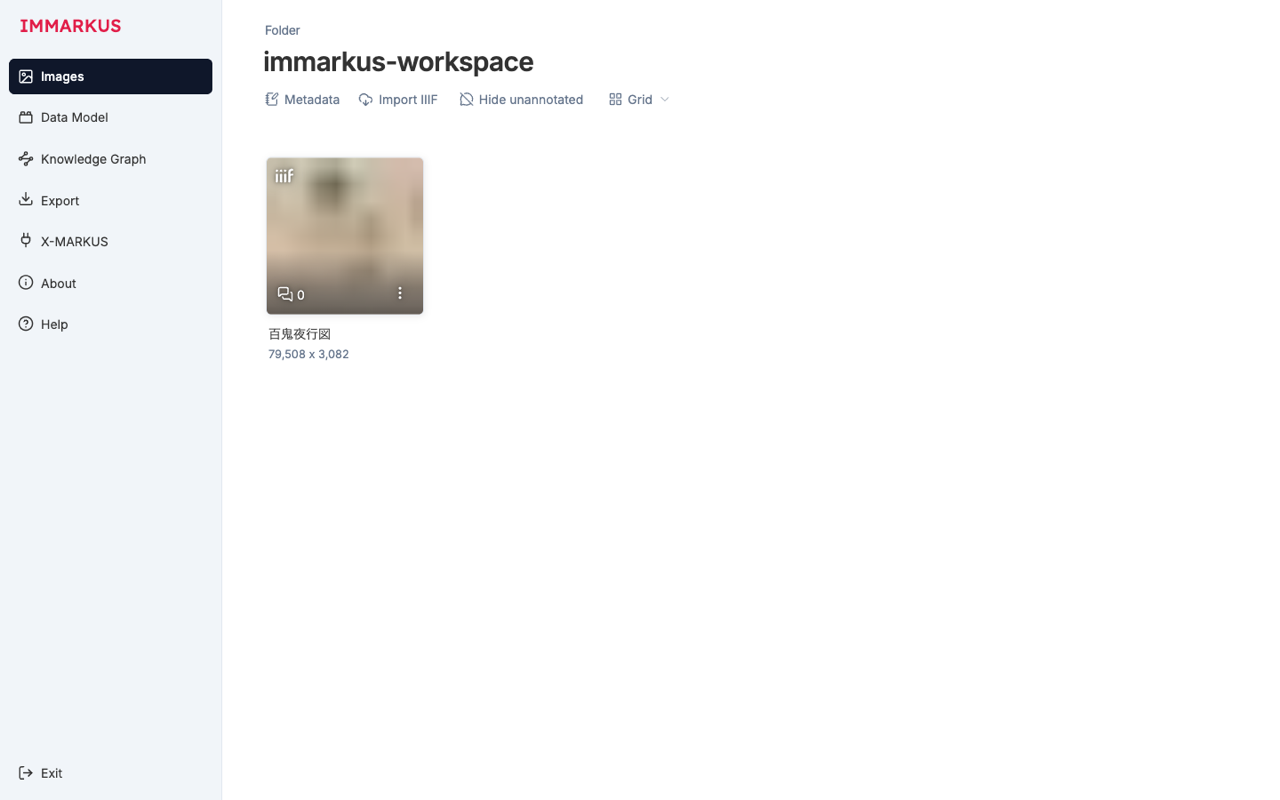
Note the size. It is a large image of 79,508 × 3,082 pixels — an emaki (handscroll). Image annotation tools that do not support tiling may fail to open it, or run slowly; because IMMARKUS uses the IIIF Image API's tiled delivery, it handles this size smoothly.
The _iiif.<id>.json exported at this point is a version IMMARKUS normalized for internal use. Its contents look as follows.
{
  "id": "a9dfe98422a0aac0",
  "name": "百鬼夜行図",
  "uri": "https://da.dl.itc.u-tokyo.ac.jp/portal/repo/iiif/fbd0479b-dbb4-4eaa-95b8-f27e1c423e4b/manifest",
  "importedAt": "2026-05-06T23:06:42.328Z",
  "type": "PRESENTATION_MANIFEST",
  "majorVersion": 2,
  "canvases": [
    { "id": "3318151926", "uri": "...canvas/p1", "name": "[1]", "manifestId": "a9dfe98422a0aac0" }
  ]
}
majorVersion: 2 is the version of the IIIF Presentation API. IMMARKUS can load both v2 and v3.
6. Drawing Annotations
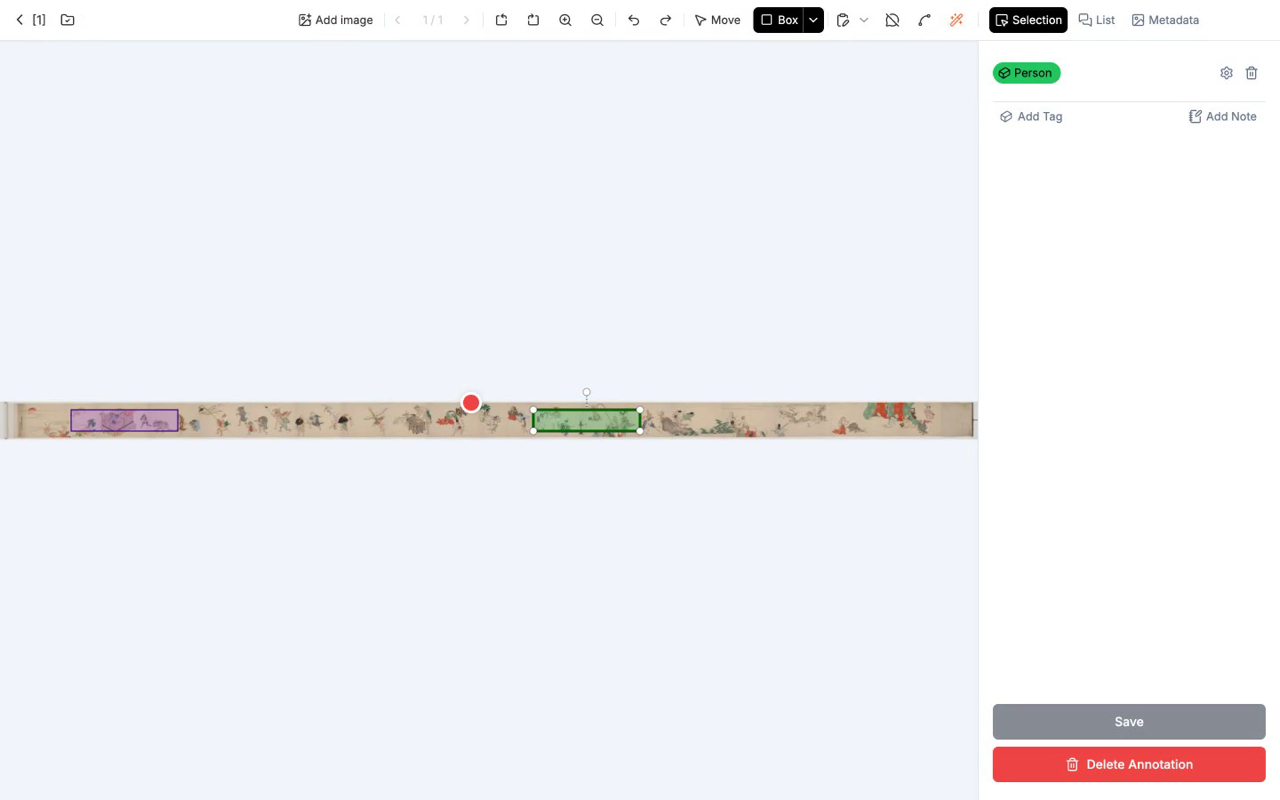
Click the thumbnail and the whole handscroll spreads across the browser. Zoom with the mouse wheel, pan by dragging.
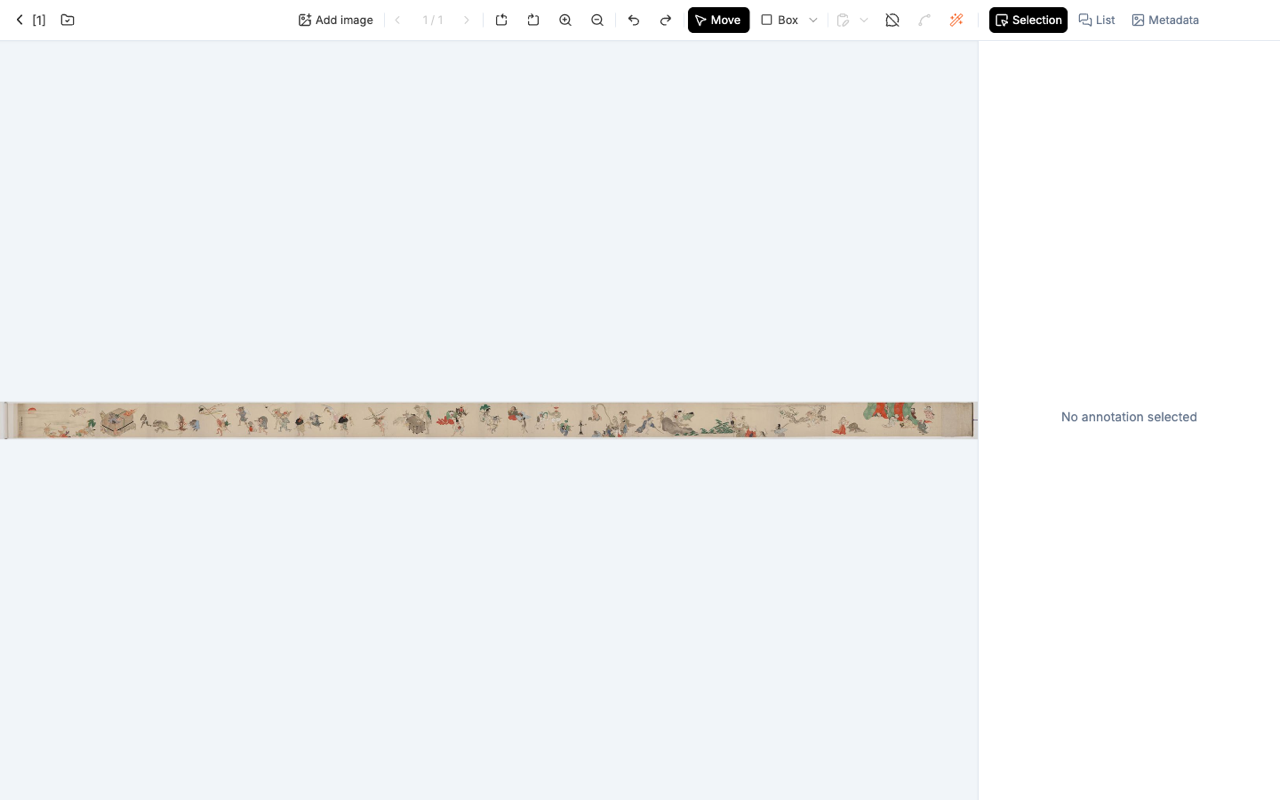
From the left, the toolbar at the top is Move, Box (a shape dropdown that switches between rectangle, ellipse, polygon, and path), arrow, magic wand (smart tools), and, on the right, Selection / List / Metadata.

6.1 The four shapes
The UI names them as four kinds: Box / Ellipse / Polygon / Path.
| Shape | Operation | Suitable targets |
|---|---|---|
| Box | Start with one click → move the mouse → confirm with the second click (not a drag) | Targets where a rectangle is natural, bibliographic slips, etc. |
| Ellipse | Like Box: click → move → click | Faces, seals, circular decorations |
| Polygon | Add points by clicking, close with a double-click | Irregular forms such as the silhouettes of yokai or people |
| Path | Leave it as an open line by not double-clicking | When indicating the direction of a procession or a gaze |
6.2 Smart tools
The magic wand icon gives you the following four tools.
- Smart Scissors: automatically follows along contours. Suits emaki with clear ink lines.
- Edge Snap: snaps to straight edges. Suits architecture.
- Auto Select (SAM): automatically segments the target with the Segment Anything Model.
- Auto Transcribe: transcribes text using a choice of several OCR / VLM services. There are limits with cursive scripts, so the results need proofreading.
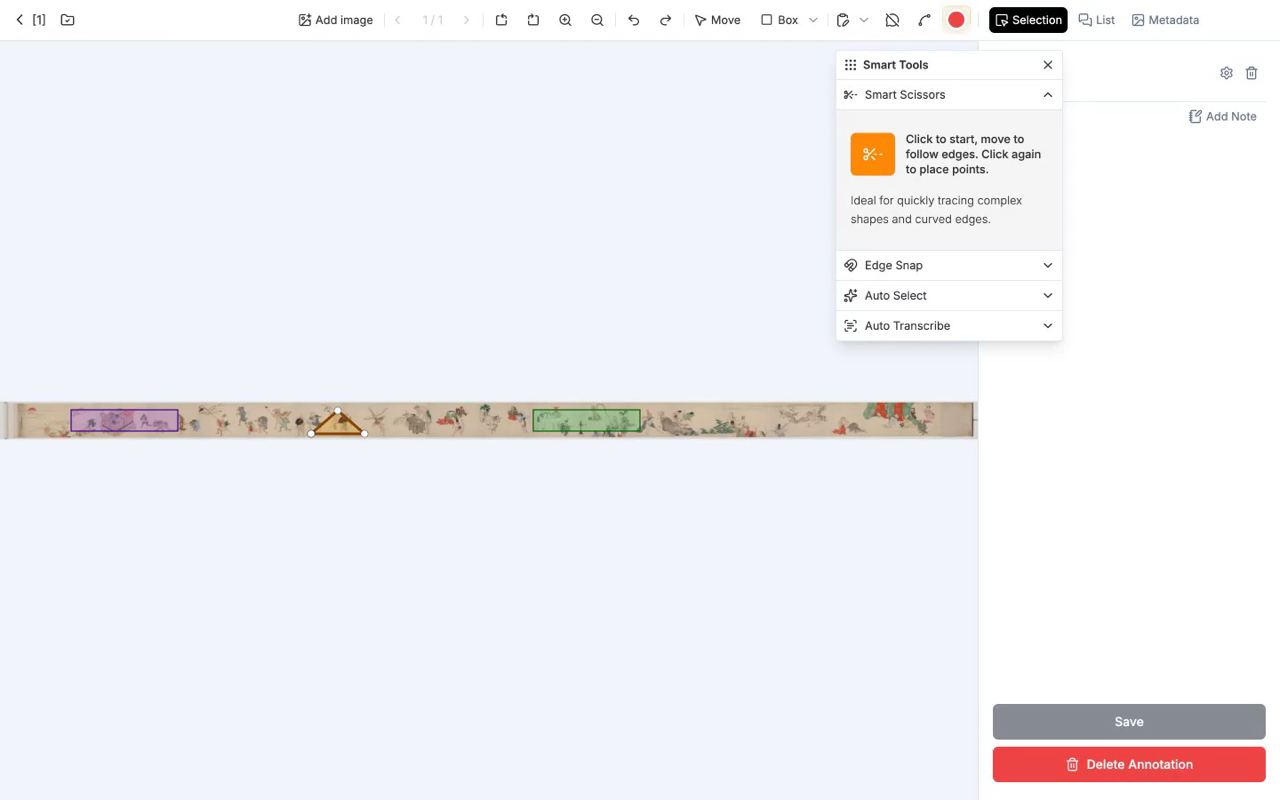
Auto Select and Auto Transcribe integrate with AI services, and using them requires configuring an API key.
6.3 Tagging
Once a shape is confirmed, a form appears in the right panel.
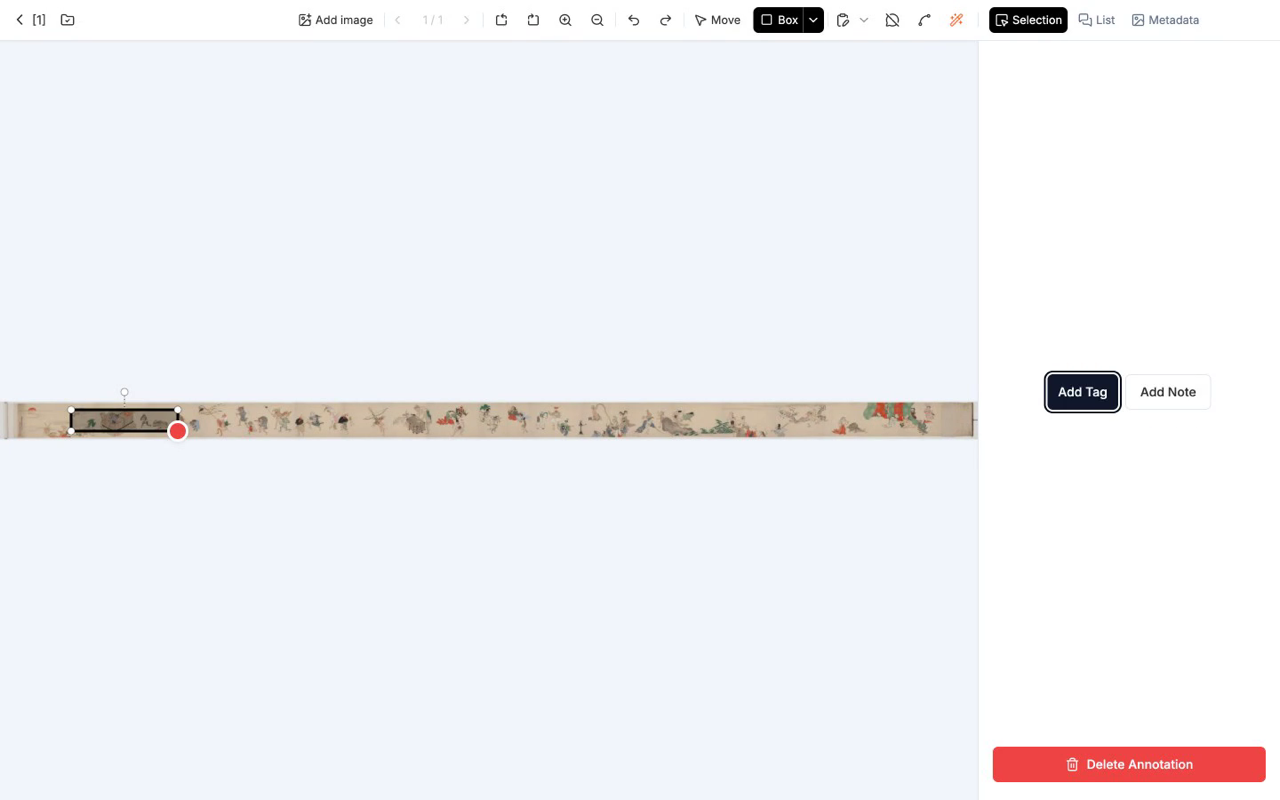
Here, choose the relevant one from the Entity Class you designed earlier, and fill in property values. For example, you might set the first yokai to Yokai > Oni, gender unknown, estimated body length 1.8 m.
6.4 Reading the output JSON
When you create a single annotation, JSON like the following is appended to _iiif.<id>.annotations.json (actual output example).
[
  {
    "id": "886bae64-8929-4c61-b9f3-a1a38e099e89",
    "target": {
      "source": "iiif:a9dfe98422a0aac0:3318151926",
      "type": "SpecificResource",
      "selector": {
        "type": "FragmentSelector",
        "conformsTo": "http://www.w3.org/TR/media-frags/",
        "value": "xywh=pixel:30652.79,1230.49,496.33,526.99"
      }
    },
    "@context": "http://www.w3.org/ns/anno.jsonld",
    "type": "Annotation",
    "body": [
      { "id": "...", "type": "Dataset", "purpose": "classifying", "source": "Person",
        "created": "2026-05-06T23:07:14.531Z" }
    ],
    "created": "2026-05-06T23:07:10.286Z",
    "creator": { "isGuest": true, "id": "X3_WHIhjPtfp8Iu1lGMe" }
  }
]
This JSON contains three points that matter for research.
target.sourceholds a reference to the IIIF Canvas, so the link to the original source does not break.selector.valueconforms to W3C Media Fragments, so the same region can be reproduced in another tool.body[].purpose: "classifying"makes explicit the semantics that "this is a classification-purpose annotation."
This single annotation is research data that can also be reproduced in IIIF-compatible viewers (Mirador, Universal Viewer, Annona, etc.).
7. Drawing Relationships Between Entities
Person A and yokai B face each other; tsukumogami C derives from tool D — relationships like these can be drawn in the Relations tab.
- Select the entity that will be the source.
- Press the "Relation" button, then click another entity to be the target.
- Choose an existing relationship type, or create a new one (e.g.,
faces,derives_from).
The exported _immarkus.relations.json is likewise recorded in W3C Web Annotation format.
8. Get an Overview with the Knowledge Graph
Once you have accumulated annotations, move to the Knowledge Graph tab.
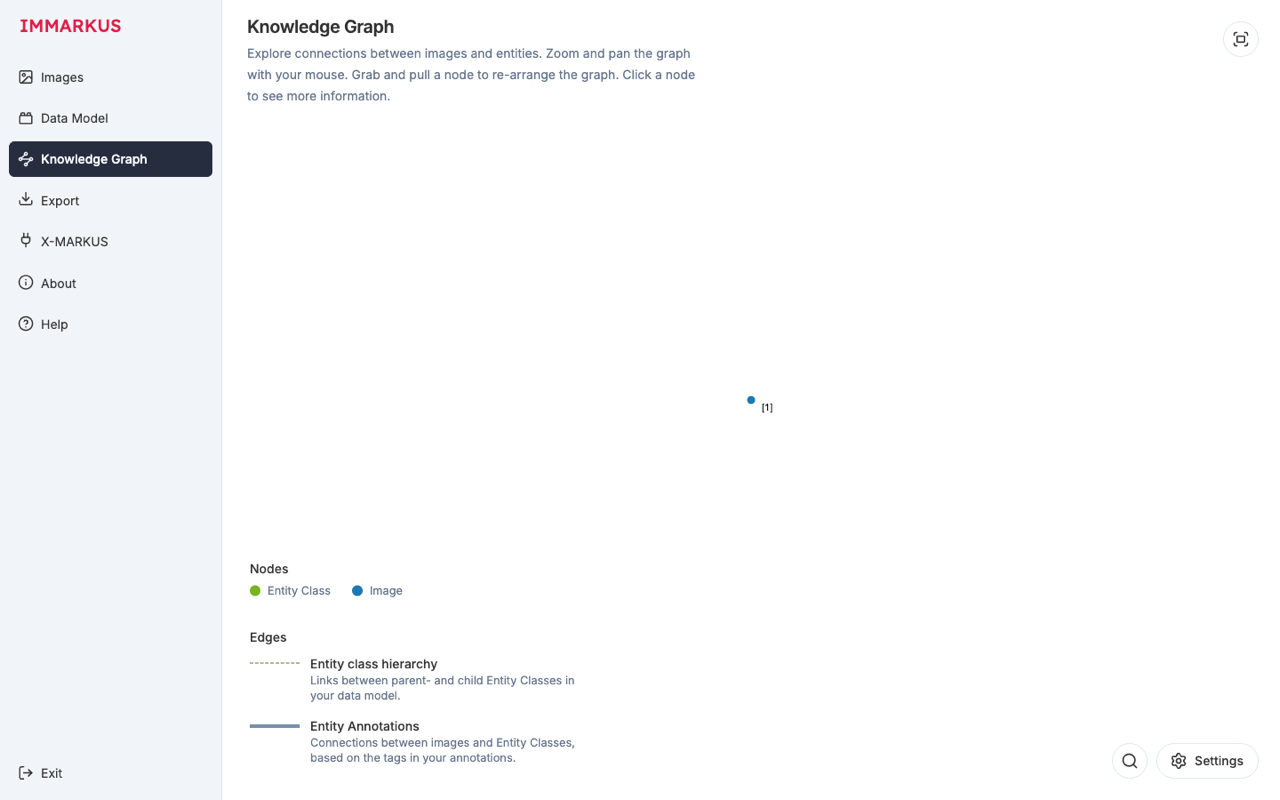
- Blue nodes are images, green nodes are entity classes.
- The thickness of a line represents the number of connections.
- Hierarchy & Annotations mode: shows the data model structure and classification annotations.
- Relations mode: shows only the relationship annotations between entities.
In the search panel you can combine AND / OR conditions. For example, you can write a compound query such as "images that have a Person connected by a faces relationship to a Yokai whose era property is the Edo period." The results can be exported as XLSX, so they can be used for tabulations toward papers and reports.
9. Export: Taking Your Results Out
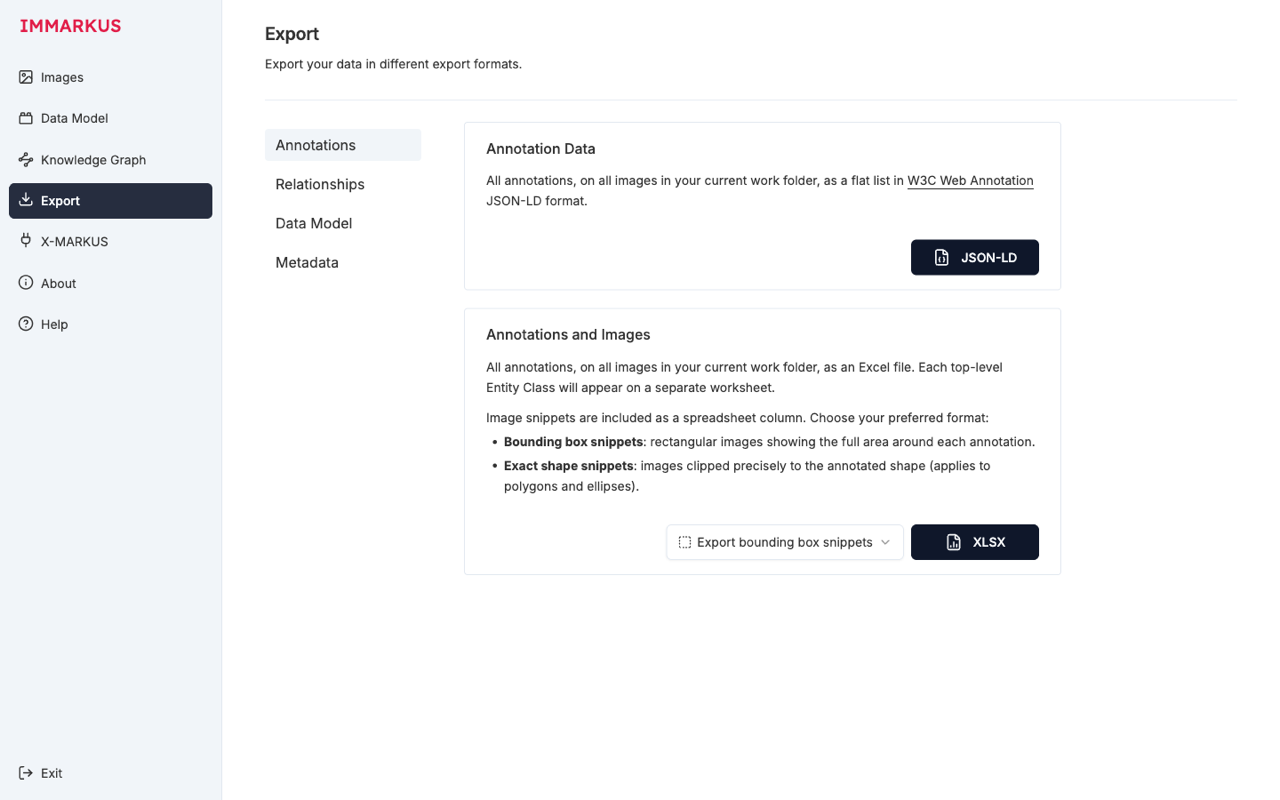
The Export screen is divided into four sub-tabs: Annotations / Relationships / Data Model / Metadata.
| Target | Format | Use |
|---|---|---|
| Annotations | W3C Web Annotation JSON-LD | Importing into another tool (such as Mirador), publishing as Linked Data |
| Annotations | XLSX (with image snippets) | Requesting a review from co-authors, producing paper materials |
| Relationships | W3C Web Annotation JSON-LD / XLSX | Network analysis (Gephi, etc.) |
| Data model | JSON | Reuse in another project, appendix of a paper |
| Metadata | CSV | Data management, catalog creation |
The exported file names are annotations.json / annotations.xlsx / relationships.json / relationships.xlsx / entity-classes.json / image_metadata.csv. The image_metadata.csv incorporates the title, holding institution, Manifest URI, and so on derived from the IIIF Manifest.
In the XLSX format, a separate sheet is created for each entity class, properties are expanded into columns, and an image snippet clipped from the annotated region is embedded at the head of each row. You can choose how the snippets are cut out from the following two formats.
- Bounding box snippets: clipped as a rectangle that includes the surroundings of the annotation. Uniform regardless of shape.
- Exact shape snippets: clipped along the shape, such as a polygon or ellipse.
Even if a collaborator has not installed IMMARKUS, they can check the contents with Excel.
10. Citation and License
The IMMARKUS repository includes a CITATION.cff, which indicates how to cite it in papers and reports. If you use it in research, cite either the platform, the code, or the Wiki. The research funding is from the ERC (grant agreement No. 101019509).
11. Troubleshooting
- An image will not load: keep local images under 10 MB. Exceeding the size can fail without an error message.
- A IIIF manifest is rejected: some delivery sources do not permit CORS. The Wiki's Troubleshooting IIIF Manifest Imports has a list of known institutions.
- Folder permission is lost: when the browser session expires, you are asked for Edit files again. The data is retained.
12. Next Steps: Toward the MARKUS Family
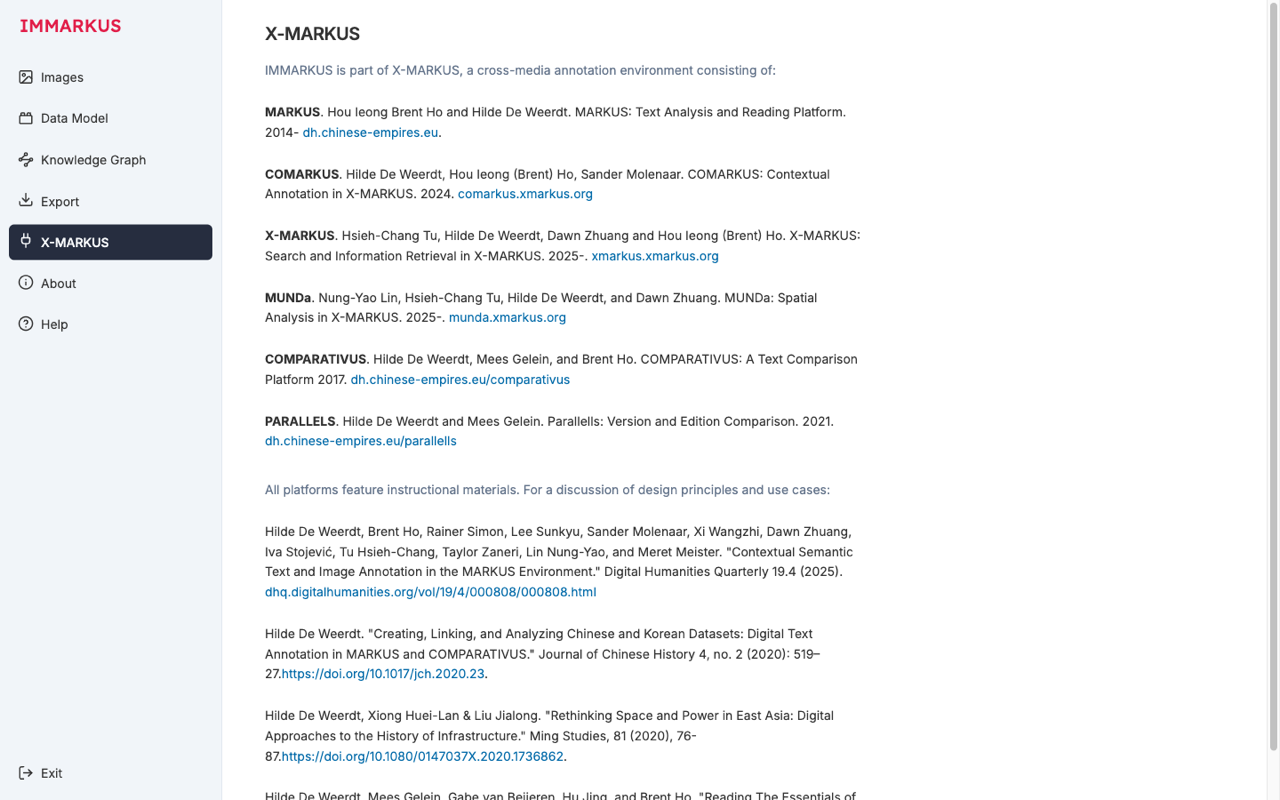
Click X-MARKUS in the sidebar and you will see that IMMARKUS is a member of a series of digital humanities platforms called the MARKUS family.
| Tool | Target |
|---|---|
| MARKUS | Markup of textual sources (especially Classical Chinese) |
| COMARKUS | Collaborative markup |
| X-MARKUS | An environment integrating heterogeneous contexts |
| MUNDa | An environment integrating multimedia (images, maps, documents) |
| COMPARATIVUS | Comparative analysis between texts |
| PARALLELS | Extraction of correspondences between texts |
IMMARKUS handles image analysis, while MARKUS handles the textual side of the same source — a structure that lets you use separate tools for each aspect of a source and integrate them. It is developed with Chinese history primarily in mind, but it can also be applied to East Asian historical sources in general, such as emaki and manuscripts.
Beyond that, the following more technical extensions are available.
- Combining with Mirador: pass the exported W3C Web Annotation to Mirador's annotation endpoint, and you can shift to a viewer-centered browsing workflow.
- Self-hosting: with
git clone && npm install && npm run buildyou can placedist/on any static server. Suits cases where you want to keep operation within your lab. - Extending the AI integration: it is built to call OpenAI / Google GenAI / Hugging Face / Azure CV / Gradio internally, so you can configure your organization's keys to improve the accuracy of Auto Transcribe.
Summary
Annotations created with IMMARKUS are stored from the start as Linked Data in W3C Web Annotation format. Open a folder in the browser, design a data model, draw shapes on the image, and assign classes — with just this sequence of operations, the annotations become data in a format that other tools can reuse. Not having to insert a later conversion step into a research-data format is the main advantage of using IMMARKUS.
Reference Links
- IMMARKUS repository: https://github.com/rsimon/immarkus
- IMMARKUS Wiki: https://github.com/rsimon/immarkus/wiki
- W3C Web Annotation Data Model: https://www.w3.org/TR/annotation-model/
- IIIF Presentation API 3.0: https://iiif.io/api/presentation/3.0/
- University of Tokyo Digital Archive: https://da.dl.itc.u-tokyo.ac.jp/


Comments
…