
This article was written with the assistance of generative AI. Factual claims have been checked against official documentation where possible, but errors may remain. Please verify with primary sources before making important decisions.
Audience: researchers, librarians, and digital archive staff who want to leave annotations on IIIF video materials. No programming knowledge is required except for the section on embedding Mirador.
Mirador Annotation Editor Video (MAEV) is a plugin that adds annotation creation for video to version 4 of the Mirador IIIF image viewer. It is developed by Tétras Libre SARL in France, with the cooperation of Leipzig University and the École nationale des ponts et chaussées.
MAEV is an extension of the image-oriented Mirador Annotation Editor (MAE). Whereas MAE annotates a region of an image (a spatial target), MAEV can additionally handle a video's start and end time (a temporal target). You can create an annotation that specifies both time and space: "this annotation, on this region, in this scene."
This article walks through using MAEV for the first time, up to setting the temporal target that is unique to video annotation, using the official demo as the subject.
1. Characteristics of MAEV
- Temporal targets on video In addition to MAE's spatial targets (rectangle, circle, line, freehand), you can specify the time range during which an annotation is shown. You can create annotations that appear only in a particular scene of a video.
- The same interaction model as MAE The creation templates (Note / Tag / Expert mode), rich text, tags, and shape tools are shared with MAE. If you have used MAE, the only additional thing to learn is the temporal target.
- Saving in standard formats
Annotations are saved in IIIF / W3C Web Annotation format, and the
adapterlets you choose the storage destination (local, your own backend, Mirador Multi User, and so on). Drawing uses Konva.
The license is GPL v3 (the image edition, MAE, is Apache 2.0).
2. Background Knowledge (the Minimum)
IIIF and video
IIIF (International Image Interoperability Framework) is known as a standard for image delivery, but Presentation API 3.0 can handle video and audio within the same manifest structure. What you pass to MAEV is the URL of a Presentation Manifest that contains video.
Spatial targets and temporal targets
Video annotation has two senses of "where."
- Spatial target: a region within the video frame (a shape such as a rectangle)
- Temporal target: a time range within the video (a start time to an end time)
MAEV can give a single annotation both.
3. Open the Demo
MAEV provides an official demo environment.
- Landing page: https://tetras-iiif.github.io/mirador-annotation-editor-video/
- Stable demo: https://tetras-iiif.github.io/mirador-annotation-editor-video/stable/
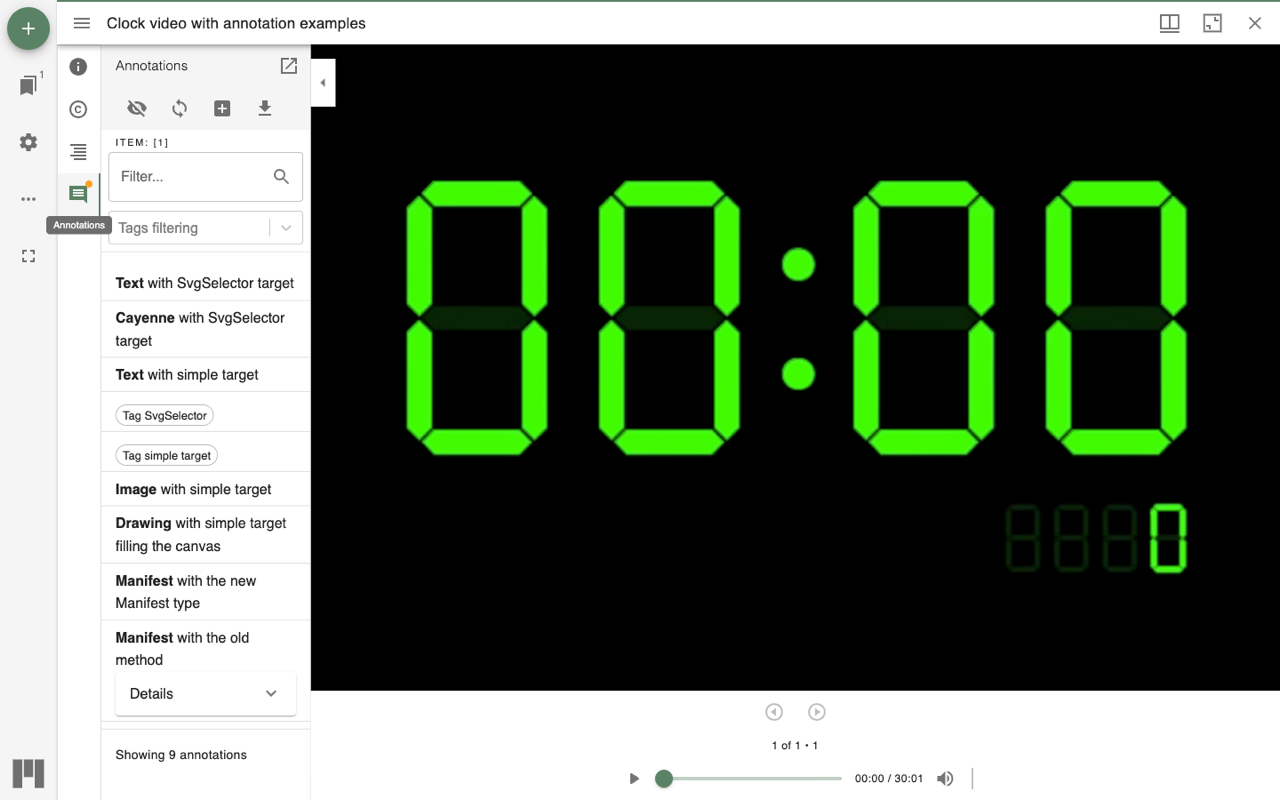
When you open the demo, the Mirador window loads "Clock video with annotation examples," an approximately 30-minute clock video showing the time, with the annotation panel open in the left sidebar.
4. View the Existing Annotations
This demo includes nine sample annotations of various kinds — text, tags, image, drawing, and so on. In the annotation panel you can:
- Filter...: narrow down annotations by a string in the body text.
- Tags filtering: narrow down annotations by tag.
- Create annotation: start creating a new annotation.
- Export local annotations for visible items: export the visible annotations.
When you play the video player, the annotations corresponding to the playback position appear in turn. This is the effect of the temporal target.

5. Create an Annotation: Choose a Template
Press the Create annotation button at the top of the annotation panel, and a "New annotation" panel opens on the right. The templates are shared with MAE: Note / Tag / Expert mode.

| Template | Use |
|---|---|
| Note | A text annotation with a target. The standard form |
| Tag | A tag annotation with a target |
| Expert mode | For advanced users, editing the IIIF Annotation JSON directly |
Here we choose the standard Note.
6. Draw a Spatial Target
From Shapes under Target, you specify with a shape which region of the video frame the annotation applies to. Rectangle, circle, and line are available.
Choose the rectangle tool and drag over the video, and that region becomes the annotation's spatial target.

The color, line weight, and fill of a shape can be changed from STYLE. Up to here, the operations are the same as in the image edition, MAE.
7. Set the Temporal Target
This is the part unique to MAEV. At the bottom of the annotation form is a Time section, where you specify the time range during which the annotation is shown.
The flow is as follows.
- Play the video player and pause at the scene where you want the annotation to begin.
- Press Set current time in the Time section, and the current playback position becomes the start time (Start).
- Play further, and at the scene where you want the annotation to end, press the other Set current time to set the end time (End).
The start and end times can also be edited directly with the hour / minute / second number inputs.

The annotation will now be shown only during that time range. You have completed an annotation that has both a spatial target (place) and a temporal target (time).
8. Body Text, Tags, and Saving
As in MAE, the body text is entered in a Quill-based rich text editor, and you can attach keywords in Tags.

Press Save at the bottom of the form, and the annotation — which has both time and place — is added to the list in the annotation panel. With Export local annotations for visible items, you can export it in IIIF / W3C Web Annotation format.
9. Embed It in Your Own Site
MAEV is published on npm and can be embedded as a plugin into a Mirador 4-based viewer.
npm install mirador-annotation-editor-video
import mirador from 'mirador';
import { miradorAnnotationEditorVideoPlugins } from 'mirador-annotation-editor-video';

mirador.viewer(
  {
    id: 'mirador',
    annotation: {
      adapter: (canvasId) => new LocalStorageAdapter(`maev-${canvasId}`),
      allowTargetShapesStyling: true,
    },
    windows: [{ manifestId: 'https://example.com/video-manifest.json' }],
  },
  [...miradorAnnotationEditorVideoPlugins]
);
The configuration options (adapter, allowTargetShapesStyling, readonly, tagsSuggestions, etc.) are shared with MAE. The actual API varies by MAEV version, so when integrating, check the repository README and the demo configuration. If image annotation alone is enough, choosing the Apache 2.0-licensed MAE is also an option.
Explainer Video
The flow of operations in this article is also introduced in an explainer video, presented as a dialogue between Zundamon and Shikoku Metan (in Japanese).
Summary
By embedding Mirador Annotation Editor Video, you can create annotations on IIIF video that specify both a spatial target (a region within the frame) and a temporal target (a time range). The interaction model is shared with the image edition, MAE, and the only additional thing to learn is setting the time in the Time section. Simply by capturing the playback position into the start and end times with Set current time, you can leave an annotation tied to a particular scene as standard-format data.
Reference Links
- Mirador Annotation Editor Video repository: https://github.com/tetras-iiif/mirador-annotation-editor-video
- Demo: https://tetras-iiif.github.io/mirador-annotation-editor-video/
- Mirador Annotation Editor (image edition): https://github.com/tetras-iiif/mirador-annotation-editor
- Mirador: https://projectmirador.org/
- W3C Web Annotation Data Model: https://www.w3.org/TR/annotation-model/
- IIIF Presentation API 3.0: https://iiif.io/api/presentation/3.0/


Comments
…