
I updated mirador-layer-slideshow, a plugin for the IIIF (International Image Interoperability Framework) viewer Mirador, to support Mirador 4. The plugin adds a feature that displays a resource with multiple stacked image layers by revealing the layers one at a time.
- GitHub: https://github.com/nakamura196/mirador-layer-slideshow-plugin
- Demo: https://nakamura196.github.io/mirador-layer-slideshow-plugin/
This plugin was originally published for Mirador 3. Since the build configuration and dependencies changed with the release of Mirador 4, I updated it accordingly.
Demo
You can see the plugin in action on the demo page.
Any IIIF manifest can be loaded with the manifest query parameter.
https://nakamura196.github.io/mirador-layer-slideshow-plugin/?manifest=https://example.com/manifest.json
What the layer slideshow does
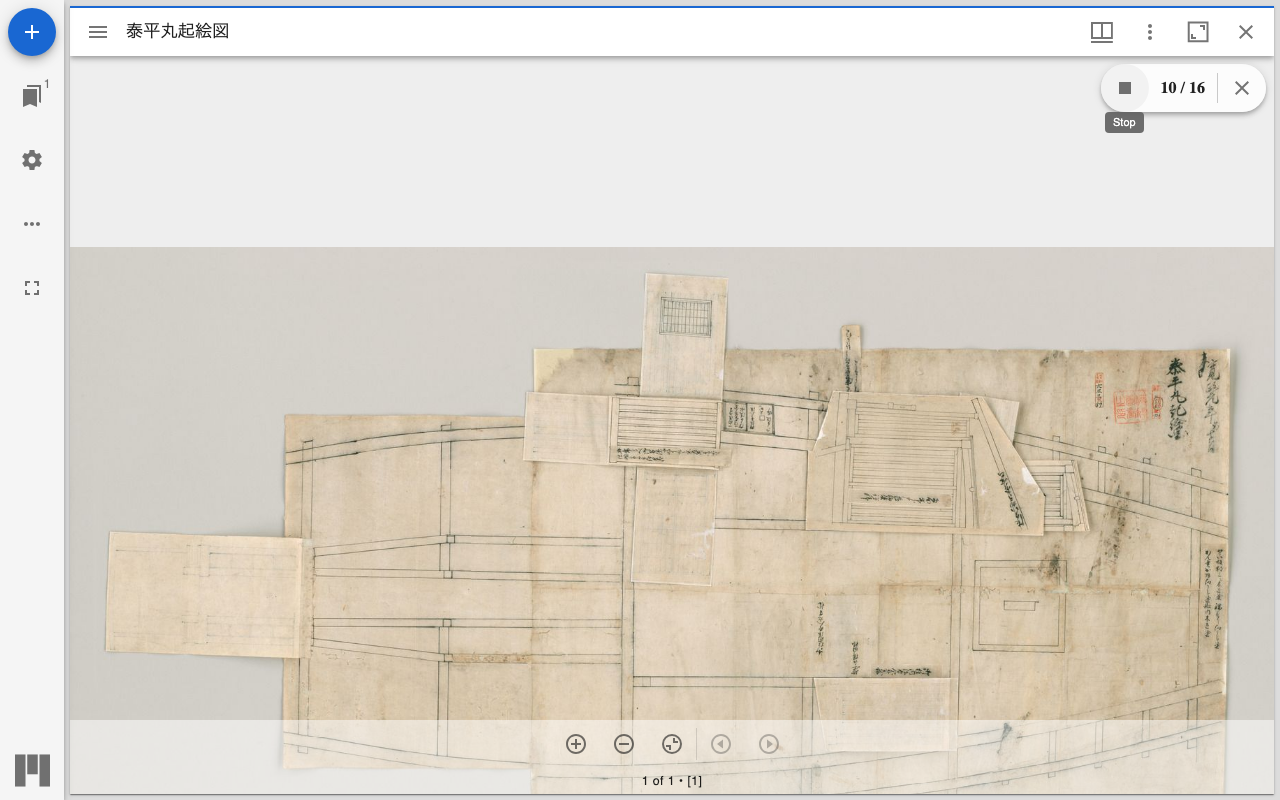
In IIIF manifests, multiple images (painting annotations) can be placed on a single canvas. For example, a fold-out illustration where folded flaps are pasted onto a backing sheet can be represented as separate image layers: the backing sheet and each flap.
This plugin reveals those layers one by one from the bottom up, showing the structure of the material step by step.
The demo uses "Taiheimaru okoezu", a fold-out ship illustration published by the Komaba Library of the University of Tokyo. A single canvas holds 16 layers: one backing image and 15 flaps.

How it plays
Pressing the start button in the panel at the top right of the viewer begins the slideshow. The backing sheet (the first layer) stays visible while the flap layers are stacked on top one at a time.

Because the backing sheet remains visible throughout, you can keep track of the overall image and see where each layer is positioned.
Toolbar
The panel has start/stop buttons and a progress counter. The counter shows the number of visible layers over the total in a current / total format.

The Mirador 3 version displayed progress with a slider. Since a number makes the current position clearer, I changed it to a current / total text counter.
Toggling visibility from the menu
The panel can be shown or hidden from the window's plugin menu.

The initial visibility can also be controlled with the layerSlideshowEnabled window setting.
Viewport following
As the slideshow progresses, the viewport pans to the region of the newly revealed layer. Each layer has a placement region (the xywh of on), and that region is moved to the center of the screen.
Changes from Mirador 3 to 4
Because the build configuration and dependencies differ in Mirador 4, the plugin was updated to match. The main changes are as follows.
| Item | Mirador 3 version | Mirador 4 version |
|---|---|---|
| Build tool | nwb | Vite |
| UI library | Material-UI v4 (@material-ui/*) | MUI v7 (@mui/*) |
| Mirador imports | mirador/dist/es/src/... (internal paths) | named exports from the mirador package |
| Components | class components + HOCs | function components + hooks |
| React | 16 | 18 |
The Mirador 3 version imported Mirador's internal file paths directly. In Mirador 4, the mirador package exposes what is needed as named exports, which simplifies the import statements.
// Mirador 3 version (importing internal paths directly)
import { MiradorMenuButton } from 'mirador/dist/es/src/components/MiradorMenuButton';
import * as actions from 'mirador/dist/es/src/state/actions';

// Mirador 4 version (named exports from the package)
import { MiradorMenuButton } from 'mirador';
import { updateWindow, updateViewport, updateLayers, getWindowConfig, getViewer } from 'mirador';
On the UI side, the HOCs (higher-order components) withStyles / withWidth / withTheme used in Material-UI v4 have been removed in MUI v7. To accommodate this, the class components were rewritten as function components using the useTheme / useMediaQuery / useTranslation hooks.
On the other hand, the way plugins are registered (the add mode form that adds to a target component, mapStateToProps / reducers / config.translations, and so on) was largely the same between Mirador 3 and 4. The structure of the plugin itself did not need major changes.
Usage
npm install mirador-layer-slideshow
import Mirador from 'mirador';
import miradorLayerSlideshowPlugin from 'mirador-layer-slideshow';

Mirador.viewer(
  {
    id: 'demo',
    windows: [
      {
        layerSlideshowEnabled: true,
        manifestId: 'https://example.com/manifest.json',
      },
    ],
  },
  miradorLayerSlideshowPlugin
);
The layer slideshow panel appears in windows where layerSlideshowEnabled is set to true.
Manifest layer structure
The plugin reads the IIIF Presentation API 2.x sequences / canvases / images structure and treats multiple images placed on a single canvas as layers. In the fold-out illustration manifest used in the demo, the canvas images array holds 16 images, each specifying its placement region on the canvas with on.
{
  "@type": "sc:Canvas",
  "width": 13824,
  "height": 7680,
  "images": [
    {
      "@type": "oa:Annotation",
      "motivation": "sc:painting",
      "resource": { "@id": ".../7-2-24_bs.tif/full/full/0/default.jpg" },
      "on": ".../canvas/p1"
    },
    {
      "@type": "oa:Annotation",
      "motivation": "sc:painting",
      "resource": { "@id": ".../7-2-24_001_1.tif/full/full/0/default.jpg" },
      "on": ".../canvas/p1#xywh=0,1536,5632,4608,0"
    }
  ]
}
The first image (the backing sheet) specifies the whole canvas as its on, and each subsequent flap specifies its placement region with xywh. The plugin reveals the layers one at a time in this order.
I have also written about the physical dimensions ruler plugin for Mirador 4 in Physical Dimensions Ruler Plugin for Mirador 4.


Comments
…