This article was co-written with generative AI. Facts have been checked against official documentation where possible, but errors may remain. Please verify primary sources yourself before making important decisions.
Audience: researchers in the humanities, history, or library and information science who want to turn a Word draft into TEI/XML. No programming knowledge required.
TEI Tools is a browser-only tool for converting Microsoft Word (.docx) documents into TEI/XML and for visualizing TEI/XML files you already have. It is published by the Toyo Bunko, licensed under MIT, with the source code openly available.
Background
TEI (Text Encoding Initiative) is an international standard for representing humanities texts in a structured digital form. It is widely used in libraries, museums, and academic research, but writing TEI/XML from scratch requires markup knowledge, which makes the first step a high hurdle.
This is where DOCX-to-TEI converters come in. A well-known one is TEI Garage (formerly OxGarage). TEI Tools calls the TEI Garage conversion API while keeping its own interface focused on conversion and inspection. There is no build step — you simply serve the docs/ directory as static files.
Two tools
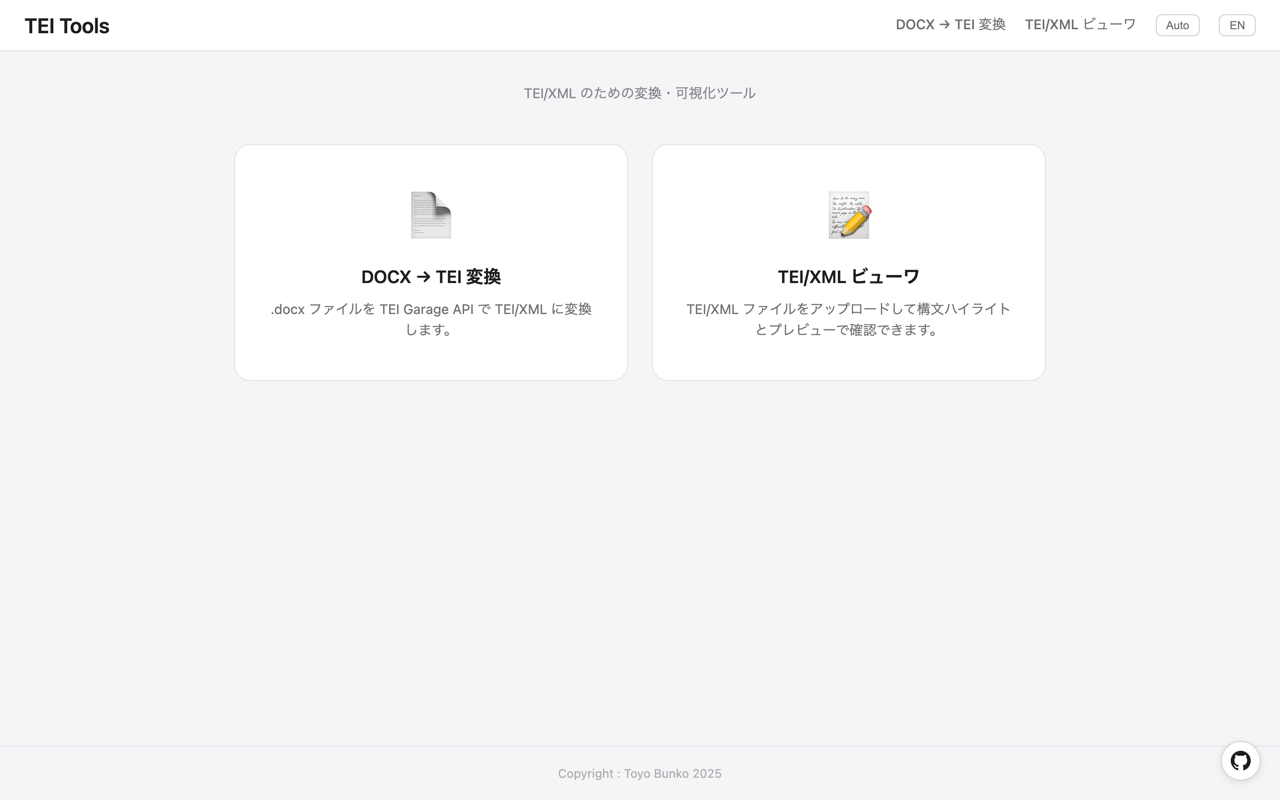
The landing page presents two cards: "DOCX → TEI Convert" on the left and "TEI/XML Viewer" on the right.
Let's walk through each.
DOCX → TEI conversion
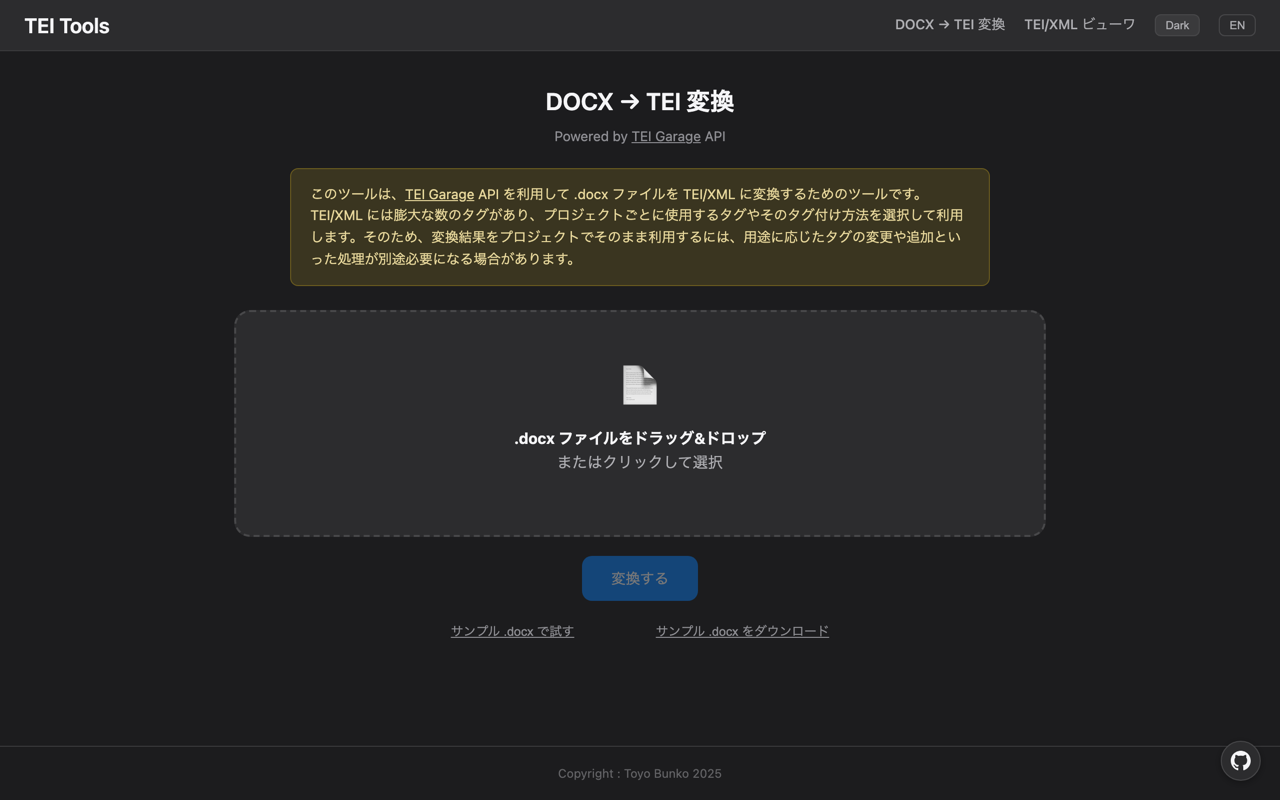
On the conversion page, you drag and drop a Word document or click to select one. A sample .docx is bundled into the tool, so you can try it immediately even without a file of your own.
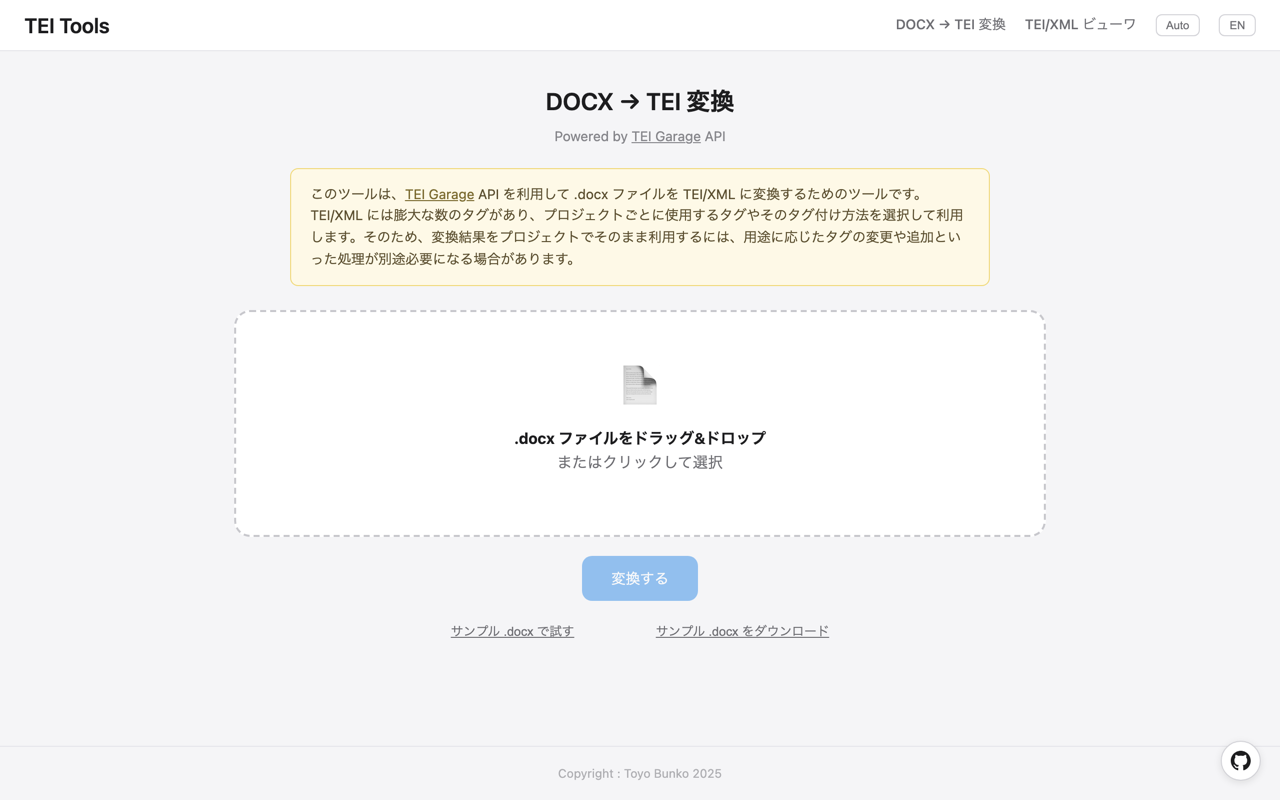
Once a file is selected, the previously greyed-out Convert button becomes active. Pressing it sends the file to the TEI Garage API, and in a few seconds it returns TEI/XML.
Conversion depends on the external TEI Garage API. With the sample .docx, a quick test returned HTTP 200 in about two seconds with roughly 6 KB of TEI/XML. Timing varies with network conditions.
Inspecting the result
The result has two tabs.
The XML tab
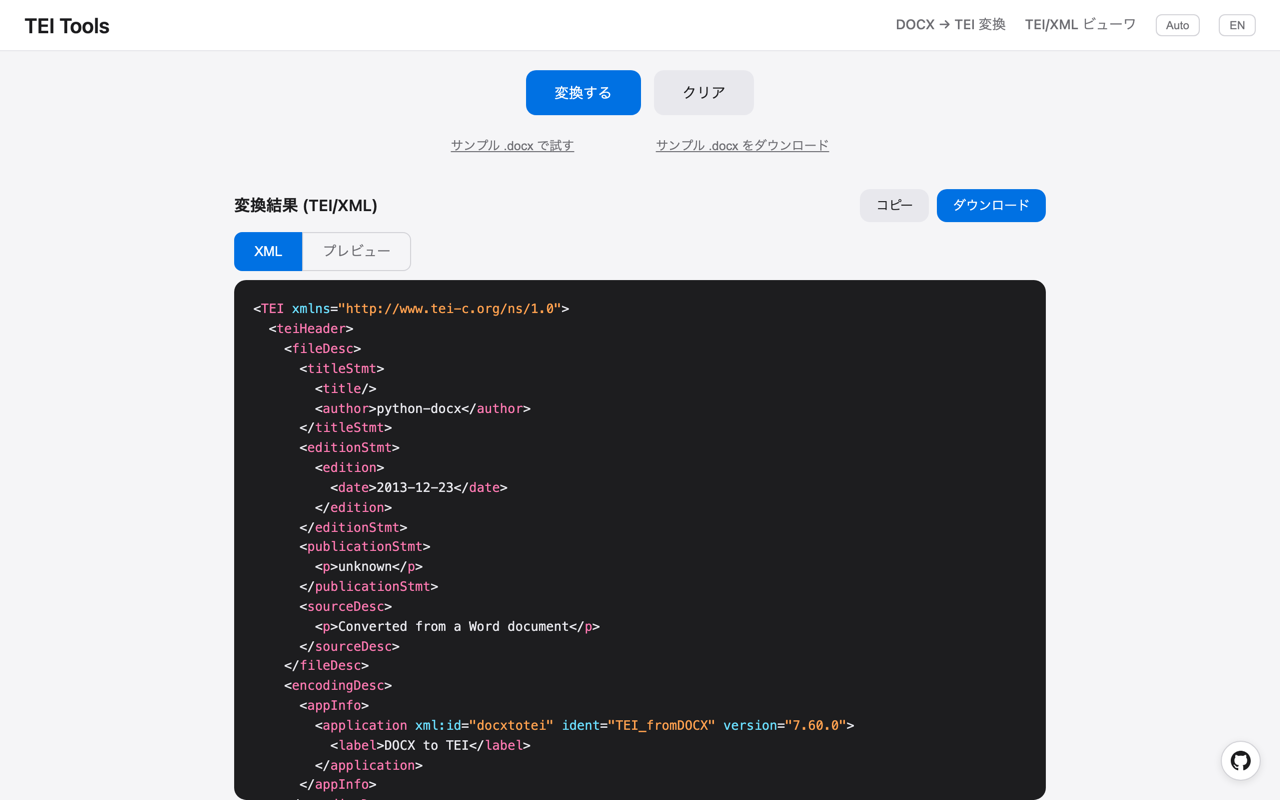
The XML tab shows the converted TEI/XML with syntax highlighting. Tags, attributes, and text are colour coded, and you can confirm that it is a TEI document whose root element starts with <TEI>.
The Preview tab
Switching to the Preview tab, a library called CETEIcean formats the TEI/XML into a readable layout. CETEIcean transforms TEI elements into custom HTML elements named tei-* and styles them with CSS.
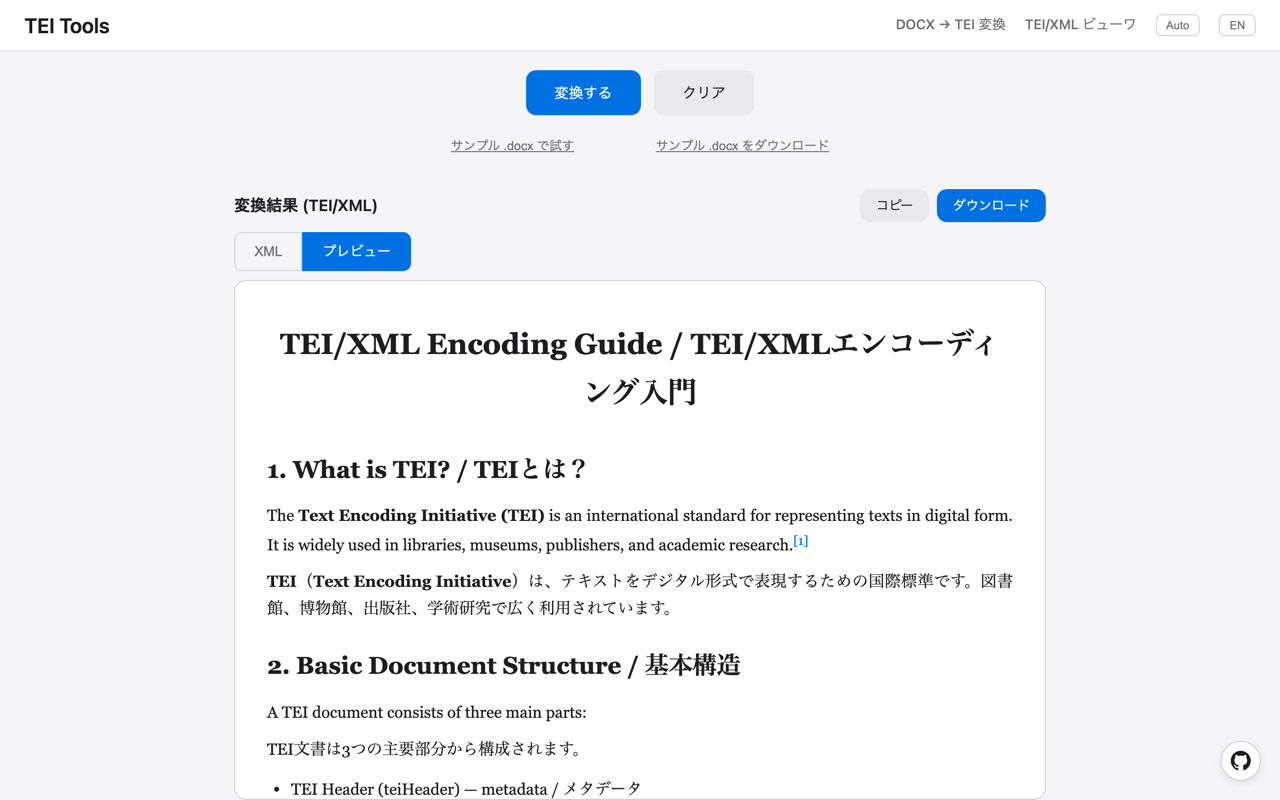
When you hover over a <note> or other annotation, its content appears in a pop-up, so you can follow the main text while still checking the notes.
Taking the result with you
Two buttons at the top right of the result area let you take the output away.
- Copy: copies the entire TEI/XML to the clipboard, ready to paste into your editor.
- Download: saves the result as an
.xmlfile. The file name is inherited from the original Word document.
The TEI/XML viewer
The second tool is the TEI/XML viewer. You can upload a TEI/XML file you already have and visualize it. A sample TEI/XML file is bundled here as well.
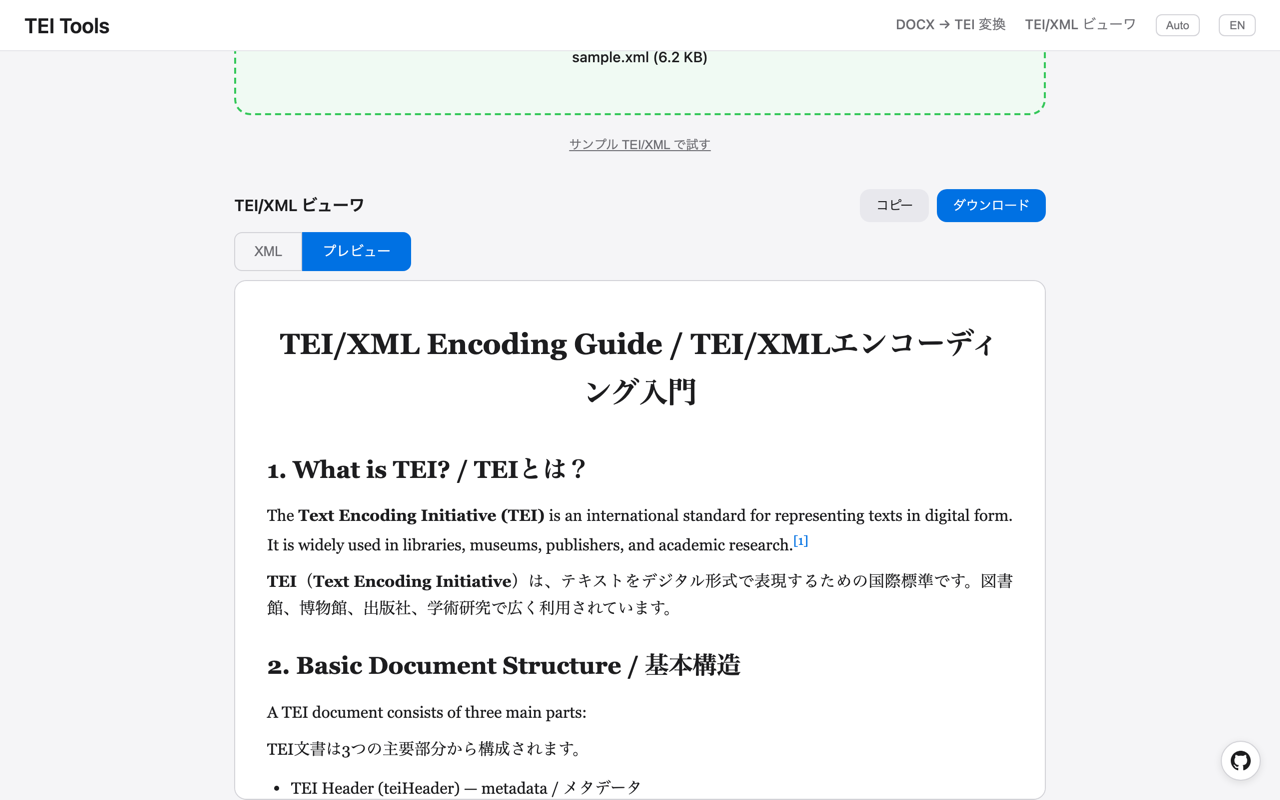
The display works the same way as the conversion page: a syntax-highlighted XML tab and a CETEIcean preview tab. It is handy for cases such as editing a converted TEI/XML by hand and then checking that nothing is broken in the display.
Language switching and dark mode
The header buttons let you change interface settings.
- Language button: switches the interface between Japanese and English; buttons and labels change all at once.
- Theme button: cycles the display theme through Auto, Light, and Dark. The setting is remembered by the browser.
Points to keep in mind
As the tool's own notes make explicit, TEI/XML has an enormous number of tags, and which tags are used and how they are applied differs from project to project. The output of a TEI Garage conversion will therefore not always be directly usable in a research project; depending on your needs, additional adjustments — modifying or adding tags — may be required.
For the same reason, the viewer is designed mainly for TEI/XML produced by TEI Garage. TEI/XML with a different tagging scheme may not display perfectly.
Even so, being able to try the flow of "build a first draft with the converter, then check it in the viewer" with no installation makes this a useful first step into working with TEI/XML.
Summary
TEI Tools lets you convert Word documents into TEI and visualize TEI/XML entirely within the browser. No server and no installation are needed, and because sample files are bundled, even those unfamiliar with TEI/XML can immediately see what a conversion produces.
Video version (automatically generated with generative AI): the steps in this article are summarized in a demo video, built from automated operation with Playwright and narration by Azure TTS. Because it is automatically generated, it may contain errors. Please refer to the article text for accurate information.
References
- TEI Tools demo: https://toyo-bunko.github.io/tei-tools/
- TEI Tools repository: https://github.com/toyo-bunko/tei-tools
- TEI Garage: https://teigarage.tei-c.org/
- CETEIcean: https://github.com/TEIC/CETEIcean
- Text Encoding Initiative: https://tei-c.org/

Comments
…