Overview
This article describes building an object detection API (Flask + yolov5) using AWS Lambda. By deploying a machine learning inference model on AWS Lambda, the goal is to reduce costs.
This work is based on the following article:
https://zenn.dev/gokauz/articles/72e543796a6423
I have updated the repository contents and added instructions for using the API via API Gateway.
Registering a Function on Lambda
Clone the following GitHub repository:
git clone https://github.com/ldasjp8/yolov5-lambda.git
Running Locally
Next, create a virtual environment using venv and install the required modules:
cd yolov5-lambda
python -m venv venv
source venv/bin/activate
cd yolov5
pip install --upgrade pip
pip install -r requirements.txt
Then, running the following command will output the object detection results in JSON format:
python app.py

Deployment
As mentioned at the beginning, this uses the work from the following article:
https://zenn.dev/gokauz/articles/72e543796a6423
Here, we use Jupyter Notebook:
cd ../
jupyter notebook
After Jupyter Notebook launches, select the build_and_test.ipynb file and follow the steps to execute it.
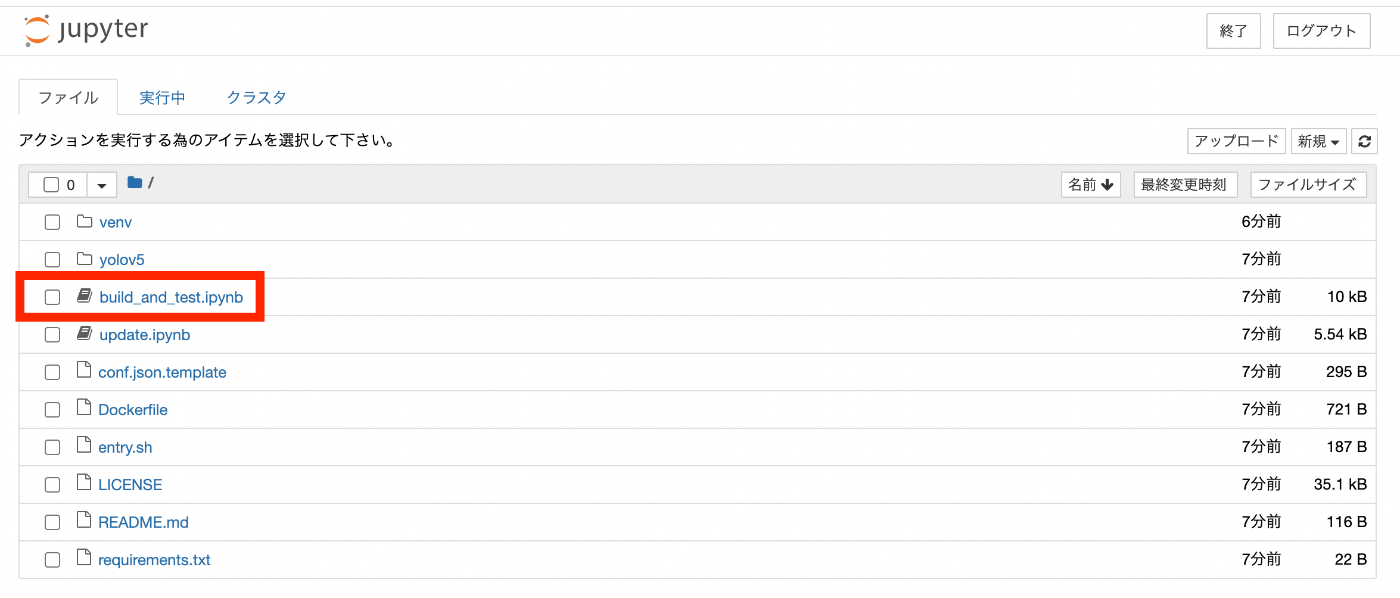
One change made in this repository is that the conf.json file is now loaded as shown below:

The cloned repository includes a conf.json.template file. Rename it to conf.json and enter your AWS CLI profile name in the profile field:
mv conf.json.template conf.json
code conf.json
Docker must be running before executing the Notebook.
(Optional) Test Execution on AWS Lambda
Below is how to run a test on AWS Lambda. Note that since inference is already executed within the Notebook above, this step is not required. (This is my personal note.)
Navigate to the Lambda function page and select the "Test" tab.
Then, as shown below, select the "apigateway-aws-proxy" template and provide a base64-encoded string of a sample image in the body field. For creating a base64-encoded string of an image, refer to the "Try Inference" section in the Notebook above.

You can verify the execution results as shown below:

API Gateway Configuration
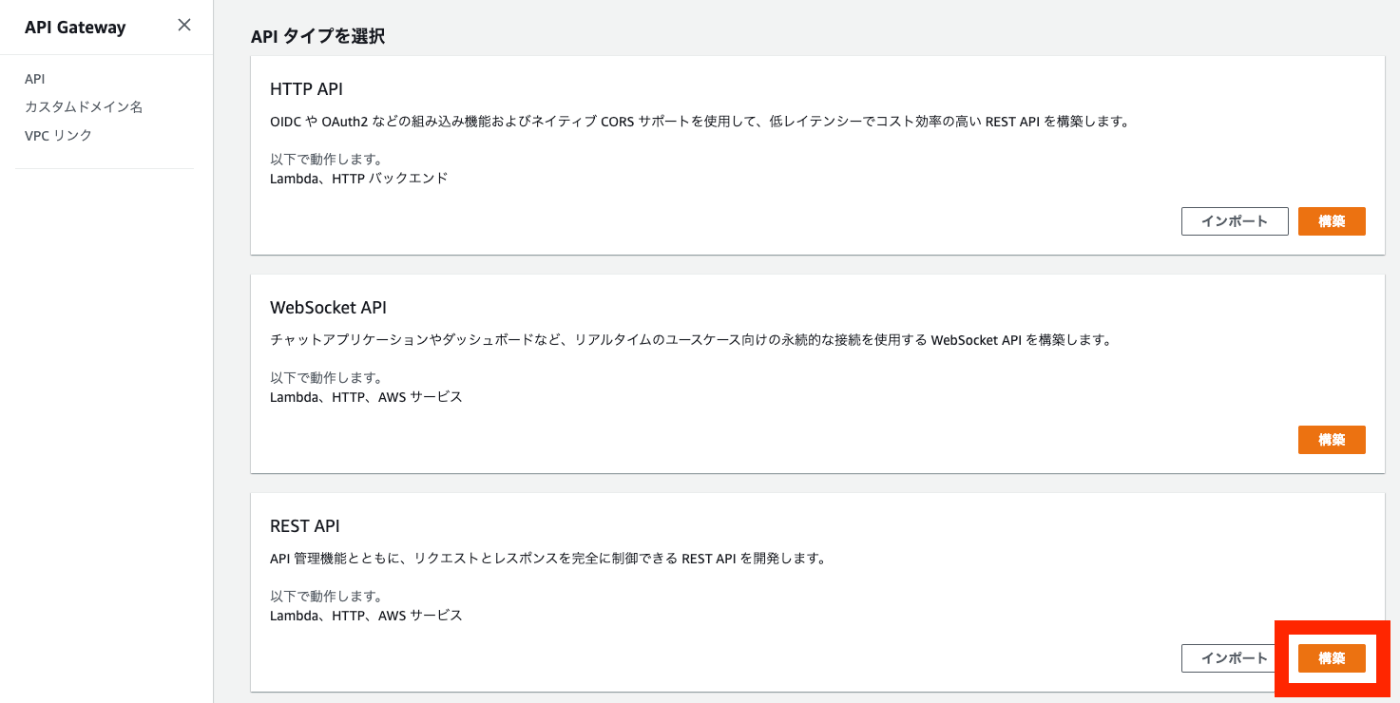
From API Gateway's "Create API," click "Build" under REST API:
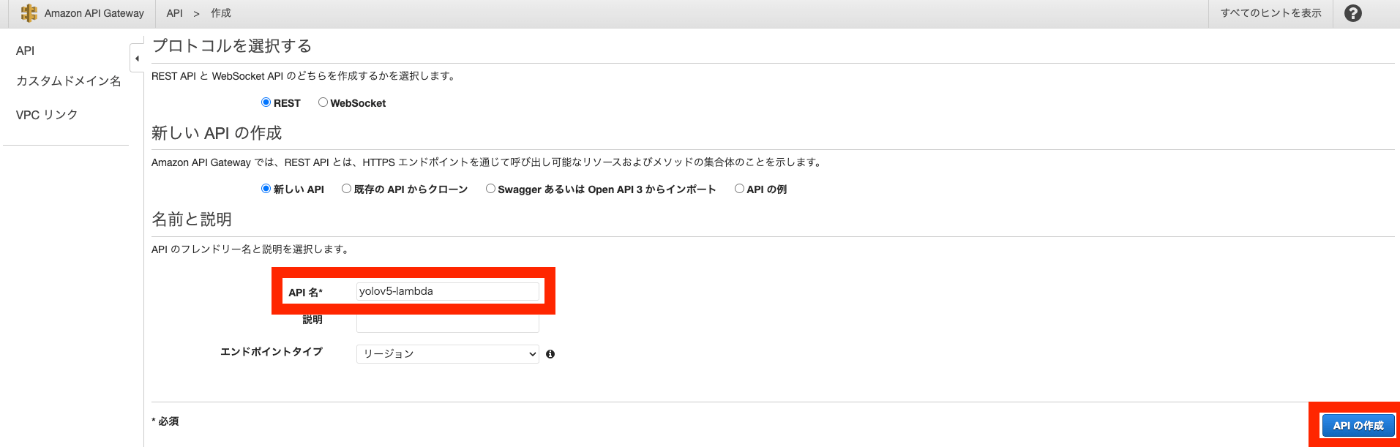
Enter an API name and click the "Create API" button:
Creating a Resource
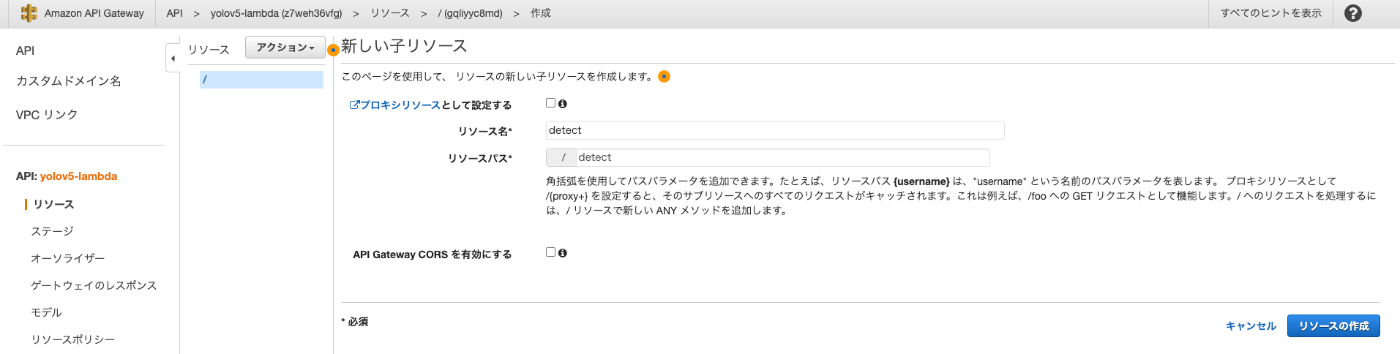
In this case, we create a resource called "detect." As shown below, select "Actions" > "Create Resource," enter "detect" as the resource name, and click the "Create Resource" button:
Creating a Method
Next, create a "POST" method. Select "Actions" > "Create Method" and choose "POST":


On the method setup screen, check "Use Lambda Proxy integration," enter the name of the Lambda function you created in the "Lambda Function" field, and save:

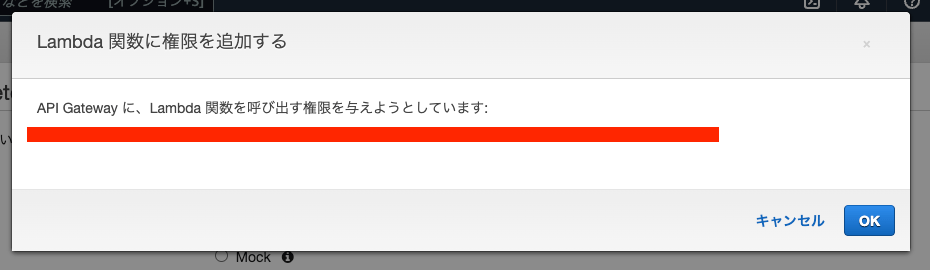
A dialog asking to add permissions will appear. Click "OK":
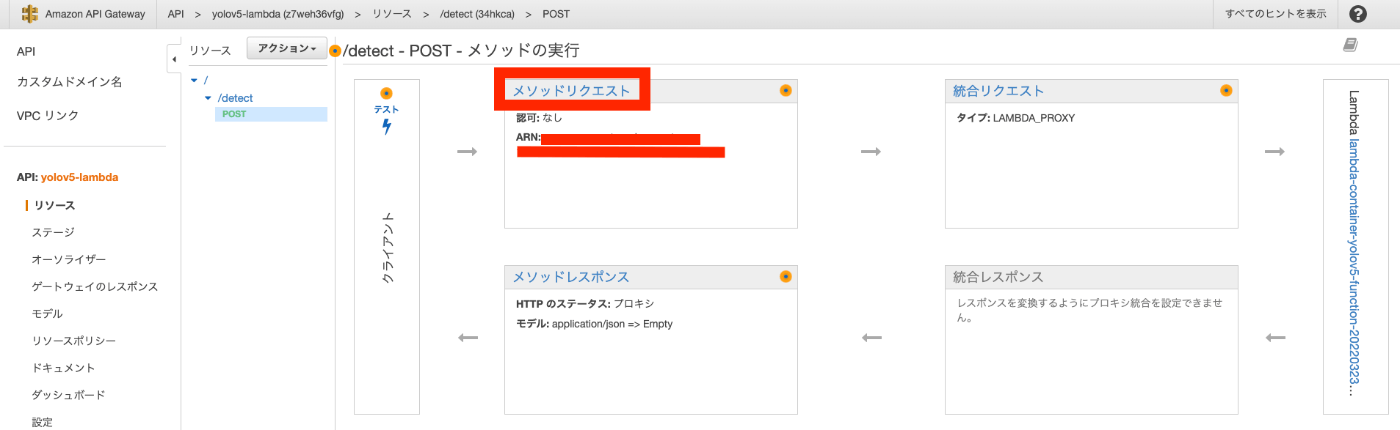
Next, select "Method Request":
Add "Content-Type" to the "HTTP Request Headers":

Next, select "Settings" on the left side of the screen and set "Binary Media Types" to */*. (Adjust this setting according to your use case.)

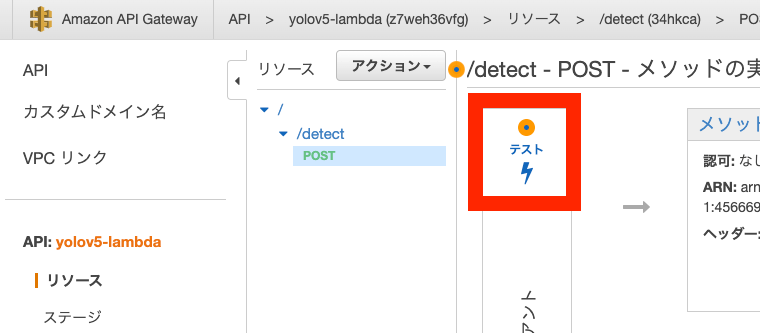
Next, select "Resources" on the left side and choose "Test":
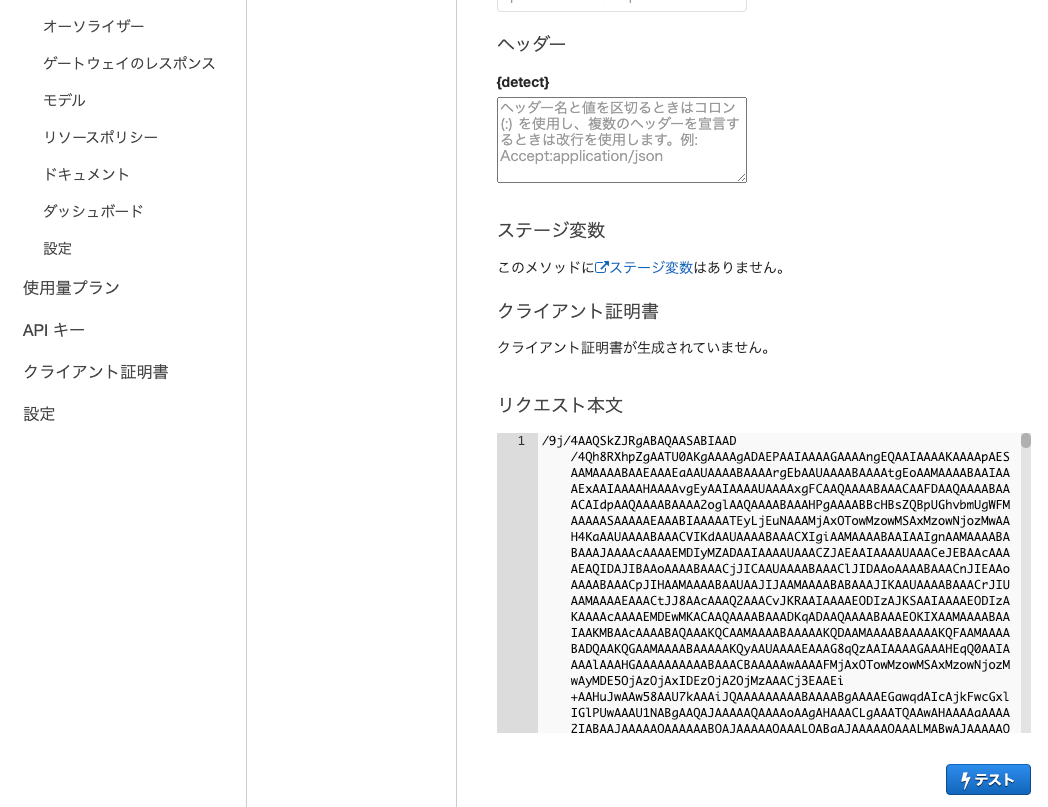
Enter the following value in the request body and click the "Test" button:
If you get a result like the following, the setup is successful:

Deploying the API
After testing is complete, select "Deploy API":
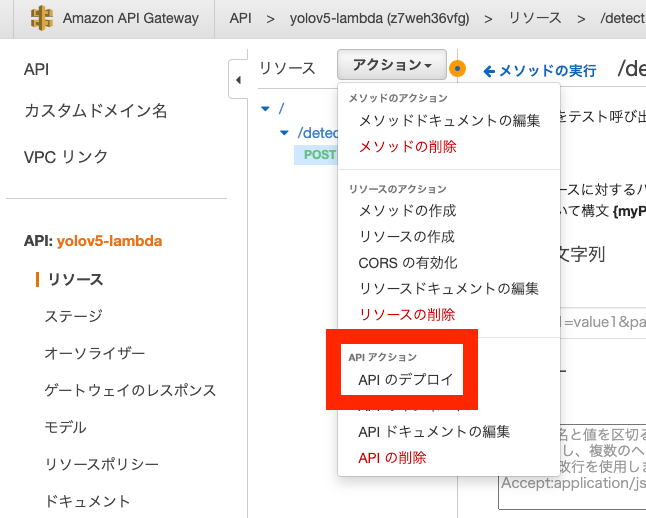
Enter a stage name (e.g., "dev") and click "Deploy":

As a result, a URL will be issued:

Using that URL, post an image as shown below. If you get results, the setup is successful:
curl --data-binary @bus.jpg https://z7weh36vfg.execute-api.us-east-1.amazonaws.com/dev/detect
You can also try it with the following Google Colab notebook:
https://colab.research.google.com/drive/1f0hUKi6Z6t0-zXaAwDW-j8fqshi43K8J?usp=sharing
Custom Domain Configuration
API Gateway
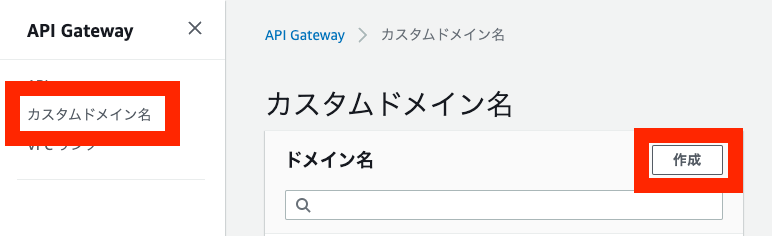
As shown below, select "Custom Domain Names" and click the "Create" button:
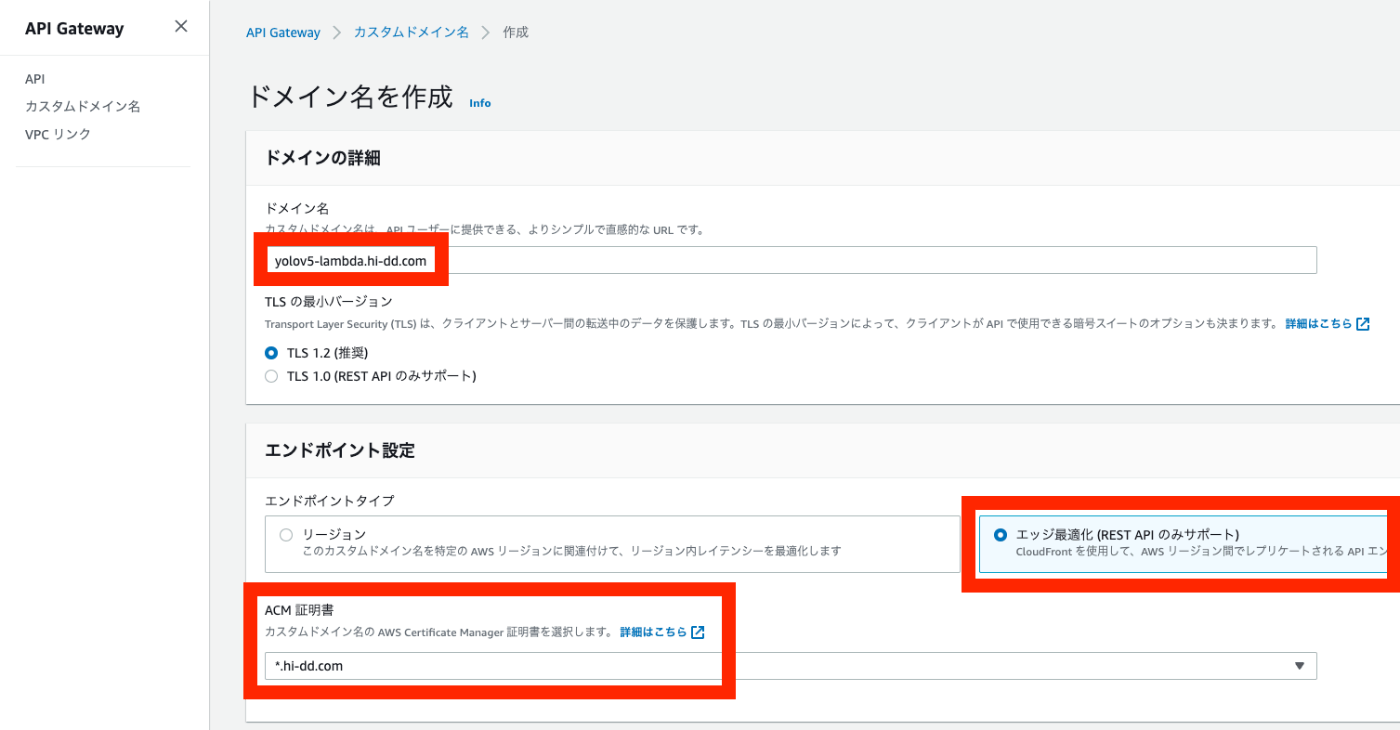
Then, enter the "domain name," configure the endpoint type, and set the ACM certificate:
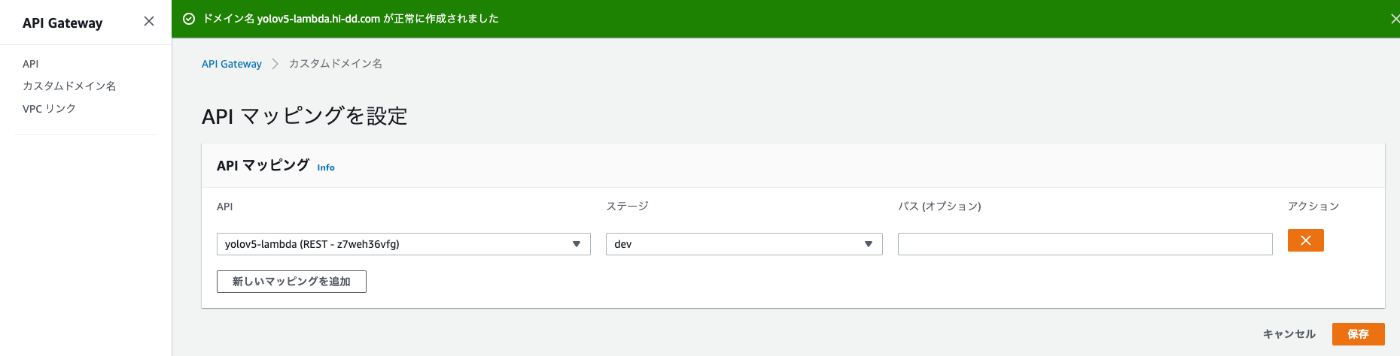
On the next screen, select the "API Mapping" tab, then click "Configure API Mappings":

Enter the API name and stage name you created earlier, then save:
Route 53
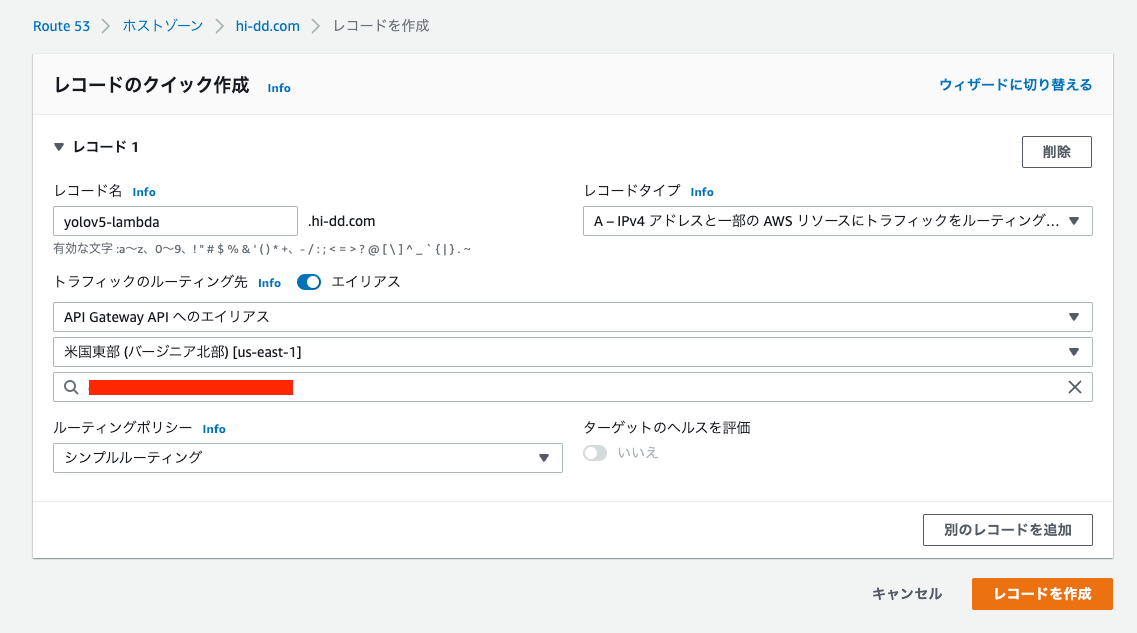
In Route 53, enter the information based on the custom domain name you specified earlier:
As a result, you can make the API available via a custom domain:
curl --data-binary @bus.jpg https://yolov5-lambda.hi-dd.com/detect
(Reference) Updating ECR and Lambda Functions
A newly added Notebook called update.ipynb is included in the repository. This is used to update previously created ECR and Lambda functions.
Before using it, enter the existing repository_name and function_name in conf.json, then run the Notebook.
Summary
In this article, we built an object detection API (Flask + yolov5) using AWS Lambda.
I hope this article serves as a useful reference when deploying machine learning inference models using AWS Lambda.