This guide explains how to use Omeka.net. From Chapter 3 onward, the instructions also apply to Omeka Classic.
Creative Commons - BY -- 2014
Use Case: Scholars, Omeka.net, http://info.omeka.net/omeka-net-help/use-case-scholars/
(Translated and revised by: Satoru Nakamura)
Tags are keywords or phrases that describe data. They are non-hierarchical labels used to categorize content so it can be easily found.
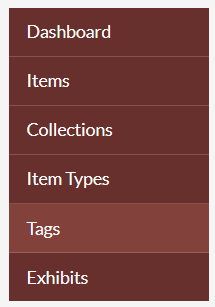
To manage tags, sign in to the Omeka.net admin panel of your site and select "Tags" from the left navigation bar. All tags associated with items in the archive will be displayed. You can edit tags, delete tags, view items associated with individual tags, and sort tags.
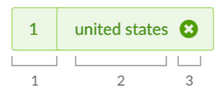
Each tag used on your site is displayed as a unit showing: 1) the number of items with that tag, 2) the tag name, and 3) an option to delete the tag.
Viewing Tagged Items
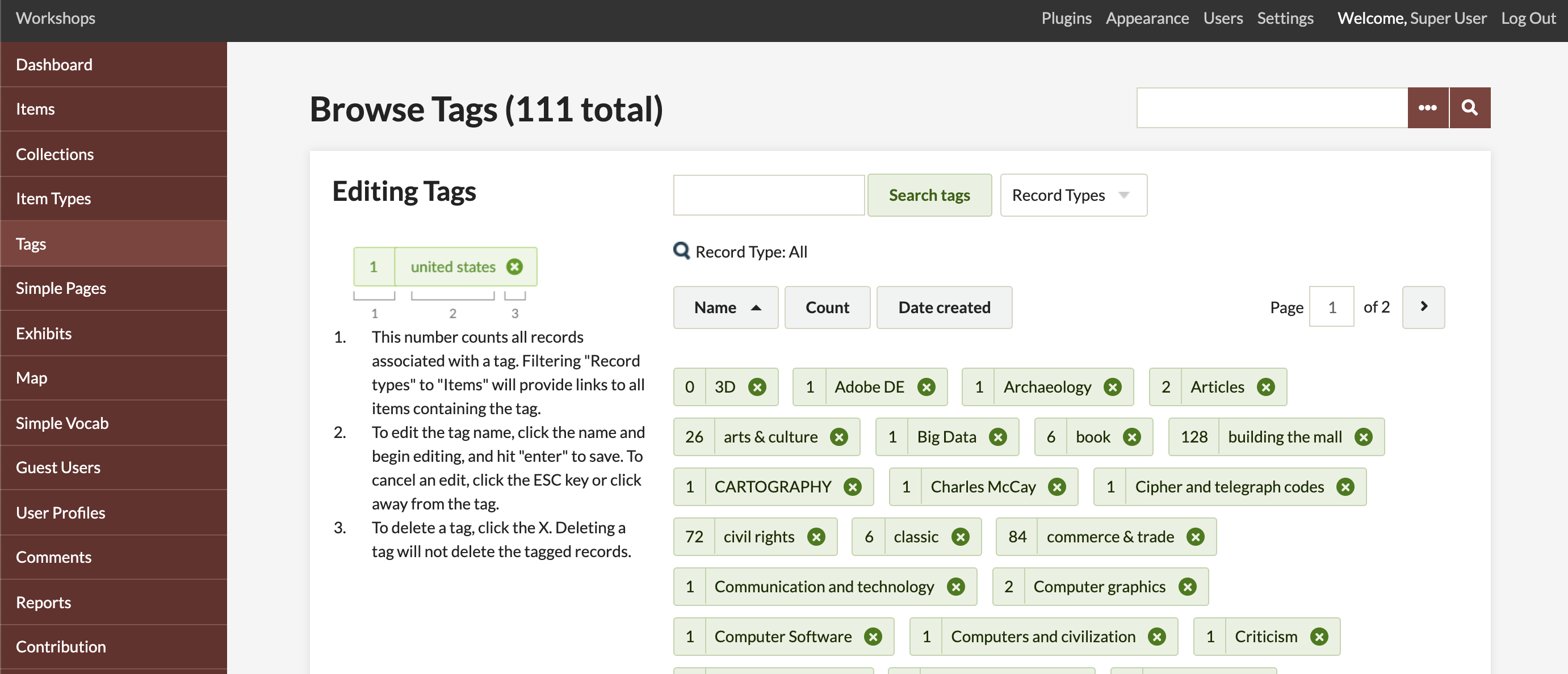
To view items associated with an individual tag, click the number to the left of the tag name. A browse page will open, showing only items tagged with the tag you clicked.
Sorting Tags

The menu above the tags allows you to sort all tags. The "Browse Tags" panel displays all tags associated with items in the archive, weighted by frequency of use. You can sort and view all tags by most popular, least popular, alphabetical order, or most recently added.
Editing Tags
You can rename tags. Tags edited in the admin panel will be changed across all items on the displayed site.
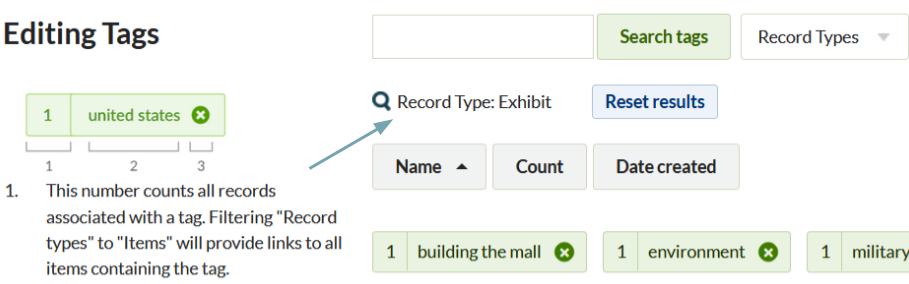
Deleting Tags
Deleting a tag removes that tag from all items it was assigned to.
-
Select the tag you want to delete from the selection menu.
-
Click the X to the right of the tag.
-
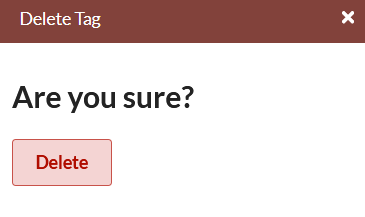
A window will appear asking "Are you sure?" Click "Delete" to permanently remove the tag from all Omeka items. (If you change your mind, click the X in the upper right corner to close the window.)