This article summarizes how to install Omeka S modules.
A. From the Official Site
First, you can download zip files from the official site below.
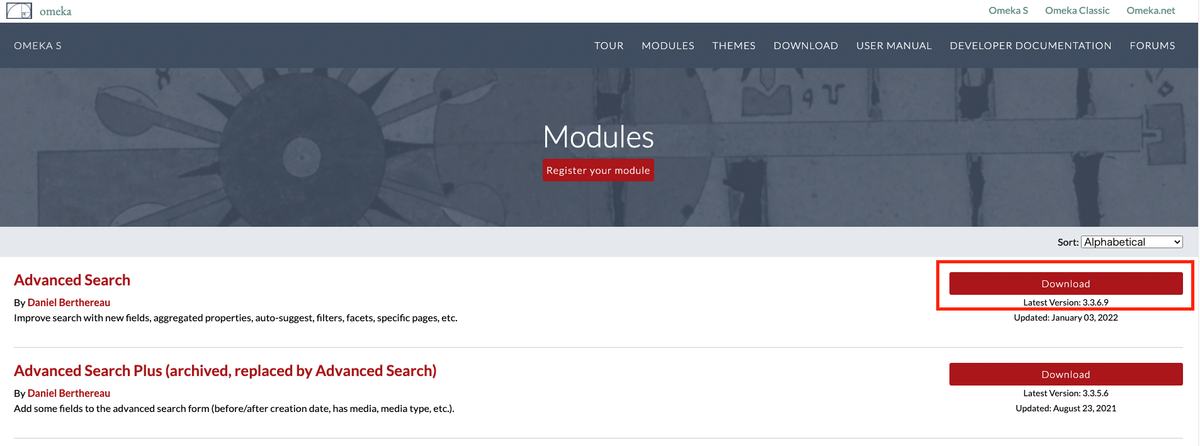
Clicking the download button above will download a zip file. Extract the folder and place it in the modules folder within the Omeka S installation directory.
This is the most basic method. An explanatory video is also available, so if this is your first time, please refer to the following video:
B. From GitHub or GitLab (Option 1: Downloading the Release Version)
Not all modules are listed on the official site above. Modules under development and others are published on GitHub, GitLab, and similar platforms.
A list of modules published on GitHub can be found at:
https://daniel-km.github.io/UpgradeToOmekaS/omeka_s_modules.html
As an example, let us look at the CustomOntology module below.
https://github.com/Daniel-KM/Omeka-S-module-CustomOntology
In this case, first click the link in the Releases section.
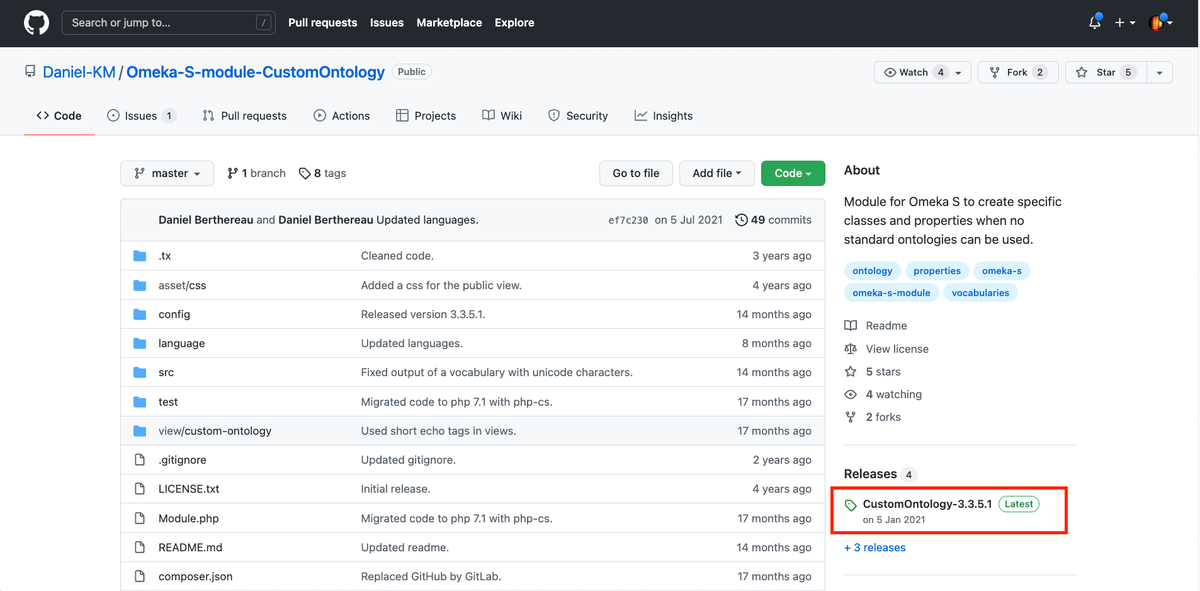
Then download the following zip file.
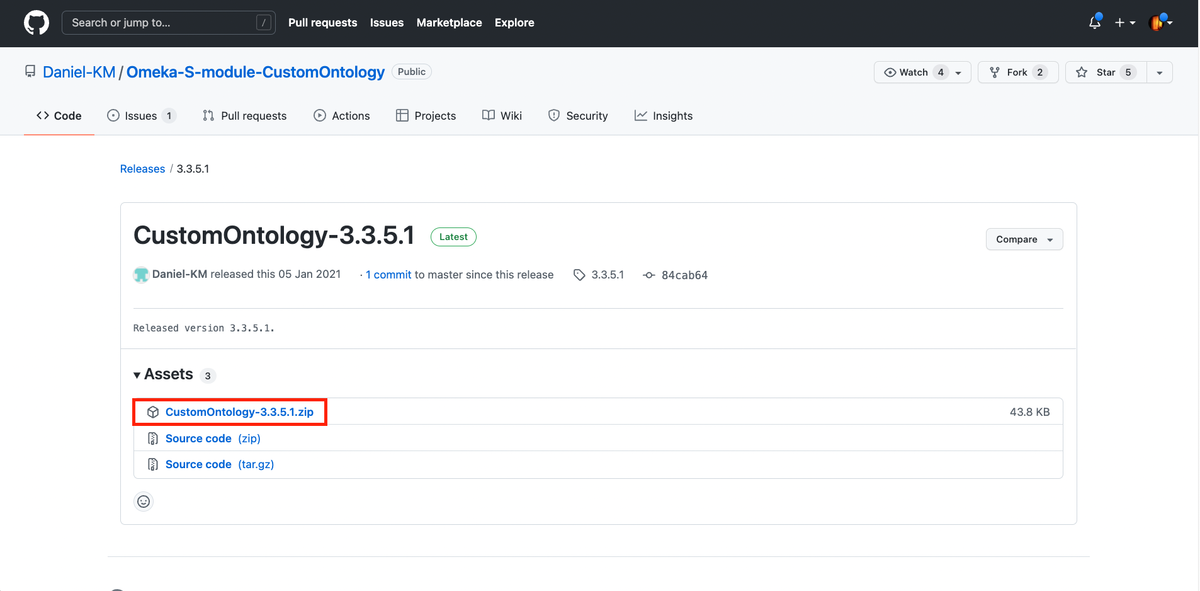
An important note here: select the link that is NOT "Source code (zip)." If you download the "Source code (zip)" link, you will need to perform the additional steps described in the next section.
C. From GitHub or GitLab (Option 2: Source Code)
For some modules, a release version zip file is not provided. Also, as a note for developers, the steps described in this section are required when cloning a repository.
For example, the XmlViewer module below does not provide a release version zip file.
https://gitlab.com/Daniel-KM/Omeka-S-module-XmlViewer
In this case, clone the repository or download the zip file from the source code download option below.
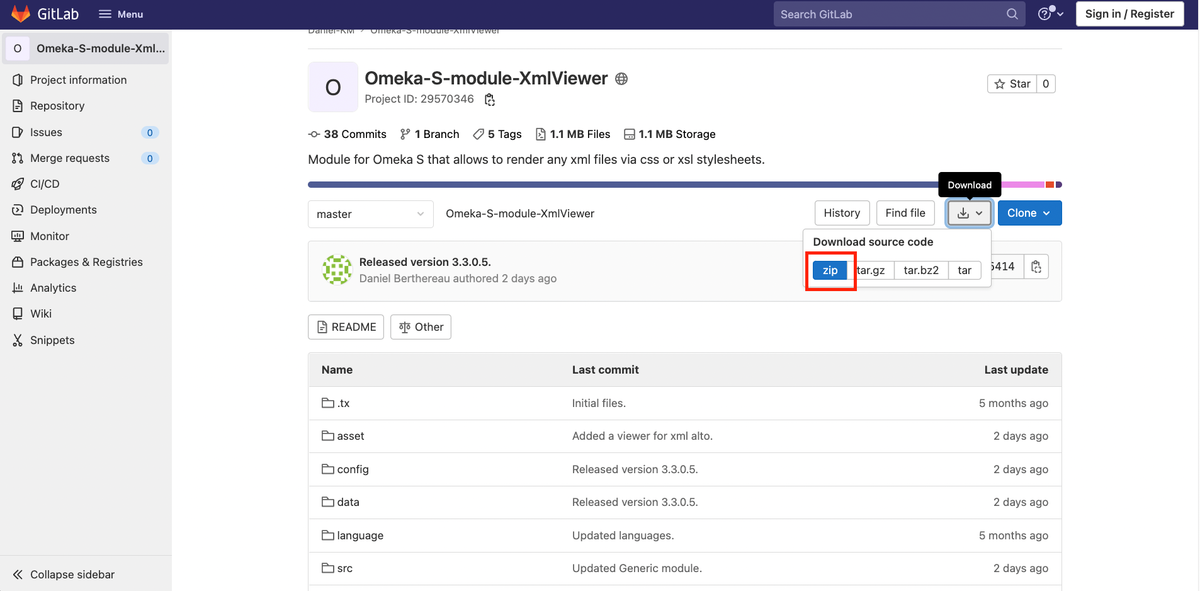
An important note in this case: depending on the repository, you may need to rename the extracted folder.
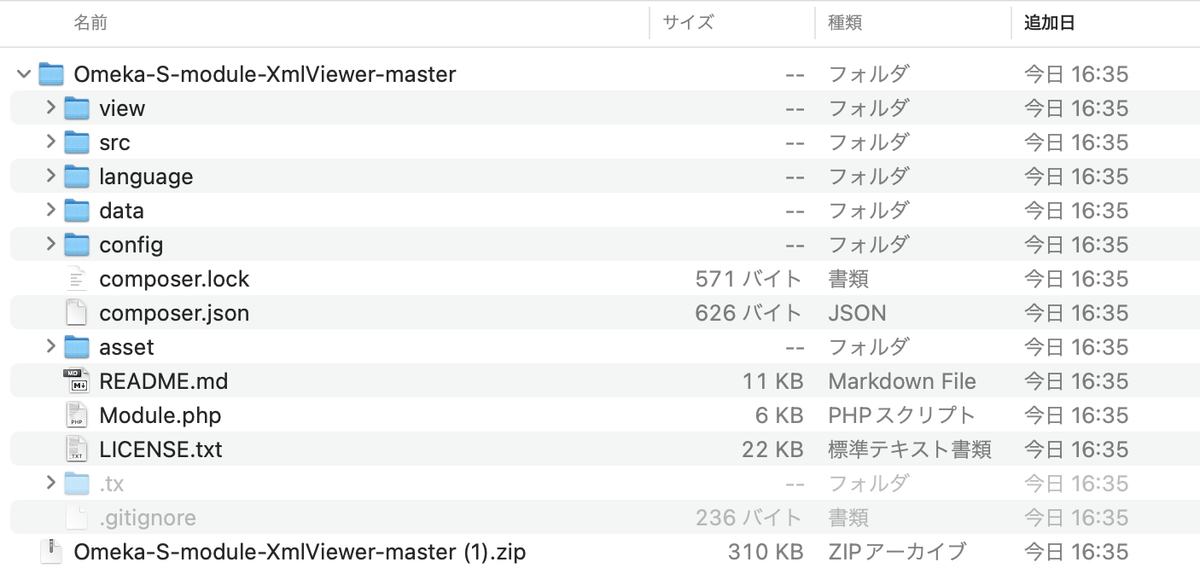
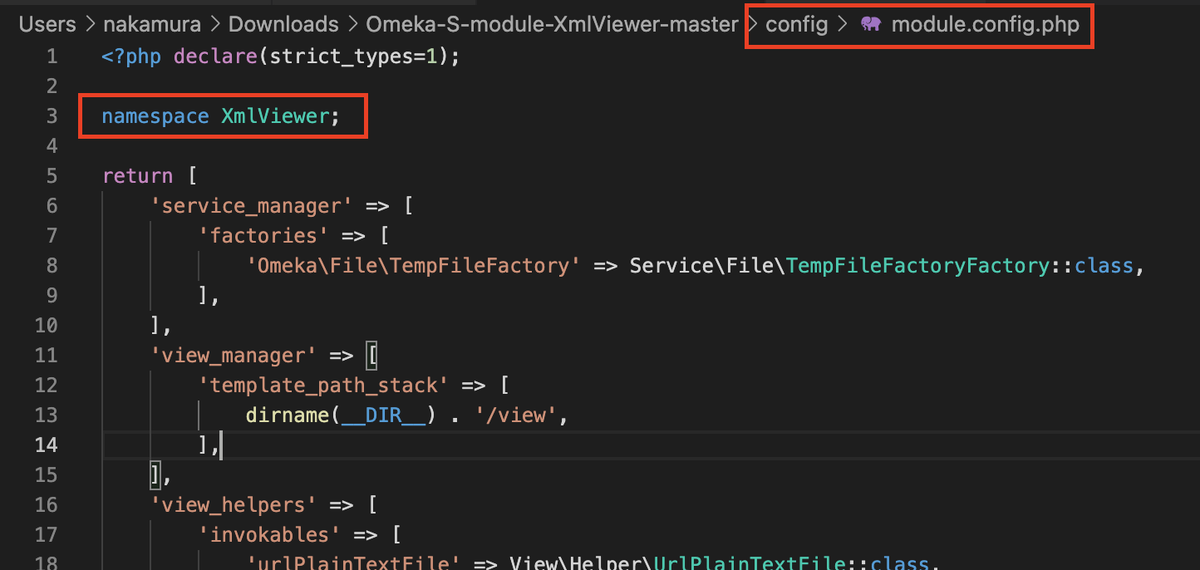
Specifically, rename the folder to match the namespace value found in files such as module.config.php in the config folder.
In this case, rename the folder from "Omeka-S-module-XmlViewer-master" to "XmlViewer."
For the CustomOntology discussed in section B, if you download the source code version zip file, it will be extracted as "Omeka-S-module-CustomOntology-3.3.5.1," so you need to rename the folder to "CustomOntology."
Additionally, when downloading source code, you may need to install additional libraries using commands such as:
composer install --no-dev
Check the repository's README file for any required operations.
Summary
For basic usage, methods A and B will cover almost all cases. On the other hand, for more advanced use cases such as trying the latest features of a module or performing additional development, the steps in method C are required.
I hope this is helpful for those experiencing installation errors with Omeka S modules.