Home Articles Books Search About
日本語
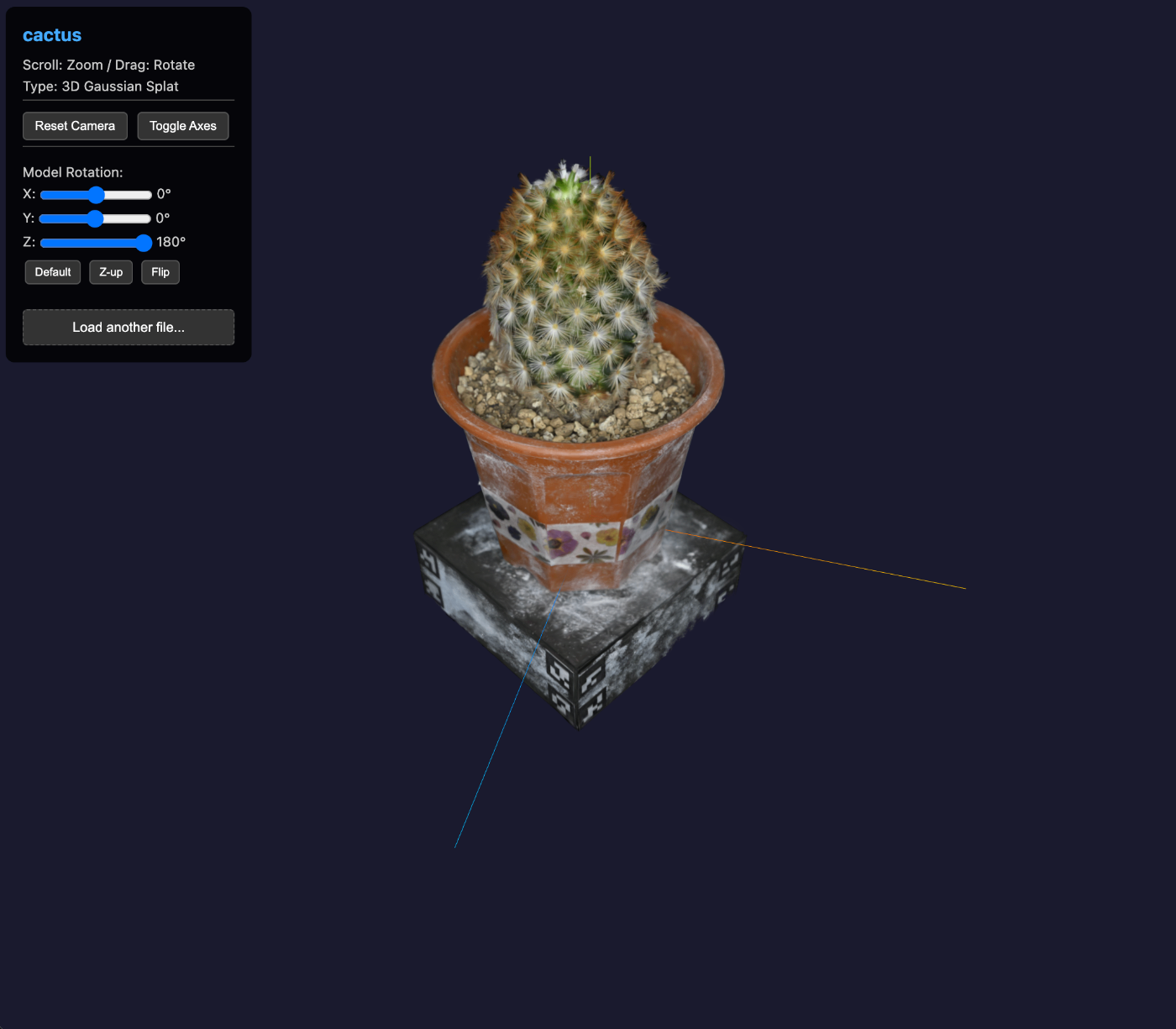
Investigating PLY Files Not Being Output in IIIF Manifest Items with Omeka S IIIF Server Module

Investigating PLY Files Not Being Output in IIIF Manifest Items with Omeka S IIIF Server Module

Overview I investigated an issue where PLY files were not being output as items in IIIF manifests by the Omeka S IIIF Server module, while GLB files were output correctly. Prerequisites: Omeka S Configuration By default, PLY files cannot be uploaded to Omeka S. The following configuration is required. Error When Uploading PLY Files With default settings, upload errors occur because the PLY file’s media type (application/octet-stream) and extension (.ply) are not permitted. ...

How to Build an Independent Author Database in Omeka S

How to Build an Independent Author Database in Omeka S

Introduction A common challenge in digital archives for museums and libraries is the need to “properly manage the relationship between works and their creators.” Especially when a single author has created multiple works, or when multiple authors have collaborated on a single work, it is important to clearly express these relationships and make them searchable. This article explains how to build an independent author database in Omeka S and link it with works. ...

Complete Guide to Migrating an Omeka-S Docker Environment to Another Server

Complete Guide to Migrating an Omeka-S Docker Environment to Another Server

Introduction This article explains the procedure for migrating an Omeka-S environment set up with Docker Compose, including volume data, to a different server. You can proceed with the migration safely while maintaining data integrity. Environment Source server: Ubuntu 22.04 Target server: Ubuntu 22.04 (fresh setup) Stack: Omeka-S + MariaDB + phpMyAdmin + Traefik + Mailpit Migration Flow Backup on the source server Download to local machine Set up Docker environment on the target server Restore data and start up Step 1: Backup on the Source Server 1.1 Check Current Environment # Check running containers docker ps # Check Docker volumes docker volume ls Example output: ...

Achieving Japanese Full-Text Search with the MroongaSearch Module for Omeka-S

Achieving Japanese Full-Text Search with the MroongaSearch Module for Omeka-S

Overview Omeka-S is a powerful digital archive system, but Japanese full-text search barely works by default. This article explains how to achieve Japanese full-text search by installing the MroongaSearch module. Background: Why the MroongaSearch Module is Needed Problems with Omeka-S Standard Search Omeka-S’s standard full-text search (FullTextSearch module) uses the InnoDB engine, which has the following critical issues: Example of Japanese word search: Data: "Studying artificial intelligence at the University of Tokyo" (東京大学で人工知能を研究する) Search term: "artificial intelligence" (人工知能) Result: No hits Since InnoDB’s full-text search assumes space-delimited languages like English, the following problems occur with Japanese: ...

Omeka S Theme Updates and Module Modifications

Omeka S Theme Updates and Module Modifications

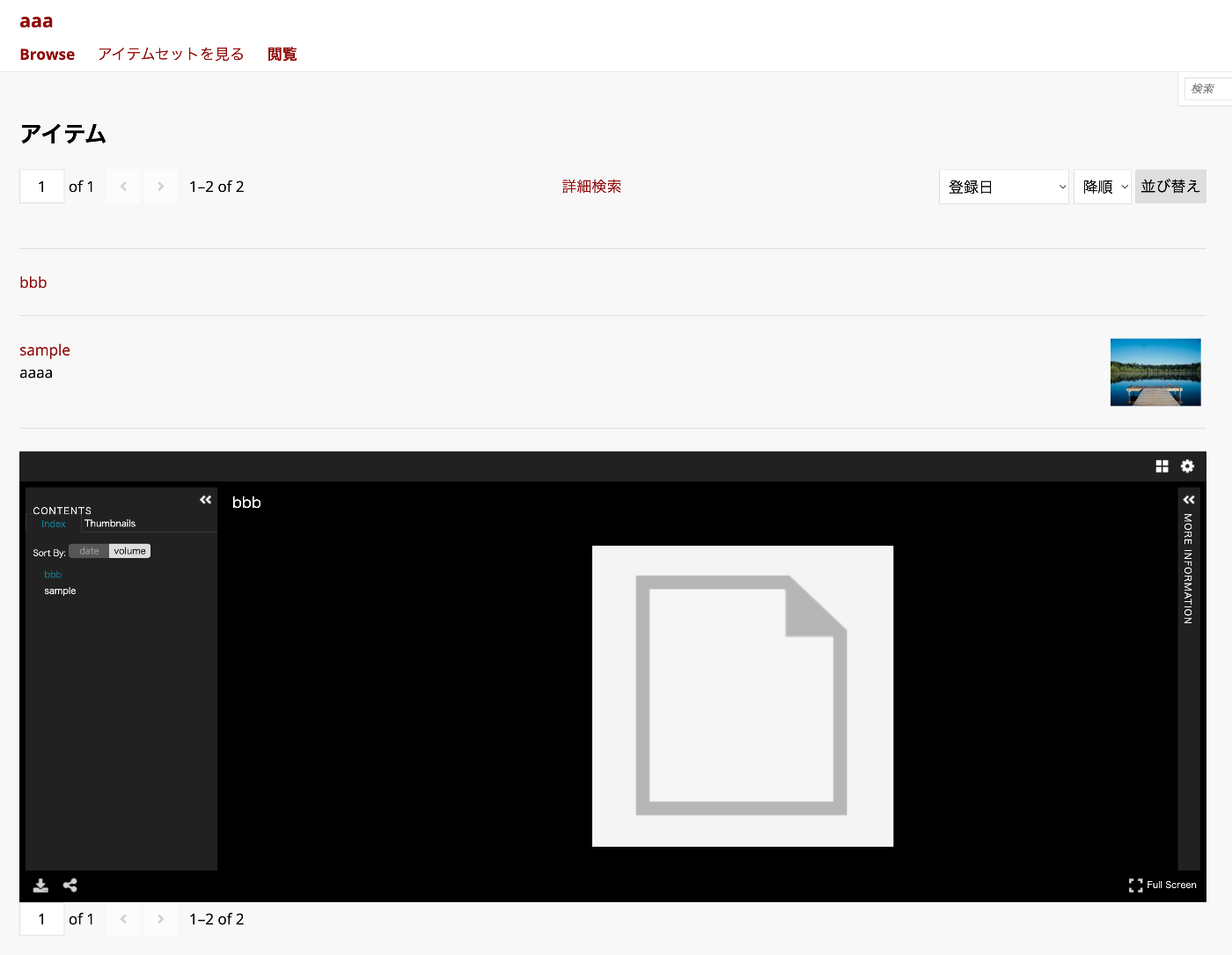
Overview I had the opportunity to work with Omeka S at the following workshop. This time, I introduce the modifications made to themes and modules based on feedback received from participants during the exercise. https://dh.nihu.jp/news/post/dihuco_20250724 Universal Viewer Module The Universal Viewer module introduces Universal Viewer into Omeka S. https://gitlab.com/Daniel-KM/Omeka-S-module-UniversalViewer One of the features provided by this module is the ability to display Universal Viewer on the item list page as shown below. ...

How to Register the PROV-O Ontology in Omeka S

How to Register the PROV-O Ontology in Omeka S

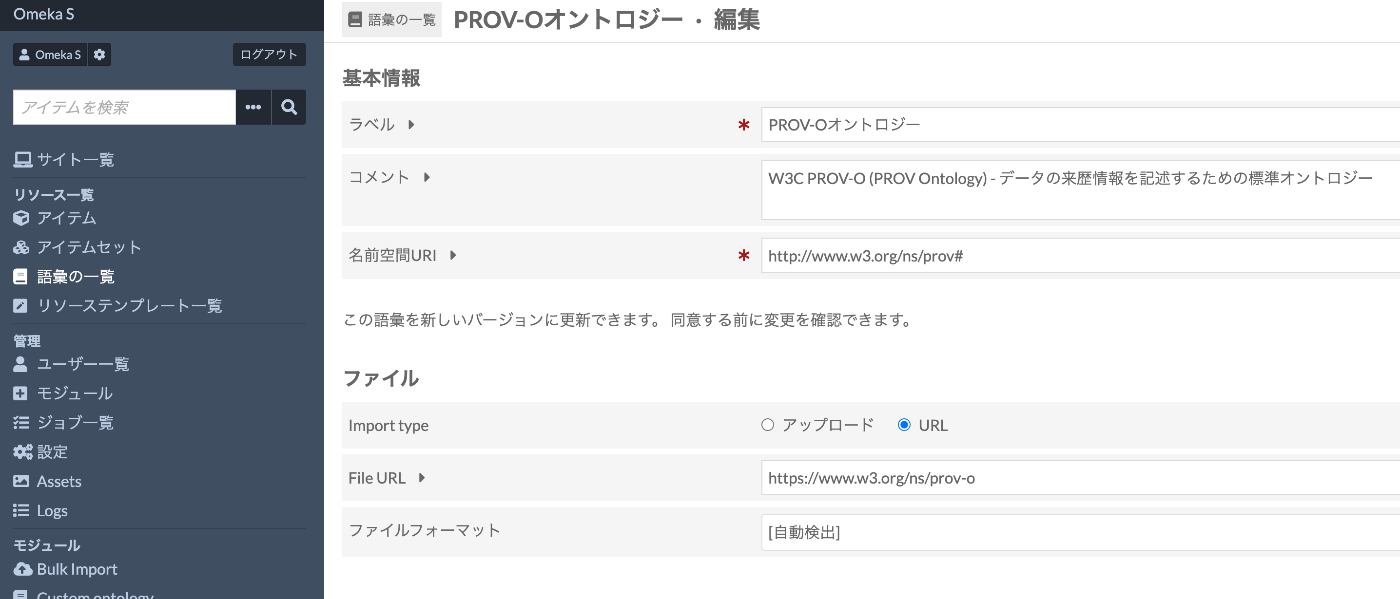
Introduction When building digital archives with Omeka S, using standard vocabularies for metadata description improves data interoperability. This article explains the steps to register PROV-O (PROV Ontology), developed by W3C, in Omeka S. PROV-O is an ontology for describing provenance information about data and digital objects, allowing structured recording of “who,” “when,” and “how” data was created or modified. Prerequisites Omeka S (version 3.0 or later) installed Logged in with administrator privileges Internet connection environment (required for importing from external URLs) Registration Steps 1. Accessing the Vocabulary Management Screen Log in to the Omeka S admin panel Click “Vocabularies” from the left menu Click the “Import new vocabulary” button in the upper right 2. Entering Basic Information Enter the vocabulary basic information as follows: ...

Multilingual Support for Omeka S Themes

Multilingual Support for Omeka S Themes

Introduction When developing Omeka S themes, information about implementing multilingual support is limited. This article explains the specific steps for making an Omeka S custom theme multilingual, along with important notes for implementation. Table of Contents How the Omeka S Translation System Works Files Needed for Theme Multilingual Support Step-by-Step Guide Common Mistakes and Solutions Implementation Examples Troubleshooting 1. How the Omeka S Translation System Works Omeka S uses the gettext standard translation system. In this system: ...

Researching How to Use Omeka S

Researching How to Use Omeka S

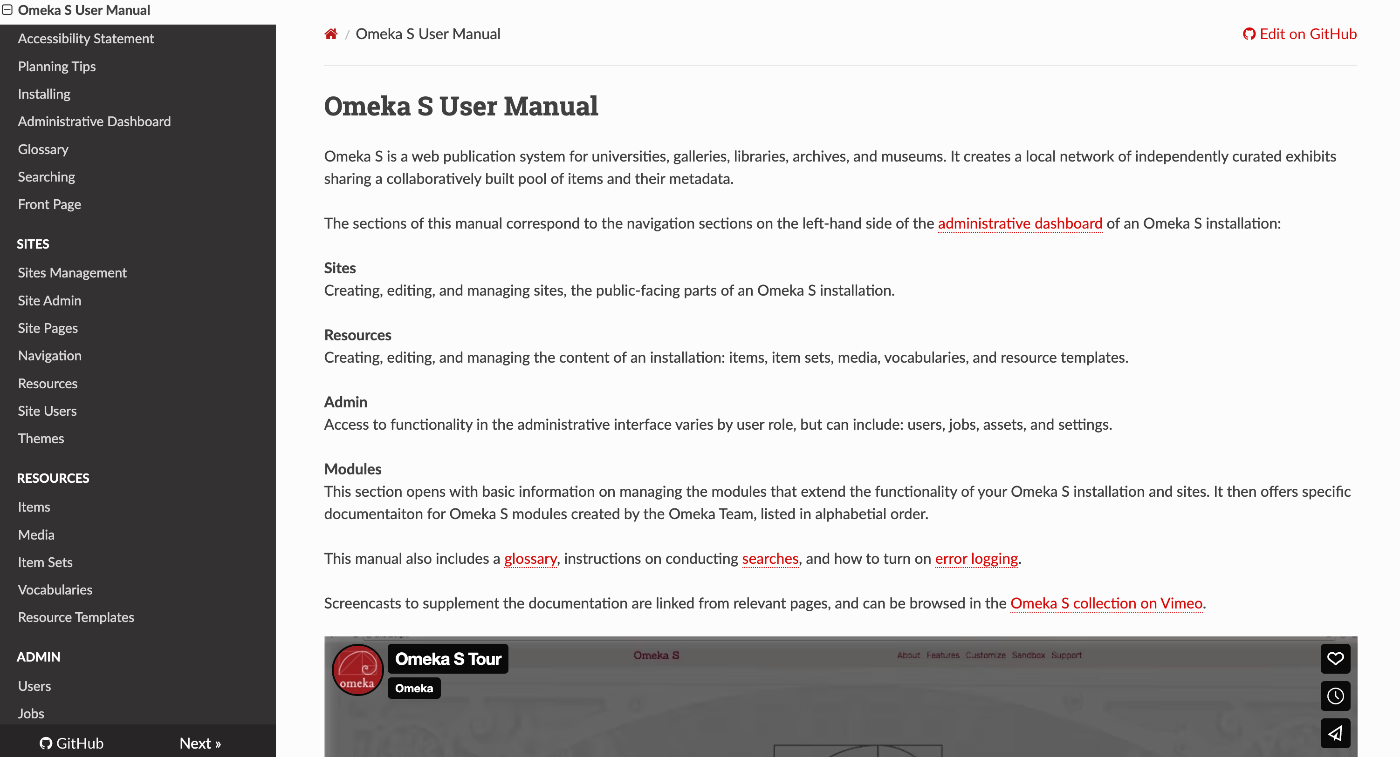
Overview This is a memo on methods for researching how to use Omeka S. How to Research Official Manual The official manual is the most comprehensive and reflects the most up-to-date content. https://omeka.org/s/docs/user-manual/ Chat With Copilot As a method for searching in natural language, you can use “Chat With Copilot.” Access the following repository: https://github.com/omeka/omeka-s-enduser Then click “Chat With Copilot.” You can ask questions in the chat interface shown below. ...

Introducing Omeka S Docker: A Modern and Secure Solution for Digital Collections

Introducing Omeka S Docker: A Modern and Secure Solution for Digital Collections

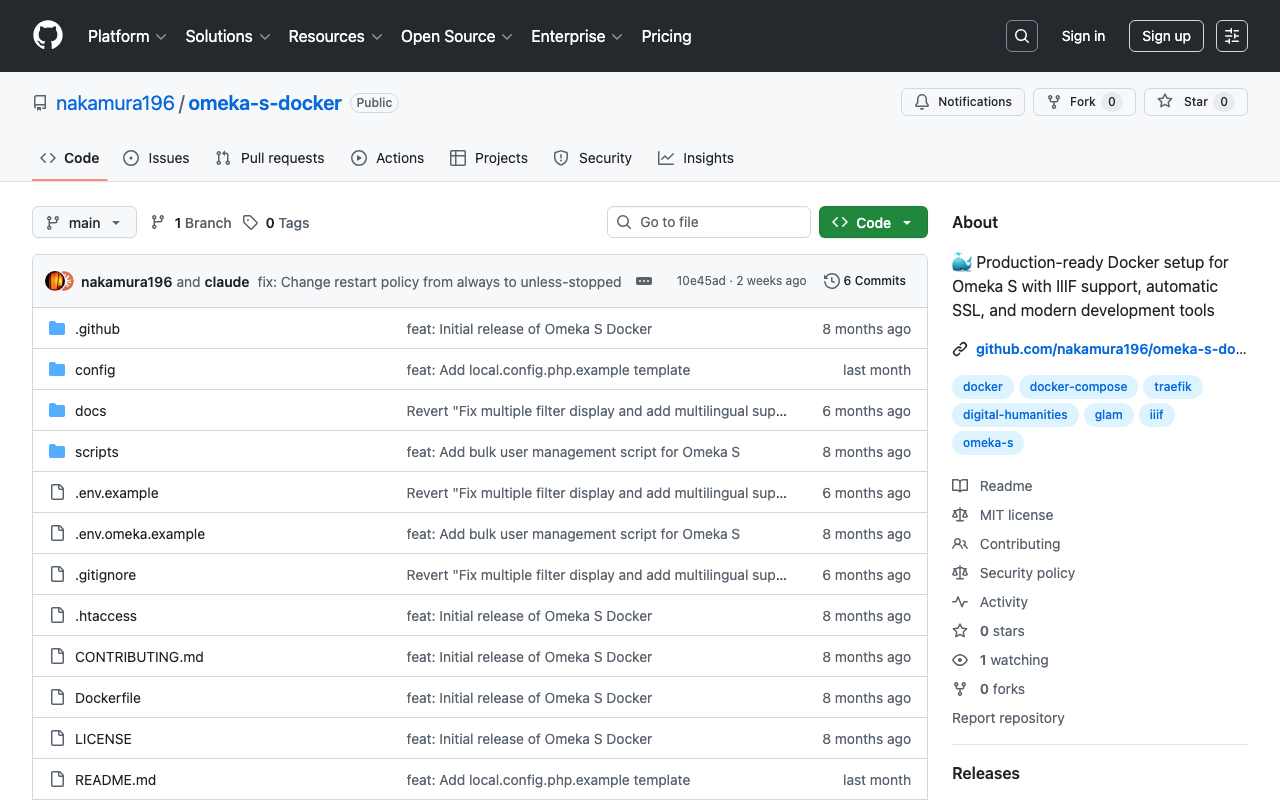
! This article was created by AI. Welcome to Omeka S Docker! This project provides a production-ready Docker setup for Omeka S, a web publication system for universities, galleries, libraries, archives, and museums. GitHub Repository: https://github.com/nakamura196/omeka-s-docker Why Omeka S Docker? Managing digital collections does not need to be complex. That is why we created a Docker-based solution that simplifies deploying and managing Omeka S. Key Features Quick Setup: Get Omeka S running within minutes with a single command Security First: Built with security best practices including non-root containers and secure default settings Module Management: Automatic installation and updates of popular Omeka S modules Easy Upgrades: Seamless version upgrades while maintaining data persistence Production Ready: Optimized for both development and production environments Traefik Integration: Built-in support for reverse proxy and SSL termination Getting Started Prerequisites Docker and Docker Compose installed Basic command line knowledge (Optional) A domain name for production deployment with SSL Understanding Setup Options This Docker setup provides two deployment modes: ...

Describing Hierarchical Table of Contents with Omeka S IIIF Server Module

Describing Hierarchical Table of Contents with Omeka S IIIF Server Module

Overview This article introduces how to describe a hierarchical table of contents using the Omeka S IIIF Server module. Documentation The documentation is somewhat complex, but explanations are available at: https://github.com/Daniel-KM/Omeka-S-module-IiifServer?tab=readme-ov-file#input-format-of-the-property-for-structures-table-of-contents Simple Table of Contents The following example from “Toyo Bunko Media Repository” is used: https://app.toyobunko-lab.jp/s/main/document/9f9d95c2-d33d-7402-742b-47db12748688 Specify {Range ID},{Range name},{Canvas index} as follows: r1,延享、寛延、宝暦,1 r2,明和,25 r3,安永一,55 r4,安永二,79 r5,天明一,110 r6,天明二,142 r7,寛政一,177 r8,寛政二,218 r9,享和,255 r10,文化一,279 r11,文化、文政、二,313 This results in the following table of contents display: ...

Registering Resources (Items and Images) in Omeka S Using an MCP Server

Registering Resources (Items and Images) in Omeka S Using an MCP Server

Overview As part of learning about MCP servers, I created an MCP server that registers resources (items and images) in Omeka S. https://github.com/nakamura196/omeka-s-mcp-sample Related Articles I referenced the following articles. https://zenn.dev/himara2/articles/14eb2260c4f0e4 https://zenn.dev/meson_tech_blog/articles/simple-mcp-server Setup I will leave the details of how to use the MCP server with Claude Desktop to other articles. Add configuration like the following. { "mcpServers": { ... "omeka": { "command": "python", "args": [ "<absolute_path>/omeka_s_mcp_sample/server/omeka_server.py" ], "env": { "OMEKA_API_URL": "<Omeka S URL>/api", "OMEKA_KEY_IDENTITY": "<OMEKA_KEY_IDENTITY>", "OMEKA_KEY_CREDENTIAL": "<OMEKA_KEY_CREDENTIAL>" } }, ... } } As a result, the tools are registered as shown below. ...

Omeka S Module Update Information (2025-03-27)

Omeka S Module Update Information (2025-03-27)

Overview This article introduces modules that required updates during the operation of Omeka S. IIIF Server https://omeka.org/s/modules/IiifServer/ I had been using version 3.6.18, released in February 2024, but a bug was found where thumbnail images were rendered incorrectly during IIIF manifest file generation. After updating to the latest version 3.6.24 as of March 2025, this bug was resolved. Note that this update also required updating the Common module, so I hope this information is helpful. ...

Sharing Private Sites in Omeka S

Sharing Private Sites in Omeka S

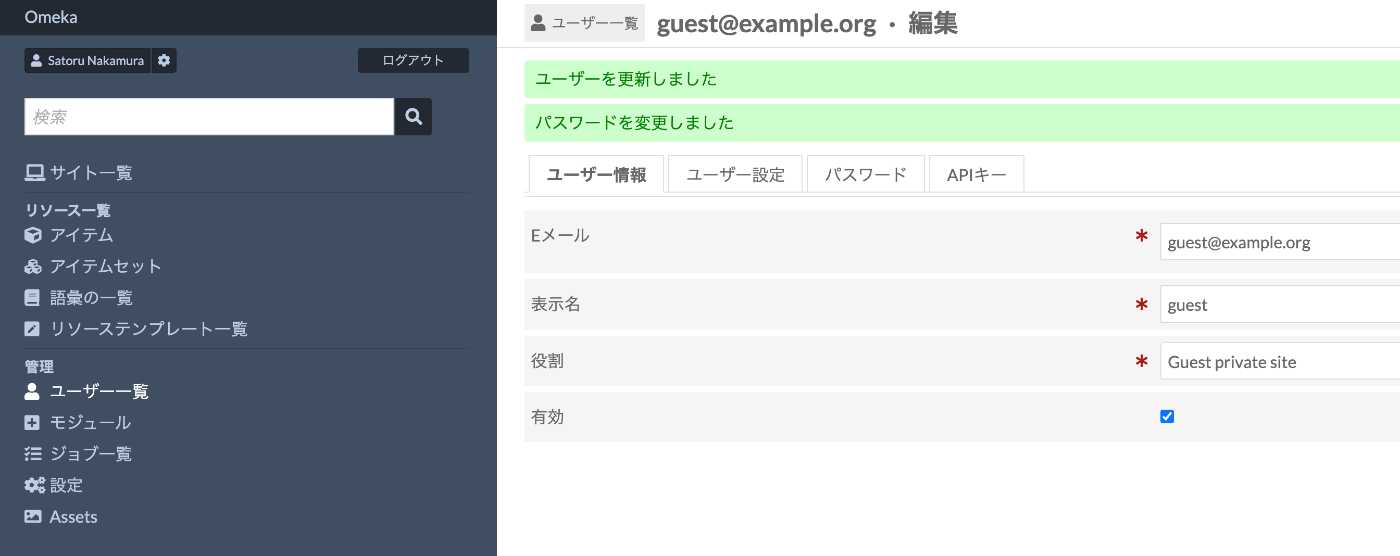
Overview I had the opportunity to share a private site in Omeka S, so this is a personal note for future reference. Related Modules First, I checked the following module. https://omeka.org/s/modules/Guest/ The above also introduces the Guest Private module, and I asked ChatGPT about how to differentiate between them. Here is an explanation of the differences between the Guest module and the Guest Private module in Omeka S. 1. Guest Module Adds the guest role, allowing users to register as guest users. No access to the admin panel. Login, logout, registration, password update, etc. are possible via API. Only public sites are viewable (private sites and private pages cannot be seen). Use case: Register general users on a public site and provide login functionality. 2. Guest Private Module Adding this module provides two additional roles: ...

Uploading Large Files to Omeka S

Uploading Large Files to Omeka S

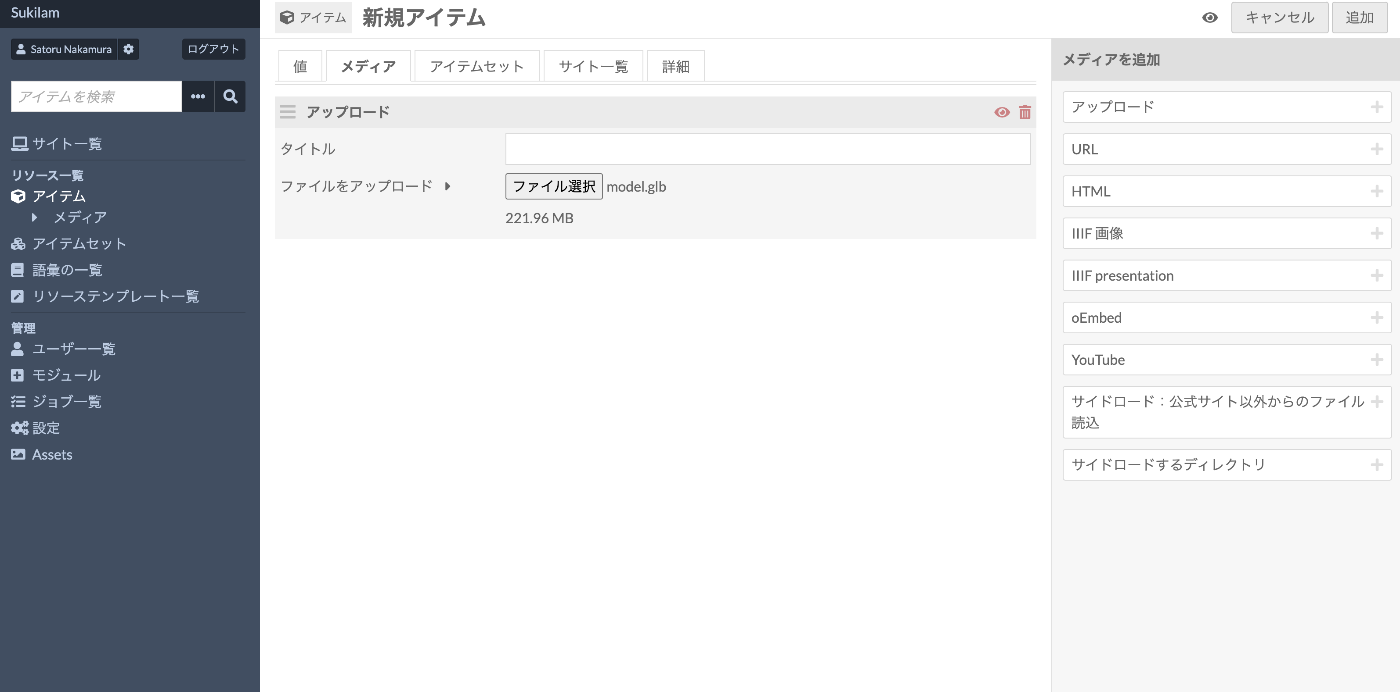
Overview I had the opportunity to upload relatively large files (over 200MB) to Omeka S, so this is a memo of the process. Specifically, I uploaded .glb files, a 3D file format used for storing 3D models. Issue Typically, when attempting to upload a relatively large file through the GUI, you may encounter a “POST request exceeded maximum size” error as shown below. Here are some examples of how to address this. ...

Omeka S: Finding Themes Compatible with the Advanced Search Module

Omeka S: Finding Themes Compatible with the Advanced Search Module

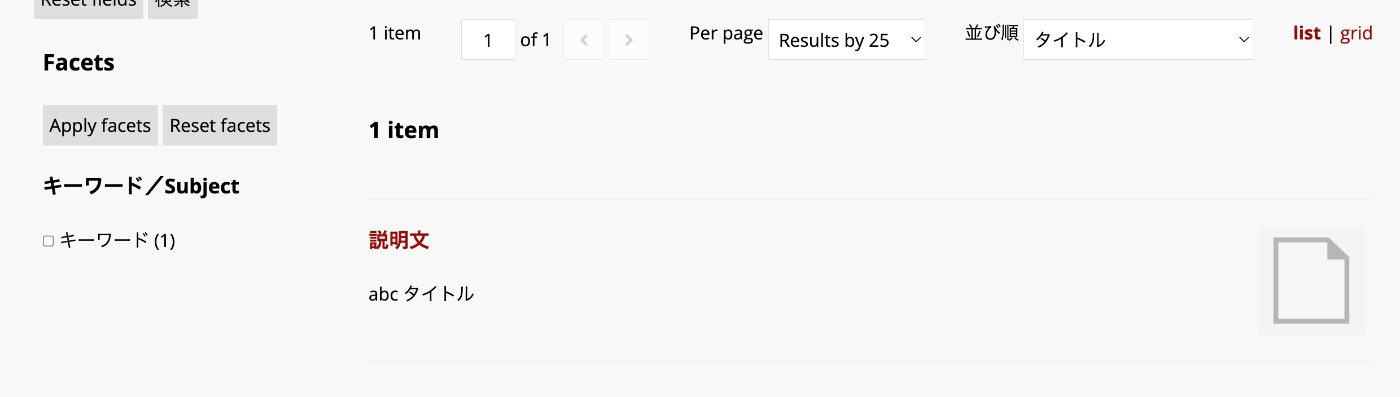
Overview This article introduces one approach for finding themes compatible with the Advanced Search module in Omeka S. Background By using the Advanced Search module for Omeka S, you can customize the search interface as introduced in the following article: In particular, the ability to add facets is a notable advantage. However, if the theme you are using does not support the Advanced Search module, the display may break in some cases. One way to check whether a theme supports the Advanced Search module is to look for an “advanced-search” directory under the theme’s “view/common” folder, as shown below: ...

How to Upload Media to Omeka S Using Python

How to Upload Media to Omeka S Using Python

Overview This is a personal note on how to upload media to Omeka S using Python. Preparation Prepare environment variables. OMEKA_S_BASE_URL=https://dev.omeka.org/omeka-s-sandbox # Example OMEKA_S_KEY_IDENTITY= OMEKA_S_KEY_CREDENTIAL= Initialize. import requests from dotenv import load_dotenv import os def __init__(self): load_dotenv(verbose=True, override=True) OMEKA_S_BASE_URL = os.environ.get("OMEKA_S_BASE_URL") self.omeka_s_base_url = OMEKA_S_BASE_URL self.items_url = f"{OMEKA_S_BASE_URL}/api/items" self.media_url = f"{OMEKA_S_BASE_URL}/api/media" self.params = { "key_identity": os.environ.get("OMEKA_S_KEY_IDENTITY"), "key_credential": os.environ.get("OMEKA_S_KEY_CREDENTIAL") } Uploading a Local File def upload_media(self, path, item_id): files = {} payload = {} file_data = { 'o:ingester': 'upload', 'file_index': '0', 'o:source': path.name, 'o:item': {'o:id': item_id} } payload.update(file_data) params = self.params files = [ ('data', (None, json.dumps(payload), 'application/json')), ('file[0]', (path.name, open(path, 'rb'), 'image')) ] media_response = requests.post( self.media_url, params=params, files=files ) # Check the response if media_response.status_code == 200: return media_response.json()["o:id"] else: return None Uploading a IIIF Image Specify a IIIF image URL like the following to register it. ...

Specifying Viewing Direction in the Omeka S IIIF Server Module

Specifying Viewing Direction in the Omeka S IIIF Server Module

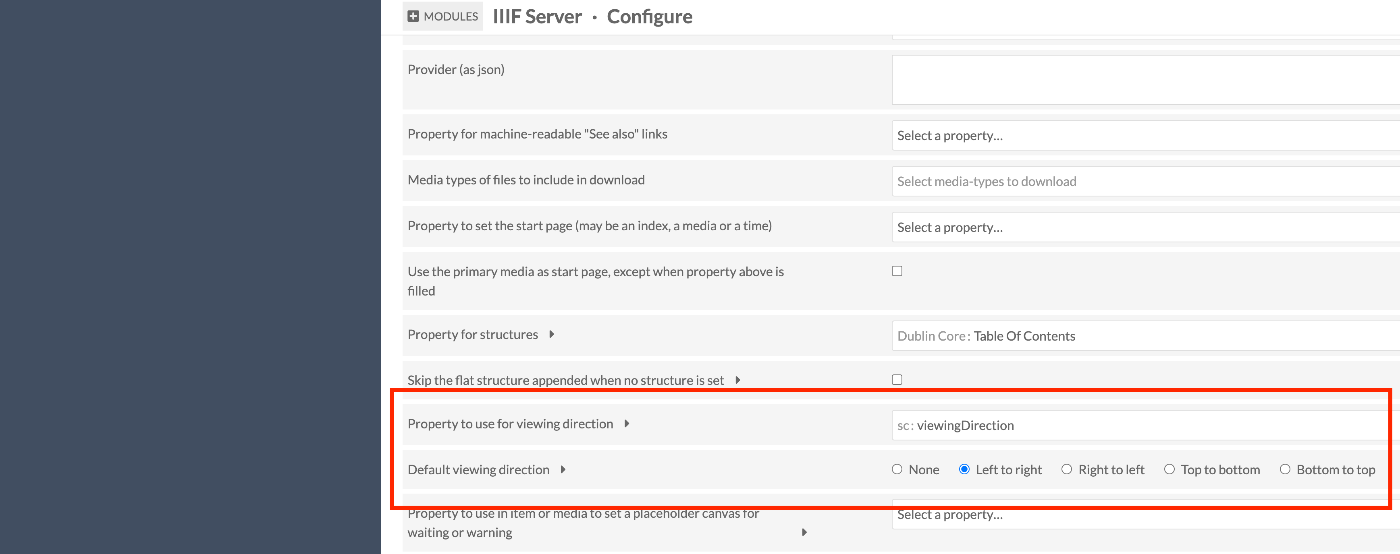
Overview Here is how to specify the viewing direction in the IIIF Server module for Omeka S. In IIIF, you can use the viewingDirection property to specify the viewing direction of manifests and canvases. Module Configuration /admin/module/configure?id=IiifServer In the IIIF Server module settings page, find the “viewing direction” section. You can specify a property with Property to use for viewing direction, and you can also set a default viewing direction. ...

Getting a List of Properties for a Specific Vocabulary in Omeka S

Getting a List of Properties for a Specific Vocabulary in Omeka S

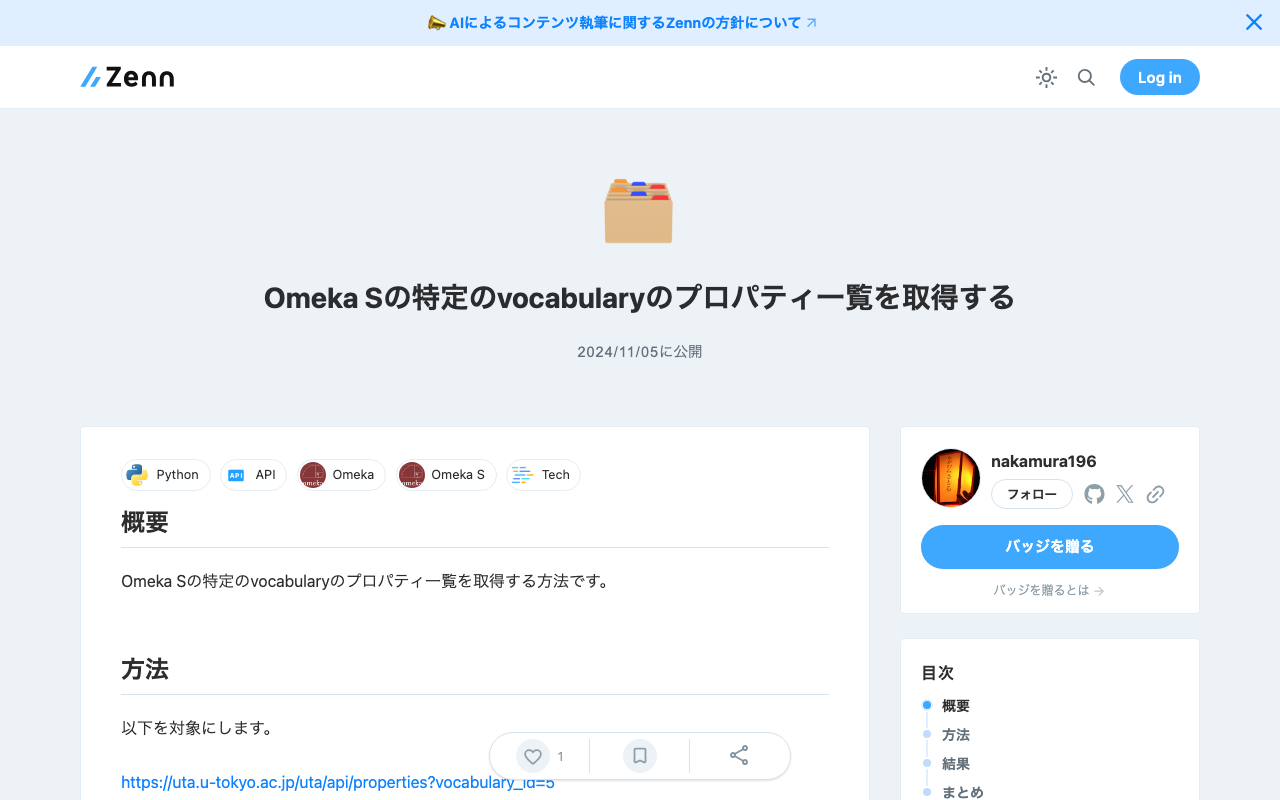
Overview Here is how to get a list of properties for a specific vocabulary in Omeka S. Method We will target the following. https://uta.u-tokyo.ac.jp/uta/api/properties?vocabulary_id=5 The following program writes the property list to MS Excel. import pandas as pd import requests url = "https://uta.u-tokyo.ac.jp/uta/api/properties?vocabulary_id=5" page = 1 data_list = [] while 1: response = requests.get(url + "&page=" + str(page)) data = response.json() if len(data) == 0: break data_list.extend(data) page += 1 remove_keys = ["@context", "@id", "@type", "o:vocabulary", "o:id", "o:local_name"] for data in data_list: for key in remove_keys: if key in data: del data[key] # DataFrameに変換 df = pd.DataFrame(data_list) df.to_excel("archiveshub.xlsx", index=False) Result The following MS Excel file is obtained. ...

Linking to Other Items Using the Custom Vocab Module in Omeka S

Linking to Other Items Using the Custom Vocab Module in Omeka S

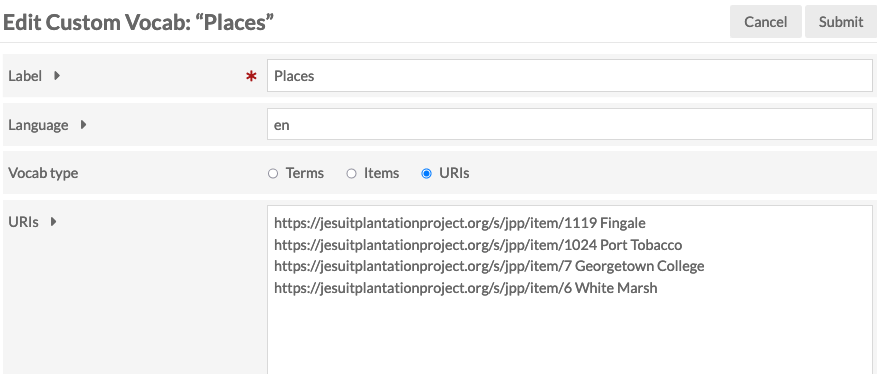
Overview I had an opportunity to link to other items using the Custom Vocab module in Omeka S, so here are my notes. Background The following article explained how to use custom vocabularies. This time, instead of strings or URIs, I will try linking items. Creating an Item Set First, create an item set to store the items to be linked. In this case, I created an item set called “Reuse Condition Display.” ...

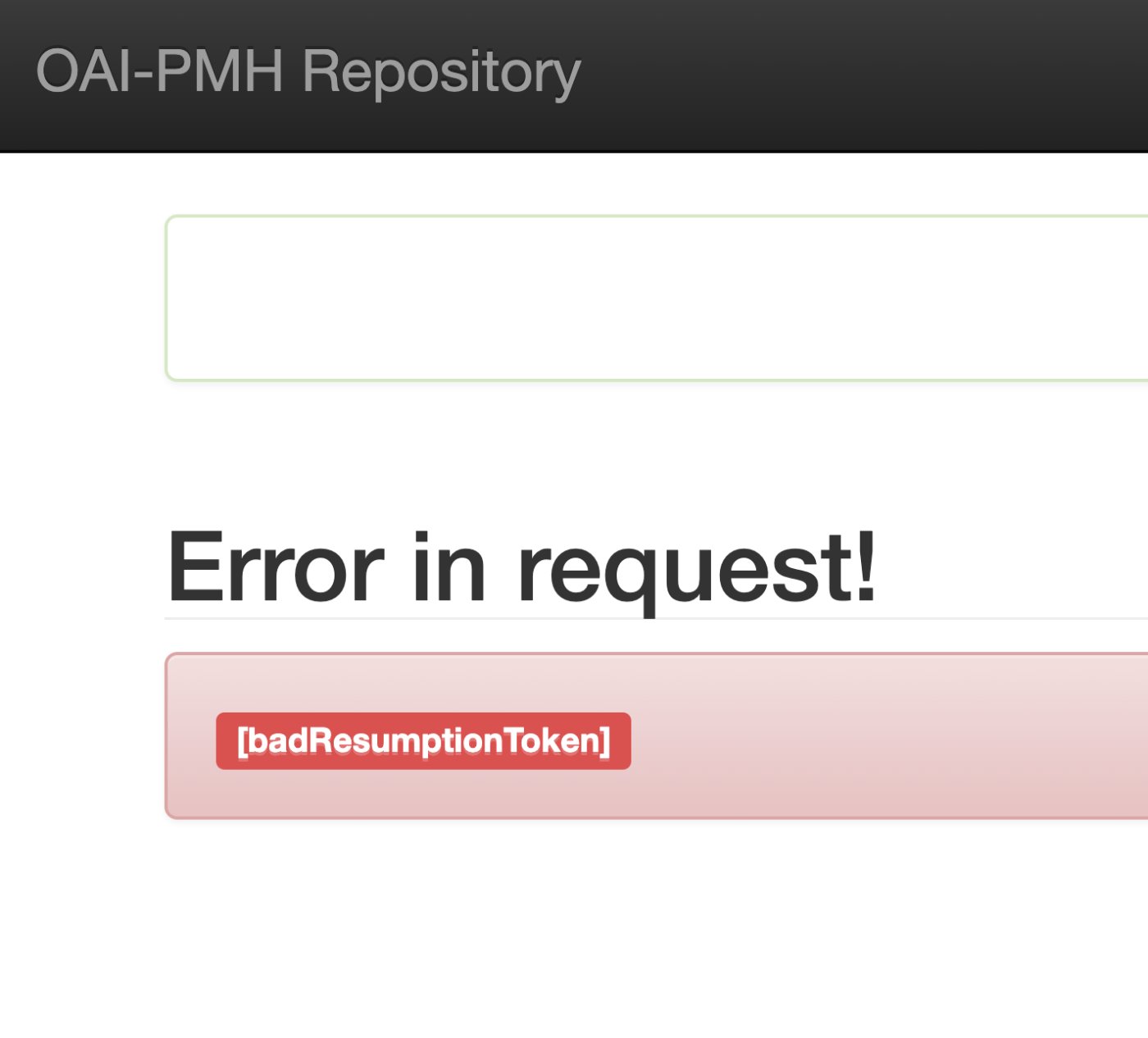
Addressing the resumptionToken Bug in Omeka S OAI-PMH Repository

Addressing the resumptionToken Bug in Omeka S OAI-PMH Repository

Overview I encountered an issue where the Omeka S OAI-PMH repository’s resumptionToken was outputting a [badResumptionToken] error even though the token was still within its expiration period. Here are my notes on how to address this bug. Solution By adding a comparison between $currentTime and $expirationTime to the following file, tokens within their expiration period are now properly retained. ... private function resumeListResponse($token): void { $api = $this->serviceLocator->get('ControllerPluginManager')->get('api'); $expiredTokens = $api->search('oaipmh_repository_tokens', [ 'expired' => true, ])->getContent(); foreach ($expiredTokens as $expiredToken) { $currentTime = new \DateTime(); // Added $expirationTime = $expiredToken->expiration(); // Added if (!$expiredToken || $currentTime > $expirationTime) { // Added $api->delete('oaipmh_repository_tokens', $expiredToken->id()); } // Added } There were cases where things worked without this fix, so there may be differences depending on the PHP version, etc. ...