How to use IMMARKUS
A video walkthrough of IMMARKUS, the open-source tool for adding semantic, W3C Web Annotation–based annotations to IIIF images, built for researchers.
Narrated walkthrough
Chapters
- 1
Intro & workspace
What IMMARKUS is, and opening the working folder where data is saved
Narration script
- 0:10IMMARKUS is open-source software for adding semantic annotations to IIIF images, for researchers
IMMARKUS is open-source software for adding semantic annotations to IIIF images, built for researchers.

- 0:17First, we open a working folder
First, we open a working folder.

- 0:24Workspace launched — your data is saved in this folder
The workspace launches, and your data is saved in this folder.

- 2
Designing the data model
Schema-first design, Entity Classes / Relationships / metadata, and nine property types
Narration script
- 0:07IMMARKUS follows a "design the schema first, then annotate" approach
IMMARKUS follows a design-the-schema-first, then-annotate approach.

- 0:10The Data Model has four sub-tabs
The Data Model is made up of four sub-tabs.

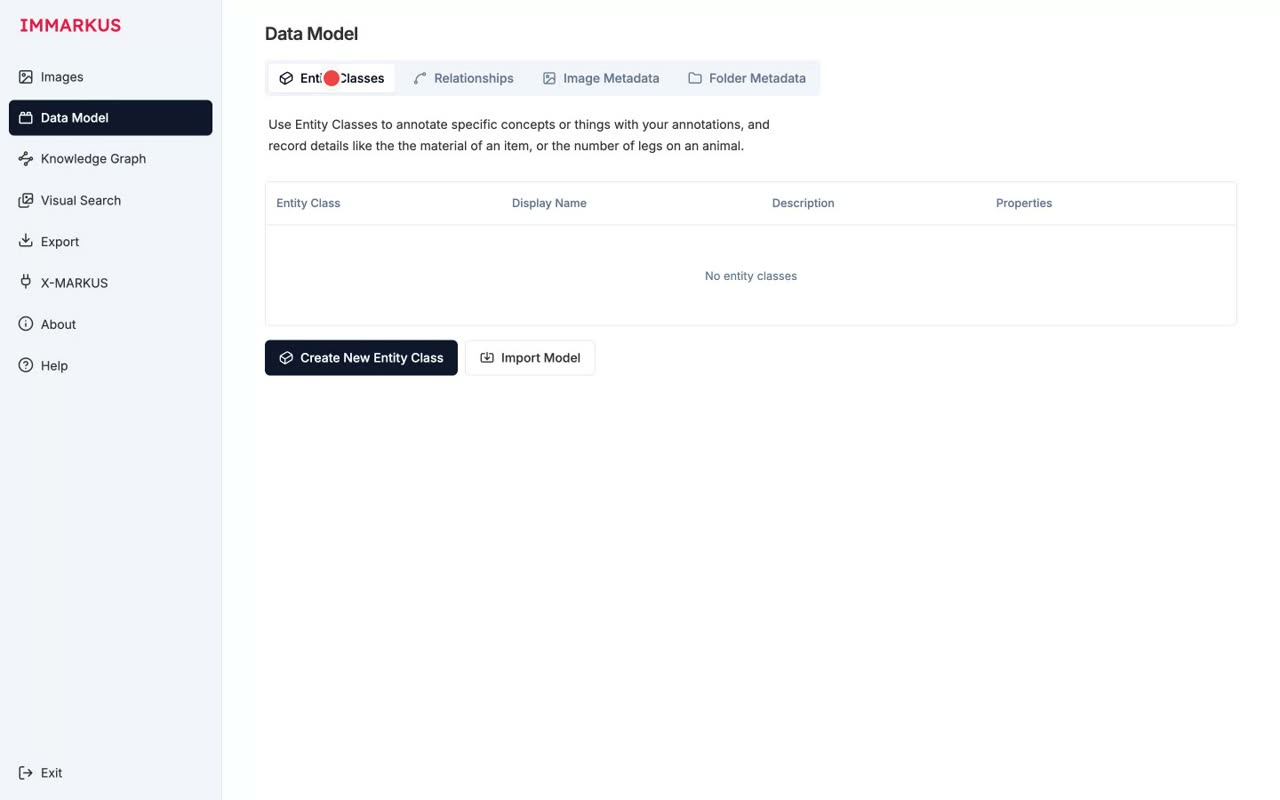
- 0:14Entity Classes: a class hierarchy for people, yokai, and more
Entity Classes hold a class hierarchy, for things like people and yokai.
- 0:17Relationships: relationship types (directed or undirected)
Relationships define relationship types, which can be directed or undirected.

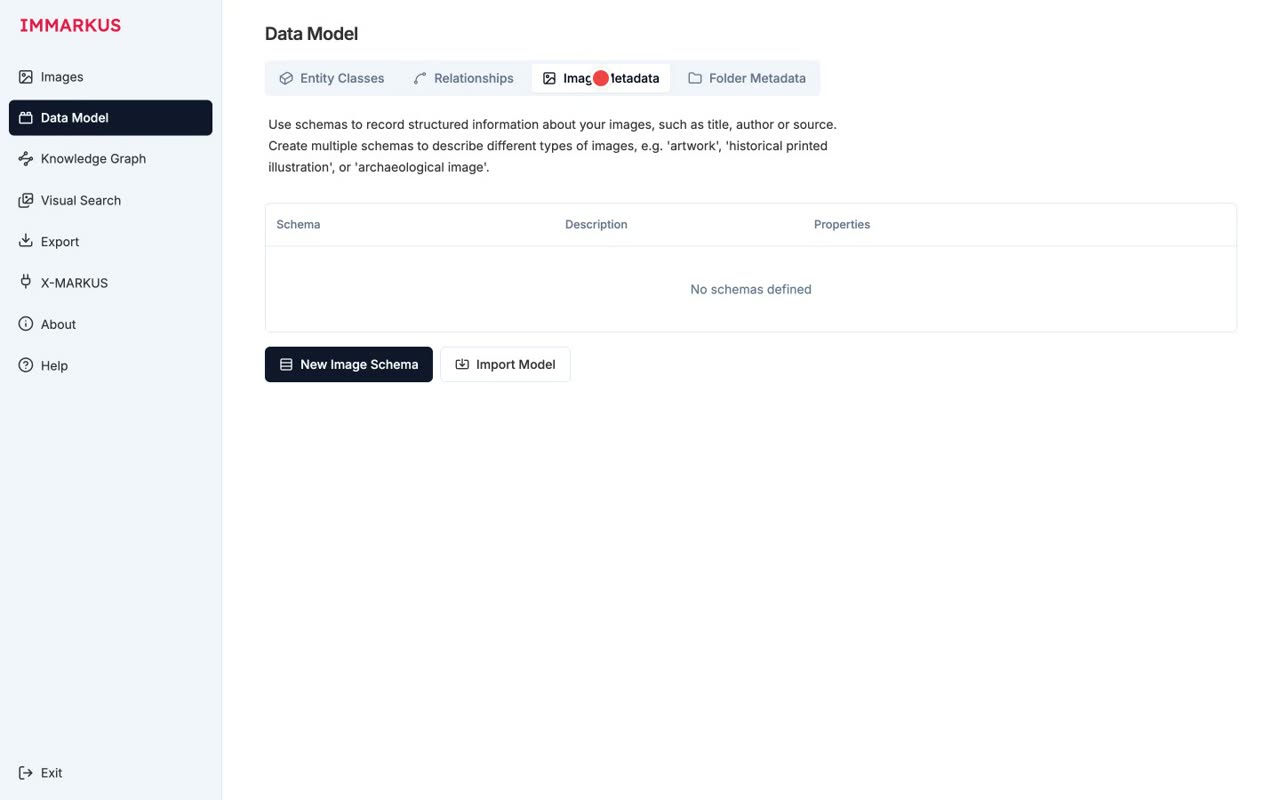
- 0:21Image Metadata: metadata per image
Image Metadata is metadata for each individual image.
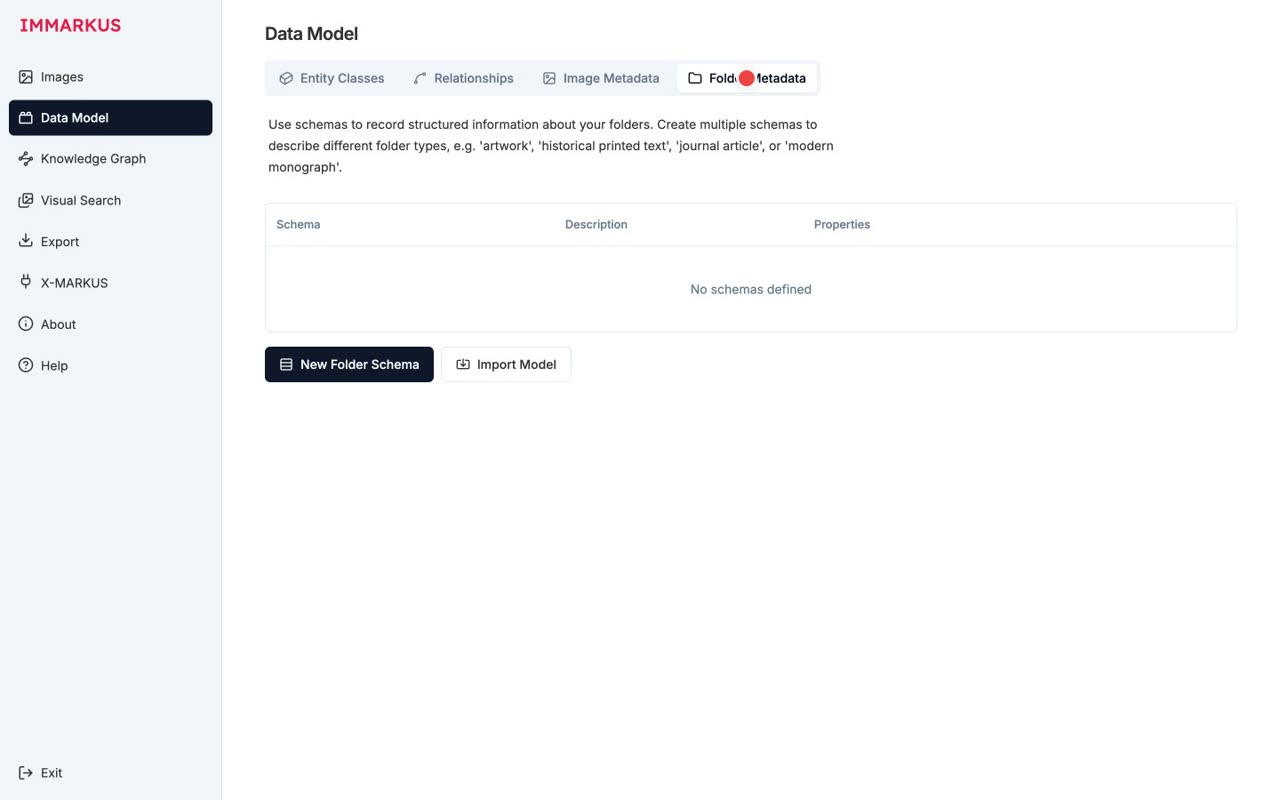
- 0:25Folder Metadata: metadata per collection (folder)
Folder Metadata is metadata for a collection, that is, a folder.

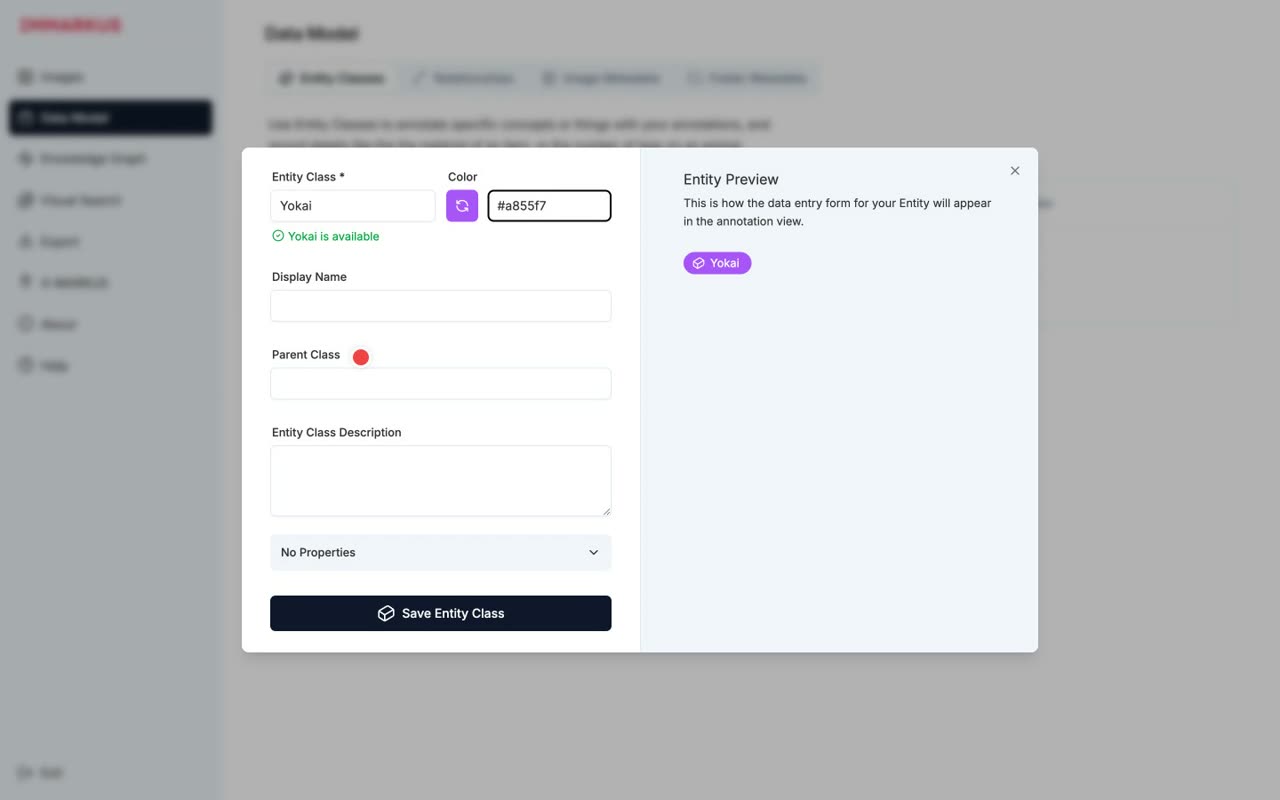
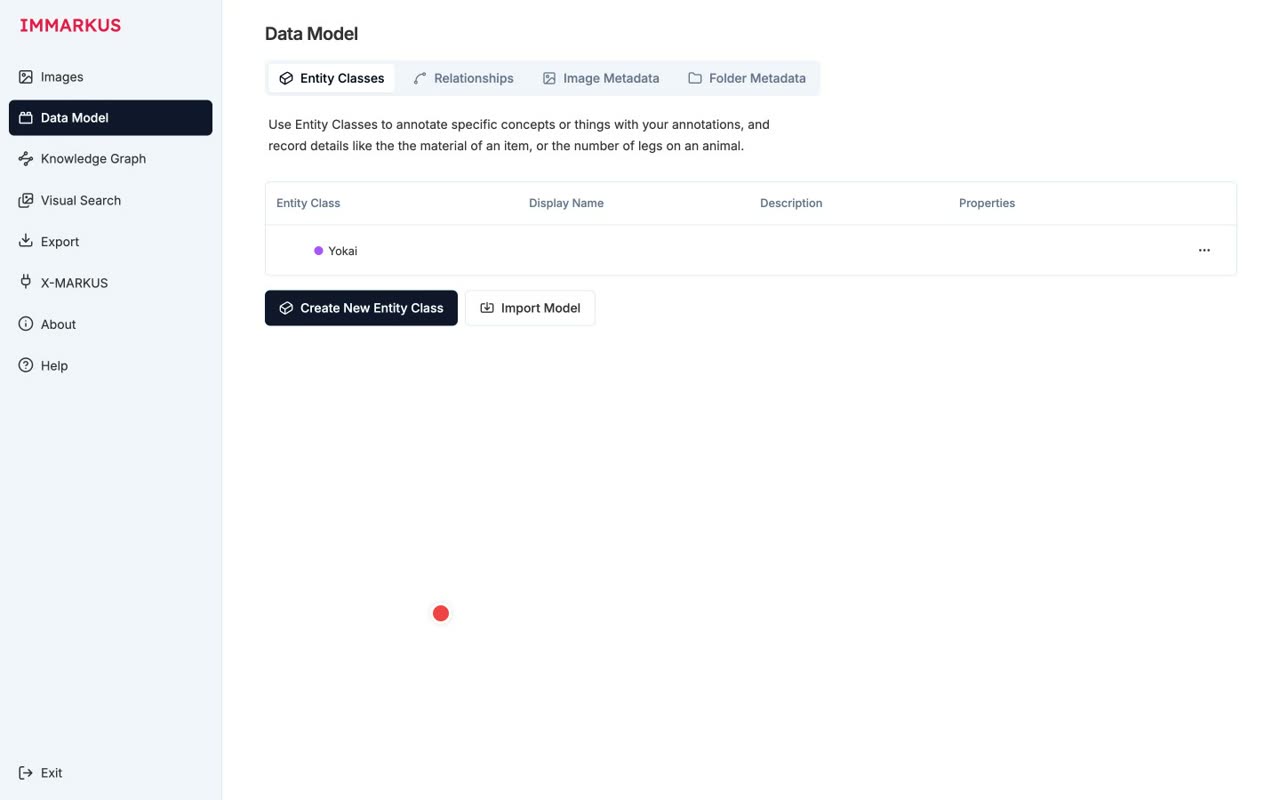
- 0:27Let's create just one: a purple Yokai class
Let's create just one: a purple Yokai class.
- 0:34Nine property types Text / Number / Options / Number Range / URI Geo-coordinates / Measurement / Color / External Authority
There are nine property types: Text, Number, Options, Number Range, URI, Geo-coordinates, Measurement, Color, and External Authority.
- 0:40The Yokai class has been added ✓
The Yokai class has been added.
- 3
Importing images via a IIIF manifest
Importing a IIIF manifest instead of a local image (subject: the Night Parade of One Hundred Demons)
Narration script
- 0:08Instead of a local image, let's use a IIIF manifest
Instead of a local image, let's use a IIIF manifest.

- 0:13You can load images directly from digital archives around the world
You can load images directly from digital archives around the world.

- 0:19Subject: "Hyakki Yagyo Zu" from the University of Tokyo Digital Archive
Our subject is the Night Parade of One Hundred Demons, from the University of Tokyo Digital Archive.

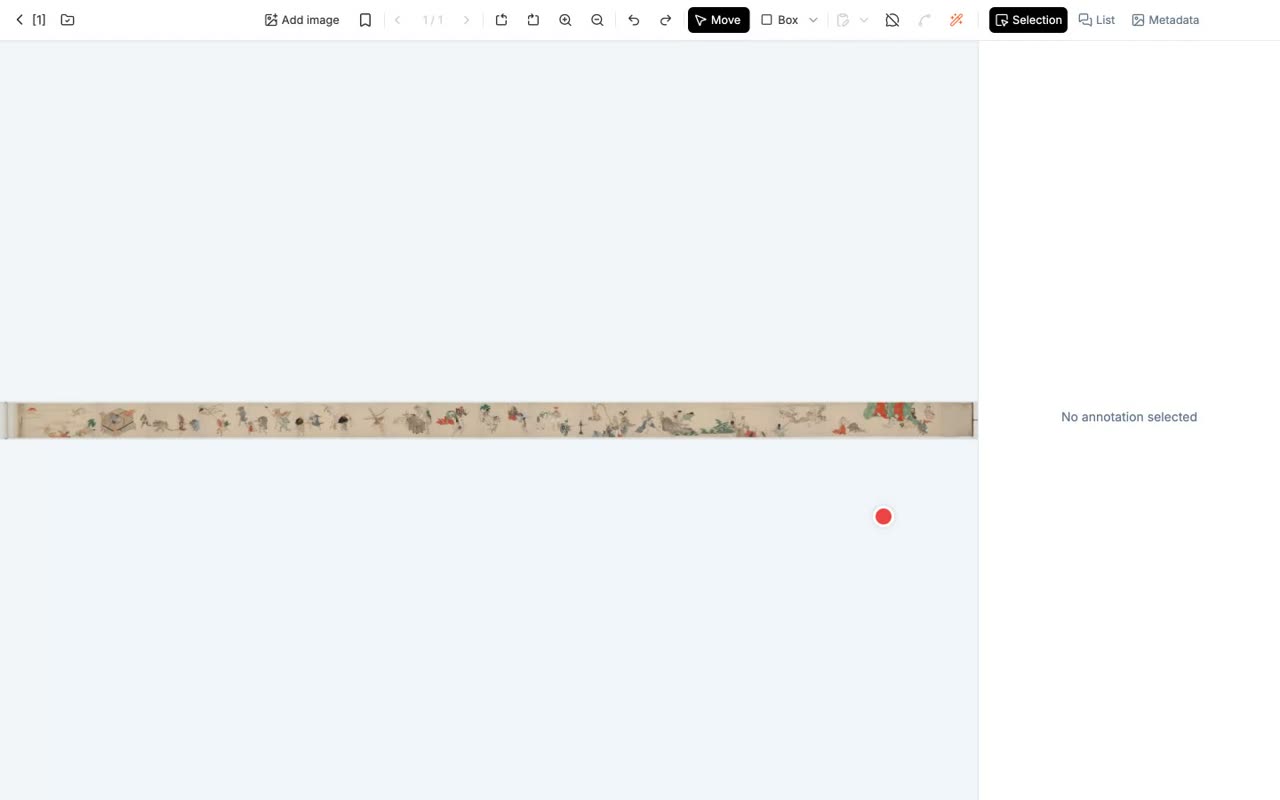
- 0:25Import complete — a huge handscroll at 79,508 × 3,082 pixels
Import complete. It's a huge handscroll, seventy-nine thousand by three thousand pixels.

- 0:30With IIIF Image API tiling, even huge images stay responsive
Thanks to IIIF Image API tiling, even huge images stay responsive.

- 4
Drawing annotations
Box / Polygon / Ellipse / Path, the smart tools, and tagging
Narration script
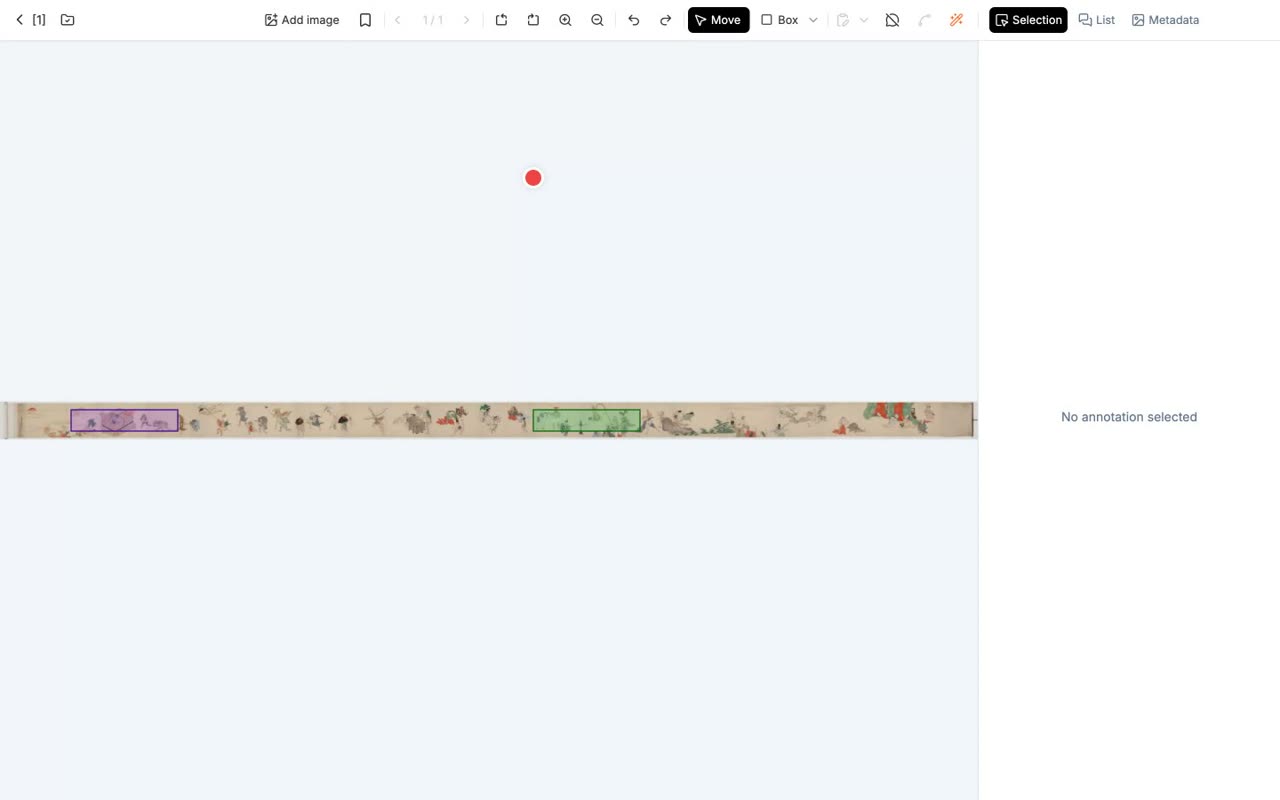
- 0:21We start by taking in the whole scroll
We start by taking in the whole scroll.
- 0:22Four shapes: Box / Polygon / Ellipse / Path
There are four shapes: Box, Polygon, Ellipse, and Path.

- 0:24Box: click to start → move → click again to confirm
For a Box, you click to start, move, then click a second time to confirm.

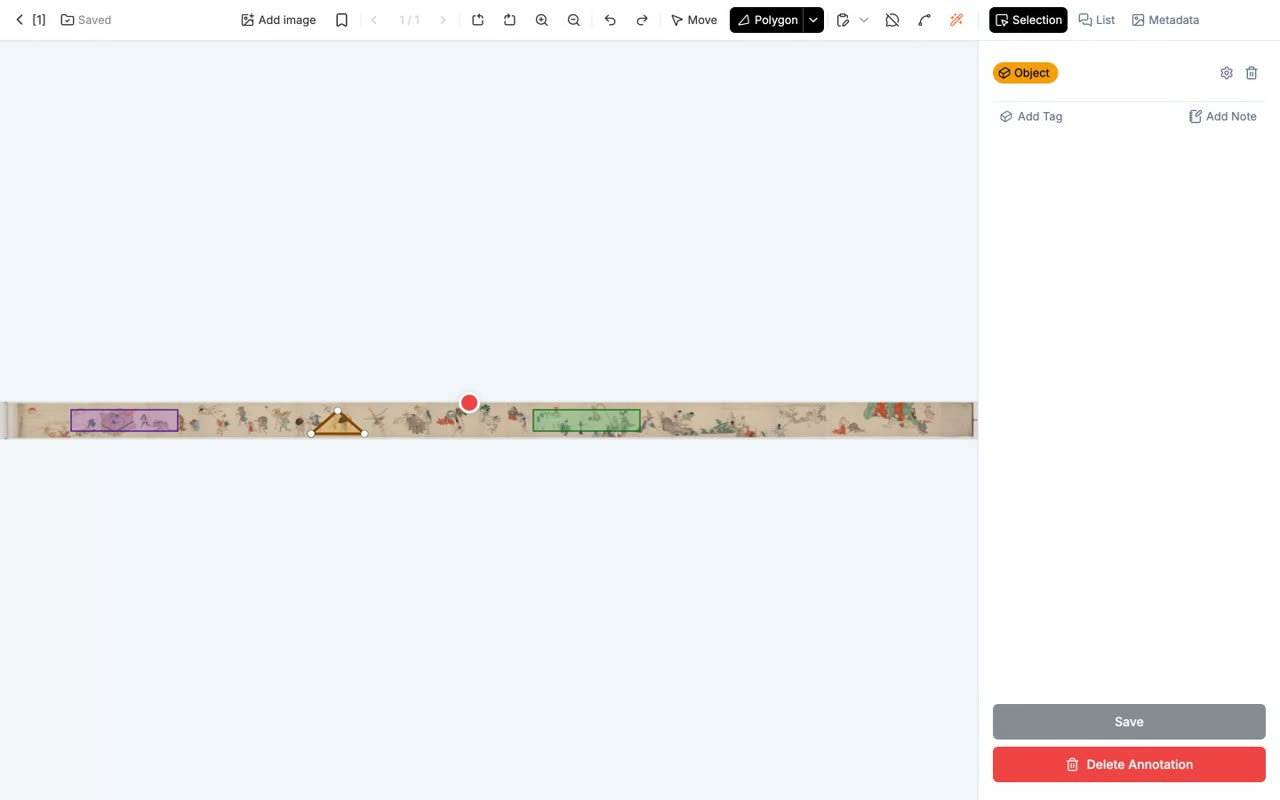
- 0:31Assign the Yokai tag from the right-hand panel
Then assign the Yokai tag from the right-hand panel.

- 0:47Polygon: place points and close the loop (for irregular silhouettes)
A Polygon is drawn by placing points and closing the loop, which suits irregular silhouettes.

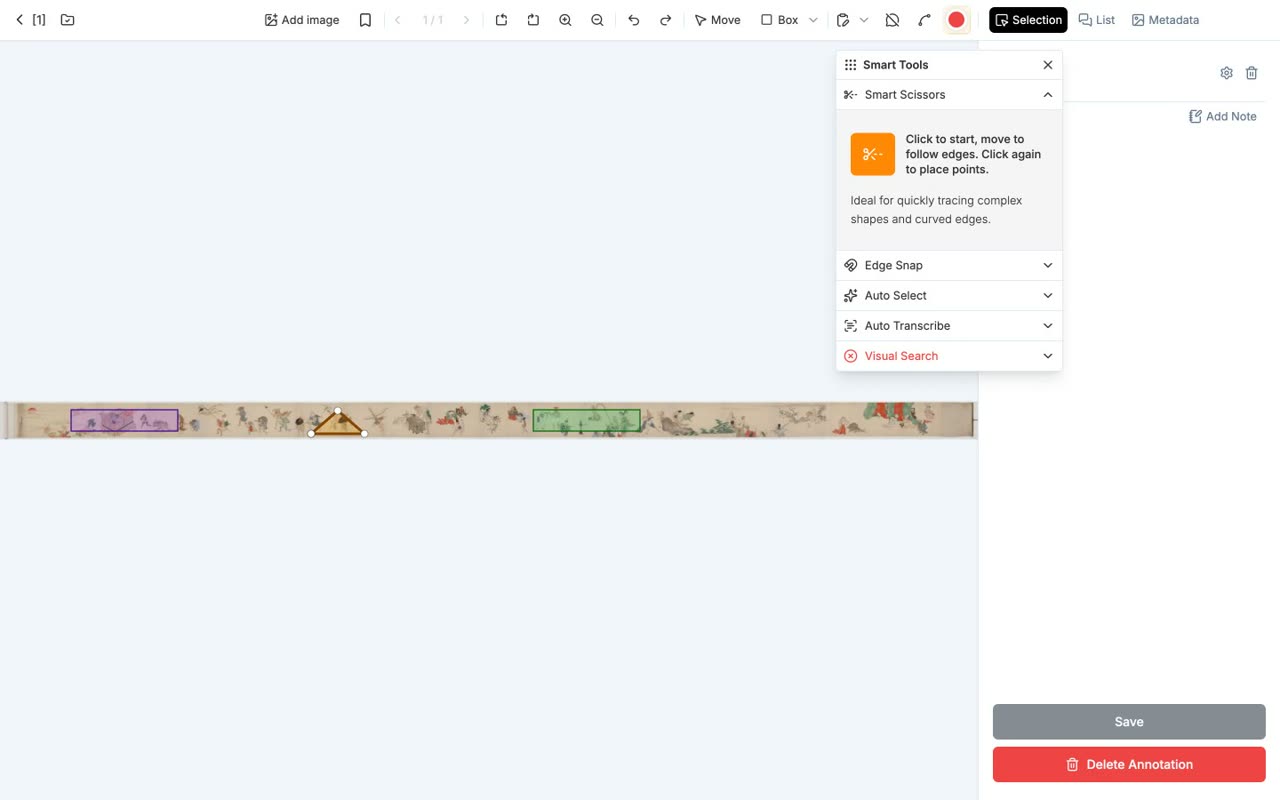
- 0:59The magic-wand icon holds four "smart tools"
The magic-wand icon holds four smart tools.
- 1:01Smart Scissors / Edge Snap / Auto Select / Auto Transcribe (the latter two use AI and need an API key)
Smart Scissors, Edge Snap, Auto Select, and Auto Transcribe. The last two use AI integration and need an API key.
- 5
Drawing relationships
Creating relationships between annotations with the Wires tool
Narration script
- 0:37You can draw "relationships" between annotations
You can draw relationships between annotations.

- 0:40The lucide-spline icon is the Wires tool
The spline icon is the Wires tool.
- 0:45Select an annotation, a diamond handle appears, drag it to another annotation to create a relationship
When you select an annotation, a diamond handle appears, and you drag it to another annotation to create a relationship.

- 0:49Predefine relationship types to pick them from a list
If you predefine relationship types, you can pick them from a list.

- 6
Surveying in the Knowledge Graph
Two graph modes, display options, and search with XLSX export
Narration script
- 0:57Survey everything in the Knowledge Graph
Survey everything in the Knowledge Graph.

- 0:59Edges run from image [1] to Yokai / Person / Object blue node = image, green node = entity class
Edges run from image one out to Yokai, Person, and Object. Blue nodes are images, and green nodes are entity classes.
![Edges run from image [1] to Yokai / Person / Object
blue node = image, green node = entity class](/images/tutorials/immarkus/en/ch06-c1.jpg)
- 1:05Two Graph Types Hierarchy & Annotations / Relationships
There are two Graph Types: Hierarchy and Annotations, and Relationships.

- 1:08Three display options Hide labels / Show sub-folders / Hide unconnected nodes
There are three display options: Hide labels, Show sub-folders, and Hide unconnected nodes.

- 1:13Combine AND/OR conditions in the search panel results export to XLSX
You can combine AND and OR conditions in the search panel, and export the results to a spreadsheet.

- 7
Exporting
Exporting W3C Web Annotation JSON-LD and an XLSX with image snippets
Narration script
- 0:42Take your work out — the Export screen
Now let's take your work out, on the Export screen.

- 0:46Four sub-tabs Annotations / Relationships / Data Model / Metadata
There are four sub-tabs: Annotations, Relationships, Data Model, and Metadata.

- 0:51Annotation Data is W3C Web Annotation JSON-LD interoperable with other IIIF viewers
Annotation Data is exported as W3C Web Annotation JSON-LD, which is interoperable with other IIIF viewers.

- 0:57JSON-LD download succeeded ✓
The JSON-LD download succeeded.

- 1:00XLSX includes image snippets of each region choose Bounding box or Exact shape
The spreadsheet includes image snippets of each annotated region, and you can choose Bounding box or Exact shape.

- 1:07XLSX download succeeded ✓
The spreadsheet download succeeded.

- 1:10Even co-authors without IMMARKUS can review with images in Excel
Even co-authors who don't have IMMARKUS can review the work with images, right in Excel.

- 8
Wrap-up — the MARKUS family
Where it sits in the MARKUS family (images via IMMARKUS, text via MARKUS)
Narration script
- 0:10IMMARKUS is part of the MARKUS family
IMMARKUS is part of the MARKUS family.

- 0:13MARKUS (text) / COMARKUS (collaboration) COMPARATIVUS (comparison) / PARALLELS (correspondences) MUNDa (multimedia)
MARKUS for text, COMARKUS for collaborative editing, COMPARATIVUS for comparison, PARALLELS for correspondences, and MUNDa for multimedia.

- 0:19An ecosystem for working with the same sources from many angles
It's an ecosystem for working with the same sources from many angles.

- 0:22IMMARKUS handles images, MARKUS handles text designed to work together
IMMARKUS handles images and MARKUS handles text, and they're designed to work together.
