Note: Using this module requires some advanced procedures. If you are considering basic use of Omeka S, please be aware of this.
Overview
This article explains how to use the XML Viewer module, which enables the display of XML files in Omeka S. It can be used for purposes such as displaying XML files created with TEI.
Installation
As of March 4, 2022, this module is only published on GitLab and is not available on GitHub.
Also, since no release version zip file is provided, you need to download the source code.
Specifically, download the source code zip file from the following URL:
When extracted, unlike the release version which would create a folder called "XmlViewer," a folder called "Omeka-S-module-XmlViewer" is created. Therefore, you need to rename this folder to "XmlViewer."
After that, install it from the Omeka S admin interface, just like other modules.
Uploading XML Files
Uploading XML files follows the same procedure as registering regular media. Create a new item and register the XML file as media associated with that item. Like images, you can upload from local storage or register by referencing a URL.
Note that in the default Omeka S settings, XML file uploads are not allowed, and the following error will occur:

Therefore, in the "Security" section of the settings screen, add "text/xml" to "Allowed media types" and "xml" to "Allowed file extensions," then save.
Alternatively, enable "Disable file validation."


With the above settings, the XML file will be registered as shown below. At this point, please note the MIME type shown in the figure.
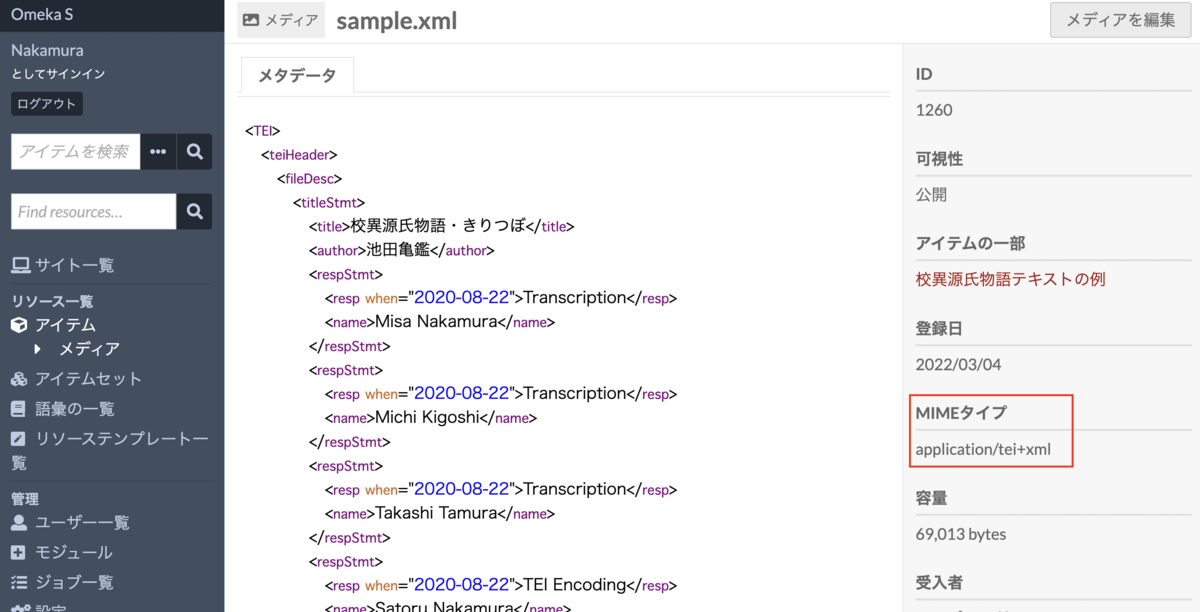
Note that if the XML file does not contain the declaration <?xml version="1.0" encoding="UTF-8"?>, the MIME type may be set to "text/html" as shown below. In this case, the XSL transformation described later may not work correctly, so modifying the XML file is recommended.

XML Viewer Module Settings
Next, navigate to the site settings screen as shown below.

There is an "XML Viewer" item within it. If the MIME type you confirmed earlier is not listed, add it as shown below. "xsl/xml-html.xslt" is the default XSLT file provided by this module.

The specific XSLT file can be viewed at:
https://gitlab.com/Daniel-KM/Omeka-S-module-XmlViewer/-/blob/master/asset/xsl/xml-html.xslt
As a result, on the media detail page within the site, the converted HTML content will be displayed as follows.

Specifically, you can confirm that a link to the XSLT file has been inserted into the registered XML file as follows.

Summary
As described above, I confirmed that the content of XML files registered in Omeka S can be displayed based on the XSLT file provided by this module.
By creating XSLT files suited to your needs, you can customize the display content.
For example, prepare an XSLT file like the following and place it in /modules/XmlViewer/asset/xsl.
https://gist.github.com/nakamura196/a74202c691e9957938e89a36d4da319a
Then, by specifying this file in the settings screen described above, you can change the display style as follows.
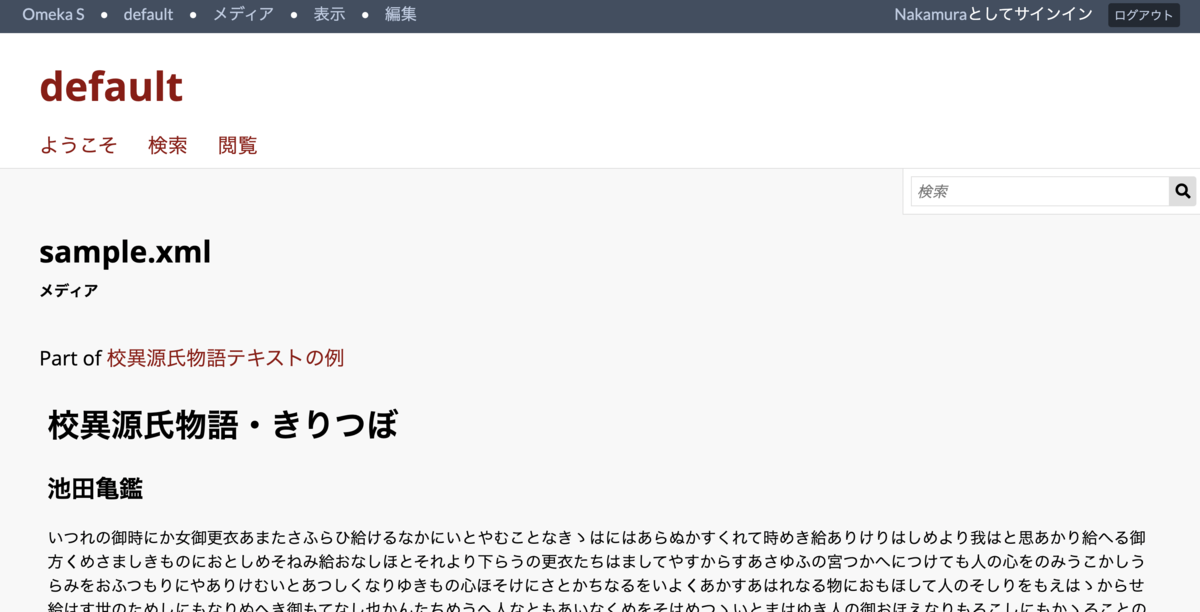
While this module involves somewhat advanced content, I hope it serves as a useful reference for those considering integrating Omeka S with TEI/XML.