ホーム 記事一覧 ブック DH週間トピックス 検索 このサイトについて
English
Cantaloupe: Microsoft Azure Blob Storageに格納した画像を配信する

Cantaloupe: Microsoft Azure Blob Storageに格納した画像を配信する

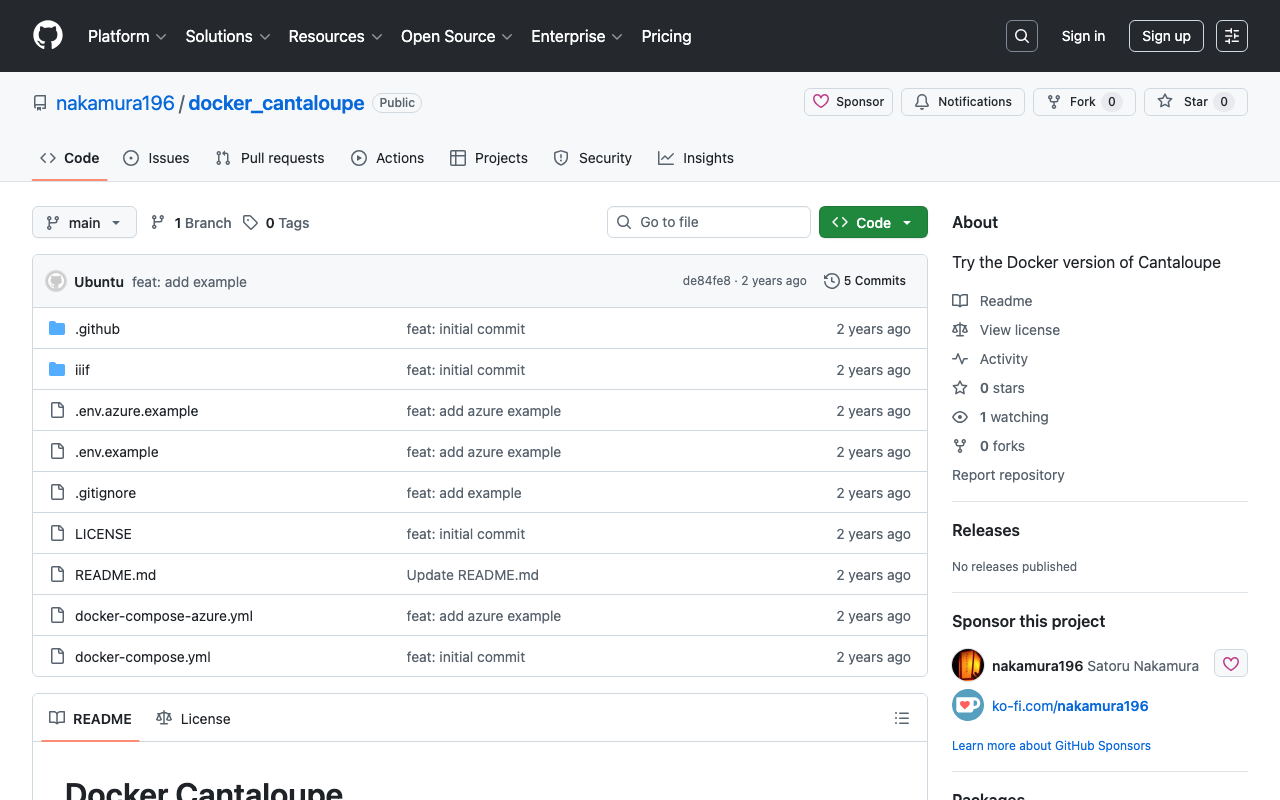
概要 IIIFイメージサーバの一つであるCantaloupe Image Serverについて、Microsoft Azure Blob Storageに格納した画像を配信する方法の備忘録です。 以下のMicrosoft Azure Blob Storage版です。 方法 今回はDocker版を使用します。 以下のリポジトリをクローンしてください。 https://github.com/nakamura196/docker_cantaloupe 特に、.env.azure.exampleを.envにリネームして、環境変数を設定します。 # For Microsoft Azure Blob Storage CANTALOUPE_AZURESTORAGESOURCE_ACCOUNT_NAME= CANTALOUPE_AZURESTORAGESOURCE_ACCOUNT_KEY= CANTALOUPE_AZURESTORAGESOURCE_CONTAINER_NAME= # For Traefik CANTALOUPE_HOST= LETS_ENCRYPT_EMAIL= 下の二つは、Traefikを用いたHTTPS化の設定も含めています。 そして、以下を実行します。 docker compose -f docker-compose-azure.yml up まとめ セキュリティの面など、不十分な点もあるかと思いますが、参考になりましたら幸いです。

Omeka SのIIIF Serverモジュールで、表示方向を指定する

Omeka SのIIIF Serverモジュールで、表示方向を指定する

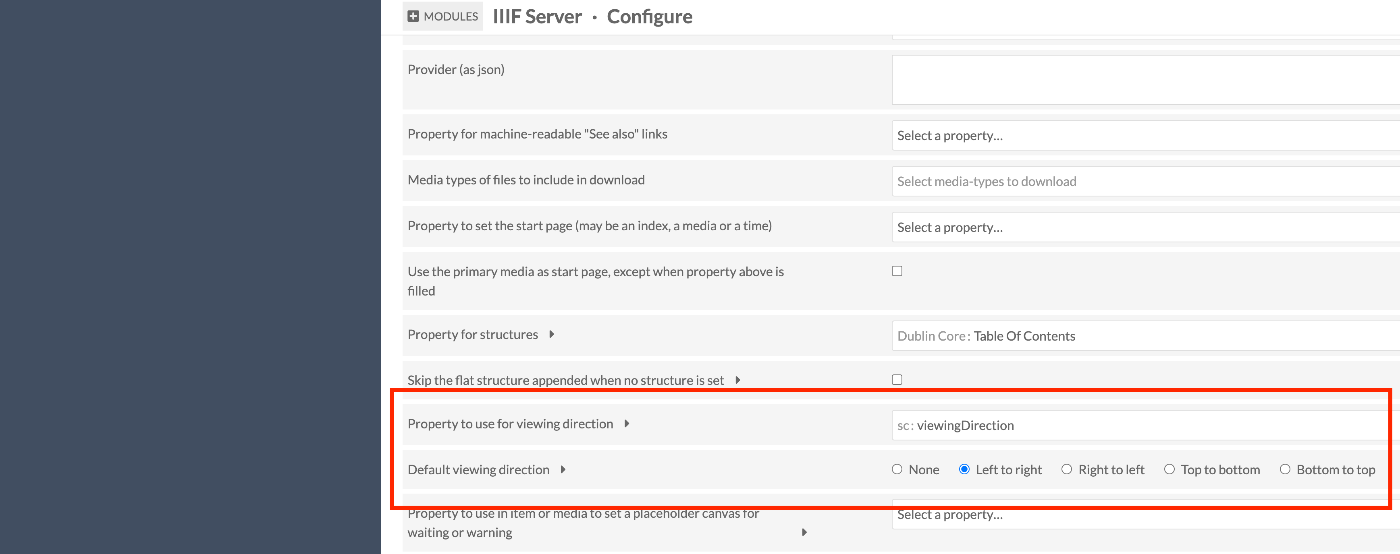
概要 Omeka SのIIIF Serverモジュールで、表示方向を指定する方法です。 IIIFでは、viewingDirectionプロパティを使用し、マニフェストやキャンバスの表示方向を指定することができます。 モジュールの設定 /admin/module/configure?id=IiifServer IIIFサーバモジュールの設定画面において、「viewing direction」の項目を探します。 Property to use for viewing directionでプロパティを指定できる他、デフォルトの表示方向を指定することもできます。 上記の例では、sc:viewingDirectionプロパティを指定していますが、任意のプロパティを設定可能です。 メタデータの追加 上記で指定したプロパティに対して、表示方向の値を入力します。 結果 以下のように、IIIFマニフェストファイルにおいても、viewingDirectionが設定され、左送りが実現できます。 参考 https://iiif.io/api/cookbook/recipe/0010-book-2-viewing-direction/ 以下、ChatGPTによる回答です。 viewingDirection プロパティには以下の4つの値を指定できます: left-to-right 左から右への表示(英語などの横書き言語に適しています)。 right-to-left 右から左への表示(アラビア語やヘブライ語、縦書きの日本語に適しています)。 top-to-bottom 上から下への表示(主に縦書きの言語に適しています)。 bottom-to-top 下から上への表示(特殊な用途向け)。 まとめ Omeka SのIIIF Serverモジュールの利用にあたり、参考になりましたら幸いです。

mdx.jpのオブジェクトストレージに保存したIIIFマニフェストファイルをNestJSから利用する

mdx.jpのオブジェクトストレージに保存したIIIFマニフェストファイルをNestJSから利用する

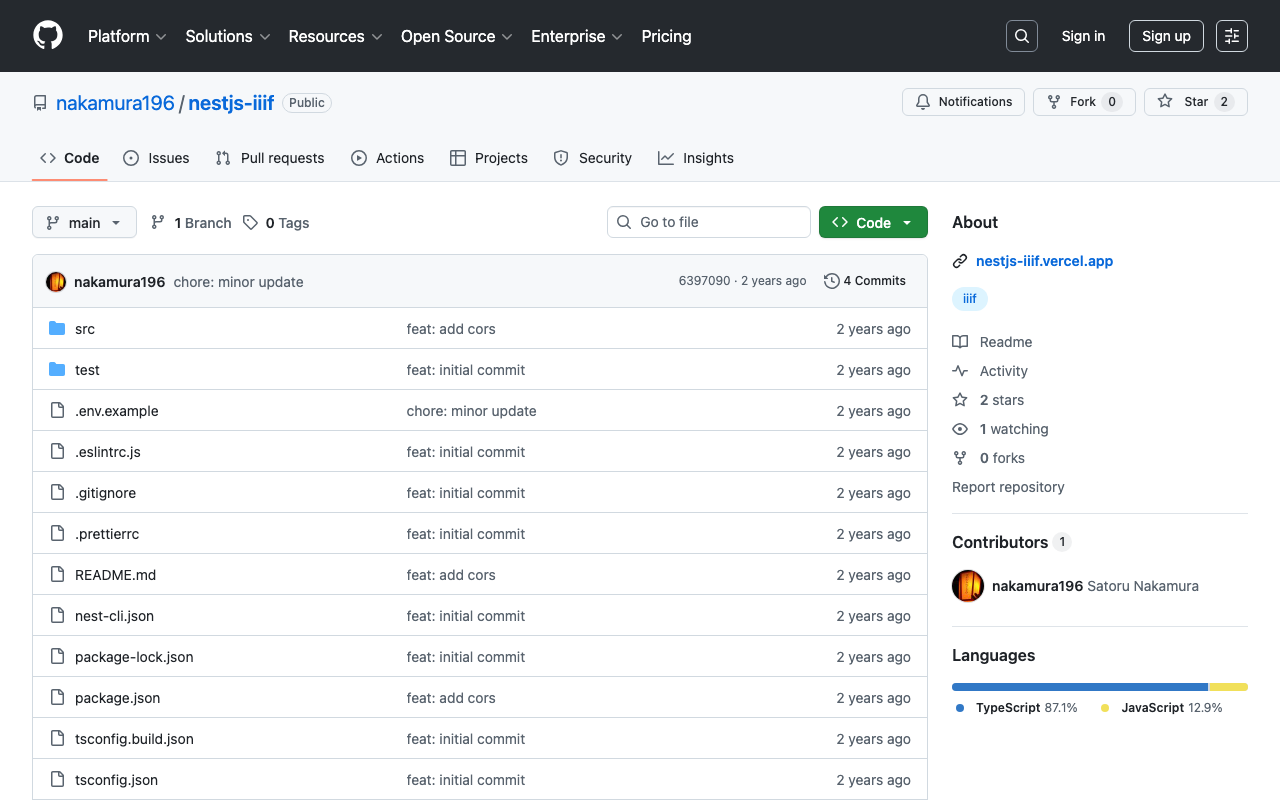
概要 mdx.jpのオブジェクトストレージに保存したIIIFマニフェストファイルをNestJSから利用する機会がありましたので、備忘録です。 背景 mdx.jpのオブジェクトストレージに関して、簡単に確認したところ、corsの設定ができず、mdx.jpのオブジェクトストレージにアップロードしたIIIFマニフェストファイルを他のビューアから利用することは難しいようでした。 https://tech.ldas.jp/ja/posts/ad76f58db4e098/#注意(corsの許可) そこで、NestJSからオブジェクトストレージにアップロードしたIIIFマニフェストファイルをロードして返却します。 ソースコード 以下のリポジトリからご確認いただけます。 https://github.com/nakamura196/nestjs-iiif 以下のような環境変数を用意します。mdx.jpのオブジェクトストレージを使用するため、S3_ENDPOINTにhttps://s3ds.mdx.jpを与えます。 S3_ENDPOINT=https://s3ds.mdx.jp S3_REGION=us-east-1 S3_ACCESS_KEY_ID=xxx S3_SECRET_ACCESS_KEY=xxx S3_BUCKET_NAME=xxx そして、@aws-sdk/client-s3を利用して、以下のように、オブジェクトストレージ上のIIIFマニフェストファイルをダウンロードして返却します。 // src/s3.service.ts import { Injectable } from '@nestjs/common'; import { S3Client, GetObjectCommand } from '@aws-sdk/client-s3'; import { Readable } from 'stream'; import * as dotenv from 'dotenv'; dotenv.config(); @Injectable() export class S3Service { private readonly s3Client: S3Client; constructor() { this.s3Client = new S3Client({ region: process.env.S3_REGION, endpoint: process.env.S3_ENDPOINT, forcePathStyle: true, // パススタイルを有効化(多くの互換ストレージで必要) credentials: { accessKeyId: process.env.S3_ACCESS_KEY_ID, secretAccessKey: process.env.S3_SECRET_ACCESS_KEY, }, }); } async getJsonFile(key: string): Promise<any> { const bucket = process.env.S3_BUCKET_NAME; if (!bucket) { throw new Error('S3_BUCKET_NAME is not set in environment variables.'); } const command = new GetObjectCommand({ Bucket: bucket, Key: key }); const response = await this.s3Client.send(command); const stream = response.Body as Readable; const chunks: Uint8Array[] = []; for await (const chunk of stream) { chunks.push(chunk); } const fileContent = Buffer.concat(chunks).toString('utf-8'); return JSON.parse(fileContent); } } まとめ mdx.jpのオブジェクトストレージに保存したIIIFマニフェストファイルの利用にあたり、参考になりましたら幸いです。

OldMaps Onlineを使ってみる

OldMaps Onlineを使ってみる

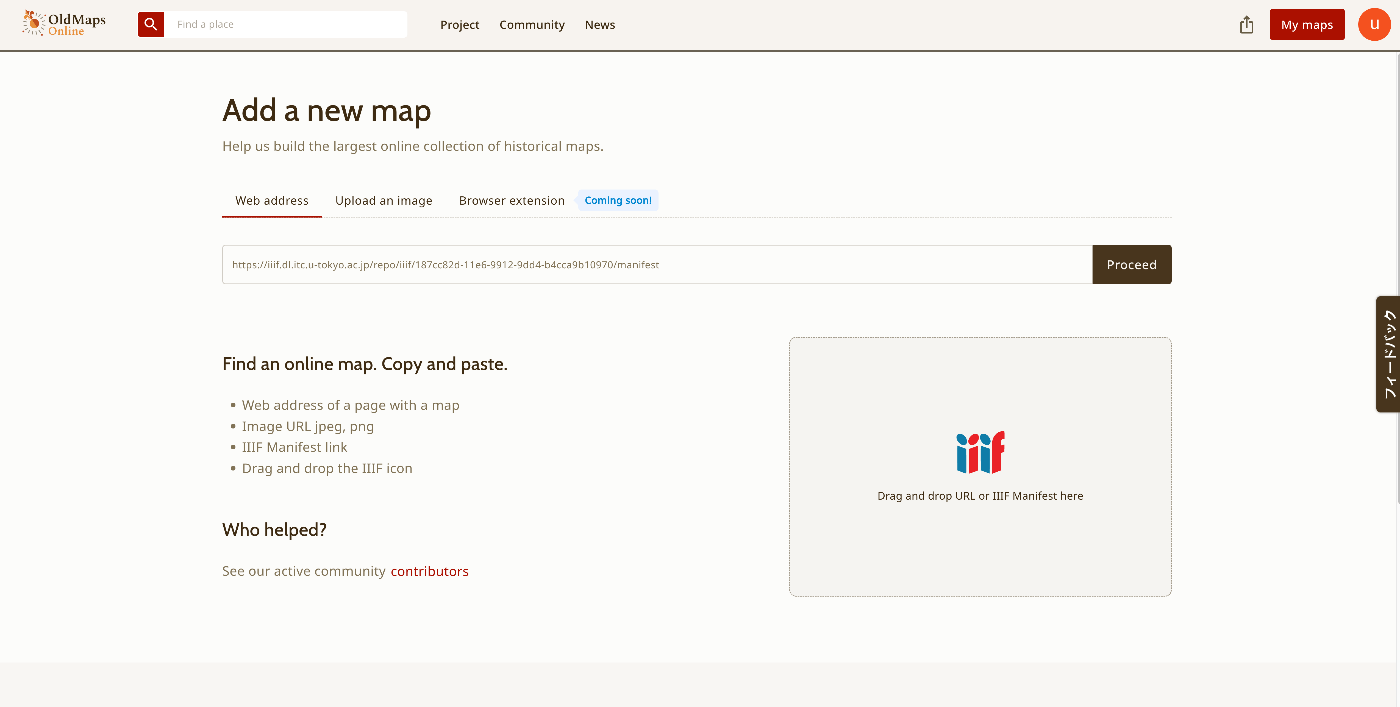
概要 OldMaps Onlineを使用する機会がありましたので、備忘録です。 https://www.oldmapsonline.org/ 登録 Googleアカウント等でログインします。無料アカウントでは1つのプライベート画像を登録できました。 今回は、「東京帝國大學本部構内及農學部建物鳥瞰圖(東京大学農学生命科学研究科・農学部)」を対象にします。 https://da.dl.itc.u-tokyo.ac.jp/portal/assets/187cc82d-11e6-9912-9dd4-b4cca9b10970 以下のマニフェストファイルを使って画像を登録します。 https://iiif.dl.itc.u-tokyo.ac.jp/repo/iiif/187cc82d-11e6-9912-9dd4-b4cca9b10970/manifest その後、メタデータを登録する画像が表示されました。 メニュー 以下に示すように、「This map」「Georeference」「Transcribe」「Compare」の機能が提供されています。「This map」は上述のページに遷移します。 以下、その他の機能について確認します。 Georeference ジオリファレンスを行う機能です。 Side by sideによる表示や、 Overlayによる表示機能がありました。 今回は、35点をポイントしてみました。 Transcribe 翻刻機能も提供されていました。以下のように画像の一部を選択し、そのテキストを入力することができます。 Compare ジオリファレンスした結果を閲覧する機能です。 Gridによる表示や、 Swipeによる表示、 Spy glassによる表示など、さまざまなインタフェースが提供されていました。 結果 今回作成した地図は以下からご確認いただけます。 https://www.oldmapsonline.org/compare#map/5523c467-3744-4099-a6fe-61fc63c2ee9d まとめ 古地図の活用にあたり、参考になりましたら幸いです。

XSLTを使ってIIIFとTEIの対照表示を実現する

XSLTを使ってIIIFとTEIの対照表示を実現する

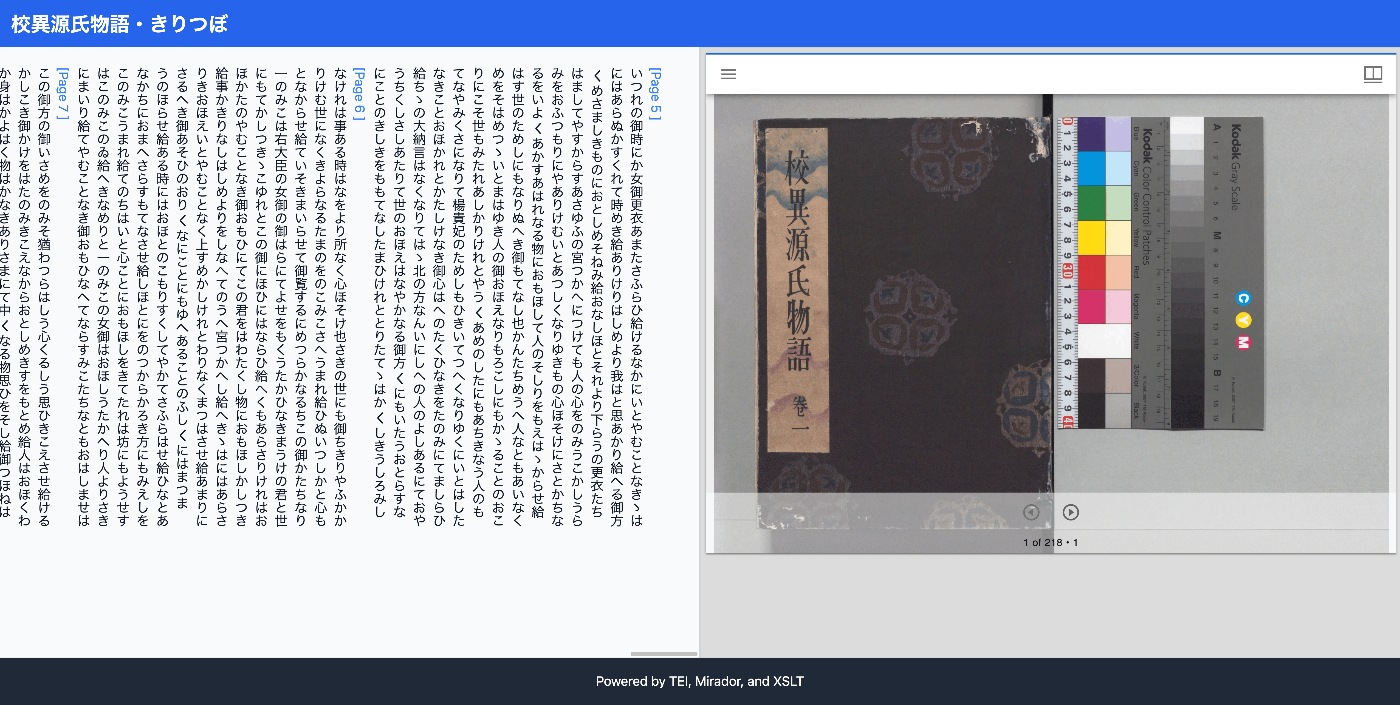
概要 XSLTを使ってIIIFとTEIの対照表示を実現してみる機会がありましたので、備忘録です。 結果は以下からご確認いただけます。「校異源氏物語テキストDB」を利用しています。 https://kouigenjimonogatari.github.io/xml/xsl/01.xml 背景 TEI/XMLの可視化にあたって、これまでは、TEI XMLをHTMLに変換してブラウザ上で表示するためのJavaScriptライブラリであるCETEICeanを使うことが多かったです。 これらの取り組みではJavaScriptのフレームワークと合わせて、柔軟な開発が可能でした。 しかし、この方法ではTEI/XMLとは別に、ビューアのデプロイが必要であるなど、課題を感じる点もありました。 対策 そこで、XSLTを使ったIIIFとTEIの対照表示に取り組みました。以下のXSLファイルを用意しました。実装にあたっては、ChatGPTを利用しました。 https://github.com/kouigenjimonogatari/kouigenjimonogatari.github.io/blob/master/xsl/mirador.xsl そして、XMLファイルからは、以下のように参照します。相対パスとなっている点は、適宜読み替えてください。 <?xml version="1.0" ?> ... <?xml-stylesheet type="text/xsl" href="../../xsl/mirador.xsl"?> <TEI xmlns="http://www.tei-c.org/ns/1.0"> <teiHeader> <fileDesc> <titleStmt> <title>校異源氏物語・きりつぼ</title> <author>池田亀鑑</author> ... これにより、以下のようなXMLファイルをブラウザで表示すると、 https://kouigenjimonogatari.github.io/xml/xsl/01.xml 以下のように、IIIFとTEIの対照表示を実現することができました。ページのリンクやMiradorビューアの前後ボタンのクリックにより、テキストと画像が同期します。 このようにXSLTによる可視化を行うことにより、別途のビューア開発やデプロイが不要となり、またxslファイルの更新による容易なカスタマイズを実現することができました。 考察 Next.jsのようなフレームワークとCETEIceanを組み合わせてビューアを作成する方法と、本記事で紹介したようなXSLTを使った可視化方法について、ChatGPTに使い分けを聞いてみました。 結果、以下のように、比較的単純な可視化ではXSLT、高度なインタクラションが求められる場合はCETEIcean、を選択するのがよさそうでした。 1. 高度なインタラクションが必要な場合: Next.js + CETEIcean Next.js はReactベースのフレームワークで、クライアントサイドレンダリングやサーバーサイドレンダリング、APIの統合などを柔軟に行えます。Next.jsを使うと、複雑なUIや状態管理、ナビゲーション、動的なデータ処理が必要なアプリケーションの構築が簡単です。 CETEIcean は、TEI XMLをそのままHTMLにレンダリングするためのライブラリで、特にクライアントサイドでTEIを動的に表示したい場合に便利です。CETEIceanを使うと、JavaScriptを使ってTEI要素を直接操作できるため、ユーザーがクリックした際に特定のページに遷移したり、アノテーションの追加など、インタラクティブな機能を実装できます。 利点 : リッチなインタラクション(ページナビゲーション、フィルタリング、ユーザーの操作に応じた動的なUIの更新など)が容易。 コンポーネントベースの設計が可能で、保守性が高く再利用性も高い。 さまざまなJavaScriptライブラリやプラグイン(Mirador、Annotoriousなど)との統合が容易。 2. 単純な表示や静的な構造でよい場合: XSLT XSLT は、XMLデータをHTMLなどに変換するためのテンプレート言語で、サーバーサイドまたはクライアントサイドでの静的な表示に適しています。XSLTを使用すると、TEI XMLをシンプルなHTMLとして表示できます。 利点 : 軽量で設定がシンプル。ブラウザがXSLTをサポートしていれば、特別な環境を必要とせずに、直接HTML表示が可能。 HTMLとして生成されるため、CSSによるスタイルの適用が容易で、簡単なナビゲーションや静的なページリンク程度なら実装も比較的簡単。 静的なレポートや閲覧専用のデータの表示に最適。 判断基準のまとめ 高度な機能やインタラクティブな要素が求められる :Next.js + CETEIcean 例:クリックやスクロールに応じて動的にデータをロード、複数のナビゲーションや検索機能の提供、アノテーションや画像ビューワーの統合。 単純な表示がメイン :XSLT 例:TEIドキュメントをただ表示するだけ、特定の要素にスタイルを適用して閲覧しやすくする、シンプルなページナビゲーション。 まとめ ビューアを使用せずに、TEI/XMLファイルとXSLファイルのみで閲覧環境を実現することは、管理や運用コストの低減にもつながるように思いました。 ...

@samvera/rampビューアのFiles/Markersタブの使用方法

@samvera/rampビューアのFiles/Markersタブの使用方法

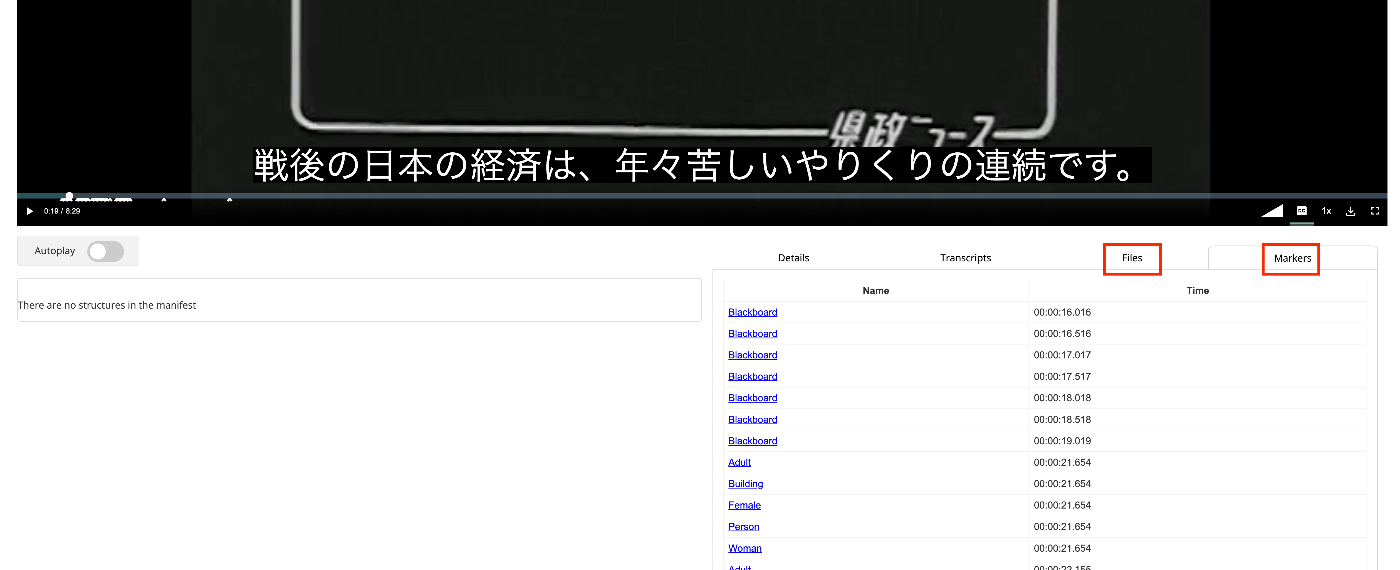
概要 IIIF Audio/Visualに対応したビューアの一つである@samvera/rampビューアのFiles/Markersタブの使用方法について調べたので備忘録です。 マニュアル Filesについては、以下に記載がありました。 https://samvera-labs.github.io/ramp/#supplementalfiles また、Markersについては、以下に記載があります。 https://samvera-labs.github.io/ramp/#markersdisplay 使用するデータ 『県政ニュース 第1巻』(県立長野図書館)を使用します。 https://www.ro-da.jp/shinshu-dcommons/library/02FT0102974177 Filesタブ renderingプロパティを読むと記載されています。renderingプロパティについては、以下のCookbookにも掲載されています。 https://iiif.io/api/cookbook/recipe/0046-rendering/ 以下のようなスクリプトにより、マニフェストファイルにrenderingプロパティを追加します。 def add_rendering(self, manifest_path): manifest = self.load_manifest(manifest_path) japan_search_id = manifest.homepage[1].id.split("/")[-1] japan_search_api_url = f"https://jpsearch.go.jp/api/item/{japan_search_id}" rendering = ResourceItem( label={ "ja": ["アイテム参照API"], }, id=japan_search_api_url, type="Dataset", format="application/json" ) manifest.rendering = rendering output_path = f"{self.input_dir}/manifest_rendering.json" with open(output_path, "w") as f: f.write(manifest.json(indent=2)) return output_path 以下のようなマニフェストファイルが作成されます。 { "@context": "http://iiif.io/api/presentation/3/context.json", "id": "https://d1u7hq8ziluwl9.cloudfront.net/sdcommons_npl-02FT0102974177/manifest.json", "type": "Manifest", "label": { "ja": [ "県政ニュース 第1巻" ] }, "requiredStatement": { "label": { "ja": [ "Attribution" ] }, "value": { "ja": [ "『県政ニュース 第1巻』(県立長野図書館)を改変" ] } }, "rendering": [ { "id": "https://jpsearch.go.jp/api/item/sdcommons_npl-02FT0102974177", "type": "Dataset", "label": { "ja": [ "アイテム参照API" ] }, "format": "application/json" } ], ... } ビューアでの表示例は以下です。 ...

iiif-prezi3を使って、動画に目次を付与する

iiif-prezi3を使って、動画に目次を付与する

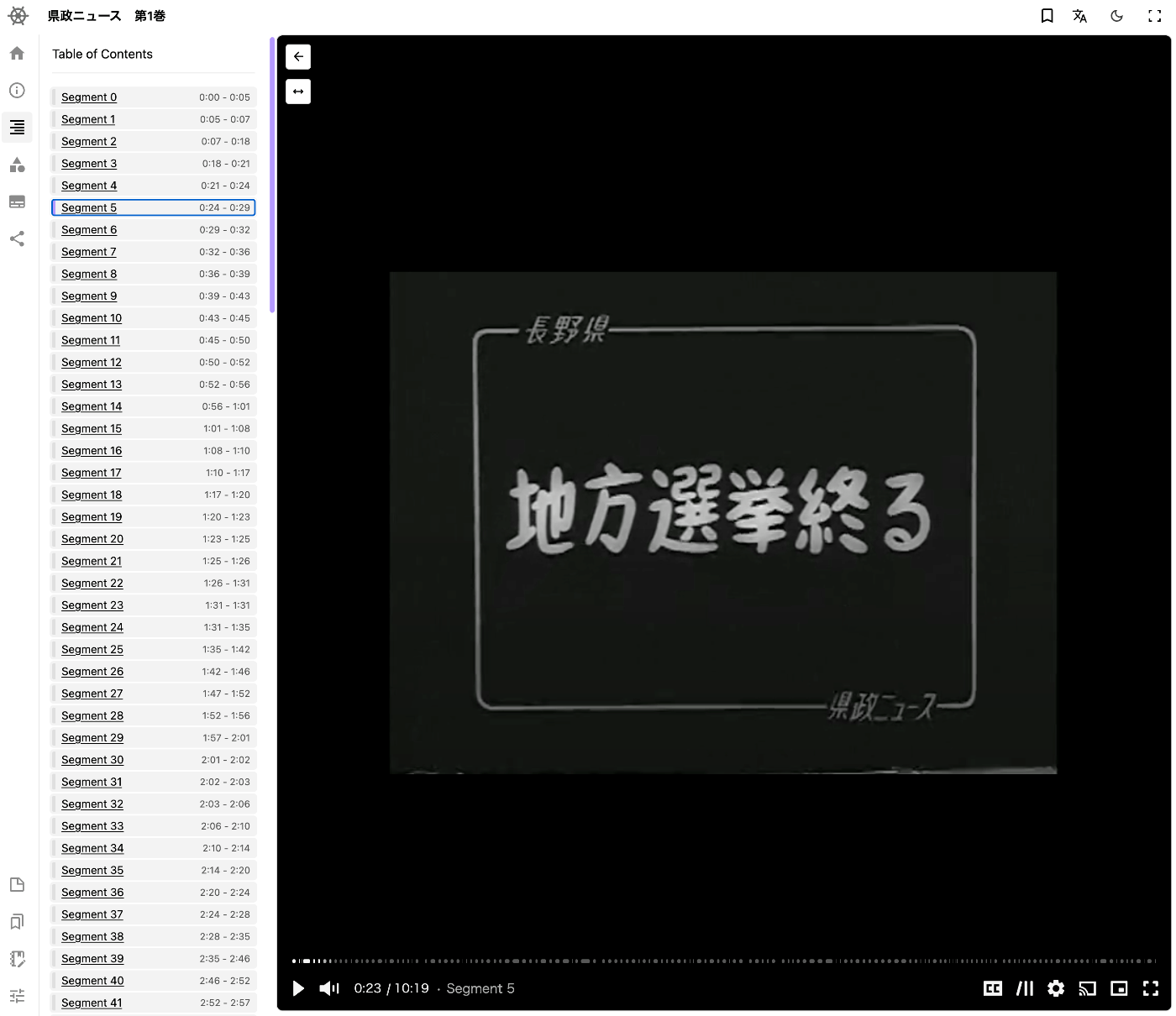
概要 iiif-prezi3を使って、動画に目次を付与する方法に関する備忘録です。 セグメントの検出 Amazon Rekognitionのビデオセグメントの検出を用います。 https://docs.aws.amazon.com/ja_jp/rekognition/latest/dg/segments.html 以下などでサンプルコードが公開されています。 https://docs.aws.amazon.com/ja_jp/rekognition/latest/dg/segment-example.html 使用するデータ 『県政ニュース 第1巻』(県立長野図書館)を使用します。 https://www.ro-da.jp/shinshu-dcommons/library/02FT0102974177 マニフェストファイルへの反映 以下の記事などを参考に、マニフェストファイルが作成済みであるとします。 以下のようなスクリプトにより、マニフェストファイルにvttファイルを追加します。 from iiif_prezi3 import Manifest, AnnotationPage, Annotation, ResourceItem, config, HomepageItem, KeyValueString #| export class IiifClient: def load_manifest(self, manifest_path): with open(manifest_path, "r") as f: manifest_json = json.load(f) manifest = Manifest(**manifest_json) return manifest def add_segment(self, manifest_path): manifest = self.load_manifest(manifest_path) path = f"{self.input_dir}/output_segment.json" with open(path, "r") as f: data = json.load(f) range_id = f"{self.prefix}/range" range_toc = manifest.make_range( id=f"{range_id}/r", label="Table of Contents" ) canvas_id = manifest.items[0].id for s in data["Segments"]: s_type = s["Type"] if s_type != "SHOT": continue index = s["Shot Index"] start = s["Start Timestamp (milliseconds)"] / 1000 end = s["End Timestamp (milliseconds)"] / 1000 range_seg = range_toc.make_range( id=f"{range_id}/r{index}", label=f"Segment {index}", ) range_seg.items.append({ "id": f"{canvas_id}#t={start},{end}", "type": "Canvas" }) output_path = f"{self.input_dir}/manifest_segment.json" with open(output_path, "w") as f: f.write(manifest.json(indent=2)) return output_path 以下のようなマニフェストファイルが作成されます。 ...

iiif-prezi3を使って、動画に字幕を設定する

iiif-prezi3を使って、動画に字幕を設定する

概要 iiif-prezi3を使って、動画に字幕を設定する方法に関する備忘録です。 字幕の作成 OpenAIのAPIを使用して字幕ファイルを作成しました。動画のファイルを音声ファイルに変換しています。 from openai import OpenAI from pydub import AudioSegment from dotenv import load_dotenv class VideoClient: def __init__(self): load_dotenv(verbose=True) api_key = os.getenv("OPENAI_API_KEY") self.client = OpenAI(api_key=api_key) def get_transcriptions(self, input_movie_path): audio = AudioSegment.from_file(input_movie_path) # 一時ファイルにオーディオを書き込む with tempfile.NamedTemporaryFile(suffix=".mp3") as temp_audio_file: audio.export(temp_audio_file.name, format="mp3") # MP3形式でエクスポート temp_audio_file.seek(0) # ファイルポインタを先頭に戻す # Whisper APIでトランスクリプトを取得 with open(temp_audio_file.name, "rb") as audio_file: # Whisper APIでトランスクリプトを取得 transcript = self.client.audio.transcriptions.create( model="whisper-1", file=audio_file, response_format="vtt" ) return transcript 使用するデータ 『県政ニュース 第1巻』(県立長野図書館)を使用します。 https://www.ro-da.jp/shinshu-dcommons/library/02FT0102974177 マニフェストファイルへの反映 以下の記事などを参考に、マニフェストファイルが作成済みであるとします。 以下のようなスクリプトにより、マニフェストファイルにvttファイルを追加します。 from iiif_prezi3 import Manifest, AnnotationPage, Annotation, ResourceItem, config, HomepageItem, KeyValueString #| export class IiifClient: def load_manifest(self, manifest_path): with open(manifest_path, "r") as f: manifest_json = json.load(f) manifest = Manifest(**manifest_json) return manifest def add_vtt(self, manifest_simple_path): manifest = self.load_manifest(manifest_simple_path) vtt_url = f"{self.prefix}/video.vtt" canvas = manifest.items[0] vtt_anno_page = AnnotationPage(id=f"{canvas.id}/page2") canvas.annotations = [ vtt_anno_page, ] vtt_body = ResourceItem(id=vtt_url, type="Text", format="text/vtt") vtt_anno = Annotation( id=f"{vtt_anno_page.id}/a1", motivation="supplementing", body=vtt_body, target=canvas.id, label = "WebVTT Transcript (machine-generated)" ) vtt_anno_page.add_item(vtt_anno) with open(f"{self.input_dir}/manifest_vtt.json", "w") as f: f.write(manifest.json(indent=2)) 以下のようなマニフェストファイルが作成されます。 ...

iiif-prezi3を使って、動画にアノテーションを付与する

iiif-prezi3を使って、動画にアノテーションを付与する

概要 iiif-prezi3を使って、動画にアノテーションを付与する方法に関する備忘録です。 アノテーションの付与 Amazon Rekognitionのlabel detectionを用います。 https://docs.aws.amazon.com/rekognition/latest/dg/labels.html?pg=ln&sec=ft 以下などでサンプルコードが公開されています。 https://docs.aws.amazon.com/ja_jp/rekognition/latest/dg/labels-detecting-labels-video.html 特に、GetLabelDetectionにおける集計をSEGMENTSにすることで、StartTimestampMillisとEndTimestampMillisを得ることができます。 ただし、以下の点に注意が必要です。 SEGMENTS による集計の場合、境界ボックス付きの検出されたインスタンスに関する情報は返されません。 使用するデータ 『県政ニュース 第1巻』(県立長野図書館)を使用します。 https://www.ro-da.jp/shinshu-dcommons/library/02FT0102974177 マニフェストファイルへの反映 以下の記事などを参考に、マニフェストファイルが作成済みであるとします。 以下のようなスクリプトにより、マニフェストファイルにvttファイルを追加します。 from iiif_prezi3 import Manifest, AnnotationPage, Annotation, ResourceItem, config, HomepageItem, KeyValueString #| export class IiifClient: def load_manifest(self, manifest_path): with open(manifest_path, "r") as f: manifest_json = json.load(f) manifest = Manifest(**manifest_json) return manifest def add_label_segment(self, manifest_path): manifest = self.load_manifest(manifest_path) label_path = f"{self.input_dir}/output_label_seg.json" with open(label_path, "r") as f: label_seg = json.load(f) canvas = manifest.items[0] labels = label_seg["Labels"] anno_page_id = f"{canvas.id}/page1" anno_page = AnnotationPage(id=anno_page_id) canvas.annotations.append(anno_page) for i in range(len(labels)): label = labels[i] start = label["StartTimestamp"] / 1000 end = label["EndTimestamp"] / 1000 name = label["Label"]["Name"] anno_id = f"{anno_page_id}/a{i}" anno = Annotation( id=anno_id, motivation="tagging", target=canvas.id + "#t=" + str(start) + "," + str(end), body={ "type": "TextualBody", "value": name, "format": "text/plain", } ) anno_page.add_item( anno ) output_path = f"{self.input_dir}/manifest_label_seg.json" with open(output_path, "w") as f: f.write(manifest.json(indent=2)) return output_path 以下のようなマニフェストファイルが作成されます。 ...

iiif-prezi3を使って、動画に関するIIIF v3マニフェストを作成する

iiif-prezi3を使って、動画に関するIIIF v3マニフェストを作成する

概要 iiif-prezi3を使って、動画に関するIIIF v3マニフェストを作成する機会がありましたので、備忘録です。 https://github.com/iiif-prezi/iiif-prezi3 参考 IIIFマニフェストファイルの例、およびiiif-prezi3を使った実装例は、IIIF Cookbookで公開されています。 以下、動画に関するIIIF v3マニフェストを作成する例です。 https://iiif.io/api/cookbook/recipe/0003-mvm-video/ iiif-prezi3を使った実装例は以下で公開されています。 https://iiif-prezi.github.io/iiif-prezi3/recipes/0003-mvm-video/ from iiif_prezi3 import Manifest, AnnotationPage, Annotation, ResourceItem, config config.configs['helpers.auto_fields.AutoLang'].auto_lang = "en" manifest = Manifest(id="https://iiif.io/api/cookbook/recipe/0003-mvm-video/manifest.json", label="Video Example 3") canvas = manifest.make_canvas(id="https://iiif.io/api/cookbook/recipe/0003-mvm-video/canvas") anno_body = ResourceItem(id="https://fixtures.iiif.io/video/indiana/lunchroom_manners/high/lunchroom_manners_1024kb.mp4", type="Video", format="video/mp4") anno_page = AnnotationPage(id="https://iiif.io/api/cookbook/recipe/0003-mvm-video/canvas/page") anno = Annotation(id="https://iiif.io/api/cookbook/recipe/0003-mvm-video/canvas/page/annotation", motivation="painting", body=anno_body, target=canvas.id) hwd = {"height": 360, "width": 480, "duration": 572.034} anno_body.set_hwd(**hwd) hwd["width"] = 640 canvas.set_hwd(**hwd) anno_page.add_item(anno) canvas.add_item(anno_page) print(manifest.json(indent=2)) まとめ 他にも多くのサンプルや実装例が公開されています。参考になりましたら幸いです。

Omeka Sで3Dモデルを公開する

Omeka Sで3Dモデルを公開する

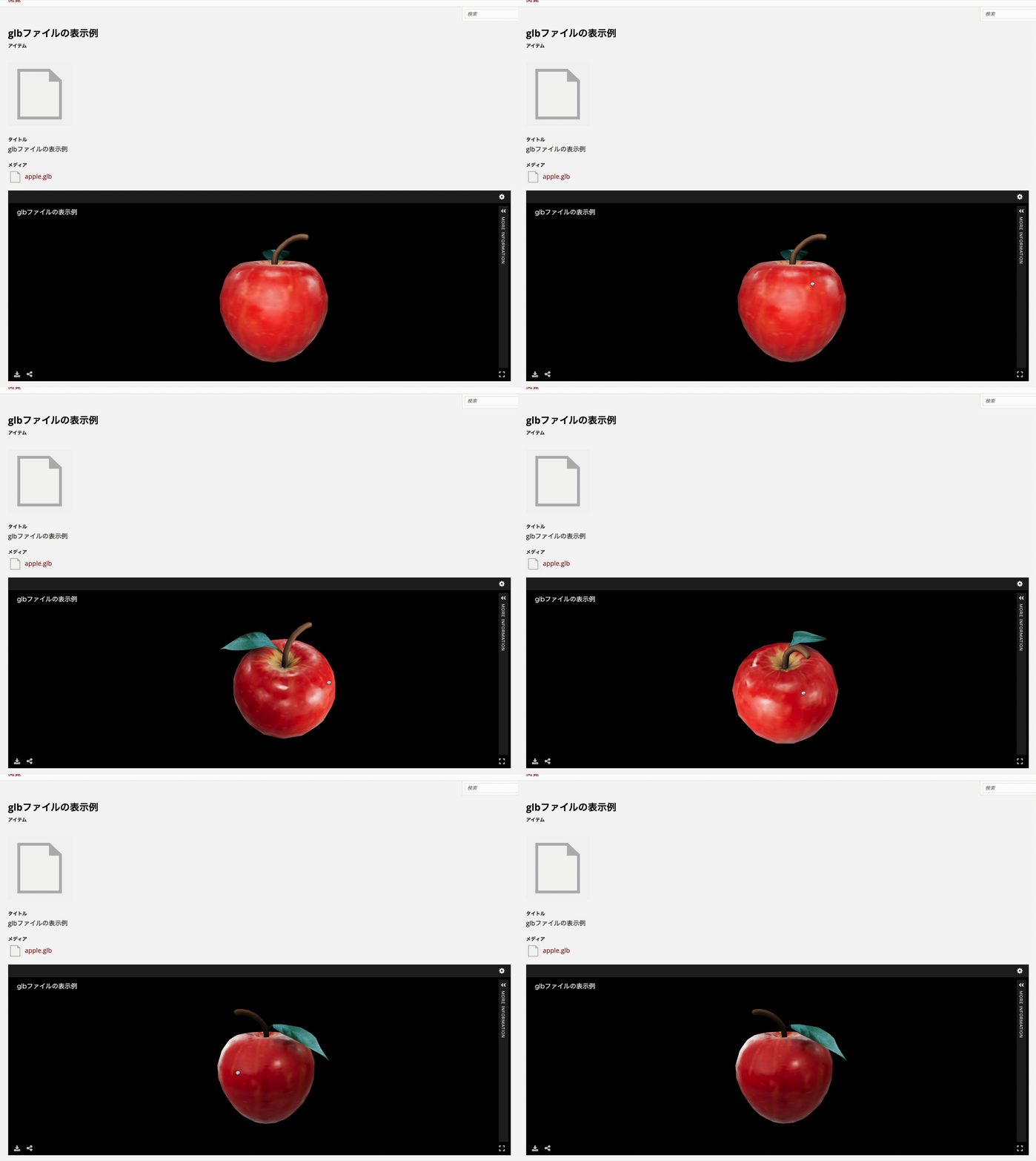
概要 Omeka Sで3Dモデルを公開する方法について調べてみましたので、備忘録です。 結果、以下のように3DモデルをOmeka Sで扱うことができました。 https://omeka.aws.ldas.jp/s/sample/item/43 バージョン 使用するOmeka Sおよびモジュールのバージョンは以下です。 Omeka S 4.1.1 Common 3.4.62 IIIF Server 3.6.21 Universal Viewer 3.6.9 モジュールのインストール Common, IIIF Server, Universal Viewerモジュールをインストールします。 モジュールの設定 IIIF Serverモジュールについて、設定を2点行います。 まず、Default IIIF api version of the manifestを3にします。 また、Default IIIF image api versionをNo image serverにします。 glbファイルのアップロード 以下で公開されているglbファイルを利用させていただきます。 https://ft-lab.github.io/gltf.html 以下のように、apple.glbをメディアとして、新規のアイテムを登録します。 結果、サイトの詳細ページにおいて、Universal Viewer上に3Dモデルが表示されます。 https://omeka.aws.ldas.jp/s/sample/item/43 作成されるマニフェストファイルは以下です。 { "@context": "http://iiif.io/api/presentation/3/context.json", "id": "https://omeka.aws.ldas.jp/iiif/3/43/manifest", "type": "Manifest", "label": { "none": [ "glb" ] }, "metadata": [ { "label": { "none": [ "Title" ] }, "value": { "none": [ "glb" ] } } ], "rights": "https://rightsstatements.org/vocab/CNE/1.0/", "provider": [ { "id": "https://omeka.aws.ldas.jp/", "type": "Agent", "label": { "none": [ "Omeka S" ] } } ], "viewingDirection": "left-to-right", "seeAlso": [ { "id": "https://omeka.aws.ldas.jp/api/items/43", "type": "Dataset", "label": { "none": [ "Api rest json-ld" ] }, "format": "application/ld+json", "profile": "https://omeka.aws.ldas.jp/api-context" } ], "homepage": [ { "id": "https://omeka.aws.ldas.jp/s/aaa/item/43", "type": "Text", "label": { "none": [ "Resource in site: aaa" ] }, "format": "text/html", "language": [ "ja" ] } ], "items": [ { "@context": "http://iiif.io/api/presentation/3/context.json", "id": "https://omeka.aws.ldas.jp/iiif/3/43/canvas/p1", "type": "Canvas", "label": { "none": [ "1" ] }, "rights": "https://rightsstatements.org/vocab/CNE/1.0/", "items": [ { "id": "https://omeka.aws.ldas.jp/iiif/3/43/annotation-page/44", "type": "AnnotationPage", "items": [ { "id": "https://omeka.aws.ldas.jp/iiif/3/43/annotation/44", "type": "Annotation", "motivation": "painting", "body": { "id": "https://omeka.aws.ldas.jp/files/original/c28f7107525270b03b4314e734bbdd318d0342a4.glb", "type": "Model", "format": "model/gltf-binary", "service": [], "height": null, "width": null, "duration": null }, "target": "https://omeka.aws.ldas.jp/iiif/3/43/canvas/p1", "label": { "none": [ "[Untitled]" ] } } ] } ] } ] } まとめ Omeka Sと関連モジュールを使用することで、比較的に3Dモデルを公開することができました。 ...

[2024年版] AWSサーバーレスアプリケーションによるIIIF Image Serverの構築

[2024年版] AWSサーバーレスアプリケーションによるIIIF Image Serverの構築

概要 AWSサーバーレスアプリケーションによるIIIF Image Serverの構築に関する2024年度版の記事です。 背景 以下で、serverless-iiifというリポジトリが公開されています。本リポジトリを用いることにより、AWSのサービスを用いて、コスト効率が高く、無限にスケーラブルなIIIF Image Serverを構築することができると謳われています。 https://github.com/samvera/serverless-iiif 以下で、2022年時点の使い方を紹介しましたが、今日のサービスはより使いやすいものになっていました。 方法 いくつか構築方法がありますが、GUIを通じた構築方法として、以下を参考にします。基本的な構築については、以下のサイトの通り行います。ここでは、CloudFrontとRoute 53によるカスタムドメインの設定を含む手順について紹介します。 Lambdaの作成 https://samvera.github.io/serverless-iiif/docs/quick-start/deployment-sam まず、以下にアクセスします。 https://console.aws.amazon.com/lambda/home#/create/app?applicationId=arn:aws:serverlessrepo:us-east-1:625046682746:applications/serverless-iiif カスタムドメインによる配信にあたり、いくつかの設定を行います。 まず、ForceHostの項目に、設定したいカスタムドメイン名を入力します。 さらに、SourceBucketにバケット名を入力します。以下の例ではたまたまカスタムドメインと同じ名前の例ですが、任意のバケット名を入力します。 最後に、「このアプリがカスタム IAM ロールを作成することを承認します。」にチェックを入れて、「デプロイ」ボタンを押します。 その後に遷移する以下のような画面において、「デプロイ」タブを選択して、「CloudFormation スタック」のリンクをクリックします。 「出力」タブに遷移すると、v2やv3のエンドポイントが確認できます。 tiled TIFFsの作成 以下のページなどを参考に、tiled TIFFsファイルを作成します。 https://samvera.github.io/serverless-iiif/docs/source-images または、「『石見国絵図』,写,〔江戸中期〕. 国立国会図書館デジタルコレクション 」の画像をtile TIFFsに変換したファイルを以下から取得いただけます。サンプルデータとしてお使いください。 https://github.com/nakamura196/iiif-sampledata/raw/main/1286204.tif このファイルを先に指定したAmazon S3のバケットにアップロードすると、以下のようなURLでImage APIにアクセスすることができます。 https://istxbnjtm5x7qcpkwapsznyltm0sufnb.lambda-url.us-east-1.on.aws/iiif/3/1286204/info.json 注意点として、上記の結果得られるJSONファイルのidには、https://iiif.aws.ldas.jp/iiif/3/1286204という値が指定されています。 これは、先の設定で、ForceHostに指定した値が反映されています。 なお、画像の閲覧には、神崎正英氏が作成されているImage Annotatorが便利です。以下のように、uパラメータでURLを指定すると、画像を表示することができます。 https://www.kanzaki.com/works/2016/pub/image-annotator?u=https://istxbnjtm5x7qcpkwapsznyltm0sufnb.lambda-url.us-east-1.on.aws/iiif/3/1286204/info.json カスタムドメインの設定 最後にカスタムドメインの設定を行います。 まず、CloudFrontでディストリビューションを作成します。Origin domainには、先ほどアクセスしたURLのon.awsで終わるところまでを入力します。 そして、「代替ドメイン名 (CNAME)」の箇所において、設定したいドメイン名を入力します。合わせて、「Custom SSL certificate」も設定します。 上記でCloudFrontの設定は完了です。 最後に、Route 53でCloudFrontディストリビューションへの設定を行います。 結果、以下のURLからJSONファイルを取得することができます。 https://iiif.aws.ldas.jp/iiif/3/1286204/info.json まとめ 誤っている点もあるかもしれませんが、AWSサーバーレスアプリケーションによるIIIF Image Serverの構築にあたり、参考になりましたら幸いです。 ...

IIIF Presentation API v3でsvgを使ったアノテーション記述

IIIF Presentation API v3でsvgを使ったアノテーション記述

概要 IIIF Presentation API v3でsvgを使ったアノテーション記述を行う機会がありましたので、備忘録です。 方法 以下のように記述することで、svgを使ったアノテーションを表示することができました。 { "@context": "http://iiif.io/api/presentation/3/context.json", "id": "http://127.0.0.1:62816/api/iiif/3/11/manifest", "type": "Manifest", "label": { "none": [ "きりつぼ" ] }, "rights": "http://creativecommons.org/licenses/by/4.0/", "requiredStatement": { "label": { "none": [ "Attribution" ] }, "value": { "none": [ "Provided by Example Organization" ] } }, "items": [ { "id": "http://127.0.0.1:62816/api/iiif/3/11/canvas/p1", "type": "Canvas", "width": 6642, "height": 4990, "label": { "none": [ "[1]" ] }, "thumbnail": [ { "format": "image/jpeg", "id": "https://iiif.dl.itc.u-tokyo.ac.jp/iiif/genji/TIFF/A00_6587/01/01_0023.tif/full/200,/0/default.jpg", "type": "Image" } ], "annotations": [ { "id": "http://127.0.0.1:62816/api/iiif/3/11/canvas/p1/annos", "type": "AnnotationPage", "items": [ { "id": "http://127.0.0.1:62816/api/iiif/3/11/canvas/p1/annos/1", "type": "Annotation", "motivation": "commenting", "body": { "type": "TextualBody", "value": "<p>校異源氏物語 p.21 開始位置</p><p><a href=\"http://dl.ndl.go.jp/info:ndljp/pid/3437686/30\">国立国会図書館デジタルコレクション</a>でみる</p>" }, "target": { "source": "http://127.0.0.1:62816/api/iiif/3/11/canvas/p1", "type": "SpecificResource", "selector": { "type": "SvgSelector", "value": "<svg xmlns='http://www.w3.org/2000/svg'><path xmlns=\"http://www.w3.org/2000/svg\" d=\"M2798,1309c0,-34 17,-68 51,-102c0,-34 -17,-51 -51,-51c-34,0 -51,17 -51,51c34,34 51,68 51,102z\" id=\"pin_abc\" fill-opacity=\"0.5\" fill=\"#F3AA00\" stroke=\"#f38200\"/></svg>" } } } ] } ], "items": [ { "id": "http://127.0.0.1:62816/api/iiif/3/11/canvas/p1/page", "type": "AnnotationPage", "items": [ { "id": "http://127.0.0.1:62816/api/iiif/3/11/canvas/p1/page/imageanno", "type": "Annotation", "motivation": "painting", "body": { "id": "http://127.0.0.1:62816/api/iiif/3/11/image", "type": "Image", "format": "image/jpeg", "service": [ { "id": "https://iiif.dl.itc.u-tokyo.ac.jp/iiif/genji/TIFF/A00_6587/01/01_0023.tif", "type": "ImageService2", "profile": "level2" } ], "width": 6642, "height": 4990 }, "target": "http://127.0.0.1:62816/api/iiif/3/11/canvas/p1" } ] } ] } ] } 表示結果は以下です。 ...

縦書きに対応したText Overlay pluginを導入済みのMiradorのリポジトリ

縦書きに対応したText Overlay pluginを導入済みのMiradorのリポジトリ

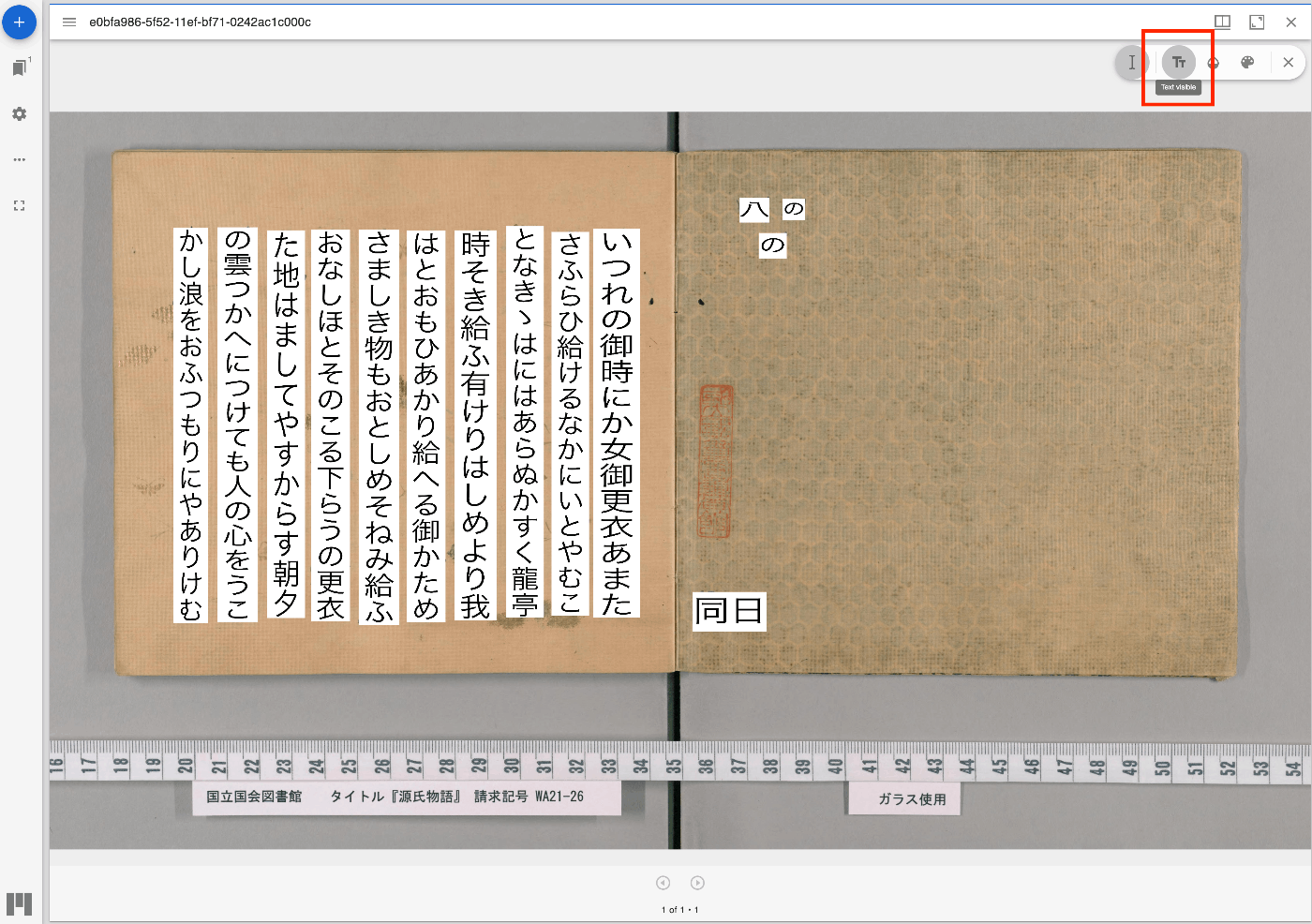
概要 縦書きに対応したText Overlay pluginを導入済みのMiradorのリポジトリを更新しました。 https://github.com/nakamura196/mirador-integration-textoverlay 参考 変更元のText Overlay pluginのリポジトリは以下です。 https://github.com/dbmdz/mirador-textoverlay デモ 以下のページで動作内容をご確認いただけます。 https://nakamura196.github.io/mirador-integration-textoverlay/ 画面右上の「Text visible」ボタンを押すと、テキストが表示されます。ロード中のままとなってしまう場合には、ページの再読み込みをしてください。 参考 以下の記事で紹介した方法を使い、Text Overlay pluginをMirador 3に追加しています。 使用例 Text Overlay pluginの使用方法などについては、以下の記事を参考にしてください。 まとめ 今後、テキスト表示にあたり、ロードしたままになってしまう不具合を解消したいと思います。 IIIF画像とテキストの応用にあたり、参考になりましたら幸いです。

Annotorious OpenSeadragon Pluginを使ったサンプルプログラム

Annotorious OpenSeadragon Pluginを使ったサンプルプログラム

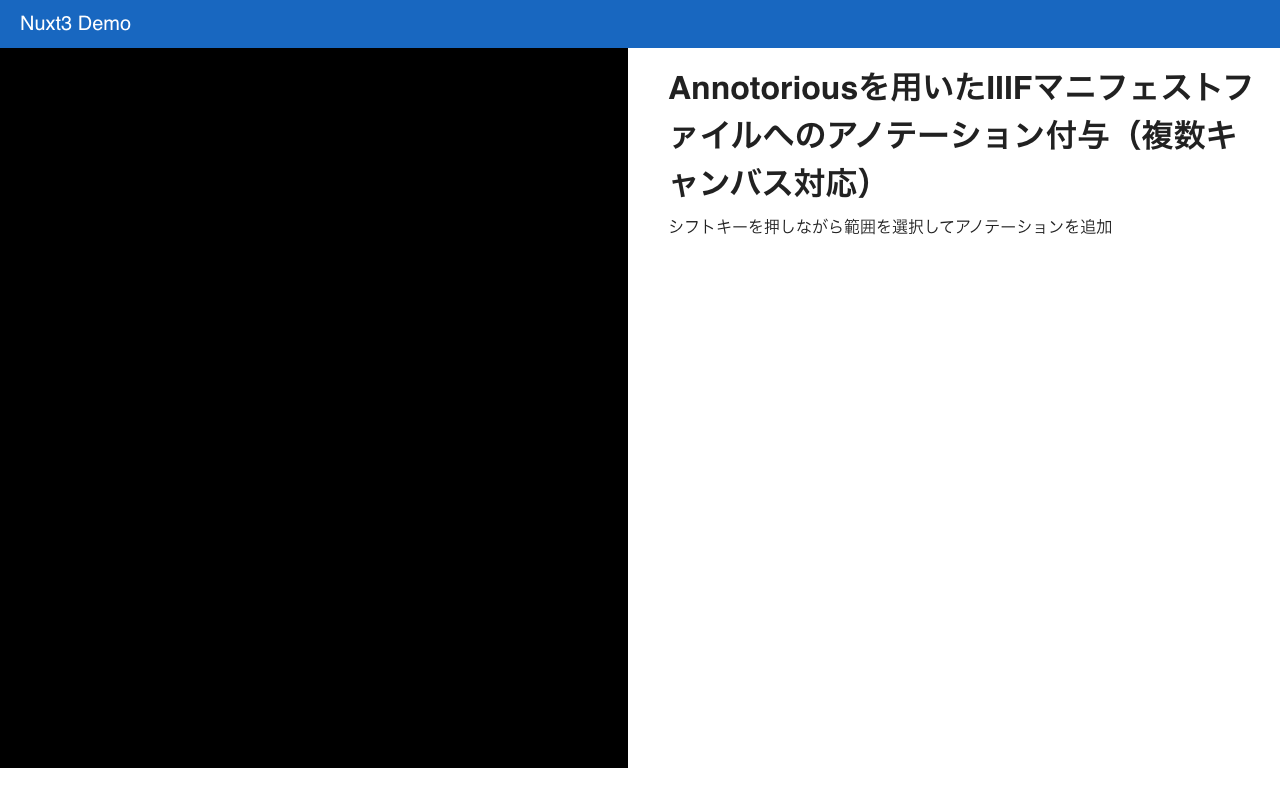
概要 Annotorious OpenSeadragon Pluginを使って、IIIFマニフェストファイルからロードした複数画像に対するアノテーション付与を行うサンプルプログラムを作成しました。以下からお試しいただけます。 https://nakamura196.github.io/nuxt3-demo/annotorious ソースコード 以下を参考にしてください。 https://github.com/nakamura196/nuxt3-demo/blob/main/pages/annotorious/index.vue ポイント npm install –force ライブラリ@recogito/annotorious-openseadragonはopenseadragonのv5に非対応のようで、強制的にインストールする必要がありました。 npm error Could not resolve dependency: npm error peer openseadragon@"^3.0.0 || ^4.0.0" from @recogito/annotorious-openseadragon@2.7.18 npm error node_modules/@recogito/annotorious-openseadragon npm error @recogito/annotorious-openseadragon@"^2.7.18" from the root project plugins プラグインとして、Annotoriousを読み込みました。 https://github.com/nakamura196/nuxt3-demo/blob/main/plugins/osd.client.js ページ切り替え ページを切り替えた際、一旦アノテーションをクリアして、該当ページのアノテーションをロードする必要がありました。 ... // Reactive object to store annotations for each page const annotationsMap = ref<{ [key: number]: Annotation[]; }>({}); ... // Add handler to clear and display annotations on page navigation viewer.addHandler("page", () => { anno.clearAnnotations(); showCurrentCanvasAnnotations(); }); // Function to display annotations for the current canvas const showCurrentCanvasAnnotations = () => { const index = viewer.currentPage(); const annotationsMap_ = annotationsMap.value; if (annotationsMap_[index]) { annotationsMap_[index].forEach((annotation: Annotation) => { anno.addAnnotation(annotation); }); } }; ... まとめ 本プログラムを応用して、他のアプリケーションとの接続も可能かと思います。参考になりましたら幸いです。 ...

画像ファイルに対してGoogle Cloud Visionを適用して、IIIFマニフェストおよびTEI/XMLファイルを作成する

画像ファイルに対してGoogle Cloud Visionを適用して、IIIFマニフェストおよびTEI/XMLファイルを作成する

概要 画像ファイルに対してGoogle Cloud Visionを適用して、IIIFマニフェストおよびTEI/XMLファイルを作成するライブラリを作成しました。 https://github.com/nakamura196/iiif_tei_py 本ライブラリの使用方法を説明します。 使用方法 以下で使い方などを確認できます。 https://nakamura196.github.io/iiif_tei_py/ ライブラリのインストール GitHubのリポジトリから、ライブラリをインストールします。 pip install https://github.com/nakamura196/iiif_tei_py GCのサービスアカウントの作成 以下の記事などを参考に、GC(Google Cloud)のサービスアカウントキー(JSONファイル)をダウンロードします。 https://book.st-hakky.com/data-science/data-science-gcp-vision-api-setting/ そして、以下のような.envファイルを作成します。 GOOGLE_APPLICATION_CREDENTIALS=your-google-credentials.json 実行 入力サンプル画像として、IIIF Cookbookでも使用されている以下の画像を使用します。 https://iiif.io/api/presentation/2.1/example/fixtures/resources/page1-full.png 以下のようなファイルを作成して実行します。 from iiif_tei_py.core import CoreClient cred_path = CoreClient.load_env() url = "https://iiif.io/api/presentation/2.1/example/fixtures/resources/page1-full.png" output_tei_xml_file_path = "./tmp/01/output.xml" CoreClient.create_tei_xml_with_gocr(url, output_tei_xml_file_path, cred_path, title="Sample") 上記の例では、IIIFマニフェストファイルが./tmp/01/output.jsonに、TEI/XMLファイルが./tmp/01/output.xmlに作成されます。 結果の確認 IIIF IIIFマニフェストファイルをMiradorで表示した例が以下です。 JSONファイルの内容は以下です。 { "@context": "http://iiif.io/api/presentation/3/context.json", "id": "http://example.org/iiif/abc/manifest", "label": { "none": [ "Sample" ] }, "type": "Manifest", "items": [ { "id": "http://example.org/iiif/abc/canvas/p1", "type": "Canvas", "label": { "none": [ "[1]" ] }, "height": 1800, "width": 1200, "items": [ { "id": "http://example.org/iiif/abc/annotation/p0001-image", "type": "AnnotationPage", "items": [ { "body": { "id": "https://iiif.io/api/presentation/2.1/example/fixtures/resources/page1-full.png", "type": "Image", "format": "image/jpeg", "height": 1800, "width": 1200 }, "id": "http://example.org/iiif/abc/annotation/p0001-image/anno", "type": "Annotation", "motivation": "painting", "target": "http://example.org/iiif/abc/canvas/p1" } ] } ], "annotations": [ { "id": "http://example.org/iiif/abc/canvas/p1/curation", "type": "AnnotationPage", "items": [ { "body": { "type": "TextualBody", "value": "[00001] Top", "format": "text/plain" }, "id": "http://example.org/iiif/abc/canvas/p1#xywh=245/69/94/52", "type": "Annotation", "motivation": "commenting", "target": "http://example.org/iiif/abc/canvas/p1#xywh=245,69,94,52" }, { "body": { "type": "TextualBody", "value": "[00002] of", "format": "text/plain" }, "id": "http://example.org/iiif/abc/canvas/p1#xywh=355/69/49/52", "type": "Annotation", "motivation": "commenting", "target": "http://example.org/iiif/abc/canvas/p1#xywh=355,69,49,52" }, { "body": { "type": "TextualBody", "value": "[00003] First", "format": "text/plain" }, "id": "http://example.org/iiif/abc/canvas/p1#xywh=420/69/112/54", "type": "Annotation", "motivation": "commenting", "target": "http://example.org/iiif/abc/canvas/p1#xywh=420,69,112,54" }, { "body": { "type": "TextualBody", "value": "[00004] Page", "format": "text/plain" }, "id": "http://example.org/iiif/abc/canvas/p1#xywh=547/70/134/53", "type": "Annotation", "motivation": "commenting", "target": "http://example.org/iiif/abc/canvas/p1#xywh=547,70,134,53" }, { "body": { "type": "TextualBody", "value": "[00005] to", "format": "text/plain" }, "id": "http://example.org/iiif/abc/canvas/p1#xywh=697/71/50/52", "type": "Annotation", "motivation": "commenting", "target": "http://example.org/iiif/abc/canvas/p1#xywh=697,71,50,52" }, { "body": { "type": "TextualBody", "value": "[00006] Display", "format": "text/plain" }, "id": "http://example.org/iiif/abc/canvas/p1#xywh=763/71/189/54", "type": "Annotation", "motivation": "commenting", "target": "http://example.org/iiif/abc/canvas/p1#xywh=763,71,189,54" }, { "body": { "type": "TextualBody", "value": "[00007] Middle", "format": "text/plain" }, "id": "http://example.org/iiif/abc/canvas/p1#xywh=296/593/163/164", "type": "Annotation", "motivation": "commenting", "target": "http://example.org/iiif/abc/canvas/p1#xywh=296,593,163,164" }, { "body": { "type": "TextualBody", "value": "[00008] of", "format": "text/plain" }, "id": "http://example.org/iiif/abc/canvas/p1#xywh=433/733/76/76", "type": "Annotation", "motivation": "commenting", "target": "http://example.org/iiif/abc/canvas/p1#xywh=433,733,76,76" }, { "body": { "type": "TextualBody", "value": "[00009] First", "format": "text/plain" }, "id": "http://example.org/iiif/abc/canvas/p1#xywh=484/786/123/124", "type": "Annotation", "motivation": "commenting", "target": "http://example.org/iiif/abc/canvas/p1#xywh=484,786,123,124" }, { "body": { "type": "TextualBody", "value": "[00010] Page", "format": "text/plain" }, "id": "http://example.org/iiif/abc/canvas/p1#xywh=584/889/128/129", "type": "Annotation", "motivation": "commenting", "target": "http://example.org/iiif/abc/canvas/p1#xywh=584,889,128,129" }, { "body": { "type": "TextualBody", "value": "[00011] on", "format": "text/plain" }, "id": "http://example.org/iiif/abc/canvas/p1#xywh=691/998/80/80", "type": "Annotation", "motivation": "commenting", "target": "http://example.org/iiif/abc/canvas/p1#xywh=691,998,80,80" }, { "body": { "type": "TextualBody", "value": "[00012] Angle", "format": "text/plain" }, "id": "http://example.org/iiif/abc/canvas/p1#xywh=749/1057/148/149", "type": "Annotation", "motivation": "commenting", "target": "http://example.org/iiif/abc/canvas/p1#xywh=749,1057,148,149" }, { "body": { "type": "TextualBody", "value": "[00013] Bottom", "format": "text/plain" }, "id": "http://example.org/iiif/abc/canvas/p1#xywh=203/1686/175/55", "type": "Annotation", "motivation": "commenting", "target": "http://example.org/iiif/abc/canvas/p1#xywh=203,1686,175,55" }, { "body": { "type": "TextualBody", "value": "[00014] of", "format": "text/plain" }, "id": "http://example.org/iiif/abc/canvas/p1#xywh=398/1689/51/53", "type": "Annotation", "motivation": "commenting", "target": "http://example.org/iiif/abc/canvas/p1#xywh=398,1689,51,53" }, { "body": { "type": "TextualBody", "value": "[00015] First", "format": "text/plain" }, "id": "http://example.org/iiif/abc/canvas/p1#xywh=466/1689/109/54", "type": "Annotation", "motivation": "commenting", "target": "http://example.org/iiif/abc/canvas/p1#xywh=466,1689,109,54" }, { "body": { "type": "TextualBody", "value": "[00016] Page", "format": "text/plain" }, "id": "http://example.org/iiif/abc/canvas/p1#xywh=593/1690/130/54", "type": "Annotation", "motivation": "commenting", "target": "http://example.org/iiif/abc/canvas/p1#xywh=593,1690,130,54" }, { "body": { "type": "TextualBody", "value": "[00017] to", "format": "text/plain" }, "id": "http://example.org/iiif/abc/canvas/p1#xywh=740/1692/51/54", "type": "Annotation", "motivation": "commenting", "target": "http://example.org/iiif/abc/canvas/p1#xywh=740,1692,51,54" }, { "body": { "type": "TextualBody", "value": "[00018] Display", "format": "text/plain" }, "id": "http://example.org/iiif/abc/canvas/p1#xywh=808/1693/190/54", "type": "Annotation", "motivation": "commenting", "target": "http://example.org/iiif/abc/canvas/p1#xywh=808,1693,190,54" } ] } ] } ] } TEI また、TEI/XMLファイルをOxygen XML Editorで表示した例が以下です。 ...

Omeka S IIIF Serverモジュール[3.6.19, 3.6.20]の不具合

Omeka S IIIF Serverモジュール[3.6.19, 3.6.20]の不具合

概要 Omeka SのIIIF Serverモジュールの3.6.19と3.6.20について、URIの表記が崩れる不具合が確認できました。 具体的には、以下のように、FQDNがおかしくなりました。 https://xxx.yyy.zzz.jp//aaa.bbb.ccc.jp/iiif/3/1234/manifest 対策 本記事執筆時点において、3.6.21はリリースされていないので、3.6.18以前のモジュールを使用することをお勧めします。 まとめ 参考になりましたら幸いです。

音声資料に関するIIIFマニフェストファイルに画像を追加する

音声資料に関するIIIFマニフェストファイルに画像を追加する

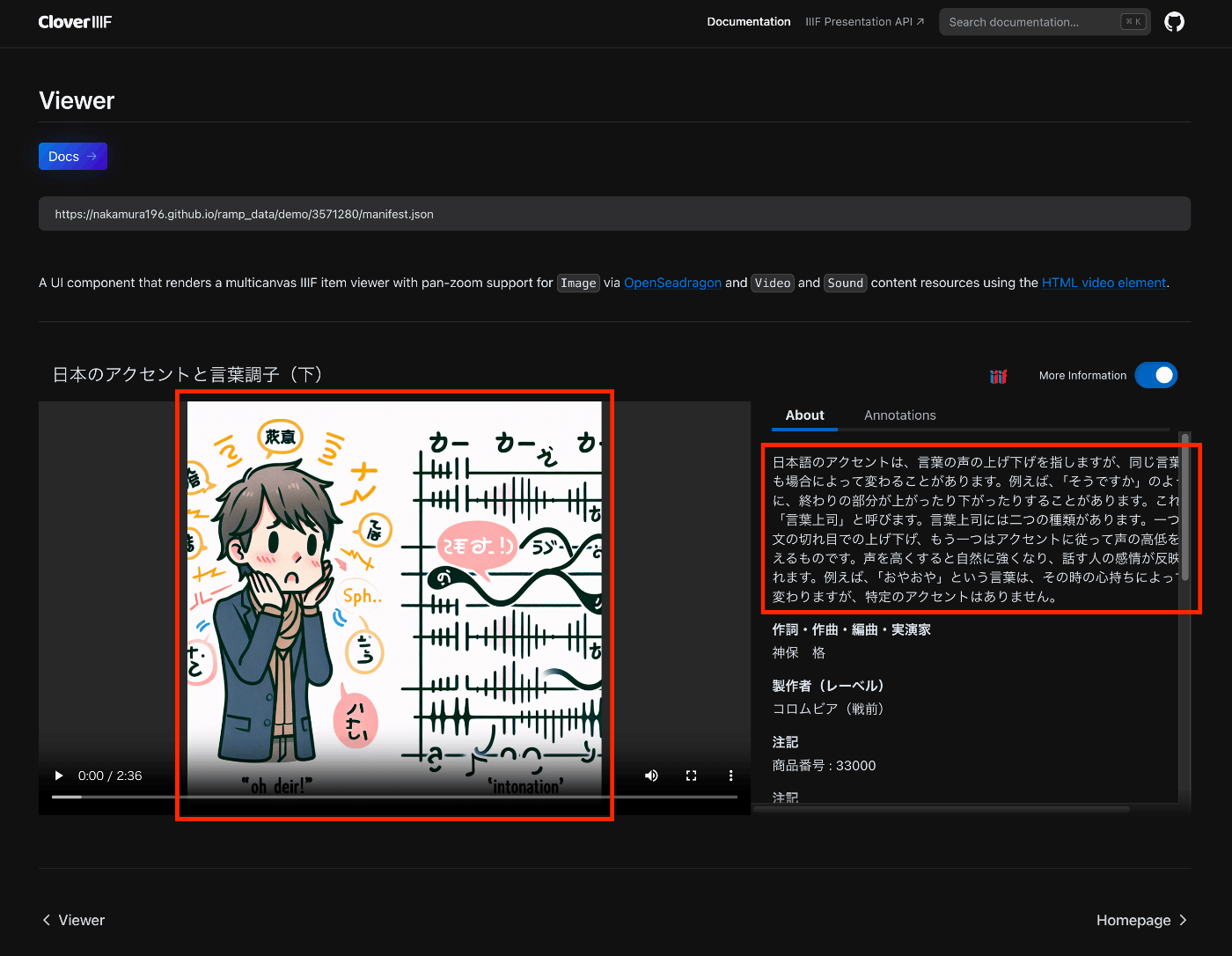
概要 以下のAudio Presentation with Accompanying Imageを試した結果の備忘録です。 https://iiif.io/api/cookbook/recipe/0014-accompanyingcanvas/ 以下はCloverで表示した例ですが、設定した画像がプレイヤーに表示されます。 https://samvera-labs.github.io/clover-iiif/docs/viewer/demo?iiif-content=https://nakamura196.github.io/ramp_data/demo/3571280/manifest.json マニフェストファイルの記述 以下に例を格納しています。 https://github.com/nakamura196/ramp_data/blob/main/docs/demo/3571280/manifest.json 具体的には、以下のように、CanvasにaccompanyingCanvasを追加する必要がありました。 { "id": "https://nakamura196.github.io/ramp_data/demo/3571280/canvas", "type": "Canvas", "duration": 156.07999999999998, "accompanyingCanvas": { "id": "https://nakamura196.github.io/ramp_data/demo/3571280/canvas/accompanying", "type": "Canvas", "height": 1024, "width": 1024, "items": [ { "id": "https://nakamura196.github.io/ramp_data/demo/3571280/canvas/accompanying/annotation/page", "type": "AnnotationPage", "items": [ { "id": "https://nakamura196.github.io/ramp_data/demo/3571280/canvas/accompanying/annotation/image", "type": "Annotation", "motivation": "painting", "body": { "id": "https://nakamura196.github.io/ramp_data/demo/3571280/3571280_summary_image.jpg", "type": "Image", "height": 1024, "width": 1024, "format": "image/jpeg" }, "target": "https://nakamura196.github.io/ramp_data/demo/3571280/canvas/accompanying/annotation/page" } ] } ] }, わかりにくいですが、iiif_prezi3を使った記述例です。create_accompanying_canvas()によってaccompanyingCanvasを作成し、それをcanvasに関連づけています。 def add_accompanying_image(self): if self.verbose: print("Adding accompanying image") print(self.image_path) if os.path.exists(self.image_path): accompanyingCanvas = self.create_accompanying_canvas() self.canvas.accompanyingCanvas = accompanyingCanvas def create_accompanying_canvas(self): im = Image.open(self.image_path) w, h = im.size accompanyingCanvas = iiif_prezi3.Canvas(id=f"{self.prefix}/canvas/accompanying") anno_page, anno = self.create_image_annotation(w, h) accompanyingCanvas.set_hwd(height=h, width=w) accompanyingCanvas.add_item(anno_page) return accompanyingCanvas def create_image_annotation(self, width, height): anno_page = iiif_prezi3.AnnotationPage(id=f"{self.prefix}/canvas/accompanying/annotation/page") anno = iiif_prezi3.Annotation( id=f"{self.prefix}/canvas/accompanying/annotation/image", motivation="painting", body=iiif_prezi3.ResourceItem( id=f"{self.prefix}/{self.item_id}_summary_image.{self.image_format}", type="Image", format="image/jpeg", height=height, width=width ), target=anno_page.id ) anno_page.add_item(anno) return anno_page, anno (参考)画像ファイルの作成 国立国会図書館 歴史的音源(れきおん)では、画像データは提供されていないため、Dall-E 3を使用してサンプル画像を作成しました。 ...

IIIF Audio/Visual: 複数のvttファイルを記述する

IIIF Audio/Visual: 複数のvttファイルを記述する

概要 IIIFを用いたAudio/Visual資料の記述について、複数のvttファイルを記述する方法に関する備忘録です。 ここでは、以下のように、日英の文字起こしテキストを記述します。 https://ramp.avalonmediasystem.org/?iiif-content=https://nakamura196.github.io/ramp_data/demo/3571280/manifest.json マニフェストファイルの記述 以下に例を格納しています。 https://github.com/nakamura196/ramp_data/blob/main/docs/demo/3571280/manifest.json 以下の記事も参考にしてください。 具体的には、以下のように複数のアノテーションとして記述することで、rampビューアによって正しく処理されました。 ... "annotations": [ { "id": "https://nakamura196.github.io/ramp_data/demo/3571280/canvas/page/2", "type": "AnnotationPage", "items": [ { "id": "https://nakamura196.github.io/ramp_data/demo/3571280/canvas/annotation/webvtt", "type": "Annotation", "label": { "ja": [ "日本語 (machine-generated)" ] }, "motivation": "supplementing", "body": { "id": "https://nakamura196.github.io/ramp_data/demo/3571280/3571280.vtt", "type": "Text", "format": "text/vtt", "label": { "ja": [ "日本語 (machine-generated)" ] } }, "target": "https://nakamura196.github.io/ramp_data/demo/3571280/canvas" }, { "id": "https://nakamura196.github.io/ramp_data/demo/3571280/canvas/annotation/webvtt/2", "type": "Annotation", "label": { "ja": [ "English (machine-generated)" ] }, "motivation": "supplementing", "body": { "id": "https://nakamura196.github.io/ramp_data/demo/3571280/3571280_en.vtt", "type": "Text", "format": "text/vtt", "label": { "ja": [ "English (machine-generated)" ] } }, "target": "https://nakamura196.github.io/ramp_data/demo/3571280/canvas" } ] } ] ... なお、Cloverでは、2つの文字起こしテキストが連続して表示されました。 ...

字幕付きの音声ファイルをIIIFビューアで表示する

字幕付きの音声ファイルをIIIFビューアで表示する

概要 字幕付きの音声ファイルをIIIFビューアで表示する機会がありましたので、備忘録です。 国立国会図書館 歴史的音源で公開されている「日本のアクセントと言葉調子(下)」を対象に、OpenAIのSpeech to textを使用しています。文字起こし結果には誤りが含まれていますので、その点はご注意ください。 以下は、Rampでの表示例です。 https://ramp.avalonmediasystem.org/?iiif-content=https://nakamura196.github.io/ramp_data/demo/3571280/manifest.json 以下は、Cloverでの表示例です。 https://samvera-labs.github.io/clover-iiif/docs/viewer/demo?iiif-content=https://nakamura196.github.io/ramp_data/demo/3571280/manifest.json 以下は、Aviaryでの表示例です。こちらについては、残念ながら今回使用したマニフェストファイルの形式では、文字起こしテキストは表示できませんでした。 https://iiif.aviaryplatform.com/player?manifest=https://nakamura196.github.io/ramp_data/demo/3571280/manifest.json 以下、これらのマニフェストファイルの作成方法について紹介します。 mp4ファイルの準備 以下の記事を参考に、mp4ファイルを取得します。 vttファイルの作成 OpenAIのAPIを使用して、文字起こしを行います。 from openai import OpenAI client = OpenAI(api_key=os.getenv("OPENAI_API_KEY")) audio_file= open(output_mp4_path, "rb") transcript = client.audio.transcriptions.create( model="whisper-1", file=audio_file, response_format="vtt") with open(output_vtt_path, "w", encoding="utf-8") as file: file.write(transcript) マニフェストファイルの作成 不完全なコードですが、以下のようなプログラムによって、マニフェストファイルを作成します。 from iiif_prezi3 import Manifest, AnnotationPage, Annotation, ResourceItem, config from moviepy.editor import VideoFileClip def get_video_duration(filename): with VideoFileClip(filename) as video: return video.duration config.configs['helpers.auto_fields.AutoLang'].auto_lang = "ja" duration=get_video_duration(mp4_path) manifest = Manifest(id=f"{prefix}/manifest.json", label=label) canvas = manifest.make_canvas(id=f"{prefix}/canvas", duration=duration) anno_body = ResourceItem(id=mp4_url, type="Sound", format="audio/mp4", duration=duration) anno_page = AnnotationPage(id=f"{prefix}/canvas/page") anno = Annotation(id=f"{prefix}/canvas/page/annotation", motivation="painting", body=anno_body, target=canvas.id) anno_page.add_item(anno) canvas.add_item(anno_page) # VTT URLを追加 vtt_body = ResourceItem(id=vtt_url, type="Text", format="text/vtt") vtt_anno = Annotation( id=f"{prefix}/canvas/annotation/webvtt", motivation="supplementing", body=vtt_body, target=canvas.id, label = "WebVTT Transcript (machine-generated)" ) vtt_anno_page = AnnotationPage(id=f"{prefix}/canvas/page/2") vtt_anno_page.add_item(vtt_anno) canvas.annotations = [vtt_anno_page] with open(output_path, "w") as f: f.write(manifest.json(indent=2)) ライブラリとして、iiif-prezi3を使用しています。以下の記事も参考にしてください。 ...