ホーム 記事一覧 ブック DH週間トピックス 検索 このサイトについて
English
Docker版Cantaloupeを使用して、S3バケットにアクセスしSSL通信を行う方法

Docker版Cantaloupeを使用して、S3バケットにアクセスしSSL通信を行う方法

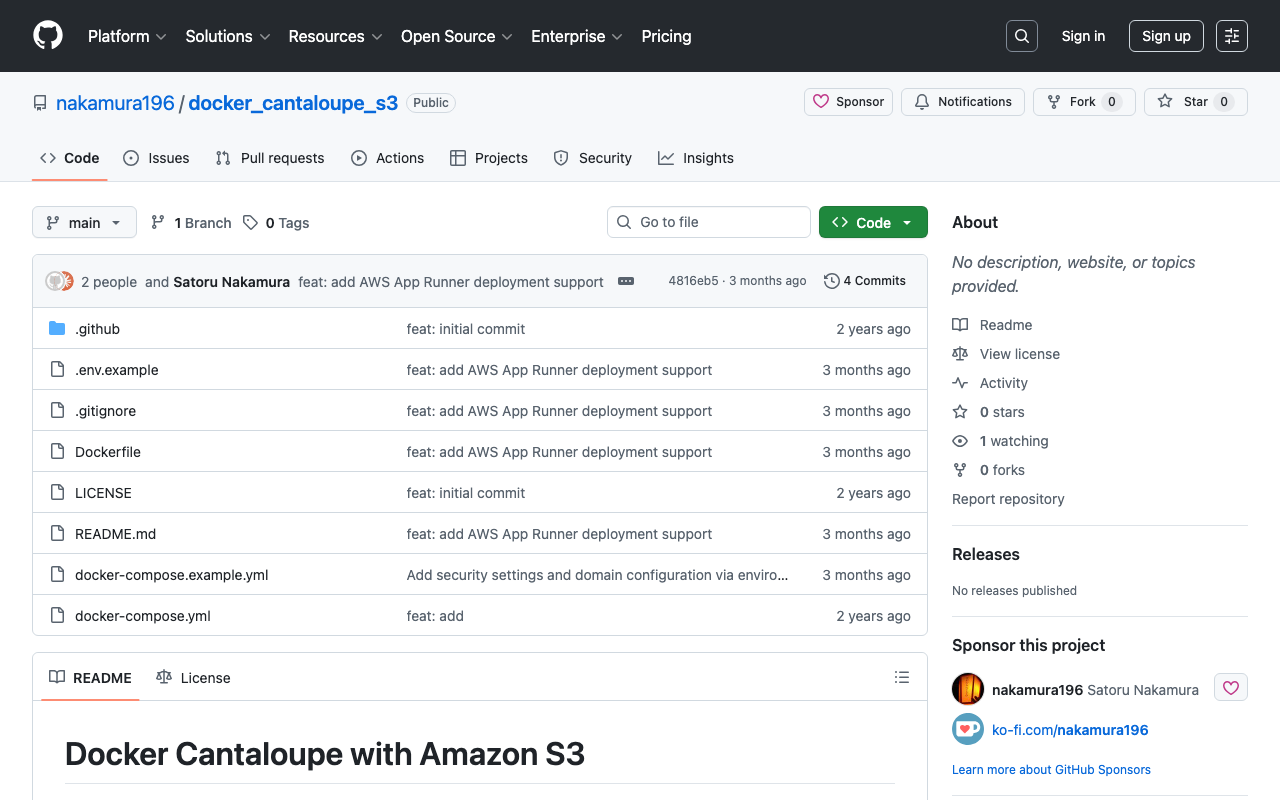
概要 Docker版のCantaloupeの使い方を以下で紹介しました。 このDocker版Cantaloupeを(大規模ではない)production環境で使用するには、Amazon S3との接続や、SSL対応が求められます。その方法を一例を紹介します。 Amazon S3との接続 公式では以下で紹介されています。 https://cantaloupe-project.github.io/manual/5.0/sources.html#S3Source 日本語の記事として以下があります。 また、今回扱うDocker版では、以下に記載がありました。 https://github.com/Islandora-Devops/isle-buildkit/blob/main/cantaloupe/README.md#settings そこで、S3と最低限の接続を行うためのリポジトリを作成しました。 https://github.com/nakamura196/docker_cantaloupe_s3 .env.exampleを.envにリネームまたはコピーして、必要な値を入力します。 SSL対応 以下の記事を参考にしました。EC2上にDockerをインストールし、nginx-proxyとnginx-proxy-lets-encryptを利用してSSL化を行いました。 https://qiita.com/atsuya/items/7cb6e0ccee63d751d41f version: '3' # proxy services: nginx-proxy: image: jwilder/nginx-proxy container_name: nginx-proxy ports: - "80:80" - "443:443" volumes: - html:/usr/share/nginx/html - dhparam:/etc/nginx/dhparam - vhost:/etc/nginx/vhost.d - certs:/etc/nginx/certs:ro - /var/run/docker.sock:/tmp/docker.sock:ro - /srv/docker/nginx-proxy-with-encrypt/log:/var/log/nginx labels: - "com.github.jrcs.letsencrypt_nginx_proxy_companion.nginx_proxy" restart: always letsencrypt: image: jrcs/letsencrypt-nginx-proxy-companion container_name: nginx-proxy-lets-encrypt depends_on: - "nginx-proxy" volumes: - certs:/etc/nginx/certs:rw - vhost:/etc/nginx/vhost.d - html:/usr/share/nginx/html - /var/run/docker.sock:/var/run/docker.sock:ro volumes: certs: html: vhost: dhparam: networks: default: external: name: common_link services: cantaloupe: image: islandora/cantaloupe:2.0.10 environment: CANTALOUPE_ENDPOINT_ADMIN_ENABLED: false CANTALOUPE_ENDPOINT_ADMIN_SECRET: my_admin_pass CANTALOUPE_SOURCE_STATIC: S3Source CANTALOUPE_S3SOURCE_ACCESS_KEY_ID: ${CANTALOUPE_S3SOURCE_ACCESS_KEY_ID} CANTALOUPE_S3SOURCE_SECRET_KEY: ${CANTALOUPE_S3SOURCE_SECRET_KEY} CANTALOUPE_S3SOURCE_REGION: ${CANTALOUPE_S3SOURCE_REGION} CANTALOUPE_S3SOURCE_BASICLOOKUPSTRATEGY_BUCKET_NAME: ${CANTALOUPE_S3SOURCE_BASICLOOKUPSTRATEGY_BUCKET_NAME} CANTALOUPE_S3SOURCE_LOOKUP_STRATEGY: BasicLookupStrategy # Or another strategy if needed VIRTUAL_HOST: <カスタムドメイン> LETSENCRYPT_HOST: <カスタムドメイン> LETSENCRYPT_EMAIL: <メールアドレス> restart: always networks: default: external: name: common_link まとめ IIIF画像サーバの小中規模の利用にあたっては、上記のような形が比較的容易な導入方法の一つに当たるかと思います。 ...
Amazon SNSを用いたEC2上のVirtuosoの再起動

Amazon SNSを用いたEC2上のVirtuosoの再起動

概要 以下の記事で、ヘルスチェックを行う方法について記述しました。 また、Virtuosoが停止した際の再起動のためのコマンドを以下に記述しました。 今回は、Amazon SNSを用いた通知に合わせて、Virtuosoを再起動してみます。 方法 EC2インスタンスにsudo rm -rf /usr/local/var/lib/virtuoso/db/virtuoso.lck && ...のようなコマンドを送信するには、SSM(AWS Systems Manager)に関する設定が必要でした。 IAMロールとポリシー IAMロールを新規に作成して、AmazonSSMFullAccessというポリシーを許可しました。はじめ、AmazonSSMManagedInstanceCoreというポリシーを許可していましたが、後述するlambda実行時に以下のようなエラーが発生して、うまく動作させることができませんでした。 An error occurred (InvalidInstanceId) when calling the SendCommand operation: Instances [[i-xxxxxx]] not in a valid state for account xxxxxx EC2インスタンスの「IAMロールを変更」から、作成したIAMロールを選択して更新しました。 AWS SAM: lamda関数の作成 AWS SAMを用いました。以下でのプロジェクトを作成します。 sam init hello_world/app.pyを以下のように作成しました。instance_idの部分には、要修正です。 import boto3 import time def lambda_handler(event, context): # EC2クライアントの初期化 ec2 = boto3.client('ec2') # 特定のEC2インスタンスIDを指定 instance_id = 'i-xxxxxxxx' # EC2インスタンスのステータスチェック response = ec2.describe_instance_status(InstanceIds=[instance_id]) if len(response['InstanceStatuses']) == 0: print(f"インスタンス {instance_id} は停止中です。") return # Define the command to be executed on the instance (e.g., restart software) command = 'sudo rm -rf /usr/local/var/lib/virtuoso/db/virtuoso.lck && sudo /usr/local/bin/virtuoso-t +configfile /usr/local/var/lib/virtuoso/db/virtuoso.ini' # SSMを通じてEC2インスタンスにコマンドを送信 ssm_client = boto3.client('ssm') response = ssm_client.send_command( InstanceIds=[instance_id], DocumentName='AWS-RunShellScript', Parameters={'commands': [command]} ) time.sleep(1.0) command_id = response['Command']['CommandId'] output = ssm_client.get_command_invocation( CommandId=command_id, InstanceId=instance_id, ) print("コマンドを実行しました。") # Extract only the necessary information from the output simplified_response = { "Output": output['StandardOutputContent'], "Error": output['StandardErrorContent'], } return simplified_response また、hello_word/requirements.txtにboto3を追記しました。 ...

EC2に立てたArchivematicaをHTTPS対応する

EC2に立てたArchivematicaをHTTPS対応する

はじめに 以下の記事で、EC2にArchivematicaを立てる方法を記載しました。 今回は、独自ドメインの設定とHTTPS対応を行います。 独自ドメインの設定 今回、matica.aws.ldas.jpとstorage.aws.ldas.jpいうドメインを<IPアドレス>に割り当てます。Route 53を使用します。 SSL証明書の取得 sudo su yum install epel-release yum install certbot ertbot certonly --webroot -w /usr/share/nginx/html -d matica.aws.ldas.jp -d storage.aws.ldas.jp Webサーバの設定: Nginxのインストール vi /etc/nginx/conf.d/archivematica-and-storage.conf 設定 server { listen 80; server_name matica.aws.ldas.jp; rewrite ^(.*)$ https://$host$1 permanent; } server { listen 80; server_name storage.aws.ldas.jp; rewrite ^(.*)$ https://$host$1 permanent; } server { listen 443 ssl; server_name matica.aws.ldas.jp; ssl_certificate /etc/letsencrypt/live/matica.aws.ldas.jp/fullchain.pem; ssl_certificate_key /etc/letsencrypt/live/matica.aws.ldas.jp/privkey.pem; location / { proxy_pass http://localhost:81; proxy_set_header Host $host; proxy_set_header X-Real-IP $remote_addr; proxy_set_header X-Forwarded-For $proxy_add_x_forwarded_for; } } server { listen 443 ssl; server_name storage.aws.ldas.jp; ssl_certificate /etc/letsencrypt/live/storage.aws.ldas.jp/fullchain.pem; ssl_certificate_key /etc/letsencrypt/live/storage.aws.ldas.jp/privkey.pem; location / { proxy_pass http://localhost:8001; proxy_set_header Host $host; proxy_set_header X-Real-IP $remote_addr; proxy_set_header X-Forwarded-For $proxy_add_x_forwarded_for; } } 結果、以下のURLにアクセスできるようになりました。 ...

IIIFイメージサーバの一つであるCantaloupeをEC2で起動する

IIIFイメージサーバの一つであるCantaloupeをEC2で起動する

概要 IIIFイメージサーバの一つであるCantaloupeをEC2で起動する方法の備忘録です。 https://cantaloupe-project.github.io/ 加えて、画像のダウンロードサイズに制限を加えるDelegate Methodsの一例についても紹介します。具体的には、フルサイズの画像を/full/full/で取得しようとした際、エラーが出てしまうケースへの対応を行います。 https://cantaloupe-project.github.io/manual/5.0/access-control.html Cantaloupeのセットアップ EC2インスタンスの作成 プラットフォームをUbuntu、インスタンスタイプをt2.medium、ストレージを8GB、に設定したEC2インスタンスを作成しました。 結果、以下の「パブリック IPv4 アドレス」を持つEC2インスタンスが作成されました。 54.172.71.20 ssh 起動したEC2インスタンスにsshで接続します。接続後、以下のコマンドにより、rootユーザのパスワードを設定します。 sudo su passwd javaのインストール 以下のコマンドなどにより、javaをインストールします。 apt-get update apt install default-jre cantaloupeのダウンロード 以下のコマンドなどにより、cantaloupeをダウンロードします。 apt install unzip wget https://github.com/cantaloupe-project/cantaloupe/releases/download/v5.0.5/cantaloupe-5.0.5.zip unzip cantaloupe-5.0.5.zip 設定 以下のコマンドなどにより、設定ファイル「cantaloupe.properties」を編集します。 cd cantaloupe-5.0.5 # 設定例ファイルから設定ファイルをコピー cp cantaloupe.properties.sample cantaloupe.properties vi cantaloupe.propertiesなどのコマンドにより、画像を格納するフォルダを指定します。 cantaloupe.properties FilesystemSource.BasicLookupStrategy.path_prefix = /home/ubuntu/images/ cantaloupeの起動 java -Dcantaloupe.config=cantaloupe.properties -Xmx2g -jar cantaloupe-5.0.5.jar 以下のようなURLでcantaloupeが起動します。 http://54.172.71.20:8182/ 画像の配置 サーバ上での作業 ubuntuユーザで/home/ubuntu/imagesに画像を格納するフォルダを作成します。 su ubuntu mkdir /home/ubuntu/images ローカルでの作業 以下のノートブックなどを使って、pyramid tiled tifをローカルにダウンロードします。 https://zenn.dev/nakamura196/articles/ef6b0937e4e887 ...

Amazon EC2に立てたVirtuosoのヘルスチェックを行う

Amazon EC2に立てたVirtuosoのヘルスチェックを行う

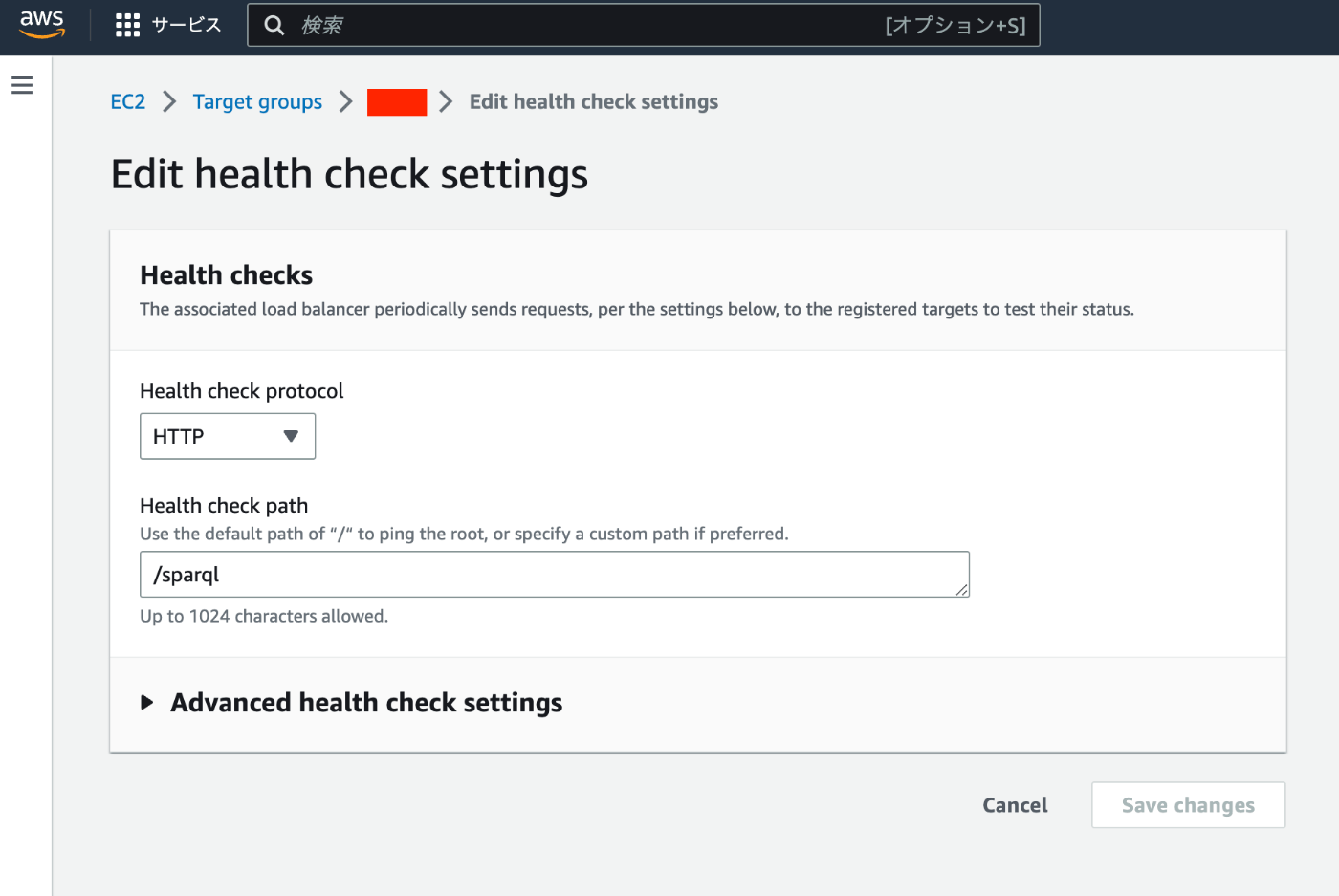
概要 Amazon EC2に立てたVirtuosoのヘルスチェックを行う機会がありましたので、その備忘録です。 具体的には、何らかの不具合で、Virtuoso(https://xxx.zzz/sparql など)がエラーを返すようになってしまった際、その内容をメールで通知します。 方法 以下の記事で、Amazon EC2にVirtuoso RDFストアを構築する方法を紹介しています。 上記では、ELBを使用しています。上記の記事から1点だけ変更を行う必要があります。Health check pathを/に設定していますが、この部分をSPARQLエンドポイントへのパス(例えば/sparql)に変更します。 その後、以下の記事を参考に、CloudWatchやAmazon SNSの設定を行いました。 https://dev.classmethod.jp/articles/elb-healthcheck-monitoring-by-cloudwatch-alarm/ 結果 以下のようにモニタリングを行うことができるようになりました。 またアラート発生時には、以下のようなメールが届くようになりました。 You are receiving this email because your Amazon CloudWatch Alarm "virtuoso-unhealthyhostcount-alarm" in the US East (N. Virginia) region has entered the ALARM state, because "Threshold Crossed: no datapoints were received for 5 periods and 5 missing datapoints were treated as [Breaching]." at "Friday 14 July, 2023 08:05:30 UTC". View this alarm in the AWS Management Console: https://us-east-1.console.aws.amazon.com/cloudwatch/deeplink.js?region=us-east-1#alarmsV2:alarm/virtuoso-unhealthyhostcount-alarm Alarm Details: - Name: virtuoso-unhealthyhostcount-alarm - State Change: OK -> ALARM - Reason for State Change: Threshold Crossed: no datapoints were received for 5 periods and 5 missing datapoints were treated as [Breaching]. - Timestamp: Friday 14 July, 2023 08:05:30 UTC - AWS Account: xxxxxxxxxxxxxx - Alarm Arn: arn:aws:cloudwatch:us-east-1:xxxxxxxxxxxxxx:alarm:virtuoso-unhealthyhostcount-alarm Threshold: - The alarm is in the ALARM state when the metric is GreaterThanOrEqualToThreshold 1.0 for at least 5 of the last 5 period(s) of 60 seconds. Monitored Metric: - MetricNamespace: AWS/ApplicationELB - MetricName: UnHealthyHostCount - Dimensions: [TargetGroup = targetgroup/virtuoso] [AvailabilityZone = us-east-1a] [LoadBalancer = app/virtuoso/yyyyyyyyyyyyyyy] - Period: 60 seconds - Statistic: Minimum - Unit: not specified - TreatMissingData: breaching State Change Actions: - OK: - ALARM: [arn:aws:sns:us-east-1:xxxxxxxxxxxxxx:Default_CloudWatch_Alarms_Topic] - INSUFFICIENT_DATA: まとめ 同様の環境でVirtuosoを運用されている際の参考になりましたら幸いです。 ...

NDL古典籍OCRをAmazon EC2のCPU環境で実行する

NDL古典籍OCRをAmazon EC2のCPU環境で実行する

概要 NDL古典籍OCRをAmazon EC2のCPU環境で実行してみましたので、その備忘録です。高額になりがちなGPU環境を用意せずに実行できる点が利点ですが、1画像あたり30秒から1分程度の時間がかかりますので、ご注意ください。 本環境の構築にあたり、以下の記事を参考にしています。 https://qiita.com/relu/items/e882e23a9bd07243211b インスタンス クイックスタートのUbuntuを選択します。 インスタンスタイプについえは、t2.medium以上をおすすめします。それより小さいインスタンスだと、エラーが発生しました。 サーバ内での設定 sshでログインし、以下を実行します。 sudo apt-get update && sudo apt-get upgrade -y sudo apt -y install build-essential sudo apt -y install libgl1-mesa-dev libglib2.0-0 sudo apt -y install unzip sudo apt install -y python3-pip sudo apt install -y python3.10-venv python3 -m venv app source app/bin/activate pip install --upgrade pip git clone https://github.com/ndl-lab/ndlkotenocr_cli.git cd ndlkotenocr_cli vi requirements.txt requirements.txtを開き、scikit-imageのバージョンを除く。また、torchとtorchvisionを追加する。 click lmdb==1.2.1 natsort==7.1.1 nltk==3.6.6 numpy==1.22.4 albumentations==1.2.1 opencv-python==4.6.0.66 protobuf==3.19.6 pyyaml scikit-image # scikit-image==0.16.2 scipy==1.7.3 lightgbm==3.3.2 transformers==4.19.1 pandas==1.3.5 mmcls==0.23.1 mmdet==2.25.0 datasets==2.2.1 jiwer==2.3.0 wheel torch torchvision 引き続き以下を実行する。 ...

Amazon EC2にArchivematicaを立てる

Amazon EC2にArchivematicaを立てる

概要 Archivematicaはデジタルデータの長期保存のためのオープンソースソフトウェアです。 https://www.archivematica.org/en/ このArchivematicaをAmazon EC2に立てる機会がありましたので、その備忘録です。 インストール 以下のページにインストール方法が記載されています。 https://www.archivematica.org/en/docs/archivematica-1.13/admin-manual/installation-setup/installation/installation/ いくつかの選択肢がありますが、今回は以下の「CentOS 7 64-bit、Installing Archivematica on CentOS/Red Hat」を試してみます。 https://www.archivematica.org/en/docs/archivematica-1.13/admin-manual/installation-setup/installation/install-centos/#install-pkg-centos EC2のインスタンス CentOS 7と指定されていましたので、以下のAmazon マシンイメージ(AMI)を選択しました。 以下にハードウェアの要件が記載されていますが、「Recommended minimum production requirements」であるメモリ4GBである「t2.medium」、200GBのストレージを選択しました。 https://www.archivematica.org/en/docs/archivematica-1.13/admin-manual/installation-setup/installation/installation/#hardware インストール EC2の起動後は、上記のサイトに記載されていたコマンドをすべて実行します。以下をコピー&ペーストすることがでインストールできます。 sudo yum -y update # Allow Nginx to use ports 81 and 8001 sudo semanage port -m -t http_port_t -p tcp 81 sudo semanage port -a -t http_port_t -p tcp 8001 # Allow Nginx to connect the MySQL server and Gunicorn backends sudo setsebool -P httpd_can_network_connect_db=1 sudo setsebool -P httpd_can_network_connect=1 # Allow Nginx to change system limits sudo setsebool -P httpd_setrlimit 1 sudo yum install -y epel-release sudo -u root rpm --import https://artifacts.elastic.co/GPG-KEY-elasticsearch sudo -u root bash -c 'cat << EOF > /etc/yum.repos.d/elasticsearch.repo [elasticsearch-6.x] name=Elasticsearch repository for 6.x packages baseurl=https://artifacts.elastic.co/packages/6.x/yum gpgcheck=1 gpgkey=https://artifacts.elastic.co/GPG-KEY-elasticsearch enabled=1 autorefresh=1 type=rpm-md EOF' sudo -u root bash -c 'cat << EOF > /etc/yum.repos.d/archivematica.repo [archivematica] name=archivematica baseurl=https://packages.archivematica.org/1.13.x/centos gpgcheck=1 gpgkey=https://packages.archivematica.org/1.13.x/key.asc enabled=1 EOF' sudo -u root bash -c 'cat << EOF > /etc/yum.repos.d/archivematica-extras.repo [archivematica-extras] name=archivematica-extras baseurl=https://packages.archivematica.org/1.13.x/centos-extras gpgcheck=1 gpgkey=https://packages.archivematica.org/1.13.x/key.asc enabled=1 EOF' sudo -u root yum install -y java-1.8.0-openjdk-headless elasticsearch mariadb-server gearmand sudo -u root systemctl enable elasticsearch sudo -u root systemctl start elasticsearch sudo -u root systemctl enable mariadb sudo -u root systemctl start mariadb sudo -u root systemctl enable gearmand sudo -u root systemctl start gearmand sudo -H -u root mysql -hlocalhost -uroot -e "DROP DATABASE IF EXISTS MCP; CREATE DATABASE MCP CHARACTER SET utf8 COLLATE utf8_unicode_ci;" sudo -H -u root mysql -hlocalhost -uroot -e "DROP DATABASE IF EXISTS SS; CREATE DATABASE SS CHARACTER SET utf8 COLLATE utf8_unicode_ci;" sudo -H -u root mysql -hlocalhost -uroot -e "CREATE USER 'archivematica'@'localhost' IDENTIFIED BY 'demo';" sudo -H -u root mysql -hlocalhost -uroot -e "GRANT ALL ON MCP.* TO 'archivematica'@'localhost';" sudo -H -u root mysql -hlocalhost -uroot -e "GRANT ALL ON SS.* TO 'archivematica'@'localhost';" sudo -u root yum install -y python-pip archivematica-storage-service sudo -u archivematica bash -c " \ set -a -e -x source /etc/sysconfig/archivematica-storage-service cd /usr/lib/archivematica/storage-service /usr/share/archivematica/virtualenvs/archivematica-storage-service/bin/python manage.py migrate"; sudo -u root systemctl enable archivematica-storage-service sudo -u root systemctl start archivematica-storage-service sudo -u root systemctl enable nginx sudo -u root systemctl start nginx sudo -u root systemctl enable rngd sudo -u root systemctl start rngd sudo -u root yum install -y archivematica-common archivematica-mcp-server archivematica-dashboard sudo -u archivematica bash -c " \ set -a -e -x source /etc/sysconfig/archivematica-dashboard cd /usr/share/archivematica/dashboard /usr/share/archivematica/virtualenvs/archivematica/bin/python manage.py migrate "; sudo -u root systemctl enable archivematica-mcp-server sudo -u root systemctl start archivematica-mcp-server sudo -u root systemctl enable archivematica-dashboard sudo -u root systemctl start archivematica-dashboard sudo -u root systemctl restart nginx sudo -u root yum install -y archivematica-mcp-client sudo -u root sed -i 's/^#TCPSocket/TCPSocket/g' /etc/clamd.d/scan.conf sudo -u root sed -i 's/^Example//g' /etc/clamd.d/scan.conf sudo -u root systemctl enable archivematica-mcp-client sudo -u root systemctl start archivematica-mcp-client sudo -u root systemctl enable fits-nailgun sudo -u root systemctl start fits-nailgun sudo -u root systemctl enable clamd@scan sudo -u root systemctl start clamd@scan sudo -u root systemctl restart archivematica-dashboard sudo -u root systemctl restart archivematica-mcp-server sudo -u archivematica bash -c " \ set -a -e -x source /etc/default/archivematica-storage-service || \ source /etc/sysconfig/archivematica-storage-service \ || (echo 'Environment file not found'; exit 1) cd /usr/lib/archivematica/storage-service /usr/share/archivematica/virtualenvs/archivematica-storage-service/bin/python manage.py createsuperuser "; 最後のコマンドで、archivematica-storage-serviceのユーザを作成します。ユーザ名やパスワードを指定します。 ...

EC2サーバセットアップ時のTODOメモ

EC2サーバセットアップ時のTODOメモ

EC2でサーバをセットアップする際のTODOメモです。 Elastic IPの付与 sudo権限のユーザ追加 sudo su useradd nakamura passwd nakamura usermod -G wheel nakamura 公開鍵の設置 cd /home/nakamura mkdir .ssh touch .ssh/authorized_keys chmod 700 .ssh chmod 600 .ssh/authorized_keys vi .ssh/authorized_keys chown -R nakamura:nakamura .ssh

AWS EC2を用いたVirtuoso RDFストアの構築

AWS EC2を用いたVirtuoso RDFストアの構築

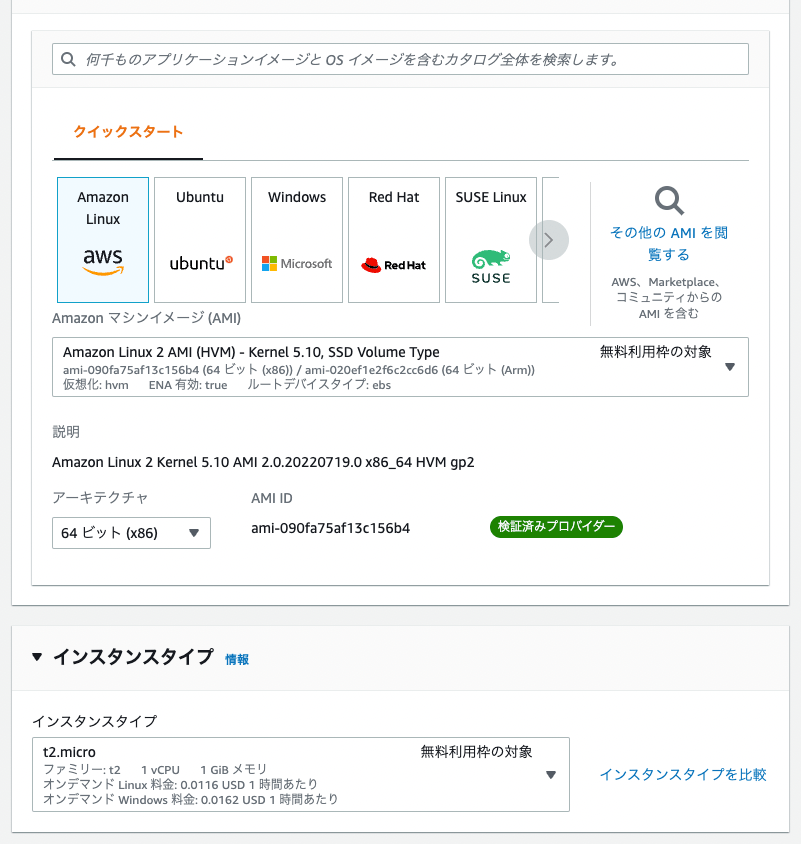
はじめに AWS EC2を用いたVirtuoso RDFストアの構築に関する備忘録です。独自ドメイン設定、HTTPS接続、Snorqlの設置、までを行います。 本記事以外にも、Virtuoso構築に関する有益な記事が多数存在しています。参考にしてください。 https://midoriit.com/2014/04/rdfストア環境構築virtuoso編1.html https://qiita.com/mirkohm/items/30991fec120541888acd https://zenn.dev/ningensei848/articles/virtuoso_on_gcp_faster_with_cos 前提 ACM Certificateは作成済みとします。以下の記事などを参考にしてください。 https://dev.classmethod.jp/articles/specification-elb-setting/#toc-3 EC2 まずEC2のインスタンスを作成します。 Amazon Linuxを選択し、インスタンスタイプはt2.microとしました。 ネットワーク設定については、「セキュリティグループを作成する」を選択し、「HTTPSトラフィックを許可する」と「HTTPトラフィックを許可する」の両方にチェックを入れます(以下の図では、後者にのみチェックが入っている状態ですのでご注意ください)。 インスタンスの状態が「実行中」になったら、画面右上の「接続」ボタンを押して、サーバに接続します。 接続後、以下を実行して、apacheサーバを立ち上げておきます。 sudo yum install httpd -y cd /var/www/html sudo vi index.html <p>test</p> sudo systemctl start httpd sudo systemctl enable httpd ELB作成 「ロードバランシング」の「ターゲットグループ」を選択します。 「Create target group」から、[Basic configuration]で「Instances」を選択して、あとは下図のように設定します。「VPC」は先ほど立ち上げたEC2インスタンスと同じものを選択しています。 「Register targets」の画面において、画面上部でインスタンスを選択して、「Include as pending below」ボタンをクリックします。すると、下図のように、選択したインスタンスが画面下部に移動します。 その後、「Create」ボタンを押します。 次に、「ロードバランサー」から「ロードバランサーの作成」を行います。 「Create Application Load Balancer」を選択し、以下のように「Network mapping」で複数のサブネットを選択します。 次がポイントですが、「Security groups」において、選択済みの「default」を削除して、先にEC2インスタンスの作成時に作成したセキュリティグループ「lanch-wizard-XX」など選択します。 また、「Listeners and routing」は、「HTTPS」を選択して、「Forward to」に先ほど作成したターゲットグループを選択してください。 ...