概要
本記事では、Alfresco Governance Services Community Edition(以下AGS)の最新版(25.3.0)をDockerで起動し、REST APIを使ってレコード管理の一連のライフサイクルを体験します。
具体的には、以下の業務シナリオを想定します。
シナリオ: 契約書管理
- 業務部門が契約書を作成・登録する
- レコード管理者がレコードとして宣言し、ファイルプランに分類する
- 保持スケジュール(Retention Schedule)を設定する
- 契約終了後、カットオフ(現用→非現用)を実行する
- 保持期間(3年)の経過後、廃棄する
- 訴訟対応が発生した場合、ホールド(凍結)により廃棄を停止する
以下の前回の記事をベースに、最新版での構築手順とAPIの使い方を紹介します。
https://zenn.dev/nakamura196/articles/8da7161ff3df30
環境
- acs-deployment: v10.2.0(2026年2月リリース)
- Alfresco Governance Repository Community: 25.3.0
- Alfresco Governance Share Community: 25.3.0
- Alfresco Search Services: 2.0.17
- Traefik: 3.6
- PostgreSQL: 16.5
セットアップ
リポジトリのクローン
git clone https://github.com/Alfresco/acs-deployment
cd acs-deployment
git checkout v10.2.0
cd docker-compose
compose fileの作成
community-compose.yamlをベースに、Governance Services用のcompose fileを作成します。変更点は以下の3つです。
1. イメージの差し替え
| サービス | 変更前 | 変更後 |
|---|---|---|
| alfresco | alfresco/alfresco-content-repository-community:25.3.0 | alfresco/alfresco-governance-repository-community:25.3.0 |
| share | alfresco/alfresco-share:25.3.0 | alfresco/alfresco-governance-share-community:25.3.0 |
2. 認証チケットのタイムアウト対策(後述)
3. DBコネクションプールの検証設定(後述)
以下が、作成したcompose fileです。
governance-community-compose.yaml
services:
  alfresco:
    image: docker.io/alfresco/alfresco-governance-repository-community:25.3.0
    mem_limit: 1900m
    environment:
      JAVA_TOOL_OPTIONS: >-
        -Dencryption.keystore.type=JCEKS
        -Dencryption.cipherAlgorithm=DESede/CBC/PKCS5Padding
        -Dencryption.keyAlgorithm=DESede
        -Dencryption.keystore.location=/usr/local/tomcat/shared/classes/alfresco/extension/keystore/keystore
        -Dmetadata-keystore.password=mp6yc0UD9e
        -Dmetadata-keystore.aliases=metadata
        -Dmetadata-keystore.metadata.password=oKIWzVdEdA
        -Dmetadata-keystore.metadata.algorithm=DESede
      JAVA_OPTS: >-
        -Ddb.driver=org.postgresql.Driver
        -Ddb.username=alfresco
        -Ddb.password=alfresco
        -Ddb.url=jdbc:postgresql://postgres:5432/alfresco
        -Dsolr.host=solr6
        -Dsolr.port=8983
        -Dsolr.http.connection.timeout=1000
        -Dsolr.secureComms=secret
        -Dsolr.sharedSecret=secret
        -Dsolr.base.url=/solr
        -Dindex.subsystem.name=solr6
        -Dshare.host=localhost
        -Dshare.port=8080
        -Dalfresco.host=localhost
        -Dalfresco.port=8080
        -Dcsrf.filter.enabled=false
        -Daos.baseUrlOverwrite=http://localhost:8080/alfresco/aos
        -Dmessaging.broker.url="failover:(nio://activemq:61616)?timeout=3000&jms.useCompression=true"
        -Ddeployment.method=DOCKER_COMPOSE
        -DlocalTransform.core-aio.url=http://transform-core-aio:8090/
        -Dauthentication.ticket.ticketsExpire=true
        -Dauthentication.ticket.expiryMode=AFTER_INACTIVITY
        -Dauthentication.ticket.validDuration=PT8H
        -Dauthentication.ticket.useSingleTicketPerUser=false
        -Ddb.pool.validate.query=SELECT\ 1
        -Ddb.pool.evict.interval=600
        -XX:MinRAMPercentage=50
        -XX:MaxRAMPercentage=80
    healthcheck:
      test:
        [
          "CMD",
          "curl",
          "-f",
          "http://localhost:8080/alfresco/api/-default-/public/alfresco/versions/1/probes/-ready-",
        ]
      interval: 30s
      timeout: 3s
      retries: 5
      start_period: 1m
    volumes:
      - /usr/local/tomcat/alf_data
    extends:
      file: commons/base.yaml
      service: alfresco
  transform-core-aio:
    image: alfresco/alfresco-transform-core-aio:5.3.0
    mem_limit: 1536m
    environment:
      JAVA_OPTS: >-
        -XX:MinRAMPercentage=50
        -XX:MaxRAMPercentage=80
    ports:
      - "8090:8090"
    healthcheck:
      test: ["CMD", "curl", "-f", "http://localhost:8090/ready"]
      interval: 20s
      timeout: 2s
      retries: 3
      start_period: 10s
    depends_on:
      activemq:
        condition: service_healthy
  share:
    image: docker.io/alfresco/alfresco-governance-share-community:25.3.0
    mem_limit: 1g
    environment:
      CSRF_FILTER_ORIGIN: http://localhost:8080
      CSRF_FILTER_REFERER: http://localhost:8080/share/.*
      REPO_HOST: "alfresco"
      REPO_PORT: "8080"
      JAVA_OPTS: >-
        -XX:MinRAMPercentage=50
        -XX:MaxRAMPercentage=80
        -Dalfresco.host=localhost
        -Dalfresco.port=8080
        -Dalfresco.context=alfresco
        -Dalfresco.protocol=http
    healthcheck:
      test: ["CMD", "curl", "-f", "http://localhost:8080/share"]
      interval: 20s
      timeout: 2s
      retries: 3
      start_period: 15s
    depends_on:
      alfresco:
        condition: service_healthy
    extends:
      file: commons/base.yaml
      service: share
  postgres:
    image: postgres:16.5
    mem_limit: 512m
    environment:
      - POSTGRES_PASSWORD=alfresco
      - POSTGRES_USER=alfresco
      - POSTGRES_DB=alfresco
    command: postgres -c max_connections=300 -c log_min_messages=LOG
    ports:
      - "5432:5432"
    healthcheck:
      test: ["CMD-SHELL", "pg_isready -d $$POSTGRES_DB -U $$POSTGRES_USER"]
      interval: 10s
      timeout: 3s
      retries: 3
      start_period: 5s
  solr6:
    image: docker.io/alfresco/alfresco-search-services:2.0.17
    mem_limit: 2g
    environment:
      SOLR_ALFRESCO_HOST: "alfresco"
      SOLR_ALFRESCO_PORT: "8080"
      SOLR_SOLR_HOST: "solr6"
      SOLR_SOLR_PORT: "8983"
      SOLR_CREATE_ALFRESCO_DEFAULTS: "alfresco,archive"
      ALFRESCO_SECURE_COMMS: "secret"
      JAVA_TOOL_OPTIONS: >-
        -Dalfresco.secureComms.secret=secret
    ports:
      - "8083:8983"
  activemq:
    image: alfresco/alfresco-activemq:5.18-jre17-rockylinux8
    mem_limit: 1g
    ports:
      - "8161:8161"
      - "5672:5672"
      - "61616:61616"
      - "61613:61613"
    healthcheck:
      test:
        [
          "CMD",
          "/opt/activemq/bin/activemq",
          "query",
          "--objname",
          "type=Broker,brokerName=*,service=Health",
          "|",
          "grep",
          "Good",
        ]
      interval: 10s
      timeout: 5s
      retries: 5
      start_period: 5s
  content-app:
    image: alfresco/alfresco-content-app:7.2.0
    mem_limit: 128m
    environment:
      APP_BASE_SHARE_URL: "http://localhost:8080/aca/#/preview/s"
    healthcheck:
      test: ["CMD", "curl", "-f", "http://localhost:8080/"]
      interval: 10s
      timeout: 1s
      retries: 3
      start_period: 1s
    extends:
      file: commons/base.yaml
      service: content-app
  control-center:
    image: quay.io/alfresco/alfresco-control-center:10.2.0
    mem_limit: 128m
    environment:
      APP_CONFIG_PROVIDER: "ECM"
      APP_CONFIG_AUTH_TYPE: "BASIC"
      BASE_PATH: ./
    healthcheck:
      test: ["CMD", "curl", "-f", "http://localhost:8080/"]
      interval: 10s
      timeout: 1s
      retries: 3
      start_period: 1s
    extends:
      file: commons/base.yaml
      service: control-center
  proxy:
    extends:
      file: commons/base.yaml
      service: proxy
起動
docker compose -f governance-community-compose.yaml up -d
起動後、すべてのコンテナがhealthyになっていることを確認します。
docker compose -f governance-community-compose.yaml ps
NAME                                  STATUS
docker-compose-activemq-1             Up (healthy)
docker-compose-alfresco-1             Up (healthy)
docker-compose-content-app-1          Up (healthy)
docker-compose-control-center-1       Up (healthy)
docker-compose-postgres-1             Up (healthy)
docker-compose-proxy-1                Up (healthy)
docker-compose-share-1                Up (healthy)
docker-compose-solr6-1                Up
docker-compose-transform-core-aio-1   Up (healthy)
以下のURLでアクセスできます。デフォルトのログイン情報は admin / admin です。
| URL | 用途 |
|---|---|
| http://localhost:8080/share/ | Alfresco Share(Governance Services UI) |
| http://localhost:8080/content-app/ | Alfresco Content App |
| http://localhost:8080/control-center/ | Alfresco Control Center |
| http://localhost:8080/alfresco/ | Alfresco Repository |
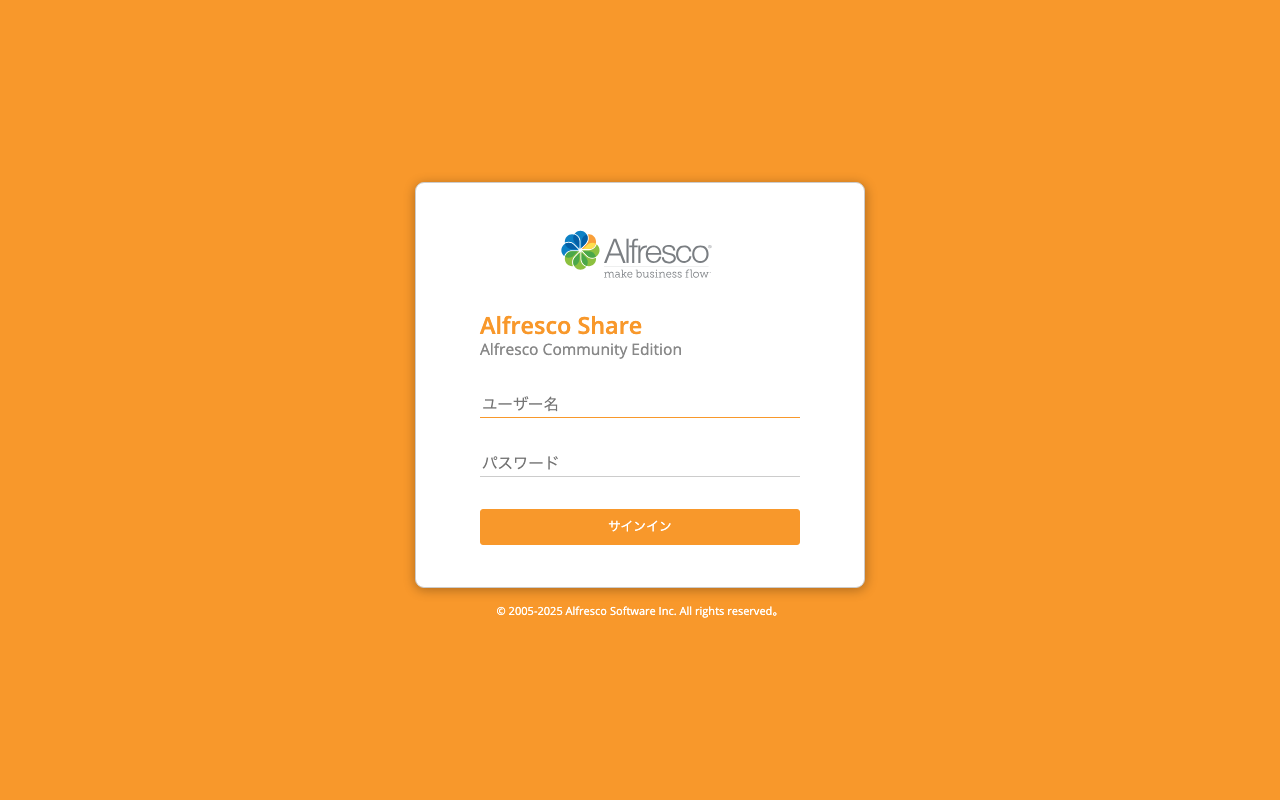
Alfresco Shareのログイン画面が表示されます。
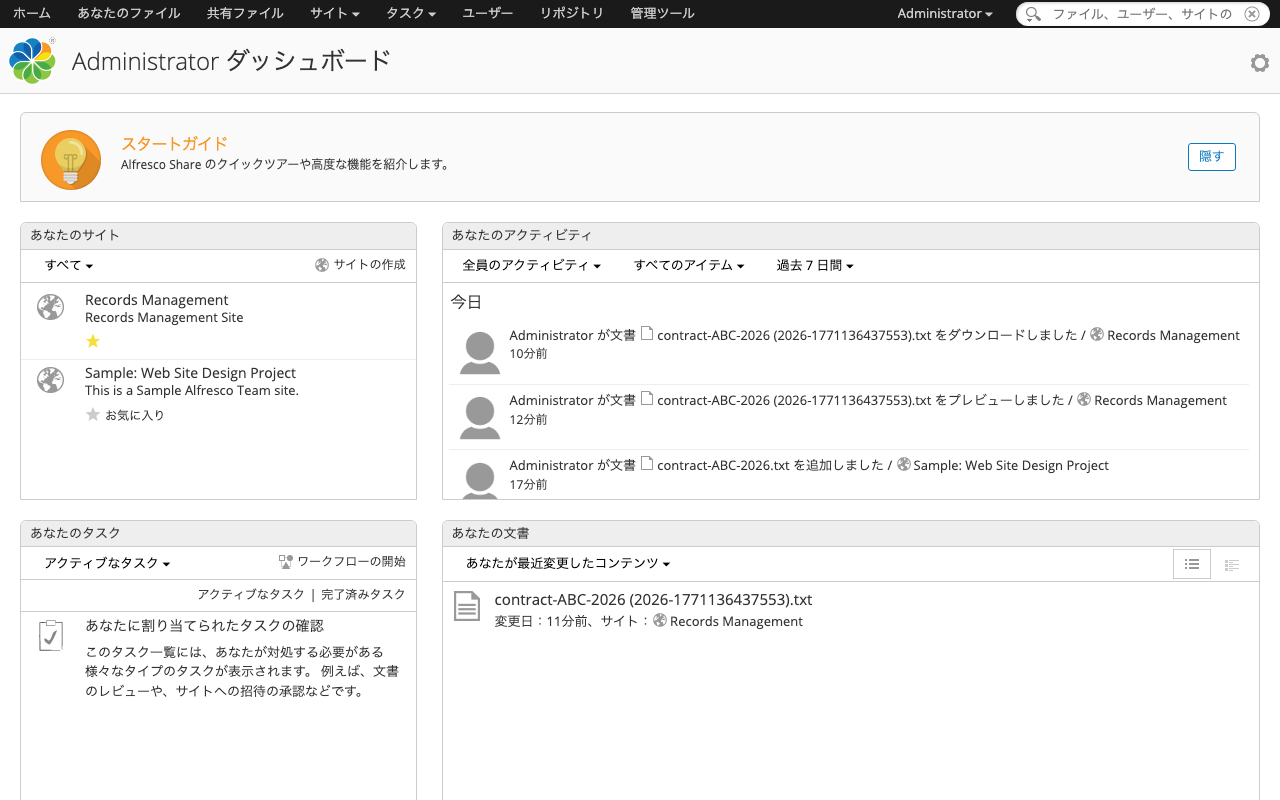
ログイン後のダッシュボードです。Records Managementサイトが表示されています。
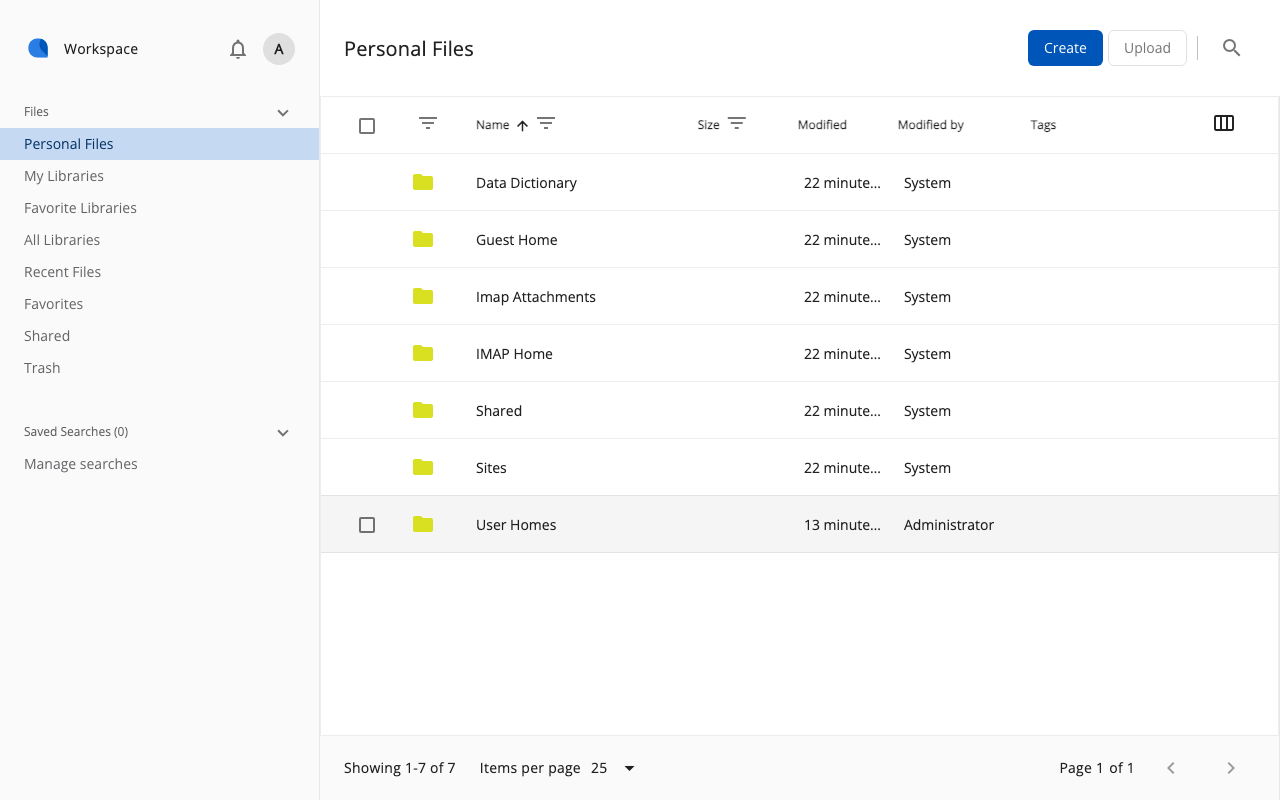
Content Appからもアクセスできます。
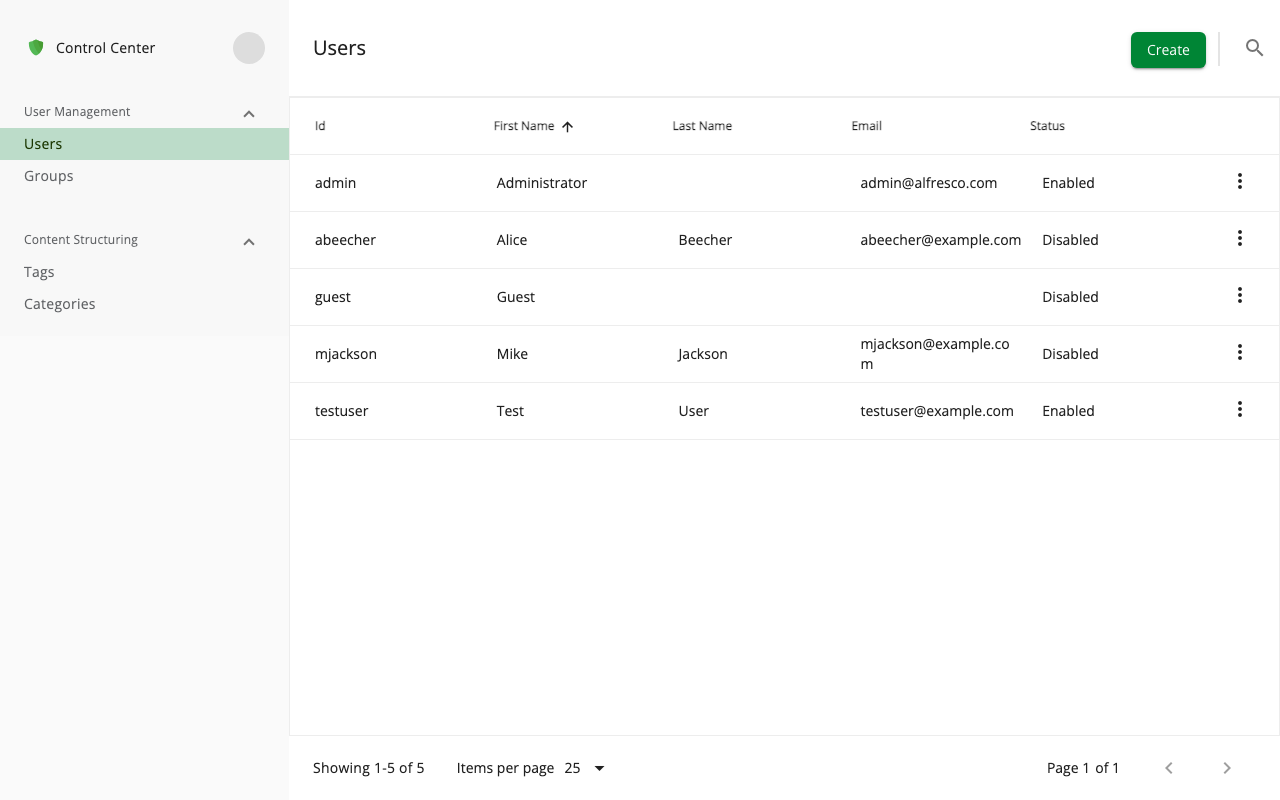
Control Centerでは、ユーザーやグループの管理が可能です。
REST APIによるレコード管理の体験
ここからは、REST APIを使って、契約書管理の業務シナリオを一通り体験します。
すべてのAPIコマンドはcurlで実行できます。認証はBasic認証(admin:admin)を使用します。
1. 接続確認
まず、APIへの接続とログインユーザーの確認を行います。
curl -s -u admin:admin \
  "http://localhost:8080/alfresco/api/-default-/public/alfresco/versions/1/people/-me-" \
  | python3 -m json.tool
{
    "entry": {
        "firstName": "Administrator",
        "capabilities": {
            "isGuest": false,
            "isAdmin": true,
            "isMutable": true
        },
        "displayName": "Administrator",
        "id": "admin",
        "enabled": true,
        "email": "admin@alfresco.com"
    }
}
2. Records Managementサイトの作成
Governance Services の機能を使うには、まずRMサイトを作成する必要があります。通常のサイト作成APIではなく、GS専用のAPI を使用します。
curl -s -u admin:admin -X POST \
  "http://localhost:8080/alfresco/api/-default-/public/gs/versions/1/gs-sites" \
  -H "Content-Type: application/json" \
  -d '{
    "title": "Records Management",
    "description": "Records Management Site",
    "compliance": "STANDARD"
  }' | python3 -m json.tool
{
    "entry": {
        "role": "SiteManager",
        "visibility": "PUBLIC",
        "compliance": "STANDARD",
        "guid": "991db904-6997-4a56-9db9-0469976a5606",
        "id": "rm",
        "title": "Records Management"
    }
}
!
complianceはSTANDARDとDOD5015から選択できます。DOD5015は米国国防総省の記録管理規格に準拠したモードです。今回はSTANDARDを使用します。
3. ファイルプランの確認
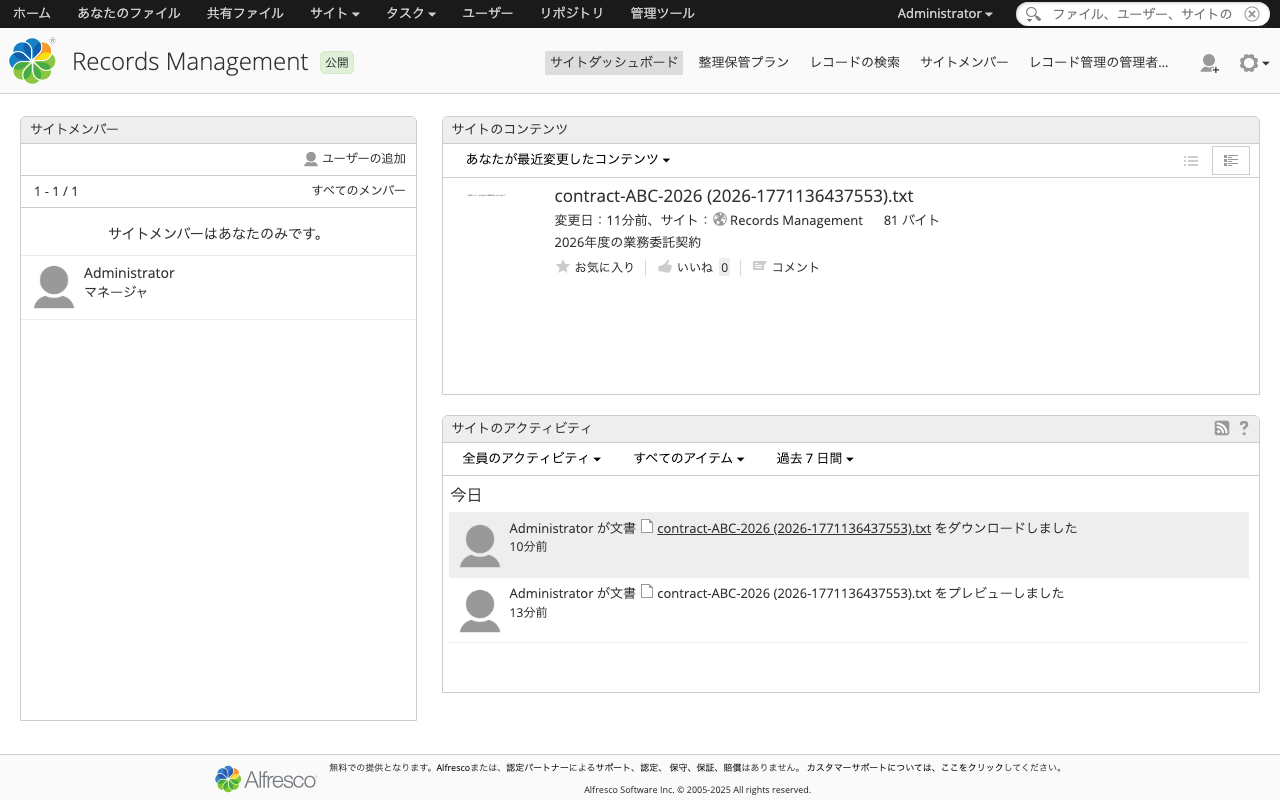
RMサイトを作成すると、ファイルプラン(File Plan)が自動的に作成されます。ファイルプランはレコード管理の最上位の構造で、分類体系のルートとなります。RMサイトのダッシュボードは以下のように表示されます。
curl -s -u admin:admin \
  "http://localhost:8080/alfresco/api/-default-/public/gs/versions/1/file-plans/-filePlan-" \
  | python3 -m json.tool
{
    "entry": {
        "name": "documentLibrary",
        "id": "720764fe-c8ec-4556-8764-fec8ecd556f4",
        "nodeType": "rma:filePlan",
        "properties": {
            "rma:identifier": "2026-0000000909"
        }
    }
}
Share UIでファイルプランを確認すると、以下のように表示されます。
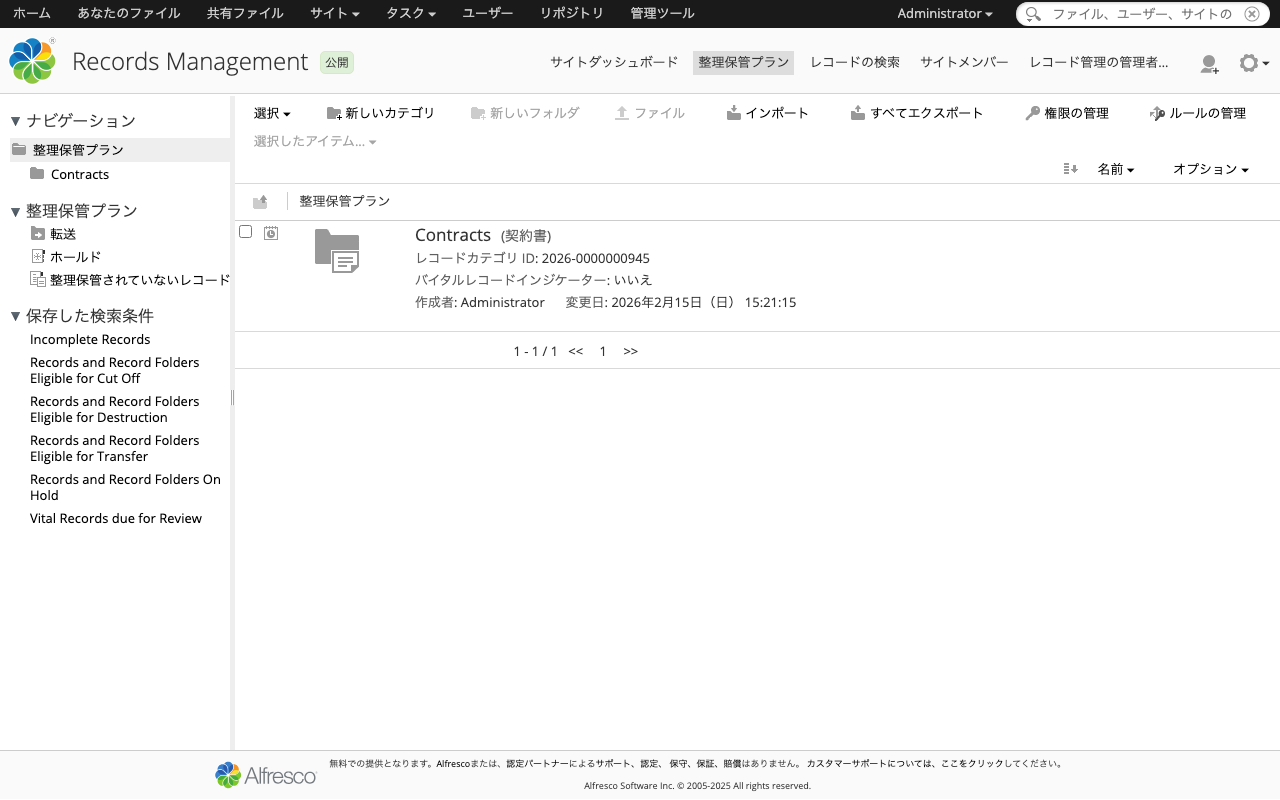
ファイルプランの中には、以下の構造が自動生成されています。
curl -s -u admin:admin \
  "http://localhost:8080/alfresco/api/-default-/public/alfresco/versions/1/nodes/720764fe-c8ec-4556-8764-fec8ecd556f4/children" \
  | python3 -m json.tool
| ノードタイプ | 名前 | 説明 |
|---|---|---|
rma:recordCategory | Contracts | レコードカテゴリ(後で作成) |
rma:holdContainer | Holds | ホールド(法的保全)コンテナ |
rma:transferContainer | Transfers | 移管コンテナ |
rma:unfiledRecordContainer | Unfiled Records | 未分類レコードコンテナ |
4. レコードカテゴリの作成
業務の分類体系に合わせて、レコードカテゴリを作成します。ここでは「契約書」カテゴリを作成します。
curl -s -u admin:admin -X POST \
  "http://localhost:8080/alfresco/api/-default-/public/gs/versions/1/file-plans/-filePlan-/categories" \
  -H "Content-Type: application/json" \
  -d '{
    "name": "Contracts",
    "nodeType": "rma:recordCategory",
    "properties": {
      "cm:title": "契約書",
      "cm:description": "各種契約書の管理"
    }
  }' | python3 -m json.tool
{
    "entry": {
        "name": "Contracts",
        "id": "0730ac46-2892-40ff-b0ac-462892c0ff44",
        "nodeType": "rma:recordCategory",
        "properties": {
            "cm:title": "契約書",
            "cm:description": "各種契約書の管理",
            "rma:identifier": "2026-0000000945"
        }
    }
}
5. レコードフォルダの作成
カテゴリの中にレコードフォルダを作成します。レコードフォルダは、実際にレコードを格納する場所です。
CATEGORY_ID="0730ac46-2892-40ff-b0ac-462892c0ff44"

curl -s -u admin:admin -X POST \
  "http://localhost:8080/alfresco/api/-default-/public/gs/versions/1/record-categories/${CATEGORY_ID}/children" \
  -H "Content-Type: application/json" \
  -d '{
    "name": "2026-Active",
    "nodeType": "rma:recordFolder",
    "properties": {
      "cm:title": "2026年度 現用",
      "cm:description": "2026年度の現用契約書"
    }
  }' | python3 -m json.tool
{
    "entry": {
        "nodeType": "rma:recordFolder",
        "isRecordFolder": true,
        "isClosed": false,
        "name": "2026-Active",
        "id": "5c79fd62-a8f7-4072-b9fd-62a8f7b072ad",
        "properties": {
            "cm:title": "2026年度 現用",
            "cm:description": "2026年度の現用契約書",
            "rma:isClosed": false,
            "rma:identifier": "2026-0000000946"
        }
    }
}
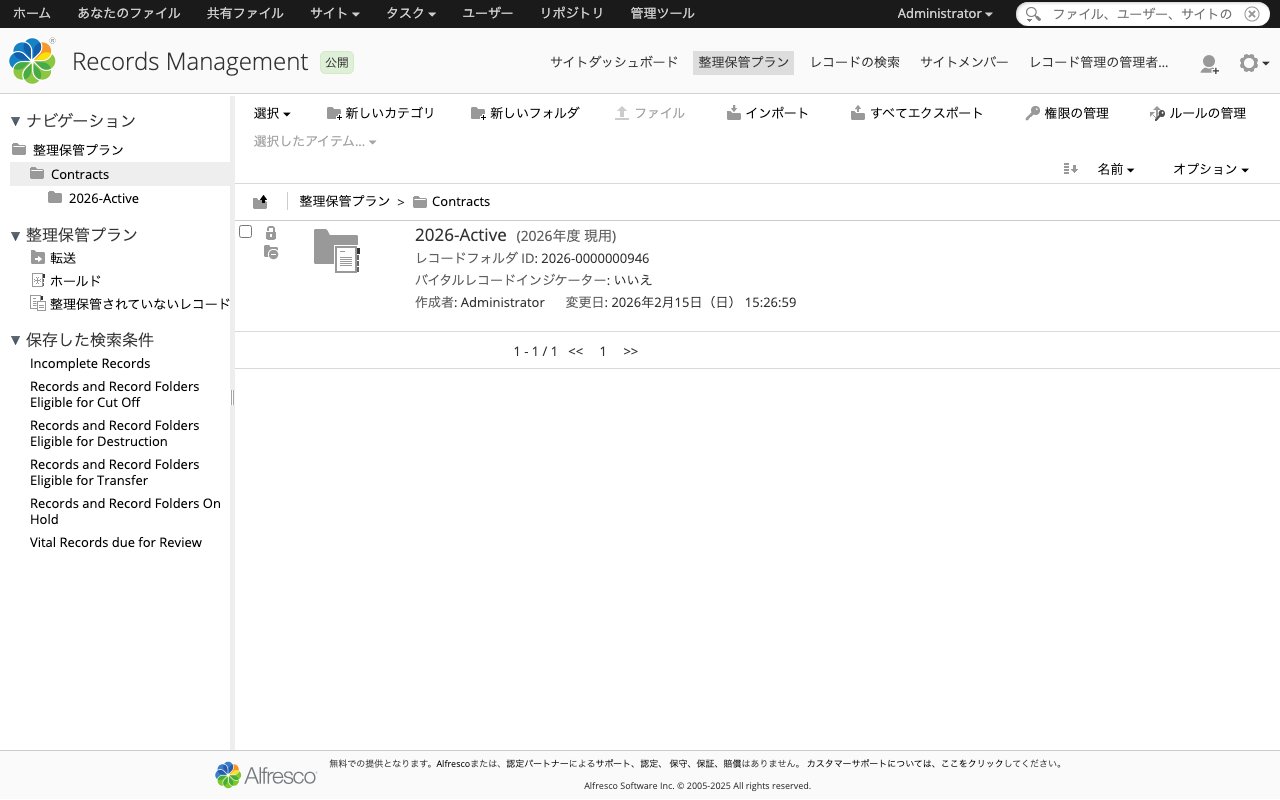
Share UIでは、Contractsカテゴリの中に2026-Activeフォルダが作成されていることが確認できます。
6. ドキュメントのアップロード
まず、通常のドキュメントライブラリ(サンプルサイト)にファイルをアップロードします。業務部門がShareやContent Appからファイルを登録する操作に相当します。
# テスト用ファイルの作成
echo "契約書サンプル - ABC株式会社との業務委託契約 2026年2月15日" > /tmp/contract-sample.txt

# ドキュメントライブラリのIDを取得
DOC_LIB_ID=$(curl -s -u admin:admin \
  "http://localhost:8080/alfresco/api/-default-/public/alfresco/versions/1/sites/swsdp/containers/documentLibrary" \
  | python3 -c "import sys,json; print(json.load(sys.stdin)['entry']['id'])")

# アップロード
curl -s -u admin:admin -X POST \
  "http://localhost:8080/alfresco/api/-default-/public/alfresco/versions/1/nodes/${DOC_LIB_ID}/children" \
  -F "filedata=@/tmp/contract-sample.txt" \
  -F "name=contract-ABC-2026.txt" \
  -F "cm:title=ABC社 業務委託契約書" \
  -F "cm:description=2026年度の業務委託契約" \
  | python3 -m json.tool
{
    "entry": {
        "isFile": true,
        "nodeType": "cm:content",
        "name": "contract-ABC-2026.txt",
        "id": "eeca5329-a559-4eb0-8a53-29a5593eb030",
        "content": {
            "mimeType": "text/plain",
            "sizeInBytes": 81,
            "encoding": "UTF-8"
        },
        "properties": {
            "cm:title": "ABC社 業務委託契約書",
            "cm:versionLabel": "1.0",
            "cm:description": "2026年度の業務委託契約"
        }
    }
}
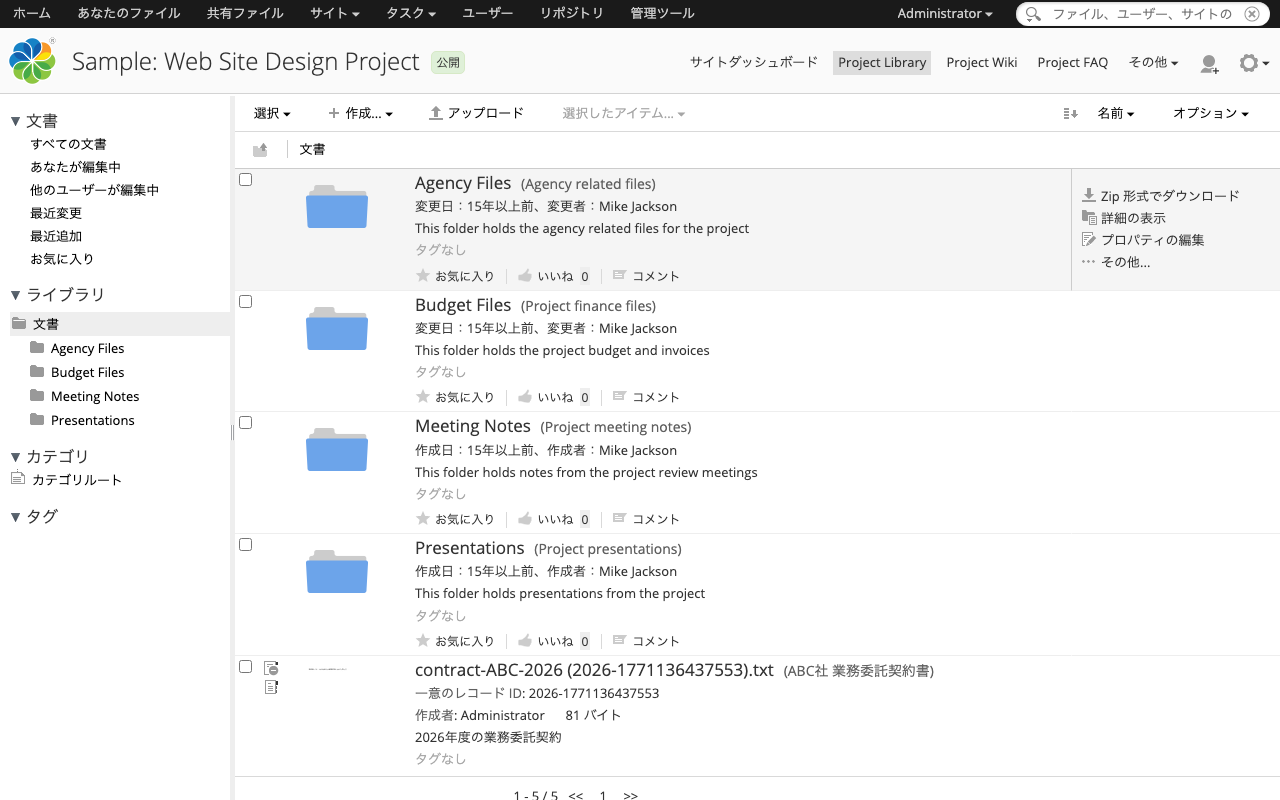
サンプルサイトのドキュメントライブラリにアップロードされたファイルは、以下のように表示されます。
7. レコードとして宣言(Declare as Record)
アップロードしたドキュメントを「レコード」として宣言します。これにより、通常のドキュメントがレコード管理の対象となります。
DOC_ID="eeca5329-a559-4eb0-8a53-29a5593eb030"

curl -s -u admin:admin -X POST \
  "http://localhost:8080/alfresco/api/-default-/public/gs/versions/1/files/${DOC_ID}/declare" \
  -H "Content-Type: application/json" \
  -d "{}" | python3 -m json.tool
レスポンスを見ると、以下のaspect(属性)が付与されています。
| Aspect | 説明 |
|---|---|
rma:record | レコードとして認識 |
rma:recordOriginatingDetails | 元のファイルの情報(場所、作成者、日時) |
rma:recordComponentIdentifier | レコード管理用の識別子 |
rma:filePlanComponent | ファイルプランの構成要素 |
この時点では、レコードは「Unfiled Records」(未分類)に配置されています。
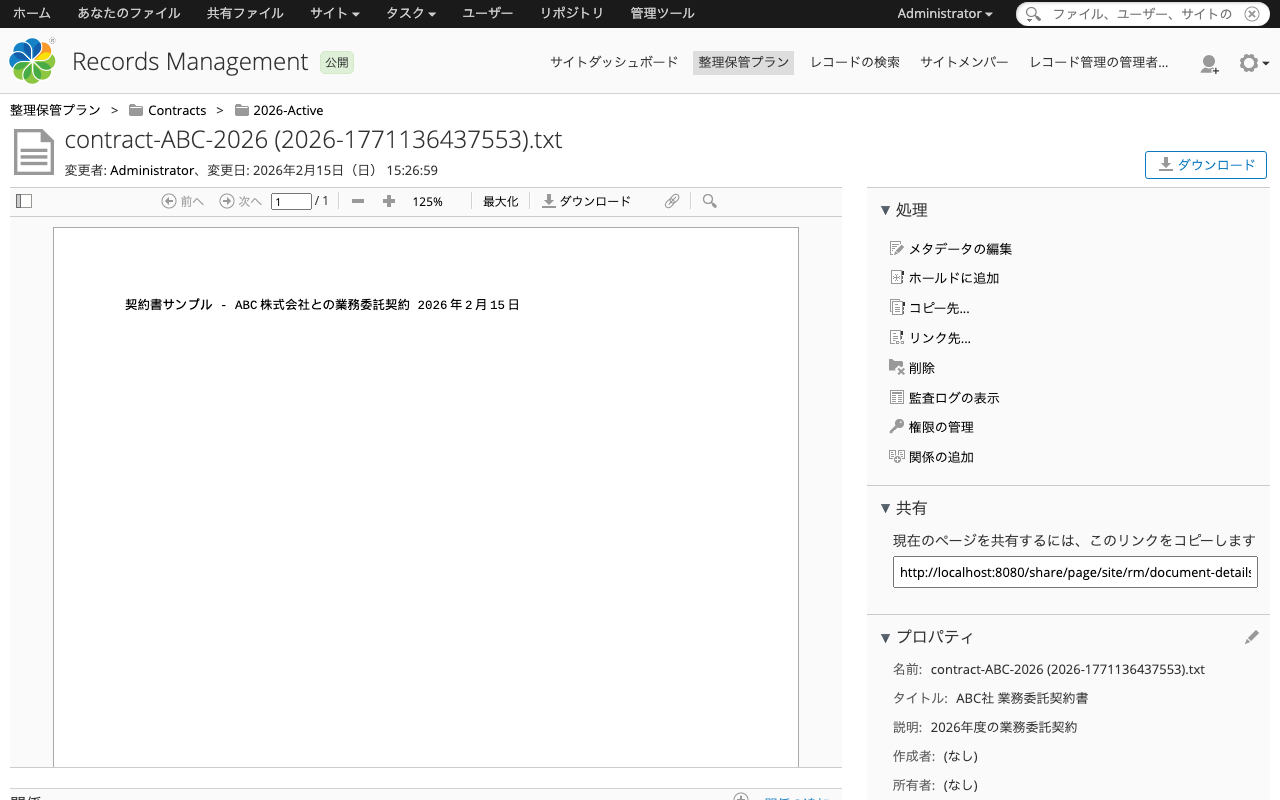
レコードの詳細画面では、プレビューやメタデータを確認できます。
8. レコードのファイリング(分類)
未分類のレコードを、先ほど作成したレコードフォルダに移動(ファイリング)します。
RECORD_ID="eeca5329-a559-4eb0-8a53-29a5593eb030"
FOLDER_ID="5c79fd62-a8f7-4072-b9fd-62a8f7b072ad"

curl -s -u admin:admin -X POST \
  "http://localhost:8080/alfresco/api/-default-/public/gs/versions/1/records/${RECORD_ID}/file" \
  -H "Content-Type: application/json" \
  -d "{
    \"targetParentId\": \"${FOLDER_ID}\"
  }" | python3 -m json.tool
ファイリングが完了すると、rma:dateFiled(ファイリング日時)が設定されます。
{
    "entry": {
        "name": "contract-ABC-2026 (2026-1771136437553).txt",
        "properties": {
            "rma:dateFiled": "2026-02-15T06:21:00.495+0000",
            "rma:origionalName": "contract-ABC-2026.txt",
            "rma:identifier": "2026-1771136437553"
        },
        "parentId": "5c79fd62-a8f7-4072-b9fd-62a8f7b072ad"
    }
}
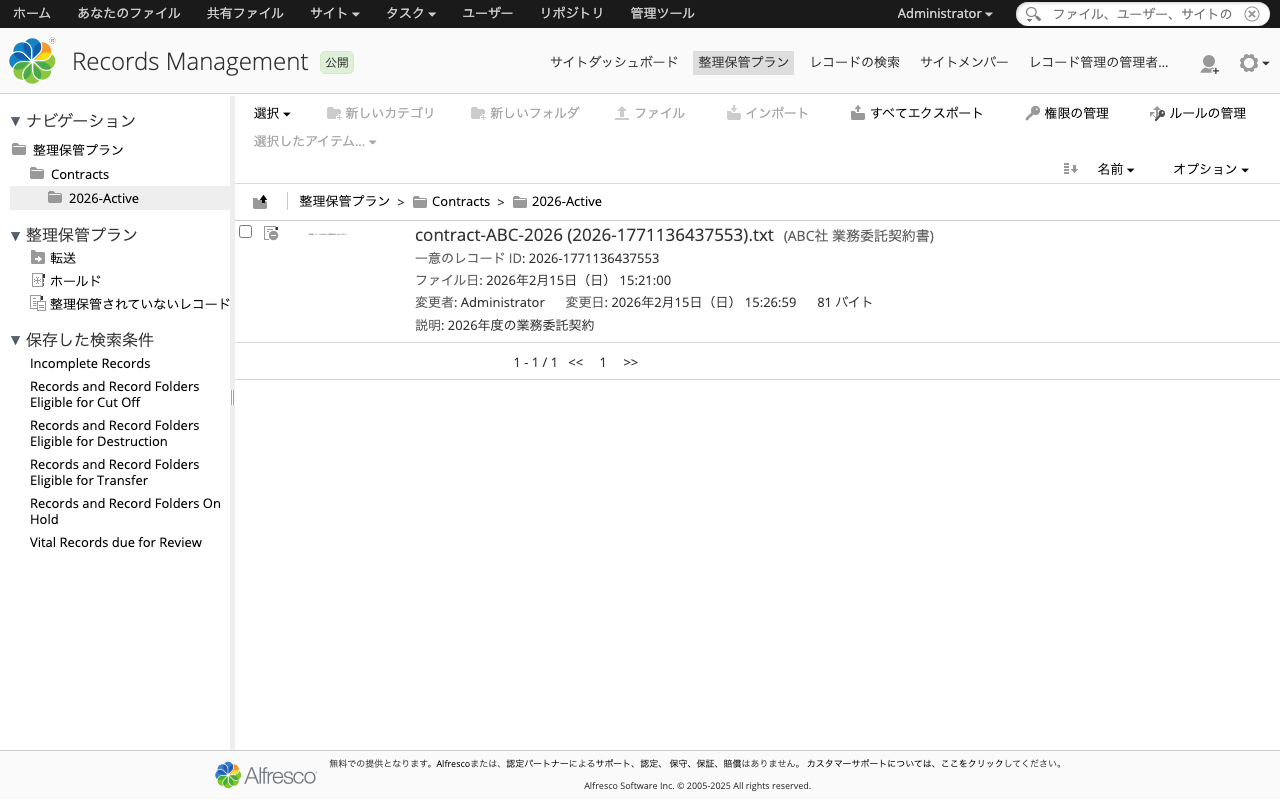
ファイリング後、レコードフォルダ内にレコードが格納されていることを確認できます。
9. 保持スケジュール(Retention Schedule)の設定
保持スケジュールは、レコードのライフサイクルを定義するものです。カテゴリに対して設定し、その配下のフォルダ・レコードに適用されます。
9-1. 保持スケジュールの作成
CATEGORY_ID="0730ac46-2892-40ff-b0ac-462892c0ff44"

curl -s -u admin:admin -X POST \
  "http://localhost:8080/alfresco/api/-default-/public/gs/versions/1/record-categories/${CATEGORY_ID}/retention-schedules" \
  -H "Content-Type: application/json" \
  -d '{
    "authority": "情報管理規程第5条",
    "instructions": "契約終了後3年間保持。その後、レビューを経て廃棄。",
    "isRecordLevel": false
  }' | python3 -m json.tool
!
isRecordLevelは、保持スケジュールをレコード単位で適用するか、フォルダ単位で適用するかを指定します。今回はフォルダ単位(false)を選択しています。既にフォルダが存在するカテゴリでは、レコードレベル(true)は設定できません。
9-2. 保持アクションの追加
保持スケジュールに具体的なアクション(ステップ)を追加します。ここでは、Legacy APIを使用します。
!
保持アクションの追加は、v1のGS REST APIではperiodのフォーマットに問題があり、500エラーが発生する場合があります。Legacy API(/alfresco/s/api/...)を使用することで確実に動作します。
CATEGORY_ID="0730ac46-2892-40ff-b0ac-462892c0ff44"

# Step 1: Cut Off(カットオフ)- 現用から非現用への移行
curl -s -u admin:admin -X POST \
  "http://localhost:8080/alfresco/s/api/node/workspace/SpacesStore/${CATEGORY_ID}/dispositionschedule/dispositionactiondefinitions" \
  -H "Content-Type: application/json" \
  -d '{
    "name": "cutoff",
    "description": "現用から非現用へ移行(カットオフ)",
    "period": "none|0",
    "events": ["case_closed"],
    "eligibleOnFirstCompleteEvent": true
  }'
# Step 2: Retain(保持)- カットオフ後3年間保持
curl -s -u admin:admin -X POST \
  "http://localhost:8080/alfresco/s/api/node/workspace/SpacesStore/${CATEGORY_ID}/dispositionschedule/dispositionactiondefinitions" \
  -H "Content-Type: application/json" \
  -d '{
    "name": "retain",
    "description": "非現用として3年間保持",
    "period": "year|3"
  }'
# Step 3: Destroy(廃棄)- 保持期間終了後に廃棄
curl -s -u admin:admin -X POST \
  "http://localhost:8080/alfresco/s/api/node/workspace/SpacesStore/${CATEGORY_ID}/dispositionschedule/dispositionactiondefinitions" \
  -H "Content-Type: application/json" \
  -d '{
    "name": "destroy",
    "description": "保持期間終了後に廃棄"
  }'
保持スケジュールの全体像を確認します。
curl -s -u admin:admin \
  "http://localhost:8080/alfresco/s/api/node/workspace/SpacesStore/${FOLDER_ID}/dispositionschedule" \
  | python3 -m json.tool
{
    "data": {
        "authority": "情報管理規程第5条",
        "instructions": "契約終了後3年間保持。その後、レビューを経て廃棄。",
        "recordLevelDisposition": false,
        "actions": [
            {
                "index": 0,
                "name": "cutoff",
                "label": "Cut Off",
                "description": "現用から非現用へ移行(カットオフ)",
                "period": "none|0",
                "events": ["case_closed"],
                "eligibleOnFirstCompleteEvent": true
            },
            {
                "index": 1,
                "name": "retain",
                "label": "Retain",
                "description": "非現用として3年間保持",
                "period": "year|3"
            },
            {
                "index": 2,
                "name": "destroy",
                "label": "Destroy",
                "description": "保持期間終了後に廃棄",
                "period": "none|0"
            }
        ]
    }
}
使用可能な保持アクションは以下の5種類です。
| アクション | 説明 |
|---|---|
cutoff | カットオフ(現用→非現用への移行) |
retain | 保持(指定期間の保管) |
transfer | 移管(別の保管場所への移動) |
accession | 受入(アーカイブへの移管) |
destroy | 廃棄 |
10. レコードの完了(Complete Record)
カットオフを実行するには、フォルダ内のすべてのレコードが「完了」(Complete)状態である必要があります。
RECORD_ID="eeca5329-a559-4eb0-8a53-29a5593eb030"

curl -s -u admin:admin -X POST \
  "http://localhost:8080/alfresco/s/api/rma/actions/ExecutionQueue" \
  -H "Content-Type: application/json" \
  -d "{
    \"name\": \"declareRecord\",
    \"nodeRef\": \"workspace://SpacesStore/${RECORD_ID}\"
  }"
{
    "message": "Successfully queued action [declareRecord] on workspace://SpacesStore/eeca5329-a559-4eb0-8a53-29a5593eb030"
}
!
Alfrescoでは「declare」という用語が2つの意味で使われます。
- Declare as Record (レコードとして宣言): 通常ドキュメントをレコードにする操作(GS API
/files/{id}/declare) - Declare Record / Complete Record (レコード完了): レコードのメタデータ入力が完了し、変更不可にする操作(Legacy API
declareRecordアクション)
11. カットオフの実行(現用→非現用)
業務シナリオにおいて、契約が終了した場合を想定します。「Case Closed」イベントを完了させ、カットオフを実行します。
11-1. イベントの完了
FOLDER_ID="5c79fd62-a8f7-4072-b9fd-62a8f7b072ad"

curl -s -u admin:admin -X POST \
  "http://localhost:8080/alfresco/s/api/rma/actions/ExecutionQueue" \
  -H "Content-Type: application/json" \
  -d "{
    \"name\": \"completeEvent\",
    \"nodeRef\": \"workspace://SpacesStore/${FOLDER_ID}\",
    \"params\": {
      \"eventName\": \"case_closed\"
    }
  }"
次のアクションの状態を確認すると、eventsEligibleがtrueになっています。
curl -s -u admin:admin \
  "http://localhost:8080/alfresco/s/api/node/workspace/SpacesStore/${FOLDER_ID}/nextdispositionaction" \
  | python3 -m json.tool
{
    "data": {
        "name": "cutoff",
        "label": "Cut Off",
        "eventsEligible": true,
        "events": [
            {
                "name": "case_closed",
                "label": "Case Closed",
                "complete": true,
                "completedAt": "2026-02-15T06:25:13.164Z",
                "completedBy": "admin",
                "automatic": false
            }
        ]
    }
}
11-2. カットオフの実行
curl -s -u admin:admin -X POST \
  "http://localhost:8080/alfresco/s/api/rma/actions/ExecutionQueue" \
  -H "Content-Type: application/json" \
  -d "{
    \"name\": \"cutoff\",
    \"nodeRef\": \"workspace://SpacesStore/${FOLDER_ID}\"
  }"
{
    "message": "Successfully queued action [cutoff] on workspace://SpacesStore/5c79fd62-a8f7-4072-b9fd-62a8f7b072ad"
}
カットオフ後、レコードには以下の変化が生じます。
rma:cutOffaspectが付与されるrma:cutOffDateが設定される- レコードの内容・メタデータが変更不可になる
curl -s -u admin:admin \
  "http://localhost:8080/alfresco/api/-default-/public/alfresco/versions/1/nodes/${RECORD_ID}?include=aspectNames,properties" \
  | python3 -m json.tool
確認すべき主要プロパティ:
Aspects: [..., "rma:cutOff", "rma:declaredRecord", "rma:record"]
Properties:
  rma:cutOffDate: 2026-02-15T06:25:28.710+0000
  rma:dateFiled: 2026-02-15T06:21:00.495+0000
  rma:declaredAt: 2026-02-15T06:25:28.591+0000
11-3. 次のアクションの確認
curl -s -u admin:admin \
  "http://localhost:8080/alfresco/s/api/node/workspace/SpacesStore/${FOLDER_ID}/nextdispositionaction" \
  | python3 -m json.tool
{
    "data": {
        "name": "retain",
        "label": "Retain",
        "eventsEligible": false,
        "asOf": "2029-02-15T06:25:28.723Z"
    }
}
次のアクションは Retain(保持) で、asOfが 2029年2月15日 (3年後)に設定されています。この日付以降に保持期間が満了し、次のステップ(廃棄)が実行可能になります。
12. ホールド(法的保全)
訴訟対応などの理由で、特定のレコードの廃棄を一時停止する必要がある場合、「ホールド」機能を使用します。
12-1. ホールドの作成
curl -s -u admin:admin -X POST \
  "http://localhost:8080/alfresco/api/-default-/public/gs/versions/1/file-plans/-filePlan-/holds" \
  -H "Content-Type: application/json" \
  -d '{
    "name": "Legal Hold - 訴訟対応",
    "description": "訴訟対応のため、関連レコードを凍結",
    "reason": "ABC社との契約に関する訴訟への備え"
  }' | python3 -m json.tool
{
    "entry": {
        "reason": "ABC社との契約に関する訴訟への備え",
        "name": "Legal Hold - 訴訟対応",
        "description": "訴訟対応のため、関連レコードを凍結",
        "id": "2d451a74-c629-4d67-851a-74c629bd67c6"
    }
}
12-2. レコードをホールドに追加
HOLD_ID="2d451a74-c629-4d67-851a-74c629bd67c6"
RECORD_ID="eeca5329-a559-4eb0-8a53-29a5593eb030"

curl -s -u admin:admin -X POST \
  "http://localhost:8080/alfresco/api/-default-/public/gs/versions/1/holds/${HOLD_ID}/children" \
  -H "Content-Type: application/json" \
  -d "{\"id\": \"${RECORD_ID}\"}"
ホールドに追加されたレコードは、保持期間が満了しても廃棄できなくなります。
12-3. ホールドの内容確認
curl -s -u admin:admin \
  "http://localhost:8080/alfresco/api/-default-/public/gs/versions/1/holds/${HOLD_ID}/children" \
  | python3 -m json.tool
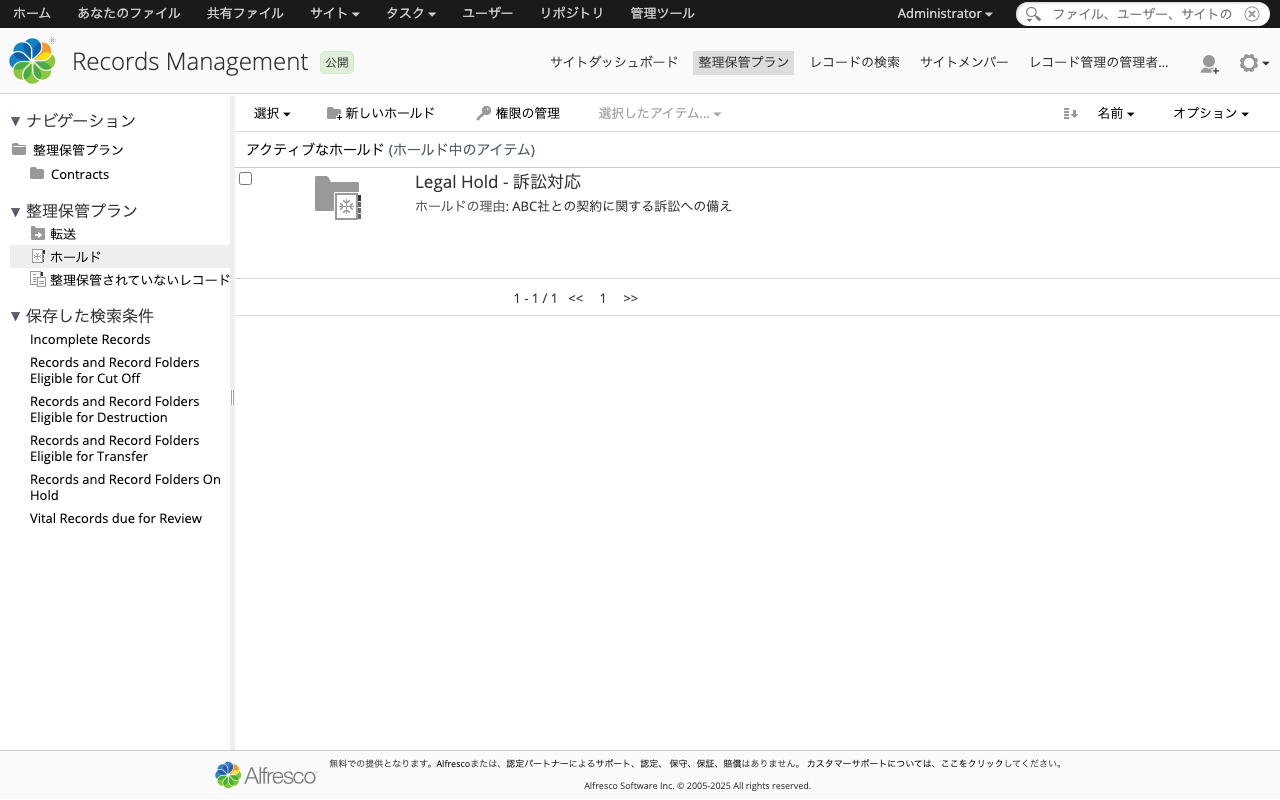
Share UIのHolds画面では、作成したホールドとその中のレコードを確認できます。
12-4. ホールドからの解除
訴訟が解決した場合、レコードをホールドから解除します。
curl -s -u admin:admin -X DELETE \
  "http://localhost:8080/alfresco/api/-default-/public/gs/versions/1/holds/${HOLD_ID}/children/${RECORD_ID}"
HTTP 204(No Content)が返れば成功です。
13. ユーザーとグループの管理
実際の運用では、レコード管理に関わるユーザーとグループを適切に設定します。
13-1. ユーザーの作成
curl -s -u admin:admin -X POST \
  "http://localhost:8080/alfresco/api/-default-/public/alfresco/versions/1/people" \
  -H "Content-Type: application/json" \
  -d '{
    "id": "testuser",
    "firstName": "Test",
    "lastName": "User",
    "email": "testuser@example.com",
    "password": "testuser123",
    "enabled": true
  }'
13-2. グループの作成とメンバー追加
# グループ作成
curl -s -u admin:admin -X POST \
  "http://localhost:8080/alfresco/api/-default-/public/alfresco/versions/1/groups" \
  -H "Content-Type: application/json" \
  -d '{
    "id": "GROUP_RM_USERS",
    "displayName": "RM Users"
  }'

# ユーザーをグループに追加
curl -s -u admin:admin -X POST \
  "http://localhost:8080/alfresco/api/-default-/public/alfresco/versions/1/groups/GROUP_RM_USERS/members" \
  -H "Content-Type: application/json" \
  -d '{"id": "testuser", "memberType": "PERSON"}'
14. 監査ログの確認
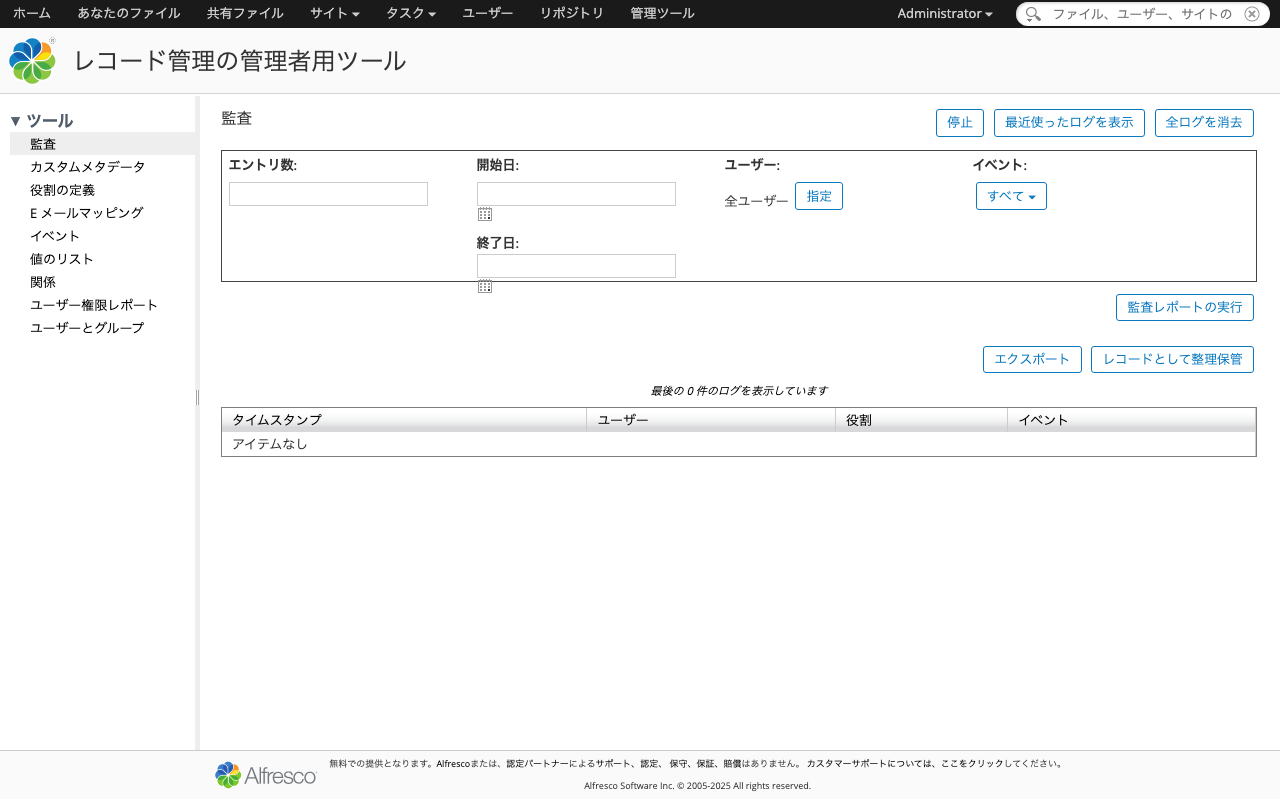
Records Management の操作は自動的に監査ログに記録されます。RM管理コンソールからも確認できます。
curl -s -u admin:admin \
  "http://localhost:8080/alfresco/s/api/rma/admin/rmauditlog?size=10" \
  | python3 -m json.tool
{
    "data": {
        "enabled": true,
        "entries": [
            {
                "timestamp": "2026-02-15T06:26:31.395Z",
                "event": "Login Successful",
                "fullName": "Administrator"
            },
            {
                "timestamp": "2026-02-15T06:26:20.232Z",
                "event": "Add To User Group",
                "fullName": "Administrator"
            },
            {
                "timestamp": "2026-02-15T06:26:20.147Z",
                "event": "Create User Group",
                "fullName": "Administrator"
            }
        ]
    }
}
15. レコードの内容取得(ダウンロード)
RECORD_ID="eeca5329-a559-4eb0-8a53-29a5593eb030"

curl -s -u admin:admin \
  "http://localhost:8080/alfresco/api/-default-/public/alfresco/versions/1/nodes/${RECORD_ID}/content"
契約書サンプル - ABC株式会社との業務委託契約 2026年2月15日
ライフサイクルの全体像
今回体験したレコード管理のライフサイクルを図にすると、以下のようになります。
レコード管理のライフサイクル

  ┌─────────────────────────────── 現用(Active)────────────────────────────────┐
  │                                                                              │
  │  ドキュメント作成 → レコード宣言 → ファイリング → レコード完了               │
  │  (Upload)          (Declare)      (File)         (Complete)                  │
  │                                                                              │
  └──────────────────────────────────┬───────────────────────────────────────────┘
                                     │
                          カットオフ(Cut Off)
                          イベント: Case Closed
                                     │
  ┌──────────────────────────────────▼───────────────────────────────────────────┐
  │                                                                              │
  │                       非現用(Inactive)                                     │
  │                                                                              │
  │   保持(Retain): 3年間                                                     │
  │                                                                              │
  │   ※ ホールド(Hold)が設定されている場合、廃棄は一時停止                    │
  │                                                                              │
  └──────────────────────────────────┬───────────────────────────────────────────┘
                                     │
                          廃棄(Destroy)
                          保持期間終了後
                                     │
                                     ▼
                                  削除完了
各段階でのレコードの状態変化
| 段階 | 操作 | 付与されるAspect | 主なプロパティ |
|---|---|---|---|
| レコード宣言 | declare | rma:record | rma:identifier |
| ファイリング | file | - | rma:dateFiled |
| レコード完了 | declareRecord | rma:declaredRecord | rma:declaredAt, rma:declaredBy |
| カットオフ | cutoff | rma:cutOff | rma:cutOffDate |
| ホールド | hold | rma:frozen | rma:frozenAt |
API一覧
本記事で使用したAPIの一覧です。
GS REST API(v1)
| 操作 | メソッド | エンドポイント |
|---|---|---|
| RMサイト作成 | POST | /api/-default-/public/gs/versions/1/gs-sites |
| ファイルプラン取得 | GET | /api/-default-/public/gs/versions/1/file-plans/-filePlan- |
| カテゴリ作成 | POST | /api/-default-/public/gs/versions/1/file-plans/-filePlan-/categories |
| レコードフォルダ作成 | POST | /api/-default-/public/gs/versions/1/record-categories/{id}/children |
| レコード宣言 | POST | /api/-default-/public/gs/versions/1/files/{id}/declare |
| レコードのファイリング | POST | /api/-default-/public/gs/versions/1/records/{id}/file |
| 保持スケジュール作成 | POST | /api/-default-/public/gs/versions/1/record-categories/{id}/retention-schedules |
| ホールド作成 | POST | /api/-default-/public/gs/versions/1/file-plans/-filePlan-/holds |
| ホールドにレコード追加 | POST | /api/-default-/public/gs/versions/1/holds/{id}/children |
| ホールドからレコード解除 | DELETE | /api/-default-/public/gs/versions/1/holds/{holdId}/children/{recordId} |
| ホールド内容確認 | GET | /api/-default-/public/gs/versions/1/holds/{id}/children |
Legacy API
| 操作 | メソッド | エンドポイント |
|---|---|---|
| 保持アクション追加 | POST | /alfresco/s/api/node/workspace/SpacesStore/{id}/dispositionschedule/dispositionactiondefinitions |
| 保持アクション更新 | PUT | /alfresco/s/api/node/workspace/SpacesStore/{id}/dispositionschedule/dispositionactiondefinitions/{actionId} |
| 保持スケジュール確認 | GET | /alfresco/s/api/node/workspace/SpacesStore/{id}/dispositionschedule |
| 次アクション確認 | GET | /alfresco/s/api/node/workspace/SpacesStore/{id}/nextdispositionaction |
| アクション実行 | POST | /alfresco/s/api/rma/actions/ExecutionQueue |
| 監査ログ確認 | GET | /alfresco/s/api/rma/admin/rmauditlog |
| 利用可能な値一覧 | GET | /alfresco/s/api/rma/admin/listofvalues |
Alfresco REST API(v1)
| 操作 | メソッド | エンドポイント |
|---|---|---|
| ユーザー情報取得 | GET | /api/-default-/public/alfresco/versions/1/people/-me- |
| ファイルアップロード | POST | /api/-default-/public/alfresco/versions/1/nodes/{id}/children |
| ノード情報取得 | GET | /api/-default-/public/alfresco/versions/1/nodes/{id} |
| コンテンツ取得 | GET | /api/-default-/public/alfresco/versions/1/nodes/{id}/content |
| バージョン履歴 | GET | /api/-default-/public/alfresco/versions/1/nodes/{id}/versions |
| ユーザー作成 | POST | /api/-default-/public/alfresco/versions/1/people |
| グループ作成 | POST | /api/-default-/public/alfresco/versions/1/groups |
| グループメンバー追加 | POST | /api/-default-/public/alfresco/versions/1/groups/{id}/members |
| サイト一覧 | GET | /api/-default-/public/alfresco/versions/1/sites |
時間が経つとログインできなくなる問題
前回の記事で使用したAzure仮想マシン(8 GiB RAM)では、時間が経過するとログインできなくなる事象が確認されました。この原因について調査した結果をまとめます。
原因: メモリ不足によるスワッピング
各コンテナのmem_limitの合計は以下の通りです。
| サービス | mem_limit |
|---|---|
| alfresco | 1,900 MB |
| transform-core-aio | 1,536 MB |
| share | 1,024 MB |
| solr6 | 2,048 MB |
| activemq | 1,024 MB |
| postgres | 512 MB |
| content-app | 128 MB |
| control-center | 128 MB |
| proxy (traefik) | 128 MB |
| 合計 | 約 8.4 GB |
8 GiBのVMでは、OS自体が1-2 GB使用するため、コンテナに割り当て可能なメモリは実質 6-7 GB しかありません。この結果、以下の連鎖が発生します。
起動直後(正常動作)
   │
   ▼
Solrがインデックス構築を開始 → メモリ消費が増大
   │
   ▼
OSがスワッピングを開始
   │
   ▼
JVMのガベージコレクション(GC)がスワップアウトされたページをスキャンしようとする
   │
   ▼
数分単位のStop-the-World GC pauseが発生
   │
   ▼
Traefik/Shareのヘルスチェックがタイムアウト → コンテナがunhealthyに
   │
   ▼
ログインリクエストがタイムアウトまたはエラー
対策
1. VMのメモリを増やす(推奨)
最低 12 GB 、推奨 16 GB のメモリが必要です。
2. 認証チケットの有効期限を延長する
デフォルトでは認証チケットが 1時間 で失効します。以下の設定で延長できます(本記事のcompose fileには設定済み)。
-Dauthentication.ticket.ticketsExpire=true
-Dauthentication.ticket.expiryMode=AFTER_INACTIVITY
-Dauthentication.ticket.validDuration=PT8H
-Dauthentication.ticket.useSingleTicketPerUser=false
3. DBコネクションプールの検証を有効にする
長時間稼働でコネクションがリークし、認証リクエストが処理できなくなる場合があります(本記事のcompose fileには設定済み)。
-Ddb.pool.validate.query=SELECT\ 1
-Ddb.pool.evict.interval=600
4. 診断手順
問題が発生した場合の確認手順です。
# コンテナの状態確認(再起動の有無)
docker ps -a

# メモリ使用量の確認
docker stats --no-stream

# OOM Killの確認
docker inspect container_id> | grep -i oom

# Alfrescoのログ確認
docker logs alfresco_container_id> --tail 200

# Shareのログ確認(CSRFエラーの有無)
docker logs share_container_id> --tail 200
まとめ
本記事では、Alfresco Governance Services Community Edition 25.3.0を使って、レコード管理の一連のライフサイクルをREST APIで体験しました。
- ファイルプラン → カテゴリ → レコードフォルダ の分類体系を構築
- ドキュメントの レコード宣言 → ファイリング → レコード完了
- 保持スケジュール の設定(カットオフ → 保持 → 廃棄)
- カットオフ の実行による現用から非現用への移行
- ホールド による法的保全(廃棄の一時停止)
- ユーザー・グループ管理 と 監査ログ の確認
GS REST API(v1)とLegacy APIの使い分けが必要な点など、実際に試してみて初めてわかることも多くありました。特に、保持アクションの追加はLegacy APIのほうが安定して動作するという点は、実運用でも役立つ知見です。
また、メモリ不足によるログイン不能問題の原因と対策についても整理しました。Docker環境でAlfrescoを運用する際は、十分なメモリの確保が重要です。