ホーム 記事一覧 ブック DH週間トピックス 検索 このサイトについて
RSS English
DrupalのJSON:APIにおけるcorsエラーへの対応

DrupalのJSON:APIにおけるcorsエラーへの対応

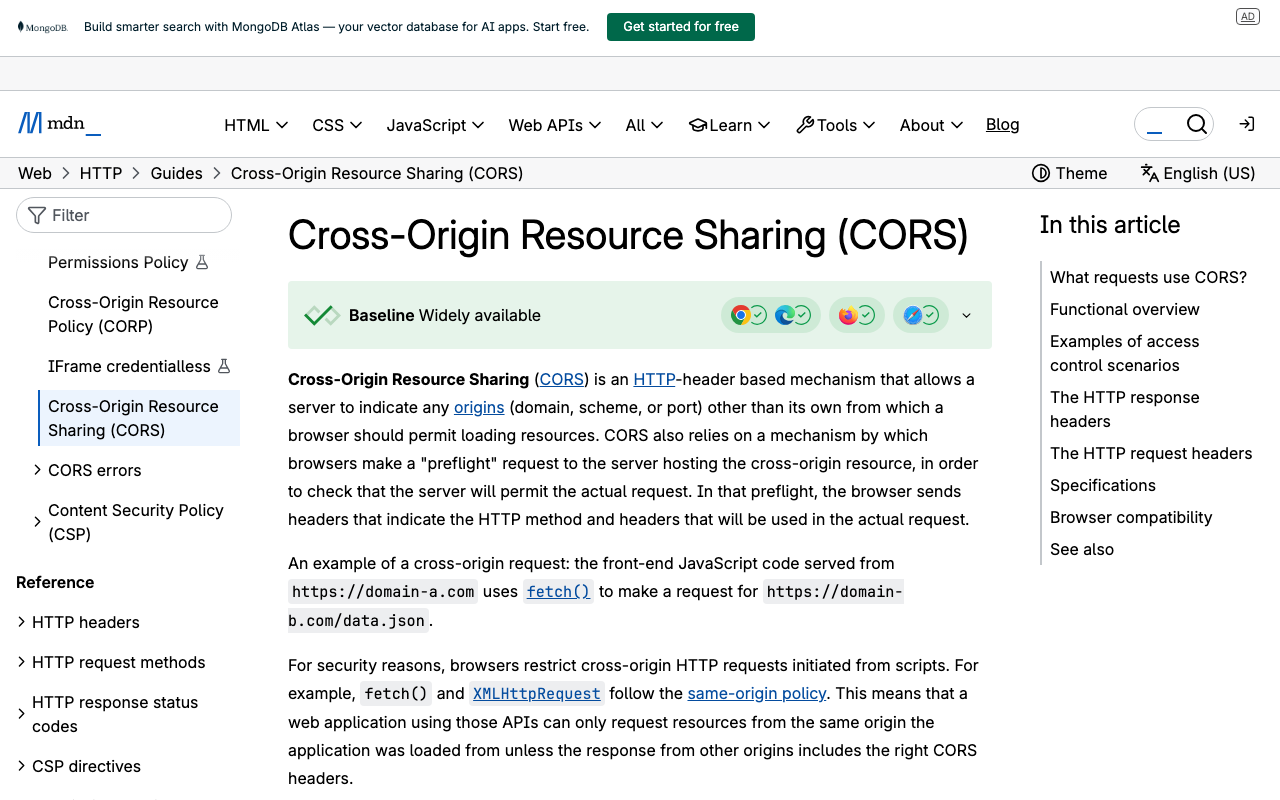
概要 DrupalのJSON:APIによる出力結果を別のアプリから利用した際、corsエラーが発生しました。ここでは、corsエラーの改善方法について説明します。 対応 以下のファイルをコピーします。 /web/sites/default/default.services.yml cp /web/sites/default/default.services.yml /web/sites/default/services.yml そして、cors.configのenabledをtrueにします。 # Configure Cross-Site HTTP requests (CORS). # Read https://developer.mozilla.org/en-US/docs/Web/HTTP/Access_control_CORS # for more information about the topic in general. # Note: By default the configuration is disabled. cors.config: enabled: false # ここ! # Specify allowed headers, like 'x-allowed-header'. allowedHeaders: [] この結果、corsエラーを解消することができました。 まとめ 同様のことでお困りの方の参考になりましたら幸いです。

JSON:API関連のエラーへの対処方法

JSON:API関連のエラーへの対処方法

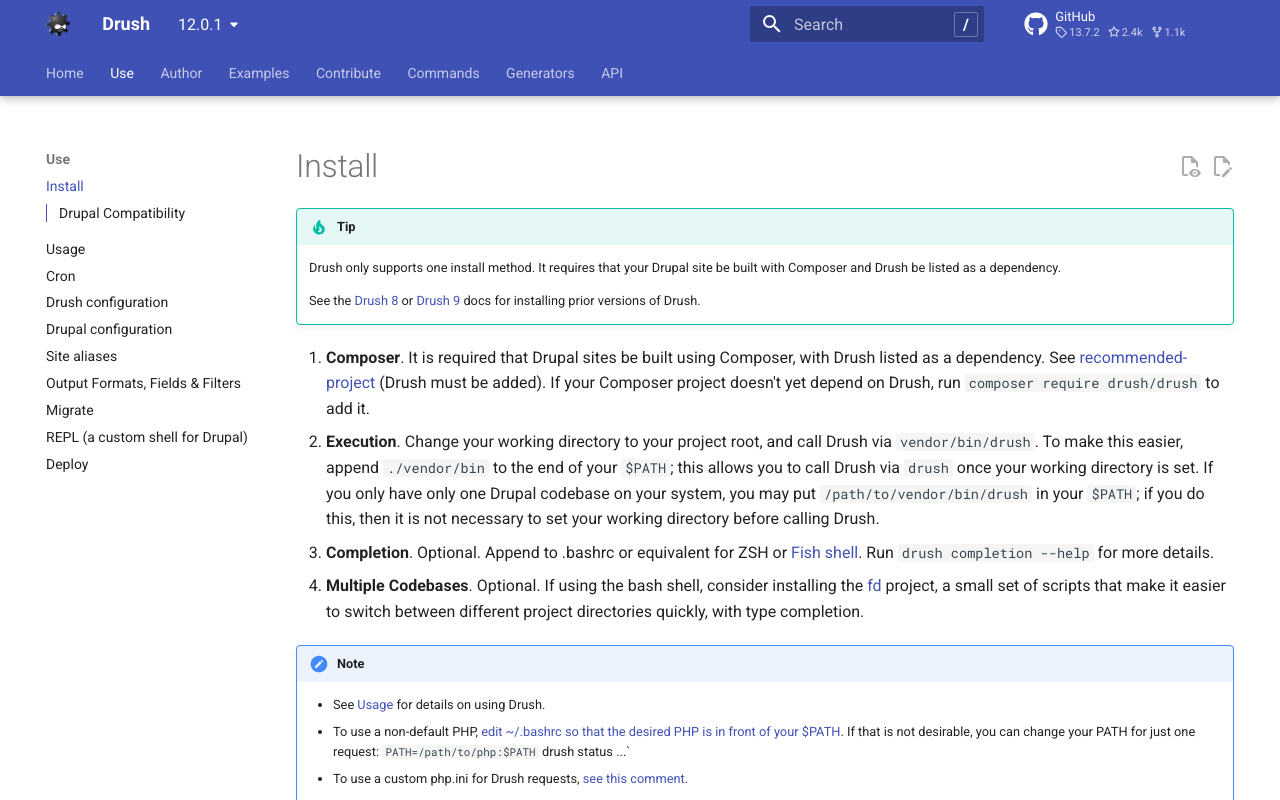
概要 JSON:API関連の以下のエラーが発生しました。このエラーに対する対処方法の備忘録です。 サイトに予期せぬエラーが起こりました。しばらくたってから再度お試しください。 TypeError: Drupal\jsonapi_search_api_facets\Plugin\facets\facet_source\JsonApiFacets::__construct(): Argument #6 ($index) must be of type Drupal\search_api\IndexInterface, null given, called in /home/j-soken/drupal/web/modules/contrib/jsonapi_search_api/modules/jsonapi_search_api_facets/src/Plugin/facets/facet_source/JsonApiFacets.php on line 61 in Drupal\jsonapi_search_api_facets\Plugin\facets\facet_source\JsonApiFacets->__construct() (line 48 of modules/contrib/jsonapi_search_api/modules/jsonapi_search_api_facets/src/Plugin/facets/facet_source/JsonApiFacets.php). Drupal\jsonapi_search_api_facets\Plugin\facets\facet_source\JsonApiFacets::create() (Line: 21) Drupal\Core\Plugin\Factory\ContainerFactory->createInstance() (Line: 83) Drupal\Component\Plugin\PluginManagerBase->createInstance() (Line: 251) facets_system_breadcrumb_alter() (Line: 545) Drupal\Core\Extension\ModuleHandler->alter() (Line: 94) Drupal\Core\Breadcrumb\BreadcrumbManager->build() (Line: 72) Drupal\system\Plugin\Block\SystemBreadcrumbBlock->build() (Line: 171) Drupal\block\BlockViewBuilder::preRender() call_user_func_array() (Line: 101) ... 対処方法 まず、エラーの表示を有効にします。以下のファイルに追記します。 $config['system.logging']['error_level'] = 'verbose'; jsonapi関連で使用していたモジュールをdrushでアンインストールし、再度インストールすることで解決しました。 drush pm:uninstall drupal/search_api drupal/facets drupal/jsonapi_search_api drupal/jsonapi_search_api_facets なお、上記をさくらのレンタルサーバで実行するにあたり、drushのインストールが必要でした。以下のページを参考に、インストールしました。 https://www.drush.org/12.0.1/install/ composer require drush/drush vendor/bin/drush pm:uninstall drupal/search_api drupal/facets drupal/jsonapi_search_api drupal/jsonapi_search_api_facets その後、以下のコマンドにより、再度インストールしました。 ...

DrupalのJSON:APIの使用方法(includeと多言語対応)

DrupalのJSON:APIの使用方法(includeと多言語対応)

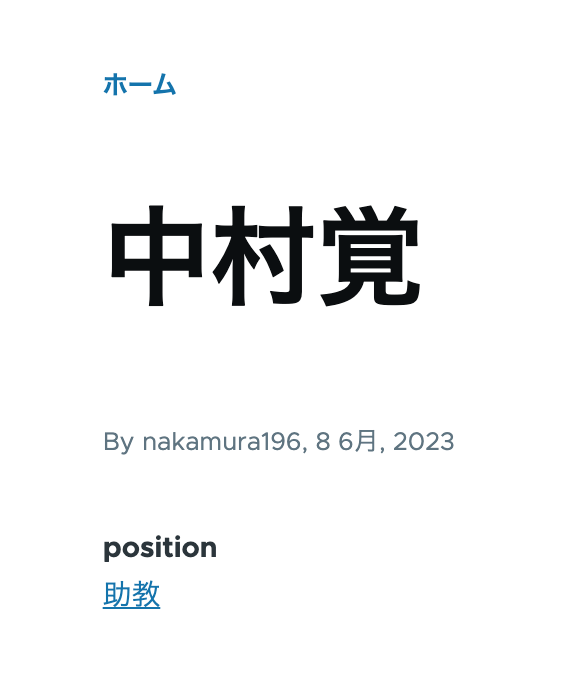
概要 DrupalのJSON:APIの使用方法に関する備忘録です。今回は、タクソノミーなどに対するincludeと多言語処理について記載します。 データ 以下のように、positionフィールドにタクソノミー「助教」を付与しています。 /node/5 また、コンテンツの多言語化を有効にしており、以下のように、タイトルとpositionの英語も表示されます。 /en/node/5 JSON:API 上記のコンテンツをコンテンツタイプ「faculty」に作成したので、以下のURLから、データの一覧を取得できます。 /jsonapi/node/faculty/ 以下は、linksフィールドを除く結果を表示しています。field_positionにタクソノミーのIDが含まれていますが、当該タクソノミーのラベル等はふくまれていません。 { "jsonapi": { "version": "1.0", "meta": { "links": { "self": { "href": "http://jsonapi.org/format/1.0/" } } } }, "data": [ { "type": "node--faculty", "id": "586ef1d9-b680-41f9-b54b-7ebcdc9d154f", "attributes": { "drupal_internal__nid": 5, "drupal_internal__vid": 13, "langcode": "ja", "revision_timestamp": "2023-06-08T01:01:43+00:00", "revision_log": null, "status": true, "title": "中村覚", "created": "2023-06-08T00:44:15+00:00", "changed": "2023-06-08T01:01:26+00:00", "promote": true, "sticky": false, "default_langcode": true, "revision_translation_affected": null, "content_translation_source": "und", "content_translation_outdated": false, "path": { "alias": null, "pid": null, "langcode": "ja" }, "body": null }, "relationships": { "node_type": { "data": { "type": "node_type--node_type", "id": "841962f7-91c8-47a1-b335-ea494efe467c", "meta": { "drupal_internal__target_id": "faculty" } } }, "revision_uid": { "data": { "type": "user--user", "id": "0b001e4d-ed29-4a53-960d-9cdcc3d3ad70", "meta": { "drupal_internal__target_id": 1 } } }, "uid": { "data": { "type": "user--user", "id": "0b001e4d-ed29-4a53-960d-9cdcc3d3ad70", "meta": { "drupal_internal__target_id": 1 } } }, "field_position": { "data": { "type": "taxonomy_term--position", "id": "6ce458e8-6d79-4ed1-9653-5ec178568b7a", "meta": { "drupal_internal__target_id": 5 } } } } } ] } includeを使う クエリに、?include=field_positionを追加します。結果、以下のように、includedフィールドが追加され、タクソノミータームのnameフィールドの値も得ることができました。 ...

Drupal Key authを用いたコンテンツの登録と多言語対応

Drupal Key authを用いたコンテンツの登録と多言語対応

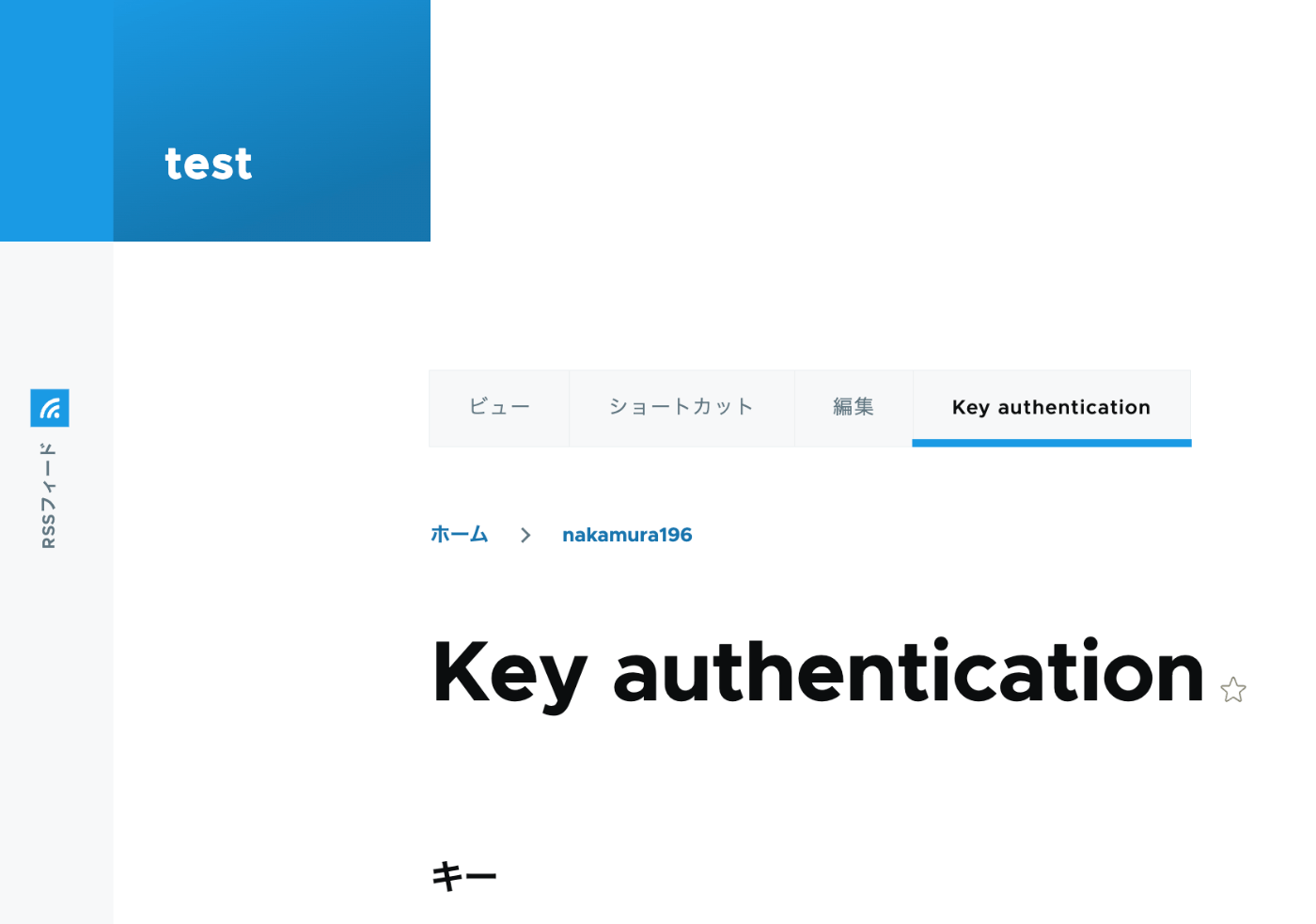
概要 以下の記事で、Basic認証を使ったPythonによるコンテンツ登録を行いました。 今回は、以下の記事を参考に、API Key Authenticationを試しました。 https://designkojo.com/post-drupal-using-jsonapi-vuejs-front-end API Key Authentication 以下のモジュールを使用しました。 https://www.drupal.org/project/key_auth ユーザの編集画面に「Key authentication」というタブが表示され、APIキーを生成できました。 APIキーを使用する場合には、以下のようなプログラムで実行することができました。 import requests endpoint = 'http://{ipアドレス or ドメイン名}/jsonapi/node/article' key = '{APIキー}' headers = { 'Accept': 'application/vnd.api+json', 'Content-Type': 'application/vnd.api+json', "api-key": key } payload = { "data": { "type": "node--article", "attributes": { "title": "What's up from Python", "body": { "value": "Be water. My friends.", "format": "plain_text" } } } } r = requests.post(endpoint, headers=headers, json=payload) r.json() 多言語対応における注意点 注意点として、翻訳データの作成はできないようでした。 https://www.drupal.org/docs/core-modules-and-themes/core-modules/jsonapi-module/translations 作成済みの翻訳データの更新は可能ですが、翻訳データがないノードに対しては、以下のエラーが発生しました。 { "jsonapi": { "version": "1.0", "meta": { "links": { "self": { "href": "http://jsonapi.org/format/1.0/" } } } }, "errors": [ { "title": "Method Not Allowed", "status": "405", "detail": "The requested translation of the resource object does not exist, instead modify one of the translations that do exist: ja." } ] } この点について、既に対応策ができているかもしれません。引き続き調査したいと思います。 ...

Wagtailを試す

Wagtailを試す

概要 Wagtailを試してみましたので、躓いた点などの備忘録です。 基本的には、以下のチュートリアルを参考に進めました。 https://docs.wagtail.org/en/v5.0.1/getting_started/tutorial.html 検索機能 「はじめての記事」という日本語のタイトルを持つページを追加した際、以下ではヒットしませんでした。 http://localhost:8000/admin/pages/search/?q=はじめて 一方、以下ではヒットしました。日本語の部分一致検索はデフォルトではできないようでした。 http://localhost:8000/admin/pages/search/?q=はじめての記事 Wagtail API APIについては、以下に記載がありました。 https://docs.wagtail.org/en/v5.0.1/advanced_topics/api/index.html 上記のサイトを参考に、rest_frameworkも追加することで、以下のように結果を得ることができました。 ただし、localhost:8000で立ち上げているアプリに対して、得られる結果のホスト名がlocalhostになっていました。 この点については、以下の記事を参考に、管理画面から修正できました。 https://stackoverflow.com/questions/52540254/edit-approved-email-points-to-localhost 具体的には、以下の/admin/sites/のページで、ポート番号を変更しました。 ?searchパラメータ 先の検索機能と同様、日本語については完全一致が必要なようでした。 http://localhost:8000/api/v2/pages/?search=はじめての記事 Elasticsearch Elasticsearchとの連携を試みました。 https://docs.wagtail.org/en/v5.0.1/topics/search/backends.html 今回はawsのopensearchを試してみましたが、以下のようなエラーが出てしまいました。 elasticsearch.exceptions.UnsupportedProductError: The client noticed that the server is not Elasticsearch and we do not support this unknown product 以下で同様のissueが上がっていましたが、現時点ではまだ未対応のようでした。 https://github.com/wagtail/wagtail/issues/7920 まとめ 誤った内容も含まれているかもしれませんが、Wagtailの利用にあたり、参考になりましたら幸いです。

ArchivematicaでBrowseがうまくできない場合の原因と対応

ArchivematicaでBrowseがうまくできない場合の原因と対応

概要 ArchivematicaでBrowseを押してもフォルダやファイルが閲覧できない不具合に遭遇しました。この原因と対策について紹介します。 /transfer/ 事象 /administration/storage/ Error retrieving locations: is the storage server running? Please contact an administrator. 以下にアクセスすると、以下のjsonが得られました。 /transfer/locations/ { "message": "Error retrieving source directories", "status": "Failure" } 対応 以下にアクセスすると、Storage Seviceにアクセスできないことが示されていました。 /administration/general/ Storage Sevice URLを修正した結果、エラーが解消しました。 まとめ 同様の事象でお困りの方の参考になりましたら幸いです。

Amazon ECRのリポジトリを一括削除する

Amazon ECRのリポジトリを一括削除する

概要 Amazon ECRのリポジトリを一括削除する機会がありましたので、その備忘録です。ご利用される際は注意して実行してください。 リポジトリの一覧を作成 以下の記事を参考にしました。 https://qiita.com/fk_2000/items/bffd3b1ad6f3ab109766 以下を実行します。 aws ecr describe-repositories --output json | jq -re ".repositories[].repositoryName" > repository.list macの場合でjqコマンドがない場合、brew install jqなどを実行してください。 削除 以下を実行します。--forceを使って、imageがあっても削除を行います。 for X in `awk '{print $1}' repository.list` ; do aws ecr delete-repository --repository-name $X --force ; done まとめ ご利用される際は十分注意の上、実行してください。参考になりましたら幸いです。

Django REST framework JSON:API(DJA)に独自のモデルのビューをカスタマイズする

Django REST framework JSON:API(DJA)に独自のモデルのビューをカスタマイズする

概要 以下の記事で追加したモデルのビューをカスタマイズしてみます。 sort ordering_fieldsを追加してみます。 ... class UserInfoViewset(ModelViewSet): ordering_fields = ("user_name", ) # ここを追加 queryset = UserInfo.objects.all() serializer_class = UserInfoSerializer def get_object(self): entry_pk = self.kwargs.get("entry_pk", None) if entry_pk is not None: return Entry.objects.get(id=entry_pk).blog return super().get_object() ... 結果、「Filters」の表示で、user_nameのみが選択できるようになりました。 例えば、ageでソートを行うと、validation errorが返却されました。 フィルタ ... class UserInfoViewset(ModelViewSet): queryset = UserInfo.objects.all() serializer_class = UserInfoSerializer ordering_fields = ("user_name", ) # ここから下を追加 # override the default filter backends in order to test QueryParameterValidationFilter # without breaking older usage of non-standard query params like `page_size`. filter_backends = ( QueryParameterValidationFilter, OrderingFilter, DjangoFilterBackend, SearchFilter, ) rels = ( "exact", "iexact", "contains", "icontains", "gt", "gte", "lt", "lte", "in", "regex", "isnull", ) filterset_fields = { "id": ("exact", "in"), "user_name": rels } search_fields = ("user_name", ) ... ... 上記により、以下のようなフィルタが可能になりました。 ...

Django REST framework JSON:API(DJA)に独自のモデルを追加する

Django REST framework JSON:API(DJA)に独自のモデルを追加する

概要 以下の記事で、Django REST framework JSON:API(DJA)の基本的な操作方法を確認しました。 本記事では、DJAに独自のモデルを追加してみます。 参考 以下の記事を参考に、UserInfoモデルを追加してみます。 https://tech-blog.rakus.co.jp/entry/20220329/python 手順 モデルを定義 以下を追記します。 # ユーザ情報を格納する class UserInfo(BaseModel): user_name = models.CharField(verbose_name='ユーザ名',max_length=32) # ユーザ名 birth_day = models.DateField(verbose_name='生年月日') # 生年月日 age = models.PositiveSmallIntegerField(verbose_name='年齢',null=True,unique=False) # 年齢 created_at = models.DateTimeField(verbose_name='作成日時',auto_now_add=True) データベースを構築 以下を実行します。 % django-admin makemigrations --settings=example.settings Migrations for 'example': example/migrations/0013_userinfo.py - Create model UserInfo % django-admin migrate --settings=example.settings Operations to perform: Apply all migrations: auth, contenttypes, example, sessions, sites Running migrations: Applying example.0013_userinfo... OK 参考までに、以下のようなファイルが作成されます。 # Generated by Django 4.1.8 on 2023-06-04 17:35 from django.db import migrations, models class Migration(migrations.Migration): dependencies = [ ("example", "0012_author_full_name"), ] operations = [ migrations.CreateModel( name="UserInfo", fields=[ ( "id", models.AutoField( auto_created=True, primary_key=True, serialize=False, verbose_name="ID", ), ), ("modified_at", models.DateTimeField(auto_now=True)), ("user_name", models.CharField(max_length=32, verbose_name="ユーザ名")), ("birth_day", models.DateField(verbose_name="生年月日")), ("age", models.PositiveSmallIntegerField(null=True, verbose_name="年齢")), ( "created_at", models.DateTimeField(auto_now_add=True, verbose_name="作成日時"), ), ], options={ "abstract": False, }, ), ] コンポーネントの作成 Serializer 以下を追記します。 ...

Django REST framework JSON:API(DJA)を試す

Django REST framework JSON:API(DJA)を試す

概要 Django REST framework JSON:API(DJA)を試す機会がありましたので、その備忘録です。 https://django-rest-framework-json-api.readthedocs.io/en/stable/index.html インストール 以下のページに記載があるexample appを起動します。 https://django-rest-framework-json-api.readthedocs.io/en/stable/getting-started.html git clone https://github.com/django-json-api/django-rest-framework-json-api.git cd django-rest-framework-json-api python3 -m venv env source env/bin/activate pip install -Ur requirements.txt django-admin migrate --settings=example.settings django-admin loaddata drf_example --settings=example.settings django-admin runserver --settings=example.settings 結果、以下の画面などが得られました。 http://localhost:8000 for the list of available collections (in a non-JSON:API format!), http://localhost:8000/swagger-ui/ for a Swagger user interface to the dynamic schema view, or http://localhost:8000/openapi for the schema view’s OpenAPI specification document. ...

OpenAPIとAWS CDKを用いてREST APIを作成する(Opensearch接続・カスタムドメイン)

OpenAPIとAWS CDKを用いてREST APIを作成する(Opensearch接続・カスタムドメイン)

概要 OpenAPIとAWS CDKを用いてREST APIを作成する機会がありましたので、その備忘録です。以下の記事がとても参考になりました。 https://zenn.dev/taroman_zenn/articles/91879cec40627c 今回作成したものは以下のリポジトリで公開しています。 https://github.com/nakamura196/CdkOpenapi Opensearchとの接続 以下のLambdaで実装しています。 https://github.com/nakamura196/CdkOpenapi/blob/main/lambda/search.ts Lambdaに環境変数を渡す必要があり、lib以下のtsファイルで以下のように記述しました。 ... const searchFn = new NodejsFunction(this, "search", { entry: path.join(__dirname, "../lambda/search.ts"), runtime: Runtime.NODEJS_18_X, handler: "handler", environment: { ELASTIC_HOST: process.env.ELASTIC_HOST || "", ELASTIC_USERNAME: process.env.ELASTIC_USERNAME || "", ELASTIC_PASSWORD: process.env.ELASTIC_PASSWORD || "", ELASTIC_INDEX_NAME: process.env.ELASTIC_INDEX_NAME || "", }, }); ... カスタムドメイン 以下のファイルを参考にしてください。間違いなどがあるかもしれませんが、カスタムドメインの登録からAPI Gatewayへの設定も行ってみました。 https://github.com/nakamura196/CdkOpenapi/blob/main/lib/cdk-openapi-stack.ts まとめ 色々と中途半端なリポジトリではありますが、参考になる部分があれば幸いです。

GitHubのGUIを使ったファイルアップロードおよびファイル更新の方法について

GitHubのGUIを使ったファイルアップロードおよびファイル更新の方法について

概要 GitHubファイルアップロードおよびファイル更新の方法について共有する機会がありました。 ログイン アカウントの新規作成を含めて、以下の記事などを参考にしてください。 https://reffect.co.jp/html/create_github_account_first_time ファイルアップロード リポジトリにアクセスします。 Add fileボタンをクリックして、Upload filesをクリックします。 choose your filesをクリックして、ローカルからファイルをアップロードして、Commit changesを押します。 ファイルがアップロードされます。同じ名前のファイルが既に存在する場合には、上書き更新されます。 ファイルの更新 更新対象のファイル名をクリックします。 鉛筆アイコンをクリックします。 テキストを修正し、Commit changesボタンを押します。 再度、Commit changesボタンを押します。 ファイルが更新されます。 まとめ GitHubのGUIの使い方の参考になりましたら幸いです。

Omeka SのImage Serverの設定について

Omeka SのImage Serverの設定について

概要 Omeka SのImage Serverは、IIIF Image APIに対応した画像配信を可能とするモジュールです。 https://omeka.org/s/modules/ImageServer/ IIIF Serverモジュールと組み合わせて使用することにより、IIIFマニフェストによる配信も可能になります。 Image Serverモジュールでは、タイル画像の作成方法を含めて、さまざまな設定が可能です。本記事では、これらの設定について、調査結果を共有します。 実験環境 今回は、Amazon LightsailのLAMPインスタンスを使用します。2 GB RAM, 1 vCPUの比較的低スペックな環境を用います。 Amazon Lightsailを用いたOmeka Sの構築方法は、以下などを参考にしてください。 また、今回は以下のスクリプトを利用しました。今回検証する「Image Server」モジュールの使用に必要な、関連モジュールを合わせてインストールします。 https://github.com/nakamura196/omeka_aws/blob/main/2023-05-25.sh タイル画像の作成に関する設定 ImageServerモジュールのインストール後、以下にアクセスすると、ImageServerの設定画面にアクセスできます。 /admin/module/configure?id=ImageServer 以下の画面の「Tiling service」の箇所で設定を行うことができます。 Image processor項目 本モジュールの説明ページでは、vipsのインストールが推奨されていました。上記のスクリプトでも、以下によって、vipsをインストールしています。 sudo apt install --no-install-recommends libvips-tools そのため、上記設定画面の「Image processor」項目の初期値に基づき、タイル画像の作成には、以後vipsが使用されます。 Tilling type項目 この項目では、「Deep Zoom Image」「Zoomify」「Jpeg 2000」「Tiled tiff」の4つの項目を選択することができます。これらについて、公式サイトでは以下のように記載されています。 Four format are proposed to create tiles: DeepZoom, Zoomify, Jpeg 2000 and pyramidal Tiff. The recommended format is DeepZoom. For Jpeg 2000 and pyramidal tiff, some other tools may be required. ...

AWS CDK x CloudFront x S3 x Basic認証 x index.html対応 x 独自ドメイン

AWS CDK x CloudFront x S3 x Basic認証 x index.html対応 x 独自ドメイン

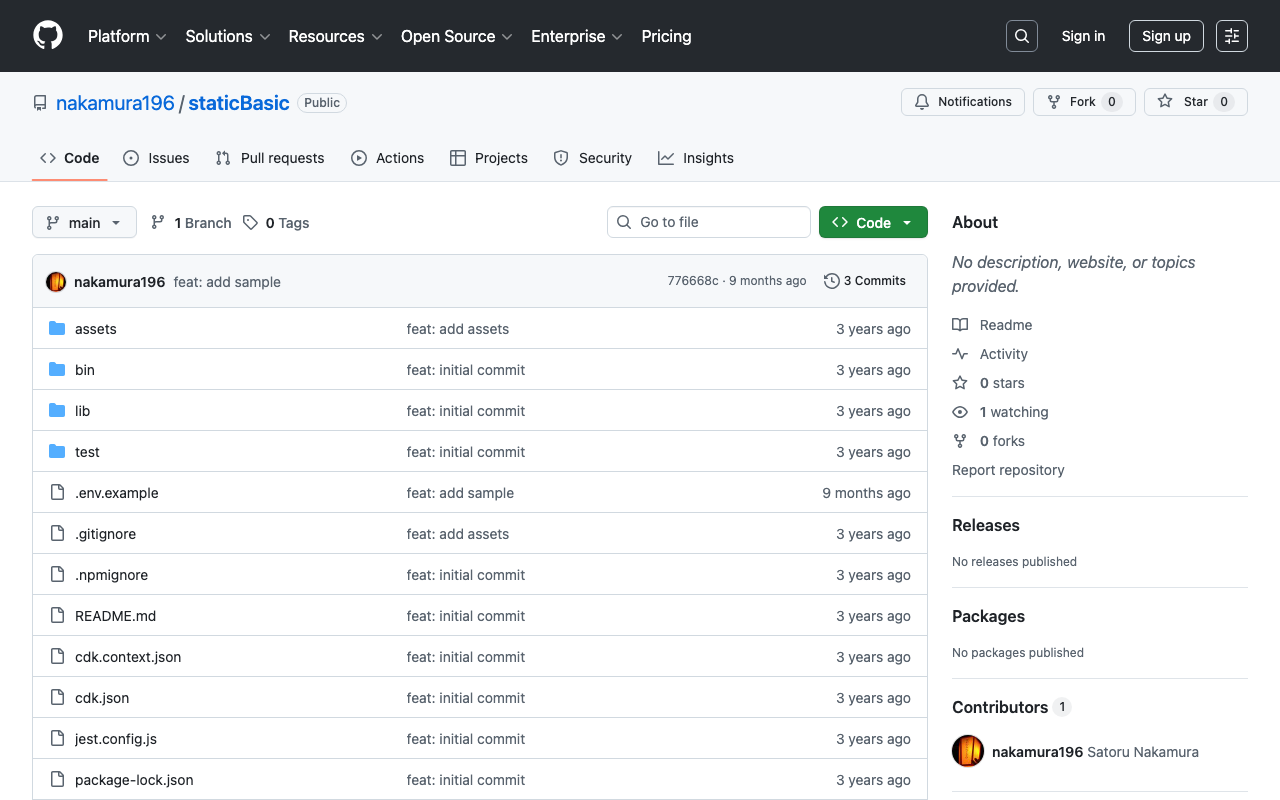
概要 AWS CDKを用いて、CloudFront + S3による静的サイトの作成を行いました。合わせて、CloudFront Functionを用いて、Basic認証とURLにファイル名や拡張子を含まないリクエストにindex.htmlを追加する処理を加えています。さらに、独自ドメインの追加も行いましたので、その備忘録です。 色々と不完全ですが、以下のリポジトリでソースコードを公開しています。 https://github.com/nakamura196/staticBasic 以下のような.envファイルを用意してcdk deployを実行する想定です。 CERT_ARN=arn:aws:acm:xxxx RECORD_NAME=aaa.bbb.com BUCKET_NAME=aaa.bbb.com REGION=us-east-1 ACCOUNT=yyyy DOMAIN_NAME=bbb.com それぞれの説明は以下のとおりです。 項目 説明 例 CERT_ARN 証明書のARN arn:aws:acm:xxxx RECORD_NAME 設定したいドメイン名 aaa.bbb.com BUCKET_NAME ファイルを格納するS3バケット名 aaa.bbb.com REGION リージョン名 us-east-1 ACCOUNT AWSのアカウント名(12 桁の数値 ) 123456789012 DOMAIN_NAME ホストゾーン名 bbb.com Stack 以下のStackを作成しました。 import { Stack, StackProps, RemovalPolicy, aws_cloudfront, aws_cloudfront_origins, aws_iam, } from "aws-cdk-lib"; import { Construct } from "constructs"; import * as s3 from "aws-cdk-lib/aws-s3"; import * as iam from "aws-cdk-lib/aws-iam"; import * as cloudfront from "aws-cdk-lib/aws-cloudfront"; import * as route53 from "aws-cdk-lib/aws-route53"; import * as targets from "aws-cdk-lib/aws-route53-targets"; import { Certificate } from "aws-cdk-lib/aws-certificatemanager"; import * as dotenv from "dotenv"; dotenv.config(); export class StaticBasicStack extends Stack { constructor(scope: Construct, id: string, props?: StackProps) { super(scope, id, props); const recordName = process.env.RECORD_NAME || ""; const domainName = process.env.DOMAIN_NAME || ""; const bucketName = process.env.BUCKET_NAME || ""; const cert = process.env.CERT_ARN || ""; // ホストゾーンIDを取得 const hostedZoneId = route53.HostedZone.fromLookup(this, "HostedZoneId", { domainName, }); // S3バケットを作成 const websiteBucket = new s3.Bucket(this, "WebsiteBucket", { removalPolicy: RemovalPolicy.DESTROY, autoDeleteObjects: true, bucketName, }); // CloudFront用のOrigin Access Identityを作成 const originAccessIdentity = new cloudfront.OriginAccessIdentity( this, "OriginAccessIdentity", { comment: `${bucketName}-identity`, } ); // S3バケットポリシーを設定 const webSiteBucketPolicyStatement = new iam.PolicyStatement({ actions: ["s3:GetObject"], effect: iam.Effect.ALLOW, principals: [ new aws_iam.CanonicalUserPrincipal( originAccessIdentity.cloudFrontOriginAccessIdentityS3CanonicalUserId ), ], resources: [`${websiteBucket.bucketArn}/*`], }); websiteBucket.addToResourcePolicy(webSiteBucketPolicyStatement); // CloudFront Functionの設定 const cfFunction = new aws_cloudfront.Function(this, "CloudFrontFunction", { code: aws_cloudfront.FunctionCode.fromFile({ filePath: "assets/redirect.js", }), }); // 証明書を取得 const certificate = Certificate.fromCertificateArn( this, "Certificate", cert ); // CloudFrontの設定 const distribution = new aws_cloudfront.Distribution(this, "distribution", { domainNames: [recordName ], certificate, comment: `${bucketName}-cloudfront`, defaultRootObject: "index.html", defaultBehavior: { allowedMethods: aws_cloudfront.AllowedMethods.ALLOW_GET_HEAD, cachedMethods: aws_cloudfront.CachedMethods.CACHE_GET_HEAD, cachePolicy: aws_cloudfront.CachePolicy.CACHING_OPTIMIZED, viewerProtocolPolicy: aws_cloudfront.ViewerProtocolPolicy.REDIRECT_TO_HTTPS, origin: new aws_cloudfront_origins.S3Origin(websiteBucket, { originAccessIdentity, }), functionAssociations: [ { function: cfFunction, eventType: aws_cloudfront.FunctionEventType.VIEWER_REQUEST, }, ], }, priceClass: aws_cloudfront.PriceClass.PRICE_CLASS_ALL, }); // Route53レコード設定 new route53.ARecord(this, "Route53RecordSet", { // ドメイン指定 recordName, // ホストゾーンID指定 zone: hostedZoneId, // エイリアスターゲット設定 target: route53.RecordTarget.fromAlias( new targets.CloudFrontTarget(distribution) ), }); } } まとめ 色々と考慮不足の点があるかと思いますが、AWS CDKの便利さを体感することができました。他の方の参考になる部分がありましたら幸いです。 ...

GoogleドライブとGoogle Apps Scriptを用いて匿名のファイルアップローダを作成する

GoogleドライブとGoogle Apps Scriptを用いて匿名のファイルアップローダを作成する

概要 GoogleドライブとGoogle Apps Scriptを用いて匿名のファイルアップローダを作成する機会がありましたので、その備忘録です。 以下の記事などを参考にさせていただきました。 https://qiita.com/v2okimochi/items/06ed1ce7c56a877a1e10 ウェブアプリの作成 まず、以下のURLから、Apps Scriptにアクセスします。 https://script.google.com/ 「新しいプロジェクト」をクリック。 以下のような画面が表示されます。 以下のコードをコピペします。2行目の<Google Driveのアップロード用フォルダのID>について、事前にGoogleドライブでアップロード用のフォルダを作成しておき、そのIDを取得しておいてください。 // 定数: Google Driveのアップロード用フォルダのID const FOLDER_ID = '<Google Driveのアップロード用フォルダのID>'; // doGet関数: index.htmlファイルを表示する function doGet() { return HtmlService.createHtmlOutputFromFile('index'); } // processForm関数: フォームオブジェクトを受け取り、Google Driveにファイルをアップロードする function processForm(formObject) { // フォームからファイルデータを取得 var formBlob = formObject.myFile; // アップロード用フォルダを取得 var uploadFolder = DriveApp.getFolderById(FOLDER_ID); // 現在の日時をフォルダ名に使用 var today = new Date(); const folderName = today.toString(); // アップロード用フォルダ内に新しいフォルダを作成 const customFolder = uploadFolder.createFolder(folderName); // 新しいフォルダ内にファイルをアップロード customFolder.createFile(formBlob); // 新しいフォルダ名を戻り値として返す return folderName; } 次に、画面左上の「+」ボタンを押して、HTMLを選択します。 ファイル名に「index」を与えます。 以下のコードをコピペします。 <!DOCTYPE html> <html> <head> <base target="_top"> <script> // フォームのデフォルトの送信動作を無効にする function preventFormSubmit() { var forms = document.querySelectorAll('form'); for (var i = 0; i < forms.length; i++) { forms[i].addEventListener('submit', function(event) { event.preventDefault(); }); } } window.addEventListener('load', preventFormSubmit); // アップロードボタンを最初は無効にする document.addEventListener("DOMContentLoaded", function () { document.getElementById("upload").disabled = true; }, false); // 制限サイズ以内のファイルが選択されたらアップロードボタンを有効にする function changeSubmitButton() { const len = document.getElementById("file").files.length; const size = document.getElementById("file").files[0].size; const maxSize = 1024 * 1024 * 10; // 10MB const uploadButton = document.getElementById("upload"); if (len > 0 && size < maxSize) { uploadButton.disabled = false; } else { uploadButton.disabled = true; } } // アップロードボタンが押されたらファイルをアップロード function handleFormSubmit(formObject) { document.getElementById("upload").disabled = true; const div = document.getElementById('progress'); div.innerHTML = 'アップロード中...'; // アップロード成功した場合はupdateView()実行 google.script.run.withSuccessHandler(updateView).processForm(formObject); } // アップロード完了画面に変える(動的) function updateView(id) { var div = document.getElementById('myform'); div.innerHTML = `<div>アップロードが完了しました。</div>`; } </script> </head> <body> <div id="myform" style="text-align:center;"> ファイルを選択してからアップロードしてください(10MBまで)<br><br> <form onsubmit="handleFormSubmit(this)"> <input id="file" name="myFile" type="file" onchange="changeSubmitButton()" /> <input id="upload" type="submit" value="アップロード" /> </form> <div id="progress"></div> </div> </body> </html> デプロイ 画面右上の「デプロイ」ボタンをクリック後、「新しいデプロイ」をクリックします。 ...

Google スプレッドシートの更新をGitHubに通知する

Google スプレッドシートの更新をGitHubに通知する

概要 Google Apps Scriptを用いて、Googleスプレッドシートが更新された際、GitHubに通知を送る方法を調べました。合わせて、StrapiやContentfulからGitHubに通知を送る方法も調べたので、備忘録として記録します。 Google Apps Script 以下のようなスクリプトを用意することで、スプレッドシートの更新をGitHubに通知できました。 const token = "ghp_xxx" const owner = "yyy" const repo = "zzz" const event_type = "aaa" function postSheetChange() { const headers = { "Accept": "application/vnd.github+json", "Authorization": `Bearer ${token}`, "Content-Type": "application/json" } var payload = JSON.stringify({ event_type }); var requestOptions = { method: 'POST', headers, payload, }; UrlFetchApp.fetch(`https://api.github.com/repos/${owner}/${repo}/dispatches`, requestOptions) } トリガーの設定方法などは以下の記事が参考になりました。 https://businesschatmaster.com/slack/spreadsheet-change-notification なお、Googleスプレッドシートの更新の都度、GitHubへの通知が行くので、GitHub Actionsのほうで、以下のようなconcurrencyを設定しておくほうがよさそうです。 または、トリガーを特定のセル(列)が更新された時だけ、などにすることも考えられます。 name: Build Test concurrency: cancel-in-progress: true on: repository_dispatch: types: - update_content jobs: build: runs-on: ubuntu-latest steps: - name: checkout uses: actions/checkout@v3 ... Strapi Strapiのwebhookでは、bodyをカスタマイズできないため、以下のようなプロキシサーバを立てる必要があるようです。 ...

Drupal: ネストされたフィールドを検索する一例

Drupal: ネストされたフィールドを検索する一例

概要 以下の記事で、Strapiを用いたネストされたフィールドに対する検索方法を調査しました。 今回は同様のことをDrupalで行う方法を調査します。この調査にあたり、以下の記事で、BookとAuthorのコンテンツを登録済みです。 フィルタリングの方法については、以下の記事が参考になりました。 https://www.drupal.org/docs/core-modules-and-themes/core-modules/jsonapi-module/filtering 検索例 以下に対する検索を行います。 /jsonapi/node/book? hobby=danceであるauthorを含むbookの検索 SHORT filter[field_authors.field_hobby]=dance または filter[field_authors.field_hobby][value]=dance NORMAL filter[ex1][condition][path]=field_authors.field_hobby&filter[ex1][condition][value]=dance hobbyにdanを含むauthorを含むbookの検索 SHORT filter[field_authors.field_hobby][operator]=CONTAINS&filter[field_authors.field_hobby][value]=dan NORMAL filter[ex1][condition][path]=field_authors.field_hobby&filter[ex1][condition][operator]=CONTAINS&filter[ex1][condition][value]=dan (参考)hobbyがplayまたはsingであるauthorを含むbookの検索 filter[ex1][condition][path]=field_authors.field_hobby&filter[ex1][condition][operator]=IN&filter[ex1][condition][value][1]=sing&filter[ex1][condition][value][2]=play (参考)Search APIを使う 以下のモジュールを使用することで、複数のコンテンツタイプに対する検索や、フィールド名の指定、ファセットの追加、などができそうです。 https://www.drupal.org/project/jsonapi_search_api 以下の記事で使い方を紹介していますので、参考にしてください。 <https://tech.ldas.jp/ja/posts/8d7aa7c33abffc/#search-api> indexの作成 例えば、Search APIのindexとして、以下のように設定します。 これにより、以下のURLからもbookの情報が得られます。 /jsonapi/index/book 通常のjsonapi(/jsonapi/node/bookなど)と比較して、metaという項目にcountが含まれることで、検索結果の全数が確認できます。(通常のjsonapiでも追加する方法があるかもしれませんが、調査不足により不明です。) { "jsonapi": { "version": "1.0", "meta": { "links": { "self": { "href": "http://jsonapi.org/format/1.0/" } } } }, "data": [...], "meta": { "count": 4 }, "links": { "self": { "href": "https://xxx/jsonapi/index/book" } } } フィルタリング また、「hobby=danceであるauthorを含むbookの検索」については、先のindex作成において、Property path「field_authors:entity:field_hobby」をMachine name「field_hobby」に割り当てましたので、以下のシンプルなクエリで実行できました。 SHORT filter[field_hobby]=dance NORMAL filter[ex1][condition][path]=field_hobby&filter[ex1][condition][value]=dance ファセット さらに、(本記事執筆時点での不確かな知識において、)Search APIを使用する大きな利点の一つとして、facetsが使用できるようになる点が挙げられます。 { "facets": [ { "id": "field_hobby", "label": "authors » Content » hobby", "path": "field_hobby", "terms": [ { "url": "https://xxx/jsonapi/index/book?filter%5Bfield_hobby-facet%5D%5Bcondition%5D%5Bpath%5D=field_hobby&filter%5Bfield_hobby-facet%5D%5Bcondition%5D%5Boperator%5D=IN&filter%5Bfield_hobby-facet%5D%5Bcondition%5D%5Bvalue%5D%5B0%5D=dance&filter%5Bfield_hobby-facet%5D%5Bcondition%5D%5Bvalue%5D%5B1%5D=play", "values": { "value": "play", "label": "play", "active": false, "count": 1 } }, { "url": "https://xxx/jsonapi/index/book?filter%5Bfield_hobby-facet%5D%5Bcondition%5D%5Bpath%5D=field_hobby&filter%5Bfield_hobby-facet%5D%5Bcondition%5D%5Boperator%5D=IN&filter%5Bfield_hobby-facet%5D%5Bcondition%5D%5Bvalue%5D%5B0%5D=dance&filter%5Bfield_hobby-facet%5D%5Bcondition%5D%5Bvalue%5D%5B1%5D=sing", "values": { "value": "sing", "label": "sing", "active": false, "count": 1 } }, { "url": "https://xxx/jsonapi/index/book?filter%5Bfield_hobby%5D=dance", "values": { "value": "dance", "label": "dance", "active": true, "count": 2 } } ] } ] } まとめ 不正確な情報もあるかもしれませんが、Drupalでのnested構造に対する検索と、JSON:APIとSearch APIの組み合わせについて、参考になりましたら幸いです。 ...

Strapi: 深くネストされたフィールドで結果をフィルタリングする方法

Strapi: 深くネストされたフィールドで結果をフィルタリングする方法

概要 以下での記事で、深くネストされたフィールドで結果をフィルタリングする方法が紹介されています。 https://strapi.io/blog/deep-filtering-alpha-26 上記の通り、コンテンツタイプやフィールドを用意することで、意図した結果を得ることができました。 注意点 上記の記事のコメントにもありますが、本文中で「\」が含まれていますが、これは不要なようです。 誤 GET /api/books?filters\[authors\][hobby][$contains]=dance 以下のように、「\」なしのクエリにより、意図した結果が得られました。 正 GET /api/books?filters[authors][hobby][$contains]=dance まとめ 参考になりましたら幸いです。

Drupal: カスタムモジュールを用いて、コンテンツタイプとフィールドを追加する

Drupal: カスタムモジュールを用いて、コンテンツタイプとフィールドを追加する

概要 Drupalのカスタムモジュールを用いて、コンテンツタイプとフィールドを追加する方法の備忘録です。 以下の2つの記事が参考になりました。 https://www.drupal.org/docs/drupal-apis/entity-api/creating-a-custom-content-type-in-drupal-8 https://www.digitalnadeem.com/drupal/how-to-create-content-type-fields-and-view-while-installing-custom-module-in-drupal-9-using-configuration-manager/ Car Brandの例 先に紹介した一つ目の記事の通り進めると、コンテンツタイプ「Car Brand」、フィールド「body」を追加することができました。 なお、上記の記事ではカスタムモジュールの作成の部分がスキップされています。まずはじめに以下のようなフォルダ、およびファイルを作成します。 name: foobar description: サンプルモジュール package: Custom type: module version: 1.0 core_version_requirement: ^8 || ^9 独自のフィールドの追加 上記を参考に、コンテンツタイプを追加することができましたが、独自のフィールドを追加するには、Fieldに加えて、Field storageというものも追加する必要がありました。 このField storageのymlの記述方法がわからなかった際に、冒頭で紹介した2つ目のリンクである、以下の記事が参考になりました。 https://www.digitalnadeem.com/drupal/how-to-create-content-type-fields-and-view-while-installing-custom-module-in-drupal-9-using-configuration-manager/ モジュール「Configuration Manager」を使うことで、すでに登録済みのFieldやField storageの定義内容を確認することができました。 上記を踏まえて、IIIF Mediaというコンテンツタイプを作成して、iiif_image_urlという文字列を格納するフィールドと、iiif_image_widthとiiif_image_heightという数値を格納するフィールドを作成してみます。以下のようなファイルが必要です。 コンテンツタイプ modules/custom/foobar/config/install/node.type.iiif_media.yml # node.type.iiif_media.yml langcode: en status: true dependencies: enforced: module: - foobar # This is the name of the module we're using for this example name: 'IIIF Media' type: iiif_media description: 'Content type for IIIF Media' help: '' new_revision: false preview_mode: 1 display_submitted: true フィールド:iiif_image_url(string) Field storage modules/custom/foobar/config/install/field.storage.node.field_iiif_image_url.yml ...

Drupal: カスタムRESTリソースを作成する

Drupal: カスタムRESTリソースを作成する

概要 以下を参考に、カスタムRESTリソースを作成しました。 https://www.drupal.org/docs/drupal-apis/restful-web-services-api/custom-rest-resources 上記の記事の通り進めることで、以下のURLから、JSONの結果を得ることができました。 /demo_rest_api/demo_resource { "message": "Hello, this is a rest service" } REST UIモジュール 上記の記事において、以下の記載がありました。 If you are using the REST UI contrib module, you should now be able to see it in the list of available endpoints and you should be able to configure the GET method. この点については、以下の記事を参考に、REST UIモジュールを有効化しました。 https://www.studio-umi.jp/blog/12/357 IIIF Presentation APIの試作 次に、コンテンツ毎にJSON作成に取り組みます。具体的には、/iiif/3/{id}/manifestというパスにアクセスすると、IIIF Presentation API v3に基づく情報を出力するようにしてみます。 以下の記事が参考になりました。 https://medium.com/drupaljournal/create-custom-rest-resource-for-get-and-post-method-in-drupal-8-e445330be3ff 以下のようなファイルを作成します。以下の例では、とりあえず$nodeからtitleを取得しています。これを応用することで、他のフィールドの情報も取得することができそうです。 <?php namespace Drupal\demo_rest_api\Plugin\rest\resource; use Drupal\node\Entity\Node; use Drupal\node\NodeInterface; use Drupal\rest\Plugin\ResourceBase; use Drupal\rest\ResourceResponse; /** * Annotation for get method * * @RestResource( * id = "iiif_presentation_3", * label = @Translation("IIIF Presentation API v3"), * uri_paths = { * "canonical" = "/iiif/3/{id}/manifest" * } * ) */ class Presentation3 extends ResourceBase { /** * Responds to GET requests. It will return serialize json format of node * object. * * @param $id * Node id. */ public function get($id) { if ($id) { // Load node $node = Node::load($id); if ($node instanceof NodeInterface) { $manifest = [ "@context" => "http://iiif.io/api/presentation/3/context.json", "type" => "Manifest", "label" => [ "none" => [ $node->get("title")[0]->get("value")->getValue() ] ] ]; $response = new ResourceResponse($manifest); // Configure caching for results if ($response instanceof CacheableResponseInterface) { $response->addCacheableDependency($node); } return $response; } return new ResourceResponse('Article doesn\'t exist', 400); } return new ResourceResponse('Article Id is required', 400); } } パーミッションの許可 以下のページで、Anonymous userにチェックを入れて、外部からのアクセスを許可します。 ...