ホーム 記事一覧 ブック DH週間トピックス 検索 このサイトについて
RSS English
【Omeka S モジュール紹介】BulkExport:アイテムの詳細画面にエクスポート機能を追加する

【Omeka S モジュール紹介】BulkExport:アイテムの詳細画面にエクスポート機能を追加する

概要 BulkExportモジュールについて、以下の記事で、データを一括エクスポートする方法を紹介しました。 本モジュールではアイテムの詳細画面にエクスポートボタンを表示する機能も提供されています。この機能の使い方について紹介します。 使い方 インストールの方法は一般的なモジュールの方法と同様です。上記の記事でも簡単に説明しています。 モジュールを有効化すると、以下のように、アイテムの詳細画面に各種フォーマットでのエクスポートリンクが表示されます。 表示する項目は、サイトごとの設定画面で変更できます。設定画面には以下のようにアクセスします。 設定画面で下のほうにスクロールすると、Bulk Exportに関する設定画面が表示され、Formatters to display in resource pagesなどの項目で設定を変更することができます。 エクスポートリンクの見た目を変更する ここではエクスポートリンクの見た目を変更する方法について説明します。本来は新たなテーマを作成して、本モジュール用のファイルを作成すべきですが、今回はdefaultのテーマを使用します。 defaultのテーマは、以下のような場所にあります。 {Omeka Sのインストールディレクトリ}/themes/default まず、このdefaultテーマの中に、BulkExportモジュールのファイルのコピーします。例えば以下です。 cd {Omeka Sのインストールディレクトリ} mkdir themes/default/view/common cp modules/BulkExport/view/common/bulk-export.phtml themes/default/view/common バージョンによって内容は異なるかと思いますが、bulk-export.phtmlは以下のような内容になっています。 // Fake or invisible ids or no exporters. if (!count($urls)) return; $plugins = $this->getHelperPluginManager(); $url = $plugins->get('url'); $escape = $plugins->get('escapeHtml'); $assetUrl = $plugins->get('assetUrl'); $translate = $plugins->get('translate'); $escapeAttr = $plugins->get('escapeHtmlAttr'); $route = $this->status()->isAdminRequest() ? 'admin/resource-output' : 'site/resource-output'; $this->headLink()->appendStylesheet($assetUrl('css/bulk-export.css', 'BulkExport')); ?> <div class="bulk-export <?= $divclass ?>"> <?php if ($heading): ?> <h4><?= $escape($heading) ?></h4> <?php endif; ?> <ul class="exporters"> <?php foreach ($exporters as $format => $label): $labelFormat = in_array($format, ['ods', 'xlsx', 'xls']) ? sprintf($translate('Download as spreadsheet %s'), $label) : (in_array($format, ['bib.txt', 'bib.odt']) ? $translate('Download as text') : sprintf($translate('Download as %s'), $label)); ?> <li><a download="download" class="exporter download-<?= str_replace('.', '-', $format) ?>" href="<?= $escapeAttr($urls[$format ]) ?>" title="<?= $escapeAttr($labelFormat) ?>"><?= $label ?></a></li> <?php endforeach; ?> </ul> </div> ここで、aタグの内容をボタンに変更してみます。 ...
Amazon OpenSearch ServiceでDisable autotuneを行う

Amazon OpenSearch ServiceでDisable autotuneを行う

Amazon OpenSearch Serviceの開発用のドメインにおいて、インスタンスタイプをt3.small.searchからt3.medium.searchに変更しようとしたところ、以下のメッセージが表示されました。 Autotune is not supported in t2/t3 instance types. Disable autotune or change your instance type. UI上ではAutotuneに関する項目を見つけることができずに困っていたところ、以下のページにCLIを使う方法が記載されていました。 https://docs.aws.amazon.com/opensearch-service/latest/developerguide/auto-tune.html#auto-tune-enable そこで、以下を実行しました。 aws opensearch update-domain-config \ --domain-name my-domain \ --auto-tune-options DesiredState=DISABLED その上で、再度インスタンスタイプを変更したところ、無事に変更することができました。 Autotuneの機能を無効化する、または使用しないことのデメリットなどを十分に把握できていませんが、同様のことでお困りの方の参考になりましたら幸いです。

EC2に立てたArchivematicaをHTTPS対応する

EC2に立てたArchivematicaをHTTPS対応する

はじめに 以下の記事で、EC2にArchivematicaを立てる方法を記載しました。 今回は、独自ドメインの設定とHTTPS対応を行います。 独自ドメインの設定 今回、matica.aws.ldas.jpとstorage.aws.ldas.jpいうドメインを<IPアドレス>に割り当てます。Route 53を使用します。 SSL証明書の取得 sudo su yum install epel-release yum install certbot ertbot certonly --webroot -w /usr/share/nginx/html -d matica.aws.ldas.jp -d storage.aws.ldas.jp Webサーバの設定: Nginxのインストール vi /etc/nginx/conf.d/archivematica-and-storage.conf 設定 server { listen 80; server_name matica.aws.ldas.jp; rewrite ^(.*)$ https://$host$1 permanent; } server { listen 80; server_name storage.aws.ldas.jp; rewrite ^(.*)$ https://$host$1 permanent; } server { listen 443 ssl; server_name matica.aws.ldas.jp; ssl_certificate /etc/letsencrypt/live/matica.aws.ldas.jp/fullchain.pem; ssl_certificate_key /etc/letsencrypt/live/matica.aws.ldas.jp/privkey.pem; location / { proxy_pass http://localhost:81; proxy_set_header Host $host; proxy_set_header X-Real-IP $remote_addr; proxy_set_header X-Forwarded-For $proxy_add_x_forwarded_for; } } server { listen 443 ssl; server_name storage.aws.ldas.jp; ssl_certificate /etc/letsencrypt/live/storage.aws.ldas.jp/fullchain.pem; ssl_certificate_key /etc/letsencrypt/live/storage.aws.ldas.jp/privkey.pem; location / { proxy_pass http://localhost:8001; proxy_set_header Host $host; proxy_set_header X-Real-IP $remote_addr; proxy_set_header X-Forwarded-For $proxy_add_x_forwarded_for; } } 結果、以下のURLにアクセスできるようになりました。 ...

CantaloupeのAccess Controlを試す

CantaloupeのAccess Controlを試す

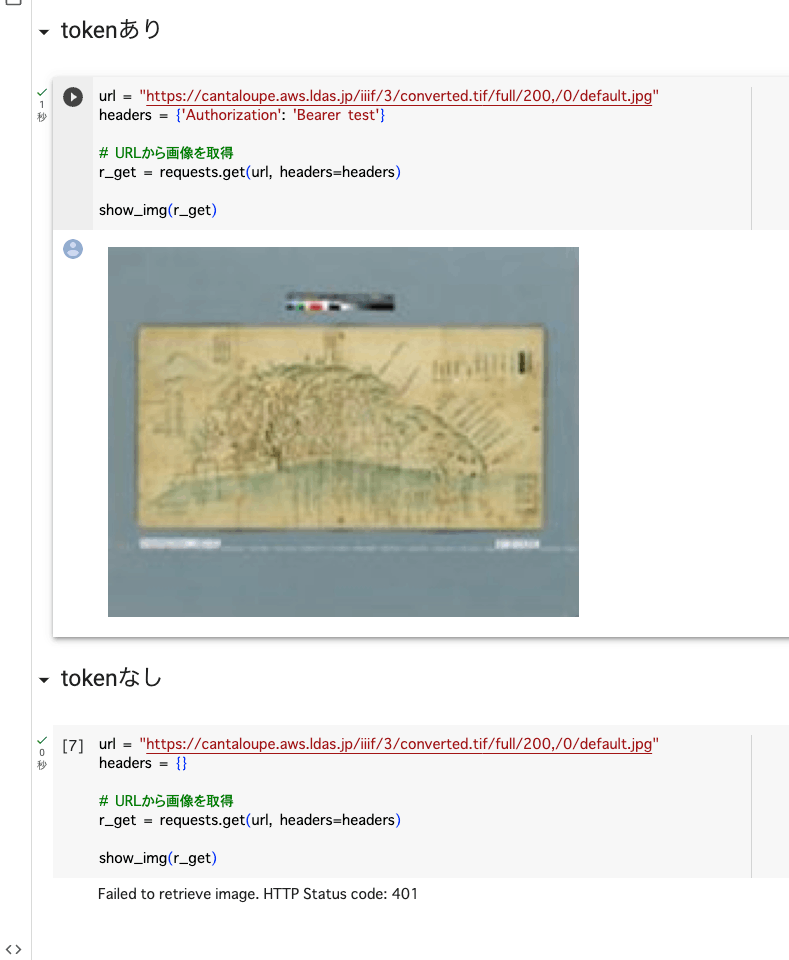
概要 CantaloupeのAccess Controlを試しましたので、備忘録です。 https://cantaloupe-project.github.io/manual/5.0/access-control.html Bearer認証 以下を参考にしました。 https://cantaloupe-project.github.io/manual/5.0/access-control.html#Tiered Access All or Nothing Access 認証情報が間違っている場合には、エラーを返却するものです。 以下のように、tokenがtestの場合は返却するようにしました。 def authorize(options = {}) header = context['request_headers'] .select{ |name, value| name.downcase == 'authorization' } .values.first if header&.start_with?('Bearer ') token = header[7..header.length - 1] if token == "test" return true end end return { 'status_code' => 401, 'challenge' => 'Bearer charset="UTF-8"' } end 上記の挙動を確認するGoogle Colabを作成しました。 https://colab.research.google.com/github/nakamura196/000_tools/blob/main/Cantaloupeのaccess_controlのテスト.ipynb 実行した結果、以下のように、tokenが正しい場合は画像を取得でき、間違っている、または提供されていない場合には画像を取得できません。 Login with degraded access for unauthed users iiif-auth-serverでは、未認証ユーザ向けに権限を制限したログイン、という例が提供されており、それをCantaloupeで再現してみます。 https://github.com/digirati-co-uk/iiif-auth-server 具体的には、認証情報が間違っている場合には、グレースケールの画像を返却します。誤っている点もあるかもしれませんが、以下のようなスクリプトを用意しました。 def authorize(options = {}) header = context['request_headers'].find { |name, value| name.downcase == 'authorization' }&.last request_uri = context['request_uri'] filename, extension = extract_filename_and_extension(request_uri) return true if filename == "gray" if header&.start_with?('Bearer ') token = header[7..-1] return true if token == "test" end { 'status_code' => 302, 'location' => "#{request_uri.sub(filename + extension, "gray#{extension}")}" } end def extract_filename_and_extension(uri_str) uri = URI.parse(uri_str) filename_with_extension = uri.path.split("/").last filename = File.basename(filename_with_extension, ".*") # Use ".*" to remove any extension extension = File.extname(filename_with_extension) [filename, extension] end Google Colabの実行結果は以下です。未認証ユーザにはグレースケールの画像が返却され、認証ユーザにはカラー画像が返却されます。 ...

Cantaloupeでinfo.jsonに値を追加する

Cantaloupeでinfo.jsonに値を追加する

概要 以下を参考に、Cantaloupeが返却するinfo.jsonに値を追加してみました。 https://cantaloupe-project.github.io/manual/5.0/endpoints.html 方法 上記のページを参考に、extra_iiif3_information_response_keysを以下のように修正してみました。 def extra_iiif3_information_response_keys(options = {}) { 'rights' => 'http://example.org/license.html', 'service' => [ { '@id': 'https://example.org/auth/login', '@type': 'AuthCookieService1', 'profile': 'http://iiif.io/api/auth/1/login', 'label': 'Log In' } ], 'exif' => context.dig('metadata', 'exif'), 'iptc' => context.dig('metadata', 'iptc'), 'xmp' => context.dig('metadata', 'xmp_string') } end 結果、以下のようなinfo.jsonを取得できました。 { "@context": "http://iiif.io/api/image/3/context.json", "id": "https://cantaloupe.aws.ldas.jp/iiif/3/converted.tif", ... "rights": "http://example.org/license.html", "service": [ { "@id": "https://example.org/auth/login", "@type": "AuthCookieService1", "profile": "http://iiif.io/api/auth/1/login", "label": "Log In" } ], "exif": { "tagSet": "Baseline TIFF", "fields": { "ImageWidth": 13300, "ImageLength": 10400, "BitsPerSample": 8, "Compression": 7, "PhotometricInterpretation": 6, ... ライセンス表示やIIIF Auth APIとの組み合わせに使用できるものかと思われます。 IIIF Auth APIについては、以下の記事も参考にしてください。 まとめ CantaloupeのマニュアルのEndpointsの一部を試してみました。 他の方の参考になりましたら幸いです。

Cantaloupeのoverlayを試す

Cantaloupeのoverlayを試す

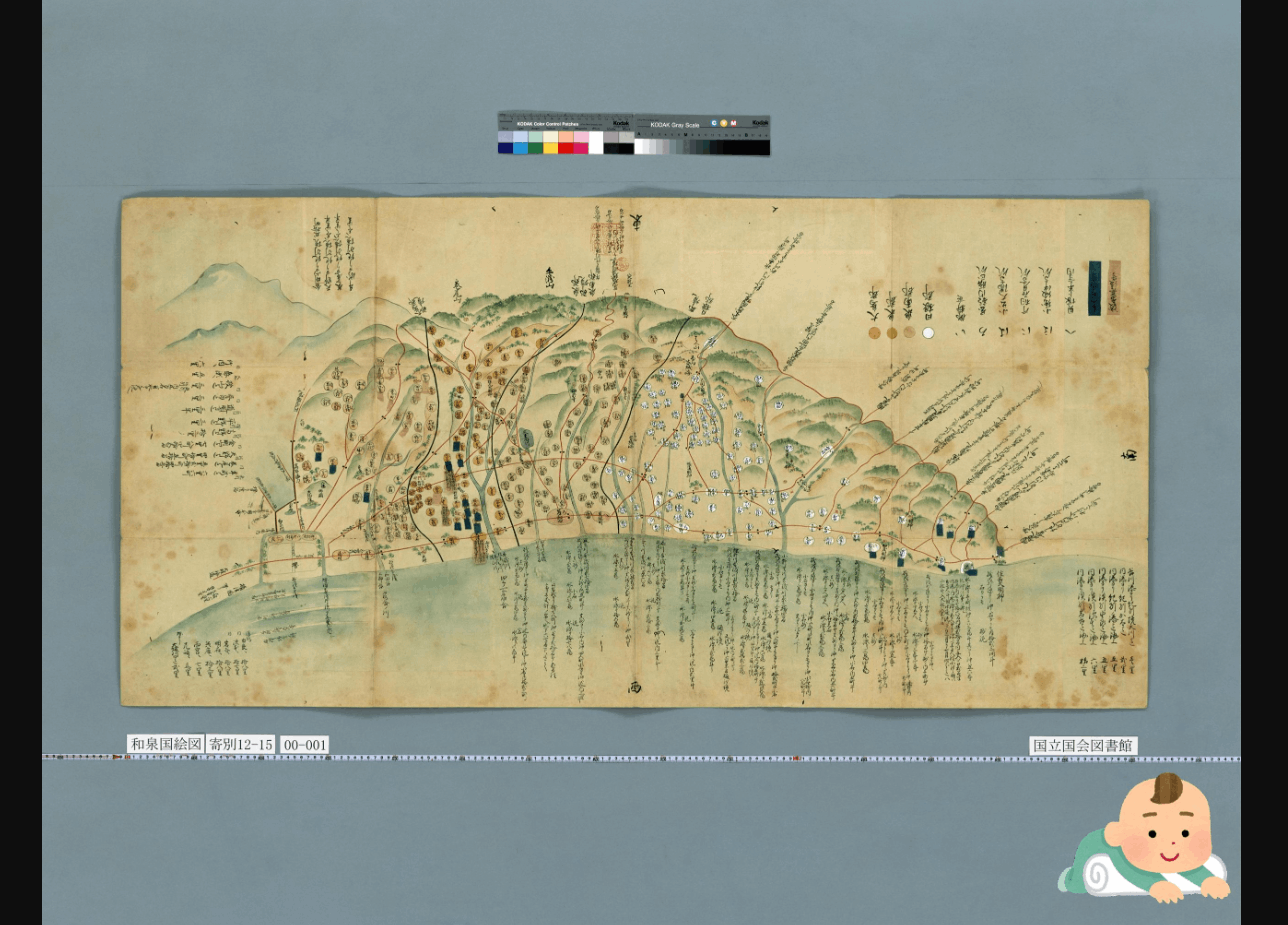
概要 Cantaloupeが提供するoverlayの機能を試します。 https://cantaloupe-project.github.io/manual/5.0/overlays.html BasicStrategy BasicStrategyでは、cantaloupe.propertiesの設定に基づき、重ね合わせを行うようです。 以下のように、画像に画像を重ねることができます。以下のいらすとやさんの画像を使わせていただきました。 https://www.irasutoya.com/2020/12/blog-post_279.html 後述する設定ファイルでpositionにbottom rightを設定したため、以下のように、右下に指定した画像が表示されました。 cantaloupe.propertiesのoverlays.BasicStrategy.enabledとoverlays.BasicStrategy.imageを修正しました。 ########################################################################### # OVERLAYS ########################################################################### # Controls how overlays are configured. `BasicStrategy` will use the # `overlays.BasicStrategy.*` keys in this section. `ScriptStrategy` will # use a delegate method. (See the user manual.) overlays.strategy = BasicStrategy # Whether to enable overlays using the BasicStrategy. overlays.BasicStrategy.enabled = true # false # `image` or `string`. overlays.BasicStrategy.type = image # Absolute path or URL of the overlay image. Must be a PNG file. overlays.BasicStrategy.image = https://1.bp.blogspot.com/-8FUEz6vBnoQ/X7zMVAuhQMI/AAAAAAABcZ0/VI1Z9eN76pIj2rfHshveNbFoMKubXYTpACNcBGAsYHQ/s400/baby_role_towel_utsubuse.png ScriptStrategy ScriptStrategyでは、cantaloupe.propertiesのdelegate_script.pathnameに設定したスクリプトのoverlay関数に基づき、重ね合わせを行うようです。 ...

EC2に立てたCantaloupeをHTTPS対応する

EC2に立てたCantaloupeをHTTPS対応する

はじめに 以下の記事で、EC2にCantaloupeを立てる方法を記載しました。 今回は、独自ドメインの設定とHTTPS対応を行います。 独自ドメインの設定 今回、cantaloupe.aws.ldas.jpというドメインを54.172.71.20に割り当てます。Route 53を使う場合、以下のように設定できます。 SSL証明書の取得 sudo su apt install certbot certbot certonly --standalone -d cantaloupe.aws.ldas.jp root@ip-172-31-62-61:/home/ubuntu# certbot certonly --standalone -d cantaloupe.aws.ldas.jp Saving debug log to /var/log/letsencrypt/letsencrypt.log Enter email address (used for urgent renewal and security notices) (Enter 'c' to cancel): xxx@gmail.com - - - - - - - - - - - - - - - - - - - - - - - - - - - - - - - - - - - - - - - - Please read the Terms of Service at https://letsencrypt.org/documents/LE-SA-v1.3-September-21-2022.pdf. You must agree in order to register with the ACME server. Do you agree? - - - - - - - - - - - - - - - - - - - - - - - - - - - - - - - - - - - - - - - - (Y)es/(N)o: Y - - - - - - - - - - - - - - - - - - - - - - - - - - - - - - - - - - - - - - - - Would you be willing, once your first certificate is successfully issued, to share your email address with the Electronic Frontier Foundation, a founding partner of the Let's Encrypt project and the non-profit organization that develops Certbot? We'd like to send you email about our work encrypting the web, EFF news, campaigns, and ways to support digital freedom. - - - - - - - - - - - - - - - - - - - - - - - - - - - - - - - - - - - - - - - - (Y)es/(N)o: Y Account registered. Requesting a certificate for cantaloupe.aws.ldas.jp Successfully received certificate. Certificate is saved at: /etc/letsencrypt/live/cantaloupe.aws.ldas.jp/fullchain.pem Key is saved at: /etc/letsencrypt/live/cantaloupe.aws.ldas.jp/privkey.pem This certificate expires on 2023-12-19. These files will be updated when the certificate renews. Certbot has set up a scheduled task to automatically renew this certificate in the background. - - - - - - - - - - - - - - - - - - - - - - - - - - - - - - - - - - - - - - - - If you like Certbot, please consider supporting our work by: * Donating to ISRG / Let's Encrypt: https://letsencrypt.org/donate * Donating to EFF: https://eff.org/donate-le - - - - - - - - - - - - - - - - - - - - - - - - - - - - - - - - - - - - - - - - Webサーバの設定: Nginxのインストール apt install nginx vi /etc/nginx/sites-available/cantaloupe.aws.ldas.jp 設定 ...

PyPIでtwo factor auth enabled...への対応

PyPIでtwo factor auth enabled...への対応

概要 PyPIで2要素認証が義務化されます。 https://blog.pypi.org/posts/2023-05-25-securing-pypi-with-2fa/ そのため2要素認証の設定を行った上でアップロードを試みたところ、以下のエラーが生じました。 Uploading xxxx.whl 100% ━━━━━━━━━━━━━━━━━━━━━━━━━━━━━━━━━━━━━━━━ 22.2/22.2 kB • 00:00 • 65.2 MB/s WARNING Error during upload. Retry with the --verbose option for more details. ERROR HTTPError: 401 Unauthorized from https://upload.pypi.org/legacy/ User <アカウント名> has two factor auth enabled, an API Token or Trusted Publisher must be used to upload in place of password. 対策 ~/.pypircを以下のように設定していました。 [pypi] username = <アカウント名> password = <パスワード> これを以下のように変更することでエラーが解消しました。APIトークンはPyPIのアカウント設定画面で作成することができました。 [pypi] username = __token__ password = <発行したAPIトークン> まとめ 私の場合、nbdevを使用していた際、以下で説明されている方法から変更する必要がありました。 https://nbdev.fast.ai/tutorials/tutorial.html#upload-to-pypi nbdevの利用に限らず、同様のことでお困りの方の参考になりましたら幸いです。 ...

IIIFイメージサーバの一つであるCantaloupeをEC2で起動する

IIIFイメージサーバの一つであるCantaloupeをEC2で起動する

概要 IIIFイメージサーバの一つであるCantaloupeをEC2で起動する方法の備忘録です。 https://cantaloupe-project.github.io/ 加えて、画像のダウンロードサイズに制限を加えるDelegate Methodsの一例についても紹介します。具体的には、フルサイズの画像を/full/full/で取得しようとした際、エラーが出てしまうケースへの対応を行います。 https://cantaloupe-project.github.io/manual/5.0/access-control.html Cantaloupeのセットアップ EC2インスタンスの作成 プラットフォームをUbuntu、インスタンスタイプをt2.medium、ストレージを8GB、に設定したEC2インスタンスを作成しました。 結果、以下の「パブリック IPv4 アドレス」を持つEC2インスタンスが作成されました。 54.172.71.20 ssh 起動したEC2インスタンスにsshで接続します。接続後、以下のコマンドにより、rootユーザのパスワードを設定します。 sudo su passwd javaのインストール 以下のコマンドなどにより、javaをインストールします。 apt-get update apt install default-jre cantaloupeのダウンロード 以下のコマンドなどにより、cantaloupeをダウンロードします。 apt install unzip wget https://github.com/cantaloupe-project/cantaloupe/releases/download/v5.0.5/cantaloupe-5.0.5.zip unzip cantaloupe-5.0.5.zip 設定 以下のコマンドなどにより、設定ファイル「cantaloupe.properties」を編集します。 cd cantaloupe-5.0.5 # 設定例ファイルから設定ファイルをコピー cp cantaloupe.properties.sample cantaloupe.properties vi cantaloupe.propertiesなどのコマンドにより、画像を格納するフォルダを指定します。 cantaloupe.properties FilesystemSource.BasicLookupStrategy.path_prefix = /home/ubuntu/images/ cantaloupeの起動 java -Dcantaloupe.config=cantaloupe.properties -Xmx2g -jar cantaloupe-5.0.5.jar 以下のようなURLでcantaloupeが起動します。 http://54.172.71.20:8182/ 画像の配置 サーバ上での作業 ubuntuユーザで/home/ubuntu/imagesに画像を格納するフォルダを作成します。 su ubuntu mkdir /home/ubuntu/images ローカルでの作業 以下のノートブックなどを使って、pyramid tiled tifをローカルにダウンロードします。 https://zenn.dev/nakamura196/articles/ef6b0937e4e887 ...

mdxでNDL古典籍OCRを実行する

mdxでNDL古典籍OCRを実行する

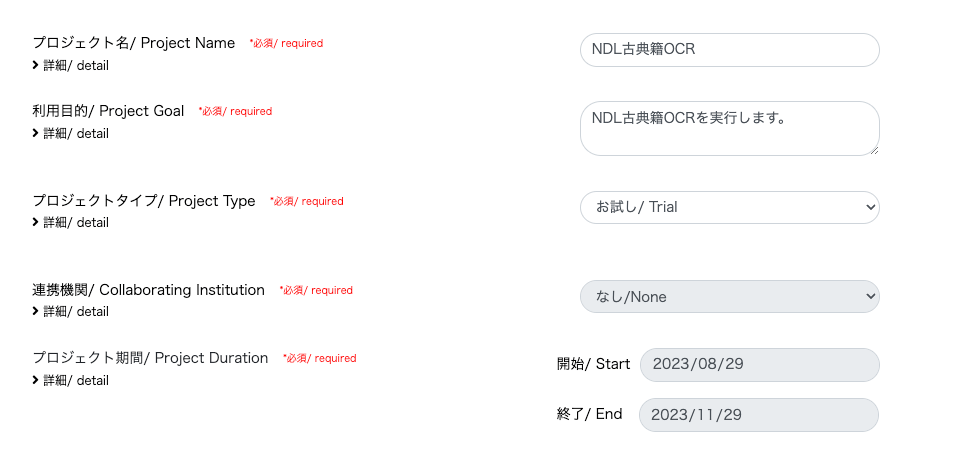
更新履歴 2024-05-22 「Dockerコマンドを実行するユーザーをdockerグループに追加」を追記しました。 概要 mdxは大学・研究機関で共創する産学官連携のためのデータプラットフォームです。 https://mdx.jp/ 今回は、mdxの仮想マシンを使用して、NDL古典籍OCRを実行してみます。 https://github.com/ndl-lab/ndlkotenocr_cli プロジェクトの申請 今回、プロジェクトタイプは「お試し/Trial」を選択しました。 「お試し/Trial」では、1つのGPUパックが割り当てられました。 仮想マシンの作成 デプロイ 今回は、「01_Ubuntu-2204-server-gpu (Recommended)」を選択しました。 デプロイ前の画面では、以下のように設定しました。パックタイプを「GPUパック」、パック数を1としました。 公開鍵については、ローカルPCで以下のように作成しました。 cd ~/.ssh/mdx ssh-keygen その後に作成されたid_rsa.pubの内容を貼り付けました。 その後、仮想マシンのデプロイが完了するまで少し待ちます。 SSH接続のためのネットワーク設定 以下の動画を参考に進めることができました。 https://youtu.be/p7OqcnXBQt8?si=E5JtC-xnrc5ZQYo_ まず起動した仮想マシンのサービスネットワーク1のIPv4アドレスを控えておきます。 次に、ネットワークタグから「DNAT」を追加しました。「転送元グローバルIPv4アドレス」は自動入力され、「転送先プライベートIPアドレス」に先ほど控えておいたサービスネットワークのIPv4アドレスを入力しました。 次に「ACL」を追加しました。動画にならって、以下のように設定しました。 特定のIPアドレスからのみアクセスする場合、以下のように設定しました。 一方、セキュリティの観点から、無制限に任意のアドレスからのアクセスを許可するのはリスクが伴いますが、以下のように設定することで、任意のアドレスからssh接続できるようです。 接続を試す DATで追加した転送元グローバルIPv4アドレスを使用します。初期ログイン後、パスワードの変更が求められるので、変更します。 ssh mdxuser@ -i ~/.ssh/mdx/id_rsa VS Codeで接続する その後の操作は、必須ではありませんが、VS Codeの拡張機能である「Remote Explorer」を使いました。 仮想マシン内での作業 GPUの確認 sudo su root@ubuntu-2204:/home/mdxuser# nvidia-smi +---------------------------------------------------------------------------------------+ | NVIDIA-SMI 535.86.10 Driver Version: 535.86.10 CUDA Version: 12.2 | |-----------------------------------------+----------------------+----------------------+ | GPU Name Persistence-M | Bus-Id Disp.A | Volatile Uncorr. ECC | | Fan Temp Perf Pwr:Usage/Cap | Memory-Usage | GPU-Util Compute M. | | | | MIG M. | |=========================================+======================+======================| | 0 NVIDIA A100-SXM4-40GB On | 00000000:03:00.0 Off | 0 | | N/A 25C P0 45W / 400W | 4MiB / 40960MiB | 0% Default | | | | Disabled | +-----------------------------------------+----------------------+----------------------+ +---------------------------------------------------------------------------------------+ | Processes: | | GPU GI CI PID Type Process name GPU Memory | | ID ID Usage | |=======================================================================================| | No running processes found | +---------------------------------------------------------------------------------------+ Dockerのインストール 以下のページの手順に沿って、Dockerをインストールしました。 ...

Mirador2のPhysical Document Rulerを試す

Mirador2のPhysical Document Rulerを試す

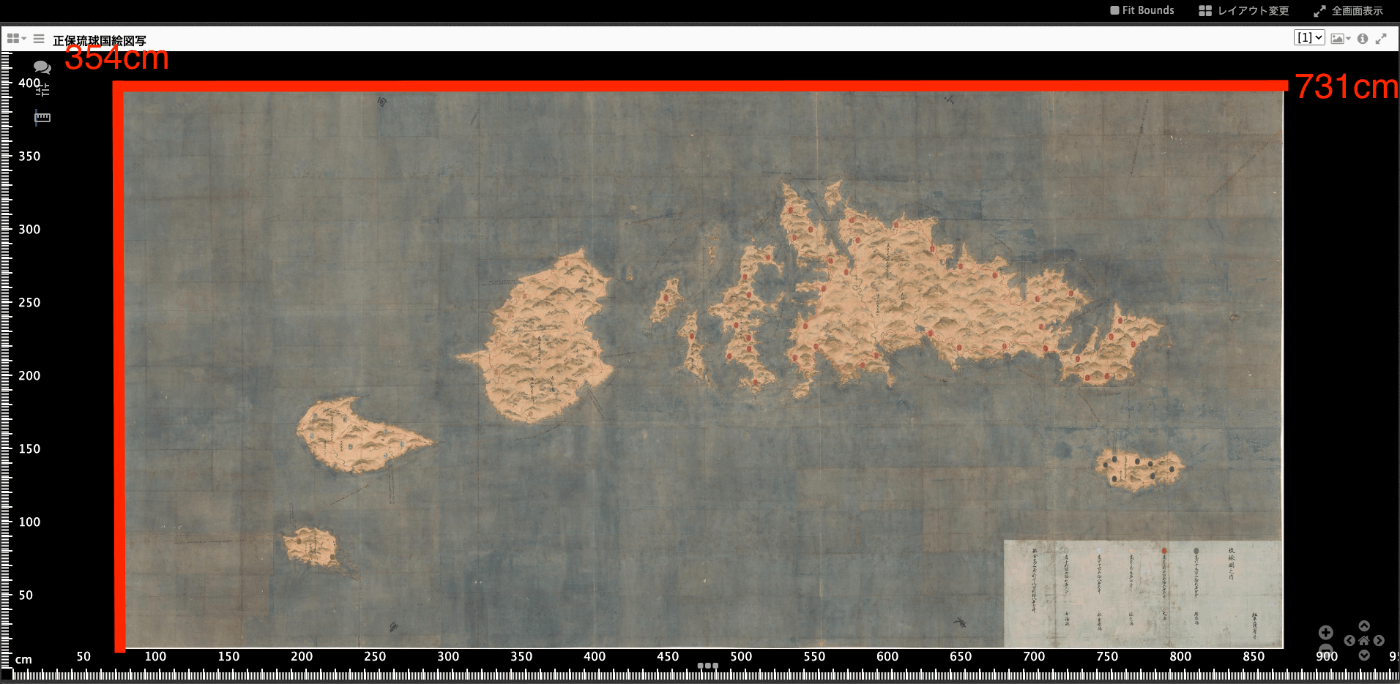
概要 IIIFのLinking to External ServicesにPhysical Dimensionsがあります。 https://iiif.io/api/annex/services/#physical-dimensions 以下のように説明されています。 For digitized objects, it is often useful to know the physical dimensions of the object. When available, they allow a client to present a ruler, or other rendition of physical scale, to the user. (機械翻訳)デジタル化された物体の場合、その物体の物理的な寸法を知ることはしばしば有用である。利用可能な場合、クライアントが定規やその他の物理的な縮尺をユーザーに提示することができます。 Mirador ver.2とver.3では、それぞれ以下のプラグインが存在します。 ver.2 https://github.com/dbmdz/mirador-plugins#physical-document-ruler ver.3 https://github.com/ubleipzig/mirador-ruler-plugin 残念ながらver.3のプラグインをうまく導入することができませんでした。そこで、Mirador2を対象に、Physical Document Rulerを使用する方法を説明します。 結果、例えば東京大学史料編纂所所蔵の大型絵図である正保琉球国絵図写(請求記号:S島津 76-2-4、法量:354.1×731.0cm)を対象にした場合、以下のように定規を表示させることができます。 ソースコードの準備 以下のリポジトリからソースコードを取得できます。 https://github.com/nakamura196/mirador2 Mirador2のプラグインを格納する以下のフォルダmirador/pluginsに対して、以下で公開されているPhysicalRulerのソースコードをコピーしています。 https://github.com/dbmdz/mirador-plugins/tree/main/PhysicalRuler そして、index.htmlで以下のように参照しています。 ... <body> <div id="viewer"></div> <script src="mirador/mirador.min.js"></script></script> <script src="mirador/plugins/PhysicalRuler/physicalRuler.js"></script> <script type="text/javascript"> ... </script> </body> データ マニフェストファイルの各Canvasに対して、serviceを追記します。physicalScaleは実寸(cm)をピクセル数で割った値を用いています。 ...

Google Mapsの短縮URLから緯度経度を取得する際の備忘録

Google Mapsの短縮URLから緯度経度を取得する際の備忘録

概要 以下のようなGoogle Mapsの短縮URLから緯度経度を取得する機会がありました。 https://goo.gl/maps/aPxUgDJ9KP2FLFkN7 https://goo.gl/maps/aPxUgDJ9KP2FLFkN7 この時、2つの緯度経度が取得できたので、その備忘録です。 抽出方法 GPT-4から以下の回答が得られました。 -– 以下、回答 — Google Mapsの短縮URL (goo.gl/maps/...) から直接緯度経度を抽出することはできません。しかし、この短縮URLを展開して元のURLを取得することで、そのURLから緯度経度を抽出することができます。 以下の手順で緯度経度を取得することができます: 短縮URLを展開します。 展開されたURLから緯度経度を抽出します。 以下はPythonでこれを実現する一例です: import requests import re def get_lat_lon_from_google_url(short_url): # 短縮URLを展開 response = requests.get(short_url, allow_redirects=False) if response.status_code != 302: return None long_url = response.headers['location'] # 展開されたURLから緯度経度を抽出 match = re.search(r'@([\-0-9.]+),([\-0-9.]+)', long_url) if match: lat, lon = match.groups() return float(lat), float(lon) else: return None url = "https://goo.gl/maps/aPxUgDJ9KP2FLFkN7" lat_lon = get_lat_lon_from_google_url(url) print(lat_lon) このコードは、短縮URLを展開して緯度経度を抽出するための基本的なものです。しかし、実際の使用環境や目的に応じて、エラーハンドリングや例外処理を追加することが推奨されます。 -– 回答、ここまで — 上記により、以下のURLに含まれる緯度経度(ここでは、28.3410487,129.9769402)を取得できました。 https://www.google.com/maps/place/鹿児島県大島郡喜界町大字伊砂/@28.3410487,129.9769402,3868m/data=!3m2!1e3!4b1!4m5!3m4!1s0x351f80a0620f4335:0x35d406a5040d7197!8m2!3d28.3439714!4d129.9838012?shorturl=1 しかし、この座標を指定すると、以下の場所が指定され、求めている座標からずれているようでした。 修正 以下のURLを確認すると、末尾にも!3d28.3439714!4d129.9838012という座標が見られました。 https://www.google.com/maps/place/鹿児島県大島郡喜界町大字伊砂/@28.3410487,129.9769402,3868m/data=!3m2!1e3!4b1!4m5!3m4!1s0x351f80a0620f4335:0x35d406a5040d7197!8m2!3d28.3439714!4d129.9838012?shorturl=1 そこで、先ほどプログラムについて、prefixとdelimiterを指定できるように修正しました。 import requests import re def get_lat_lon_from_google_url(short_url, prefix= "@", delimiter = ","): # 短縮URLを展開 response = requests.get(short_url, allow_redirects=False) if response.status_code != 302: return None long_url = response.headers['location'] print(long_url) # 展開されたURLから緯度経度を抽出 pattern = r'{prefix}([\-0-9.]+){delimiter}([\-0-9.]+)'.format(prefix=re.escape(prefix), delimiter=re.escape(delimiter)) match = re.search(pattern, long_url) if match: lat, lon = match.groups() return float(lat), float(lon) else: return None url = "https://goo.gl/maps/aPxUgDJ9KP2FLFkN7" lat_lon = get_lat_lon_from_google_url(url, prefix="!3d", delimiter="!4d") print(lat_lon) 結果、28.3439714,129.9838012が取得できました。この座標を使用してみたところ、以下のように、より目的に近い座標にピンが立ちました。 ...

Mirador 3のmirador-annotationsプラグインとSimpleAnnotationServerを試す

Mirador 3のmirador-annotationsプラグインとSimpleAnnotationServerを試す

概要 mirador-annotationsはアノテーションの作成ツールを追加するMirador 3のプラグインです。 https://github.com/ProjectMirador/mirador-annotations 今回、以下のSimpleAnnotationServerとの組み合わせを試してみましたので、その備忘録です。 https://github.com/glenrobson/SimpleAnnotationServer SimpleAnnotationServerの準備 以下のGetting Startedの通りに進めます。 https://github.com/glenrobson/SimpleAnnotationServer#getting-started http://localhost:8888/index.html にアクセスすると、以下の画面が表示されます。 エンドポイントは http://localhost:8888/annotation/ のようで、登録済みのアノテーションの一覧(はじめは空)が表示されます。 このエンドポイントをMirador 3から利用することになります。 Mirador 3の準備 ソースコードから 以下のサイトからソースコードをクローンして立ち上げます。 https://github.com/ProjectMirador/mirador-annotations git clone https://github.com/ProjectMirador/mirador-annotations cd mirador-annotations npm i # npm i --force が必要かもしれません npm run start http://localhost:3000/ にアクセスすると、以下の画面が表示されます。 アダプタの設定 demo/src/index.jsについて、SimpleAnnotationServerV2Adapterをインポートし、さらにエンドポイント(ここでは、endpointUrlV2)に先ほど起動したSimpleAnnotationServerを指定します。 import mirador from 'mirador/dist/es/src/index'; import annotationPlugins from '../../src'; import LocalStorageAdapter from '../../src/LocalStorageAdapter'; import AnnototAdapter from '../../src/AnnototAdapter'; // 以下を追加 import SimpleAnnotationServerV2Adapter from '../../src/SimpleAnnotationServerV2Adapter'; const endpointUrl = 'http://127.0.0.1:3000/annotations'; // 以下を追加 const endpointUrlV2 = 'http://0.0.0.0:8888/annotation'; const config = { annotation: { // 以下をコメントアウト // adapter: (canvasId) => new LocalStorageAdapter(`localStorage://?canvasId=${canvasId}`), // adapter: (canvasId) => new AnnototAdapter(canvasId, endpointUrl), // 以下を追加 adapter: (canvasId) => new SimpleAnnotationServerV2Adapter(canvasId, endpointUrlV2), exportLocalStorageAnnotations: false, // display annotation JSON export button }, id: 'demo', window: { defaultSideBarPanel: 'annotations', sideBarOpenByDefault: true, }, windows: [{ loadedManifest: 'https://iiif.harvardartmuseums.org/manifests/object/299843', }], }; mirador.viewer(config, [...annotationPlugins]); アダプタの修正 以下のプルリクエストでも指摘されていますが、アダプタの一部修正が必要です。 ...

【Omeka S モジュール紹介】Advanced Search adapter for Solr

【Omeka S モジュール紹介】Advanced Search adapter for Solr

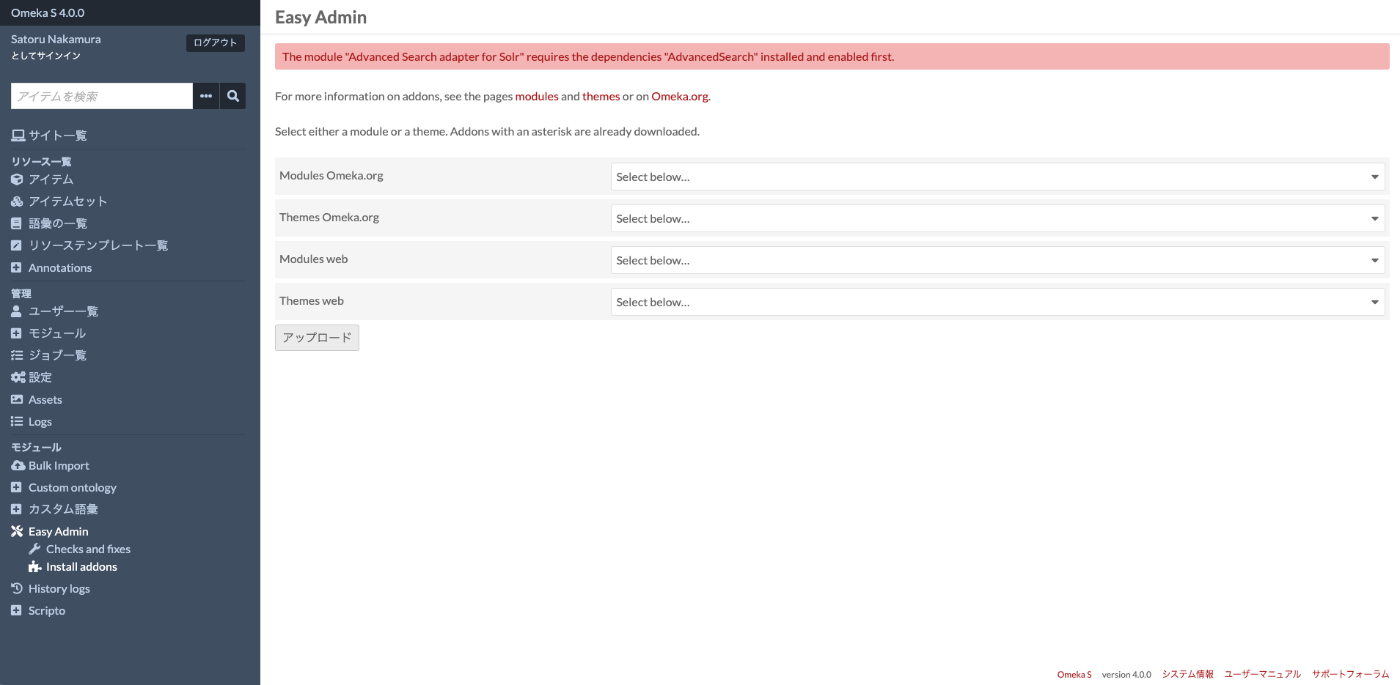
概要 「Advanced Search adapter for Solr」はOmeka Sのモジュールであり、Apache Solrの高度な検索アダプタを提供します。これにより、Omeka内で完全な検索エンジンの力を活用することができます。これは一般のユーザー向けや管理者向けに、関連性(スコア)による検索、インスタント検索、ファセット、オートコンプリート、提案などの機能を提供します。 https://github.com/Daniel-KM/Omeka-S-module-SearchSolr Apache Solrのセットアップ ! Apache Solrは、Omeka Sがインストールされたサーバとは異なるサーバにインストールしても構いません。 Javaをインストール可能な環境で、Apache Solrのセットアップを行います。Ubuntuの場合、以下のサイトなどが参考になりました。 https://tecadmin.net/how-to-install-apache-solr-on-ubuntu-22-04/ 以下のようなコマンドでApache Solrを起動できます。 # Javaのインストール sudo apt update && sudo apt install -y default-jdk # ダウンロード wget https://dlcdn.apache.org/solr/solr/9.3.0/solr-9.3.0.tgz # 展開 tar xzf solr-9.3.0.tgz solr-9.3.0/bin/install_solr_service.sh --strip-components=2 # インストール sudo bash ./install_solr_service.sh solr-9.3.0.tgz # 起動 sudo systemctl start solr また、mycol1というコアを作成しておきます。 sudo su - solr -c "/opt/solr/bin/solr create -c mycol1 -n data_driven_schema_configs" モジュールのインストール ! ここからは、Omeka Sがインストールされたサーバで作業します。 以下のページからモジュールをダウンロードおよびインストールします。 https://github.com/Daniel-KM/Omeka-S-module-SearchSolr/releases インストール時に、以下のように、AdvancedSearchが必要、というアラートが表示されることがあります。 ...

macOS版のCyberduckを使って、AWS S3の特定のバケットにアクセスする

macOS版のCyberduckを使って、AWS S3の特定のバケットにアクセスする

以下の記事を参考に、Cyberduckを使って、AWS S3の特定のバケットにアクセスする方法を試しました。 https://dev.classmethod.jp/articles/specify_s3_folder_iam_cyberduck/ しかしmacOS版のCyberduckを開き、画面上部の「新規接続」ボタンを押したところ、バケットの情報などを入力するフォームが表示されませんでした。 そこで調べてみたところ、以下のIssueが見つかりました。 https://github.com/iterate-ch/cyberduck/issues/11154 以下のように、ブックマークを開くように、とのことでした。 Please refer to Access third party buckets. To set a default path, create a new bookmark instead of choosing Open Connectoin. そこで、以下のように、画面左下の「+」ボタンをクリックしたところ、 以下のように、詳細設定のフォームも表示され、パス(バケット名)を指定できるようになりました。 同様のことでお困りの方の参考になりましたら幸いです。

ブラウザの拡張機能を使って、GitHubの2FAに対応する

ブラウザの拡張機能を使って、GitHubの2FAに対応する

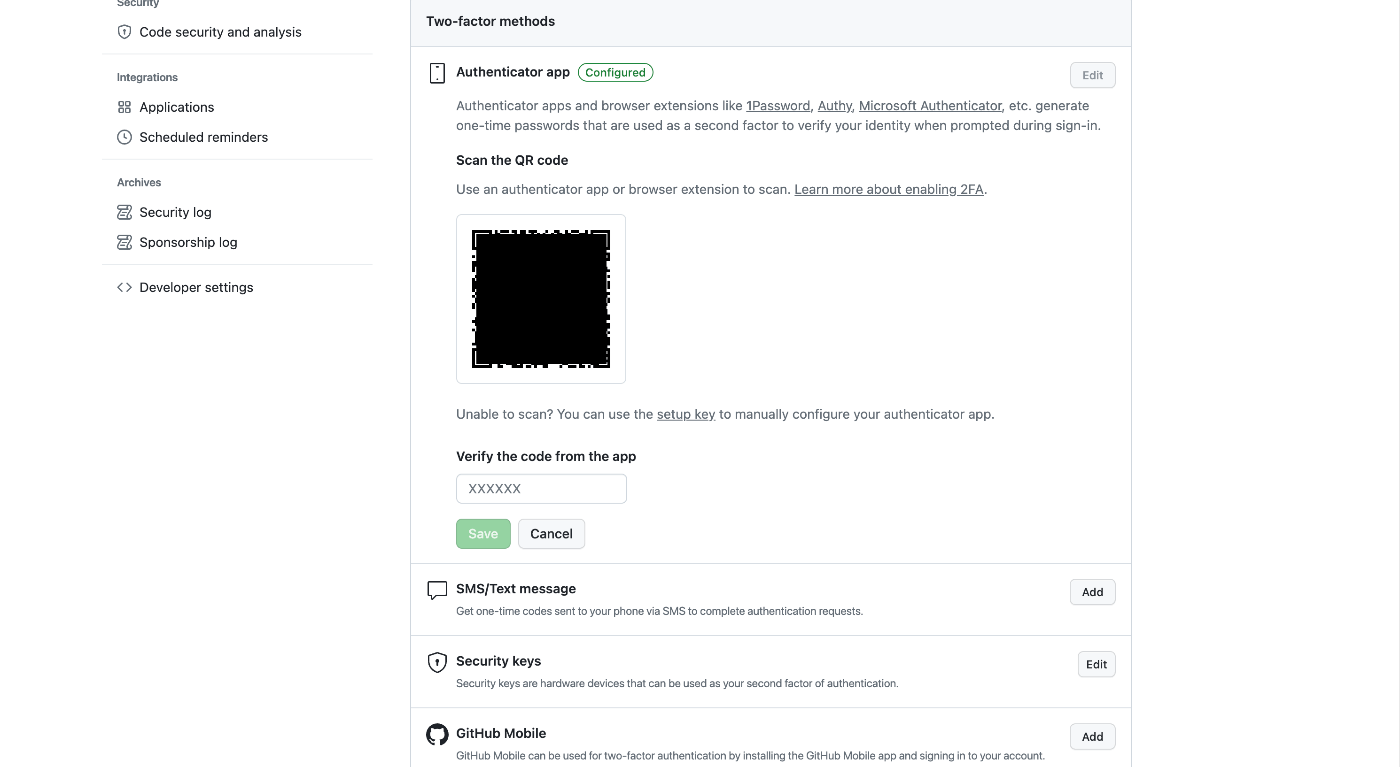
概要 GitHubの2要素認証(2FA)への対応にあたり、ブラウザの拡張機能である「Authenticator」を使用してみましたので、その備忘録です。 https://authenticator.cc/ QRコードの準備 まず、GitHub側でQRコードを準備します。詳細な手順は省きますが、以下のような画面にQRコードが表示されます。 ブラウザ拡張機能の追加 Chrome、Firefox、Edgeのいずれかのブラウザで以下にアクセスします。以下、Chromeの例です。 https://authenticator.cc/ 以下の画面の「Add to XXXX」ボタンを押します。 「Chromeに追加」ボタンを押します。 以下の画面が表示されれば成功です。 アカウントの追加 先ほど用意したQRコードをブラウザで表示します。以下は、Googleドライブに保存したQRコードの画像を表示している画面例です。 右上の「拡張機能」ボタンを押して、「Authenticator」をクリックします。 スキャンのアイコンをクリックします。 表示しているQRコードの範囲を選択すると、「<アカウント名> 追加されました。」と表示されます。 以後、2FAが求められた場合、拡張機能を選択して、「Authenticator」をクリックします。 以下のようにOne-Time Password (OTP)が表示されるので、パスワードをコピーして使用します。 バックアップファイルの利用 バックアップファイルを作成して、それを他の端末やブラウザでインポートして使用することもできるようです。 バックアップファイルの作成 拡張機能の設定画面から、「バックアップ」を選択します。 そして、「バックアップファイルのダウンロード」を押します。 「authenticator.txt」というファイルがダウンロードされますので、本ファイルまたは本ファイルの中の文字列を他者と共有します。 バックアップファイルのインポート インポートする際には、先の設定 > バックアップ の後に、「バックアップのインポート」を選択します。 そして、以下の画面において、「バックアップファイルのインポート」タブを選択して、txtファイルをアップロードするか、「テキストのバックアップのインポート」を選択して、txtファイルの中身のテキストを貼り付けてインポートします。 結果、アカウントが登録されます。 まとめ 参考になりましたら幸いです。

npx nuxi typecheck実行時のエラー

npx nuxi typecheck実行時のエラー

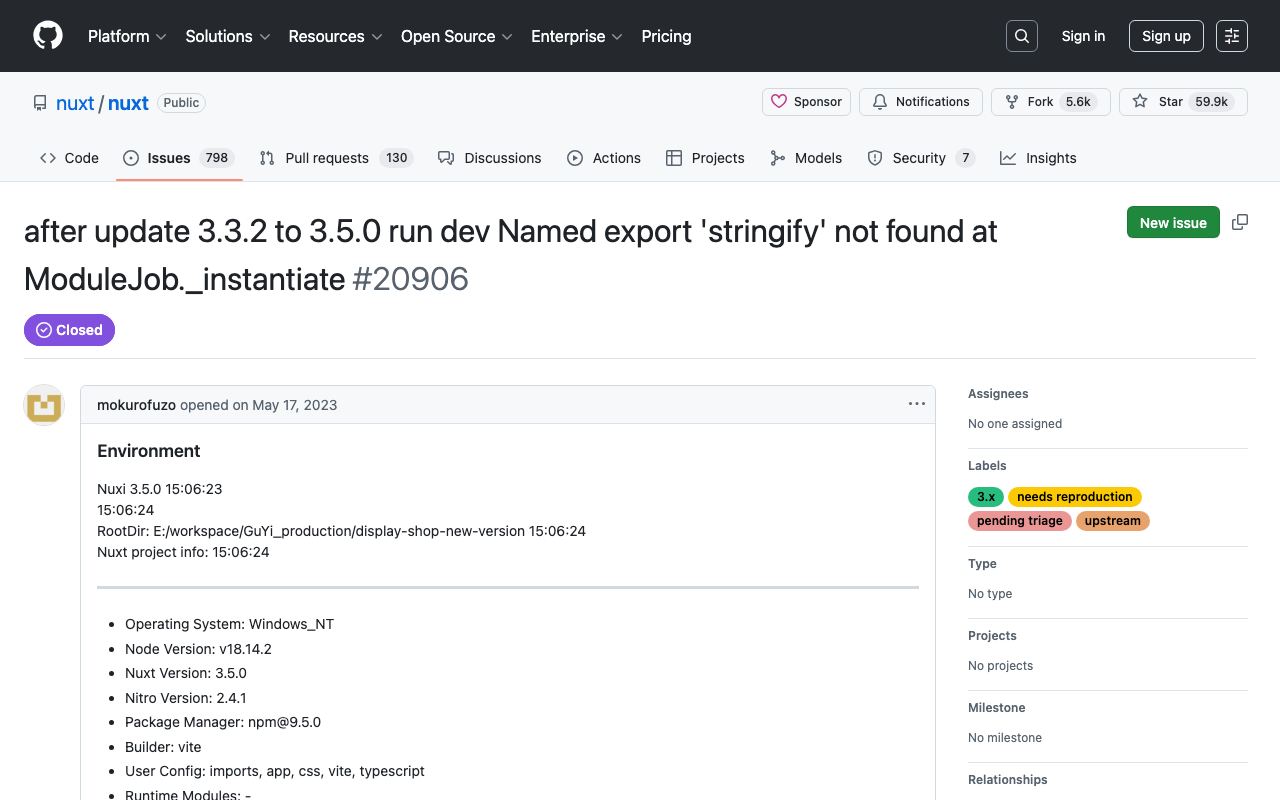
Nuxt3でnpx nuxi typecheckを実行したところ、以下のエラーがでました。 nuxt.config.ts:16:3 - error TS2345: Argument of type '{ app: { baseURL: string; }; runtimeConfig: { public: { token: string; }; }; typescript: { strict: boolean; }; }' is not assignable to parameter of type 'InputConfig<NuxtConfig, ConfigLayerMeta>'. Object literal may only specify known properties, and '"app"' does not exist in type 'InputConfig<NuxtConfig, ConfigLayerMeta>'. この解決策として、以下に記載がある通り、2つもライブラリをインストールする必要がありました。 https://nuxt.com/docs/api/commands/typecheck npm i -D typescript npm i -D vue-tsc 以下が関連するissueかもしれません。 https://github.com/nuxt/nuxt/issues/20906 同様のことでお困りの方の参考になりましたら幸いです。

Virtuosoが停止した際の再起動のためのコマンド

Virtuosoが停止した際の再起動のためのコマンド

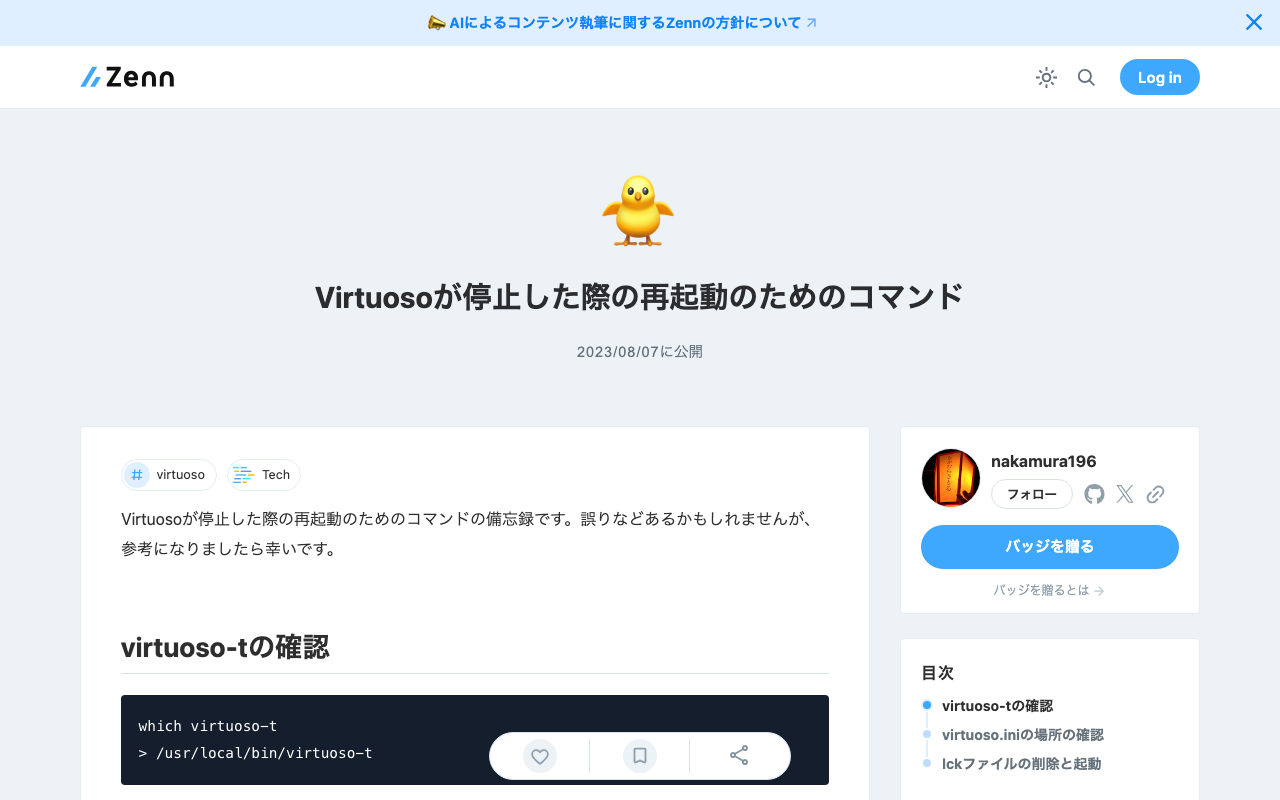
Virtuosoが停止した際の再起動のためのコマンドの備忘録です。誤りなどあるかもしれませんが、参考になりましたら幸いです。 virtuoso-tの確認 which virtuoso-t > /usr/local/bin/virtuoso-t virtuoso.iniの場所の確認 sudo find / -name virtuoso.ini > ... > /usr/local/var/lib/virtuoso/db/virtuoso.ini > ... lckファイルの削除と起動 sudo rm -rf /usr/local/var/lib/virtuoso/db/virtuoso.lck sudo /usr/local/bin/virtuoso-t +configfile /usr/local/var/lib/virtuoso/db/virtuoso.ini

Cultural JapanのRDFストアに格納されている展覧会情報の活用

Cultural JapanのRDFストアに格納されている展覧会情報の活用

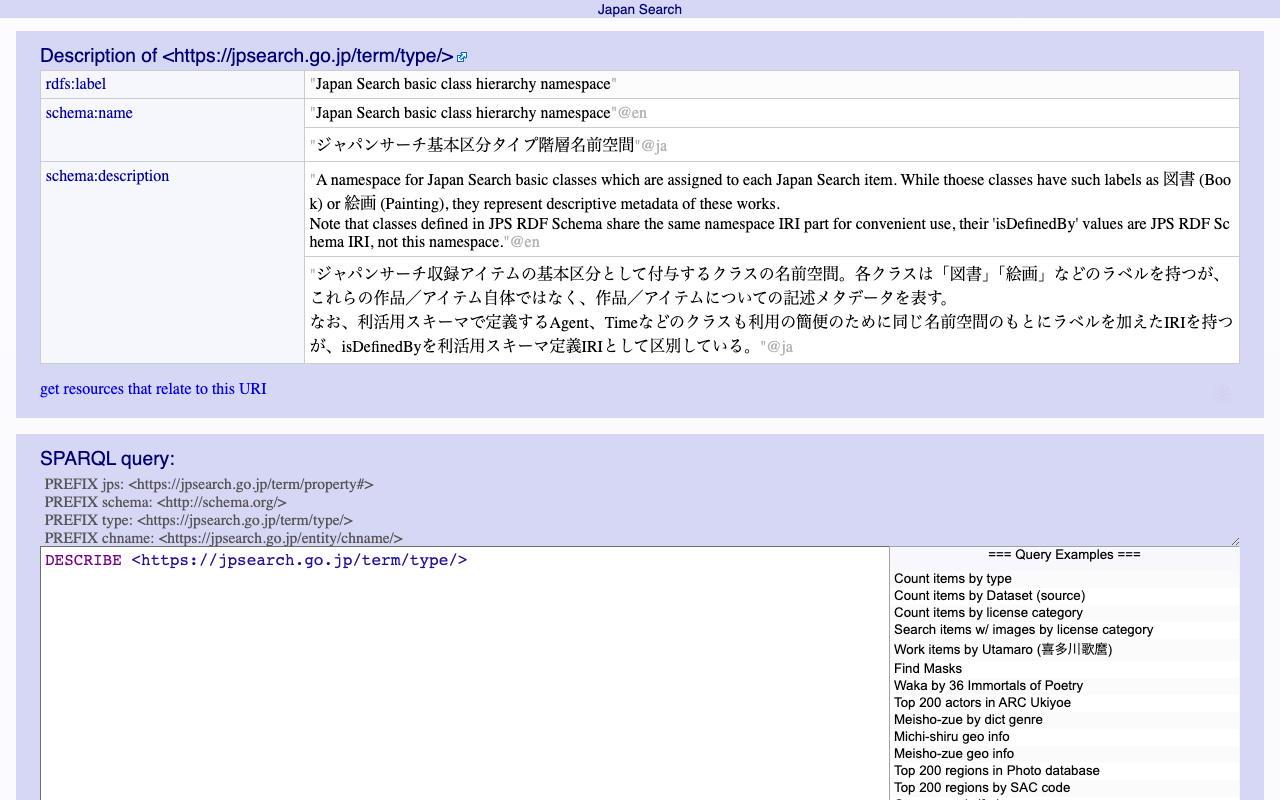
概要 Cultural JapanのRDFストアには、展覧会に関する情報が格納されています。rdf:typeにtype:展覧会を指定する以下のようなクエリを用いて、一覧を取得できます。 PREFIX type: <https://jpsearch.go.jp/term/type/> PREFIX rdfs: <http://www.w3.org/2000/01/rdf-schema#> select distinct * where { ?s rdf:type type:展覧会; rdfs:label ?label . } https://ld.cultural.jp/snorql/?query=select+distinct+*+where+{ %3Fs+rdf%3Atype+type%3A展覧会%3B +++++++rdfs%3Alabel+%3Flabel+.+ } ++ これらの展覧会の情報を活用するための一例について紹介します。 展覧会の一覧 各展覧会は、jps:temporalやjps:spatialといった値を持っています。(これらは複数の値を持つ場合があります。) https://ld.cultural.jp/data/apmoa-exhib-2021-soga そこで以下のようなクエリにより、展覧会のメタデータを含む、一覧の取得を行うことができます。 PREFIX type: <https://jpsearch.go.jp/term/type/> PREFIX rdfs: <http://www.w3.org/2000/01/rdf-schema#> PREFIX schema: <http://schema.org/> PREFIX jps: <https://jpsearch.go.jp/term/property#> select distinct ?s ?label ?access ?image (GROUP_CONCAT(DISTINCT ?spatial_labels; separator="|") AS ?spacial_label) (GROUP_CONCAT(DISTINCT ?temporal_labels; separator="|") AS ?temporal_label) (GROUP_CONCAT(DISTINCT ?jps_temporals; separator="|") AS ?jps_temporal) (GROUP_CONCAT(DISTINCT IF(BOUND(?descriptions), CONCAT(str(?descriptions), IF(lang(?descriptions) != "", CONCAT("@", lang(?descriptions)), "")), ""); separator="|") AS ?description) (COUNT(DISTINCT ?workFeatured) AS ?countOfWorkFeatured) where { ?s rdf:type type:展覧会; rdfs:label ?label . optional { ?s jps:accessInfo/schema:provider/rdfs:label ?access . } optional { ?s schema:spatial/rdfs:label ?spatial_labels . } optional { ?s schema:temporal/rdfs:label ?temporal_labels . } optional { ?s jps:temporal/schema:description ?jps_temporals . } optional { ?s schema:description ?descriptions . } optional { ?s schema:image ?image . } optional {?s schema:workFeatured ?workFeatured } } group by ?s ?label ?spatial_label ?temporal_label ?description ?jps_temporal ?access ?image order by ?s https://ld.cultural.jp/snorql/?query=PREFIX+type%3A+<https%3A%2F%2Fjpsearch.go.jp%2Fterm%2Ftype%2F> PREFIX+rdfs%3A+<http%3A%2F%2Fwww.w3.org%2F2000%2F01%2Frdf-schema%23> PREFIX+schema%3A+<http%3A%2F%2Fschema.org%2F> PREFIX+jps%3A+<https%3A%2F%2Fjpsearch.go.jp%2Fterm%2Fproperty%23> select+distinct+ %3Fs+%3Flabel+%3Faccess+%3Fimage (GROUP_CONCAT(DISTINCT+%3Fspatial_labels%3B+separator%3D"|")+AS+%3Fspacial_label) (GROUP_CONCAT(DISTINCT+%3Ftemporal_labels%3B+separator%3D"|")+AS+%3Ftemporal_label) (GROUP_CONCAT(DISTINCT+%3Fjps_temporals%3B+separator%3D"|")+AS+%3Fjps_temporal) (GROUP_CONCAT(DISTINCT+IF(BOUND(%3Fdescriptions)%2C+CONCAT(str(%3Fdescriptions)%2C+IF(lang(%3Fdescriptions)+!%3D+""%2C+CONCAT("%40"%2C+lang(%3Fdescriptions))%2C+""))%2C+"")%3B+separator%3D"|")+AS+%3Fdescription) (COUNT(DISTINCT+%3FworkFeatured)+AS+%3FcountOfWorkFeatured) where+{ %3Fs+rdf%3Atype+type%3A展覧会%3B +++++++rdfs%3Alabel+%3Flabel+.+ ++ optional+{+%3Fs+jps%3AaccessInfo%2Fschema%3Aprovider%2Frdfs%3Alabel+%3Faccess+.++} ++optional+{+%3Fs+schema%3Aspatial%2Frdfs%3Alabel+%3Fspatial_labels+.+} ++++optional+{+%3Fs+schema%3Atemporal%2Frdfs%3Alabel+%3Ftemporal_labels+.+} ++++optional+{+%3Fs+jps%3Atemporal%2Fschema%3Adescription+%3Fjps_temporals+.+} ++++optional+{+%3Fs+schema%3Adescription+%3Fdescriptions+.+} ++++++optional+{+%3Fs+schema%3Aimage+%3Fimage+.+} ++optional+{%3Fs+schema%3AworkFeatured+%3FworkFeatured+} } group+by+%3Fs+%3Flabel+%3Fspatial_label+%3Ftemporal_label+%3Fdescription+%3Fjps_temporal+%3Faccess+%3Fimage order+by+%3Fs ...

Nuxt3でURLクエリの変更をwatchで監視する

Nuxt3でURLクエリの変更をwatchで監視する

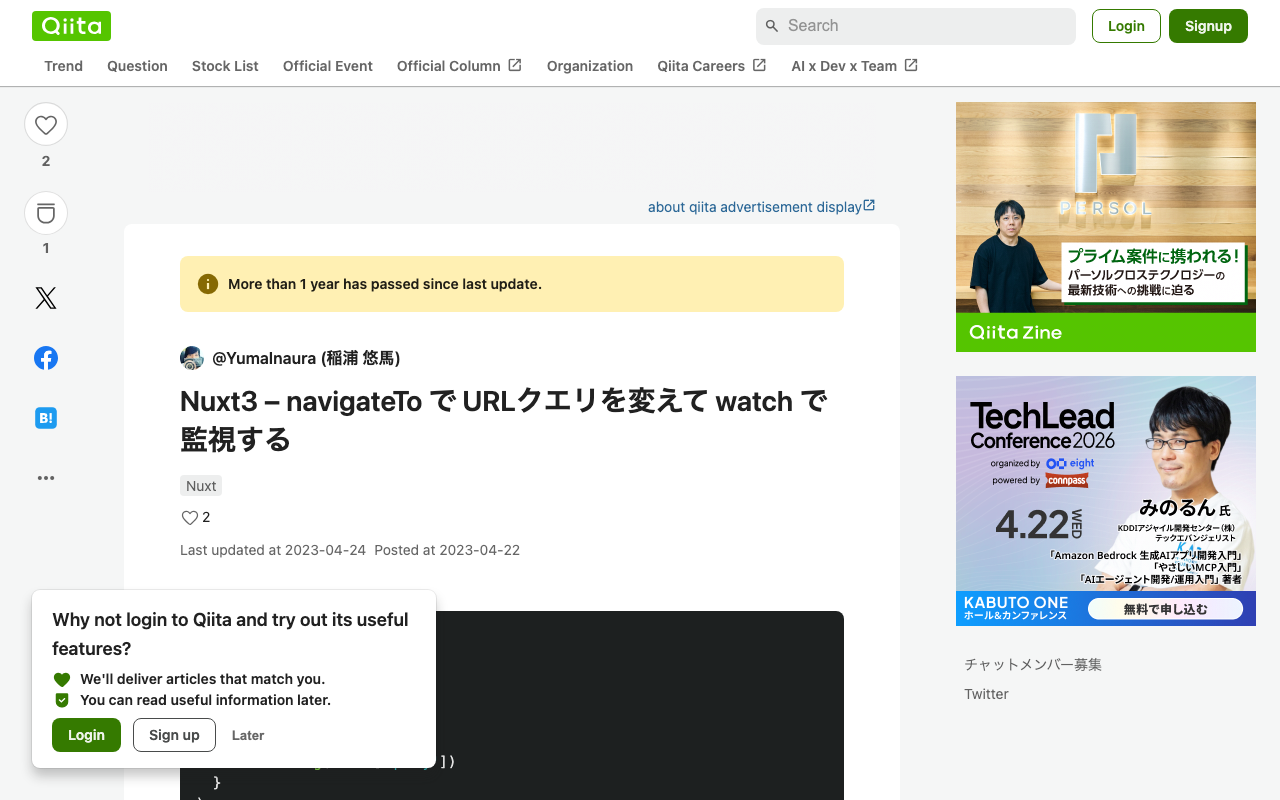
Nuxt3でURLクエリの変更をwatchで監視しようと思い、以下のように書いてみましたが、URLクエリが変更されても、watchは機能しませんでした。 <script lang="ts" setup> const route = useRoute() watch( route, () => { console.log(route['query']) } ) </script> そこで、以下の記事を参考にさせていただきました。 https://qiita.com/YumaInaura/items/9c86ed91d56402e816db 以下のような記述に変更することで、URLクエリに合わせて、watchが機能しました。 <script lang="ts" setup> const route = useRoute() watch( () => route.query, () => { console.log(route['query']) } ) </script> 色々とわかっていない点が多いですが、他の方の参考になりましたら幸いです。