ホーム 記事一覧 ブック DH週間トピックス 検索 このサイトについて
RSS English
ArchivesSpaceのRESTful APIを試す

ArchivesSpaceのRESTful APIを試す

概要 ArchivesSpaceのRESTful APIの一例を試してみます。 以下が公式のドキュメントです。 https://archivesspace.github.io/archivesspace/api/#introduction List all corporate entity agents 以下に記載があります。 https://archivesspace.github.io/archivesspace/api/#list-all-corporate-entity-agents デモサイトを使用した場合、以下のURLでアクセスできます。 https://sandbox.archivesspace.org/staff/api/agents/corporate_entities?page=1 結果は以下です。 { "first_page": 1, "last_page": 3, "this_page": 1, "total": 27, "results": [ { "lock_version": 5, "publish": false, "created_by": "admin", "last_modified_by": "admin", "create_time": "2022-03-23T13:44:30Z", "system_mtime": "2024-02-25T06:02:12Z", "user_mtime": "2022-05-17T20:46:06Z", "is_slug_auto": false, "jsonmodel_type": "agent_corporate_entity", "agent_contacts": [ { "lock_version": 0, "name": "Manuscripts Repository", "created_by": "admin", "last_modified_by": "admin", "create_time": "2022-05-17T20:46:06Z", "system_mtime": "2022-05-17T20:46:06Z", "user_mtime": "2022-05-17T20:46:06Z", "is_representative": true, "jsonmodel_type": "agent_contact", "telephones": [ ], "notes": [ ] } ], "agent_record_controls": [ ], "agent_alternate_sets": [ ], "agent_conventions_declarations": [ ], "agent_other_agency_codes": [ ], "agent_maintenance_histories": [ ], "agent_record_identifiers": [ ], "agent_identifiers": [ ], "agent_sources": [ ], "agent_places": [ ], "agent_occupations": [ ], "agent_functions": [ ], "agent_topics": [ ], "agent_resources": [ ], "linked_agent_roles": [ ], "external_documents": [ ], "notes": [ ], "used_within_repositories": [ ], "used_within_published_repositories": [ ], "dates_of_existence": [ ], "used_languages": [ ], "metadata_rights_declarations": [ ], "names": [ { "lock_version": 0, "primary_name": "Allen Doe Research Center", "sort_name": "Allen Doe Research Center", "sort_name_auto_generate": true, "created_by": "admin", "last_modified_by": "admin", "create_time": "2022-05-17T20:46:06Z", "system_mtime": "2022-05-17T20:46:06Z", "user_mtime": "2022-05-17T20:46:06Z", "authorized": true, "is_display_name": true, "jurisdiction": false, "conference_meeting": false, "source": "local", "jsonmodel_type": "name_corporate_entity", "use_dates": [ ], "parallel_names": [ ] } ], "related_agents": [ ], "uri": "/agents/corporate_entities/1", "agent_type": "agent_corporate_entity", "is_linked_to_published_record": false, "display_name": { "lock_version": 0, "primary_name": "Allen Doe Research Center", "sort_name": "Allen Doe Research Center", "sort_name_auto_generate": true, "created_by": "admin", "last_modified_by": "admin", "create_time": "2022-05-17T20:46:06Z", "system_mtime": "2022-05-17T20:46:06Z", "user_mtime": "2022-05-17T20:46:06Z", "authorized": true, "is_display_name": true, "jurisdiction": false, "conference_meeting": false, "source": "local", "jsonmodel_type": "name_corporate_entity", "use_dates": [ ], "parallel_names": [ ] }, "title": "Allen Doe Research Center", "is_repo_agent": "Allen Doe Research Center" }, { ... GUIでは以下のページが該当しました。 ...
ArchivesSpaceのOAI Repositoryを試す

ArchivesSpaceのOAI Repositoryを試す

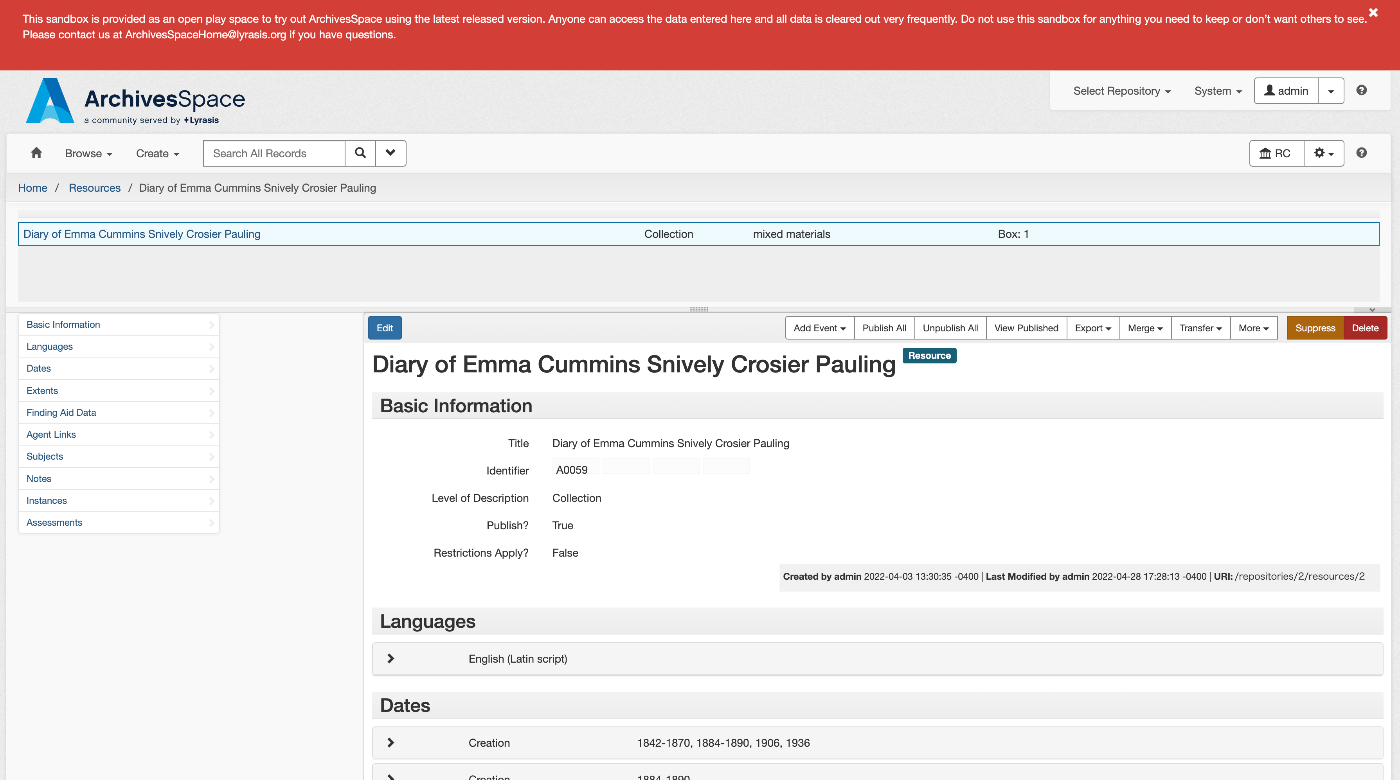
概要 ArchivesSpaceは、以下のように説明されています。 https://github.com/archivesspace/archivesspace Built for archives by archivists, ArchivesSpace is the open source archives information management application for managing and providing web access to archives, manuscripts and digital objects. (機械翻訳)アーキビストによってアーカイブのために構築されたArchivesSpaceは、アーカイブ、原稿、デジタルオブジェクトの管理とウェブアクセス提供のためのオープンソースのアーカイブ情報管理アプリケーションです。 この記事では、ArchivesSpaceが提供するOAI Repository機能を試します。 https://archivesspace.github.io/tech-docs/architecture/oai-pmh/ 設定 今回は、ArchivesSpaceのデモサイトを使用します。 以下にアクセスし、必要な設定を行います。 https://sandbox.archivesspace.org/staff/oai_config/edit メタデータフォーマットの一覧を取得する 以下により、メタデータフォーマットの一覧を取得できました。 https://sandbox.archivesspace.org/oai?verb=ListMetadataFormats 以下が結果です。oai_dc、oai_ead、oai_dcterms、oai_marc、oai_modsが利用可能なことが確認できます。 <OAI-PMH xmlns="http://www.openarchives.org/OAI/2.0/" xmlns:xsi="http://www.w3.org/2001/XMLSchema-instance" xsi:schemaLocation="http://www.openarchives.org/OAI/2.0/ http://www.openarchives.org/OAI/2.0/OAI-PMH.xsd"> <script/> <responseDate>2024-02-26T12:11:15Z</responseDate> <request verb="ListMetadataFormats">https://sandbox.archivesspace.org/</request> <ListMetadataFormats> <metadataFormat> <metadataPrefix>oai_dc</metadataPrefix> <schema>http://www.openarchives.org/OAI/2.0/oai_dc.xsd</schema> <metadataNamespace>http://www.openarchives.org/OAI/2.0/oai_dc/</metadataNamespace> </metadataFormat> <metadataFormat> <metadataPrefix>oai_ead</metadataPrefix> <schema>https://www.loc.gov/ead/ead.xsd</schema> <metadataNamespace>http://www.loc.gov/ead/</metadataNamespace> </metadataFormat> <metadataFormat> <metadataPrefix>oai_dcterms</metadataPrefix> <schema>http://dublincore.org/schemas/xmls/qdc/2008/02/11/dcterms.xsd</schema> <metadataNamespace>http://purl.org/dc/terms/</metadataNamespace> </metadataFormat> <metadataFormat> <metadataPrefix>oai_marc</metadataPrefix> <schema>https://www.loc.gov/standards/marcxml/schema/MARC21slim.xsd</schema> <metadataNamespace>http://www.loc.gov/MARC21/slim</metadataNamespace> </metadataFormat> <metadataFormat> <metadataPrefix>oai_mods</metadataPrefix> <schema>https://www.loc.gov/standards/mods/v3/mods-3-6.xsd</schema> <metadataNamespace>http://www.loc.gov/mods/v3</metadataNamespace> </metadataFormat> </ListMetadataFormats> </OAI-PMH> セットの一覧を取得する 以下により、セットの一覧を取得できました。 ...

Access to MemoryのOAI Repositoryを試す

Access to MemoryのOAI Repositoryを試す

概要 Access to Memoryは、以下のように説明されています。 https://github.com/artefactual/atom AtoM (short for Access to Memory) is a web-based, open source application for standards-based archival description and access. The application is multilingual and multi-repository. First commissioned by the International Council on Archives (ICA) to make it easier for archival institutions worldwide to put their holdings online using the ICA’s descriptive standards, the project has since grown into an internationally used community-driven project. (機械翻訳)AtoM(Access to Memoryの略称)は、標準に基づいたアーカイブ記述とアクセスのためのウェブベースのオープンソースアプリケーションです。このアプリケーションは、多言語かつ多リポジトリに対応しています。国際アーカイブ評議会(ICA)によって初めて委託された目的は、世界中のアーカイブ機関がICAの記述標準を使用して所蔵品をオンラインで公開しやすくすることでしたが、プロジェクトは以降、国際的に使用されるコミュニティ主導のプロジェクトへと成長しました。 ...

sidebase/nuxt-authをproduction環境で使う際のTips

sidebase/nuxt-authをproduction環境で使う際のTips

概要 sidebase/nuxt-authをproduction環境で使う際の注意点に関する備忘録です。 sidebase/nuxt-authは、Nuxt 3 アプリケーション向けの認証モジュールです。 https://github.com/sidebase/nuxt-auth 問題 VercelやAWS Amplifyにデプロイした際、以下のメッセージとともに、サーバエラーが発生しました。 AUTH_NO_ORIGIN: No `origin` - this is an error in production, see https://sidebase.io/nuxt-auth/resources/errors. You can ignore this during development 対策 以下が参考になりました。 https://github.com/sidebase/nuxt-auth/issues/613 以下のようにbaseURLを与えることで、上記のエラーを解消できました。 auth: { baseURL: process.env.AUTH_ORIGIN, }, 改めて確認すると、以下に記載がありましたが、なかなかたどり着くことができませんでした。 https://sidebase.io/nuxt-auth/configuration/nuxt-config#provider-authjs-baseurl まとめ 同様の事象でお困りの方の参考になりましたら幸いです。

sphinxを用いた作成されたドキュメントサイトに日本語訳を追加する

sphinxを用いた作成されたドキュメントサイトに日本語訳を追加する

概要 sphinxを用いた作成されたドキュメントサイトに日本語訳を追加することがあり、その備忘録です。 以下を対象にします。 https://github.com/artefactual/archivematica-storage-service-docs 方法 まず、対象リポジトリをForkします。 次に、Cloneします。 git clone https://github.com/nakamura196/archivematica-storage-service-docs cd atom-docs ここでは、Pythonの仮想環境を作成しておきます。 python -m venv .venv source .venv/bin/activate pip install --upgrade pip pip install -r requirements.txt ライブラリの追加 requirements.txtにsphinx-intlを追加して、インストールします。 sphinx sphinx-intl sphinx-autobuild pip install -r requirements.txt (オプション) conf.py conf.pyに言語設定が存在しない場合には、以下のように追加します。 ... # 言語設定 locale_dirs = ['locale/'] # 翻訳ファイルを格納するディレクトリ gettext_compact = False # ファイル名を短くしない language = "ja" そして、gettextビルドを実行します。 make gettext 日本語ディクレトリの作成 以下を実行すると、locale/jaにpoファイルが作成されます。 sphinx-intl update -p _build/locale -l ja 編集 locale/ja以下のpoファイルを編集することで、多言語化を行います。 ...

GitHub ActionsとSCPを使って、さくらのレンタルサーバにビルド結果をコピーする

GitHub ActionsとSCPを使って、さくらのレンタルサーバにビルド結果をコピーする

概要 GitHub ActionsとSCPを使って、さくらのレンタルサーバにビルド結果をコピーする機会がありましたので、その備忘録です。 以下のGitHub Actionsを使用しました。 https://github.com/appleboy/scp-action つまづいた点 以下の記法で試みたところ、ローカル環境でactを使った際にはうまく動作しましたが、GitHub Actionsで実行した際にはうまくいきませんでした。 name: scp files on: [push] jobs: build: name: Build runs-on: ubuntu-latest steps: - uses: actions/checkout@v4 - name: copy file via ssh password uses: appleboy/scp-action@master with: host: ${{ secrets.HOST }} username: ${{ secrets.USERNAME }} password: ${{ secrets.PASSWORD }} port: ${{ secrets.PORT }} source: "tests/a.txt,tests/b.txt" target: your_server_target_folder_path 具体的には、以下のエラーが発生しました。 GitHub actions workflow error: ssh: handshake failed: ssh: unable to authenticate, attempted methods [none password], no supported methods remain こちらについて以下が参考になりました。 ...

MariaDBでのmysqldump: not foundへの対応

MariaDBでのmysqldump: not foundへの対応

MariaDBを使用している際、例えば以下のようにバックアップを試みたところ、mysqldump: not foundのエラーが生じました。 mysqldump -uomeka -pomeka omeka > test.sql この対応として、以下の記事を参考にして、mariadb-dumpを使うと回避できました。 https://mariadb.com/kb/en/mysqldump/ 具体的には、以下のようにすることで、無事にバックアップできました。 mariadb-dump -uomeka -pomeka omeka > test.sql 同様の事象でお困りの方の参考になりましたら幸いです。

Mirador 3でPresentation API v2のマニフェストが表示できない時の対処例

Mirador 3でPresentation API v2のマニフェストが表示できない時の対処例

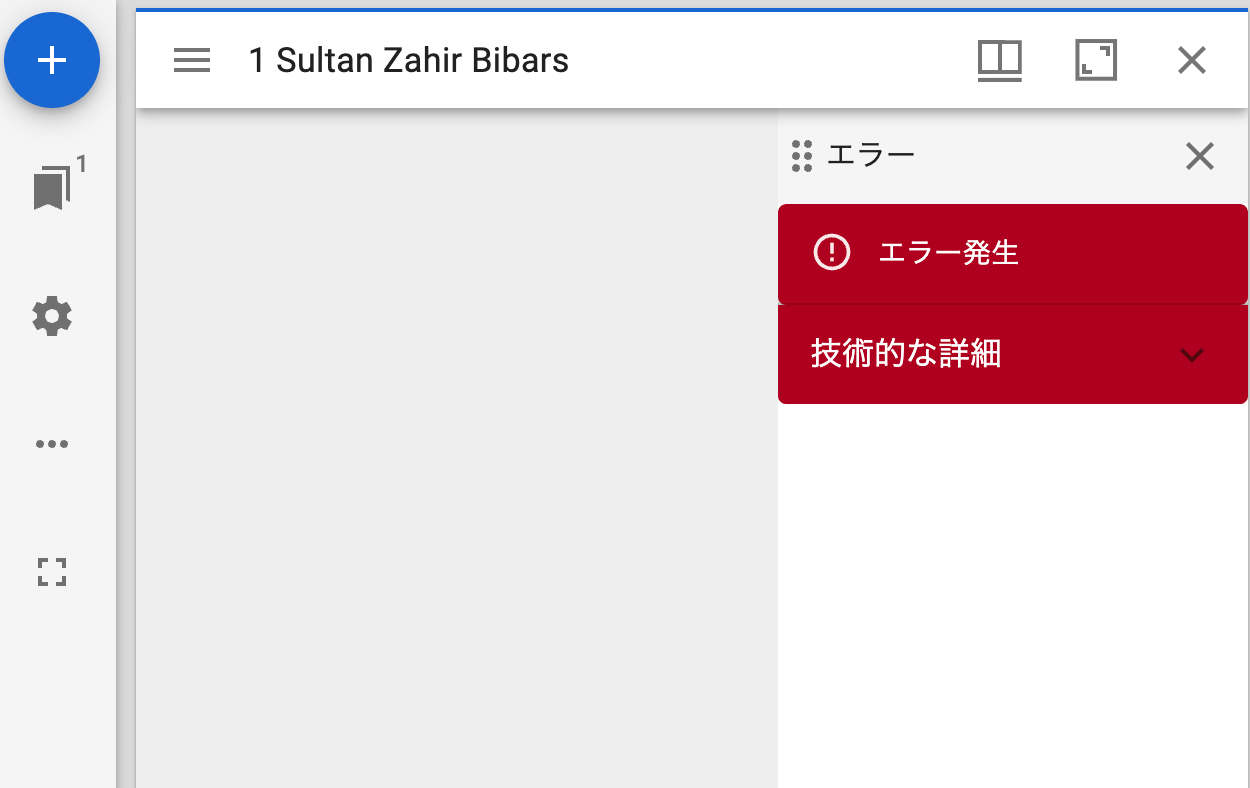
概要 以下のようなPresentation API v2のマニフェストファイルをMirador 3にロードした際、表示エラーが生じました。 https://gist.githubusercontent.com/nakamura196/42fb6bca6a9fa137234c334cb313fc58/raw/4188ebccb7406ff5132331a4fecc4ace8bdd7ebc/ng.json 以下、Mirador 3での表示です。 この原因と対処法について調べたので、共有します。 原因 以下のエラーメッセージが表示されていました。IIIF v2を入力しているにもかかわらず、v3と判断されているようでした。 Error: A IIIF v3 localized property value must have an array as the value for a given language. at PropertyValue.ts:126:20 at Array.map (<anonymous>) at t.parse (PropertyValue.ts:123:29) at t.getLabel (ManifestResource.ts:35:28) at canvases.js:162:12 at index.js:67:25 at h (defaultMemoize.js:123:20) at index.js:81:40 at h (defaultMemoize.js:123:20) at Function.mapToProps (OpenSeadragonViewer.js:39:12) これは、以下のように、canvasのlabelがオブジェクトの形で記述されている際に発生するようでした。 canvases": [ { "@id": "https://islamic-architecture.aa-ken.jp/omekas/iiif/2/monument1/canvas/p1", "@type": "sc:Canvas", "label": { "type": "literal", "property_id": 1, "property_label": "Title", "is_public": true, "@value": "0001-01" }, ... } ] なお、上記の記述方法は、Presentation API ValidatorではOKでした。 ...

Omeka SのモジュールIIIF Viewersの更新

Omeka SのモジュールIIIF Viewersの更新

概要 IIIF ViewersはOmeka Sのモジュールの一つです。 https://github.com/omeka-j/Omeka-S-module-IiifViewers 最新版のリリースは以下です。 https://github.com/omeka-j/Omeka-S-module-IiifViewers/releases/latest 今回、いくつかの更新を行いましたので、備忘録です。 Universal Viewerのバージョン更新 Universal Viewerのバージョンをv4.0.25に更新しました。 合わせて、READEME.mdの以下の箇所に、Universal Viewerの更新方法を記載しました。 https://github.com/omeka-j/Omeka-S-module-IiifViewers?tab=readme-ov-file#compilation-of-universal-viewer これは、以下のモジュールの記載を参考にしています。 https://github.com/Daniel-KM/Omeka-S-module-UniversalViewer また、Miradorの更新方法も記載しましたが、既に最新版が導入されていたので、更新は行われていません。 バグ修正 以下に加えて、細かなバグを修正しました。 Module.php 以下のエラーが生じていました。 Deprecated: Creation of dynamic property IiifViewers\Module::$dependencies is deprecated in /var/www/html/modules/IiifViewers/Module.php on line 147 以下のように修正しました。 namespace IiifViewers; use Omeka\Module\AbstractModule; use IiifViewers\Form\ConfigForm; use Laminas\Mvc\Controller\AbstractController; use Laminas\EventManager\Event; use Laminas\EventManager\SharedEventManagerInterface; use Laminas\Mvc\MvcEvent; use Laminas\View\Renderer\PhpRenderer; use Laminas\ServiceManager\ServiceLocatorInterface; use Omeka\Module\Exception\ModuleCannotInstallException; use Omeka\Stdlib\Message; class Module extends AbstractModule { protected $dependencies = []; // Define the property at the beginning // Rest of your code... iiif-viewers.phtml 以下のWarningが生じていたので、いずれも修正しました。 ...

nginx-proxyでの 413 Request Entity Too Large エラーの対処法

nginx-proxyでの 413 Request Entity Too Large エラーの対処法

概要 EC2上にDockerをインストールし、nginx-proxyとnginx-proxy-lets-encryptを利用してSSL化を行いました。 上記の設定で問題なく使用できていましたが、比較的大きなサイズのファイルをPOSTするアプリを作成した際、以下のエラーが発生してアップロードできませんでした。 nginx-proxy 413 (Payload Too Large) Nginxのclient_max_body_sizeを上げる必要がありました。 方法 ChatGPT4に教えていただいた以下の対応により、解決することができました。 413 Request Entity Too Large エラーは、クライアントがサーバーに送信しようとしているリクエストのペイロード(つまり、アップロードするファイルのサイズなど)がサーバーで設定された制限を超えている場合に発生します。このエラーを解決するためには、Nginx の設定でクライアントリクエストの最大サイズを増やす必要があります。 nginx-proxy コンテナでこの設定を調整するには、client_max_body_size ディレクティブの値を増やすことで、受け入れ可能なリクエストサイズの上限を上げることができます。しかし、jwilder/nginx-proxy イメージを使用している場合、直接 Nginx の設定ファイルを編集するのではなく、カスタム設定を適用する方法が推奨されます。 以下は、client_max_body_size を増やすために必要な手順です。 カスタム設定ファイルを作成する: ローカルに client_max_body_size ディレクティブを含むカスタム Nginx 設定ファイルを作成します。例えば、この設定を 100M (100メガバイト)に設定したい場合、次の内容を含むファイルを作成します。 my_custom_proxy_settings.conf: client_max_body_size 100M; カスタム設定ファイルを Docker コンテナにマウントする: nginx-proxy サービスの定義に、このカスタム設定ファイルを /etc/nginx/conf.d ディレクトリにマウントする設定を追加します。これにより、Nginx が起動する際にこの設定が適用されます。 修正された docker-compose.yml の例: services: nginx-proxy: image: jwilder/nginx-proxy container_name: nginx-proxy ports: - "80:80" - "443:443" volumes: - html:/usr/share/nginx/html - dhparam:/etc/nginx/dhparam - vhost:/etc/nginx/vhost.d - certs:/etc/nginx/certs:ro - /var/run/docker.sock:/tmp/docker.sock:ro - /srv/docker/nginx-proxy-with-encrypt/log:/var/log/nginx - ./my_custom_proxy_settings.conf:/etc/nginx/conf.d/my_custom_proxy_settings.conf:ro # この行を追加 labels: - "com.github.jrcs.letsencrypt_nginx_proxy_companion.nginx_proxy" restart: always Docker コンテナを再起動する: 変更を適用するために、docker-compose を使って nginx-proxy コンテナを再起動します。 ...

Docker版Cantaloupeを使用して、S3バケットにアクセスしSSL通信を行う方法

Docker版Cantaloupeを使用して、S3バケットにアクセスしSSL通信を行う方法

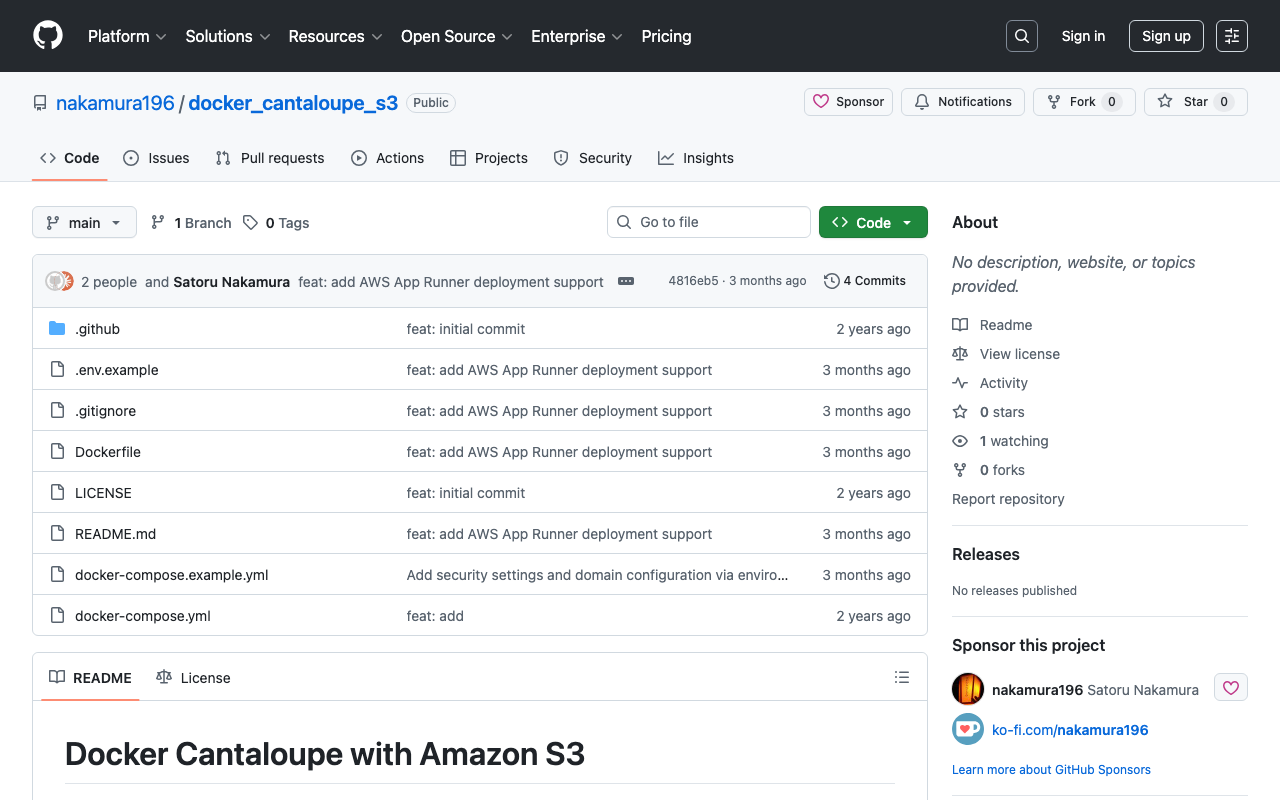
概要 Docker版のCantaloupeの使い方を以下で紹介しました。 このDocker版Cantaloupeを(大規模ではない)production環境で使用するには、Amazon S3との接続や、SSL対応が求められます。その方法を一例を紹介します。 Amazon S3との接続 公式では以下で紹介されています。 https://cantaloupe-project.github.io/manual/5.0/sources.html#S3Source 日本語の記事として以下があります。 また、今回扱うDocker版では、以下に記載がありました。 https://github.com/Islandora-Devops/isle-buildkit/blob/main/cantaloupe/README.md#settings そこで、S3と最低限の接続を行うためのリポジトリを作成しました。 https://github.com/nakamura196/docker_cantaloupe_s3 .env.exampleを.envにリネームまたはコピーして、必要な値を入力します。 SSL対応 以下の記事を参考にしました。EC2上にDockerをインストールし、nginx-proxyとnginx-proxy-lets-encryptを利用してSSL化を行いました。 https://qiita.com/atsuya/items/7cb6e0ccee63d751d41f version: '3' # proxy services: nginx-proxy: image: jwilder/nginx-proxy container_name: nginx-proxy ports: - "80:80" - "443:443" volumes: - html:/usr/share/nginx/html - dhparam:/etc/nginx/dhparam - vhost:/etc/nginx/vhost.d - certs:/etc/nginx/certs:ro - /var/run/docker.sock:/tmp/docker.sock:ro - /srv/docker/nginx-proxy-with-encrypt/log:/var/log/nginx labels: - "com.github.jrcs.letsencrypt_nginx_proxy_companion.nginx_proxy" restart: always letsencrypt: image: jrcs/letsencrypt-nginx-proxy-companion container_name: nginx-proxy-lets-encrypt depends_on: - "nginx-proxy" volumes: - certs:/etc/nginx/certs:rw - vhost:/etc/nginx/vhost.d - html:/usr/share/nginx/html - /var/run/docker.sock:/var/run/docker.sock:ro volumes: certs: html: vhost: dhparam: networks: default: external: name: common_link services: cantaloupe: image: islandora/cantaloupe:2.0.10 environment: CANTALOUPE_ENDPOINT_ADMIN_ENABLED: false CANTALOUPE_ENDPOINT_ADMIN_SECRET: my_admin_pass CANTALOUPE_SOURCE_STATIC: S3Source CANTALOUPE_S3SOURCE_ACCESS_KEY_ID: ${CANTALOUPE_S3SOURCE_ACCESS_KEY_ID} CANTALOUPE_S3SOURCE_SECRET_KEY: ${CANTALOUPE_S3SOURCE_SECRET_KEY} CANTALOUPE_S3SOURCE_REGION: ${CANTALOUPE_S3SOURCE_REGION} CANTALOUPE_S3SOURCE_BASICLOOKUPSTRATEGY_BUCKET_NAME: ${CANTALOUPE_S3SOURCE_BASICLOOKUPSTRATEGY_BUCKET_NAME} CANTALOUPE_S3SOURCE_LOOKUP_STRATEGY: BasicLookupStrategy # Or another strategy if needed VIRTUAL_HOST: <カスタムドメイン> LETSENCRYPT_HOST: <カスタムドメイン> LETSENCRYPT_EMAIL: <メールアドレス> restart: always networks: default: external: name: common_link まとめ IIIF画像サーバの小中規模の利用にあたっては、上記のような形が比較的容易な導入方法の一つに当たるかと思います。 ...

File Information Tool Set (FITS)を試す

File Information Tool Set (FITS)を試す

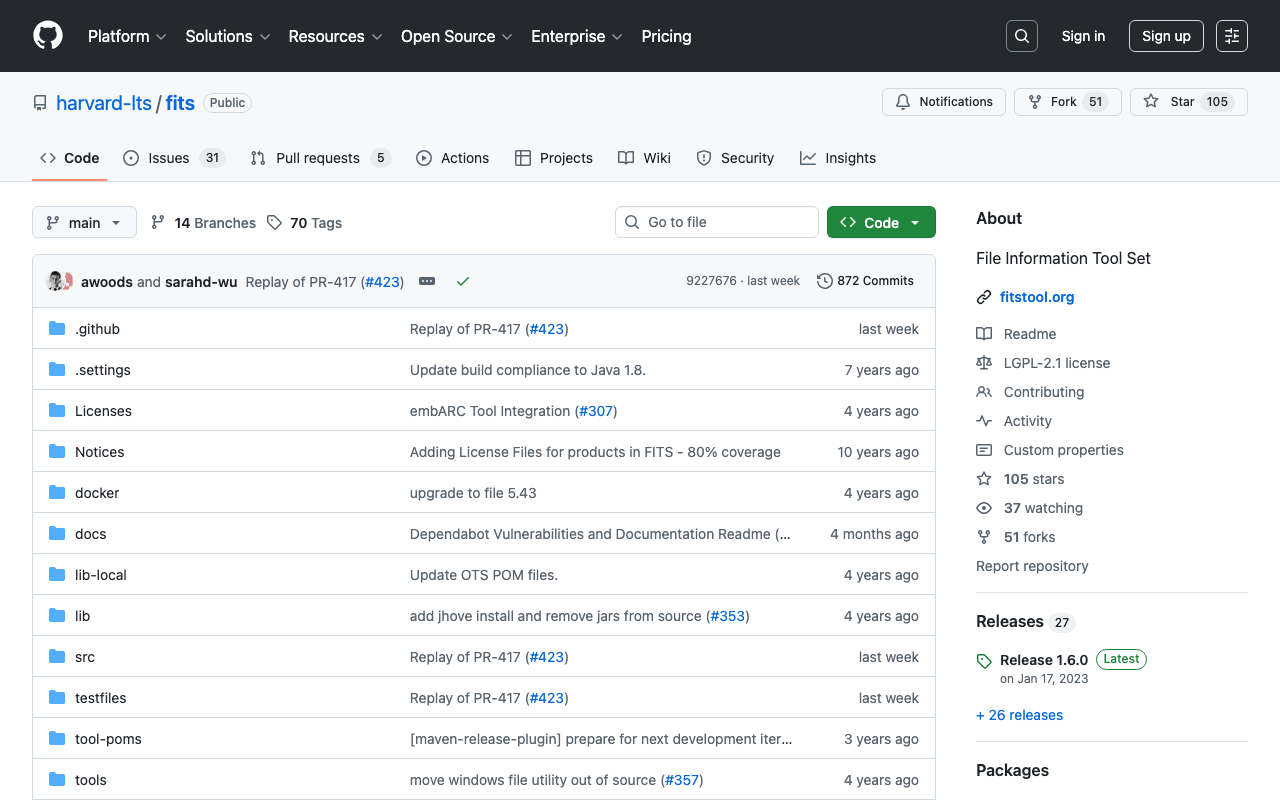
概要 Archivematicaの調査にあたり、File Information Tool Set (FITS)の挙動について確認したい点があり、Dockerを使って試してみましたので、その備忘録です。 https://github.com/harvard-lts/fits インストール 以下にDockerを用いたインストール方法が記載されています。 https://github.com/harvard-lts/fits?tab=readme-ov-file#docker-installation ただ、マニュアルに記載のある以下のページにアクセスしても、Dockerfileが含まれる最新のリリース(1.6.0)はダウンロードできませんでした。 https://projects.iq.harvard.edu/fits/downloads 代わりに、GitHubの以下のリリースページで、最新版のzipファイルをダウンロードできました。 https://github.com/harvard-lts/fits/releases/tag/1.6.0 あとは、READMEの記載の通りに展開、およびビルドを行いました。 ただし、M1 Macの場合、手順通りに実行したところ、以下のエラーが発生しました。 % docker run --rm -v `pwd`:/work fits -i fits.sh 2024-01-26 11:41:10 - ERROR - MediaInfo:95 - Error loading native library for this operating system for tool: MediaInfo. ostype=[Linux] -- jvmModel=[64] -- nativeLibPath=[/opt/fits/tools/mediainfo/linux] -- No native MediaInfo library for this OS java.lang.UnsatisfiedLinkError: Unable to load library 'mediainfo': libmediainfo.so: cannot open shared object file: No such file or directory libmediainfo.so: cannot open shared object file: No such file or directory /opt/fits/tools/mediainfo/linux/libmediainfo.so.0: cannot open shared object file: No such file or directory ... これに対して、ChatGPT 4に確認した結果、Dockerfileに以下の追記を行う指示がありました。 ...

GitHub Actionsの処理結果をメールで通知する: Gmailの使用

GitHub Actionsの処理結果をメールで通知する: Gmailの使用

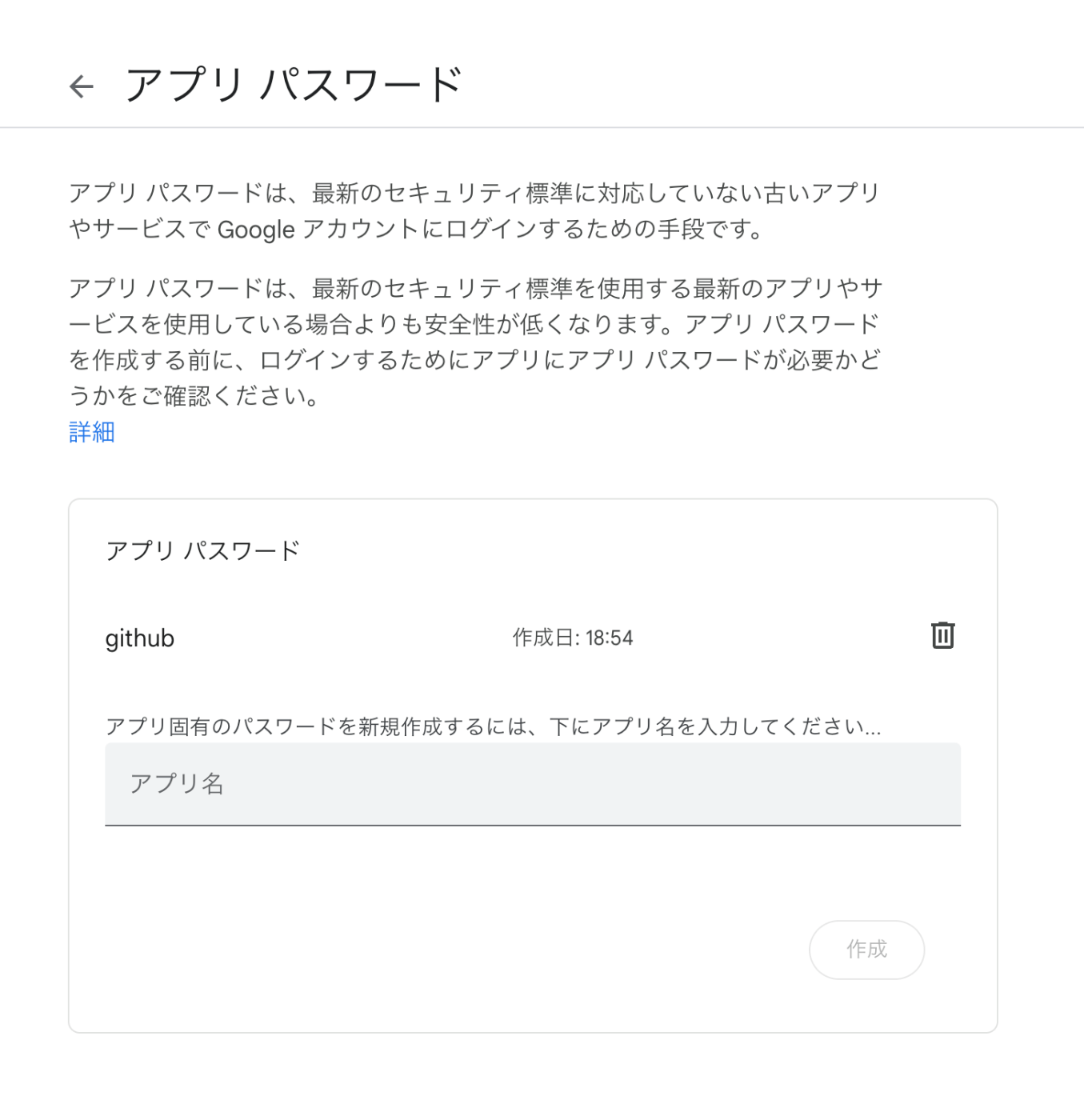
概要 GitHub Actionsの処理結果をメールで通知する機会がありましたので、その備忘録です。 今回はGmailを使います。以下が参考になりました。 https://stackoverflow.com/questions/69947109/sending-email-with-github-actions Gmailの設定 以下に記載があります。2段階認証を有効にして、アプリパスワードを作成します。 https://github.com/dawidd6/action-send-mail?tab=readme-ov-file#gmail アプリパスワードの設定例は以下です。 ローカルでの動作確認 actを使って、ローカル環境でGitHub Actionsを実行します。 https://github.com/nektos/act あるリポジトリで以下のようなファイルを作成します。 name: Notification Workflow on: [push] jobs: send-mail: runs-on: ubuntu-latest steps: - name: Send mail if: success() # この行はデプロイが成功した場合にのみメールを送信するようにします uses: dawidd6/action-send-mail@v3 with: server_address: smtp.gmail.com server_port: 465 username: ${{secrets.MAIL_USERNAME}} password: ${{secrets.MAIL_PASSWORD}} subject: Deployment Completed - ${{ github.repository }} to: ${{secrets.MAIL_TO}} from: ${{ secrets.MAIL_FROM }} body: | Hello, The deployment process for the repository ${{ github.repository }} has been successfully completed. Commit: ${{ github.sha }} Commit link: https://github.com/${{ github.repository }}/commit/${{ github.sha }} Branch: ${{ github.ref }} Best regards, ${{ secrets.MAIL_FROM }} 以下のようなコマンドでシークレットを使うことができました。 ...

デジタル源氏物語における校異源氏物語と現代語訳の対応づけ

デジタル源氏物語における校異源氏物語と現代語訳の対応づけ

概要 「デジタル源氏物語」は『源氏物語』に関する様々な関連データを収集・作成し、それらを結びつけることで、『源氏物語』研究はもちろん、古典籍を利用した教育・研究活動の一助となる環境の提案を目指したサイトです。 https://genji.dl.itc.u-tokyo.ac.jp/ 本サイトが提供する機能の一つとして、「校異源氏物語と現代語訳の対応づけ」があります。以下のように、「校異源氏物語」と青空文庫で公開されている与謝野晶子訳の対応箇所がハイライト表示されます。 この記事では、上記の機能を実現するための手順について説明します。 データ 以下のようなデータを作成します。 https://genji.dl.itc.u-tokyo.ac.jp/data/tei/koui/54.xml 「校異源氏物語」のテキストデータに対して、anchorタグを使って、与謝野晶子訳のファイルとIDのペアを対応付ます。 <text> <body> <p> <lb/> <pb facs="#zone_2055" n="2055"/> <lb/> <seg corresp="https://w3id.org/kouigenjimonogatari/api/items/2055-01.json"> <anchor corresp="https://genji.dl.itc.u-tokyo.ac.jp/api/items/tei/yosano/56.xml#YG5600000300"/> やまにおはしてれいせさせ給やうに経仏なとくやうせさせ給 <anchor corresp="https://genji.dl.itc.u-tokyo.ac.jp/api/items/tei/yosano/56.xml#YG5600000400"/> 又の日はよかはに </seg> <lb/> ... このデータの作成にあたっては、以下のツールを開発して使用しました。 https://github.com/tei-eaj/parallel_text_editor 残念ながら2024-01-07時点では動作しませんが、動作イメージは以下をご確認ください。今後、本ツールの改修を行いたいと思います。 https://youtu.be/hOp_PxYUrZk 上記の作業の結果、以下のようなGoogleドキュメントが作成されます。 https://docs.google.com/document/d/1DxKItyugUIR3YYUxlwH5-SRVA_eTj7Gh_LJ4A0mzCg8/edit?usp=sharing 「校異源氏物語」の各行について、対応する与謝野晶子訳のIDを\[YG(\d+)\]の形で挿入されます。 2055-01 [YG5600000300]やまにおはしてれいせさせ給やうに経仏なとくやうせさせ給[YG5600000400]又の日はよかはに 2055-02 おはしたれはそうつおとろきかしこまりきこえ給[YG5600000500]としころ御いのりなとつけか 2055-03 たらひたまひけれとことにいとしたしきことはなかりけるをこのたひ一品の宮 2055-04 の御心ちのほとにさふらひ給へるにすくれたまへるけん物し給けりとみたまひ 2055-05 てよりこよなうたうとひたまひていますこしふかきちきりくはへ給てけれはお 2055-06 も〱しくおはするとのゝかくわさとおはしましたることゝもてさはきゝこえ 2055-07 給[YG5600000600]御物かたりなとこまやかにしておはすれは御ゆつけなとまいり給[YG5600000700]すこし人 2055-08 〱しつまりぬるに[YG5600000800]をのゝわたりにしり給へるやとりや侍とゝひ給へはしか侍 ... 源氏物語の冊毎のGoogleドキュメントがGoogleドライブに保存されます。 https://drive.google.com/drive/folders/1QgS4z_5vk8AEz95iA3q7j41-U3oDdfpx 処理 Googleドライブからのファイル名とIDの一覧を取得 Googleドライブとの接続 #| export import os.path from google.auth.transport.requests import Request from google.oauth2.credentials import Credentials from google_auth_oauthlib.flow import InstalledAppFlow from googleapiclient.discovery import build from googleapiclient.errors import HttpError #| export class GoogleDriveClient: def __init__(self, credential_path): # If modifying these scopes, delete the file token.json. SCOPES = [ "https://www.googleapis.com/auth/drive.metadata.readonly" ] creds = None # The file token.json stores the user's access and refresh tokens, and is # created automatically when the authorization flow completes for the first # time. if os.path.exists("token.json"): creds = Credentials.from_authorized_user_file("token.json", SCOPES) # If there are no (valid) credentials available, let the user log in. if not creds or not creds.valid: if creds and creds.expired and creds.refresh_token: creds.refresh(Request()) else: flow = InstalledAppFlow.from_client_secrets_file( credential_path, SCOPES ) creds = flow.run_local_server(port=0) # Save the credentials for the next run with open("token.json", "w") as token: token.write(creds.to_json()) try: service = build('drive', 'v3', credentials=creds) self.drive_service = service except HttpError as e: print(e) print("Error while creating API client") raise e 一覧の取得 ...

ro-crate-pyを試す

ro-crate-pyを試す

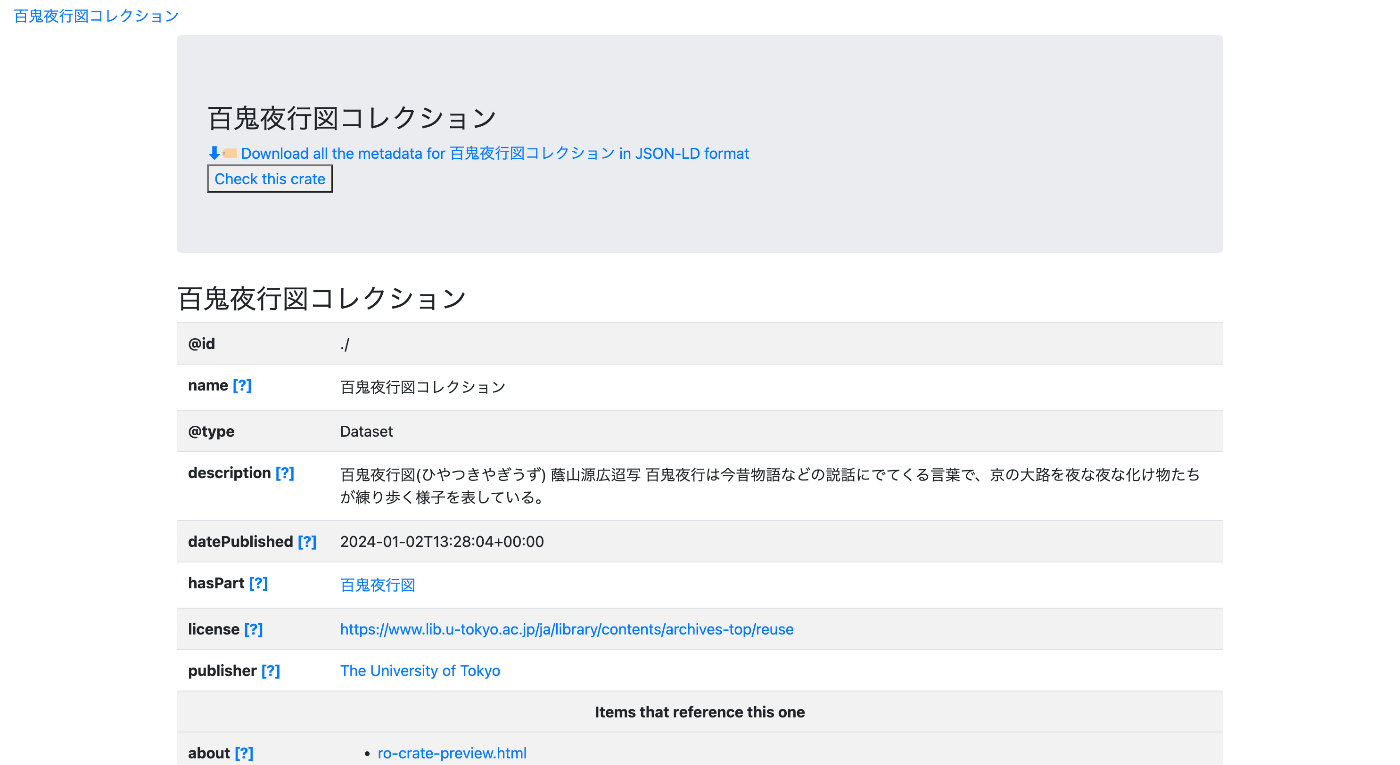
概要 ro-crate-pyは、Research Object Crates (RO-Crate)を作成および利用するためのPythonライブラリです。 https://doi.org/10.5281/zenodo.3956493 ro-crate-py is a Python library to create and consume Research Object Crates. It currently supports the RO-Crate 1.1 specification. ゴール 以下に示すようなページを作成することを目指します。 https://nakamura196.github.io/rocrate_demo/crate/test/data/ro-crate-preview.html データセットのページ 特定のアイテムのページ JSONデータ 以下のようなJSONデータを作成します。 https://nakamura196.github.io/rocrate_demo/crate/test/data/ro-crate-metadata.json アイテムのIDとしては、以下のOAI-PMHのレコードを使用します。 https://da.dl.itc.u-tokyo.ac.jp/portal/oai?verb=GetRecord&metadataPrefix=dcndl_simple&identifier=oai:da.dl.itc.u-tokyo.ac.jp:fbd0479b-dbb4-4eaa-95b8-f27e1c423e4b アイテムの作成者として、ダミーの値ですが、ORCIDのIDを指定します。 https://orcid.org/0000-0001-8245-7925 データの公開者としては、東京大学のResearch Organization Registry (ROR) を指定します。 https://ror.org/057zh3y96 ライブラリのインストール bagitはrocrateに必須ではありませんが、今回は最終出力をbagit形式にするために使用します。 pip install rocrate pip install bagit from rocrate.rocrate import ROCrate from rocrate.model.person import Person from rocrate.model.contextentity import ContextEntity import os import bagit import shutil import json データ dataset_name = "百鬼夜行図コレクション" dataset_description = "百鬼夜行図(ひやつきやぎうず) 蔭山源広迢写 百鬼夜行は今昔物語などの説話にでてくる言葉で、京の大路を夜な夜な化け物たちが練り歩く様子を表している。" dataset_license = "https://www.lib.u-tokyo.ac.jp/ja/library/contents/archives-top/reuse" item_id = "https://da.dl.itc.u-tokyo.ac.jp/portal/oai?verb=GetRecord&metadataPrefix=dcndl_simple&identifier=oai:da.dl.itc.u-tokyo.ac.jp:fbd0479b-dbb4-4eaa-95b8-f27e1c423e4b" item_name = "百鬼夜行図" item_description = "OAI-PMH(Open Archives Initiative Protocol for Metadata Harvesting)" item_license = "https://www.lib.u-tokyo.ac.jp/ja/library/contents/archives-top/reuse" person_id = "https://orcid.org/0000-0001-8245-7925" person_name = "Satoru Nakamura" org_id = "https://ror.org/057zh3y96" org_name = "The University of Tokyo" ROCrateインスタンスの作成 gen_preview=Trueとすることで、保存時にpreview.htmlを合わせて作成してくれます。 ...

GitHubのリポジトリをZenodoと連携する

GitHubのリポジトリをZenodoと連携する

概要 先日、Mirador3でアノテーションを比較するためのプラグインを公開しました。 https://github.com/nakamura196/mirador-compare-plugin 今回は、このリポジトリをZenodoと接続してみます。 結果、releaseを行うたびに、自動的にDOIが付与されるようになりました。 https://zenodo.org/doi/10.5281/zenodo.10449856 Zenodoでの設定 以下にアクセスして、連携対象のGitHubリポジトリを選択します。 /account/settings/github/ GitHub 以下、必須ではありませんが、Zenodoとの連携に向けて、GitHubリポジトリ上で必要な準備を行います。 CITATION.cffの作成 これを作成することにより、Creators にORCIDのIDが表示されるようでした。 具体的には、以下のようなファイルを作成します。 https://github.com/nakamura196/mirador-compare-plugin/blob/main/CITATION.cff cff-version: 1.1.0 message: "Cite as" authors: - family-names: Nakamura given-names: Satoru orcid: https://orcid.org/0000-0001-8245-7925 affiliation: "The University of Tokyo" website: https://researchmap.jp/nakamura.satoru?lang=en title: "mirador-compare-plugin" doi: 10.5281/zenodo.10449856 上記により、GitHubリポジトリ上にも「Cite this repository」が表示されるようになりました。 バッジの表示 以下が参考になりました。 https://gist.github.com/seignovert/ae6771f400ca464d294261f42900823a 以下のURLにアクセスして、idを取得します。今回は、664611010でした。 https://api.github.com/repos/nakamura196/mirador-compare-plugin このidを使用して、README.mdに以下を追加します。 [![DOI](https://zenodo.org/badge/664611010.svg)](https://zenodo.org/badge/latestdoi/664611010) 結果、以下のようにバッジが表示されました。 READEME.mdへのCite asの追加 ResearchObject/ro-crate-py を参考に、READEME.mdへCite asを追加してみます。 この時、以下に記載があるIDを用いることで、最新のバージョンに遷移するURLを作成することができました。 具体的には、今回は10449856というIDを使って、READMEに追記する内容を作成しました。 [![DOI](https://zenodo.org/badge/664611010.svg)](https://zenodo.org/badge/latestdoi/664611010) The above DOI corresponds to the latest versioned release as [published to Zenodo](https://zenodo.org/records/10449856), where you will find all earlier releases. To cite `mirador-compare-plugin` independent of version, use https://doi.org/10.5281/zenodo.10449856, which will always redirect to the latest release. リリースの作成 プルリクエストとマージ ブランチの作成 ...

Drupalのsimple_oauthモジュールを用いたRESTリソースのoauth2認証を試す

Drupalのsimple_oauthモジュールを用いたRESTリソースのoauth2認証を試す

概要 DrupalのSimple OAuth (OAuth2) & OpenID ConnectモジュールはOAuth 2.0認証フレームワークRFCの実装と説明されています。 https://www.drupal.org/project/simple_oauth 関連する記事として、cookie認証の例や、jwt認証の例も参考にしてください。 インストール simple_oauthモジュールには、5系と6系があるようですが、今回は5系を使用します。以下でインストールします。 composer.phar require 'drupal/simple_oauth:^5.2' ただし、さくらレンタルサーバを使用している場合、以下のエラーが発生しました。PHP's sodium extensionが必要でした。 composer.phar require 'drupal/simple_oauth:^5.2' ./composer.json has been updated Running composer update drupal/simple_oauth Loading composer repositories with package information Updating dependencies Your requirements could not be resolved to an installable set of packages. Problem 1 - steverhoades/oauth2-openid-connect-server v2.4.0 requires lcobucci/jwt 4.1.5 -> satisfiable by lcobucci/jwt[4.1.5]. - steverhoades/oauth2-openid-connect-server[v2.6.0, ..., v2.6.1] require lcobucci/jwt 4.1.5|^4.2|^4.3|^5.0 -> satisfiable by lcobucci/jwt[4.1.5, ..., 4.4.x-dev, 5.0.0, ..., 5.3.x-dev]. - steverhoades/oauth2-openid-connect-server v2.5.0 requires lcobucci/jwt 4.1.5|^4.2 -> satisfiable by lcobucci/jwt[4.1.5, ..., 4.4.x-dev]. - drupal/simple_oauth[5.2.0, ..., 5.x-dev] require drupal/core ^8 || ^9 -> found drupal/core[8.0.0-beta6, ..., 8.9.x-dev, 9.0.0-alpha1, ..., 9.5.x-dev] but the package is fixed to 10.2.0 (lock file version) by a partial update and that version does not match. Make sure you list it as an argument for the update command. - lcobucci/jwt[4.1.5, ..., 4.4.x-dev, 5.0.0, ..., 5.3.x-dev] require ext-sodium * -> it is missing from your system. Install or enable PHP's sodium extension. - drupal/simple_oauth[5.2.3, ..., 5.2.x-dev] require steverhoades/oauth2-openid-connect-server ^2.4 -> satisfiable by steverhoades/oauth2-openid-connect-server[v2.4.0, v2.5.0, v2.6.0, v2.6.1]. - Root composer.json requires drupal/simple_oauth ^5.2 -> satisfiable by drupal/simple_oauth[5.2.0, ..., 5.x-dev]. To enable extensions, verify that they are enabled in your .ini files: - /usr/local/php/8.1/etc/php.ini - /usr/local/php/8.1/etc/conf.d/apcu.ini - /usr/local/php/8.1/etc/conf.d/imagick.ini - /usr/local/php/8.1/etc/conf.d/mcrypt.ini - /usr/local/php/8.1/etc/conf.d/opcache.ini You can also run `php --ini` in a terminal to see which files are used by PHP in CLI mode. Alternatively, you can run Composer with `--ignore-platform-req=ext-sodium` to temporarily ignore these required extensions. Use the option --with-all-dependencies (-W) to allow upgrades, downgrades and removals for packages currently locked to specific versions. Installation failed, reverting ./composer.json and ./composer.lock to their original content. そこで、以下のサイトを参考に、PHP-sodium 拡張を追加しました。 ...

Postmanを使って、DrupalのRESTリソースのcookie認証を試す

Postmanを使って、DrupalのRESTリソースのcookie認証を試す

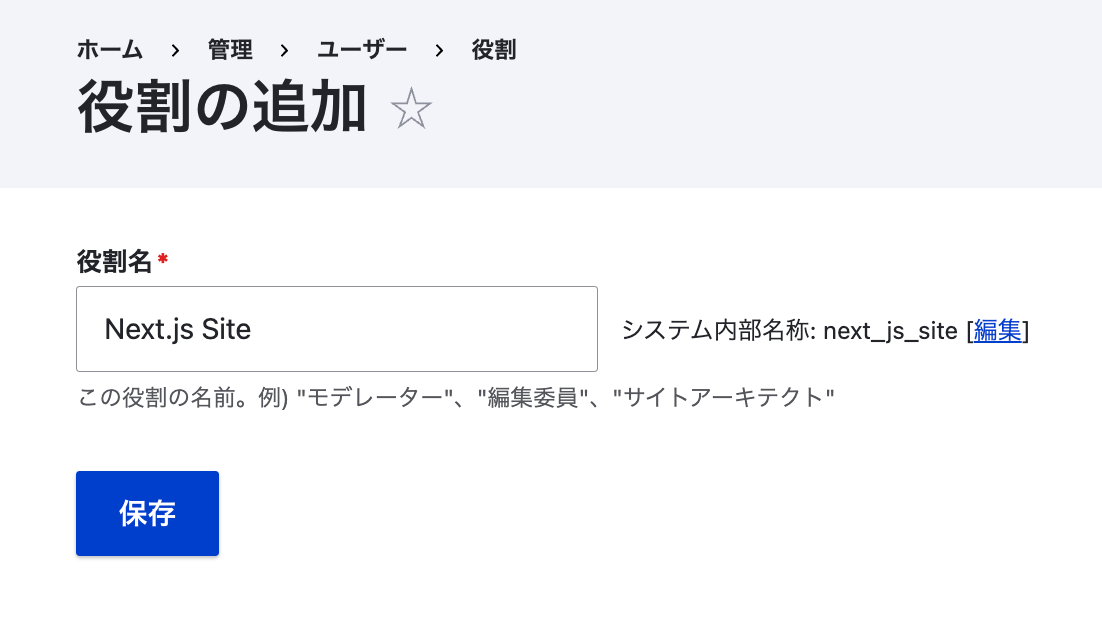
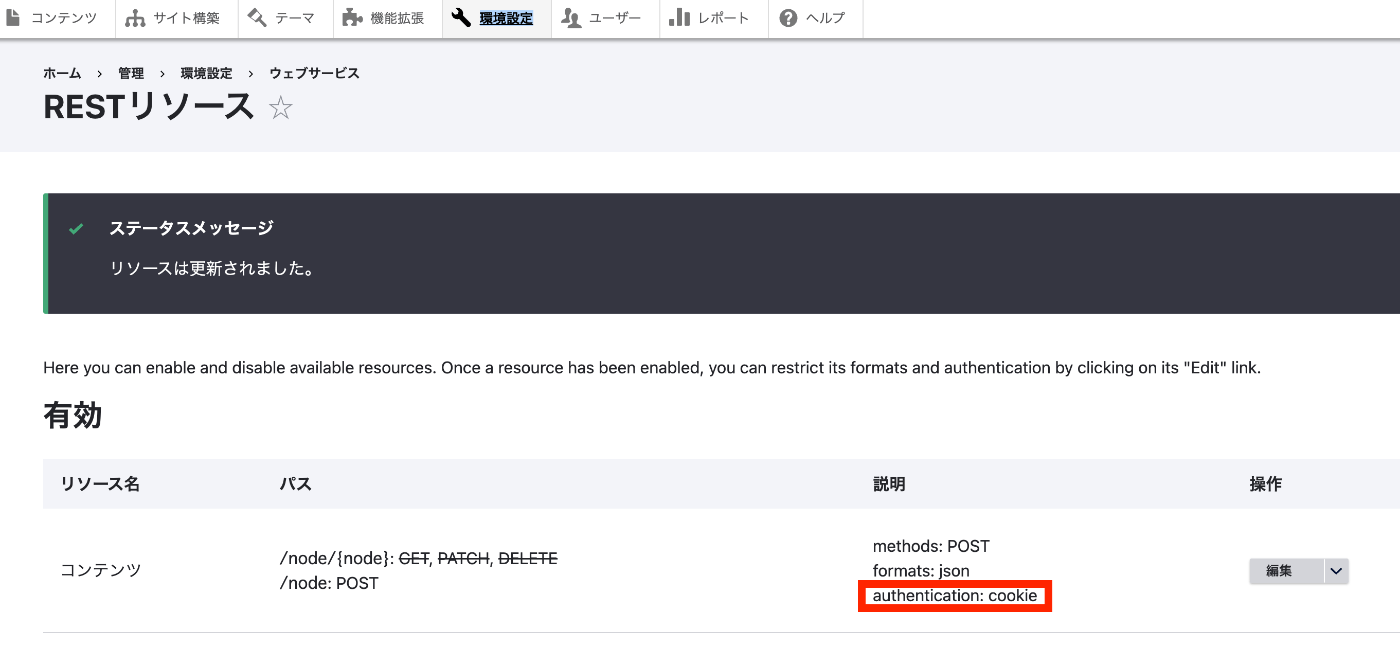
概要 以下の記事で、JWTモジュールを使ったJWT認証を試しました。 今回は、cookie認証を試します。 インストール restuiモジュールをインストールしていない場合には、以下のようなコマンドをインストールと有効化を行います。 composer.phar require 'drupal/restui:^1.21' vendor/bin/drush en restui 設定 今回は、以下のように、cookie認証を使用します。設定方法の詳細については、冒頭の関連記事をご確認ください。 Postman ログイン POST /user/login Body > x-www-form-urlencoded Key Value name {ユーザー名} pass {パスワード} form_id user_login_form ログインに成功すると、Cookieが発行されます。 セッショントークンの取得 GET /session/token Headersタブをみると、先に発行したCookieが設定されていることが確認できます。また、結果としてセッショントークンが取得できています。 コンテンツの作成 POST /node?_format=json Headersタブで、上記で取得したセッショントークンをX-CSRF-TokenKeyのValueとして設定します。 Bodyの値は、以下を例として使用しました。 { "type": [ { "target_id": "article" } ], "title": [ { "value": "新しい記事のタイトル" } ] } なお、誤ったセッショントークンを入力して試してみると、以下が返却されました。 { "message": "X-CSRF-Token request header is invalid" } 参考:ログアウト GET /user/logout 上記により、発行されたセッションクッキーが削除されました。 まとめ DrupalのRESTリソースのcookie認証を試しました。誤っている点があるかと思いますが、参考になりましたら幸いです。

Drupal JSON Web Token Authenticationモジュールを試す

Drupal JSON Web Token Authenticationモジュールを試す

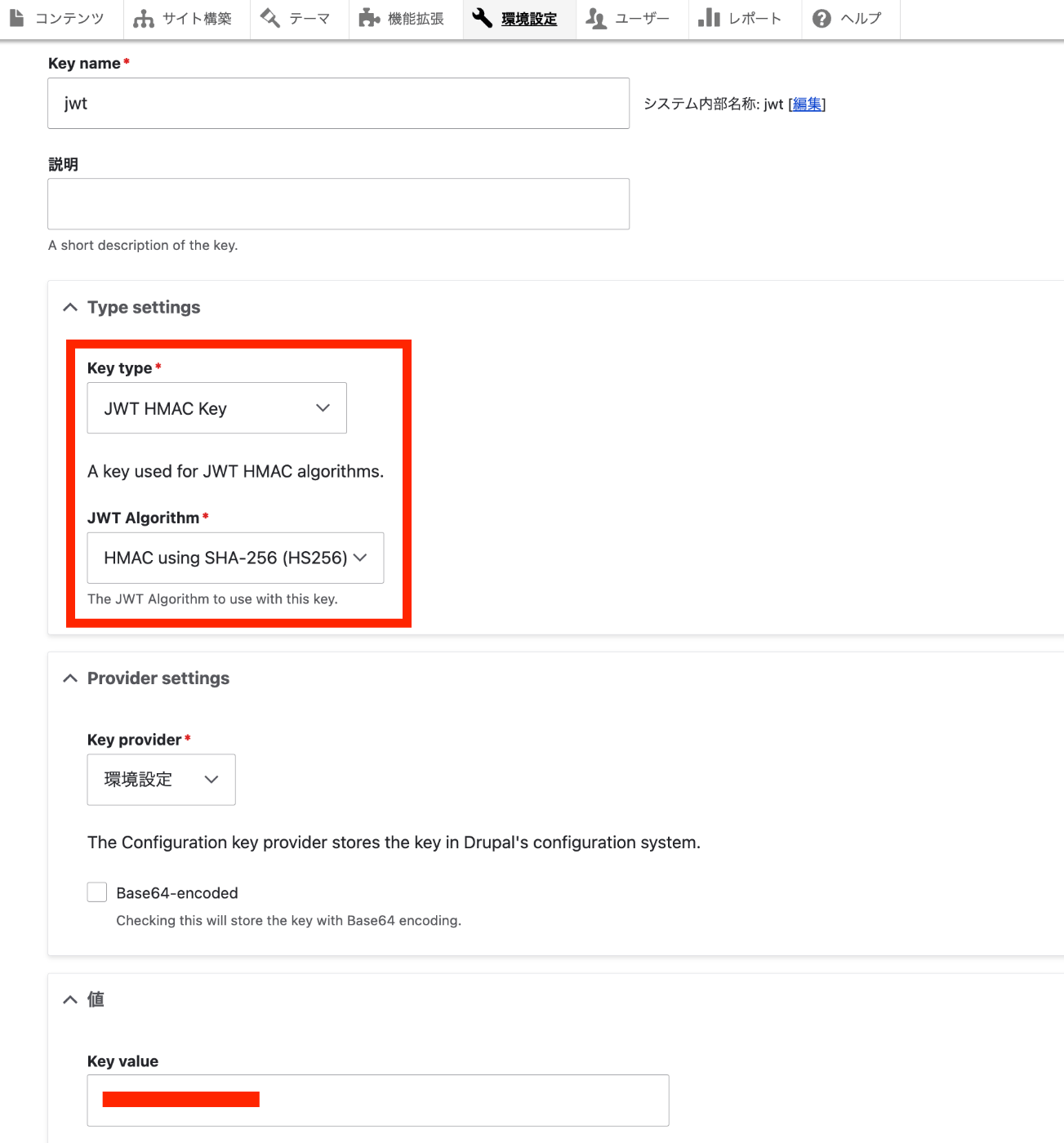
概要 DrupalのJSON Web Token Authenticationモジュールを試してみます。 https://www.drupal.org/project/jwt 以下のページを参考にしました。 https://preston.so/writing/decoupled-drupal-authentication-with-json-web-tokens/ なお、類似するモジュールとして、以下があるようです。 https://www.drupal.org/project/rest_api_authentication 上記モジュールを使ったjwt認証は以下で説明されています。 https://www.drupal.org/docs/contributed-modules/api-authentication/jwt-authentication しかし、以下の記事に記載したように、上記モジュールでjwt認証を使用するには有料プランに加入する必要があるようでした。 そこで、今回は、jwtモジュールのほうを試してみます。 インストールと有効化 jwtモジュール 注意点として、jwtだけでなく、jwt_auth_consumerやjwt_auth_issuerも有効化する必要がありました。 composer.phar require 'drupal/jwt:^2.0' vendor/bin/drush en jwt jwt_auth_consumer jwt_auth_issuer restuiモジュール composer.phar require 'drupal/restui:^1.21' vendor/bin/drush en restui 設定 以下にアクセスして、キーを作成します。 /admin/config/system/keys Key typeとしてJWT HMAC Keyを選択して、JWT AlgorithmとしてSHA-256を選択しました。 次に、以下にアクセスして、JWTの設定を行います。 AlgorithmとしてデフォルトのSHA-256を選択して、Secretとして先ほど作成したキー(ここではjwt)を選択します。 その後、ログインした状態で、以下にアクセスしてみます。 /jwt/token すると、以下のようなトークンが得られます。 参考までに、このトークンをjwt.ioで検証してみます。 https://jwt.io/ PAYLOADの箇所を見てみると、iat(Issued A: トークンが発行された時刻)やDrupalの「User ID」を確認することができます。 RESTリソースの設定 以下にアクセスします。 /admin/config/services/rest ここでは、コンテンツに対して、POSTを有効化し、認証プロバイダとしてjwt_authを選択します。 Postman Postmanを使って、コンテンツの作成を試してみます。 まず、Authorizationを指定せずに、コンテンツの作成試してみます。 Bodyはrawを選択して、フォーマットをJSONとします。以下の最低限のデータで、articleタイプのコンテンツの作成してみます。 { "type": [ { "target_id": "article" } ], "title": [ { "value": "新しい記事のタイトル" } ] } POST先のURLは以下です。 ...

さくらレンタルサーバ上のDrupalを更新する

さくらレンタルサーバ上のDrupalを更新する

概要 さくらレンタルサーバ上のDrupalを更新する機会がありましたので、手順のメモです。 まず、以下のサイトを参考にしました。 https://www.drupal.org/docs/updating-drupal/updating-drupal-core-via-drush ただし、以下のような記載がありました。 Use Composer to manage Drupal dependencies. Drush 9 and newer no longer supports updating Drupal. そこで、以下も参考にさせていただきました。 https://drupalfan.com/drupal10を最新版にアップデートする/ 手順 ! 間違った手順や不要な手順が含まれているかもしれませんので、参考程度ご確認ください。 Drupalをダウンロードしたディレクトリに移動 cd ~/www/{project_name} 準備(インストール済みの場合は不要) composer composer.pharというファイルしかない場合、composerを作成する。(mvでもよいかと思います。) cp composer.phar composer drush composer require --dev drush/drush メンテナンスモードの有効化 ./vendor/bin/drush state-set system.maintenance_mode 1 キャッシュのクリア ./vendor/bin/drush cr バックアップ バックアップ用のディレクトリの作成 mkdir ~/bk sqlのバックアップ ./vendor/bin/drush sql:dump --extra-dump=--no-tablespaces > ~/bk/dump.sql 参考 以下のように、--extra-dump=--no-tablespacesを指定しないと、エラーがメッセージが表示されました。 ./vendor/bin/drush sql:dump > ~/bk/dump.sql > mysqldump: Error: 'Access denied; you need (at least one of) the PROCESS privilege(s) for this operation' when trying to dump tablespaces ファイルのバックアップ tar cvzf ~/bk/web.zip . 更新 事前確認 composer update "drupal/core-*" --with-all-dependencies --dry-run 更新 composer update "drupal/core-*" --with-all-dependencies コントリビュートモジュールのアップデート composer update データベースの更新 ./vendor/bin/drush updatedb メンテナンスモードの無効化 ./vendor/bin/drush state-set system.maintenance_mode 0 キャッシュのクリア ./vendor/bin/drush cr 更新後にキャッシュのクリアを行わないと、表示が崩れることがありました。 ...