ホーム 記事一覧 ブック DH週間トピックス 検索 このサイトについて
English
StrapiのData transferを試す

StrapiのData transferを試す

概要 Strapiにおいて、ローカル環境のデータを公開環境に反映させる機会があり、以下のData transferを使ってみました。 https://docs.strapi.io/dev-docs/data-management/transfer 手順 公開環境側 公開環境側で、Transfer Tokensを発行します。 ローカル環境 公開サイトをhttps://strapi.example.org、tokenをxxxとします。 この時、以下のコマンドにより、ローカル環境のデータを公開環境に反映することができました。 strapi transfer --to https://strapi.example.org/admin --to-token xxx 既存のデータが上書きされるため、その点はご注意ください。 ? The transfer will delete existing data from the remote Strapi! Are you sure you want to proceed? Yes Starting transfer... ✔ entities: 71 transfered (size: 73.6 KB) (elapsed: 1680 ms) ✔ links: 54 transfered (size: 10.3 KB) (elapsed: 687 ms) ... まとめ Strapiの利用にあたり、参考になりましたら幸いです。

@iiif/parserを試す

@iiif/parserを試す

概要 @iiif/parserというnpmモジュールを知ったので、一部の機能を試してみました。 https://github.com/IIIF-Commons/parser 使い方 以下は一例です。v2のIIIFマニフェストを、v3に変換します。 "use client"; import { useState } from "react"; import { convertPresentation2 } from "@iiif/parser/presentation-2"; import { Button, Label, TextInput } from "flowbite-react"; import ComponentsPagesParserPre from "./pages/parser/pre"; type ManifestData = any; export default function ComponentsParser() { const [url, setUrl] = useState<string>( "https://iiif.dl.itc.u-tokyo.ac.jp/repo/iiif/fbd0479b-dbb4-4eaa-95b8-f27e1c423e4b/manifest" ); const [data, setData] = useState<ManifestData>(null); const fetchAndConvertManifest = async ( manifestUrl: string ): Promise<void> => { try { const response = await fetch(manifestUrl); const manifestJson = await response.json(); const convertedManifest = convertPresentation2(manifestJson); setData(convertedManifest); } catch (error) { console.error("Failed to fetch or convert manifest", error); setData("Error fetching or converting manifest."); } }; const handleSubmit = (event: React.FormEvent<HTMLFormElement>): void => { event.preventDefault(); fetchAndConvertManifest(url); }; return ( <> <form className="flex flex-col gap-4" onSubmit={handleSubmit}> <div> <Label htmlFor="url" value="IIIF Manifest URL (v2)" /> <TextInput id="url" type="text" value={url} placeholder="https://example.com/iiif/manifest.json" required onChange={(e) => setUrl(e.target.value)} /> </div> <Button type="submit">Submit</Button> </form> <div className="mt-8"> <ComponentsPagesParserPre data={data} /> </div> </> ); } まず、以下でインポートします。 ...

ndlocr_cli実行時の共有メモリ不足への対応ほか

ndlocr_cli実行時の共有メモリ不足への対応ほか

概要 ndlocr_cli(NDLOCR(ver.2.1)アプリケーションのリポジトリ)を実行した際、いくつか対応を行う必要がありましたので、その備忘録です。 なお、これらの対応は私の設定漏れや変則的な使用方法によるものが多く、一般的な使用においては発生しないと思われます。同様の不具合が発生した際の参考としてご覧ください。 共有メモリ不足 ndlocr_cliを実行した際、以下のエラーが発生しました。 Predicting: 0it [00:00, ?it/s]ERROR: Unexpected bus error encountered in worker. This might be caused by insufficient shared memory (shm). DataLoader worker (pid(s) 3999) exited unexpectedly Chat GPTによる回答は以下でした。 「Unexpected bus error encountered in worker」というエラーメッセージは、通常、PyTorchのDataLoaderを使用している際に、共有メモリ(shared memory)が不足している場合に発生します。特に、データセットが大きい場合や多くのワーカーを使用している場合にこの問題が見られることがあります。 そして、以下の指示がありました。 Dockerや他の仮想環境を使用している場合は、共有メモリのサイズを増やす必要があります。Dockerを使用している場合は、コンテナを起動する際に --shm-size オプションを設定します。例えば、docker run --shm-size 2G ... のように設定します。 これについて、私のdockerの実行コマンドを確認したところ、--shm-sizeの指定が漏れていました。以下のスクリプトでは、--shm-size=256mが指定されていました。 https://github.com/ndl-lab/ndlocr_cli/blob/master/docker/run_docker.sh 上記のオプションを付与して実行したところ、無事、共有メモリ不足のエラーは解消しました。 (参考)現在の共有メモリのサイズを確認する 以下のコマンドにより確認できました。 df -h /dev/shm 上記のエラーが発生した時、64mとなっていました。 KeyError: ‘STRING’ 何度か、KeyError: 'STRING'に遭遇しました。この対処にあたり、以下の二つのファイルに変更を加えました。 https://github.com/ndl-lab/ndlocr_cli/blob/master/cli/core/inference.py#L681 https://github.com/ndl-lab/ruby_prediction/blob/646de35cefde6fa205f4b6a3ac308e7f5ba91061/output_ruby.py#L104C45-L104C65 line_xml.attrib['STRING']やelm.attrib['STRING']の箇所でエラーが発生していたため、以下の処理を加えました。 if 'STRING' not in line_xml.attrib: continue 参考:プログレスバーの追加 OCR処理中のプログレスバーを表示したいケースがありました。以下の箇所を修正します。 ...

Omeka Sで動画を公開する

Omeka Sで動画を公開する

概要 Omeka Sで動画を公開する方法について調べてみましたので、備忘録です。 標準機能 Omeka Sは標準で動画をサポートしています。 以下は標準の機能を使用した例です。 以下のmp4ファイルを使用させていただいています。 https://file-examples.com/storage/fe4e1227086659fa1a24064/2017/04/file_example_MP4_480_1_5MG.mp4 具体的には、以下のように<video>タグが使用されていました。 <div class="media-render file"> <video src="https://omeka-d.aws.ldas.jp/files/original/5060f3ba2537676746a7aa69c9884c64daac300b.mp4" controls=""> <a href="https://omeka-d.aws.ldas.jp/files/original/5060f3ba2537676746a7aa69c9884c64daac300b.mp4">5060f3ba2537676746a7aa69c9884c64daac300b.mp4</a> </video> </div> 同様に.movファイルをアップロードしたところ、ブラウザ依存かと思いますが、無事に再生されました。 IIIF Server IIIF Serverモジュールを使用することで、IIIFマニフェストファイルを配信することが可能になります。 https://omeka.org/s/modules/IiifServer/ これをインストールし、合わせて、Universal Viewerをインストールします。 https://omeka.org/s/modules/UniversalViewer/ 結果、以下のように、Universal Viewerが表示され、マニフェストファイルに記載されたメタデータとともに、動画を表示することができました。 マニフェストファイルの確認(v2) IIIF Sererモジュールによって生成するマニフェストファイル(v2)を確認したところ、以下のように表示されました。 { "@context": [ "http://iiif.io/api/presentation/2/context.json", "http://wellcomelibrary.org/ld/ixif/0/context.json" ], "@id": "https://omeka-d.aws.ldas.jp/iiif/2/1/manifest", "@type": "sc:Manifest", "label": "mp4", "metadata": [ { "label": "Title", "value": "mp4" } ], "viewingDirection": "left-to-right", "license": "https://rightsstatements.org/vocab/CNE/1.0/", "related": { "@id": "https://omeka-d.aws.ldas.jp/s/test/item/1", "format": "text/html" }, "seeAlso": { "@id": "https://omeka-d.aws.ldas.jp/api/items/1", "format": "application/ld+json" }, "sequences": [ { "@id": "https://omeka-d.aws.ldas.jp/iiif/2/1/sequence/normal", "@type": "sc:Sequence", "label": "Unsupported extension. This manifest is being used as a wrapper for non-IIIF v2 content (e.g., audio, video) and is unfortunately incompatible with IIIF v2 viewers.", "compatibilityHint": "displayIfContentUnsupported", "canvases": [ { "@id": "https://omeka-d.aws.ldas.jp/iiif/ixif-message/canvas/c1", "@type": "sc:Canvas", "label": "Placeholder image", "thumbnail": "https://omeka-d.aws.ldas.jp", "width": null, "height": null, "images": [ { "@id": "https://omeka-d.aws.ldas.jp/iiif/ixif-message/imageanno/placeholder", "@type": "oa:Annotation", "motivation": "sc:painting", "resource": { "@id": "https://omeka-d.aws.ldas.jp/iiif/ixif-message-0/res/placeholder", "@type": "dctypes:Image", "width": null, "height": null }, "on": "https://omeka-d.aws.ldas.jp/iiif/ixif-message/canvas/c1" } ] } ] } ], "mediaSequences": [ { "@id": "https://omeka-d.aws.ldas.jp/iiif/2/1/sequence/s0", "@type": "ixif:MediaSequence", "label": "XSequence 0", "elements": [ { "@id": "https://omeka-d.aws.ldas.jp/files/original/bc5bbd4550ae7b6eab3affbc832bb158b5e280ab.mp4/element/e0", "@type": "dctypes:MovingImage", "label": "mp4", "metadata": [ { "label": "Title", "value": "mp4" } ], "thumbnail": "https://omeka-d.aws.ldas.jp/application/asset/thumbnails/video.png", "rendering": [ { "@id": "https://omeka-d.aws.ldas.jp/files/original/bc5bbd4550ae7b6eab3affbc832bb158b5e280ab.mp4", "format": "video/mp4" } ], "service": { "@id": "https://omeka-d.aws.ldas.jp/iiif/2/5", "profile": "http://wellcomelibrary.org/ld/ixif/0/alpha.json" }, "width": 0, "height": 0 } ] } ] } v2では動画などには非対応のため、mediaSequencesをUniversal Viewerが独自にロードして表示しているようです。 ...

ndlocr_cliをdockerでインストールした後の容量

ndlocr_cliをdockerでインストールした後の容量

ndlocr_cliをdockerでインストールした後の容量に関する備忘録です。 以下の手順を参考に、ndlocr_cliをセットアップしました。 以下のように、50GB弱が使われるようでしたので、残りの容量で入出力の画像ファイルなどを処理する必要があります。(以下では、200GBのディスク容量を割り当てた例です。) mdxuser@ubuntu-2204:~/ndlocr_cli$ df -h Filesystem Size Used Avail Use% Mounted on tmpfs 5.7G 1.4M 5.7G 1% /run /dev/sda2 196G 45G 143G 24% / tmpfs 29G 0 29G 0% /dev/shm tmpfs 5.0M 0 5.0M 0% /run/lock /dev/sda1 1.1G 6.1M 1.1G 1% /boot/efi tmpfs 5.7G 4.0K 5.7G 1% /run/user/1000 AWS(Amazon Web Services)やmdx(データ活用社会創成プラットフォーム)において、仮想マシンを立ち上げる際の、仮想ディスク(GB)の指定などに役立てば幸いです。 参考になりましたら幸いです。

プログラムを使ってDrupalにログインする

プログラムを使ってDrupalにログインする

プログラムを使ってDrupalにログインする方法に関する備忘録です。 以下の記事が参考になりました。 https://drupal.stackexchange.com/questions/185494/how-do-i-programmatically-log-in-a-user-with-a-post-request curl --location 'http://drupal.d8/user/login?_format=json' \ --header 'Content-Type: application/json' \ --data '{ "name": "admin", "pass": "admin" }' 上記のようなリクエストをおくることで、以下のようなレスポンスを取得できました。 {"current_user":{"uid":"1","roles":["authenticated","administrator"],"name":"admin"},"csrf_token":"wBr9ldleaUhmP4CgVh7PiyyxgNn_ig8GgAan9-Ul3Lg","logout_token":"tEulBvihW1SUkrnbCERWmK2jr1JEN_mRAQIdNNhhIDc"} 参考になりましたら幸いです。

WordPress REST APIで非公開の投稿も含めて検索する

WordPress REST APIで非公開の投稿も含めて検索する

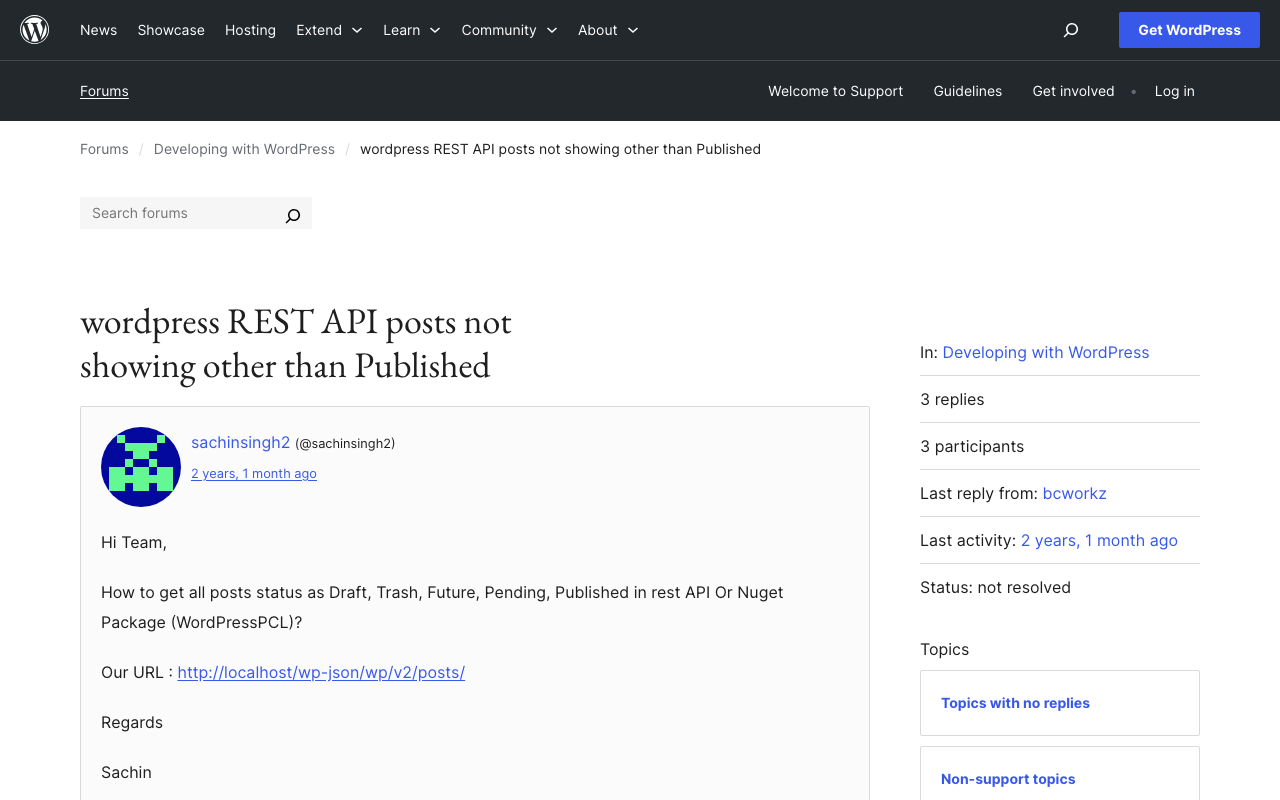
背景 WordPress REST APIで非公開の投稿も含めて検索する方法の備忘録です。 以下が参考になりました。 https://wordpress.org/support/topic/wordpress-rest-api-posts-not-showing-other-than-published/ 具体的には、以下のように、引数statusを使い、複数の状態を指定することで、それらを含む記事の一覧を取得できました。 GET /wp-json/wp/v2/posts?status=publish,draft,trash 参考になりましたら幸いです。

Drupalのイベントをトリガーとして、GitHub Actionsを起動する

Drupalのイベントをトリガーとして、GitHub Actionsを起動する

概要 Drupalのイベントをトリガーとして、GitHub Actionsを起動する方法の備忘録です。 以下のサイトが参考になりました。 https://qiita.com/hmaruyama/items/3d47efde4720d357a39e pipedreamの設定 triggerとcustom_requestを含むワークフローを作成します。 triggerについては、以下を参考にしてください。 https://qiita.com/hmaruyama/items/3d47efde4720d357a39e#pipedream側の設定 custom_requestにおいて、dispatchに関する設定を行います。 https://docs.github.com/ja/rest/repos/repos?apiVersion=2022-11-28#create-a-repository-dispatch-event 以下のような設定を行います。 curl -L \ -X POST \ -H "Accept: application/vnd.github+json" \ -H "Authorization: Bearer <YOUR-TOKEN>" \ -H "X-GitHub-Api-Version: 2022-11-28" \ https://api.github.com/repos/OWNER/REPO/dispatches \ -d '{"event_type":"webhook"}' Drupalの設定 以下のモジュールをインストールします。 https://www.drupal.org/project/webhooks インストール後、以下のページで設定を行います。 /admin/config/services/webhook GitHub Actionsの設定 以下のようにrepository_dispatchを設定します。これにより、pipedreamからのリクエストに基づき、GitHub Actionsが実行されます。 name: Build and Deploy to Production on: push: branches: - main # Allows external webhook trigger repository_dispatch: types: - webhook permissions: contents: read concurrency: group: "build-and-deploy" cancel-in-progress: true jobs: ... まとめ pipedreamを使用せずに、Drupalのカスタムモジュールを作成することにより、GitHubに通知を送る方法もありそうです。(すでにそのようなモジュールが開発されている可能性が高そうですが、見つけることができませんでした。) ...

YOLOv5モデル(文字領域検出)を使った推論アプリ

YOLOv5モデル(文字領域検出)を使った推論アプリ

概要 以下で文字領域の検出アプリを公開しています。 https://huggingface.co/spaces/nakamura196/yolov5-char 上記アプリが動作しなくなっていたので、以下の記事と同じ手順で修正しました。 なお、本アプリで使用しているモデルの構築にあたっては、「『日本古典籍くずし字データセット』(国文研ほか所蔵/CODH加工) doi:10.20676/00000340」を使用しています。 この修正において、細かい改善も加えたので、紹介します。 gr.JSONの高さ設定 返却結果のJSONデータが大きくなると、結果が見づらいことがありました。 そこで、以下のように、demo.cssを設定することにより、 ... demo = gr.Interface(yolo, inputs, outputs, title=title, description=description, article=article, examples=examples) demo.css = """ .json-holder { height: 300px; overflow: auto; } """ demo.launch() 以下のように、スクロールバーとともに結果を表示できるようになりました。 矩形のみの返却 文字数が多い場合、「Output Image」の画像が見にくいケースがありました。そこで、出力「Output Image with Boxes」を追加しました。 以下のような処理によって実現しています。 def yolo(im): results = model(im) # inference df = results.pandas().xyxy[0].to_json(orient="records") res = json.loads(df) im_with_boxes = results.render()[0] # results.render() returns a list of images # Convert the numpy array back to an image output_image = Image.fromarray(im_with_boxes) draw = ImageDraw.Draw(im) for bb in res: xmin = bb['xmin'] ymin = bb['ymin'] xmax = bb['xmax'] ymax = bb['ymax'] draw.rectangle([xmin, ymin, xmax, ymax], outline="red", width=3) return [ output_image, res, im, ] まとめ 参考になりましたら幸いです。 ...

mdxでJupyter Labを起動する

mdxでJupyter Labを起動する

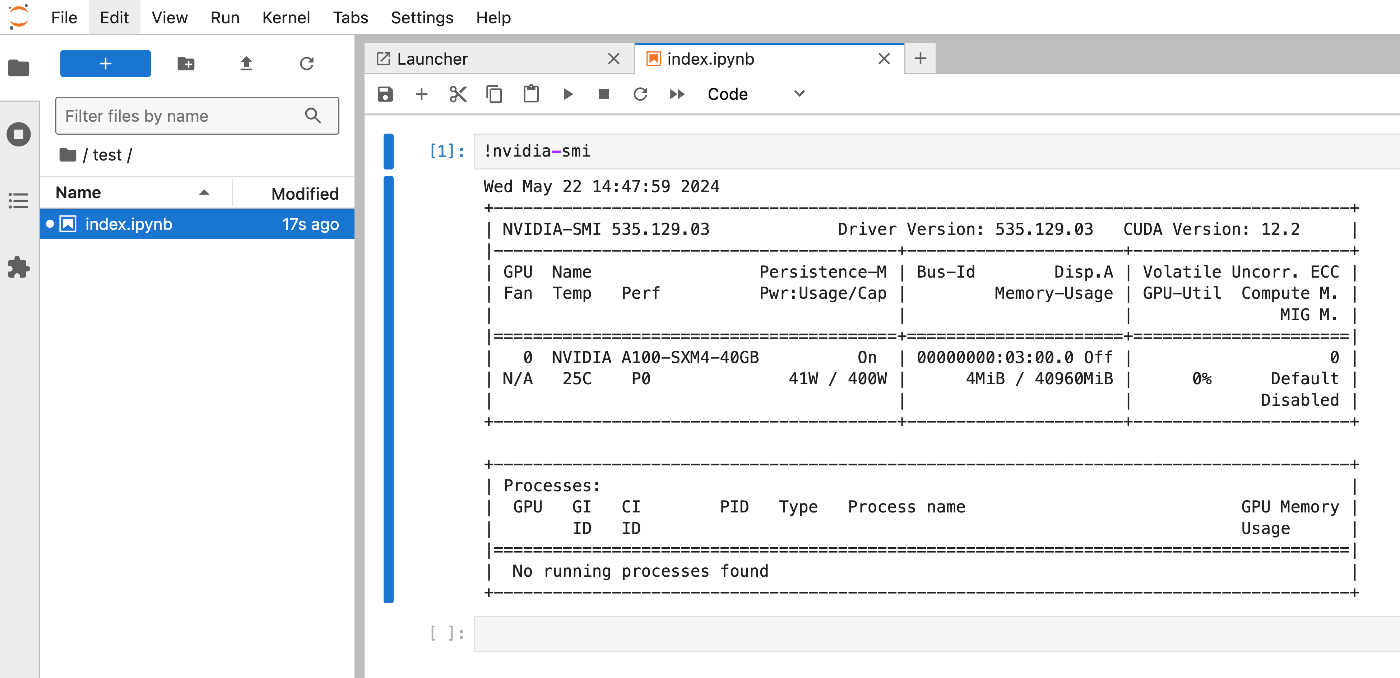
概要 mdxでJupyter Labを起動する機会がありましたので、備忘録です。 mdxのセットアップは以下も参考にしてください。 参考 以下の動画がとても参考になりました。 https://youtu.be/-KJwtctadOI?si=xaKajk79b1MxTpJ6 セットアップ サーバ上 pipのインストール sudo apt install python3-pip パスを通す nano ~/.bashrc export PATH="$HOME/.local/bin:$PATH" source ~/.bashrc 以下により、juypter labが起動します。 jupyter-lab ローカル 以下で、ssh接続します。 ssh -N -L 8888:localhost:8888 mdxuser@xxx.yyy.zzz.lll -i ~/.ssh/mdx/id_rsa その上で、サーバ上のコンソールに表示されているアドレスにアクセスします。 http://localhost:8888/lab?token=xxx 結果、以下のように利用できるようになりました。 参考:ファイル転送 以下などで、ローカルからサーバへファイル転送を行う。 scp -i ~/.ssh/mdx/id_rsa /path/to/local/image.jpg username@remote_address:/path/to/remote/directory まとめ 参考になりましたら幸いです。

Hugging Face SpacesとYOLOv5モデル(NDL-DocLデータセットで学習済み)を使った推論アプリの修正

Hugging Face SpacesとYOLOv5モデル(NDL-DocLデータセットで学習済み)を使った推論アプリの修正

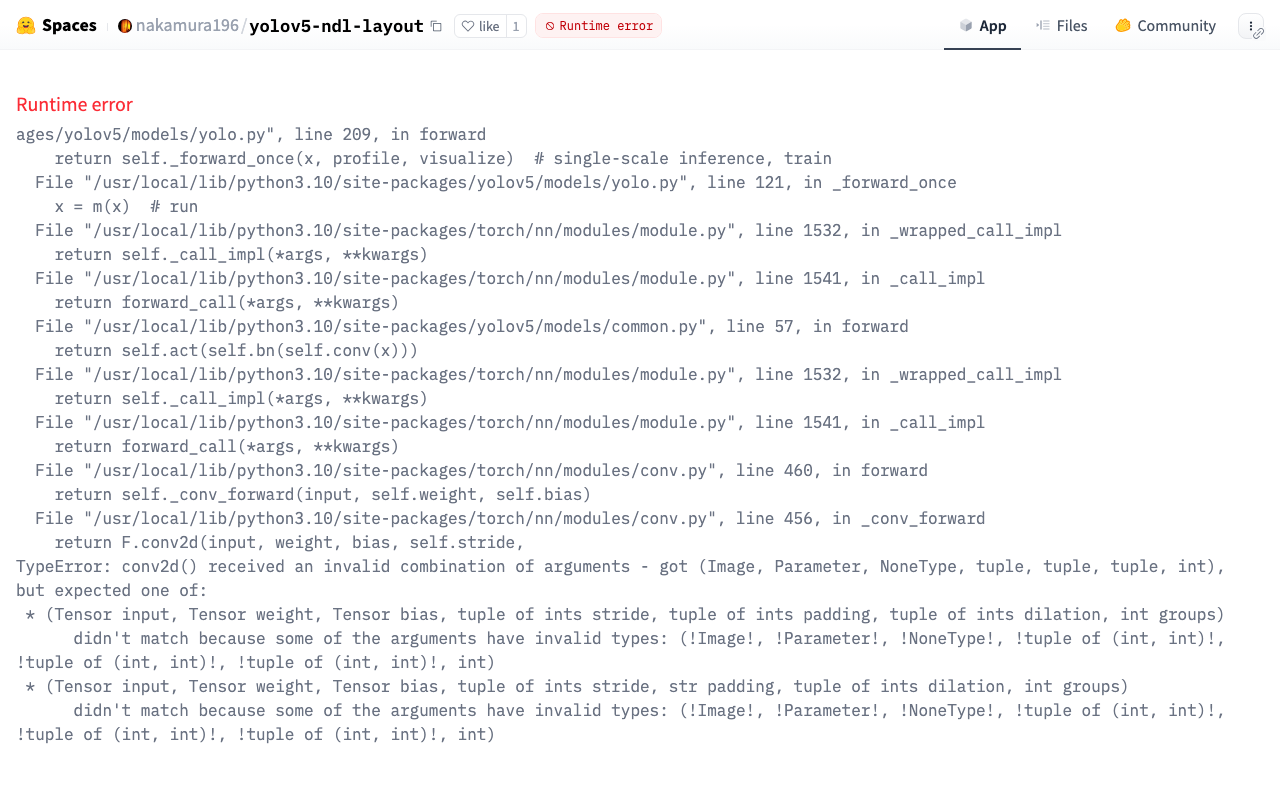
概要 以下の記事でHugging Face Spacesと、以下の記事で紹介したYOLOv5モデル(NDL-DocLデータセットで学習済み)を使った推論アプリを紹介しました。 このアプリが動作しなくなっていたため、動作するように修正しました。 https://huggingface.co/spaces/nakamura196/yolov5-ndl-layout この修正で行なった対応についてメモします。 修正点 修正を加えたapp.pyは以下です。 import gradio as gr from PIL import Image import yolov5 import json model = yolov5.load("nakamura196/yolov5-ndl-layout") def yolo(im): results = model(im) # inference df = results.pandas().xyxy[0].to_json(orient="records") res = json.loads(df) im_with_boxes = results.render()[0] # results.render() returns a list of images # Convert the numpy array back to an image output_image = Image.fromarray(im_with_boxes) return [ output_image, res ] inputs = gr.Image(type='pil', label="Original Image") outputs = [ gr.Image(type="pil", label="Output Image"), gr.JSON() ] title = "YOLOv5 NDL-DocL Datasets" description = "YOLOv5 NDL-DocL Datasets Gradio demo for object detection. Upload an image or click an example image to use." article = "<p style='text-align: center'>YOLOv5 NDL-DocL Datasets is an object detection model trained on the <a href=\"https://github.com/ndl-lab/layout-dataset\">NDL-DocL Datasets</a>.</p>" examples = [ ['『源氏物語』(東京大学総合図書館所蔵).jpg'], ['『源氏物語』(京都大学所蔵).jpg'], ['『平家物語』(国文学研究資料館提供).jpg'] ] demo = gr.Interface(yolo, inputs, outputs, title=title, description=description, article=article, examples=examples) demo.launch(share=False) まず、Gradioのバージョンアップに伴い、gr.inputs.Imageをgr.Imageなどに変更しました。 ...

ultralyticsplus: ValueError: Invalid CUDA 'device=0' requested...への対処

ultralyticsplus: ValueError: Invalid CUDA 'device=0' requested...への対処

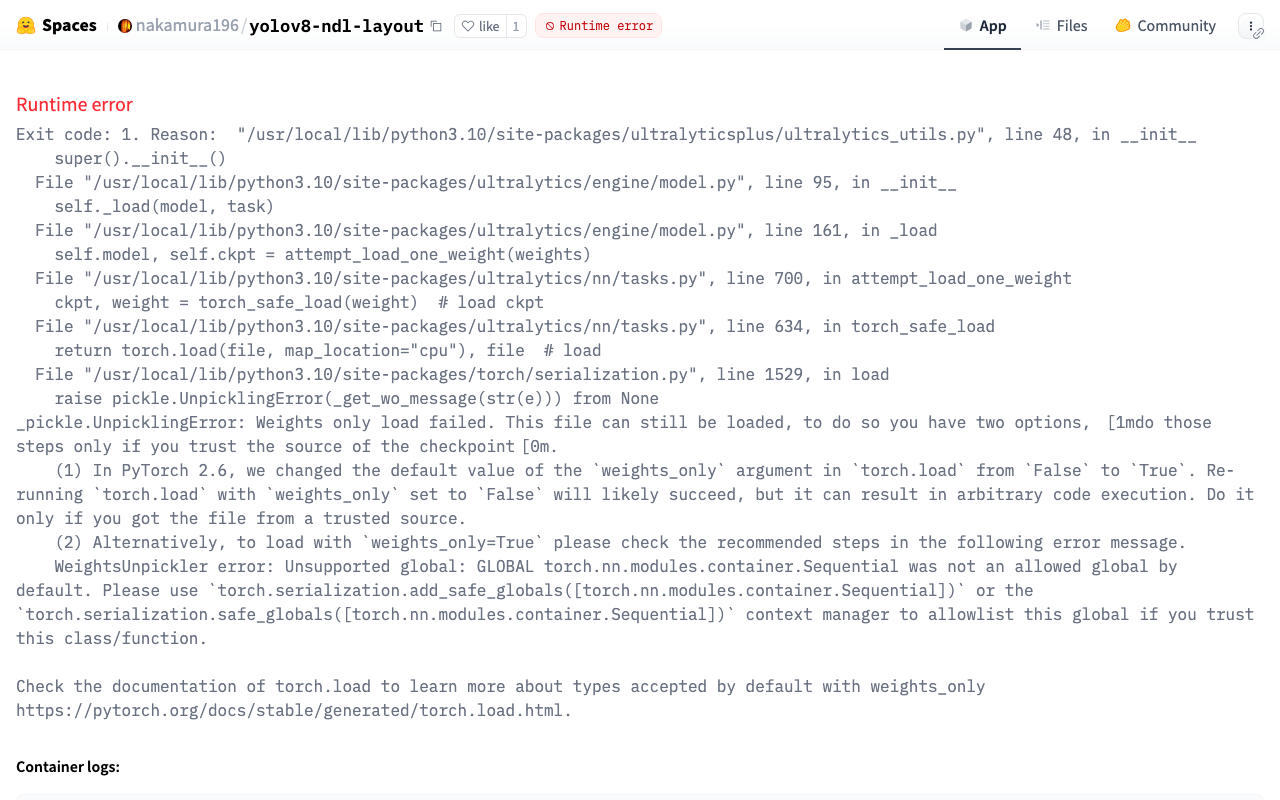
概要 YOLOv8を用いた推論アプリを以下で公開しています。 https://huggingface.co/spaces/nakamura196/yolov8-ndl-layout 当初、以下のエラーが発生しました。 ValueError: Invalid CUDA 'device=0' requested. Use 'device=cpu' or pass valid CUDA device(s) if available, i.e. 'device=0' or 'device=0,1,2,3' for Multi-GPU. torch.cuda.is_available(): False torch.cuda.device_count(): 0 os.environ['CUDA_VISIBLE_DEVICES']: None See https://pytorch.org/get-started/locally/ for up-to-date torch install instructions if no CUDA devices are seen by torch. このエラーがに対して、以下のようにdeviceを追記することで対処できました。 results = model.predict(img, device="cpu") 詳細 以下のライブラリを使用しています。 https://github.com/fcakyon/ultralyticsplus そして、以下のように利用したところ、上記のエラーが発生しました。 from ultralyticsplus import YOLO, render_result # load model model = YOLO("nakamura196/yolov8-ndl-layout") img = 'https://dl.ndl.go.jp/api/iiif/2534020/T0000001/full/full/0/default.jpg' results = model.predict(img) そこで、以下のように引数を追記することで、エラーが解消しました。 results = model.predict(img, device="cpu") 補足 以下のように、ローカルにあるモデルを使用する際には、device="cpu"がなくても、上記のエラーが発生することなく使用できました。 ...

Japan Search利活用スキーマを使ったentity-lookupの試作

Japan Search利活用スキーマを使ったentity-lookupの試作

概要 以下の記事の続きです。 Japan Searchの利活用スキーマを使って、cwrcのentity-lookupを行うパッケージを試作します。 デモ 以下のページでお試しいただけます。 https://nakamura196.github.io/nuxt3-demo/entity-lookup/ Person, Place, Organizationなどの種別ごとに、JPS, Wikidata, VIAFにentity-lookupを行います。 ライブラリ 以下で公開しています。 https://github.com/nakamura196/jps-entity-lookup cwrcですでに公開されていたリポジトリhttps://github.com/cwrc/wikidata-entity-lookupをベースに、主に以下のファイルをJapan Searchの利活用スキーマに合わせて修正しました。 https://github.com/nakamura196/jps-entity-lookup/blob/main/src/index.js インストール方法 以下が参考になりました。 https://qiita.com/pure-adachi/items/ba82b03dba3ebabc6312 開発中 開発中のライブラリをインストールする場合には、以下のようにインストールしました。 pnpm i /Users/nakamura/xxx/jps-entity-lookup GitHubから GitHubからは以下のようにインストールします。 pnpm i nakamura196/jps-entity-lookup まとめ 参考になりましたら幸いです。

cwrcのwikidata-entity-lookupを試す

cwrcのwikidata-entity-lookupを試す

概要 以下の記事の続きです。 LEAF-WRITERの特徴として、以下が挙げられています。 the ability to look up and select identifiers for named entity tags (persons, organizations, places, or titles) from the following Linked Open Data authorities: DBPedia, Geonames, Getty, LGPN, VIAF, and Wikidata. この機能は、以下のようなライブラリが使用されています。 https://github.com/cwrc/wikidata-entity-lookup この機能を試しています。 使い方 以下などで、npmパッケージが公開されています。 https://www.npmjs.com/search?q=cwrc 上記のリストにはありませんが、今回は以下を対象にします。 https://www.npmjs.com/package/wikidata-entity-lookup 以下でインストールします。 npm i wikidata-entity-lookup wikidataLookup.findPersonは、以下のように実行することができました。 <script lang="ts" setup> // @ts-ignore import wikidataLookup from "wikidata-entity-lookup"; interface Entity { id: string; name: string; description: string; uri: string; } const query = ref<string>(""); const results = ref<Entity[]>([]); const search = () => { wikidataLookup.findPerson(query.value).then((result: Entity[]) => { results.value = result; }); }; </script> デモ Nuxtでの実装例を用意しました。 ...

CWRC XML Validator APIを試す

CWRC XML Validator APIを試す

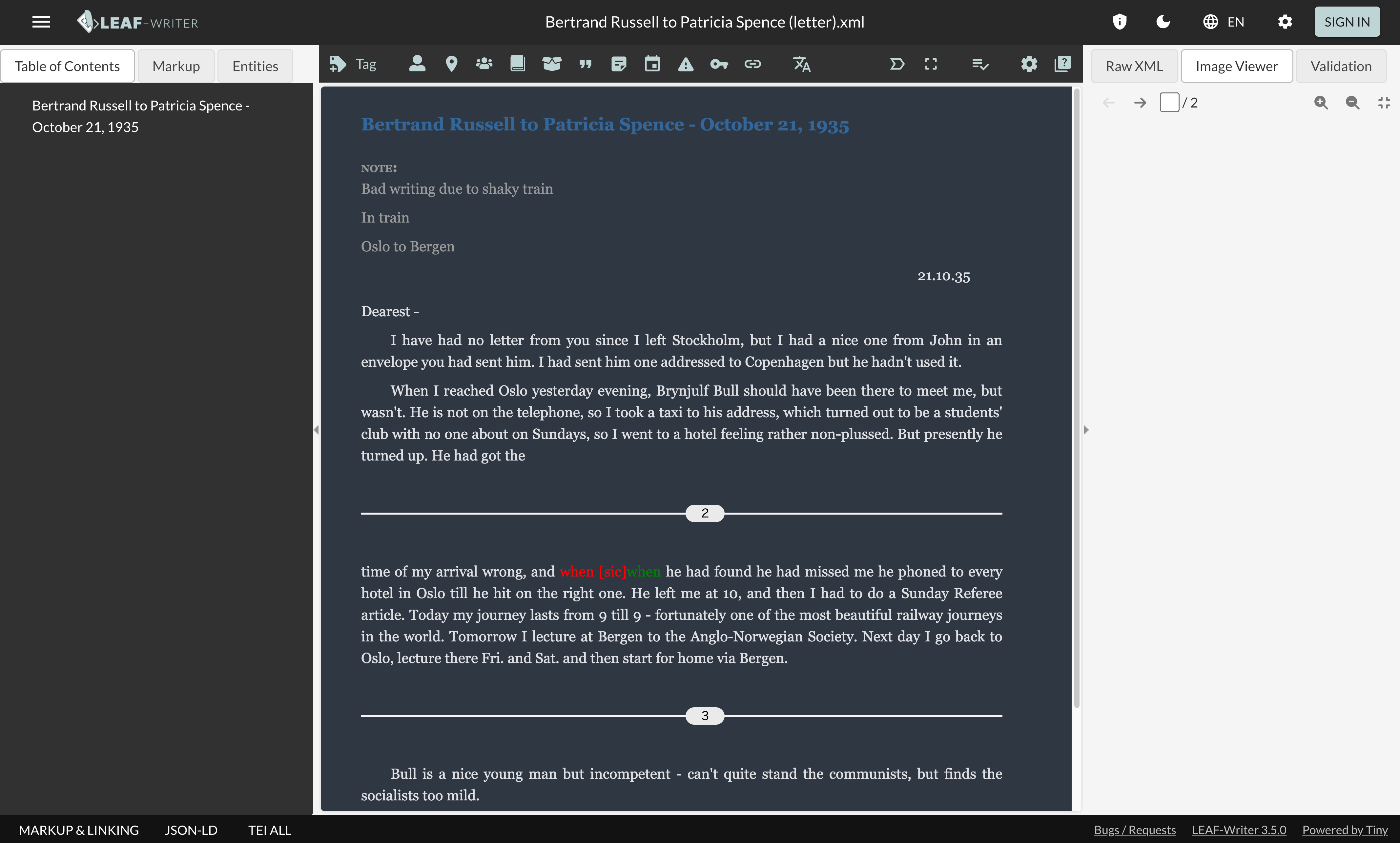
概要 TEI/XMLを対象としたエディタの一つとして、LEAF-WRITERがあります。 https://leaf-writer.leaf-vre.org/ 以下のように説明されています。 The XML & RDF online editor of the Linked Editing Academic Framework GitLabのリポジトリは以下です。 https://gitlab.com/calincs/cwrc/leaf-writer/leaf-writer このツールの特徴の一つとして、以下が説明されています。 continuous XML validation このvalidationには以下のAPIが使用されているようでした。 https://validator.services.cwrc.ca/ また、ライブラリは以下のようです。 https://www.npmjs.com/package/@cwrc/leafwriter-validator 今回は、上記のAPIを試してみます。 試す 以下のページが表示されます。 https://validator.services.cwrc.ca/ Try ItのPOSTで以下を試しています。 Schema URL: https://raw.githubusercontent.com/nakamura196/test2021/main/tei_excel.rng Schema Type: RNG_XML Document Content: <?xml version="1.0" encoding="UTF-8"?> <?xml-model href="http://www.tei-c.org/release/xml/tei/custom/schema/relaxng/tei_all.rng" type="application/xml" schematypens="http://relaxng.org/ns/structure/1.0"?> <?xml-model href="http://www.tei-c.org/release/xml/tei/custom/schema/relaxng/tei_all.rng" type="application/xml" schematypens="http://purl.oclc.org/dsdl/schematron"?> <TEI xmlns="http://www.tei-c.org/ns/1.0"> <teiHeader> <fileDesc> <titleStmt> <title>Title</title> </titleStmt> <publicationStmt> <p>Publication Information</p> </publicationStmt> <sourceDesc> <p>Information about the source</p> </sourceDesc> </fileDesc> </teiHeader> <text> <body> <p> I am <name>Satoru Nakamura</name>. </p> </body> </text> </TEI> 上記は、http://www.tei-c.org/release/xml/tei/custom/schema/relaxng/tei_all.rngをスキーマとする場合にはエラーが生じませんが、使用可能なタグを限定したhttps://raw.githubusercontent.com/nakamura196/test2021/main/tei_excel.rngではエラーが生じるはずです。 ...

RELAX NGとSchematron

RELAX NGとSchematron

概要 oXygen XML EditorでTEI/XMLを作成すると、以下のようなテンプレートが作成されます。 <?xml version="1.0" encoding="UTF-8"?> <?xml-model href="http://www.tei-c.org/release/xml/tei/custom/schema/relaxng/tei_all.rng" type="application/xml" schematypens="http://relaxng.org/ns/structure/1.0"?> <?xml-model href="http://www.tei-c.org/release/xml/tei/custom/schema/relaxng/tei_all.rng" type="application/xml" schematypens="http://purl.oclc.org/dsdl/schematron"?> <TEI xmlns="http://www.tei-c.org/ns/1.0"> <teiHeader> <fileDesc> <titleStmt> <title>Title</title> </titleStmt> <publicationStmt> <p>Publication Information</p> </publicationStmt> <sourceDesc> <p>Information about the source</p> </sourceDesc> </fileDesc> </teiHeader> <text> <body> <p>Some text here.</p> </body> </text> </TEI> この時、以下の違いが気になりましたので、GPT4への問い合わせ結果を共有します。 <?xml-model href="http://www.tei-c.org/release/xml/tei/custom/schema/relaxng/tei_all.rng" type="application/xml" schematypens="http://relaxng.org/ns/structure/1.0"?> <?xml-model href="http://www.tei-c.org/release/xml/tei/custom/schema/relaxng/tei_all.rng" type="application/xml" schematypens="http://purl.oclc.org/dsdl/schematron"?> 回答 2行目と3行目の違いは、schematypens属性に指定されている名前空間です。以下に詳細を説明します。 2行目 <?xml-model href="http://www.tei-c.org/release/xml/tei/custom/schema/relaxng/tei_all.rng" type="application/xml" schematypens="http://relaxng.org/ns/structure/1.0"?> href : http://www.tei-c.org/release/xml/tei/custom/schema/relaxng/tei_all.rng type : application/xml schematypens : http://relaxng.org/ns/structure/1.0 この行は、TEI (Text Encoding Initiative) ドキュメントに対して RELAX NG スキーマを指定しています。RELAX NG はXML文書の構造を検証するためのスキーマ言語です。 ...

Docker版のTEI Publisherを使用する

Docker版のTEI Publisherを使用する

概要 Docker版のTEI Publisherを使用する機会があったので、備忘録です。 https://teipublisher.com/exist/apps/tei-publisher-home/index.html TEI Publisherは以下のように説明されています。 TEI Publisher facilitates the integration of the TEI Processing Model into exist-db applications. The TEI Processing Model (PM) extends the TEI ODD specification format with a processing model for documents. That way intended processing for all elements can be expressed within the TEI vocabulary itself. It aims at the XML-savvy editor who is familiar with TEI but is not necessarily a developer. (機械翻訳) TEI Publisherは、TEI Processing Modelをexist-dbアプリケーションに統合することを容易にします。TEI Processing Model(PM)は、ドキュメントの処理モデルを備えたTEI ODD仕様形式を拡張します。これにより、すべての要素の意図された処理をTEI語彙自体内で表現することができます。このモデルは、TEIに精通しているが必ずしも開発者ではないXML熟練のエディターを対象としています。 ...

PythonでXML文字列を整形する

PythonでXML文字列を整形する

概要 PythonでXML文字列を整形するプログラムの備忘録です。 プログラム1 以下を参考にしました。 https://hawk-tech-blog.com/python-learn-prettyprint-xml/ 不要な空行を削除する処理などを加えています。 from xml.dom import minidom import re def prettify(rough_string): reparsed = minidom.parseString(rough_string) pretty = re.sub(r"[\t ]+\n", "", reparsed.toprettyxml(indent="\t")) # インデント後の不要な改行を削除 pretty = pretty.replace(">\n\n\t<", ">\n\t<") # 不要な空行を削除 pretty = re.sub(r"\n\s*\n", "\n", pretty) # 連続した改行(空白行を含む)を単一の改行に置換 return pretty プログラム2 以下を参考にしました。 https://qiita.com/hrys1152/items/a87b4ca3c74ec4997f66 TEI/XMLを処理する場合には、名前空間の登録をおすすめします。 import xml.etree.ElementTree as ET # 名前空間の登録 ET.register_namespace('', "http://www.tei-c.org/ns/1.0") tree = ET.ElementTree(ET.fromstring(xml_string)) ET.indent(tree, space=' ') tree.write('output.xml', encoding='UTF-8', xml_declaration=True) まとめ 参考になりましたら幸いです。

CMYKカラーの画像から色を反転させないconvertの方法

CMYKカラーの画像から色を反転させないconvertの方法

概要 例えばIIIFを用いた画像配信において、CMYKカラーの画像に対して、ImageMagickで以下のような変換処理を行うと、色が反転するケースがありました。 convert source_image.tif -alpha off -define tiff:tile-geometry=256x256 -compress jpeg 'ptif:output_image.tif' 元画像 (布LAB.で公開されている画像を利用させていただいています。) Image Annotator(神崎正英氏作成)での表示例 これは、Cantaloupe Image ServerやIIPImageなどのイメージサーバ、および、Image AnnotatorやMirador, Universal Viewerなどのビューア側の問題ではなく、作成されるtiled TIFFs画像に問題があるようです。 本記事では、この問題への対応方法について説明します。 背景 同様の不具合は、以下の記事など、いくつかの場所で報告されていました。 https://scrapbox.io/giraffate/ImageMagickでCMYKのJPG画像を合成したら色が反転するバグ 解決策として、今回は以下を参考にしました。 https://www.imagemagick.org/discourse-server/viewtopic.php?t=32585 -colorspace sRGBを追加するようです。 変換 tiled TIFFsを作成するコマンドは以下を参考にします。 https://samvera.github.io/serverless-iiif/docs/source-images#using-imagemagick 具体的には、以下です。 convert source_image.tif -alpha off -define tiff:tile-geometry=256x256 -compress jpeg 'ptif:output_image.tif' 上記をCMYKカラーの画像に対してそのまま実行すると、冒頭で紹介したように、反転した画像が表示されました。 なお、Image ServerにはCantaloupe Image Serverを使用していますが、IIPImageなどでも同様の事象が確認されました。 修正した変換コマンド 以下のように、-colorspace sRGBを追加します。 convert source_image.tif -alpha off -colorspace sRGB -define tiff:tile-geometry=256x256 -compress jpeg 'ptif:output_image.tif' 結果、以下のように、色が反転せずに、Image AnnotatorなどもIIIF対応ビューアでも表示されるようになりました。 参考 画像表示の確認にあたり、MiradorやUniversal Viewerでは、IIIFマニフェストファイルのURLを入力することが一般的ですが、Image Annotatorでは、画像のURIを入力することができます。 ...

RDFストアのトリプル数を数える2: 共起頻度

RDFストアのトリプル数を数える2: 共起頻度

概要 RDFトリプルに対して、共起頻度を数える機会がありましたので、備忘録です。以下の記事に続き、今回もジャパンサーチのRDFストアを例にします。 例1 以下は、刀剣タイプのインタンスのうち、共通を作成者(schema:creator )を持つトリプルの数をカウントしています。フィルタによって、同一のインスタンスを避け、また重複カウントを避けています。 select (count(*) as ?count) where { ?entity1 a type:刀剣; schema:creator ?value . ?entity2 a type:刀剣; schema:creator ?value . FILTER(?entity1 != ?entity2 && ?entity1 < ?entity2) } https://jpsearch.go.jp/rdf/sparql/easy/?query=select+(count(*)+as+%3Fcount)+where+{ ++%3Fentity1+a+type%3A刀剣%3B +++++++++++++schema%3Acreator+%3Fvalue+. ++%3Fentity2+a+type%3A刀剣%3B +++++++++++++schema%3Acreator+%3Fvalue+. ++FILTER(%3Fentity1+!%3D+%3Fentity2+%26%26+%3Fentity1+<+%3Fentity2) } 例2 具体的なトリプルを表示してみます。 select ?entity1 ?entity2 ?value where { ?entity1 a type:刀剣; schema:creator ?value . ?entity2 a type:刀剣; schema:creator ?value . FILTER(?entity1 != ?entity2 && ?entity1 < ?entity2) } https://jpsearch.go.jp/rdf/sparql/easy/?query=select+%3Fentity1+%3Fentity2+%3Fvalue+where+{ ++%3Fentity1+a+type%3A刀剣%3B +++++++++++++schema%3Acreator+%3Fvalue+. ++%3Fentity2+a+type%3A刀剣%3B +++++++++++++schema%3Acreator+%3Fvalue+. ++FILTER(%3Fentity1+!%3D+%3Fentity2+%26%26+%3Fentity1+<+%3Fentity2) } ...