Home Articles Books Search About
日本語

Pitfalls of Converting TEI XML Standoff Annotations to Inline, and a DOM-Based Solution

Digital Engishiki is a project that encodes the Engishiki — a collection of supplementary regulations for the ritsuryō legal system, completed in 927 CE — in TEI (Text Encoding Initiative) XML, making it browsable and searchable on the web. Led by the National Museum of Japanese History, the project provides TEI markup for critical editions, modern Japanese translations, and English translations, served through a Nuxt.js (Vue.js) based viewer. During development, we encountered a bug where converting TEI XML standoff annotations to inline annotations caused the XML document structure to collapse. This article records the cause and the DOM-based solution. ...

Trying Out the Viewer from the "Pre-modern Japan-Asia Relations Digital Archive"

Trying Out the Viewer from the "Pre-modern Japan-Asia Relations Digital Archive"

Overview The “Pre-modern Japan-Asia Relations Digital Archive” was released on July 25, 2025. https://asia-da.lit.kyushu-u.ac.jp/ The viewer is also available at: https://github.com/localmedialabs/tei_comparative_viewer In this article, I share my experience trying out this viewer. As a result, I was able to self-host it as shown below: https://tei-comparative-viewer.aws.ldas.jp/ It loads the following XML file of “Kaitoshokokki” (Record of Countries and Peoples in the Eastern Sea): https://asia-da.lit.kyushu-u.ac.jp/viewer/300 Running Locally Detailed instructions are provided at the following link, which I followed to get it running: ...

Creating Polylines Using the Polygon Tool in Annotorious v2

Creating Polylines Using the Polygon Tool in Annotorious v2

Overview This is a memo on how to create polylines using the polygon tool in Annotorious v2. Background The Annotorious v2 website is available at the following link. https://annotorious.github.io/getting-started/ As shown below, polygons can be drawn. However, a tool for drawing polylines in a similar manner did not appear to be provided, including the following plugin. https://github.com/annotorious/annotorious-v2-selector-pack Customization When a polygon like the following is created: The following JSON file is generated: ...

Creating an Inline Marker Tool with Editor.js

Creating an Inline Marker Tool with Editor.js

Overview These are notes on how to create an inline marker tool with Editor.js. References The following pages were helpful: https://editorjs.io/creating-an-inline-tool/ https://note.com/eveningmoon_lab/n/n638b9541c47c For writing in TypeScript, the following was helpful: https://github.com/codex-team/editor.js/issues/900 Implementation Implemented with Nuxt. Create the following marker.ts: import type { API } from "@editorjs/editorjs"; class MarkerTool { button: null | HTMLButtonElement; state: boolean; api: API; tag: string; class: string; // 静的メソッドで許可されるHTMLタグと属性を指定 static get sanitize() { return { mark: { class: "cdx-marker", }, }; } // インラインツールとしての振る舞いを定義 static get isInline() { return true; } constructor({ api }: { api: API }) { this.api = api; this.button = null; this.state = false; this.tag = "MARK"; this.class = "cdx-marker"; } // ボタン要素を作成し、SVGアイコンを設定 render() { this.button = document.createElement("button"); this.button.type = "button"; this.button.innerHTML = '<svg width="20" height="18"><path d="M10.458 12.04l2.919 1.686-.781 1.417-.984-.03-.974 1.687H8.674l1.49-2.583-.508-.775.802-1.401zm.546-.952l3.624-6.327a1.597 1.597 0 0 1 2.182-.59 1.632 1.632 0 0 1 .615 2.201l-3.519 6.391-2.902-1.675zm-7.73 3.467h3.465a1.123 1.123 0 1 1 0 2.247H3.273a1.123 1.123 0 1 1 0-2.247z"/></svg>'; this.button.classList.add(this.api.styles.inlineToolButton); return this.button; } // 選択されたテキストを <mark> タグで囲む surround(range: Range) { if (this.state) { this.unwrap(range); return; } this.wrap(range); } // テキストを <mark> タグでラップ wrap(range: Range) { const selectedText = range.extractContents(); const mark = document.createElement(this.tag); mark.className = this.class; // class 属性の追加 mark.appendChild(selectedText); range.insertNode(mark); this.api.selection.expandToTag(mark); } // <mark> タグを解除 unwrap(range: Range) { const mark = this.api.selection.findParentTag(this.tag); const text = range.extractContents(); mark?.remove(); range.insertNode(text); } // ツールの状態をチェック checkState() { const mark = this.api.selection.findParentTag(this.tag, this.class); this.state = !!mark; if (this.state) { this.button?.classList.add("cdx-marker--active"); } else { this.button?.classList.remove("cdx-marker--active"); } } } export default MarkerTool; Call it as follows: ...

Changing the max-width of Editor.js

Changing the max-width of Editor.js

Overview When using Editor.js, large margins appear on the left and right sides by default. This article introduces how to solve this issue. Method The following was helpful. https://github.com/codex-team/editor.js/issues/1328 Specifically, add the following CSS. .ce-block__content, .ce-toolbar__content { max-width: calc(100% - 80px) !important; } .cdx-block { max-width: 100% !important; } The full source code is as follows. <script setup lang="ts"> import EditorJS from "@editorjs/editorjs"; import type { OutputData } from "@editorjs/editorjs"; const blocks = ref<OutputData>({ time: new Date().getTime(), blocks: [ { type: "paragraph", data: { text: "大明副使蒋 承奉すらく 、 欽差督察総制提督浙江等処軍務各衙門 、近年以来、日本各島小民、仮るに買売を以て名と為し 、 しばしば中国辺境を犯し、居民を刼掠するを因となし、旨を奉じて 、 浙江等処承宣布政使司 に議行し、本職に転行して 、 親しく貴国に詣り面議せしめん等の因あり。", }, }, ], }); const editor = () => { new EditorJS({ holder: "editorjs", data: blocks.value, onChange: async (api) => { blocks.value = await api.saver.save(); }, }); }; editor(); </script> <template> <div style="background-color: aliceblue"> <div id="editorjs"></div> <hljson :content="blocks" /> </div> </template> <style> .ce-block__content, .ce-toolbar__content { max-width: calc(100% - 80px) !important; } .cdx-block { max-width: 100% !important; } pre { background-color: #f4f4f4; border: 1px solid #ccc; padding: 10px; } </style> As a result, the left and right margins were reduced as shown below. ...

Trying Leaflet Marker Cluster with Nuxt 3 and Composition API

Trying Leaflet Marker Cluster with Nuxt 3 and Composition API

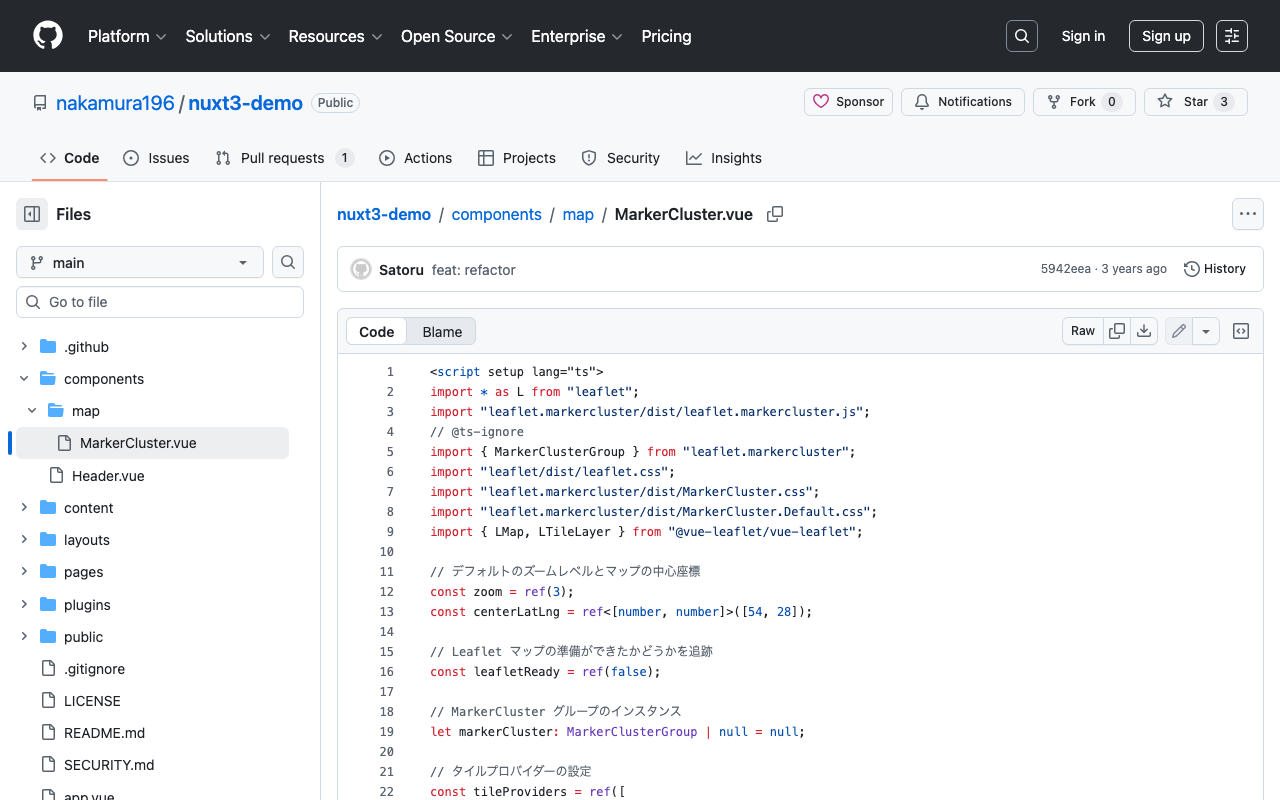
Overview In the following article, I introduced how to use Leaflet Marker Cluster with Nuxt 3. This time, I updated it to use the Composition API, so here are my notes. Installation Install the following: npm i leaflet leaflet.markercluster @vue-leaflet/vue-leaflet npm i -D @types/leaflet @types/leaflet.markercluster Source Code Please refer to the following: https://github.com/nakamura196/nuxt3-demo/blob/main/components/map/MarkerCluster.vue Summary There are some parts where TypeScript support is incomplete, but I hope this serves as a useful reference. ...

Nuxt3 x Vuetify x Cytoscape

Nuxt3 x Vuetify x Cytoscape

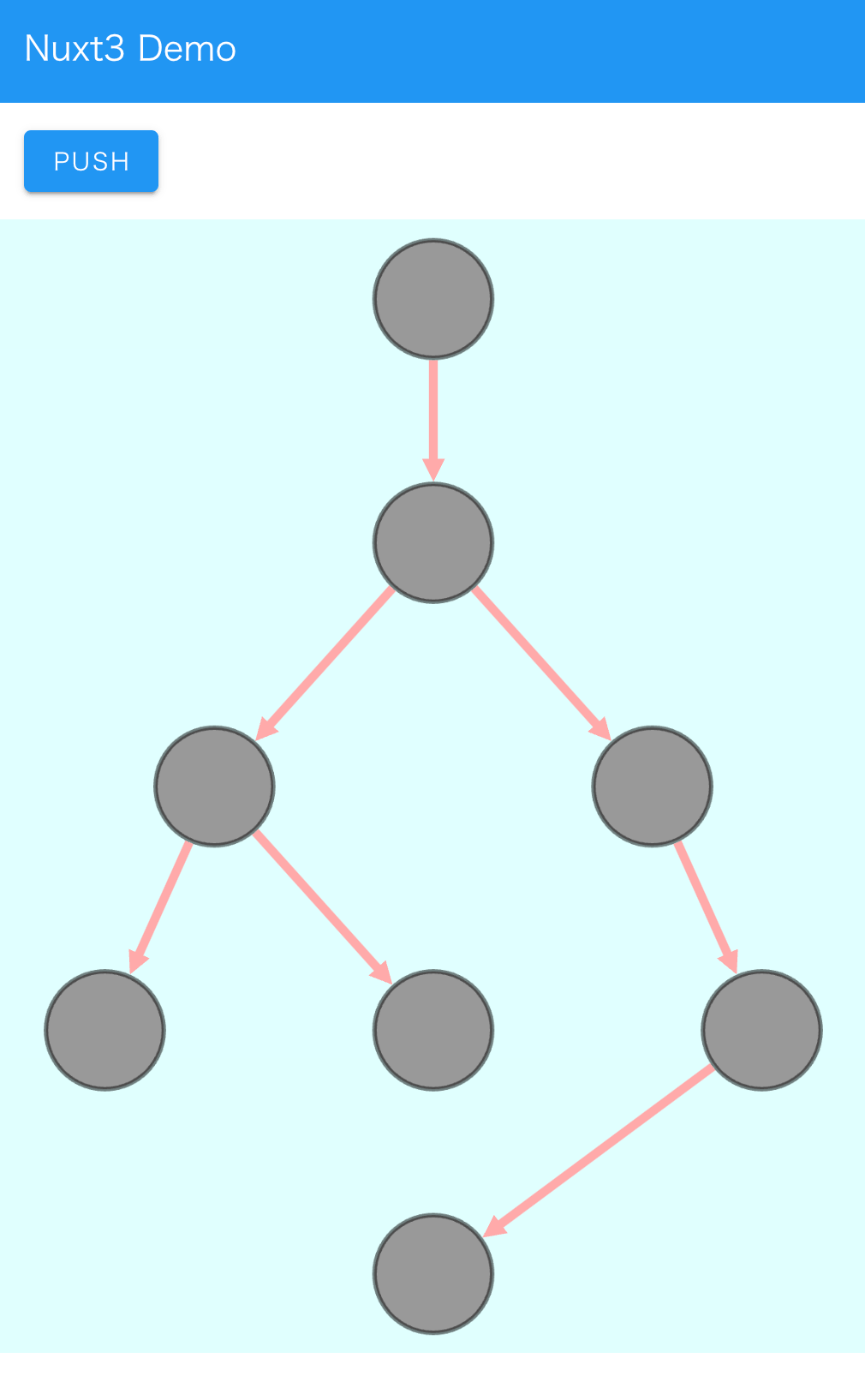
Overview I added a Cytoscape demo to a sample repository using Nuxt3 and Vuetify. https://github.com/nakamura196/nuxt3-demo You can check it working on the following page. https://nakamura196.github.io/nuxt3-demo/ Installation I ran the following. npm i cytoscape npm i @types/cytoscape Source Code <template> <div id="view"> <v-btn class="ma-4" color="primary" v-on:click="addNode">push</v-btn> <div id="cy"></div> </div> </template> <script setup lang="ts"> import cytoscape from "cytoscape"; let cy: any = null; // = ref(null); //reactive({}); //: any const count: number = 0; // = ref(0); //reactive(0); const addNode = () => { cy.add([ { group: "nodes", data: { id: "node" + count }, position: { x: 300, y: 200 }, }, { group: "edges", data: { id: "edge" + count, source: "node" + count, target: "cat" }, }, ]); }; onMounted(() => { cy = cytoscape({ container: document.getElementById("cy"), boxSelectionEnabled: false, autounselectify: true, style: cytoscape .stylesheet() .selector("node") .css({ height: 80, width: 80, "background-fit": "cover", "border-color": "#000", "border-width": 3, "border-opacity": 0.5, content: "data(name)", "text-valign": "center", }) .selector("edge") .css({ width: 6, "target-arrow-shape": "triangle", "line-color": "#ffaaaa", "target-arrow-color": "#ffaaaa", "curve-style": "bezier", }), elements: { nodes: [ { data: { id: "cat" } }, { data: { id: "bird" } }, { data: { id: "ladybug" } }, { data: { id: "aphid" } }, { data: { id: "rose" } }, { data: { id: "grasshopper" } }, { data: { id: "plant" } }, { data: { id: "wheat" } }, ], edges: [ { data: { source: "cat", target: "bird" } }, { data: { source: "bird", target: "ladybug" } }, { data: { source: "bird", target: "grasshopper" } }, { data: { source: "grasshopper", target: "plant" } }, { data: { source: "grasshopper", target: "wheat" } }, { data: { source: "ladybug", target: "aphid" } }, { data: { source: "aphid", target: "rose" } }, ], }, layout: { name: "breadthfirst", directed: true, padding: 10, }, }); }); </script> <style scoped> #cy { width: 100%; height: 80%; position: absolute; background-color: lightcyan; } </style> Summary I hope this is helpful. ...

Vue.js: Handling Panes with iframes When Using Splitpanes

Vue.js: Handling Panes with iframes When Using Splitpanes

Splitpanes is a Vue.js library that enables pane splitting and resizing, as shown below. https://github.com/antoniandre/splitpanes When using this library, I encountered an issue where resizing did not work properly when a pane contained an iframe element. A solution was described in the following pull request. https://github.com/antoniandre/splitpanes/pull/162 As described there, adding the following CSS resolved the issue and allowed correct resize operations even with panes containing iframe elements. .splitpanes--dragging .splitpanes__pane { pointer-events: none; } I hope this helps anyone experiencing the same issue. ...

Text Selection Using VueUse (Nuxt 3)

Text Selection Using VueUse (Nuxt 3)

Overview This is a personal note on using VueUse for implementing text selection functionality with Nuxt 3 (Vue 3). https://vueuse.org/ Demo You can try it from the following page. https://nuxt3-demo-git-main-nakamura196.vercel.app/textSelection The source code is at the following URL. https://github.com/nakamura196/nuxt3-demo/blob/main/pages/textSelection.vue Installation Method The installation instructions are described on the following page. https://vueuse.org/guide/ The specific steps are as follows. npm i -D @vueuse/nuxt @vueuse/core // nuxt.config.ts export default defineNuxtConfig({ modules: [ '@vueuse/nuxt', ], }) Summary In addition to text selection, there seem to be many other useful features available, so I would like to continue trying them out. ...

[Babylon.js x Vue] Passing Click Events to Vue

[Babylon.js x Vue] Passing Click Events to Vue

Overview I investigated how to get the name of a mesh clicked in Babylon.js, as shown below. I referenced the following tutorial. https://doc.babylonjs.com/communityExtensions/Babylon.js+ExternalLibraries/BabylonJS_and_Vue/BabylonJS_and_Vue_2#passing-data-from-babylonjs-to-vue-using-callbacks The demo page is as follows. https://nakamura196.github.io/nuxt3-babylonjs/8/ The source code for the page is as follows. https://github.com/nakamura196/nuxt3-babylonjs/blob/main/pages/8/index.vue Implementation In the following section, a callback variable is passed to createScene. The name fpsCallback might need to be revised. https://github.com/nakamura196/nuxt3-babylonjs/blob/5c33d2e6bcd1681df17f3f12fea3cd68fc645157/components/Scene8.vue#L10-L13 Then, in the createScene function, the result of onPointerDown is passed. ...

Trying Omeka Classic as a Headless CMS

Trying Omeka Classic as a Headless CMS

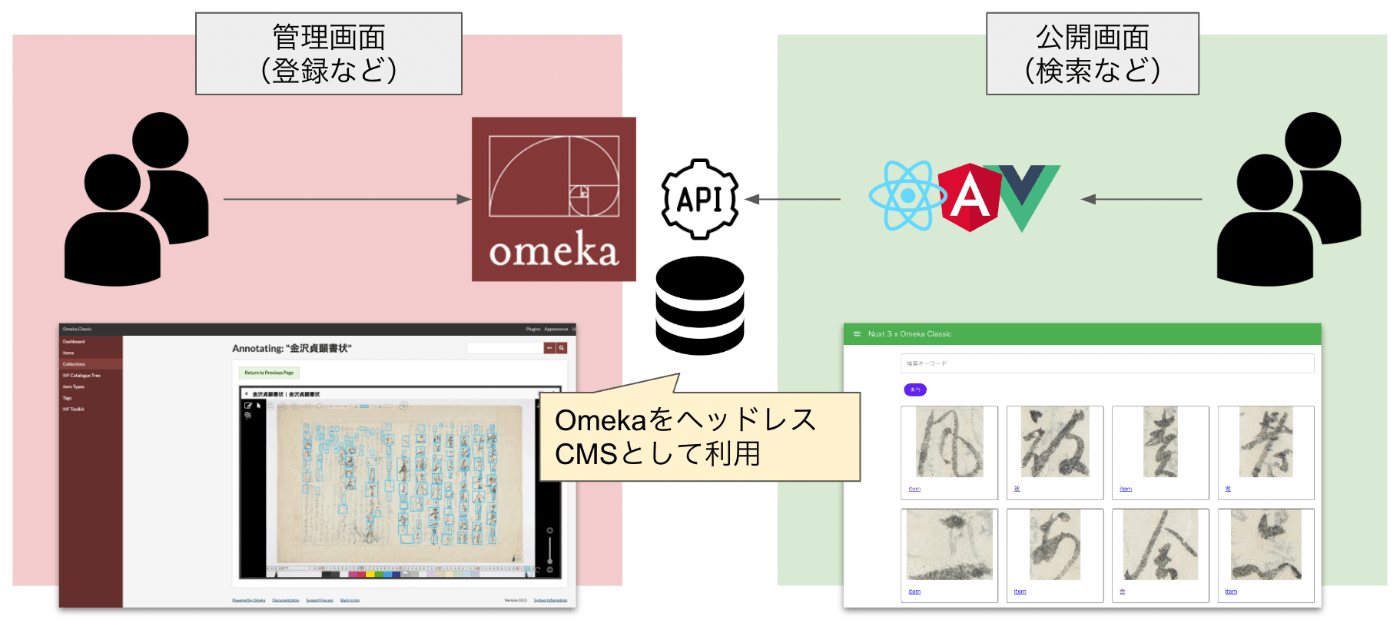
Overview Omeka S and Omeka Classic are very useful tools for building digital archives and for humanities (informatics) research. https://omeka.org/ They come with a REST API as standard and have high extensibility through the addition of modules and plugins. Various existing assets can also be used, including IIIF-related tools, transcription support tools, and tools for handling spatiotemporal information. On the other hand, I (personally) feel that theme development for changing the appearance of sites requires knowledge of PHP and Omeka, making it relatively difficult. On this point, the Headless CMS approach, where the backend and frontend are separated, has been gaining popularity in recent years. ...

Usage Example of Leaflet with Vue 3 (Including Coordinate Range Retrieval)

Usage Example of Leaflet with Vue 3 (Including Coordinate Range Retrieval)

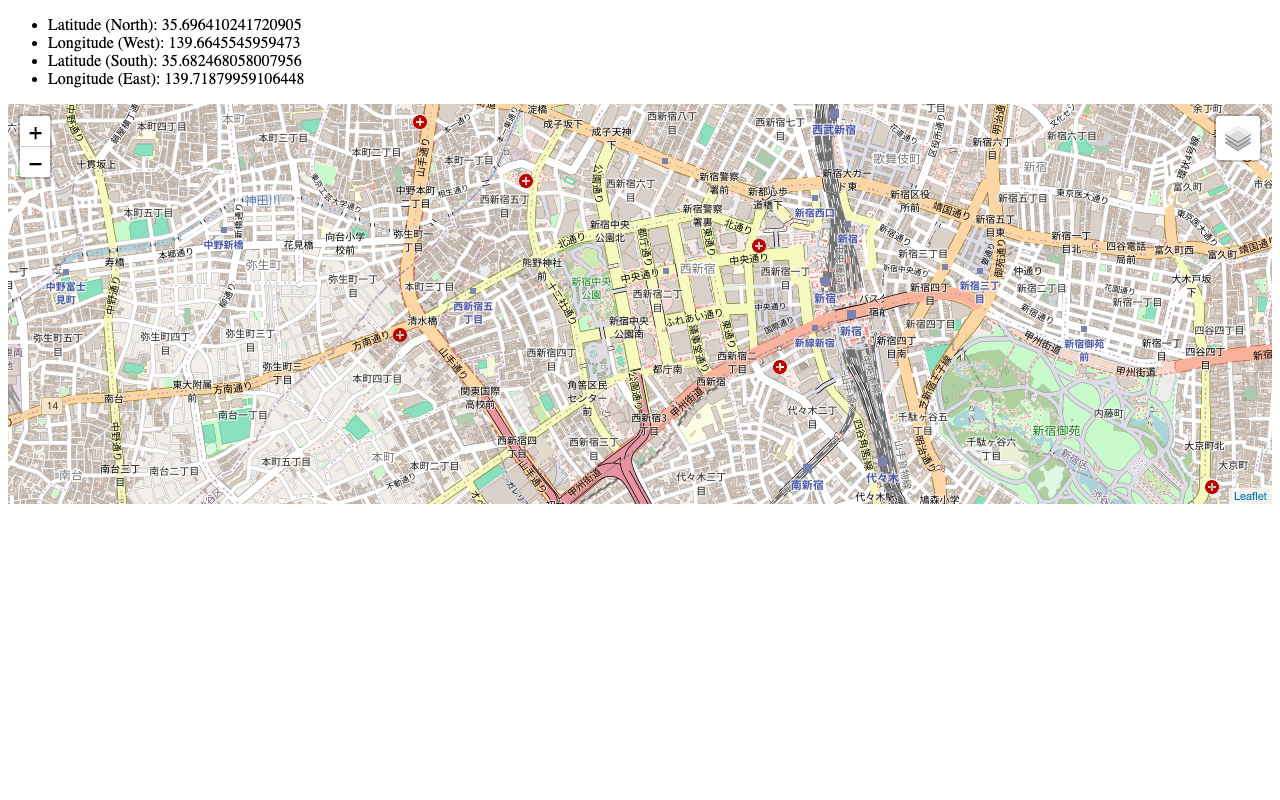
I created a repository introducing a usage example of Leaflet with Vue 3 (including coordinate range retrieval). The working example is available here: https://static.ldas.jp/vue3-leaflet/ The source code is available here: https://github.com/ldasjp8/vue3-leaflet As a Vue 3 beginner, there may be errors, but we hope this serves as a useful reference.

Created a Sample Repository for Using OpenSeadragon with Vue3

Created a Sample Repository for Using OpenSeadragon with Vue3

I created a sample repository for using OpenSeadragon with Vue3. Here is a working example. https://static.ldas.jp/vue3-osd/ The source code is available below. https://github.com/ldasjp8/vue3-osd As I am a Vue3 beginner, there may be some errors, but I hope this is helpful.

Setting Focus on a Text Field Inside a Dialog When Opening It in Vuetify

Setting Focus on a Text Field Inside a Dialog When Opening It in Vuetify

The following was helpful. https://stackoverflow.com/questions/59407003/set-focus-text-field-inside-dialog-when-dialog-opened By accessing $refs after a short delay when opening the dialog, it worked successfully. watch: { dialog: function(value) { if (value) { setTimeout(() => { this.$refs.name.focus(); }, 200); } } }

I Created a Calendar Search App

I Created a Calendar Search App

Overview I created a web application that displays information in a calendar format. Below is a display example targeting a list of Hatena Blog articles. https://static.ldas.jp/calendar/?u=https://nakamura196.github.io/json/calendar.json https://github.com/ldasjp8/calendar You can check the display example by accessing the following URL and clicking the “Example” button, then the “Add” button. https://static.ldas.jp/calendar/ You specify the URL of a JSON file in the following format as a parameter. https://nakamura196.github.io/json/calendar.json Below, I will explain how to create the JSON file from an Excel file as one example method. ...

Created a GitHub Repository Demonstrating How to Use vis.js with Nuxt.js

Created a GitHub Repository Demonstrating How to Use vis.js with Nuxt.js

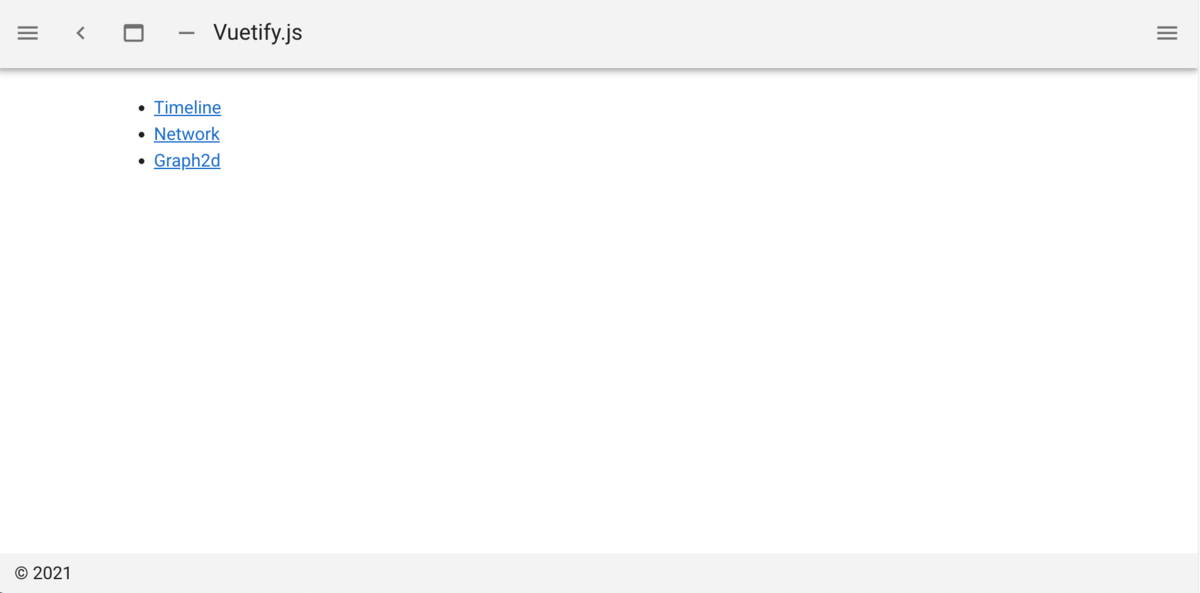
Overview We created a GitHub repository demonstrating how to use vis.js with Nuxt.js. github.com You can check the demo site from the following page: https://nuxt-visjs.netlify.app/ Details Nuxt.js is a framework that allows you to use Vue.js more effectively. vis.js is a visualization library that can create network diagrams and timelines. visjs.org We created a GitHub repository demonstrating how to use vis.js with Nuxt.js. The repository includes basic visualization examples using “Timeline,” “Network,” and “Graph2d.” ...

Created a Repository Demonstrating How to Use Mirador 3 with Vue

Created a Repository Demonstrating How to Use Mirador 3 with Vue

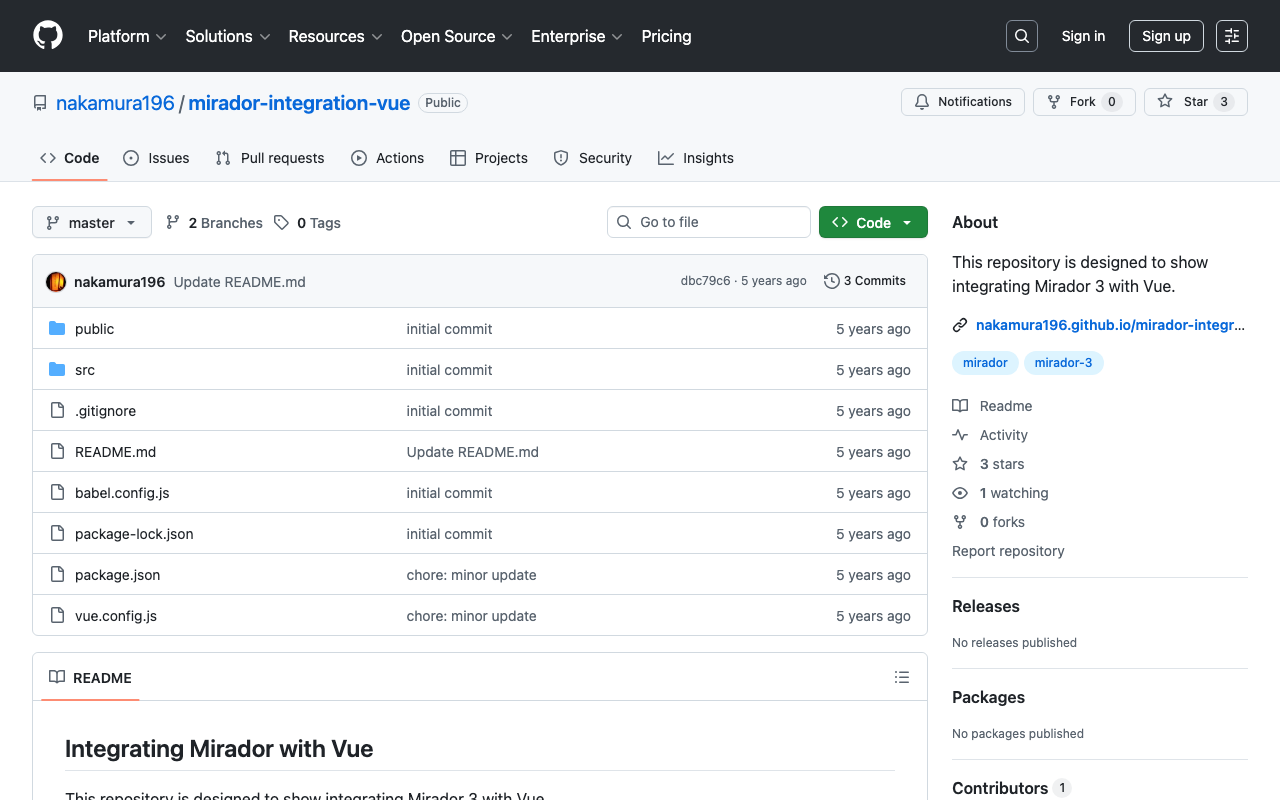
We created a repository demonstrating how to use Mirador 3 with Vue. We hope it serves as a useful reference for application development with Vue. github.com This repository was created with reference to the following: github.com As a simpler alternative, you can also use the UMD (Universal Module Definition) build. If you simply want to use Mirador 3, we recommend the following approach: github.com The site above states (as demonstrated in the repository introduced here): ...