Home Articles Books Search About
日本語
Fixing the White Bar at the Bottom of Chrome Headless Screenshots

Fixing the White Bar at the Bottom of Chrome Headless Screenshots

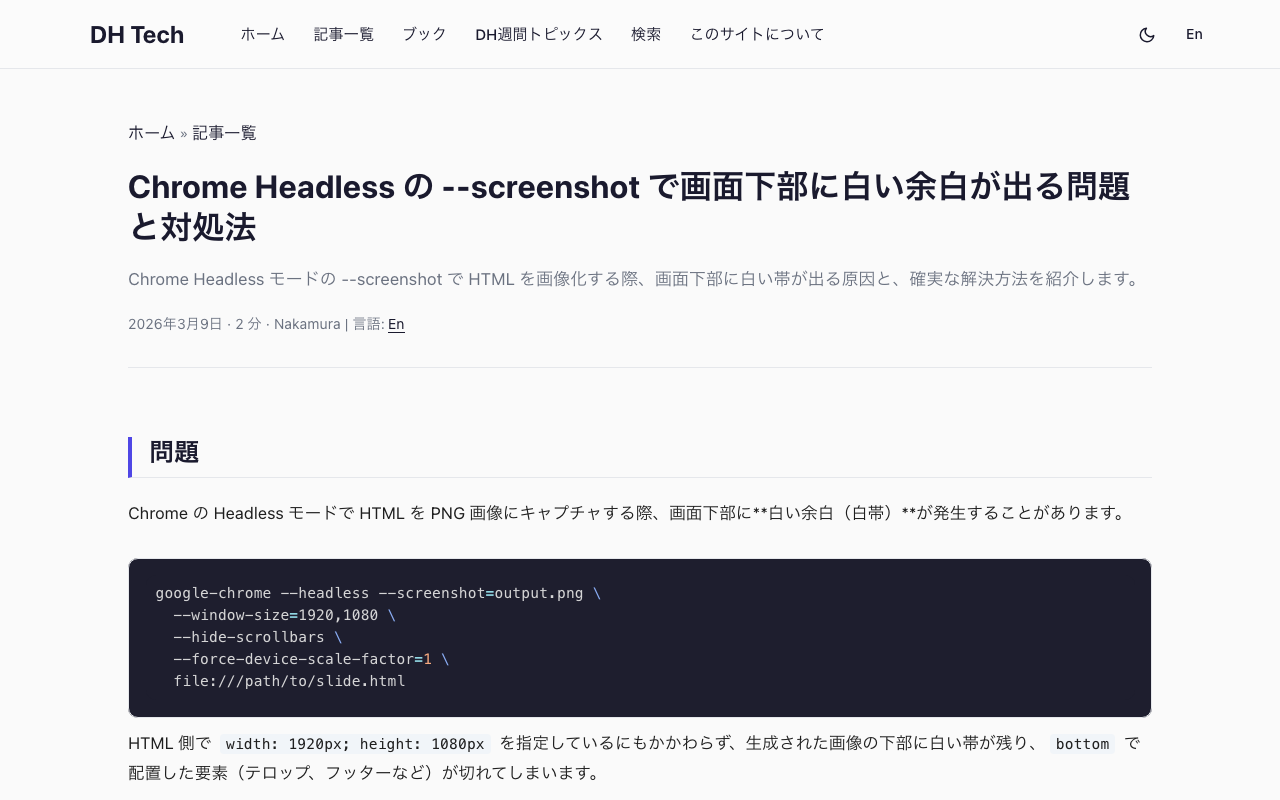
The Problem When capturing HTML as PNG images using Chrome’s Headless mode, a white bar appears at the bottom of the output image. google-chrome --headless --screenshot=output.png \ --window-size=1920,1080 \ --hide-scrollbars \ --force-device-scale-factor=1 \ file:///path/to/slide.html Even when the HTML specifies width: 1920px; height: 1080px, the generated image has a white strip at the bottom, and elements positioned with bottom (such as captions, footers, or telops) get clipped. Root Cause --window-size=1920,1080 sets the outer window size, not the actual viewport (rendering area). The viewport ends up slightly smaller, even in Headless mode. ...

[Omeka S Tips] Notes on Using the BulkImport Module on Windows

[Omeka S Tips] Notes on Using the BulkImport Module on Windows

Overview In the following article, I introduced the “BulkImport” module for batch registering metadata and images using CSV files. nakamura196.hatenablog.com That article introduced how to create and register CSV files. While this works without issues on macOS, there were reports of the following error occurring when creating CSV files on Windows and registering them in Omeka S: File “media_template.csv” has media type “application/vnd.ms-excel”, not “text/csv”. This error was resolved by registering with an ODS file instead. ...

[Omeka S Tips] About Auto-Adding New Items to Each Site

[Omeka S Tips] About Auto-Adding New Items to Each Site

Overview In the latest version of Omeka S, you can configure whether new items registered in Omeka S are automatically added as resources to each site. The official manual documents this at: https://omeka.org/s/docs/user-manual/sites/site_settings/#general-settings Since Omeka S is designed to manage multiple sites, you can change the items (resources) that are searchable on a per-site basis. However, when using Omeka S to manage only a single site, it is more efficient to have items automatically added to the site as searchable resources when they are registered in Omeka S. ...

[Omeka S Tips] How to Add Existing Standard Vocabularies

[Omeka S Tips] How to Add Existing Standard Vocabularies

Overview Omeka S uses RDF (Resource Description Framework) to describe information about resources (items, item sets, media, etc.). Therefore, it is necessary to import vocabularies, which are collections of RDF classes and properties. This article explains how to import existing vocabularies. The official manual is available at: omeka.org Specifically, we will use the following as examples: the National Diet Library Dublin Core Metadata Description (DC-NDL) provided by the National Diet Library, Schema.org, and the Japan Search Utilization Schema. ...

[Omeka S Tips] How to Set Language Attributes for Metadata

[Omeka S Tips] How to Set Language Attributes for Metadata

This article introduces how to set language attributes for metadata. The official manual describes this in the following section: omeka.org On the metadata editing screen shown below, clicking the globe icon reveals an input form. By entering values such as “ja” or “en” here, you can assign language attributes to your metadata. These language attributes are displayed on the public site and can also be verified in the JSON-LD provided through the Omeka S API. ...