Home Articles Books Search About
日本語
Achieving Up to 7.6x Faster Image Delivery by Optimizing Cantaloupe IIIF Server Cache

Achieving Up to 7.6x Faster Image Delivery by Optimizing Cantaloupe IIIF Server Cache

Introduction I run Cantaloupe, an IIIF-compliant image server, in a Docker environment with S3 as the image source. IIIF viewers (such as Mirador and OpenSeadragon) generate dozens to hundreds of simultaneous tile requests every time the user zooms or pans. By reviewing the cache settings and tuning parameters, I was able to speed up tile delivery by up to 7.6x. In this article, I share the methods and results. Environment Server: AWS EC2 (2 vCPU, 7.6GB RAM) Cantaloupe: islandora/cantaloupe:2.0.10 (based on Cantaloupe 5.0.7) Image Source: Amazon S3 (S3Source) Test Image: 25167×12483px TIFF (512×512 tiles) Reverse Proxy: Traefik v3.2 Setup: Docker Compose Problem: Cache Is Disabled by Default After investigating the default settings of the islandora/cantaloupe image, I found the following state: ...
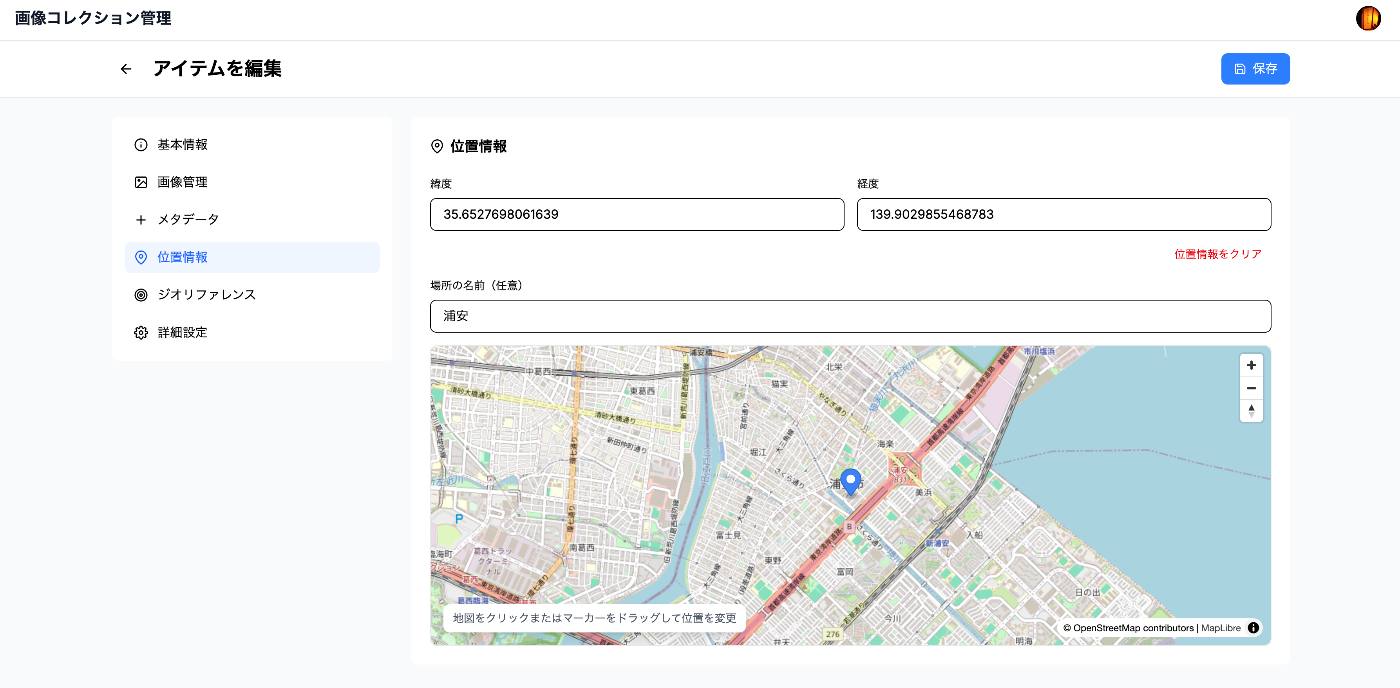
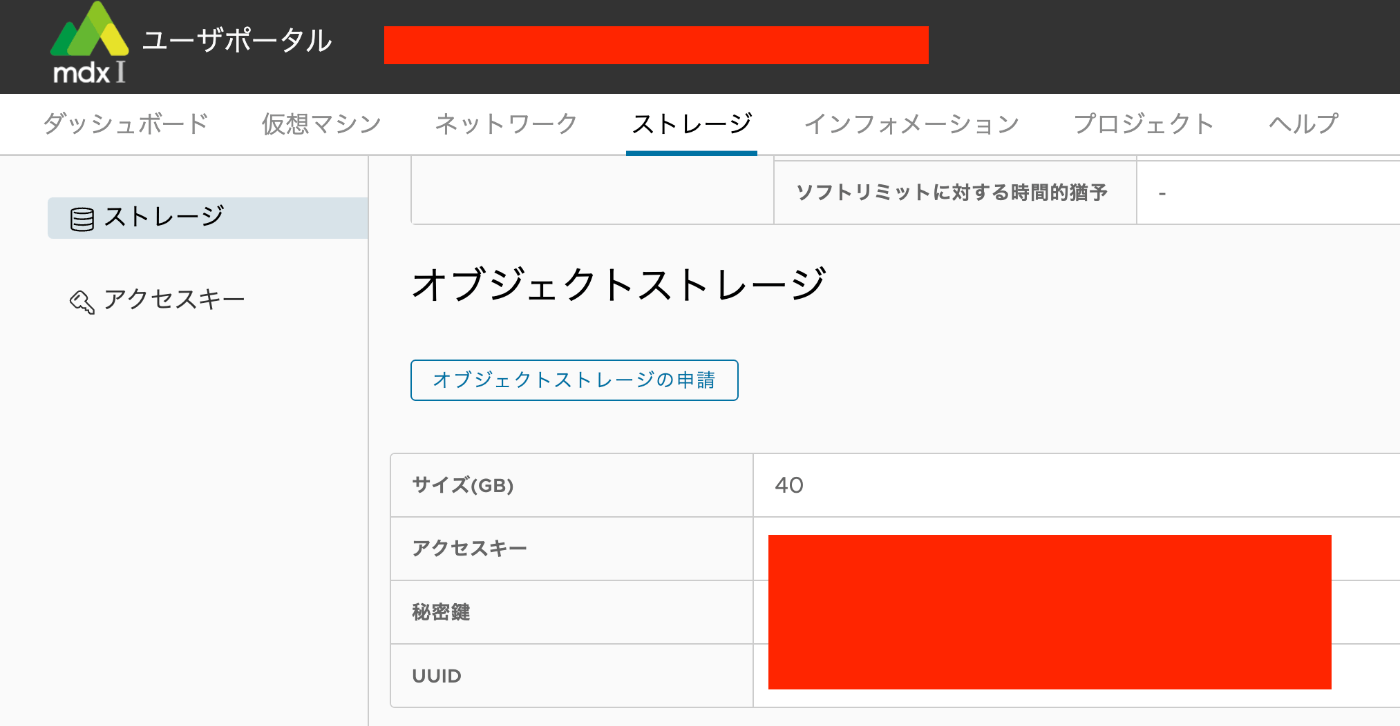
Image Collection Management Tool: Technical Architecture Explained

Image Collection Management Tool: Technical Architecture Explained

Overview In a previous article, we introduced an “Image Collection Management” tool designed for easily trying out IIIF features. https://zenn.dev/nakamura196/articles/7d6bb4cdc414c4 This article introduces the technologies used behind the scenes of this tool. Background The Image Collection Management Tool is a web application for managing and publishing image collections in the IIIF (International Image Interoperability Framework) format, an international standard. This article explains the technical implementation of the tool, focusing particularly on the IIIF specification implementation and the handling of geospatial information. ...

Adding mdx.jp Object Storage to GakuNin RDM Storage

Adding mdx.jp Object Storage to GakuNin RDM Storage

Overview This article describes how to add mdx.jp object storage to GakuNin RDM storage. Procedure mdx.jp Submit a usage application for mdx.jp object storage and note down the access key and secret key. GakuNin RDM Enable S3 Compatible Storage. Select mdx S3DS as the S3-compatible service and enter the access key and secret key you noted earlier. A list of buckets will be displayed. Select the bucket you want to connect to. ...

Storing Omeka S Files in mdx.jp Object Storage

Storing Omeka S Files in mdx.jp Object Storage

Overview This is a memo on how to store Omeka S files in mdx.jp object storage. Base Module We use the following module as a base, which enables integration with Amazon S3. https://omeka.org/s/modules/AmazonS3/ This module provides an extension for storing media files such as images and videos handled by Omeka S in Amazon S3. However, since it did not support specifying an endpoint, it was not possible to target object storage services like mdx.jp. ...

Serving IIIF Images Using mdx.jp Object Storage and IIP Image (IIIF Image Server)

Serving IIIF Images Using mdx.jp Object Storage and IIP Image (IIIF Image Server)

Overview This is a note on my experiment with serving IIIF images using mdx.jp object storage and IIP Image (IIIF Image Server). This is a continuation of the following article. Docker Version of IIP Image A Docker image for the IIPImage server is available at the following link, so I will use that. https://hub.docker.com/r/iipsrv/iipsrv Refer to the following article and others for installing Docker. https://qiita.com/Marron-chan/items/570c7c7baaae3b4d6b11 Execution Following the previous article, mount the mdx.jp object storage as follows. ...

How to Mount mdx.jp Object Storage as a File System Using s3fs

How to Mount mdx.jp Object Storage as a File System Using s3fs

Overview I had the opportunity to mount mdx.jp object storage as a file system using s3fs, so this is a memo of the process. 1. Prerequisites This guide targets Ubuntu. Installing s3fs sudo apt update sudo apt install s3fs Setting up authentication credentials Save the access key and secret key for mdx.jp object storage to ~/.passwd-s3fs. echo “ACCESS_KEY:SECRET_KEY” > ~/.passwd-s3fs chmod 600 ~/.passwd-s3fs # Change permissions for security 2. Mount S3 Storage Locally Create a mount point ...

Using IIIF Manifest Files Stored in mdx.jp Object Storage from NestJS

Using IIIF Manifest Files Stored in mdx.jp Object Storage from NestJS

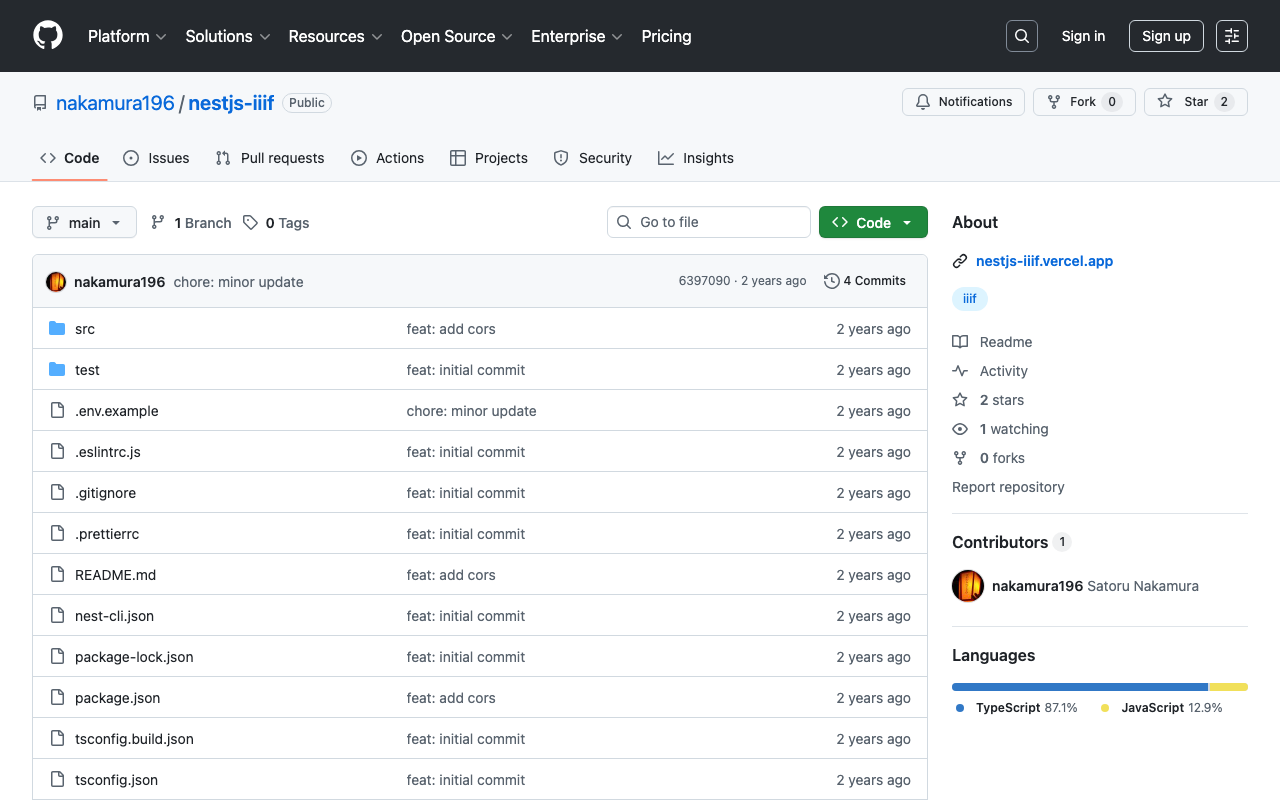
Overview I had the opportunity to use IIIF manifest files stored in mdx.jp object storage from NestJS, so here are my notes. Background After a brief investigation into mdx.jp object storage, it appeared that CORS settings could not be configured, making it difficult to use IIIF manifest files uploaded to mdx.jp object storage directly from other viewers. https://tech.ldas.jp/en/posts/ad76f58db4e098/#Note (CORS permission) Therefore, we use NestJS to load the IIIF manifest files uploaded to object storage and return them. ...

Using processing_config in Archivematica Transfers

Using processing_config in Archivematica Transfers

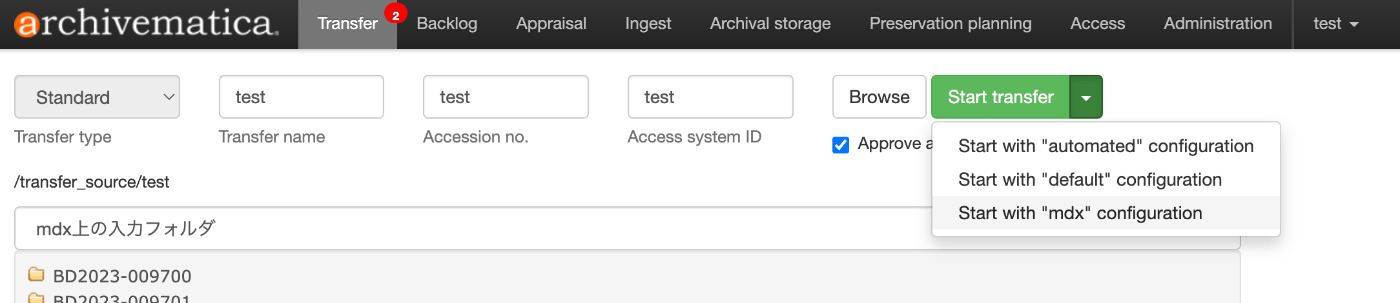
Overview This article explains how to use processing_config in Archivematica transfers. Background In Archivematica transfers, you can select a processing_config. The following shows that you can choose from three options: “automated,” “default,” and “mdx.” This can be configured in “Processing configuration” under the “Administration” menu. For example, the following is a configuration example designed for interacting with mdx.jp’s S3-compatible storage. By selecting the target storage for “Store AIP location” as shown below, when this processing configuration is selected, the AIP will be saved to that storage. ...

Adding mdx.jp Object Storage to Archivematica

Adding mdx.jp Object Storage to Archivematica

Overview I had the opportunity to add mdx.jp object storage to Archivematica, so this is a note for reference. Background In the following article, I described how to configure Amazon S3 as both a processing target and AIP storage destination for Archivematica. This time, based on those steps, I tried connecting mdx.jp object storage. Configuration Method Configure as follows. For S3 Endpoint URL, set https://s3ds.mdx.jp. For Access Key ID to authenticate and Secret Access Key to authenticate with, use the Access Key and Secret Key obtained from the following. ...

Connecting GakuNin RDM with Amazon S3 and Processing Files with Archivematica

Connecting GakuNin RDM with Amazon S3 and Processing Files with Archivematica

Overview This is a note on how to connect GakuNin RDM with Amazon S3 and process files with Archivematica. https://rcos.nii.ac.jp/service/rdm/ Background In the following article, I described how to use Amazon S3 as a processing target in Archivematica. This allows you to upload files and folders to a specified bucket and use them as processing targets in Archivematica to create AIPs and DIPs. However, this approach required creating an IAM user for each project member. ...

[2024 Edition] Building an IIIF Image Server with AWS Serverless Applications

[2024 Edition] Building an IIIF Image Server with AWS Serverless Applications

Overview This is a 2024 edition article on building an IIIF Image Server using AWS serverless applications. Background The following repository called serverless-iiif is publicly available. Using this repository, it is claimed that a cost-effective and infinitely scalable IIIF Image Server can be built using AWS services. https://github.com/samvera/serverless-iiif I introduced how to use it as of 2022 in the following article, but today’s service has become more user-friendly. Method There are several build methods, but for a GUI-based approach, refer to the following. Basic setup follows the instructions on the site below. Here, I introduce the procedure including custom domain setup with CloudFront and Route 53. ...

Uploading Multiple Files to mdx.jp Object Storage

Uploading Multiple Files to mdx.jp Object Storage

Overview This is a personal note on how to upload multiple files to mdx.jp object storage. It references the following video. https://youtu.be/IN_4NS9hO2Y Preparation Working on macOS. brew install s3cmd Configuration (please refer to the video for details.) s3cmd --configure Batch Registration (Sync) The following syncs files in the local rekion folder to s3://rekion/iiif/. s3cmd sync docs/rekion/ s3://rekion/iiif/ --exclude '.DS_Store' Reference find . -name '.DS_Store' -type f -delete Batch ACL Change s3cmd setacl s3://rekion/iiif/ --acl-public --recursive Note (CORS Permission) I prepared the following XML file and attempted to enable CORS. ...

Delivering IIIF Images Using mdx.jp Object Storage and Cantaloupe Image Server

Delivering IIIF Images Using mdx.jp Object Storage and Cantaloupe Image Server

Overview This is a personal note on how to deliver IIIF images using mdx.jp object storage and Cantaloupe Image Server, one of the IIIF image servers. Background In the following article, I introduced how to deliver images using mdx.jp object storage. In the following article, I introduced how to deliver images stored in Amazon S3 using Cantaloupe Image Server. By combining these approaches, we aim to address the cost challenges of IIIF image delivery in digital archives. ...

Using mdx Object Storage (Using Cyberduck)

Using mdx Object Storage (Using Cyberduck)

Overview I had the opportunity to use mdx’s object storage, so this is a memo. https://mdx.jp/ Pricing The pricing for fiscal year 2024 is as follows. https://mdx.jp/guide/charge It costs 0.01 points (yen) per GB per day, which is approximately 0.3 yen per GB per month. Application Method & Usage with s3cmd The following official tutorial video was helpful. https://www.youtube.com/watch?v=IN_4NS9hO2Y Using Cyberduck The video above introduces file operations using command-line tools. ...

Redirecting Using Amazon S3 and Route 53

Redirecting Using Amazon S3 and Route 53

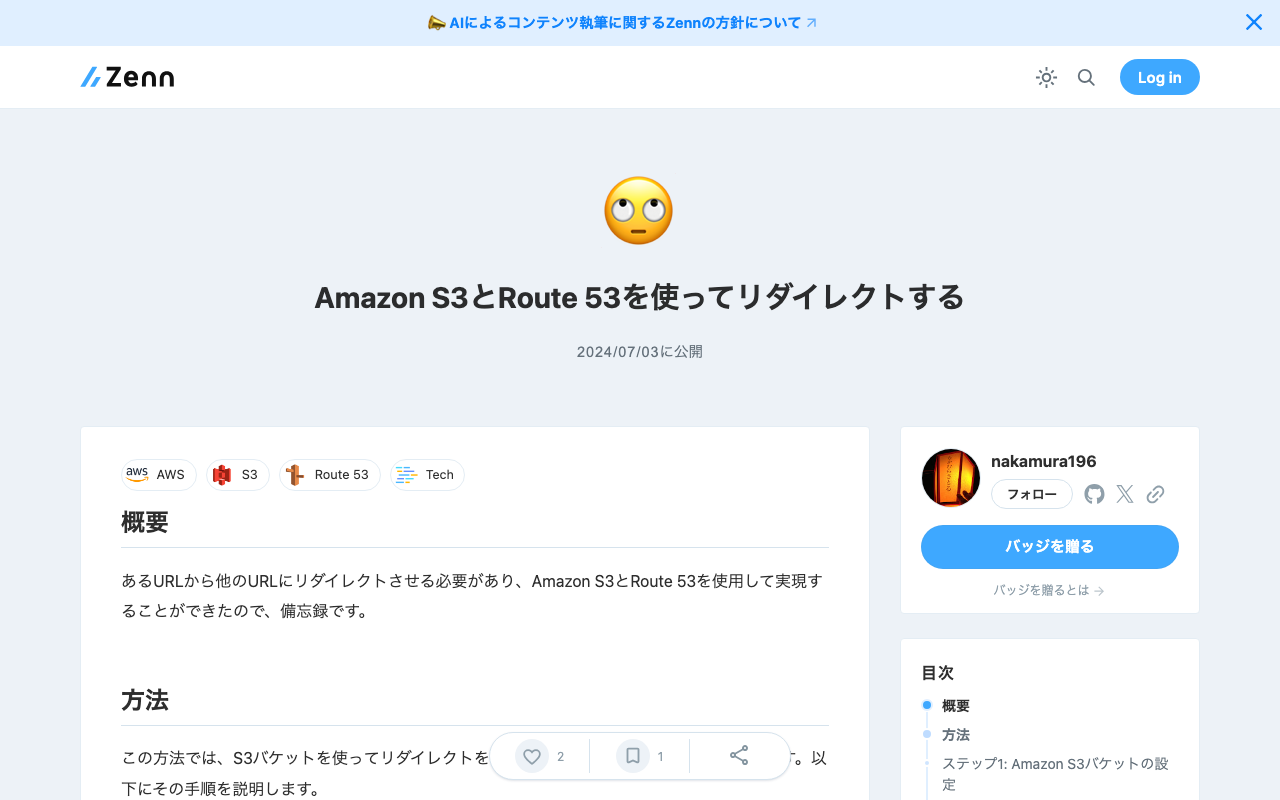
Overview I needed to redirect from one URL to another and was able to accomplish this using Amazon S3 and Route 53, so this is a memo of the process. Method This method uses an S3 bucket for the redirect and Route 53 for DNS configuration. The steps are explained below. Step 1: Amazon S3 Bucket Configuration Create a new bucket in Amazon S3. The bucket name should match the domain name you want to redirect (e.g., example.com). In the bucket properties, select “Static website hosting.” In the “Static website hosting” options, choose “Redirect requests” and enter the redirect destination URL (e.g., http://example.net). Step 2: DNS Configuration in Route 53 In Route 53, open the hosted zone for the domain name you want to redirect. Create a new record set. Select A as the record type. Set “Alias” to “Yes.” As the alias target, select the static website hosting endpoint of the S3 bucket configured in Step 1 (e.g., example.com.s3-website-us-east-1.amazonaws.com). With this setup, when someone accesses the specified domain, they will be redirected to the configured URL. This method is simple yet effective for redirecting from one domain to another URL. ...

How to Handle CSP Errors in Strapi

How to Handle CSP Errors in Strapi

Overview I configured Strapi with the following plugin to store media in S3. https://www.npmjs.com/package/@liashchynskyi/strapi-provider-upload-s3-cloudfront At that time, the following error occurred and images were not displayed. Refused to load the image 'https://xxx/uploads/yyy.jpg' because it violates the following Content Security Policy directive: "img-src 'self' data: blob: dl.airtable.com". I was able to resolve this issue by modifying ./config/middleware.js, as described in the following article. https://zenn.dev/studiobros/articles/04400f413eb2aa Regarding ACL Similarly, I also encountered a situation where media could not be uploaded to S3. However, as described in the above article, by enabling S3 ACL and configuring the appropriate Block Public Access (bucket settings), I was able to upload successfully. ...

Bulk Deleting S3 Buckets Using AWS CLI

Bulk Deleting S3 Buckets Using AWS CLI

To list S3 buckets using AWS CLI and delete buckets based on a specific pattern, you can follow the steps below. Here, we explain how to delete buckets whose names start with wby. Prerequisites AWS CLI is installed. Appropriate AWS credentials and access permissions are configured. Step 1: List Buckets First, use the installed AWS CLI to list all S3 buckets: aws s3 ls Step 2: Delete Matching Buckets To delete buckets starting with wby, use a shell script to filter matching buckets and delete them. ...

Configuring Amazon S3 as a Processing Source and AIP Storage Destination in Archivematica

Configuring Amazon S3 as a Processing Source and AIP Storage Destination in Archivematica

Overview This is a memo on how to configure Amazon S3 files and folders as processing targets in Archivematica, and save the resulting AIPs to S3. Using S3 as storage is expected to facilitate integration with other systems and expand options for long-term AIP preservation. The following article from Wellcome Collection was helpful. https://docs.wellcomecollection.org/archivematica/administering-archivematica/bootstrapping Amazon S3 Configuration Create a bucket. This time, I created a bucket named archivematica.aws.ldas.jp in the us-east-1 region. ...

How to Access S3 Buckets and Enable SSL Communication Using Docker-based Cantaloupe

How to Access S3 Buckets and Enable SSL Communication Using Docker-based Cantaloupe

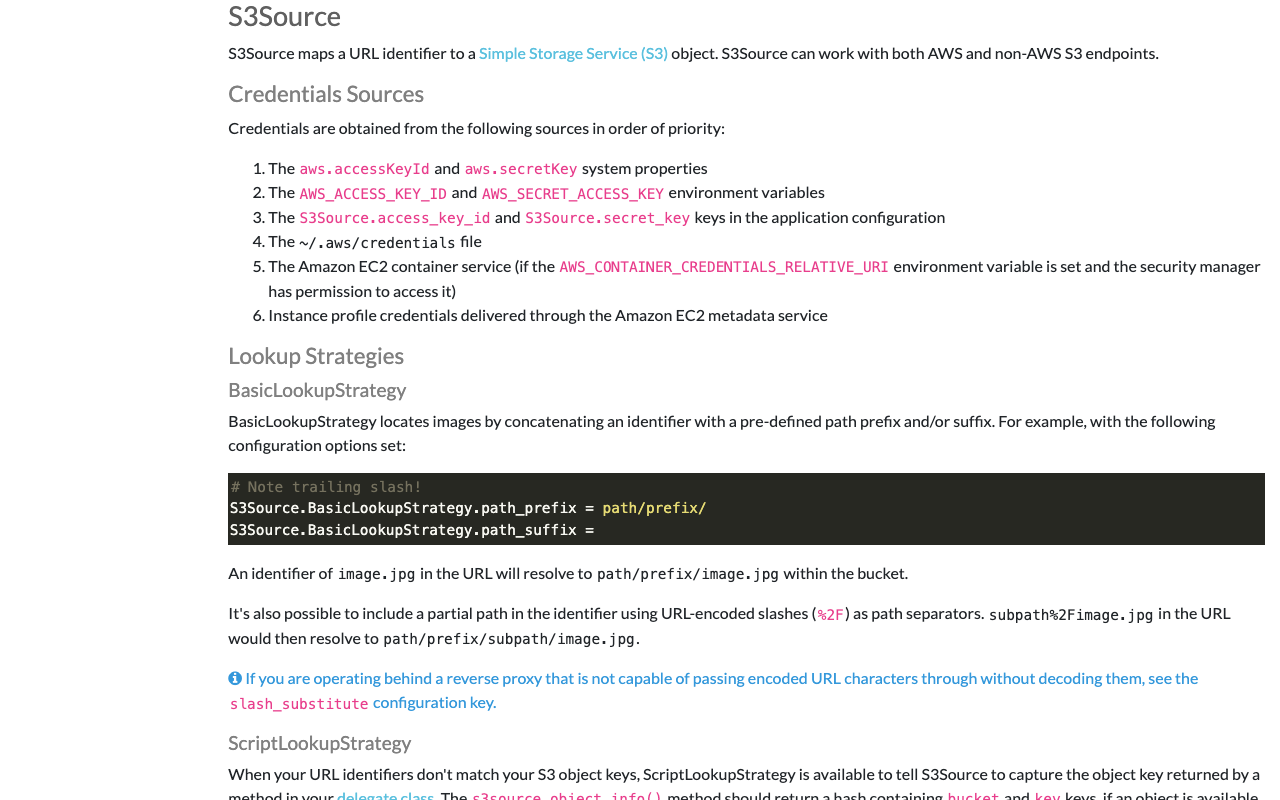
Overview I introduced how to use the Docker version of Cantaloupe in the following article. To use this Docker-based Cantaloupe in a (non-large-scale) production environment, connection to Amazon S3 and SSL support are required. Here is an example of how to do this. Connecting to Amazon S3 The official documentation is available at: https://cantaloupe-project.github.io/manual/5.0/sources.html#S3Source The following Japanese article is also available: For the Docker version covered here, information was found at: ...

Cantaloupe: Serving Images Stored in Amazon S3

Cantaloupe: Serving Images Stored in Amazon S3

Overview This is a note on how to serve images stored in Amazon S3 using Cantaloupe Image Server, one of the IIIF image servers. As an alternative method for serving images stored in Amazon S3, I also introduced an approach in the following article. (The tools may have been updated since the article was written, so the instructions may not work exactly as described.) Configuration The official manual is available at the following link. ...