Home Articles Books Search About
日本語
Investigating Customization Methods for Snorql for Japan Search

Investigating Customization Methods for Snorql for Japan Search

Overview This article presents the results of investigating how to customize “Snorql for Japan Search,” which is used by Japan Search. This document will be updated as needed. Please note that it may contain errors. Menu Changing the Page Title snorql_def.js _poweredByLabel: "Cultural Japan", // "Japan Search", Changing the Query Endpoint snorql_def.js _endpoint: "https://ld.cultural.jp/sparql/", //"https://jpsearch.go.jp/rdf/sparql/", Changing the poweredByLink URL snorql_def.js _poweredByLink: "https://cultural.jp/", // "https://jpsearch.go.jp/", Editing Other Footer Sections ...

Using the Japan Search SPARQL Endpoint with Yasgui

Using the Japan Search SPARQL Endpoint with Yasgui

Overview Yasgui (Yet Another Sparql GUI) provides various advanced features for creating, sharing, and visualizing SPARQL queries and their results. https://github.com/TriplyDB/Yasgui This time, I attempt various visualizations using the Japan Search SPARQL endpoint with Yasgui. Results Table Display I visualize the number of items per dataset. First, here is a standard table display. Result Filtering and sorting of results is also possible. Chart Using the “Chart” tab, I attempt a chart display of the same results. ...

Omeka S Module Introduction: Data Type RDF

Omeka S Module Introduction: Data Type RDF

Overview Data Type RDF is a module that adds data types (html, xml, boolean) to Omeka S. Its usage is similar to Numeric Data Types: https://nakamura196.hatenablog.com/entry/2021/08/01/070701 Below is an introduction to how to use it. Usage Installation Install it the same way as other Omeka modules. Editing Resource Templates Create a resource template. Next, select the Data Type RDF values for the data type of a specific property. Here, we add all three types provided by this module. ...

Registering ICA RiC-O Vocabulary in Omeka S

Registering ICA RiC-O Vocabulary in Omeka S

Overview I registered the ICA RiC-O vocabulary in Omeka S, so this is a memo of the process. https://www.ica.org/standards/RiC/RiC-O_v0-2.html Method On the Omeka S vocabulary registration screen, enter the information as follows. As a result, 106 classes and 485 properties were registered. Below is an example of the property list screen, where you can also check the comments for each property. Summary I hope this serves as a useful reference for utilizing ICA RiC-O and Omeka S. ...

Retrieving Birth and Death Years of Historical Figures from Wikidata

Retrieving Birth and Death Years of Historical Figures from Wikidata

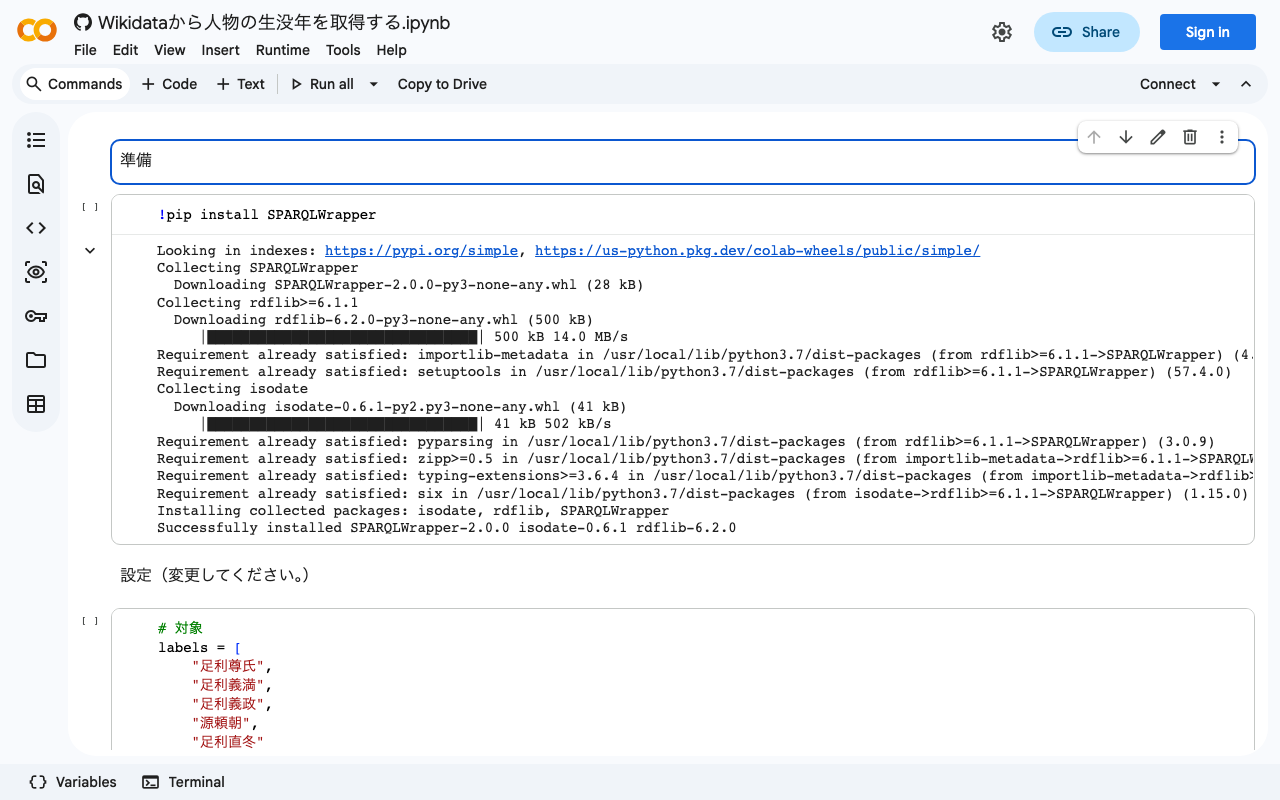
I created a notebook for retrieving birth and death years of historical figures from Wikidata. I hope this serves as a helpful reference. https://colab.research.google.com/github/nakamura196/ndl_ocr/blob/main/Wikidataから人物の生没年を取得する.ipynb

[Memo] How to Use Virtuoso

[Memo] How to Use Virtuoso

This is a memo on how to use Virtuoso, an RDF store. Checking Registered Graph URIs Conductor > Linked Data > Graphs > Graphs Manually Uploading RDF Files Conductor > Linked Data > Quad Store Upload Enabling Federated Query The following article was helpful. The “Account Roles” configuration was required. https://community.openlinksw.com/t/enabling-sparql-1-1-federated-query-processing-in-virtuoso/2477 I hope this serves as a helpful reference.

[RDF] Configuring URI Access to Redirect to the Snorql Interface

[RDF] Configuring URI Access to Redirect to the Snorql Interface

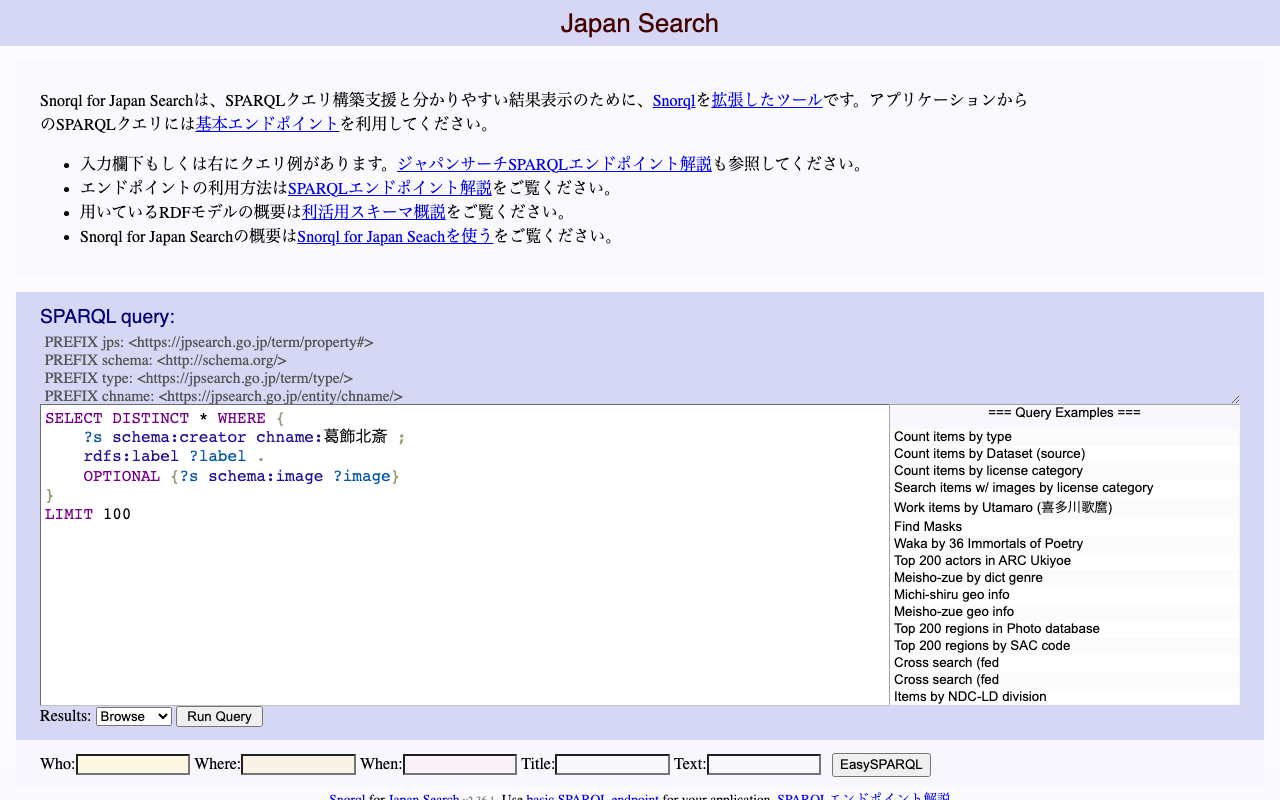
This is a continuation of the following article. This is a memo on configuring redirects so that accessing URLs like https://xxx.abc/data/123 redirects to https://xxx.abc/?describe=https://xxx.abc/data/123, using Japan Search’s RDF store as a reference. Japan Search example: https://jpsearch.go.jp/entity/chname/葛飾北斎 -> https://jpsearch.go.jp/rdf/sparql/easy/?describe=https://jpsearch.go.jp/entity/chname/葛飾北斎 Create a conf file like the following and place it in the appropriate location (e.g., /etc/httpd/conf.d/). RewriteEngine on RewriteCond %{HTTP_ACCEPT} .*text/html RewriteRule ^/((data|entity)/.*) https://xxx.abc/?describe=https://xxx.abc/$1 [L,R=303] Then restart Apache. systemctl restart httpd This enables redirecting to the Snorql interface. ...

Building a Virtuoso RDF Store Using AWS EC2

Building a Virtuoso RDF Store Using AWS EC2

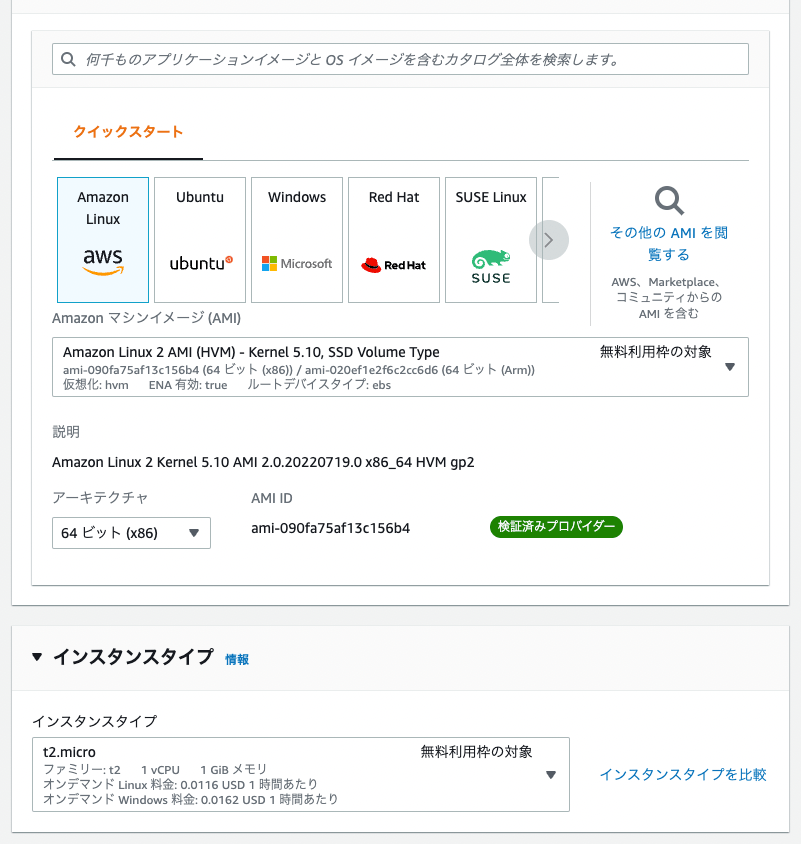
Introduction These are notes on building a Virtuoso RDF store using AWS EC2. This covers custom domain configuration, HTTPS connection, and Snorql installation. There are many other useful articles on building Virtuoso. Please refer to them as well: https://midoriit.com/2014/04/rdfストア環境構築virtuoso編1.html https://qiita.com/mirkohm/items/30991fec120541888acd https://zenn.dev/ningensei848/articles/virtuoso_on_gcp_faster_with_cos Prerequisites An ACM Certificate should already be created. Please refer to articles such as the following: https://dev.classmethod.jp/articles/specification-elb-setting/#toc-3 EC2 First, create an EC2 instance. Select Amazon Linux, and set the instance type to t2.micro. ...

How to Register and Delete RDF Files in Virtuoso RDF Store Using curl and Python

How to Register and Delete RDF Files in Virtuoso RDF Store Using curl and Python

Overview Notes on how to register and delete RDF files in Virtuoso RDF store using curl and Python. The following was used as a reference. https://vos.openlinksw.com/owiki/wiki/VOS/VirtRDFInsert#HTTP PUT curl As described on the above page. First, create myfoaf.rdf as sample data for registration. <rdf:RDF xmlns:foaf="http://xmlns.com/foaf/0.1/"> <foaf:Person rdf:about="http://www.example.com/people/中村覚"> <foaf:name>中村覚</foaf:name> </foaf:Person> </rdf:RDF> Next, execute the following command. curl -T ${filename1} ${endpoint}/DAV/home/${user}/rdf_sink/${filename2} -u ${user}:${passwd} A specific example is as follows. curl -T myfoaf.rdf http://localhost:8890/DAV/home/dba/rdf_sink/myfoaf.rdf -u dba:dba Python Here is an execution example. The following uses rdflib to create the RDF file from scratch. Also, by setting the action to delete, you can perform deletion. ...

Registering DC-NDL (National Diet Library Dublin Core Metadata Description) as a Vocabulary in Omeka S

Registering DC-NDL (National Diet Library Dublin Core Metadata Description) as a Vocabulary in Omeka S

Here is how to register DC-NDL (National Diet Library Dublin Core Metadata Description) as a vocabulary in Omeka S. First, select “Vocabularies” as shown below. Next, click the button in the upper right. (The translation data for this button label is incorrect; I hope to fix it in the future.) Then, enter the required information as shown on the following screen. The specific information is as follows. Category Field Value Notes Basic Information Label DC-NDL This value is arbitrary. Basic Information Namespace URI http://ndl.go.jp/dcndl/terms/ Basic Information Namespace Prefix dcndl File Vocabulary URL https://www.ndl.go.jp/jp/dlib/standards/meta/2020/12/ndl-terms.rdf As a result, DC-NDL becomes available as a vocabulary as shown below. ...

Example of Running SPARQL Queries Against the Japan Search RDF Store Using Google Colab

Example of Running SPARQL Queries Against the Japan Search RDF Store Using Google Colab

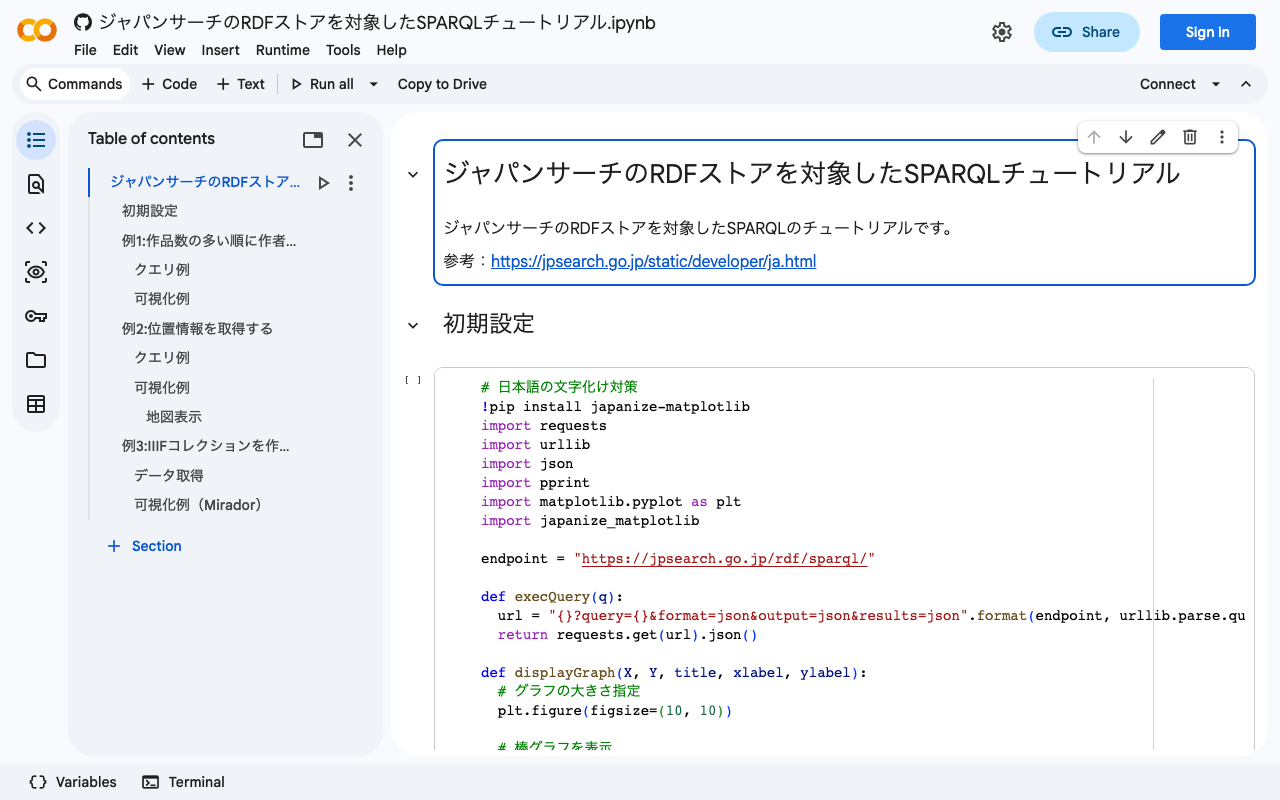
I created a notebook demonstrating examples of running SPARQL queries against the Japan Search RDF store using Google Colab. I hope it serves as a useful reference when using RDF stores with Python. https://colab.research.google.com/github/nakamura196/ndl_ocr/blob/main/ジャパンサーチのRDFストアを対象したSPARQLチュートリアル.ipynb Other reference sites and tutorials include the following. https://www.kanzaki.com/works/ld/jpsearch/ https://lab.ndl.go.jp/data_set/tutorial/

[Omeka S Module Introduction] Numeric Data Types: Enabling Range Search for Date Data, and More

[Omeka S Module Introduction] Numeric Data Types: Enabling Range Search for Date Data, and More

Overview This article explains the “Numeric Data Types” module, which enables specific properties to be configured as numeric data. Properties can be specified as date and time (ISO) or as numbers. A key benefit is that it enables range searches on date data. github.com The official manual is available at: omeka.org Using the manual above as a reference, I will explain how to use this module. Creating or Editing a Resource Template To use this module, you need to create or edit a resource template to configure specific properties as numeric data types. Instructions for using resource templates are available at the following link, and I hope to write an introductory article about them in the future: ...

[Omeka S Tips] How to Add Existing Standard Vocabularies

[Omeka S Tips] How to Add Existing Standard Vocabularies

Overview Omeka S uses RDF (Resource Description Framework) to describe information about resources (items, item sets, media, etc.). Therefore, it is necessary to import vocabularies, which are collections of RDF classes and properties. This article explains how to import existing vocabularies. The official manual is available at: omeka.org Specifically, we will use the following as examples: the National Diet Library Dublin Core Metadata Description (DC-NDL) provided by the National Diet Library, Schema.org, and the Japan Search Utilization Schema. ...

Introduction to the IIIF Collection of IIIF Manifests Aggregated by Cultural Japan

Introduction to the IIIF Collection of IIIF Manifests Aggregated by Cultural Japan

You can view the IIIF Collection that aggregates the IIIF manifests gathered by Cultural Japan at the following link: https://www.kanzaki.com/works/2016/pub/image-annotator?u=https://app.cultural.jp/iiif-collection/collection.json Please check the terms of use for each source database when using the individual IIIF manifests. This collection includes IIIF manifests dynamically generated by Cultural Japan. In the collection list above, these can be identified by the label “Dynamically Generated.” The dynamic generation uses AWS Lambda, querying the Japan Search RDF Store and the Cultural Japan RDF Store for each request to generate JSON data. The condition for creating these dynamically generated IIIF manifests is that the items must have high-resolution images (jps:accessInfo/schema:associatedMedia). ...