Home Articles Books Search About
日本語
App Development Using Zotero's API and Streamlit

App Development Using Zotero's API and Streamlit

Overview I prototyped an app using Zotero’s API and Streamlit. https://nakamura196-zotero.streamlit.app/ This article is a memo on developing this app. Streamlit The following article was very helpful. https://qiita.com/sypn/items/80962d84126be4092d3c Zotero’s API Zotero’s API is described at the following page. https://www.zotero.org/support/dev/web_api/v3/start This time, I used the following library introduced on the above page. https://github.com/urschrei/pyzotero To use the API, you need to obtain a personal library ID and an API key, which could be obtained by following the Quickstart steps in the README. ...

Retrieving RDF from URIs Using Content Negotiation in Python

Retrieving RDF from URIs Using Content Negotiation in Python

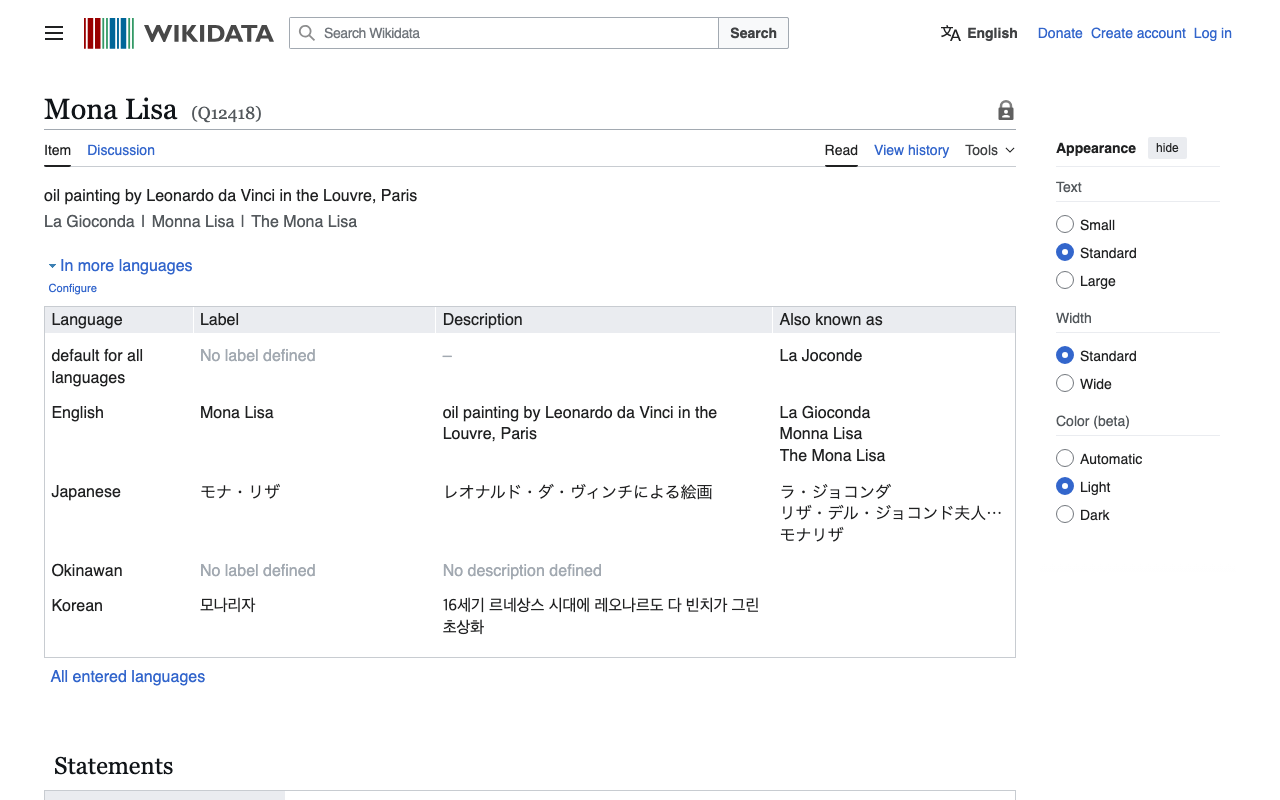
Overview I had an opportunity to retrieve RDF data from Wikidata entity URIs, so here are my notes. Without Content Negotiation First, make a request with empty headers as follows. import requests # URL for the Wikidata entity in RDF format url = "http://www.wikidata.org/entity/Q12418" headers = { } # Sending a GET request to the URL response = requests.get(url, headers=headers) # Checking if the request was successful if response.status_code == 200: text = response.text print(text[:5000]) else: print("Failed to retrieve RDF data. Status code:", response.status_code) In this case, you can retrieve text data in JSON format as follows. ...

Trying iiif-prezi3

Trying iiif-prezi3

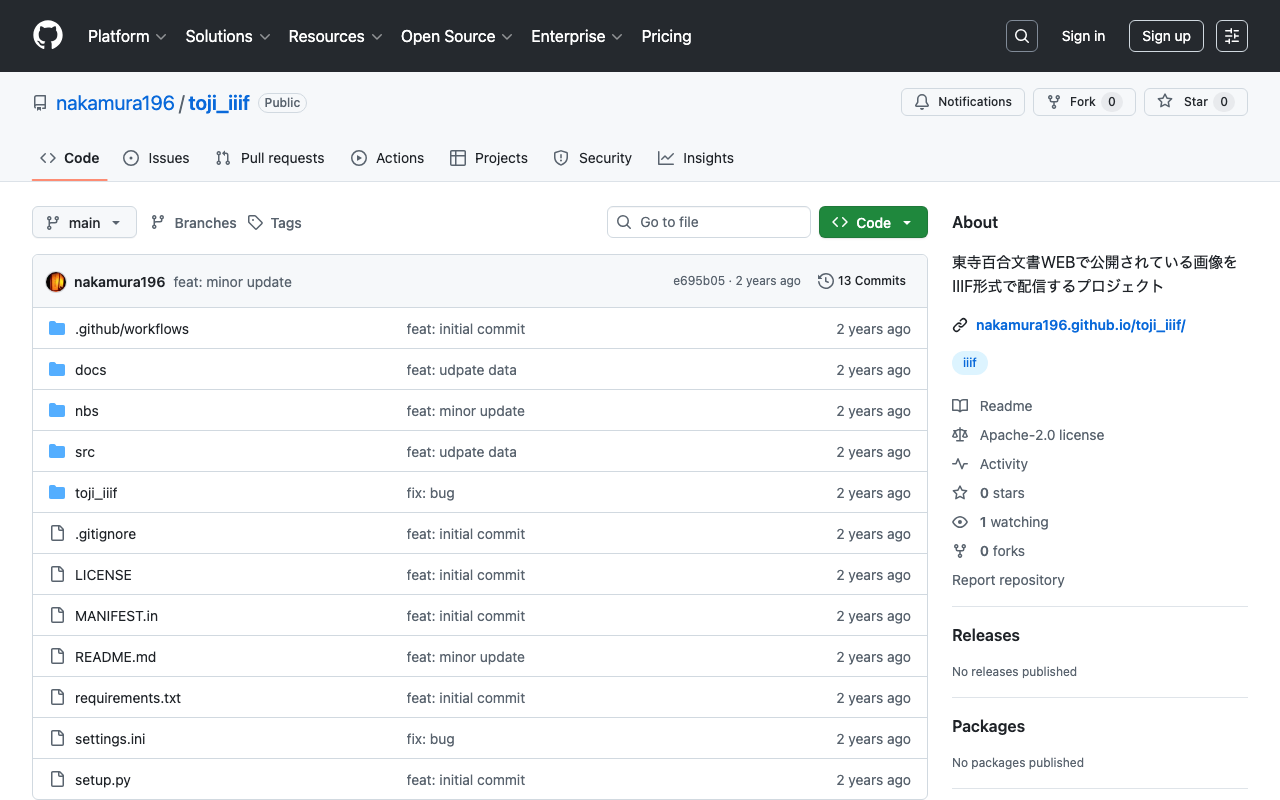
Overview As IIIF Presentation API 3 becomes more widespread, I found it increasingly difficult to understand the specification and create JSON files directly. So I tried using the following Python library, and this is a note for reference. https://github.com/iiif-prezi/iiif-prezi3 I used this library for converting the data published on the Toji Hyakugo Monjo WEB to IIIF, as introduced in the following article. The source code may be hard to read, but it is also published in the following repository, and I hope it is helpful. ...

Using "ARC2 RDF Graph Visualization" from Python

Using "ARC2 RDF Graph Visualization" from Python

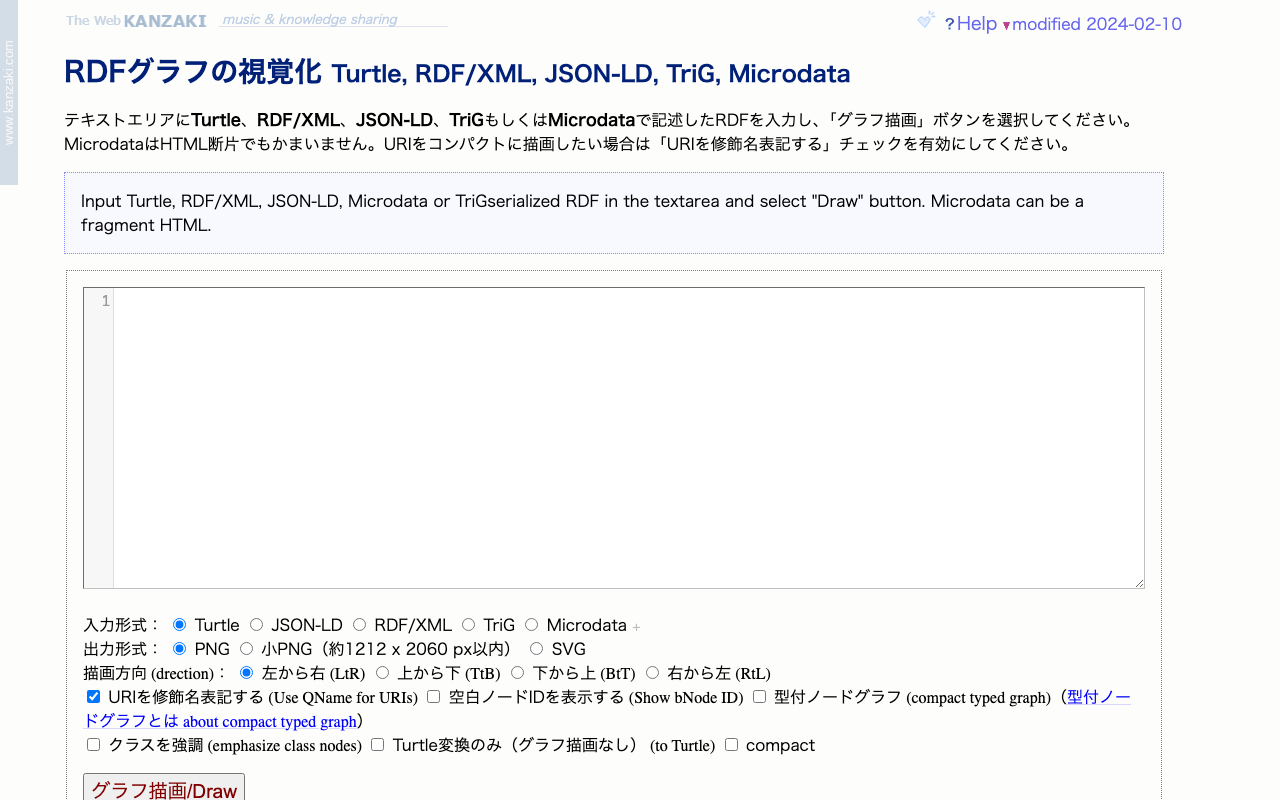
Overview I had the opportunity to use “ARC2 RDF Graph Visualization” published by Masahide Kanzaki from Python, so here are my notes. The public page for “ARC2 RDF Graph Visualization” is below. https://www.kanzaki.com/works/2009/pub/graph-draw By providing RDF described in Turtle, RDF/XML, JSON-LD, TriG, or Microdata as input, you can obtain visualization results as png or svg files. Usage Example in Python import requests text = "@prefix ns1: <http://example.org/propery/> .\n\n<http://example.org/bbb> ns1:aaa \"ccc\" ." output_path = "./graph.png" # Data needed for POST request url = "https://www.kanzaki.com/works/2009/pub/graph-draw" data = { "RDF": text, "rtype": "turtle", "gtype": "png", "rankdir": "lr", "qname": "on", } # Send POST request response = requests.post(url, data=data) # Check if response is not a PNG image if response.headers['Content-Type'] != 'image/png': print("Response is not a PNG image. Displaying content:") # print(response.text[:500]) # Display first 500 characters # [:500] else: os.makedirs(os.path.dirname(output_path), exist_ok=True) # Save response as PNG file with open(output_path, 'wb') as f: f.write(response.content) Summary I hope this is helpful for visualizing RDF data. ...

Fixing an Inference App Using Hugging Face Spaces and a YOLOv5 Model (Trained on NDL-DocL Dataset)

Fixing an Inference App Using Hugging Face Spaces and a YOLOv5 Model (Trained on NDL-DocL Dataset)

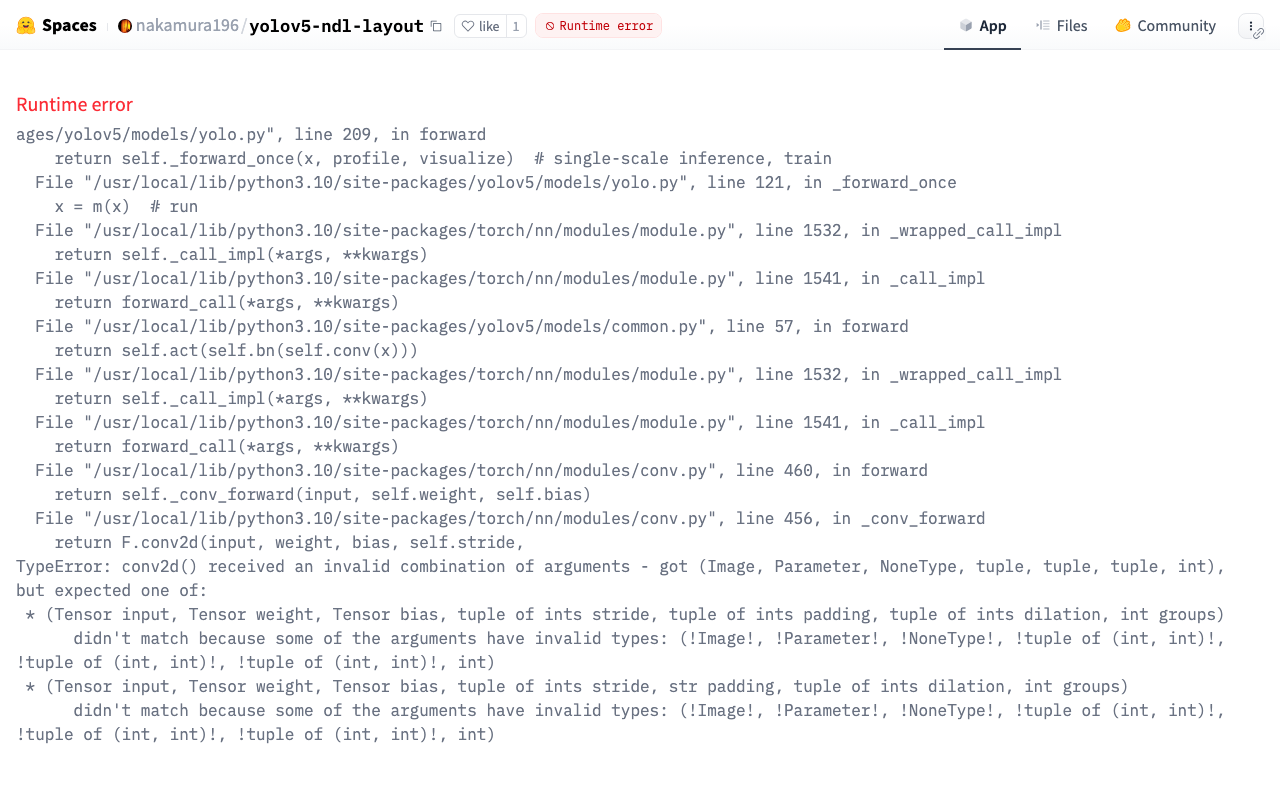
Overview In the following article, I introduced an inference app using Hugging Face Spaces and a YOLOv5 model trained on the NDL-DocL dataset. This app had stopped working, so I fixed it to make it operational again. https://huggingface.co/spaces/nakamura196/yolov5-ndl-layout Here are my notes on the changes made during this fix. Changes The modified app.py is shown below. import gradio as gr from PIL import Image import yolov5 import json model = yolov5.load("nakamura196/yolov5-ndl-layout") def yolo(im): results = model(im) # inference df = results.pandas().xyxy[0].to_json(orient="records") res = json.loads(df) im_with_boxes = results.render()[0] # results.render() returns a list of images # Convert the numpy array back to an image output_image = Image.fromarray(im_with_boxes) return [ output_image, res ] inputs = gr.Image(type='pil', label="Original Image") outputs = [ gr.Image(type="pil", label="Output Image"), gr.JSON() ] title = "YOLOv5 NDL-DocL Datasets" description = "YOLOv5 NDL-DocL Datasets Gradio demo for object detection. Upload an image or click an example image to use." article = "<p style='text-align: center'>YOLOv5 NDL-DocL Datasets is an object detection model trained on the <a href=\"https://github.com/ndl-lab/layout-dataset\">NDL-DocL Datasets</a>.</p>" examples = [ ['『源氏物語』(東京大学総合図書館所蔵).jpg'], ['『源氏物語』(京都大学所蔵).jpg'], ['『平家物語』(国文学研究資料館提供).jpg'] ] demo = gr.Interface(yolo, inputs, outputs, title=title, description=description, article=article, examples=examples) demo.launch(share=False) First, due to Gradio version upgrades, I changed gr.inputs.Image to gr.Image and similar updates. ...

Formatting XML Strings in Python

Formatting XML Strings in Python

Overview Notes on programs for formatting XML strings in Python. Program 1 I referenced the following. https://hawk-tech-blog.com/python-learn-prettyprint-xml/ I added processing to remove unnecessary blank lines. from xml.dom import minidom import re def prettify(rough_string): reparsed = minidom.parseString(rough_string) pretty = re.sub(r"[\t ]+\n", "", reparsed.toprettyxml(indent="\t")) # Remove unnecessary line breaks after indentation pretty = pretty.replace(">\n\n\t<", ">\n\t<") # Remove unnecessary blank lines pretty = re.sub(r"\n\s*\n", "\n", pretty) # Replace consecutive line breaks (including blank lines) with a single line break return pretty Program 2 I referenced the following. https://qiita.com/hrys1152/items/a87b4ca3c74ec4997f66 When processing TEI/XML, I recommend registering the namespace. ...

An Example Analysis of Texts Published in "SAT Daizokyo Text Database 2018"

An Example Analysis of Texts Published in "SAT Daizokyo Text Database 2018"

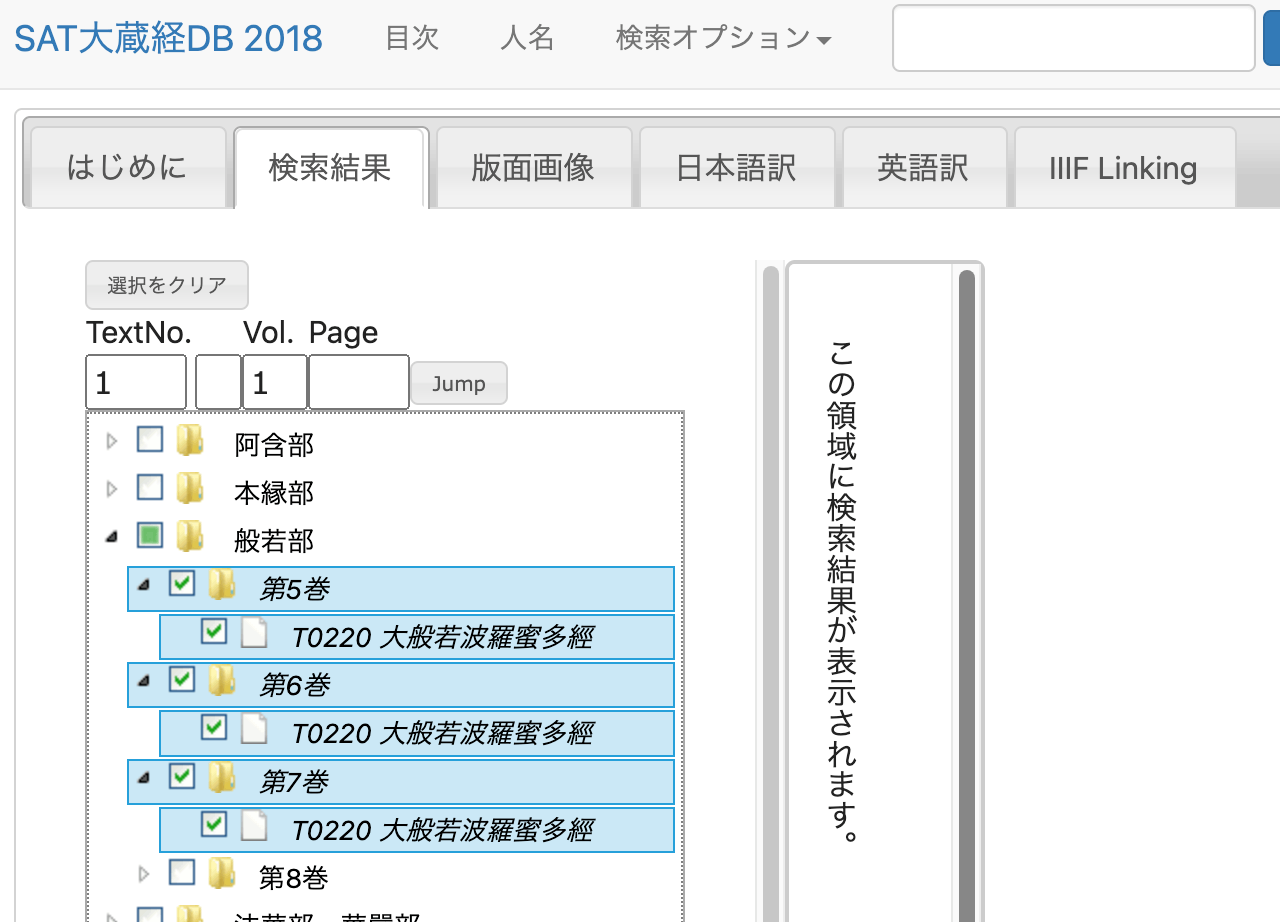
Overview “SAT Daizokyo Text Database 2018” is described as follows. https://21dzk.l.u-tokyo.ac.jp/SAT2018/master30.php This site is the 2018 version of the digital research environment provided by the SAT Daizokyo Text Database Research Society. Since April 2008, the SAT Daizokyo Text Database Research Society has provided a full-text search service for all 85 volumes of the text portion of the Taisho Shinshu Daizokyo, while enhancing usability through collaboration with various web services and exploring the possibilities of web-based humanities research environments. In SAT2018, we have incorporated new services including collaboration with high-resolution images via IIIF using recently spreading machine learning technology, publication of modern Japanese translations understandable by high school students with linkage to the original text. We have also updated the Chinese characters in the main text to Unicode 10.0 and integrated most functions of the previously published SAT Taisho Image Database. However, this release also provides a framework for collaboration, and going forward, data will be expanded along these lines to further enhance usability. The web services provided by our research society rely on services and support from various stakeholders. For the new services in SAT2018, we received support from the Institute for Research in Humanities regarding machine learning and IIIF integration, and from the Japan Buddhist Federation and Buddhist researchers nationwide for creating modern Japanese translations. We hope that SAT2018 will be useful not only for Buddhist researchers but also for various people interested in Buddhist texts. Furthermore, we would be delighted if the approach to applying technology to cultural materials presented here serves as a model for humanities research. ...

Using the researchmap API

Using the researchmap API

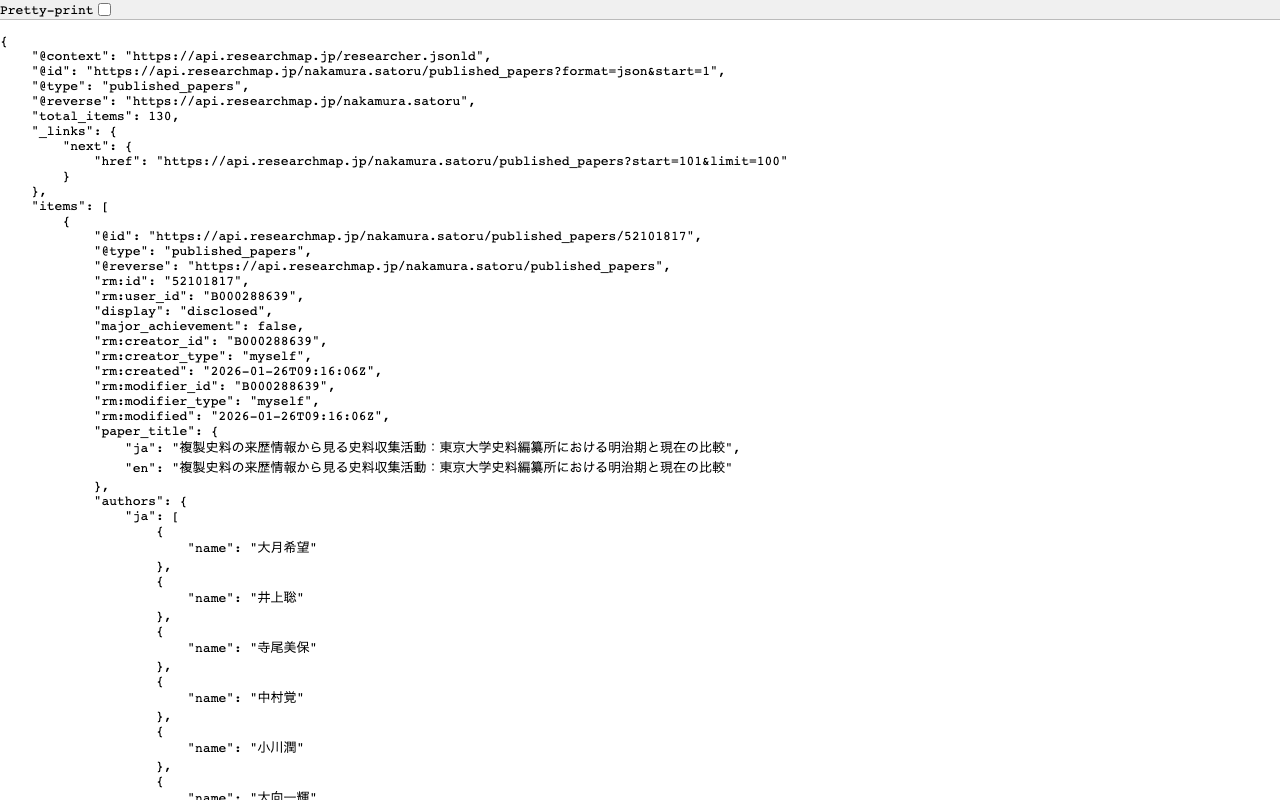
Overview I had the opportunity to create a publication list using the researchmap API, so here are my notes. Query Examples for the researchmap API Here are some query examples for the researchmap API. Retrieve a list of papers https://api.researchmap.jp/nakamura.satoru/published_papers Specify a limit (limit usage) https://api.researchmap.jp/nakamura.satoru/published_papers?limit=5 Retrieve results from a specific offset (start usage) https://api.researchmap.jp/nakamura.satoru/published_papers?limit=5&start=6 Specify publication dates (from_date and to_date) https://api.researchmap.jp/nakamura.satoru/published_papers?from_date=2023-04-01&to_date=2024-03-31 Python Usage Example Based on the specified user and publication dates, export published_papers and presentations to Excel. ...

Trying Out AIPscan

Trying Out AIPscan

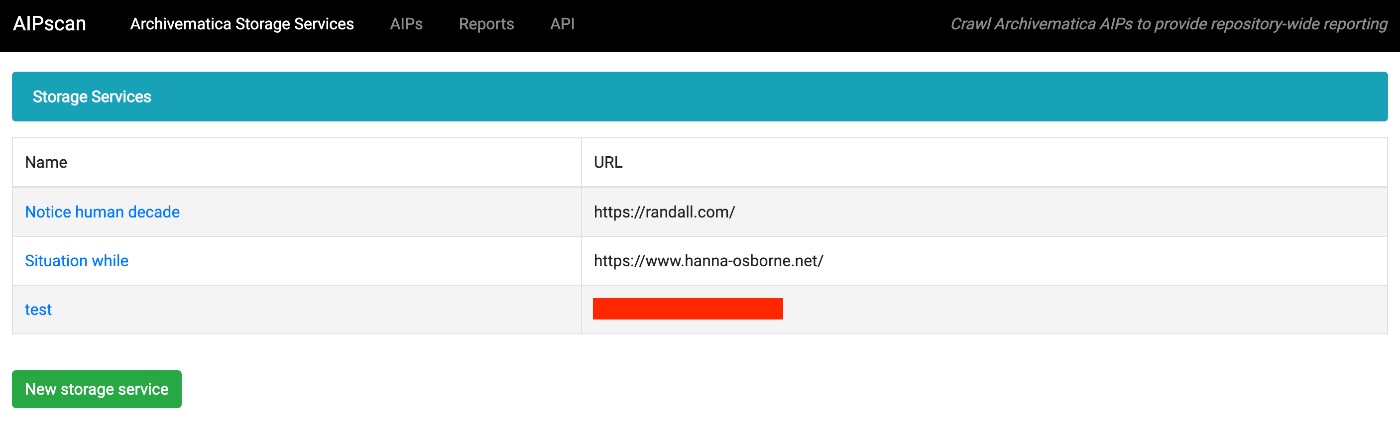
Overview In this article, I try out the following tool. https://github.com/artefactual-labs/AIPscan This tool is described as follows: AIPscan was developed to provide a more in-depth reporting solution for Archivematica users. It crawls METS files from AIPs in the Archivematica Storage Service to generate tabular and visual reports about repository holdings. It is designed to run as a stand-alone add-on to Archivematica. It only needs a valid Storage Service API key to fetch source data. ...

Aligning the Collated Tale of Genji with Modern Japanese Translations in Digital Genji Monogatari

Aligning the Collated Tale of Genji with Modern Japanese Translations in Digital Genji Monogatari

Overview “Digital Genji Monogatari” is a site that aims to propose an environment to support research on The Tale of Genji as well as education and research activities using classical texts, by collecting and creating various related data about The Tale of Genji and linking them together. https://genji.dl.itc.u-tokyo.ac.jp/ One of the features provided by this site is the “alignment of the Collated Tale of Genji with modern Japanese translations.” As shown below, the corresponding sections between the “Collated Tale of Genji” and Yosano Akiko’s translation published on Aozora Bunko are highlighted. ...

Handling AttributeError: 'ImageDraw' object has no attribute 'textsize'

Handling AttributeError: 'ImageDraw' object has no attribute 'textsize'

When using the following in Python’s Pillow: textsize = 14 font = ImageFont.truetype("Arial Unicode.ttf", size=textsize) txw, txh = draw.textlength(label, font=font) The following error occurred. AttributeError: ‘ImageDraw’ object has no attribute ’textsize’ The following was helpful as a solution. https://stackoverflow.com/questions/77038132/python-pillow-pil-doesnt-recognize-the-attribute-textsize-of-the-object-imag Specifically, I rewrote it as follows. textsize = 14 font = ImageFont.truetype("Arial Unicode.ttf", size=textsize) txw = draw.textlength(label, font=font) txh = textsize I hope this is helpful.

Restarting Virtuoso on EC2 Using Amazon SNS

Restarting Virtuoso on EC2 Using Amazon SNS

Overview In the following article, I described how to perform health checks. I also described the command for restarting Virtuoso when it stops in the following article. This time, I will try restarting Virtuoso in conjunction with Amazon SNS notifications. Method To send a command like sudo rm -rf /usr/local/var/lib/virtuoso/db/virtuoso.lck && ... to an EC2 instance, SSM (AWS Systems Manager) configuration was required. IAM Roles and Policies I created a new IAM role and granted the AmazonSSMFullAccess policy. Initially, I had granted the AmazonSSMManagedInstanceCore policy, but the following error occurred when executing the Lambda function described later, and it did not work properly. ...

Notes on Extracting Latitude and Longitude from Google Maps Short URLs

Notes on Extracting Latitude and Longitude from Google Maps Short URLs

Overview I had an opportunity to extract latitude and longitude from a Google Maps short URL like the following. https://goo.gl/maps/aPxUgDJ9KP2FLFkN7 https://goo.gl/maps/aPxUgDJ9KP2FLFkN7 At that time, two sets of latitude and longitude could be obtained, so this is a personal note on the matter. Extraction Method I received the following answer from GPT-4. -– Answer below — It is not possible to directly extract latitude and longitude from a Google Maps short URL (goo.gl/maps/...). However, by expanding this short URL to obtain the original URL, you can extract the latitude and longitude from that URL. ...

Batch Registering Data to Omeka Classic IIIF Toolkit

Batch Registering Data to Omeka Classic IIIF Toolkit

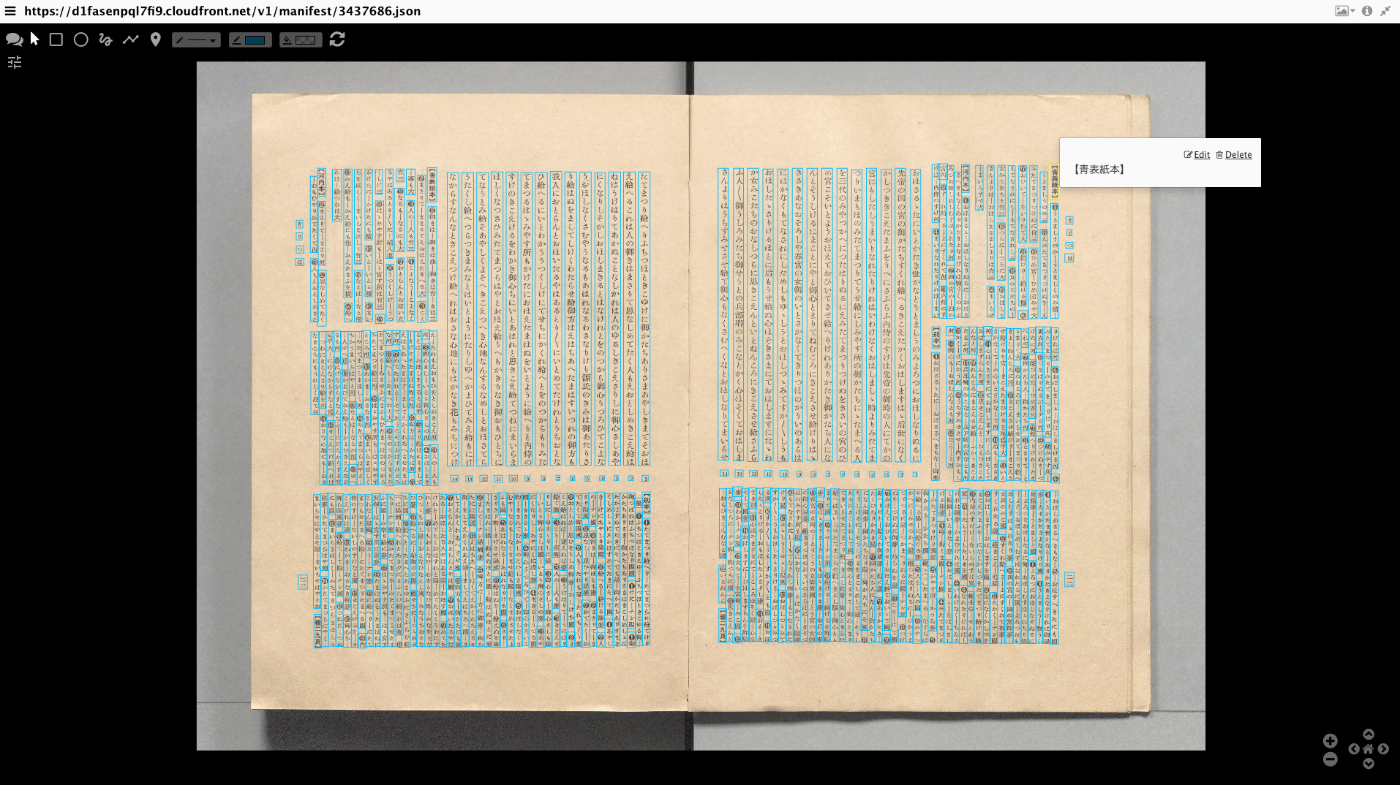
Overview This article explains how to batch register data to Omeka Classic IIIF Toolkit. For setting up Omeka Classic IIIF Toolkit, please refer to the following: This also builds on the content of the following article, making it easier to use by accepting Excel data as input. Preparing the Excel File Prepare an Excel file like the following: https://github.com/nakamura196/000_tools/blob/main/data/sample.xlsx Create three sheets: “collection,” “item,” and “annotation.” collection manifest_uri https://d1fasenpql7fi9.cloudfront.net/v1/manifest/3437686.json ...

Trying Out WikibaseSync

Trying Out WikibaseSync

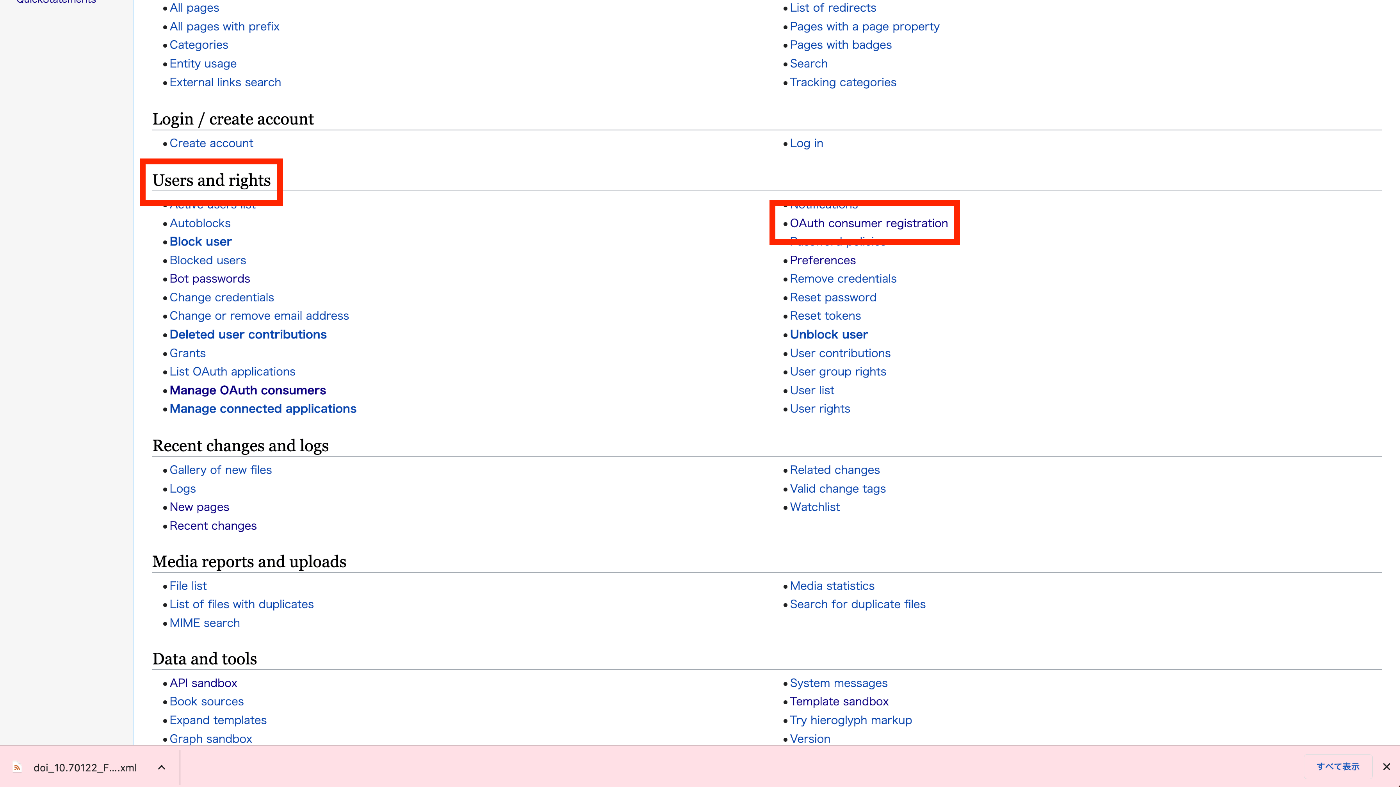
Overview I had the opportunity to try out the following WikibaseSync, so this is a personal note for future reference. https://github.com/the-qa-company/WikibaseSync I learned about this tool from the following paper. https://doi.org/10.11517/jsaisigtwo.2022.SWO-056_04 Installation Install the source code and related libraries. !get clone https://github.com/the-qa-company/WikibaseSync cd WikibaseSync !pip install -r requirements.txt Creating a Bot Account Access the Wikibase prepared in advance, and click “Bot passwords” from “Special pages”. On the following screen, enter the “Bot name”. ...

Using the Wikibase API

Using the Wikibase API

Overview I had the opportunity to use the Wikibase API from a Python client, so this is a memo of the process. I used the following library. https://wikibase-api.readthedocs.io/en/latest/index.html Installation Install with the following: !pip install wikibase-api Read This time, we will work with the following Wikibase instance. https://nakamura196.wikibase.cloud/ from wikibase_api import Wikibase api_url = "https://nakamura196.wikibase.cloud/w/api.php" wb = Wikibase(api_url=api_url) r = wb.entity.get("Q1") print(r) With the above, we were able to retrieve information about Q1. Create Obtaining Authentication Credentials When creating items, authentication needed to be performed using one of the following methods: ...

Trying Dataverse

Trying Dataverse

Overview I had an opportunity to try Dataverse, so here are my notes. I used the following demo environment. https://demo.dataverse.org/ Creating an Account Create an account from Sign Up. Creating a Dataverse Let’s try creating a Dataverse. I created the following Dataverse. https://demo.dataverse.org/dataverse/nakamura196 Creating a Dataset Create a dataset from Add Data. The following is the registration screen. The following is the registration result screen. ...

How to Bulk Delete Collections in Omeka Classic

How to Bulk Delete Collections in Omeka Classic

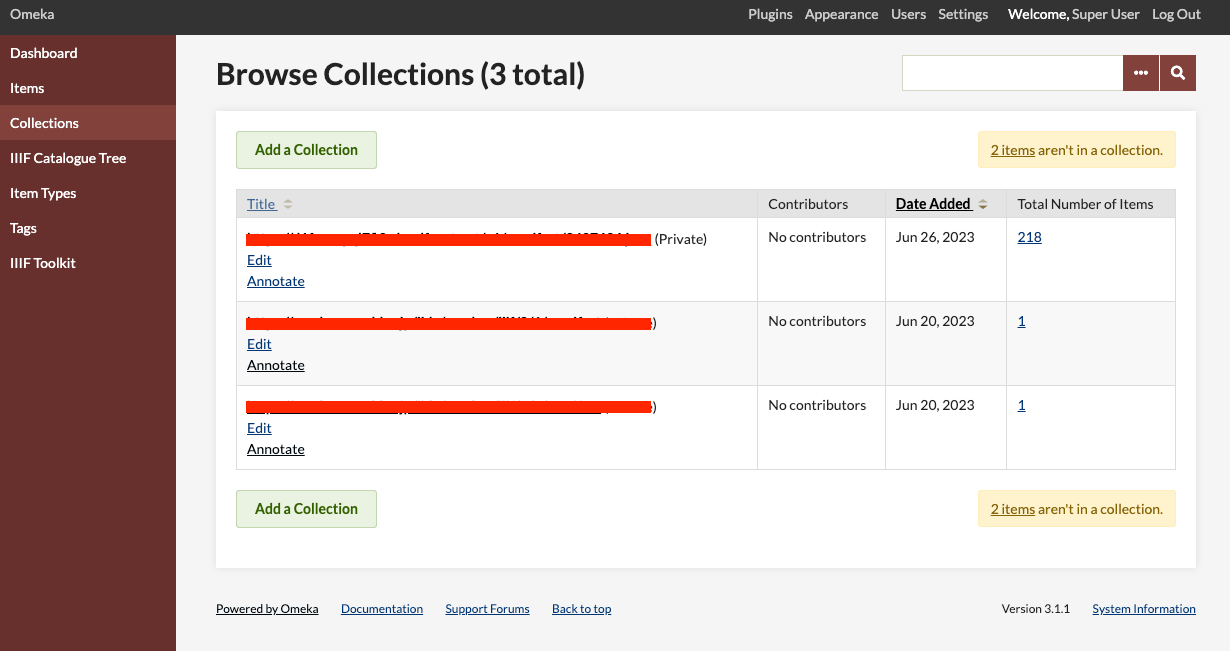
Overview This article introduces one approach for bulk deleting collections in Omeka Classic. In Omeka Classic (Version 3.1.1), there is no GUI for selecting and deleting multiple collections at once. However, this functionality is available for items. Therefore, we will use the API to perform bulk deletion of collections. Obtaining the API Key Follow the instructions below to enable the API and generate an API key: https://omeka.org/classic/docs/Admin/Settings/API_Settings/ Specifically, first access the following page: ...

Trying Out bagit-python

Trying Out bagit-python

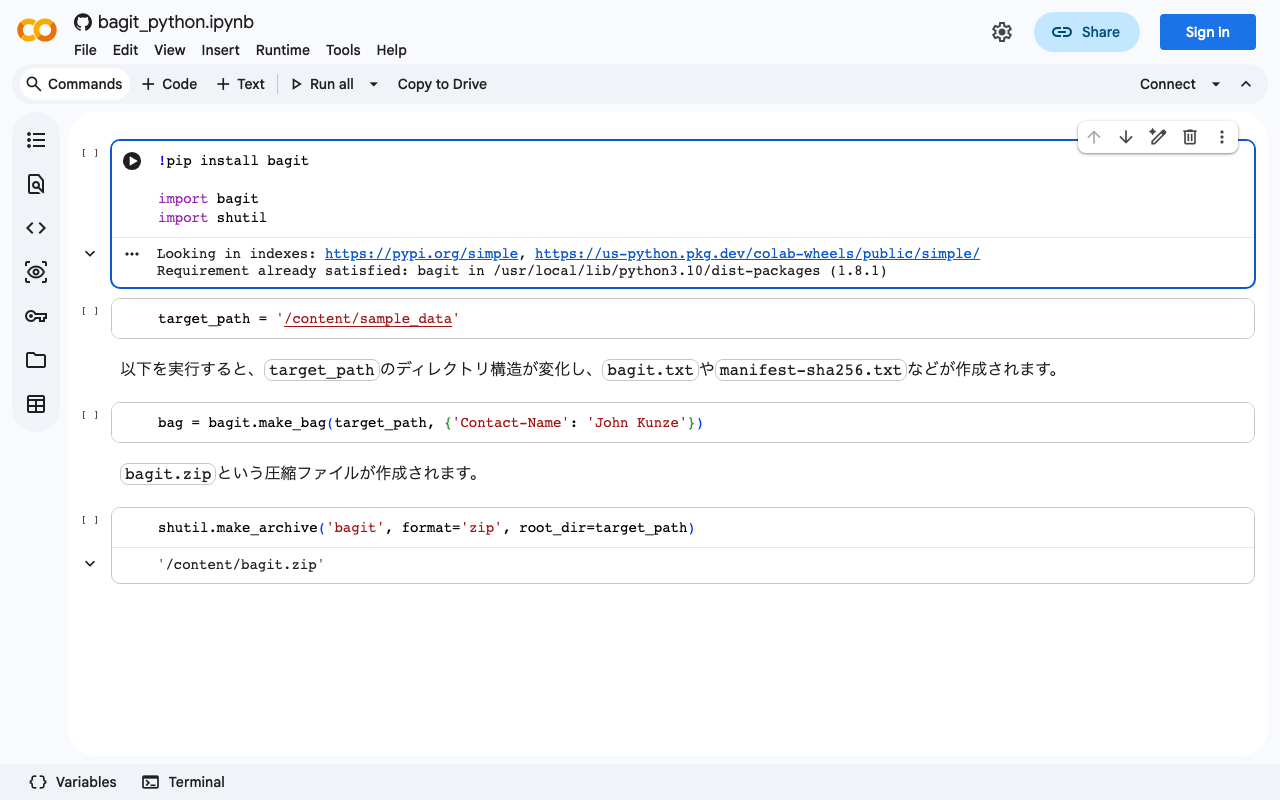
bagit is described as follows: bagit is a Python library and command line utility for working with BagIt style packages. I created a Google Colab notebook for trying out this library. https://colab.research.google.com/github/nakamura196/ndl_ocr/blob/main/bagit_python.ipynb I hope this serves as a useful reference for using bagit.

Connecting Django with AWS OpenSearch

Connecting Django with AWS OpenSearch

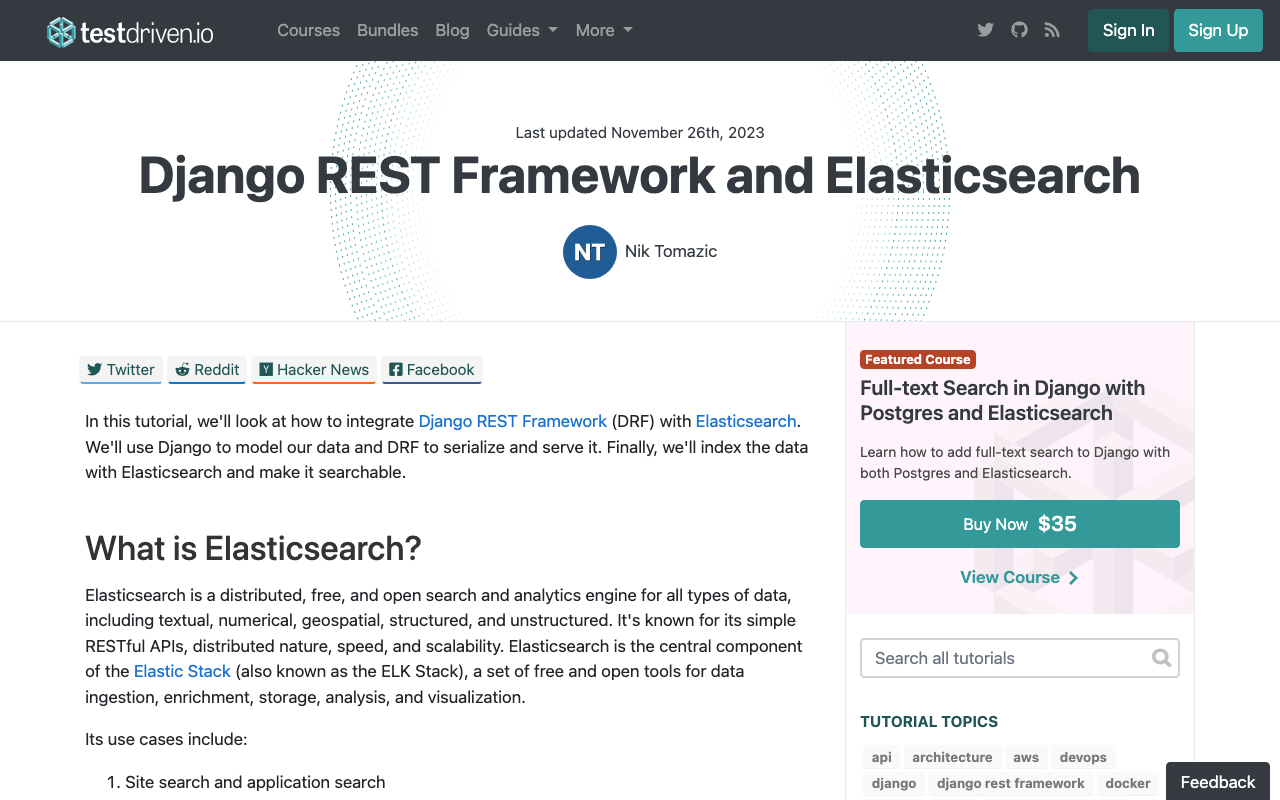
Overview These are notes on how to connect Django with AWS OpenSearch. The following article was helpful. https://testdriven.io/blog/django-drf-elasticsearch/ However, since the above article targets Elasticsearch, changes corresponding to OpenSearch were needed. Changes Changes for OpenSearch were needed starting from the Elasticsearch Setup section of the article. https://testdriven.io/blog/django-drf-elasticsearch/#elasticsearch-setup Specifically, the following two libraries were required. (env)$ pip install opensearch-py (env)$ pip install django-opensearch-dsl After that, by replacing django_elasticsearch_dsl with django-opensearch-dsl and elasticsearch_dsl with opensearchpy, I was able to proceed as described in the article. ...