Home Articles Books Search About
日本語
Creating TEI/XML from VTT Files

Creating TEI/XML from VTT Files

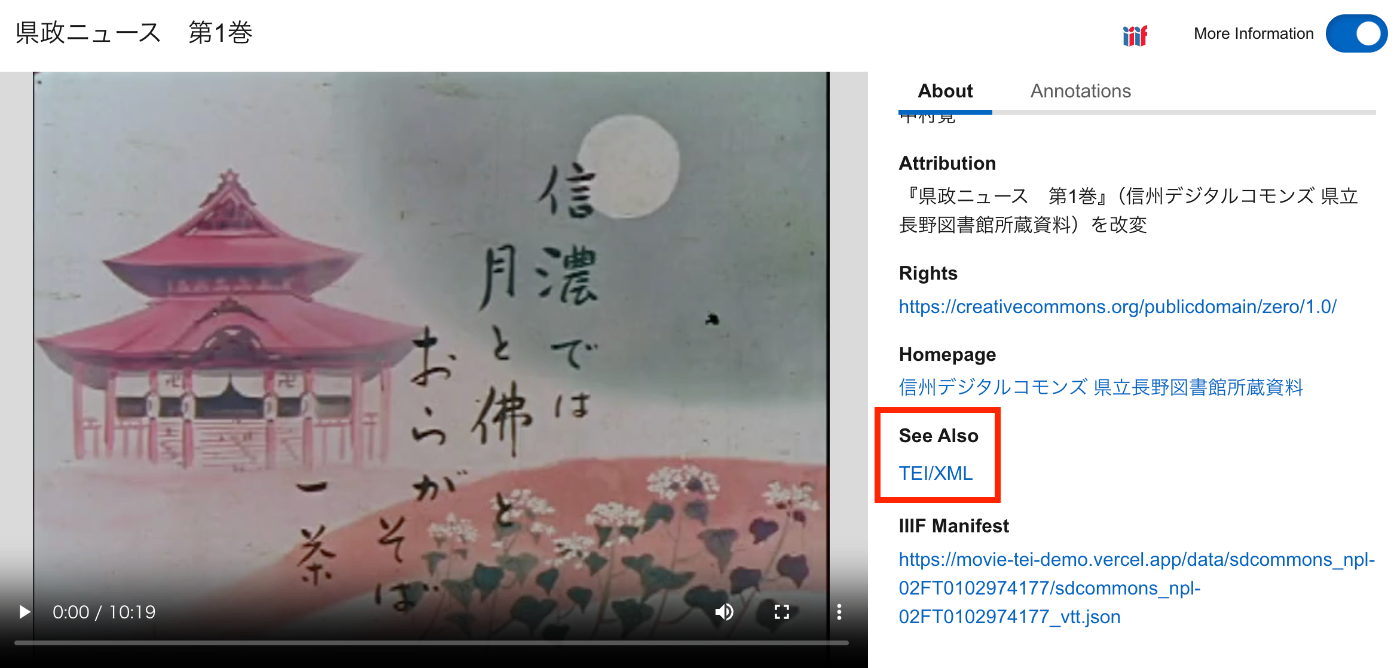
Overview This is a memorandum on how to create TEI/XML files from VTT files. Additionally, I will make it possible to access VTT files and TEI/XML files from an IIIF manifest. As a result, as shown below, the TEI/XML file is associated via SeeAlso, and the contents of the VTT file can be accessed from the “Annotations” tab. https://clover-iiif-demo.vercel.app/?manifest=https://movie-tei-demo.vercel.app/data/sdcommons_npl-02FT0102974177/sdcommons_npl-02FT0102974177_vtt.json References I referenced the following efforts from “The Ethiopian Language Archive.” The TEI/XML structuring method was particularly helpful. ...

Created a Similar Text Search App for the Koui Genji Monogatari

Created a Similar Text Search App for the Koui Genji Monogatari

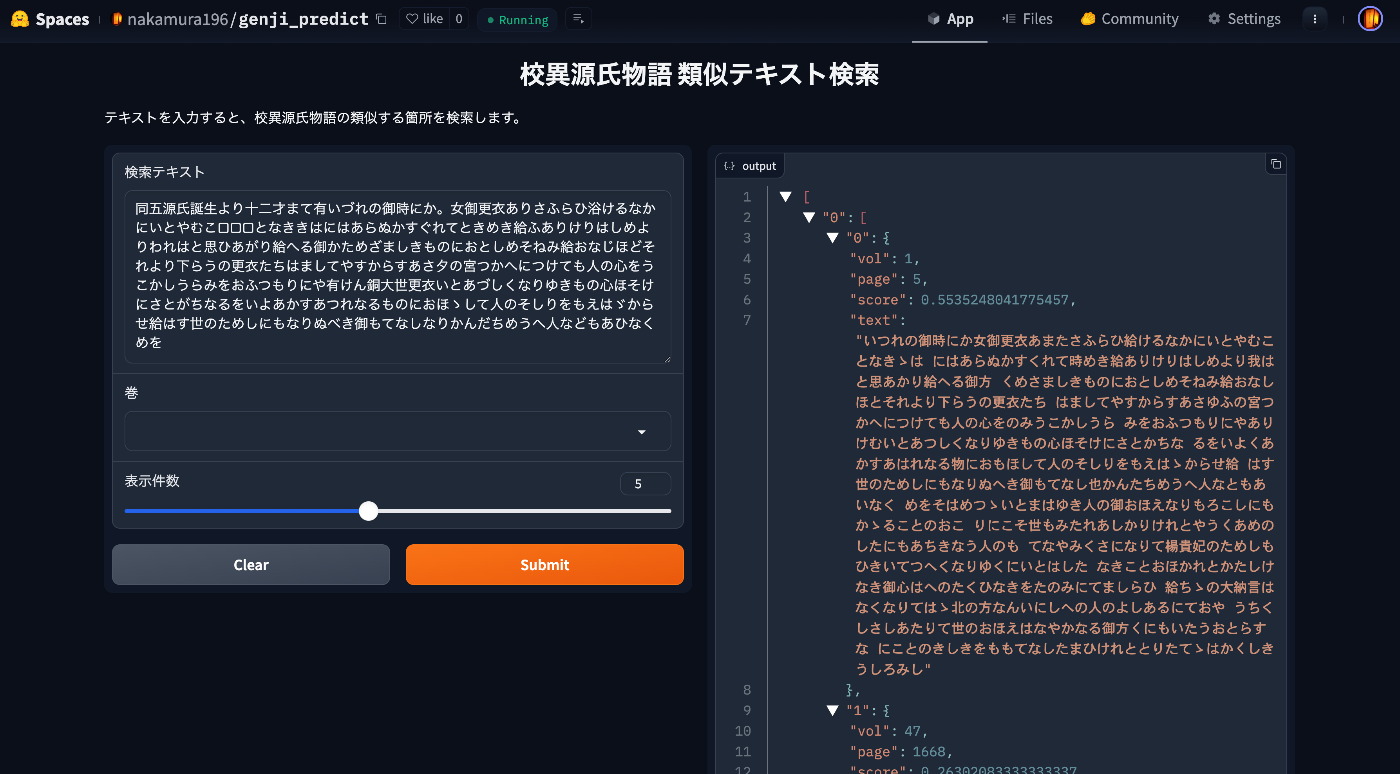
Overview I created a similar text search app for the Koui Genji Monogatari. You can try it from the following URL. https://huggingface.co/spaces/nakamura196/genji_predict This article introduces how to use the app. Data The text data published on the following Koui Genji Monogatari DB is used. https://kouigenjimonogatari.github.io/ How the App Works The mechanism is simple: text for each volume and page of the Koui Genji Monogatari is prepared in advance, the edit distance from the input string is calculated, and texts (along with volume and page numbers) with high similarity are returned. ...

Creating AIPs with Archivematica for Files in Alfresco

Creating AIPs with Archivematica for Files in Alfresco

Overview This is an example of how to create AIPs using Archivematica for files in Alfresco. Below is a demo video of the deliverable. https://youtu.be/7WCO7JoMnWc System Configuration For this project, I used the following system configuration. There is no particular significance to using multiple cloud services. Alfresco was built on Azure, referencing the following article. Archivematica and object storage use mdx.jp, and the analysis environment uses GakuNin RDM. ...

How to Upload Media to Omeka S Using Python

How to Upload Media to Omeka S Using Python

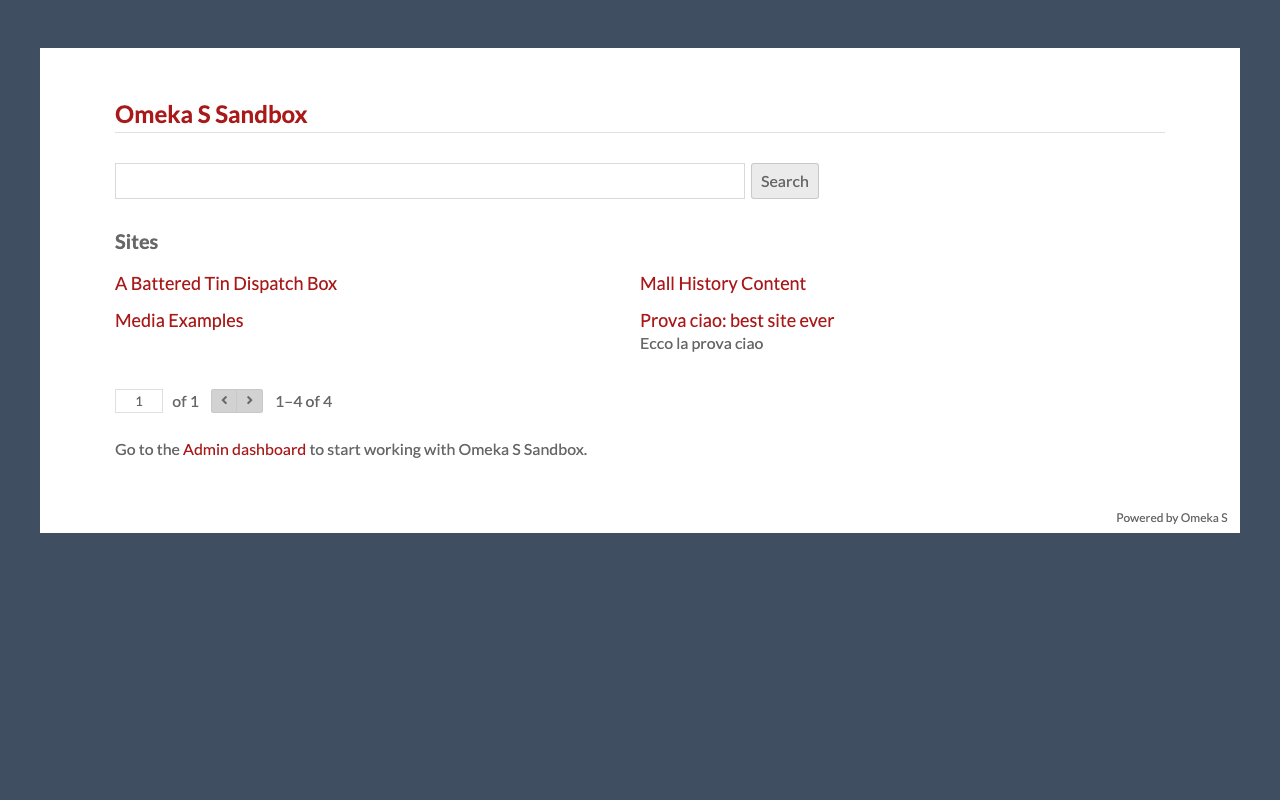
Overview This is a personal note on how to upload media to Omeka S using Python. Preparation Prepare environment variables. OMEKA_S_BASE_URL=https://dev.omeka.org/omeka-s-sandbox # Example OMEKA_S_KEY_IDENTITY= OMEKA_S_KEY_CREDENTIAL= Initialize. import requests from dotenv import load_dotenv import os def __init__(self): load_dotenv(verbose=True, override=True) OMEKA_S_BASE_URL = os.environ.get("OMEKA_S_BASE_URL") self.omeka_s_base_url = OMEKA_S_BASE_URL self.items_url = f"{OMEKA_S_BASE_URL}/api/items" self.media_url = f"{OMEKA_S_BASE_URL}/api/media" self.params = { "key_identity": os.environ.get("OMEKA_S_KEY_IDENTITY"), "key_credential": os.environ.get("OMEKA_S_KEY_CREDENTIAL") } Uploading a Local File def upload_media(self, path, item_id): files = {} payload = {} file_data = { 'o:ingester': 'upload', 'file_index': '0', 'o:source': path.name, 'o:item': {'o:id': item_id} } payload.update(file_data) params = self.params files = [ ('data', (None, json.dumps(payload), 'application/json')), ('file[0]', (path.name, open(path, 'rb'), 'image')) ] media_response = requests.post( self.media_url, params=params, files=files ) # Check the response if media_response.status_code == 200: return media_response.json()["o:id"] else: return None Uploading a IIIF Image Specify a IIIF image URL like the following to register it. ...

Trying Out Geocoding Libraries

Trying Out Geocoding Libraries

Overview I had the opportunity to try out geocoding libraries, so here are my notes. Target This time, we will use the following text as our target: 岡山市旧御野郡金山寺村。現在の岡山市金山寺。市の中心部からは直線で北方約一〇キロを隔てた金山の中腹にある。 (Okayama City, former Mino District, Kinzanji Village. Currently Kinzanji, Okayama City. Located on the hillside of Kanayama, approximately 10 kilometers north of the city center in a straight line.) Tool 1: Jageocoder - A Python Japanese geocoder First, let’s try “Jageocoder.” ...

Notes on LLM-Related Tools

Notes on LLM-Related Tools

Overview This is a memo on tools related to LLMs. LangChain https://www.langchain.com/ It is described as follows. LangChain is a composable framework to build with LLMs. LangGraph is the orchestration framework for controllable agentic workflows. LlamaIndex https://docs.llamaindex.ai/en/stable/ It is described as follows. LlamaIndex is a framework for building context-augmented generative AI applications with LLMs including agents and workflows. LangChain and LlamaIndex The response from gpt-4o was as follows. ...

Uploading Files and More Using the GakuNin RDM API

Uploading Files and More Using the GakuNin RDM API

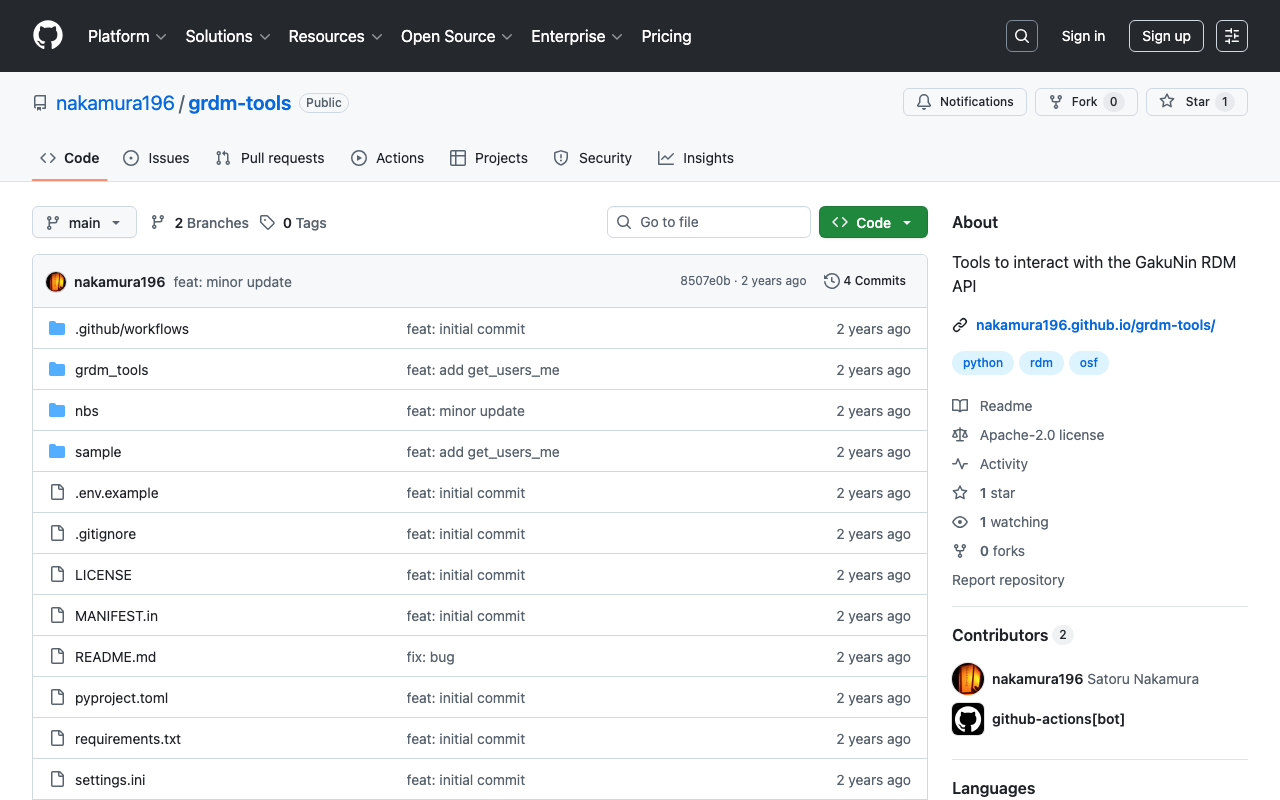
Background These are notes on how to upload files and perform other operations using the GakuNin RDM API. References The following article explains how to obtain a PAT (Personal Access Token). The following article introduces a method using OAuth (Open Authorization). If you are using it from a web application, this may be helpful. Method I created the following repository using nbdev. https://github.com/nakamura196/grdm-tools The documentation can be found here. ...

Building a Character Detection Model Using YOLOv11x and the Japanese Classical Character Dataset

Building a Character Detection Model Using YOLOv11x and the Japanese Classical Character Dataset

Overview I had the opportunity to build a character detection model using YOLOv11x and the Japanese Classical Character (Kuzushiji) Dataset, so this is a memo of the process. http://codh.rois.ac.jp/char-shape/ References Previously, I performed a similar task using YOLOv5. You can check the demo and pre-trained models at the following Spaces. https://huggingface.co/spaces/nakamura196/yolov5-char Below is an example of application to publicly available images from the “National Treasure Kanazawa Bunko Documents Database.” ...

Training YOLOv11 Classification (Kuzushiji Recognition) Using mdx.jp

Training YOLOv11 Classification (Kuzushiji Recognition) Using mdx.jp

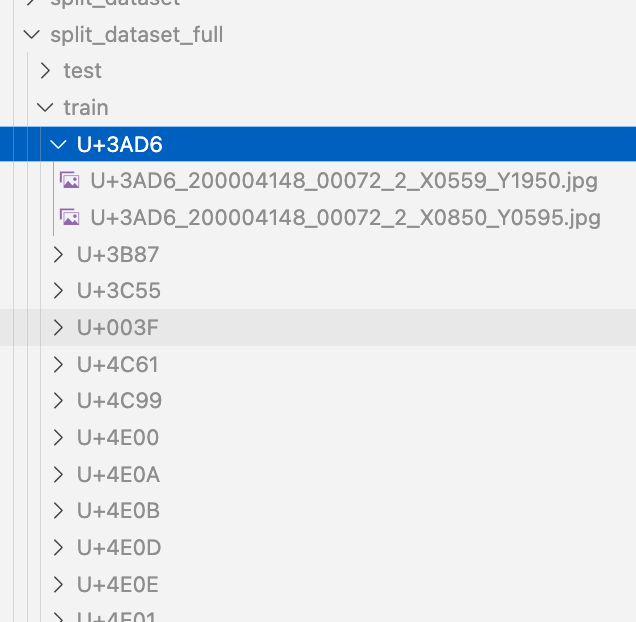
Overview We had the opportunity to train a YOLOv11 classification model (for kuzushiji/classical Japanese character recognition) using mdx.jp, so this article serves as a reference. Dataset We target the following “Kuzushiji Dataset”: http://codh.rois.ac.jp/char-shape/book/ Creating the Dataset We format the dataset to match the YOLO format. First, we merge the data, which is separated by book title, into a flat structure. #| export class Classification: def create_dataset(self, input_file_path, output_dir): # "../data/*/characters/*/*.jpg" files = glob(input_file_path) # output_dir = "../data/dataset" for file in tqdm(files): cls = file.split("/")[-2] output_file = f"{output_dir}/{cls}/{file.split('/')[-1]}" if os.path.exists(output_file): continue # print(f"Copying {file} to {output_file}") os.makedirs(f"{output_dir}/{cls}", exist_ok=True) shutil.copy(file, output_file) Next, we split the dataset using the following script: ...

Getting a List of Properties for a Specific Vocabulary in Omeka S

Getting a List of Properties for a Specific Vocabulary in Omeka S

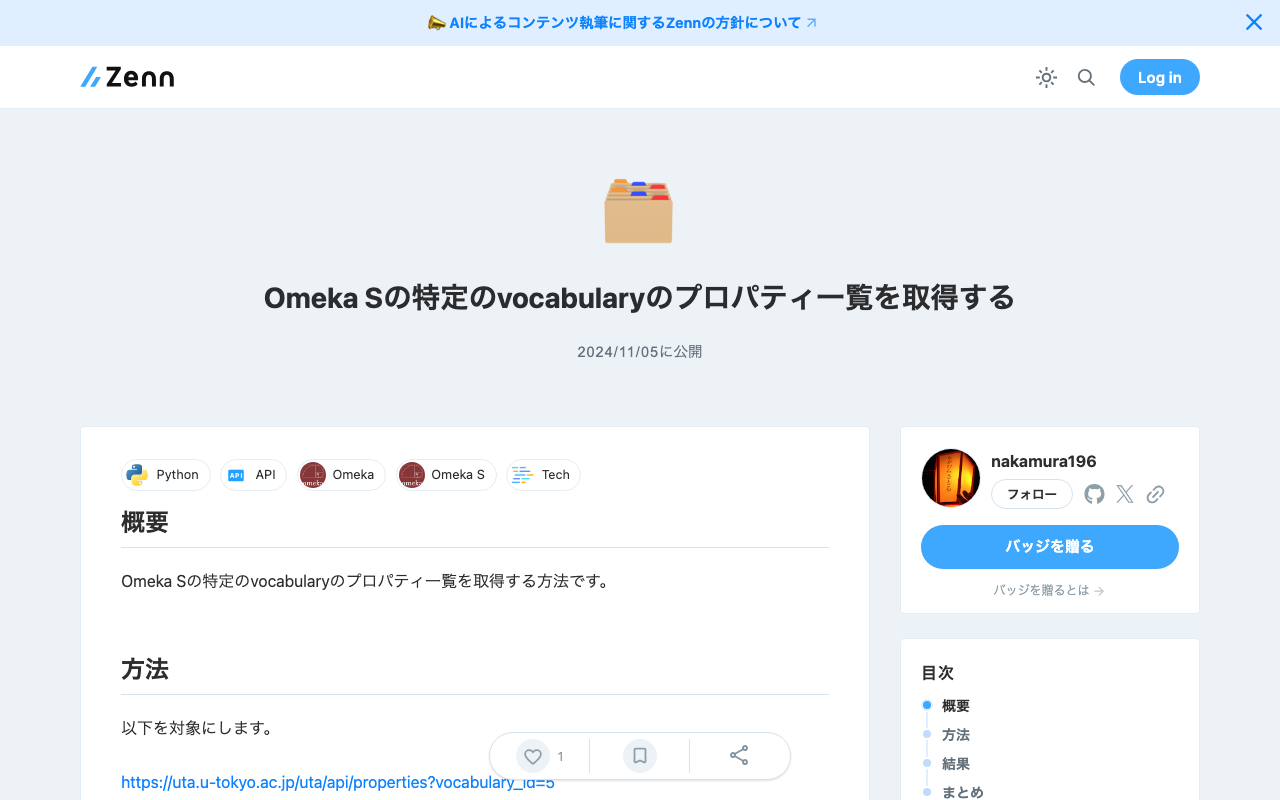
Overview Here is how to get a list of properties for a specific vocabulary in Omeka S. Method We will target the following. https://uta.u-tokyo.ac.jp/uta/api/properties?vocabulary_id=5 The following program writes the property list to MS Excel. import pandas as pd import requests url = "https://uta.u-tokyo.ac.jp/uta/api/properties?vocabulary_id=5" page = 1 data_list = [] while 1: response = requests.get(url + "&page=" + str(page)) data = response.json() if len(data) == 0: break data_list.extend(data) page += 1 remove_keys = ["@context", "@id", "@type", "o:vocabulary", "o:id", "o:local_name"] for data in data_list: for key in remove_keys: if key in data: del data[key] # DataFrameに変換 df = pd.DataFrame(data_list) df.to_excel("archiveshub.xlsx", index=False) Result The following MS Excel file is obtained. ...

Creating a Transparent Text PDF from a Single Page Using Google Cloud Vision API

Creating a Transparent Text PDF from a Single Page Using Google Cloud Vision API

Overview I had the opportunity to create a transparent text PDF from a PDF using Google Cloud Vision API, so this is a personal note for future reference. Below is an example of searching for simple. Background This time, we target PDFs consisting of a single page. Procedure Creating the Image Create an image to be used as the OCR target. With the default settings, the resulting image was blurry, so I set the resolution to 2x and performed position alignment considering the resolution in the process described below. ...

A Python Library for Visualizing the Contents of Archivematica METS Files

A Python Library for Visualizing the Contents of Archivematica METS Files

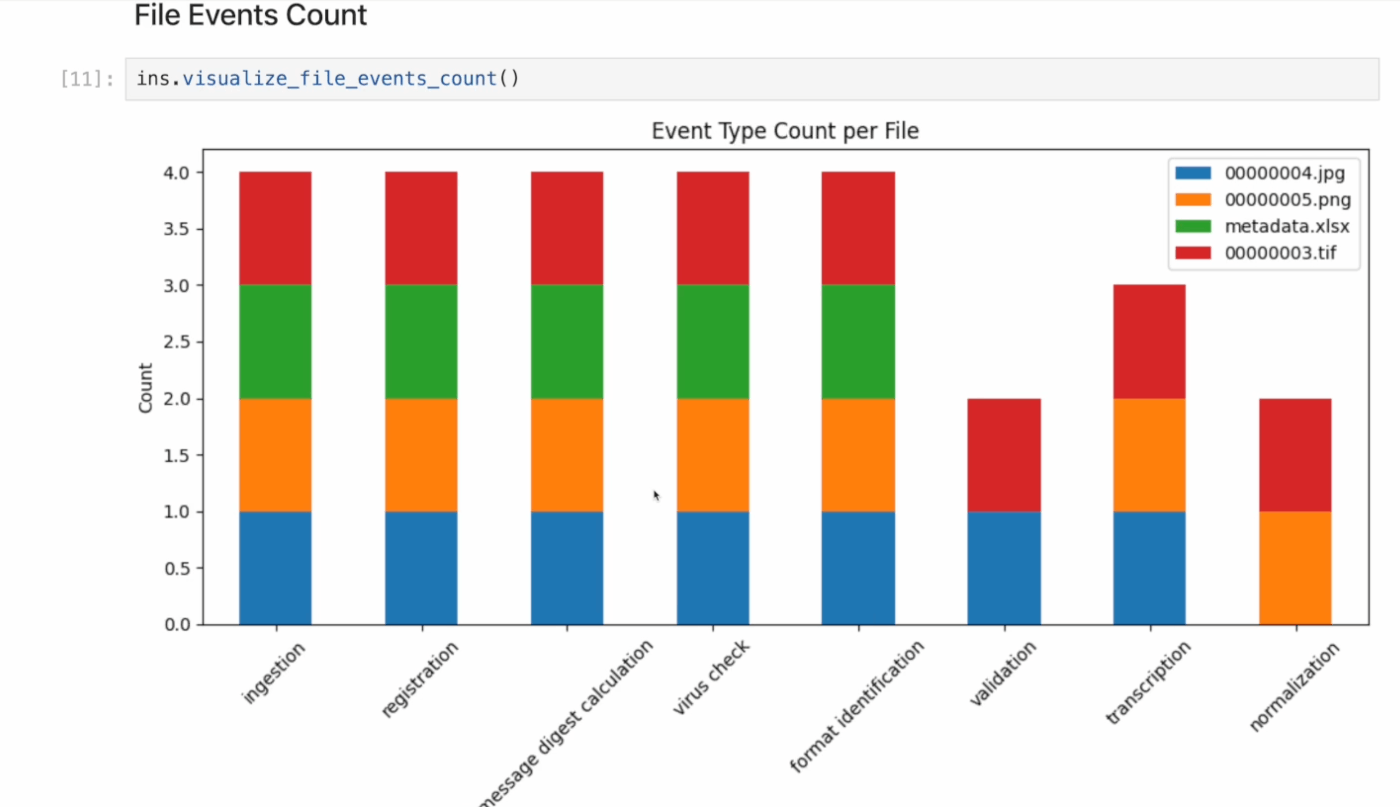
Overview I created a Python library for visualizing the contents of Archivematica METS files. For example, it visualizes aggregated results of processes (premis:event) performed during AIP creation, as shown below. Background In the following article, I introduced METSFlask, a web application for exploring Archivematica METS files in a human-friendly way. What I created this time is a library version of the functionality provided by METSFlask, making it easier to use outside of Flask. ...

Creating IIIF v3 Manifests for Video Using iiif-prezi3

Creating IIIF v3 Manifests for Video Using iiif-prezi3

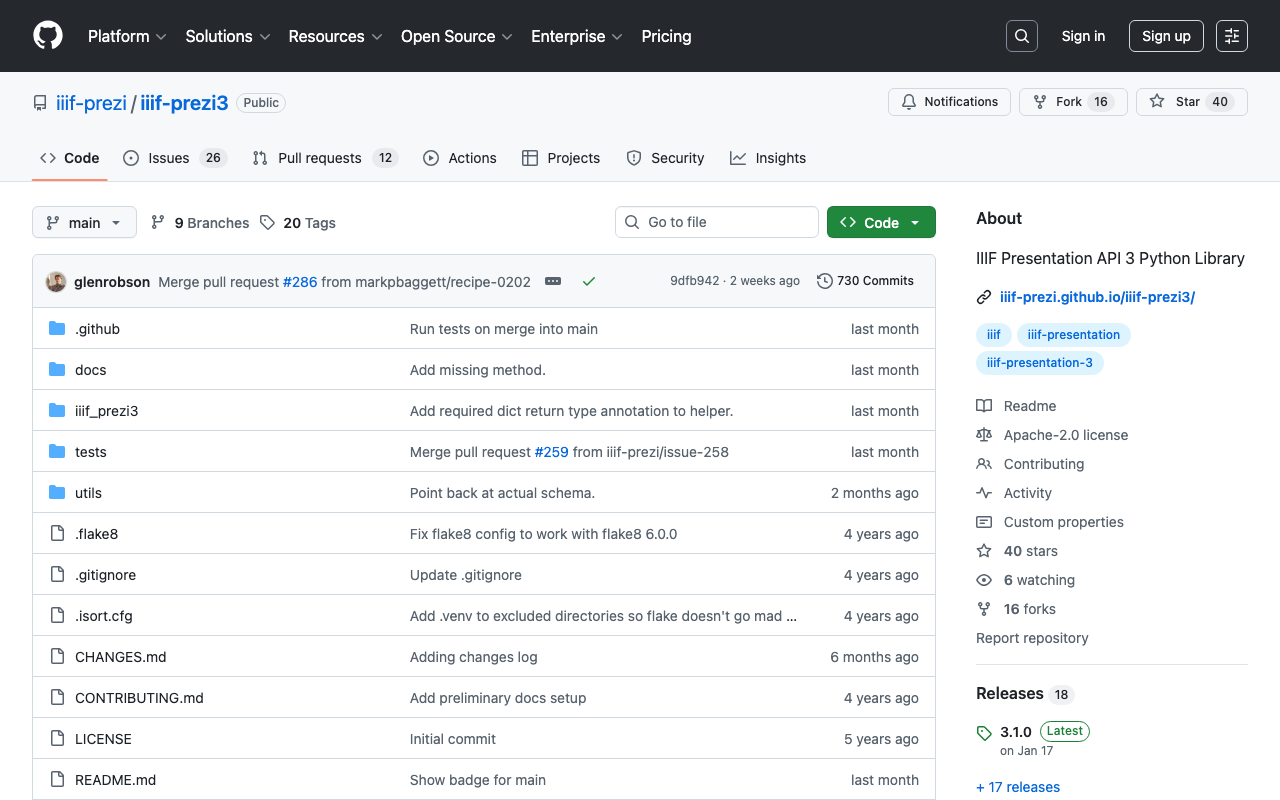
Overview I had the opportunity to create an IIIF v3 manifest for video using iiif-prezi3, so this is a note for reference. https://github.com/iiif-prezi/iiif-prezi3 References Examples of IIIF manifest files and implementation examples using iiif-prezi3 are published in the IIIF Cookbook. Below is an example of creating an IIIF v3 manifest for video. https://iiif.io/api/cookbook/recipe/0003-mvm-video/ An implementation example using iiif-prezi3 is published at the following. https://iiif-prezi.github.io/iiif-prezi3/recipes/0003-mvm-video/ from iiif_prezi3 import Manifest, AnnotationPage, Annotation, ResourceItem, config config.configs['helpers.auto_fields.AutoLang'].auto_lang = "en" manifest = Manifest(id="https://iiif.io/api/cookbook/recipe/0003-mvm-video/manifest.json", label="Video Example 3") canvas = manifest.make_canvas(id="https://iiif.io/api/cookbook/recipe/0003-mvm-video/canvas") anno_body = ResourceItem(id="https://fixtures.iiif.io/video/indiana/lunchroom_manners/high/lunchroom_manners_1024kb.mp4", type="Video", format="video/mp4") anno_page = AnnotationPage(id="https://iiif.io/api/cookbook/recipe/0003-mvm-video/canvas/page") anno = Annotation(id="https://iiif.io/api/cookbook/recipe/0003-mvm-video/canvas/page/annotation", motivation="painting", body=anno_body, target=canvas.id) hwd = {"height": 360, "width": 480, "duration": 572.034} anno_body.set_hwd(**hwd) hwd["width"] = 640 canvas.set_hwd(**hwd) anno_page.add_item(anno) canvas.add_item(anno_page) print(manifest.json(indent=2)) Summary Many other samples and implementation examples are also published. I hope this is helpful. ...

Manipulating CVAT Data Using Python

Manipulating CVAT Data Using Python

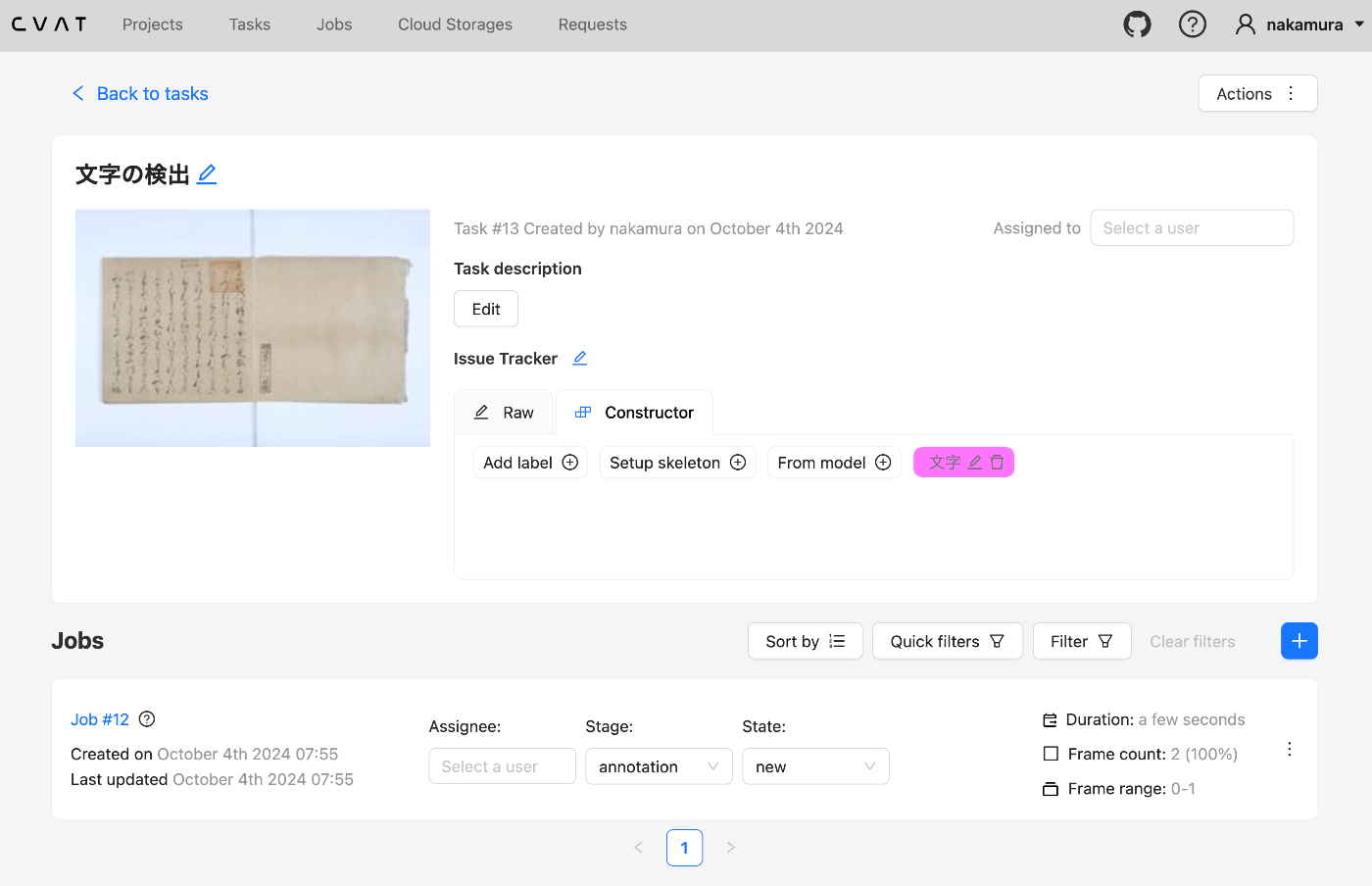
Overview This is a memo from an opportunity to manipulate CVAT data using Python. Setup We use Docker to start CVAT. git clone https://github.com/cvat-ai/cvat --depth 1 cd cvat docker compose up -d Creating an Account Access http://localhost:8080 and create an account. Operations with Python First, install the following library. pip install cvat-sdk Write the account information in .env. host=http://localhost:8080 username= password= Creating an Instance import os from dotenv import load_dotenv import json from cvat_sdk.api_client import Configuration, ApiClient, models, apis, exceptions from cvat_sdk.api_client.models import PatchedLabeledDataRequest import requests from io import BytesIO load_dotenv(verbose=True) host = os.environ.get("host") username = os.environ.get("username") password = os.environ.get("password") configuration = Configuration( host=host, username=username, password=password ) api_client = ApiClient(configuration) Creating a Task task_spec = { 'name': '文字の検出', "labels": [{ "name": "文字", "color": "#ff00ff", "attributes": [ { "name": "score", "mutable": True, "input_type": "text", "values": [""] } ] }], } try: # Apis can be accessed as ApiClient class members # We use different models for input and output data. For input data, # models are typically called like "*Request". Output data models have # no suffix. (task, response) = api_client.tasks_api.create(task_spec) except exceptions.ApiException as e: # We can catch the basic exception type, or a derived type print("Exception when trying to create a task: %s\n" % e) print(task) The following result is obtained: ...

Performing Similar Image Search Using GUIE (Google Universal Image Embedding) Pre-trained Models

Performing Similar Image Search Using GUIE (Google Universal Image Embedding) Pre-trained Models

Overview I created a sample program for performing similar image search using GUIE (Google Universal Image Embedding) pre-trained models. You can access the notebook from the following link. https://colab.research.google.com/github/nakamura196/000_tools/blob/main/guie_sample.ipynb References It uses the model output from the following notebook. https://www.kaggle.com/code/francischen1991/tf-baseline-v2-submission Usage Notes Kaggle Account A Kaggle account is required to run the notebook. Obtain a Kaggle API Key and register it in your secrets. If the following is displayed, please click “Allow access.” ...

Applying Google Cloud Vision to Image Files to Create IIIF Manifests and TEI/XML Files

Applying Google Cloud Vision to Image Files to Create IIIF Manifests and TEI/XML Files

Overview I created a library that applies Google Cloud Vision to image files and generates IIIF manifest and TEI/XML files. https://github.com/nakamura196/iiif_tei_py This article explains how to use the library. Usage You can check the usage and more at the following page. https://nakamura196.github.io/iiif_tei_py/ Installing the Library Install the library from the GitHub repository. pip install https://github.com/nakamura196/iiif_tei_py Creating a GC Service Account Download a GC (Google Cloud) service account key (JSON file) by referring to articles such as the following. ...

Registering RDF Data to Dydra Using Python

Registering RDF Data to Dydra Using Python

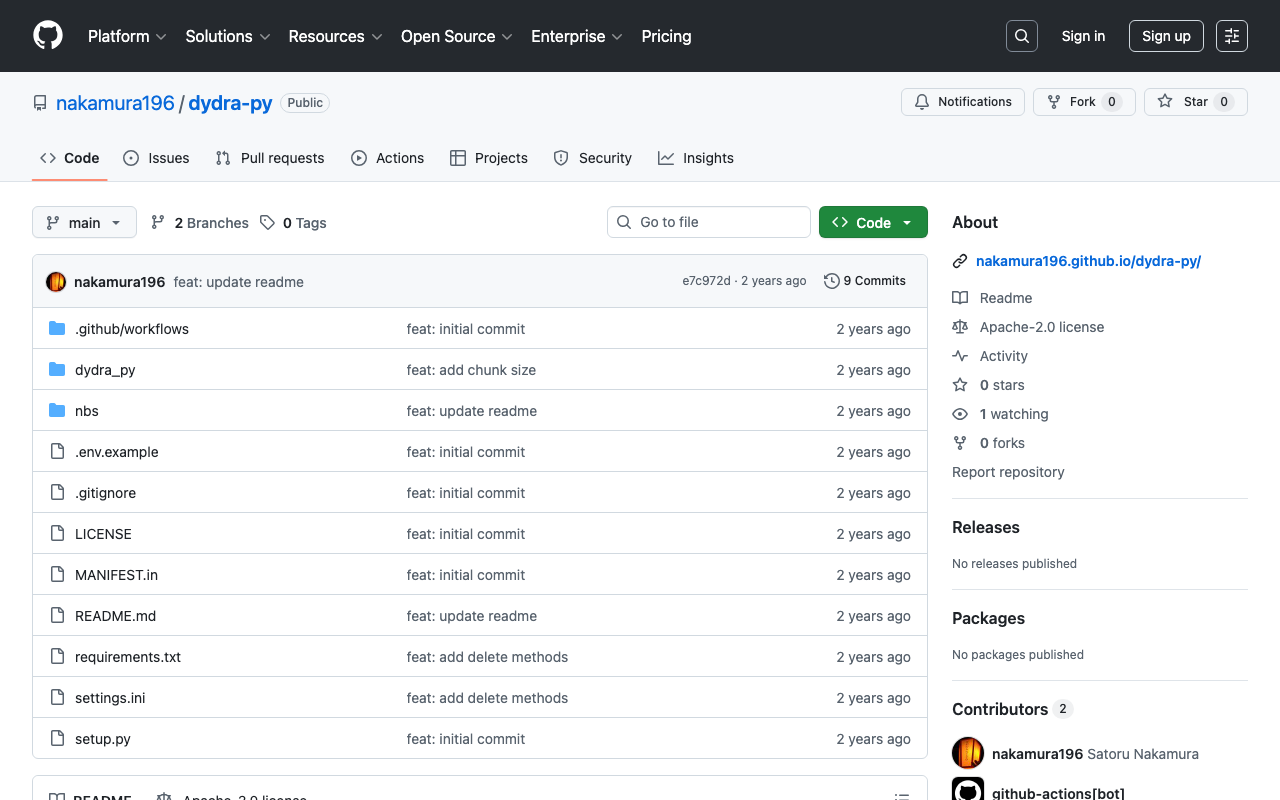
Overview I created a library for registering RDF data to Dydra using Python. https://github.com/nakamura196/dydra-py It includes some incomplete implementations, but we hope it proves useful in some situations. Implementation Details The import is performed in the following file. https://github.com/nakamura196/dydra-py/blob/main/dydra_py/api.py#L55 It uses the SPARQL INSERT DATA operation as follows. def import_by_file(self, file_path, format, graph_uri=None, verbose=False): """ Imports RDF data from a file into the Dydra store. Args: file_path (str): The path to the RDF file to import. format (str): The format of the RDF file (e.g., 'xml', 'nt'). graph_uri (str, optional): URI of the graph where data will be inserted. Defaults to None. """ headers = { "Authorization": f"Bearer {self.api_key}", "Content-Type": "application/sparql-update" } files = self._chunk_rdf_file(file_path, format=format) print("Number of chunks: ", len(files)) for file in tqdm(files): # RDFファイルの読み込み graph = rdflib.Graph() graph.parse(file, format=format) # フォーマットはファイルに応じて変更 nt_data = graph.serialize(format='nt') if graph_uri is None: query = f""" INSERT DATA {{ {nt_data} }} """ else: query = f""" INSERT DATA {{ GRAPH <{graph_uri}> {{ {nt_data} }} }} """ if verbose: print(query) response = requests.post(self.endpoint, data=query, headers=headers) if response.status_code == 200: print("Data successfully inserted.") else: print(f"Error: {response.status_code} {response.text}") Key Design Decision One notable design decision was handling large RDF files. When uploading large RDF files all at once, there were cases where the process would stop midway. ...

A Library for Creating RDF Files from VSDX Files

A Library for Creating RDF Files from VSDX Files

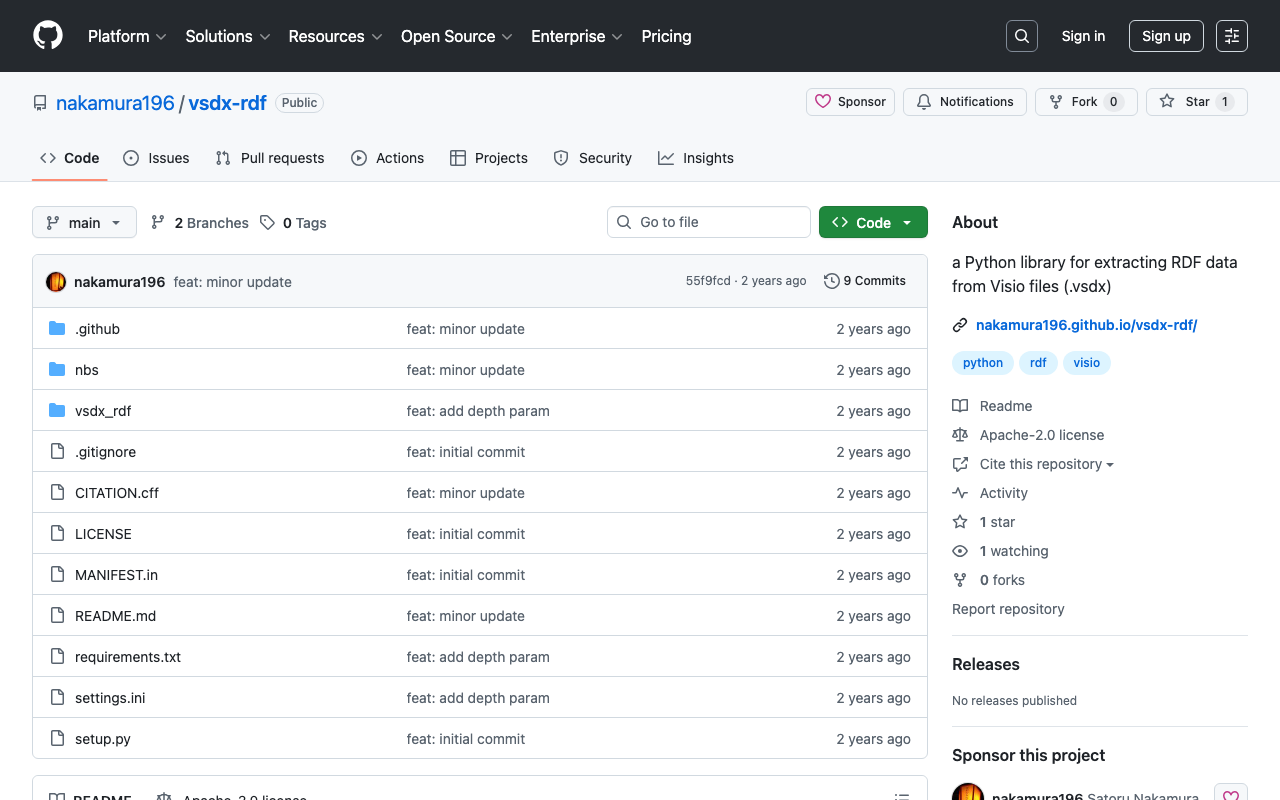
Overview This is a memo about a library I created for generating RDF files from VSDX files. https://github.com/nakamura196/vsdx-rdf Background I have been exploring methods for creating RDF data using Microsoft Visio in articles like the following. This article corresponds to the note in the above article that said “This library will be introduced in a separate article.” Usage Please refer to the following. https://nakamura196.github.io/vsdx-rdf/ Google Colab A notebook is available for trying out this library. ...

Fetching All Records from an OAI-PMH Repository Using Python

Fetching All Records from an OAI-PMH Repository Using Python

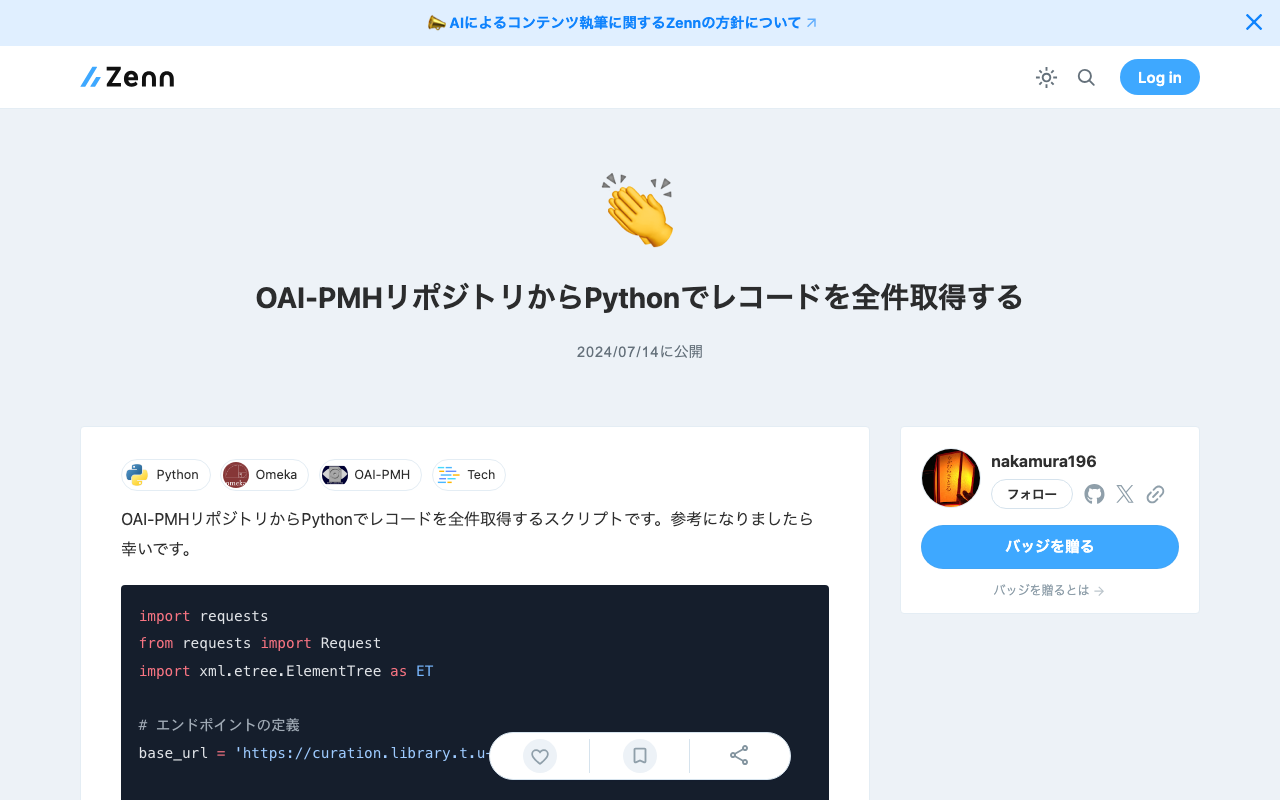
Here is a script for fetching all records from an OAI-PMH repository using Python. I hope it serves as a useful reference. import requests from requests import Request import xml.etree.ElementTree as ET # Define the endpoint base_url = 'https://curation.library.t.u-tokyo.ac.jp/oai' # Initial OAI-PMH request params = { 'verb': 'ListRecords', 'metadataPrefix': 'curation', 'set': '97590' } response = requests.get(base_url, params=params) # Prepare the initial request req = Request('GET', base_url,params=params) prepared_req = req.prepare() print("Sending request to:", prepared_req.url) # Output the URL root = ET.fromstring(response.content) data = [] # Fetch all data while True: # Process records for record in root.findall('.//{http://www.openarchives.org/OAI/2.0/}record'): identifier = record.find('.//{http://www.openarchives.org/OAI/2.0/}identifier').text print(f'Record ID: {identifier}') # Other data can be processed here as well data.append(record) # Get resumptionToken and execute next request token_element = root.find('.//{http://www.openarchives.org/OAI/2.0/}resumptionToken') if token_element is None or not token_element.text: break # End loop if no token params = { 'verb': 'ListRecords', 'resumptionToken': token_element.text } response = requests.get(base_url, params=params) root = ET.fromstring(response.content) print("All records have been fetched.") print(len(data))

Bulk Deleting Multiple Content Items Using the Drupal REST API

Bulk Deleting Multiple Content Items Using the Drupal REST API

Overview I had the opportunity to bulk delete multiple content items using the Drupal REST API, so this is a memo of the process. References For a method to bulk delete content without using the REST API, please refer to the following. Preparation First, enable the HTTP Basic Authentication module and the JSON:API module. Additionally, enable DELETE in REST resources. /admin/config/services/rest Execution Example The following custom library is used. ...