Home Articles Books Search About
日本語
How to Install Omeka S Modules

How to Install Omeka S Modules

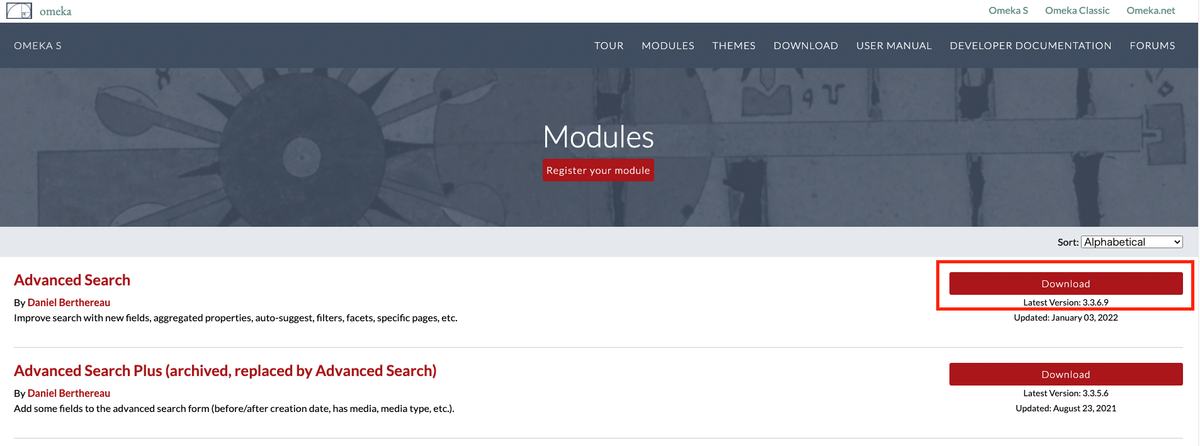
This article summarizes how to install Omeka S modules. A. From the Official Site First, you can download zip files from the official site below. https://omeka.org/s/modules/ Clicking the download button above will download a zip file. Extract the folder and place it in the modules folder within the Omeka S installation directory. This is the most basic method. An explanatory video is also available, so if this is your first time, please refer to the following video: ...
Batch Updating Metadata Using CSV Files with Bulk Import

Batch Updating Metadata Using CSV Files with Bulk Import

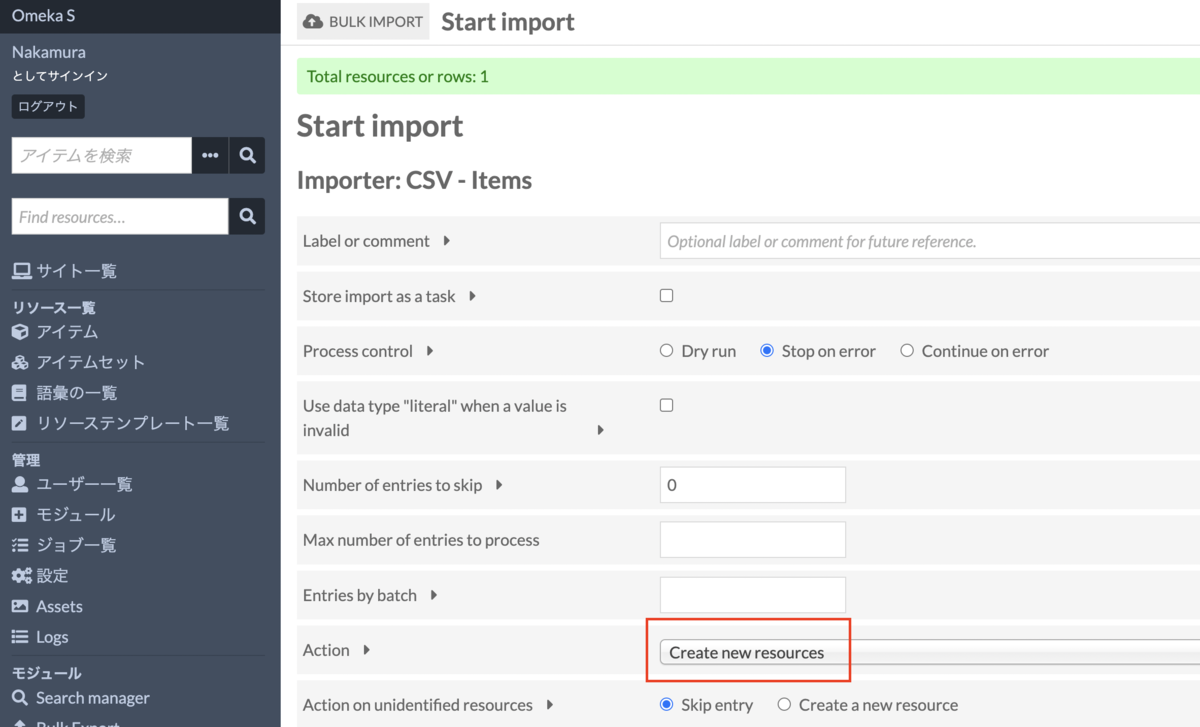
Introduction In the following article, I explained how to batch register metadata and images using CSV files with Bulk Import. nakamura196.hatenablog.com This article explains how to batch update already registered metadata. Procedure Bulk Import offers the following five options: Create new resources Append data to resources Revise data of resources Update data of resources Replace all data of resources Delete resources Below, we examine the behavior of each option. 1. Create new resources First, as with the batch registration method shared earlier, we use the “Create new resources” option. ...

Notes on Japanese Full-Text Search in Omeka S and the Mroonga Search Module

Notes on Japanese Full-Text Search in Omeka S and the Mroonga Search Module

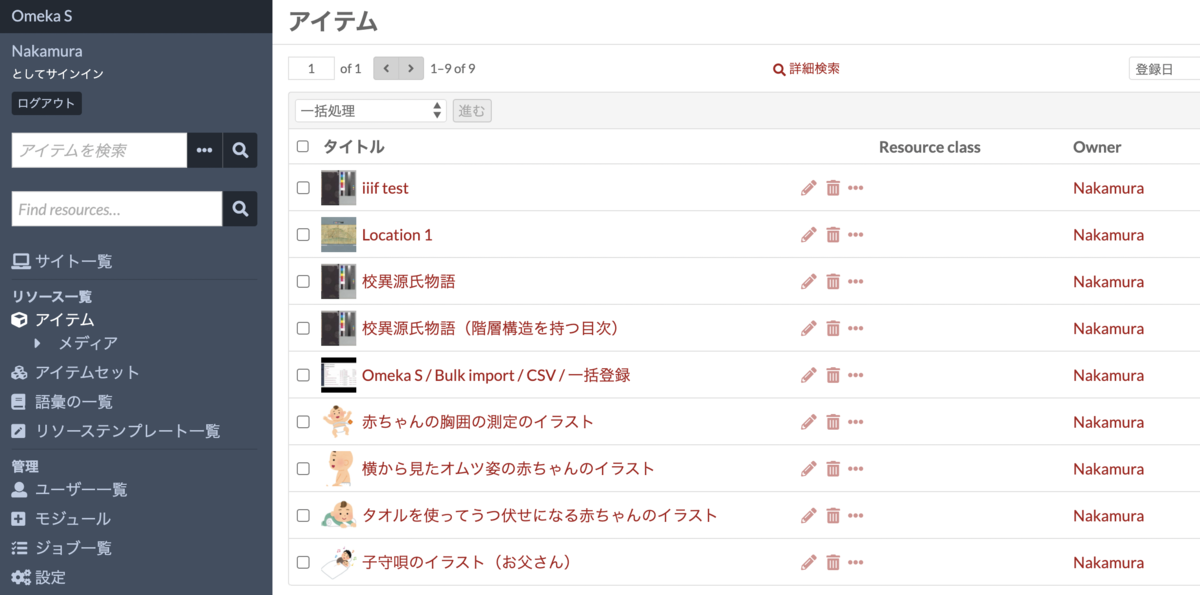
Issue Omeka S provides full-text search functionality, but unfortunately, Japanese search does not work properly with default settings. Specifically, partial match search does not function correctly. For example, assume that multiple items with titles containing the string “Koui” (校異) are registered, as shown below. When entering “校異” (Koui) in the full-text search form at the top left, the search returns 0 results. On the other hand, entering “校異源氏物語” (Koui Genji Monogatari) returns the correct search results. ...

How to Use the Omeka S XML Viewer Module

How to Use the Omeka S XML Viewer Module

Note: Using this module requires some advanced procedures. If you are considering basic use of Omeka S, please be aware of this. Overview This article explains how to use the XML Viewer module, which enables the display of XML files in Omeka S. It can be used for purposes such as displaying XML files created with TEI. gitlab.com Installation As of March 4, 2022, this module is only published on GitLab and is not available on GitHub. ...

How to Use the Omeka S Mirador Module

How to Use the Omeka S Mirador Module

Overview This article introduces a module that adds the Mirador viewer to Omeka S. The GitHub repository is available here: github.com Both Mirador 2 and 3 are supported. Various plugins can also be added from the settings screen. In this article, we introduce how to add the “Image tools” plugin, which enables image rotation and horizontal flipping. To use this module, you need to either give Omeka S IIIF server functionality or reference an external manifest file. We plan to cover how to set up the former in a separate article. ...

Summary of Articles About Omeka S

Summary of Articles About Omeka S

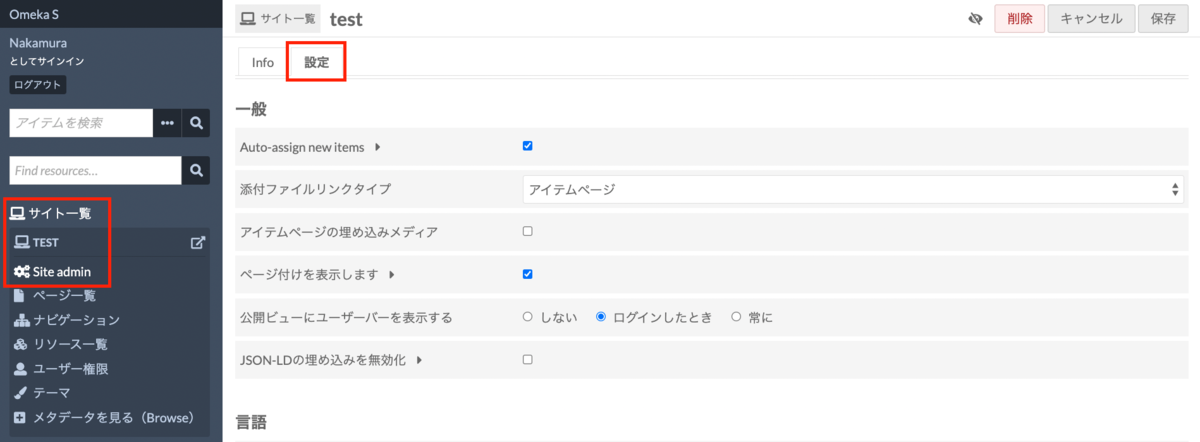
This is a summary of articles about Omeka S. (Updated periodically) Currently migrating to Zenn. For the latest articles, please check the following: zenn.dev For Users How to Install Omeka S and Add Modules Sites Auto-Adding New Items to Each Site Upon Registration Resources How to Add Existing Standard Vocabularies How to Set Language Attributes for Metadata Administration Modules How to Install Modules Identifiers How to Use Clean Url [Video] How to Use Clean Url Clean Url Module Bug and Temporary Fix Maps How to Use the Mapping Module IIIF-Related How to Set Up IIIF Server Using an External Image Server with the IIIF Server Module ...

[Omeka S Module Introduction] How to Use the Mapping Module (Especially Batch Registration via the CSV Import Module)

[Omeka S Module Introduction] How to Use the Mapping Module (Especially Batch Registration via the CSV Import Module)

Overview This article explains how to use the Mapping module, which adds maps to Omeka S, with a particular focus on batch registration using the CSV Import module. Omeka S - Mapping Module Installation First, install the Mapping module. Also, for batch data registration, install the CSV Import module. https://omeka.org/s/modules/CSVImport/ If the Bulk Import module is already installed, you need to disable it. Alternatively, consider applying a patch as described at the following link. ...

[Omeka S Module Development] Developed a Module to Add Various Export Links to the Item Detail Page

[Omeka S Module Development] Developed a Module to Add Various Export Links to the Item Detail Page

We developed a module that adds various export links to the item detail page. github.com By installing this module, export links like the following are displayed: Specifically, it adds export buttons for JSON-LD, text data, citation, and content sharing. The visibility of each can be configured from the following settings screen: By modifying the Omeka S theme to work with this module’s output, you can achieve buttons and functionality like the following example. (We plan to cover how to modify Omeka S themes in a separate article.) ...

[Omeka S Module Development] Developed a Module to Add IIIF Content Search API URIs to IIIF Manifests

[Omeka S Module Development] Developed a Module to Add IIIF Content Search API URIs to IIIF Manifests

Overview I developed an Omeka S module that adds IIIF Content Search API URIs to IIIF manifests. github.com By using the IIIF Content Search API, text search becomes possible in viewers such as Universal Viewer, as shown below. This module uses an IIIF Content Search API that is provided independently of Omeka S. Therefore, to use this module, you need to separately set up an environment that provides this API. While there remains the challenge of the cost of building this environment, I hope this is helpful for those who already have an IIIF Content Search API environment and are considering using it with Omeka S. ...

[Omeka S Module Info] Bug in the Clean Url Module and Temporary Fix

[Omeka S Module Info] Bug in the Clean Url Module and Temporary Fix

Bug We identified a bug where, after installing the Clean Url module on Omeka S3 and performing the initial configuration, the configured item identifiers were not displayed on the site’s item detail pages and elsewhere. Instead, the automatically assigned Omeka IDs were displayed as-is. Affected Versions OmekaS 3.1.1 CleanUrl 3.17.3.3 Temporary Fix On the settings screen shown below, first check the “Skip ’s/site-slug/’ for default site” checkbox and click “Submit” in the upper right corner. Then, uncheck “Skip ’s/site-slug/’ for default site” again and click “Submit” once more. After this operation, the property ID configured in “Property for identifier” was correctly displayed as the item identifier. ...

[Omeka S Module Introduction] IIIF-Compatible Viewers Available for Omeka S

[Omeka S Module Introduction] IIIF-Compatible Viewers Available for Omeka S

Overview This article summarizes the IIIF-compatible viewers available as Omeka S modules as of September 15, 2021. Viewer List Universal Viewer github.com Mirador github.com Diva IIIF Viewer github.com Summary You can see installation examples at the following page. We hope this serves as a useful reference for IIIF image delivery using Omeka S. diyhistory.org

[Feature Development] Added Table of Contents Functionality to the Omeka S IIIF Module (Part 2: Registering Hierarchical Tables of Contents)

[Feature Development] Added Table of Contents Functionality to the Omeka S IIIF Module (Part 2: Registering Hierarchical Tables of Contents)

Overview In the previous article, I explained how to add a flat table of contents using the Omeka S IIIF Server module. nakamura196.hatenablog.com This time, I explain how to add a hierarchical table of contents. The official manual is available here, and I also created an article translating this manual into Japanese. While the translation is imperfect, I hope it serves as a useful reference. nakamura196.hatenablog.com Details In the previous article, we created a flat table of contents by entering the following information: ...

[Feature Development] Added Table of Contents Functionality to the Omeka S IIIF Module (Part 1: Registering Flat Tables of Contents)

[Feature Development] Added Table of Contents Functionality to the Omeka S IIIF Module (Part 1: Registering Flat Tables of Contents)

Overview I developed an additional feature for the Omeka S IIIF Server module that adds a table of contents to IIIF manifests. This feature is available from ver 3.6.5.3 onward. github.com This article explains how to add a table of contents using this module. A video tutorial is also available. I hope it serves as a useful reference. youtu.be Details Setup The official documentation is available at: https://github.com/Daniel-KM/Omeka-S-module-IiifServer#config-options-for-manifest First, on the module’s settings screen, select the property to specify for “Property for structures.” By entering table of contents information as the value of the selected property, the table of contents information will be reflected in the IIIF manifest. Here, for example, select “Dublin Core: Table of Contents.” ...

[Feature Development] Bug Fix for License Property in the Omeka S IIIF Server Module

[Feature Development] Bug Fix for License Property in the Omeka S IIIF Server Module

We fixed a bug in the license property of the Omeka S IIIF Server module when using IIIF Presentation API version 2. Specifically, we fixed an issue where the license-related settings in the IIIF Server module were not reflected in the IIIF manifest. The module with this fix is available from version 3.6.5.3 onward. github.com We hope this serves as a useful reference for those affected by this bug. ...

[Translation] How to Add Table of Contents Information in the Omeka S IIIF Server Module

[Translation] How to Add Table of Contents Information in the Omeka S IIIF Server Module

This is a Japanese translation of the manual on how to add table of contents information in the Omeka S IIIF Server module. The official manual is available below. github.com I hope this serves as a reference when adding table of contents information to IIIF manifests using this module. Config options for manifest Input format of the property for structures (table of contents) The default structure is a simple sequential list of IIIF media. ...

[Omeka S Tips] Notes on Using the BulkImport Module on Windows

[Omeka S Tips] Notes on Using the BulkImport Module on Windows

Overview In the following article, I introduced the “BulkImport” module for batch registering metadata and images using CSV files. nakamura196.hatenablog.com That article introduced how to create and register CSV files. While this works without issues on macOS, there were reports of the following error occurring when creating CSV files on Windows and registering them in Omeka S: File “media_template.csv” has media type “application/vnd.ms-excel”, not “text/csv”. This error was resolved by registering with an ODS file instead. ...

[Omeka S Module Introduction] Numeric Data Types: Enabling Range Search for Date Data, and More

[Omeka S Module Introduction] Numeric Data Types: Enabling Range Search for Date Data, and More

Overview This article explains the “Numeric Data Types” module, which enables specific properties to be configured as numeric data. Properties can be specified as date and time (ISO) or as numbers. A key benefit is that it enables range searches on date data. github.com The official manual is available at: omeka.org Using the manual above as a reference, I will explain how to use this module. Creating or Editing a Resource Template To use this module, you need to create or edit a resource template to configure specific properties as numeric data types. Instructions for using resource templates are available at the following link, and I hope to write an introductory article about them in the future: ...

[Omeka S Module Introduction] Metadata Browse: Adding Links to Search for Items with the Same Metadata

[Omeka S Module Introduction] Metadata Browse: Adding Links to Search for Items with the Same Metadata

Overview This article introduces the “Metadata Browse” module, which adds links to item detail pages in Omeka S that allow searching for items with the same metadata. omeka.org For example, the following becomes possible: a “See all items with this value” link is added to the “Subject” value on the item detail page, and clicking this link navigates to a search results page showing items with the same metadata. ...

[Omeka S Module Customization] OaiPmhRepository: Creating Custom Vocabularies

[Omeka S Module Customization] OaiPmhRepository: Creating Custom Vocabularies

This article explains how to customize the OaiPmhRepository module for Omeka S to publish metadata by mapping it to DC-NDL (Simple). Please refer to the following GitLab repository as needed. gitlab.com Note: A separate introductory article on OaiPmhRepository is planned. File Modifications Please refer to the following commit. https://gitlab.com/nakamura196/Omeka-S-module-OaiPmhRepository/-/commit/702f1c693a62ae21ef03da495e3b4efd6060c561#d57ba0f1ebb8e2008538c451770f3fe535e1c2ca Specifically, modifications are made to the following files. OaiPmhRepository/config/module.config.php Add the information for the custom vocabulary. OaiPmhRepository/src/OaiPmh/Metadata/DCNDLSimple.php This file defines the mapping between Omeka S properties and the output fields. The mapping rules in the commit above are specific to that repository. You will need to modify them according to the metadata description rules of your own Omeka S installation. ...

[Omeka S Module Introduction] Item Sets Tree

[Omeka S Module Introduction] Item Sets Tree

Overview Item Sets Tree is a module that allows you to configure a hierarchical structure for item sets. This article introduces how to use this module. omeka.org Overview Installation Data Feature Introduction Setting parent item sets Viewing the hierarchical structure Displaying descendant items in item set item list screens Display on sites Summary Installation After installing the module, the following settings screen is displayed. This is an option to specify whether to also display items from descendant item sets when viewing items of a given item set. We will examine the difference later. ...