Home Articles Books Search About
日本語
Omeka S Theme Development: Fixed a Bug in the Bootstrap 5 Omeka S Theme

Omeka S Theme Development: Fixed a Bug in the Bootstrap 5 Omeka S Theme

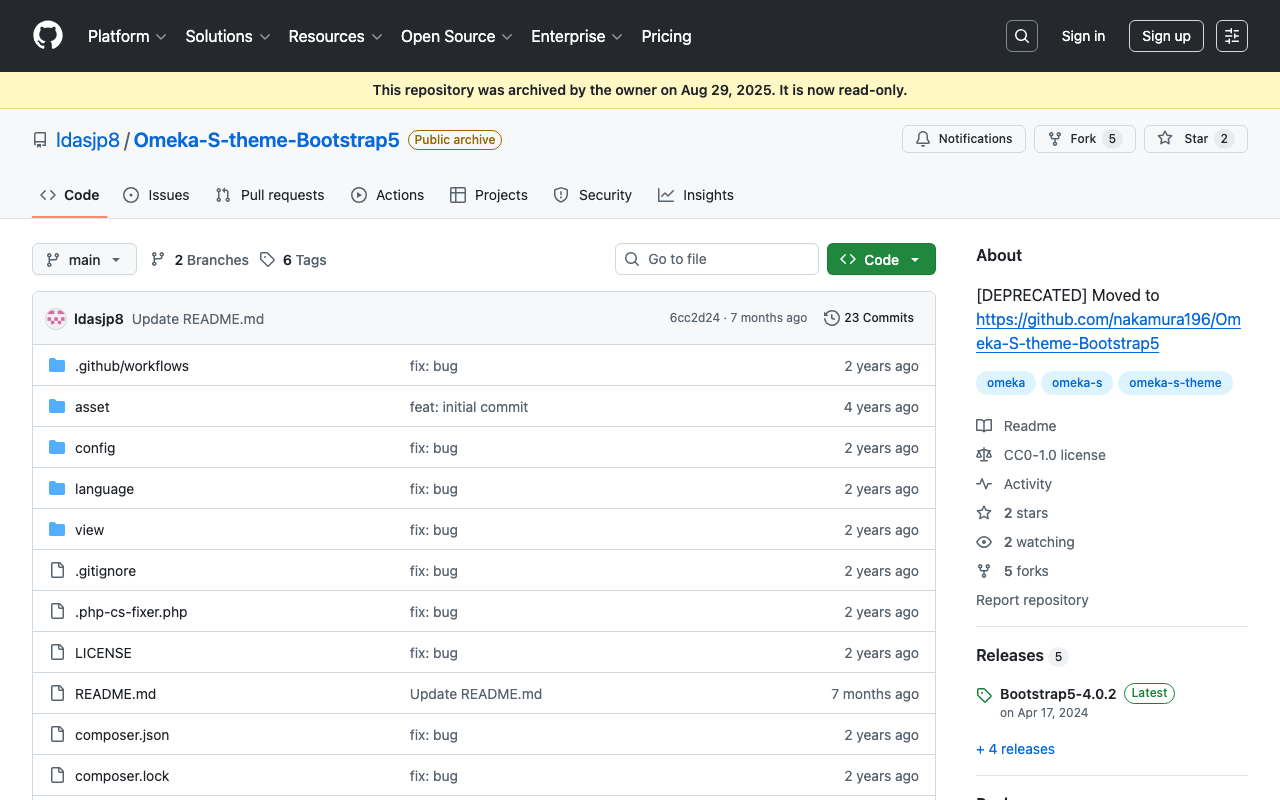
I have published a Bootstrap 5-based Omeka S theme at the following link. https://github.com/ldasjp8/Omeka-S-theme-Bootstrap5 How to use this theme is introduced in the following article. As noted in the above article, there had been a bug with the display style option. This bug has been fixed in the following commit. https://github.com/ldasjp8/Omeka-S-theme-Bootstrap5/commit/3b456277fe4f75cdcc0044a0fe0df7e7e2e14156 I hope this is helpful for those using this theme.

Script for Initial Setup of Omeka S on Amazon Lightsail

Script for Initial Setup of Omeka S on Amazon Lightsail

I created a script for the initial setup of Omeka S on Amazon Lightsail. I hope this serves as a useful reference when using Omeka S with Amazon Lightsail. # 変数 OMEKA_PATH=/home/bitnami/htdocs/omeka-s ## ハイフンは含めない DBNAME=omeka_s VERSION=3.2.3 ############# set -e mkdir $OMEKA_PATH # Omekaのダウンロード wget https://github.com/omeka/omeka-s/releases/download/v$VERSION/omeka-s-$VERSION.zip unzip -q omeka-s-$VERSION.zip mv omeka-s/* $OMEKA_PATH # .htaccessの移動 mv omeka-s/.htaccess $OMEKA_PATH # 不要なフォルダの削除 rm -rf omeka-s rm omeka-s-$VERSION.zip # 元からあったindex.htmlを削除(もし存在すれば) if [ -e $OMEKA_PATH/index.html ]; then rm $OMEKA_PATH/index.html fi # データベースの作成 cat <<EOF > sql.cnf [client] user = root password = $(cat /home/bitnami/bitnami_application_password) host = localhost EOF mysql --defaults-extra-file=sql.cnf -e "create database $DBNAME"; # Omeka Sの設定 cat <<EOF > $OMEKA_PATH/config/database.ini user = root password = $(cat bitnami_application_password) dbname = $DBNAME host = localhost EOF sudo chown -R daemon:daemon $OMEKA_PATH/files sudo apt install imagemagick -y

Output Content of IIIF Manifests (Version 2) from the Omeka S IIIF Server

Output Content of IIIF Manifests (Version 2) from the Omeka S IIIF Server

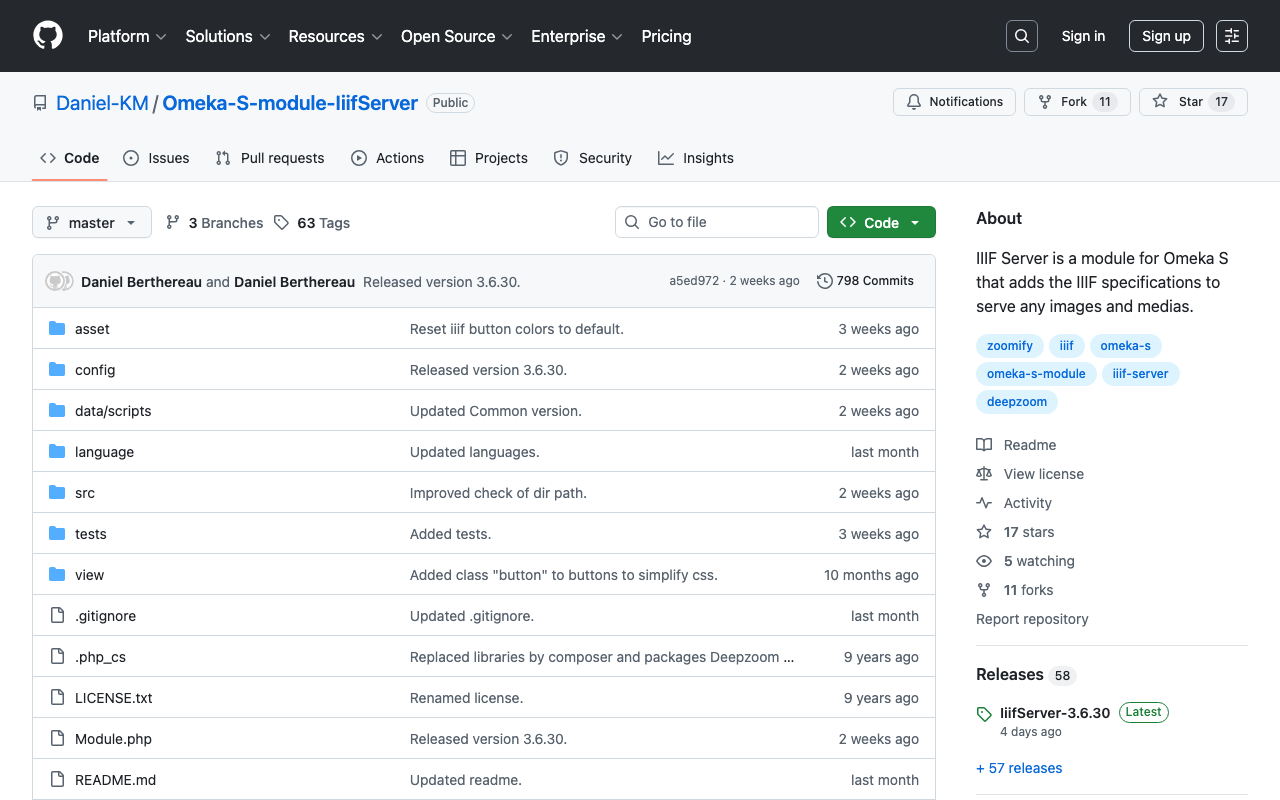
Overview IIIF Server is a module for delivering IIIF manifests from Omeka S. https://github.com/Daniel-KM/Omeka-S-module-IiifServer In this article, we examine the output content of these IIIF manifests (specifically, IIIF Presentation API version 2). Example The following is an example of a IIIF manifest for an item with ID test-111 on an Omeka S instance published at https://shared.ldas.jp/omeka-s. { "@context": "http://iiif.io/api/presentation/2/context.json", "@id": "https://shared.ldas.jp/omeka-s/iiif/test-111/manifest", "@type": "sc:Manifest", "label": "Sample Item", "thumbnail": { "@id": "https://iiif.dl.itc.u-tokyo.ac.jp/iiif/kunshujou/A00_6010/001/001_0001.tif/full/!200,200/0/default.jpg", "@type": "dctypes:Image", "format": "image/jpeg", "width": 200, "height": 200 }, "license": "https://shared.ldas.jp/omeka-s/s/test/page/reuse", "attribution": "サンプル機関", "related": { "@id": "https://shared.ldas.jp/omeka-s", "format": "text/html" }, "seeAlso": { "@id": "https://shared.ldas.jp/omeka-s/api/items/1270", "format": "application/ld+json" }, "metadata": [ { "label": "Title", "value": "Sample Item" }, { "label": "Identifier", "value": "test-111" } ], "sequences": [ { "@id": "https://shared.ldas.jp/omeka-s/iiif/test-111/sequence/normal", "@type": "sc:Sequence", "label": "Current Page Order", "viewingDirection": "left-to-right", "canvases": [ { "@id": "https://shared.ldas.jp/omeka-s/iiif/test-111/canvas/p1", "@type": "sc:Canvas", "label": "1", "thumbnail": { "@id": "https://iiif.dl.itc.u-tokyo.ac.jp/iiif/kunshujou/A00_6010/001/001_0001.tif/full/!200,200/0/default.jpg", "@type": "dctypes:Image", "format": "image/jpeg", "width": 200, "height": 200 }, "width": 6401, "height": 4810, "images": [ { "@id": "https://shared.ldas.jp/omeka-s/iiif/test-111/annotation/p0001-image", "@type": "oa:Annotation", "motivation": "sc:painting", "resource": { "@id": "https://iiif.dl.itc.u-tokyo.ac.jp/iiif/kunshujou/A00_6010/001/001_0001.tif/full/full/0/default.jpg", "@type": "dctypes:Image", "format": "image/jpeg", "width": 6401, "height": 4810, "service": { "@context": "http://iiif.io/api/image/2/context.json", "@id": "https://iiif.dl.itc.u-tokyo.ac.jp/iiif/kunshujou/A00_6010/001/001_0001.tif", "profile": "http://iiif.io/api/image/2/level1.json" } }, "on": "https://shared.ldas.jp/omeka-s/iiif/test-111/canvas/p1" } ] }, { "@id": "https://shared.ldas.jp/omeka-s/iiif/test-111/canvas/p2", "@type": "sc:Canvas", "label": "2枚目", "thumbnail": { "@id": "https://iiif.dl.itc.u-tokyo.ac.jp/iiif/kunshujou/A00_6010/001/001_0002.tif/full/!200,200/0/default.jpg", "@type": "dctypes:Image", "format": "image/jpeg", "width": 200, "height": 200 }, "width": 6401, "height": 4810, "images": [ { "@id": "https://shared.ldas.jp/omeka-s/iiif/test-111/annotation/p0002-image", "@type": "oa:Annotation", "motivation": "sc:painting", "resource": { "@id": "https://iiif.dl.itc.u-tokyo.ac.jp/iiif/kunshujou/A00_6010/001/001_0002.tif/full/full/0/default.jpg", "@type": "dctypes:Image", "format": "image/jpeg", "width": 6401, "height": 4810, "service": { "@context": "http://iiif.io/api/image/2/context.json", "@id": "https://iiif.dl.itc.u-tokyo.ac.jp/iiif/kunshujou/A00_6010/001/001_0002.tif", "profile": "http://iiif.io/api/image/2/level1.json" } }, "on": "https://shared.ldas.jp/omeka-s/iiif/test-111/canvas/p2" } ], "metadata": [ { "label": "Title", "value": "2枚目" } ] } ] } ] } Below, I will explain each type. ...

[Omeka S] Created a Foundation S Theme That Works Around the Japanese Search Bug

[Omeka S] Created a Foundation S Theme That Works Around the Japanese Search Bug

As summarized in the following article, there are some issues with full-text search in Japanese in Omeka S with the default settings. https://nakamura196.hatenablog.com/entry/2022/03/07/083004 In the above article, I introduced “Workaround 2” as a simple solution to this issue. This time, I created a repository that applies this workaround to “Foundation S,” one of the themes for Omeka S. https://github.com/nakamura196/foundation-s I hope this is helpful for those using the “Foundation S” theme who are experiencing issues with Japanese search. ...

[Omeka S] Handling Bulk Import Bugs (Including Installation from Source Code)

[Omeka S] Handling Bulk Import Bugs (Including Installation from Source Code)

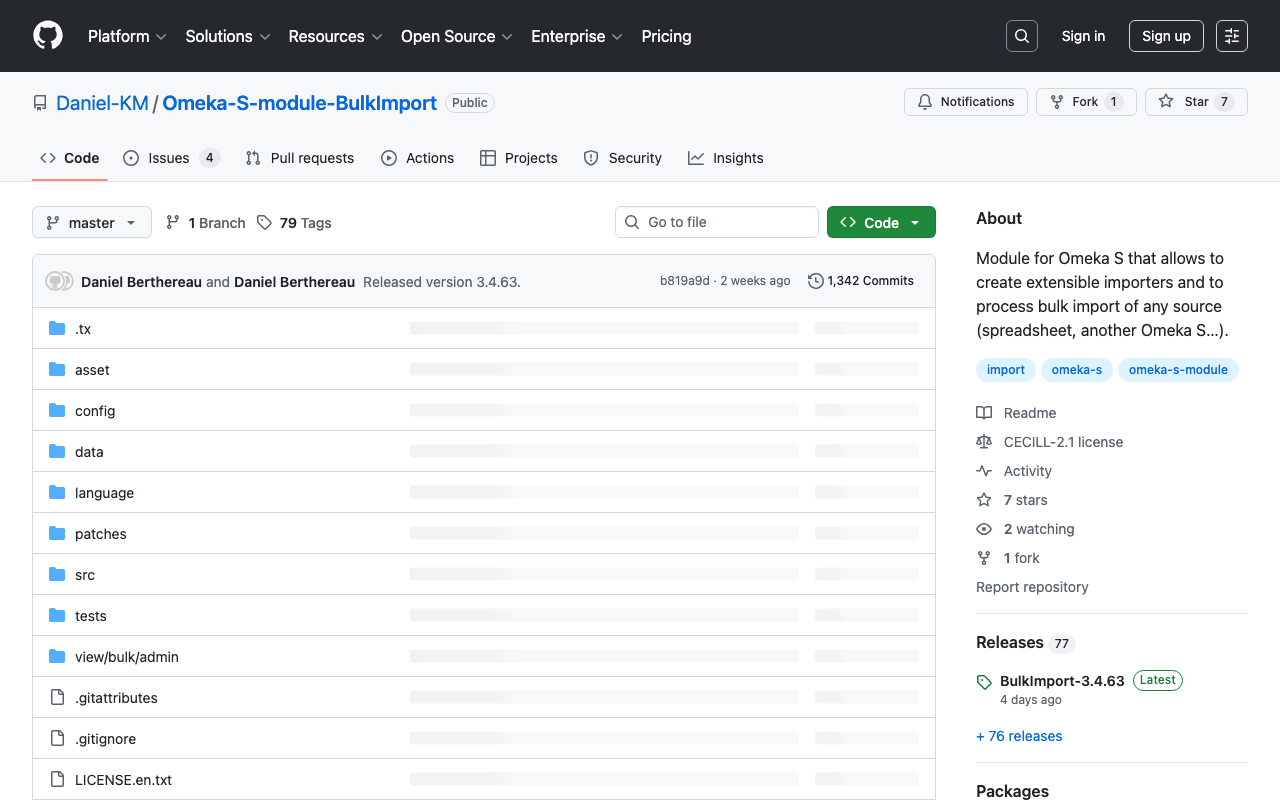
Overview Regarding Bulk Import, one of the modules for bulk data registration in Omeka S, the latest version as of August 21, 2022 (ver.3.3.33.4) appears to contain a bug. Specifically, the following issue describes a bug that occurs during bulk media registration. https://gitlab.com/Daniel-KM/Omeka-S-module-BulkImport/-/issues/11 This bug has already been addressed in the following commit. https://github.com/Daniel-KM/Omeka-S-module-BulkImport/commit/7d568a97f08459e22e7c5fbaa8163b17ab4ba805 However, as of today, a release version has not yet been published, so installation from source code is necessary. ...

Bug and Fix for Omeka S Bulk Import

Bug and Fix for Omeka S Bulk Import

The Bulk Import module for batch registration of items and media in Omeka S has a bug in versions 3.3.28.0 through 3.3.33.2 that prevents media from being registered. If you need to register media, you will need a workaround such as using version 3.3.27.0 or earlier. After creating an issue about this problem, the bug was promptly fixed: https://gitlab.com/Daniel-KM/Omeka-S-module-BulkImport/-/issues/10 As of July 1, only the source code on GitLab has been updated, but it should be added to the GitHub Releases soon. Please be aware of this when using this module. ...

Scheduled Backup of Omeka S Data Using AWS Copilot

Scheduled Backup of Omeka S Data Using AWS Copilot

Overview I previously created a program to download Omeka S data. This time, I use AWS Copilot to run the above program on a scheduled basis. Installing AWS Copilot Please refer to the following. https://docs.aws.amazon.com/ja_jp/AmazonECS/latest/developerguide/AWS_Copilot.html Preparing Files Create three files in any location: Dockerfile, main.sh, and .env. Dockerfile FROM python:3 COPY *.sh . CMD sh main.sh main.sh set -e export output_dir=../docs # Program to download data from Omeka S export repo_tool=https://github.com/nakamura196/omekas_backup.git dir_tool=tool dir_dataset=dataset # If folder exists if [ -d $dir_tool ]; then rm -rf $dir_tool rm -rf $dir_dataset fi # clone git clone --depth 1 $repo_tool $dir_tool git clone --depth 1 $repo_dataset $dir_dataset # requirements.txt cd $dir_tool pip install --upgrade pip pip install -r requirements.txt # Execute cd src sh main.sh # copy odir=../../$dir_dataset/$subdir mkdir -p $odir cd $odir cp -r ../../$dir_tool/data . cp -r ../../$dir_tool/docs . # git git status git add . git config user.email "$email" git config user.name "$name" git commit -m "update" git push # Cleanup cd ../../ rm -rf $dir_tool rm -rf $dir_dataset .env api_url=https://dev.omeka.org/omeka-s-sandbox/api github_url=https://<personal-access-token>@github.com/<username>/<repository-name>.git username=nakamura email=nakamura@example.org dirname=dev The following is an explanation of the parameters. ...

Created a Program to Download Omeka S Data

Created a Program to Download Omeka S Data

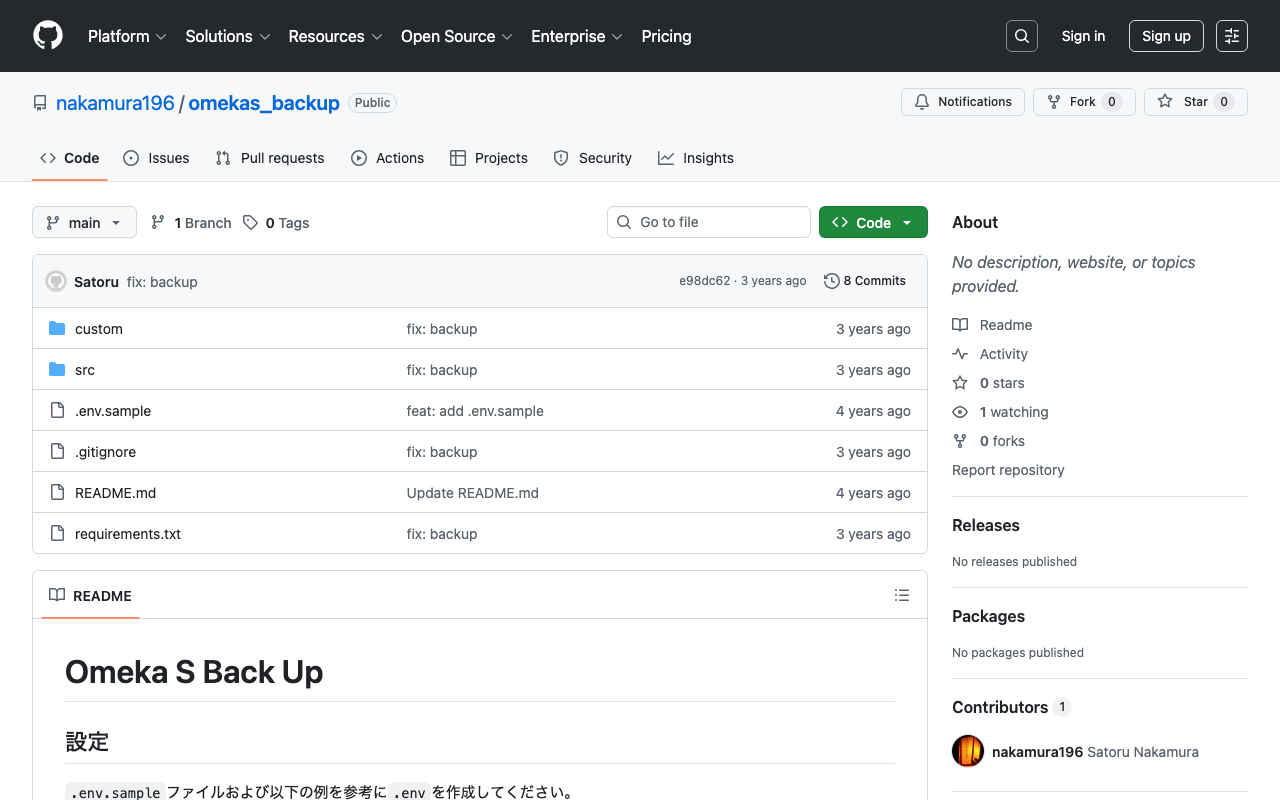
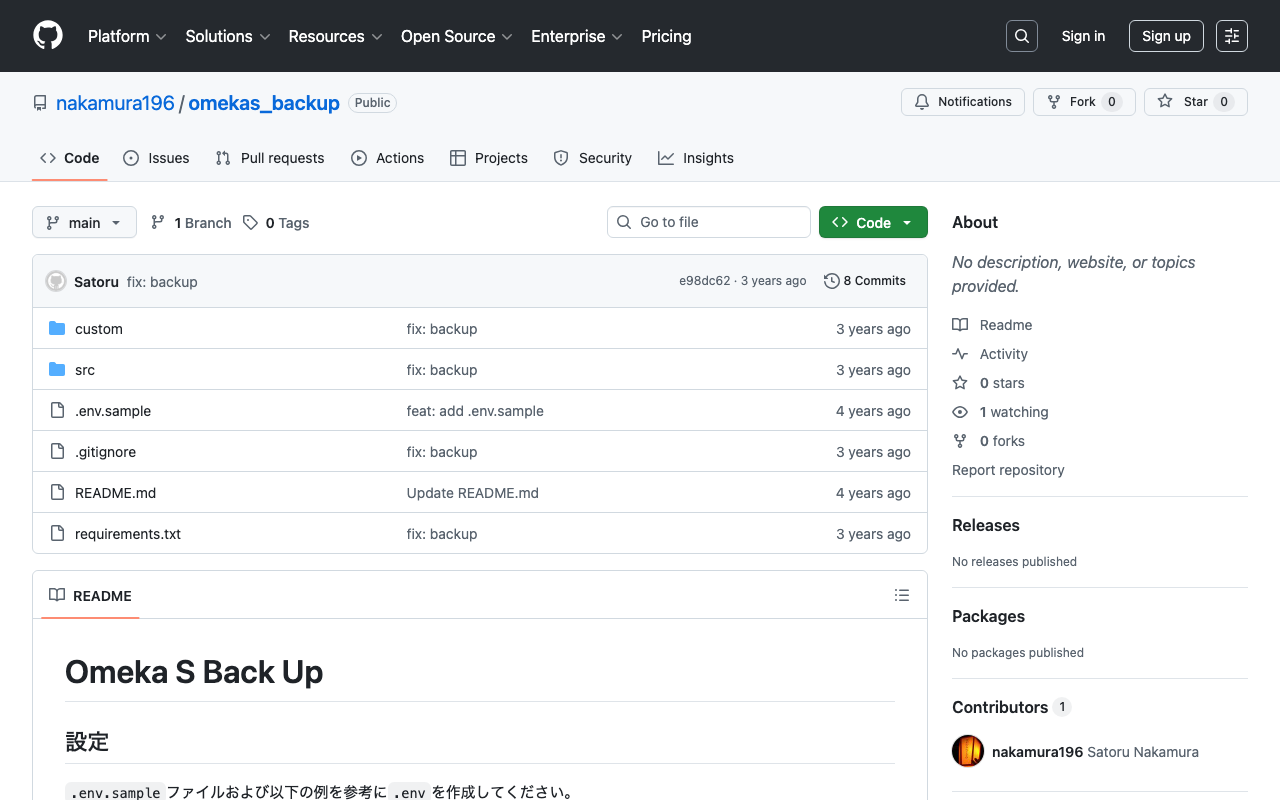
I created a program to download Omeka S data. It is published in the following repository. https://github.com/nakamura196/omekas_backup I also created a Google Colab showing an execution example of this program. https://colab.research.google.com/github/nakamura196/ndl_ocr/blob/main/omekas_backup.ipynb In the above tutorial, data download is executed targeting the following Omeka S sandbox. https://omeka.org/s/download/#sandbox After execution, API download results are output to the docs folder, and an MS Excel file summarizing them is output to the data folder. ...

[Omeka S Module] How to Disable Image API in the IIIF Server Module

[Omeka S Module] How to Disable Image API in the IIIF Server Module

Overview In the Omeka S module “IIIF Server,” which generates IIIF manifests, you can configure settings to not use the Image API. This makes it easier to deliver IIIF manifests in resource-limited environments such as rental servers. I previously wrote the following article: https://nakamura196.hatenablog.com/entry/2021/07/22/171657 As of May 2022, the configuration method has changed due to module updates, so I am writing this article about the updated settings. For the advantages and disadvantages of not using the Image API, please refer to the article above. ...

[Omeka S Theme] Partial Mapping Module Support for Bootstrap 5 Theme

[Omeka S Theme] Partial Mapping Module Support for Bootstrap 5 Theme

Overview For the following Omeka S theme using Bootstrap 5, when the Mapping module was installed, display issues occurred on the map-browse page as described below. https://github.com/ldasjp8/Omeka-S-theme-Bootstrap5 The fix was made as follows. https://github.com/ldasjp8/Omeka-S-theme-Bootstrap5/commit/d60c93ff6d79b5505d25ef26e31e3776f55199d4 Before Fix The geographic-related forms had display issues. After Fix The display issues with the geographic-related forms were fixed. Summary There are still pages and modules with display issues, but I plan to address them gradually. ...

[Omeka S] How to Use the "IIIF Viewers" Module for Multiple IIIF-Compatible Viewers

[Omeka S] How to Use the "IIIF Viewers" Module for Multiple IIIF-Compatible Viewers

Overview I have developed and published the “IIIF Viewers” module for Omeka S, which displays IIIF manifest URI icons and viewers. The development of this module was supported by the National Institute of Japanese Literature. https://github.com/omeka-j/Omeka-S-module-IiifViewers Below, I will explain how to use this module. Installation The module can be installed using the standard method for Omeka S. Specifically, first click on the “Releases” link shown below. Next, click the following link to download the zip file. Extract the downloaded file and place the extracted folder “IiifViewers” into the “modules” folder of your installed Omeka S. ...

Registering DC-NDL (National Diet Library Dublin Core Metadata Description) as a Vocabulary in Omeka S

Registering DC-NDL (National Diet Library Dublin Core Metadata Description) as a Vocabulary in Omeka S

Here is how to register DC-NDL (National Diet Library Dublin Core Metadata Description) as a vocabulary in Omeka S. First, select “Vocabularies” as shown below. Next, click the button in the upper right. (The translation data for this button label is incorrect; I hope to fix it in the future.) Then, enter the required information as shown on the following screen. The specific information is as follows. Category Field Value Notes Basic Information Label DC-NDL This value is arbitrary. Basic Information Namespace URI http://ndl.go.jp/dcndl/terms/ Basic Information Namespace Prefix dcndl File Vocabulary URL https://www.ndl.go.jp/jp/dlib/standards/meta/2020/12/ndl-terms.rdf As a result, DC-NDL becomes available as a vocabulary as shown below. ...

Simple Backup of Omeka S Using gdrive

Simple Backup of Omeka S Using gdrive

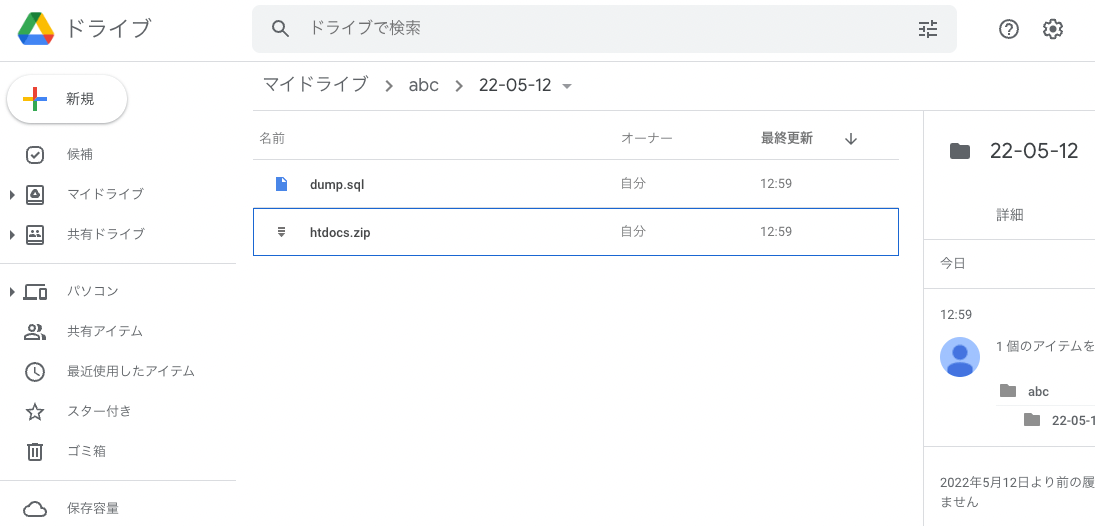
Overview This is a memo on how to perform simple backups of Omeka S using gdrive. As an example, we target Omeka S installed on a LAMP environment launched on Amazon Lightsail. Please refer to the following for installation instructions. Installing gdrive This time, we will back up files to Google Drive. For this purpose, we use gdrive. Please install gdrive by referring to the following article. Prepare a Backup Script In the $HOME directory, create a file such as backup.sh. An example of the file contents is as follows. ...

Building an Omeka S Site Using Amazon Lightsail (Including Custom Domain + SSL)

Building an Omeka S Site Using Amazon Lightsail (Including Custom Domain + SSL)

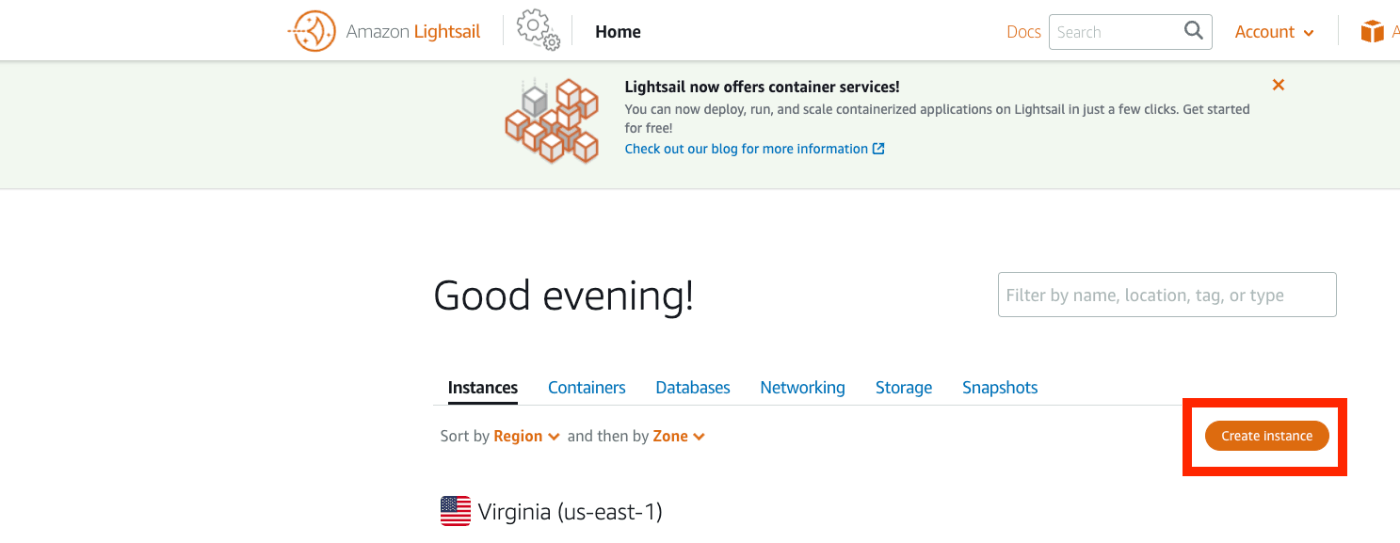
Update History 2022/09/08 Updated the script descriptions to the latest version. Overview Amazon Lightsail is described as follows: Amazon Lightsail is an easy-to-use virtual private server (VPS) that makes it easy to manage cloud resources such as containers at a predictable, low price. This article introduces how to build Omeka S using Amazon Lightsail. It also covers the “custom domain” and “SSL” configuration that are generally required when making a database publicly available. ...

[Omeka S] How to Set Custom Identifiers in the IIIF Server Module

[Omeka S] How to Set Custom Identifiers in the IIIF Server Module

With the default settings of the Omeka S IIIF Server module, you can access IIIF manifest files using URLs like the following. /iiif///manifest Example (version 2): https://shared.ldas.jp/omeka-s/iiif/2/1267/manifest Example (version 3): https://shared.ldas.jp/omeka-s/iiif/3/1267/manifest However, since this uses Omeka’s internal ID, it is recommended to use custom identifiers. The solution is to additionally install the Clean Url module and enable Use the identifiers from Clean Url in the IIIF Server module settings screen shown below. ...

[Omeka S] How to Configure Attribution in the IIIF Server Module

[Omeka S] How to Configure Attribution in the IIIF Server Module

The IIIF Server module for Omeka S allows you to configure various settings. One of these is the attribution setting. As shown below, the value entered in Default attribution will be displayed in the attribution field of IIIF manifest files and similar resources. I recommend changing it to an appropriate value such as your organization’s name. Alternatively, as shown just above the field mentioned above, you can specify a property for entering attribution values, which allows you to change the attribution value for each item individually. ...

About Image Size Limits for Dynamic Tile Image Generation in the Omeka S Image Server Module

About Image Size Limits for Dynamic Tile Image Generation in the Omeka S Image Server Module

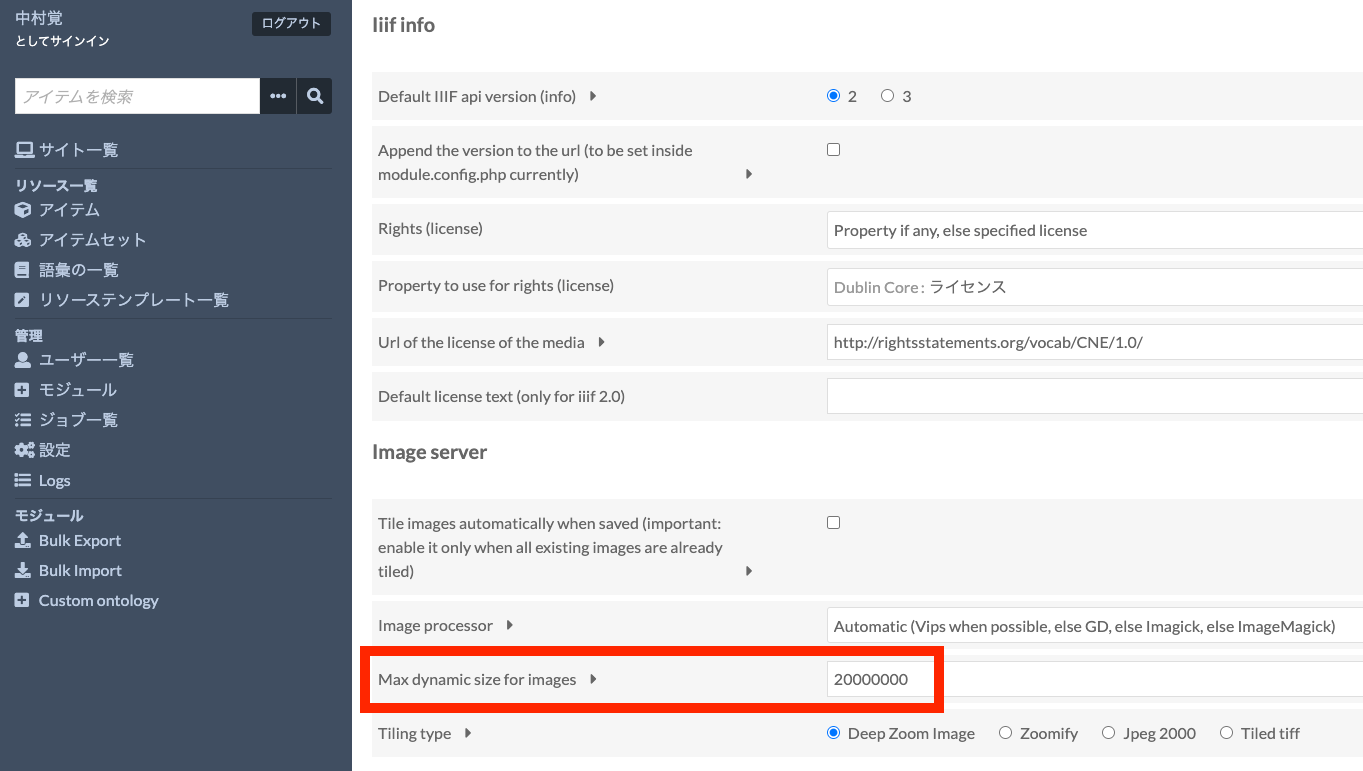
The Omeka S Image Server module has a feature that dynamically generates tile images for uploaded images. By using this feature, users can simply upload JPG or PNG images, and Omeka will dynamically generate tile images according to requests, delivering images compliant with the IIIF Image API. Note: On the other hand, when server specifications are limited, this dynamic tile image generation process may take time. In such cases, an option to pre-generate tile images is also available. This will be discussed later. ...

[Omeka S Theme Development] Published a Bootstrap 5 Theme for Omeka S

[Omeka S Theme Development] Published a Bootstrap 5 Theme for Omeka S

I published a Bootstrap 5 theme for Omeka S. https://github.com/ldasjp8/Omeka-S-theme-Bootstrap5 Below is an explanation of how to use it, including information for developers. The following settings are available on the theme settings screen. I will explain some of the settings above. Footer Content Enter the text to display in the footer. You can also enter HTML as shown below. Site Sub Title When a subtitle is set, it is displayed on the top page as shown below. Note that this feature only works when the “Next” module is enabled. ...

[Omeka S Module] How to Use Clean Url

[Omeka S Module] How to Use Clean Url

Overview This article explains how to assign identifiers to resources (item sets, items, media) in Omeka S. Specifically, it explains how to use the “Clean Url” module. https://github.com/Daniel-KM/Omeka-S-module-CleanUrl Installation The following assumes that Omeka S is installed in a folder named omeka-s-sandbox. /home/xxxx/www/omeka-s-sandbox/ The README recommends installing the related module “Generic.” https://github.com/Daniel-KM/Omeka-S-module-CleanUrl#installation Execute the following. wget https://github.com/Daniel-KM/Omeka-S-module-Generic/releases/download/3.3.34/Generic-3.3.34.zip unzip Generic-3.3.34.zip The above is an example of downloading Generic v3.3.34. For the latest version, access the following and obtain the URL from the location shown in the screenshots. ...

Registering Resource Classes with Bulk Import and Editing Settings

Registering Resource Classes with Bulk Import and Editing Settings

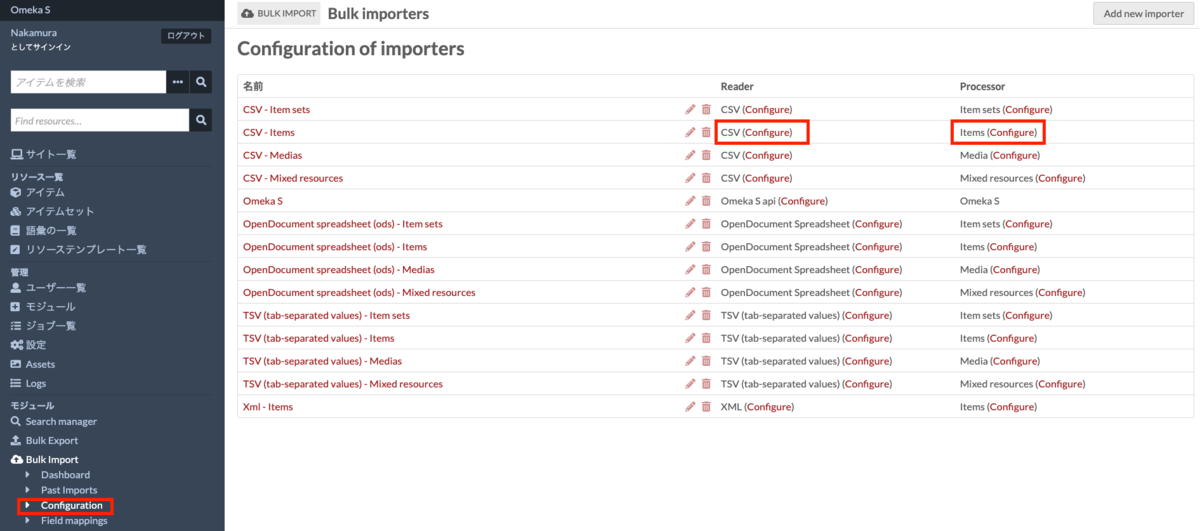
I have written the following articles about batch registration and updating using Bulk Import. nakamura196.hatenablog.com nakamura196.hatenablog.com Since the above articles did not cover how to register resource classes, I address this here. I also provide supplementary information on how to edit Bulk Import module settings. Registering Resource Classes I have prepared a sample CSV file for registering resource classes at the following link. https://github.com/omeka-j/Omeka-S-module-BulkImport-Sample-Data/blob/main/resource_class/sample.csv The key point is to set the column name to “o:resource_class.” The cell values should be the Term values that can be confirmed in Omeka S. For example, enter values such as dctype:Collection. ...