Home Articles Books Search About
日本語
[Omeka S Module Introduction] BulkExport: Bulk Data Export

[Omeka S Module Introduction] BulkExport: Bulk Data Export

Overview BulkExport is a module for performing bulk data export in Omeka S. https://github.com/Daniel-KM/Omeka-S-module-BulkExport This article explains how to use this module. Installation Like other common modules, it can be installed using the standard method. Download the latest zip file from the following URL. https://github.com/Daniel-KM/Omeka-S-module-BulkExport/releases During installation, the Log module needs to be installed in advance, as shown below. Usage Click “BulkExport” in the left side of the admin screen, then click the export icon. ...
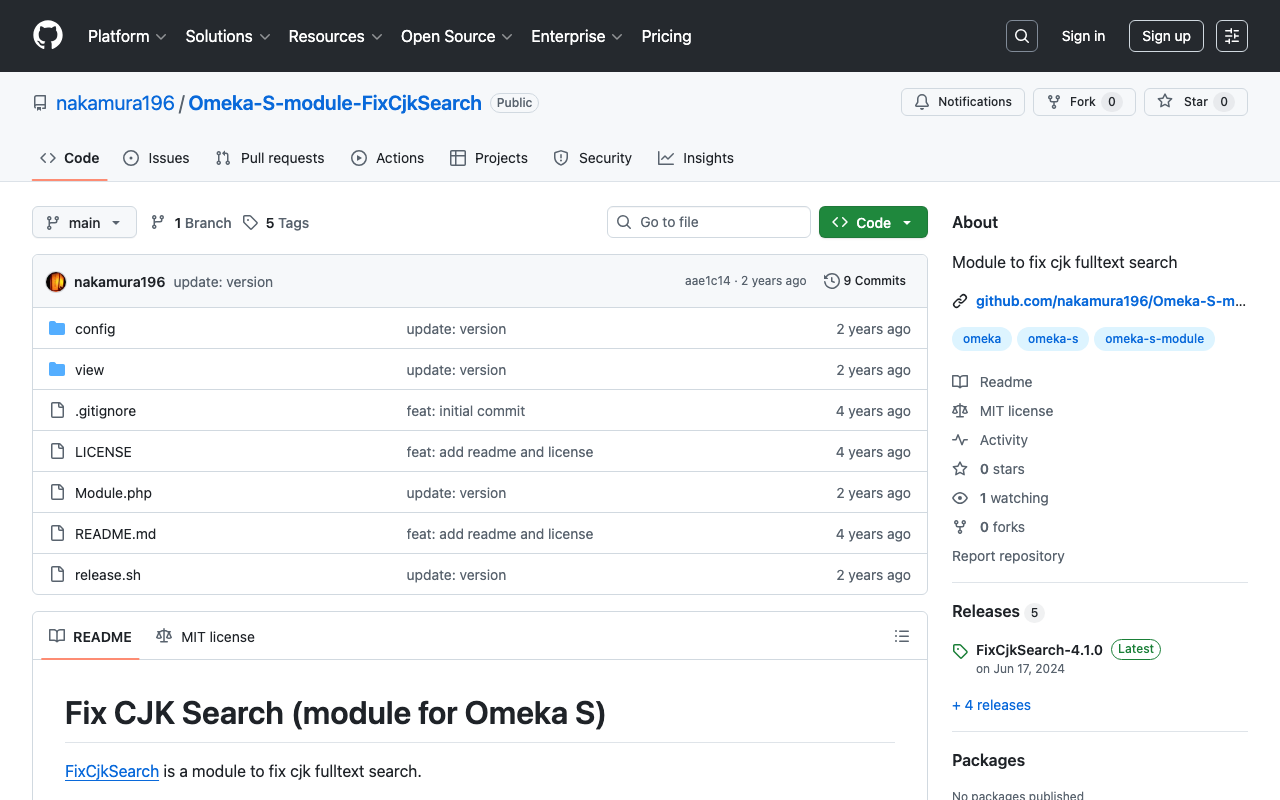
Omeka S Module Development: FixCjkSearch - Fixing Full-Text Search Issues with Japanese in Omeka S

Omeka S Module Development: FixCjkSearch - Fixing Full-Text Search Issues with Japanese in Omeka S

Full-text search in Japanese does not work properly with Omeka S’s standard functionality. The following article explains the details of the issue: https://nakamura196.hatenablog.com/entry/2022/03/07/083004 In the article above, I presented several workarounds, and I have now created a module that encompasses those solutions: https://github.com/nakamura196/Omeka-S-module-FixCjkSearch While this is not a fundamental fix, I hope it proves useful when working with Japanese materials in Omeka S.

[Omeka S Module Introduction] Folksonomy: Social Tagging

[Omeka S Module Introduction] Folksonomy: Social Tagging

Overview Folksonomy is a module for implementing social tagging in Omeka S. https://omeka.org/s/modules/Folksonomy/ This article explains how to use this module. Installation It can be installed using the standard method, same as other common modules. Configuration After installation, the following settings screen is displayed. In particular, by enabling “Allow public to tag,” visitors can perform tagging. Additionally, by enabling “Require approbation for public tags,” an administrator approval workflow can be introduced. ...

Omeka S 4.0.0 Release Candidate Has Been Published

Omeka S 4.0.0 Release Candidate Has Been Published

Overview The Omeka S 4.0.0 release candidate has been published. https://forum.omeka.org/t/omeka-s-4-0-0-release-candidate/16272 I tried it out on Amazon Lightsail. You can try it at the following URL. http://35.172.220.59/omeka-s/ Installation You can perform the initial setup with the following script. # 変数 OMEKA_PATH=/home/bitnami/htdocs/omeka-s ## ハイフンは含めない DBNAME=omeka_s VERSION=4.0.0-rc ############# set -e mkdir $OMEKA_PATH # Omekaのダウンロード wget https://github.com/omeka/omeka-s/releases/download/v$VERSION/omeka-s-$VERSION.zip unzip -q omeka-s-$VERSION.zip mv omeka-s/* $OMEKA_PATH # .htaccessの移動 mv omeka-s/.htaccess $OMEKA_PATH # 不要なフォルダの削除 rm -rf omeka-s rm omeka-s-$VERSION.zip # 元からあったindex.htmlを削除(もし存在すれば) if [ -e $OMEKA_PATH/index.html ]; then rm $OMEKA_PATH/index.html fi # データベースの作成 cat <<EOF > sql.cnf [client] user = root password = $(cat /home/bitnami/bitnami_application_password) host = localhost EOF mysql --defaults-extra-file=sql.cnf -e "create database $DBNAME"; # Omeka Sの設定 cat <<EOF > $OMEKA_PATH/config/database.ini user = root password = $(cat bitnami_application_password) dbname = $DBNAME host = localhost EOF sudo chown -R daemon:daemon $OMEKA_PATH/files sudo apt install imagemagick -y As of December 15, 2022, the following additional steps were required in addition to the above. ...

Restricting API Access in Omeka S

Restricting API Access in Omeka S

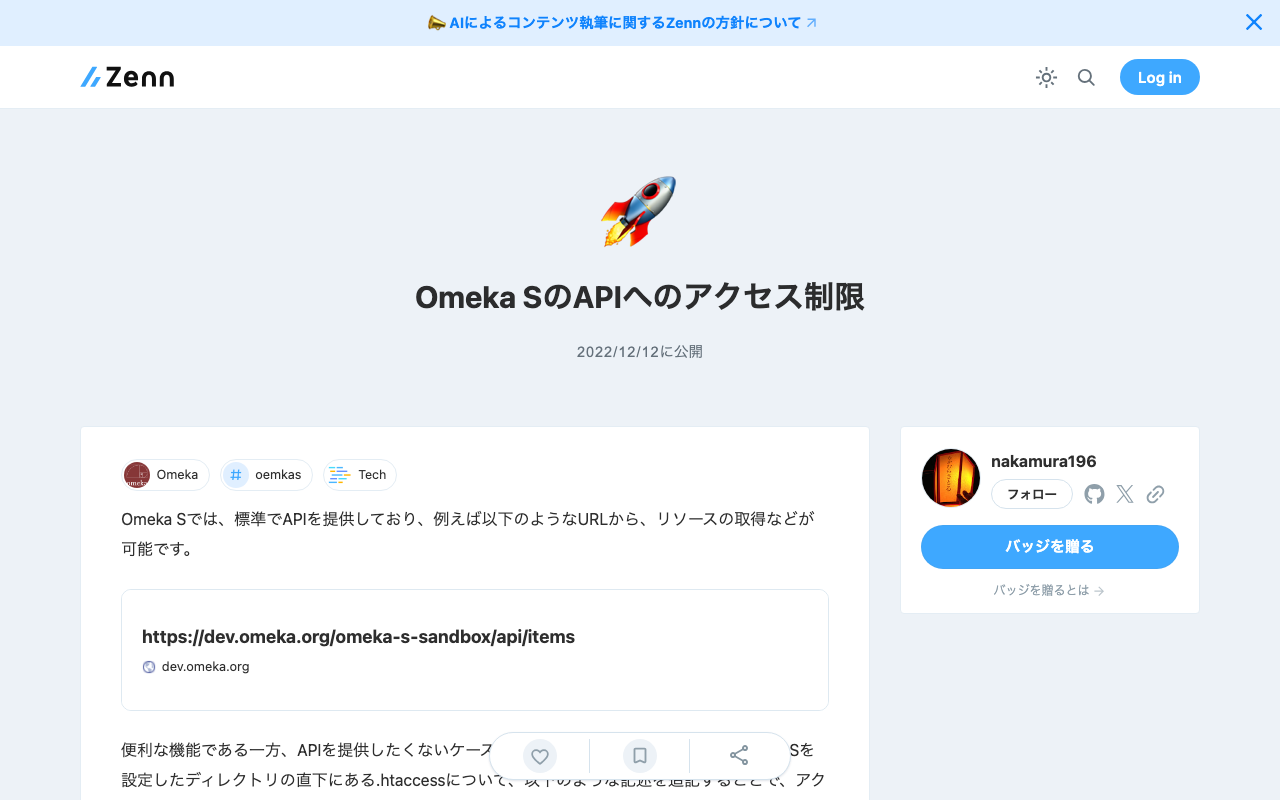
Omeka S provides an API as a standard feature, allowing resource retrieval from URLs such as the following: https://dev.omeka.org/omeka-s-sandbox/api/items While this is a convenient feature, there may be cases where you do not want to expose the API. In such cases, you can restrict access by adding the following lines to the .htaccess file located directly under the directory where Omeka S is set up. RewriteCond %{REQUEST_URI} ^.*/api RewriteRule ^(.*)$ – [F,L] Specifically, it would look like this: ...

[Omeka S Module Introduction] Mapping Module

[Omeka S Module Introduction] Mapping Module

Overview This is an introduction to the “Mapping” module for integrating maps with Omeka S. https://omeka.org/s/modules/Mapping/ Installation This module can be installed using the standard method for Omeka S. Adding Location Information On the item editing screen, add location information from the “Mapping” tab. Map-based search and display are available on the public site.

[Omeka S Module Introduction] Timeline Module

[Omeka S Module Introduction] Timeline Module

Overview This is an introduction to the “Timeline” module for creating timelines in Omeka S. https://omeka.org/s/modules/Timeline/ Installation You can install this module using the standard method for Omeka S. Below is an example of the installation method. cd omeka-s/modules wget https://github.com/Daniel-KM/Omeka-s-module-Timeline/releases/download/3.4.16.3/Timeline-3.4.16.3.zip unzip Timeline-3.4.16.3.zip Usage To use this module, you need to create a page on your site. In the following example, a page named “Timeline” has been created. Then, select Timeline from “Add new block” on the right side of the screen. By default, mapping to the timeline is performed targeting values stored in dcterms:date. ...

[Omeka S Module Introduction] IIIF Search Module

[Omeka S Module Introduction] IIIF Search Module

Overview IIIF Search is a module for Omeka S that adds the IIIF Content Search API for full-text search. This article introduces the usage of the following module, which includes modifications for handling Japanese text. https://github.com/nakamura196/Omeka-S-module-IiifSearch Installation Clone the source code from GitHub. Replace omeka-s as appropriate for your environment. cd omeka-s/modules git clone https://github.com/nakamura196/Omeka-S-module-IiifSearch.git IiifSearch Note that when installing from GitHub, you need to rename the folder to the target module name as shown above. ...

[Omeka S Module Modification] IIIF Search Module

[Omeka S Module Modification] IIIF Search Module

Overview IIIF Search is a module for Omeka S that adds a IIIF Search API for full-text search. https://github.com/symac/Omeka-S-module-IiifSearch This time, I modified the above module. A pull request has been submitted, but the modified module is available in the following repository. https://github.com/nakamura196/Omeka-S-module-IiifSearch Specifically, the minimum query string length was set to 1 character, but I made it configurable through a settings form. The default was set to 3 characters, which prevented searching with a single kanji character, so this modification was made. ...

[Omeka S Module Introduction] "Extract Ocr" - A Module for Performing OCR on PDF Files

[Omeka S Module Introduction] "Extract Ocr" - A Module for Performing OCR on PDF Files

Overview This article introduces “Extract Ocr,” an Omeka S module that performs OCR on PDF files. Installation Refer to the following page. https://omeka.org/s/modules/ExtractOcr/ This module requires a command-line tool called pdftohtml. In the instructions below, replace omeka-s as appropriate for your environment. In an environment using AWS Lightsail, it could be installed with the following command: sudo apt install poppler-utils Additionally, you need to edit omeka-s/config/local.config.php. Change the base_uri portion according to your environment. Example: https://omekas.aws.ldas.jp/sandbox/files ...

Installing the Mroonga Search Module (Note: This Did Not Work Successfully)

Installing the Mroonga Search Module (Note: This Did Not Work Successfully)

Overview I attempted to install the Mroonga search module introduced in the following article on AWS Lightsail. https://nakamura196.hatenablog.com/entry/2022/03/07/083004 As a result, the installation did not succeed, but I am documenting it here for future reference. Setting Up Omeka S I set up Omeka S as described in the following article. Installing Mroonga I performed the installation following the instructions on the following page. https://mroonga.org/docs/install/debian.html sudo apt update sudo apt install -y -V apt-transport-https sudo apt install -y -V wget wget https://packages.groonga.org/debian/groonga-apt-source-latest-bullseye.deb sudo apt install -y -V ./groonga-apt-source-latest-bullseye.deb sudo apt update sudo apt install -y -V mariadb-server-10.5-mroonga After executing the above, enter mysql (mariadb). ...

[Omeka S Module Development] Adding Features to Sitemaps

[Omeka S Module Development] Adding Features to Sitemaps

In the following article, I introduced the “Sitemaps” module, which adds dynamic sitemap XML files for each site in Omeka S. I made a simple feature addition to the above module. Specifically, I added options to choose whether to include pages and itemsets in the sitemap XML. The forked repository is below. https://github.com/nakamura196/omeka-s-module-Sitemaps The changes can be reviewed at the following URL. https://github.com/nakamura196/omeka-s-module-Sitemaps/commit/03325f79e4e5b83c4ff7867fd37ed210fdf8eab2 I hope this serves as a useful reference for module modifications. ...

[Omeka S Module Introduction] Sitemaps

[Omeka S Module Introduction] Sitemaps

Overview This module adds dynamic sitemap XML files for each site in Omeka S. https://omeka.org/s/modules/Sitemaps/ Installation It can be installed using the standard Omeka S method. Configuration First, select the site where you want to add a sitemap. Then navigate to Site Admin > Settings as shown below. At the bottom of the settings screen, there is an option to enable dynamic sitemap generation as shown below. When enabled, a sitemap is generated as shown below. ...

Omeka S Module Introduction: Data Type RDF

Omeka S Module Introduction: Data Type RDF

Overview Data Type RDF is a module that adds data types (html, xml, boolean) to Omeka S. Its usage is similar to Numeric Data Types: https://nakamura196.hatenablog.com/entry/2021/08/01/070701 Below is an introduction to how to use it. Usage Installation Install it the same way as other Omeka modules. Editing Resource Templates Create a resource template. Next, select the Data Type RDF values for the data type of a specific property. Here, we add all three types provided by this module. ...

Registering ICA RiC-O Vocabulary in Omeka S

Registering ICA RiC-O Vocabulary in Omeka S

Overview I registered the ICA RiC-O vocabulary in Omeka S, so this is a memo of the process. https://www.ica.org/standards/RiC/RiC-O_v0-2.html Method On the Omeka S vocabulary registration screen, enter the information as follows. As a result, 106 classes and 485 properties were registered. Below is an example of the property list screen, where you can also check the comments for each property. Summary I hope this serves as a useful reference for utilizing ICA RiC-O and Omeka S. ...

A Python Package for Interacting with the Omeka S REST API

A Python Package for Interacting with the Omeka S REST API

Overview A package has been developed that allows you to operate the Omeka S REST API from Python. https://github.com/wragge/omeka_s_tools Furthermore, based on the above repository, I have created a repository with several additional features. https://github.com/nakamura196/omeka_s_tools2 In this article, I will introduce this repository. Usage Please refer to the following page. https://nakamura196.github.io/omeka_s_tools2/ This repository was developed using nbdev, which allows package development and documentation to proceed in parallel, and I found it to be a very convenient system. ...

[Omeka S Module Introduction] Custom Vocab

[Omeka S Module Introduction] Custom Vocab

Overview I introduce Custom Vocab, one of the Omeka S modules. https://omeka.org/s/modules/CustomVocab Below is my translation of the description from the official site. The Custom Vocab module allows you to create controlled vocabularies and add them to specific properties in resource templates. When using that template for items, properties are loaded as dropdown menus limited to the controlled vocabulary options, instead of text input boxes. For example, you can create an institution-specific list of locations corresponding to various collections on campus, or a controlled list of people or places related to holdings. This can reduce typos and name variations, and provide metadata references for more fields. ...

[Omeka S Module Development] Updating IIIF Viewers

[Omeka S Module Development] Updating IIIF Viewers

Overview I made feature improvements to the Omeka S module “IIIF Viewers,” which configures IIIF manifest icons and multiple IIIF-compatible viewers. https://github.com/omeka-j/Omeka-S-module-IiifViewers Along with these improvements, version 1.1.0 has been released. https://github.com/omeka-j/Omeka-S-module-IiifViewers/releases/tag/1.1.0 For the release, the method described in the following article was used. The specific improvements are described below. Fixing IIIF Manifest Icon URLs As mentioned in the following article, there was a bug where the IIIF manifest icon could not be loaded into other viewers via drag and drop. This improvement fixes that bug. ...

Creating a GitHub Release Script for Omeka S Module Development

Creating a GitHub Release Script for Omeka S Module Development

I created a GitHub release script for Omeka S module development. For this development, I referenced the GitHub repository usage of Daniel-KM, who has developed numerous Omeka S modules. Specifically, GitHub repositories are created with the naming convention “Omeka-S-module-{module name}”. Example: https://github.com/Daniel-KM/Omeka-S-module-EasyInstall For releases, they are tagged with “{module name}-{version}” and a file named “{module name}-{version}.zip” is attached. Example: https://github.com/Daniel-KM/Omeka-S-module-EasyInstall/releases/tag/3.3.6 When this zip file is extracted, a folder named “{module name}” is created. This is necessary because Omeka S requires the module folder name to match the module name. ...

Batch Download Script for Omeka S Modules

Batch Download Script for Omeka S Modules

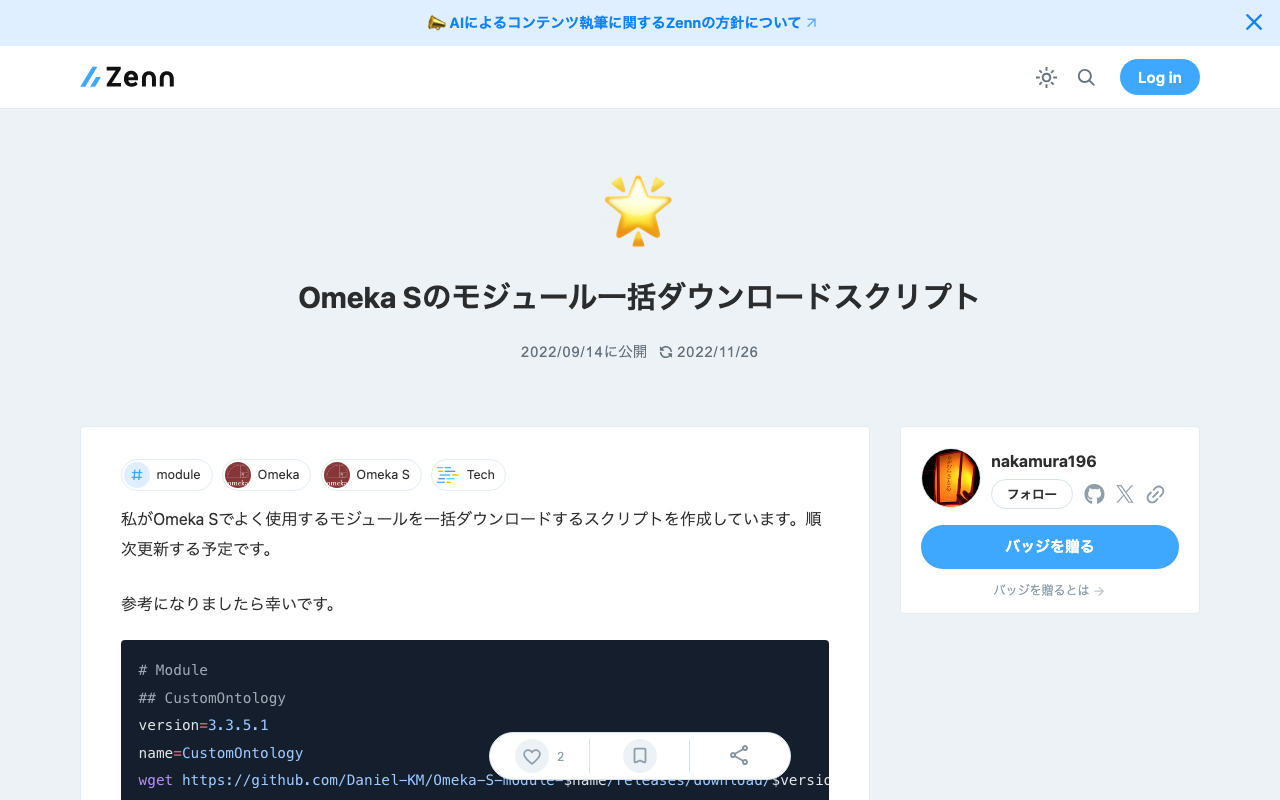
I have created a script to batch download the modules I frequently use in Omeka S. I plan to update it gradually. I hope this serves as a helpful reference. # Module ## CustomOntology version=3.3.5.1 name=CustomOntology wget https://github.com/Daniel-KM/Omeka-S-module-$name/releases/download/$version/$name-$version.zip unzip $name-$version.zip rm $name-$version.zip ## IIIF Server version=3.6.6.7 name=IiifServer wget https://github.com/Daniel-KM/Omeka-S-module-$name/releases/download/$version/$name-$version.zip unzip $name-$version.zip rm $name-$version.zip ## Universal Viewer version=3.6.4.5 name=UniversalViewer wget https://github.com/Daniel-KM/Omeka-S-module-$name/releases/download/$version/$name-$version.zip unzip $name-$version.zip rm $name-$version.zip ## iiif viewers wget https://github.com/omeka-j/Omeka-S-module-IiifViewers/releases/download/1.1.0/IiifViewers-1.1.0.zip unzip IiifViewers-1.1.0.zip rm IiifViewers-1.1.0.zip ## easy admin wget https://github.com/Daniel-KM/Omeka-S-module-EasyAdmin/releases/download/3.3.7/EasyAdmin-3.3.7.zip unzip EasyAdmin-3.3.7.zip rm EasyAdmin-3.3.7.zip