Home Articles Books Search About
日本語
Created a Page to Visually Browse Omeka S Themes

Created a Page to Visually Browse Omeka S Themes

Overview I created a page for visually browsing Omeka S themes. https://satoru196.notion.site/satoru196/6f898ed1352e4c9fa013eee635cbabf4?v=02cab757b6cf4df6bfbedfeb85eca0a5 The following site is convenient for searching Omeka S themes: https://daniel-km.github.io/UpgradeToOmekaS/omeka_s_themes.html However, I thought it would be even more convenient to be able to see the appearance of themes and their star counts in a list view. Using the source data from the site above, I created this new page: https://github.com/Daniel-KM/UpgradeToOmekaS/blob/master/_data/omeka_s_themes.csv How It Was Created GitHub I used the GitHub API to retrieve the last update date and star count for each repository. To use the GitHub API, I created a Personal Access Token (PAT): ...

Converting JSON-LD Data to RDF/XML and Turtle Using EASY RDF

Converting JSON-LD Data to RDF/XML and Turtle Using EASY RDF

Overview In the following article, I introduced how to add an export feature. One of the export formats available is JSON-LD. In this article, we will try converting this JSON-LD to RDF/XML and Turtle formats. Tool Used This time, we will use EASY RDF. https://www.easyrdf.org/converter Copy the contents of the following JSON-LD obtained through the Omeka S export. { "@context": "https://omekas.aws.ldas.jp/xxx/omekas/api-context", "@id": "https://omekas.aws.ldas.jp/xxx/omekas/api/items/12", "@type": "o:Item", "o:id": 12, "o:is_public": true, "o:owner": { "@id": "https://omekas.aws.ldas.jp/xxx/omekas/api/users/1", "o:id": 1 }, "o:resource_class": null, "o:resource_template": null, "o:thumbnail": null, "o:title": "aaa", "thumbnail_display_urls": { "large": "https://omekas.aws.ldas.jp/xxx/omekas/files/large/4f57960c4471c954c6d3aac0a23bd441a6f4eb8b.jpg", "medium": "https://omekas.aws.ldas.jp/xxx/omekas/files/medium/4f57960c4471c954c6d3aac0a23bd441a6f4eb8b.jpg", "square": "https://omekas.aws.ldas.jp/xxx/omekas/files/square/4f57960c4471c954c6d3aac0a23bd441a6f4eb8b.jpg" }, "o:created": { "@value": "2023-07-26T22:52:31+00:00", "@type": "http://www.w3.org/2001/XMLSchema#dateTime" }, "o:modified": { "@value": "2023-10-17T06:56:16+00:00", "@type": "http://www.w3.org/2001/XMLSchema#dateTime" }, "o:media": [ { "@id": "https://omekas.aws.ldas.jp/xxx/omekas/api/media/13", "o:id": 13 } ], "o:item_set": [], "o:site": [ { "@id": "https://omekas.aws.ldas.jp/xxx/omekas/api/sites/1", "o:id": 1 } ], "dcterms:title": [ { "type": "literal", "property_id": 1, "property_label": "Title", "is_public": true, "@value": "aaa" } ], "dcterms:creator": [ { "type": "literal", "property_id": 2, "property_label": "Creator", "is_public": true, "@value": "bbb" } ] } Then, paste it into the Input Data form in EASY RDF. ...

[Omeka S Module Introduction] BulkExport: Adding Export Functionality to Item Detail Pages

[Omeka S Module Introduction] BulkExport: Adding Export Functionality to Item Detail Pages

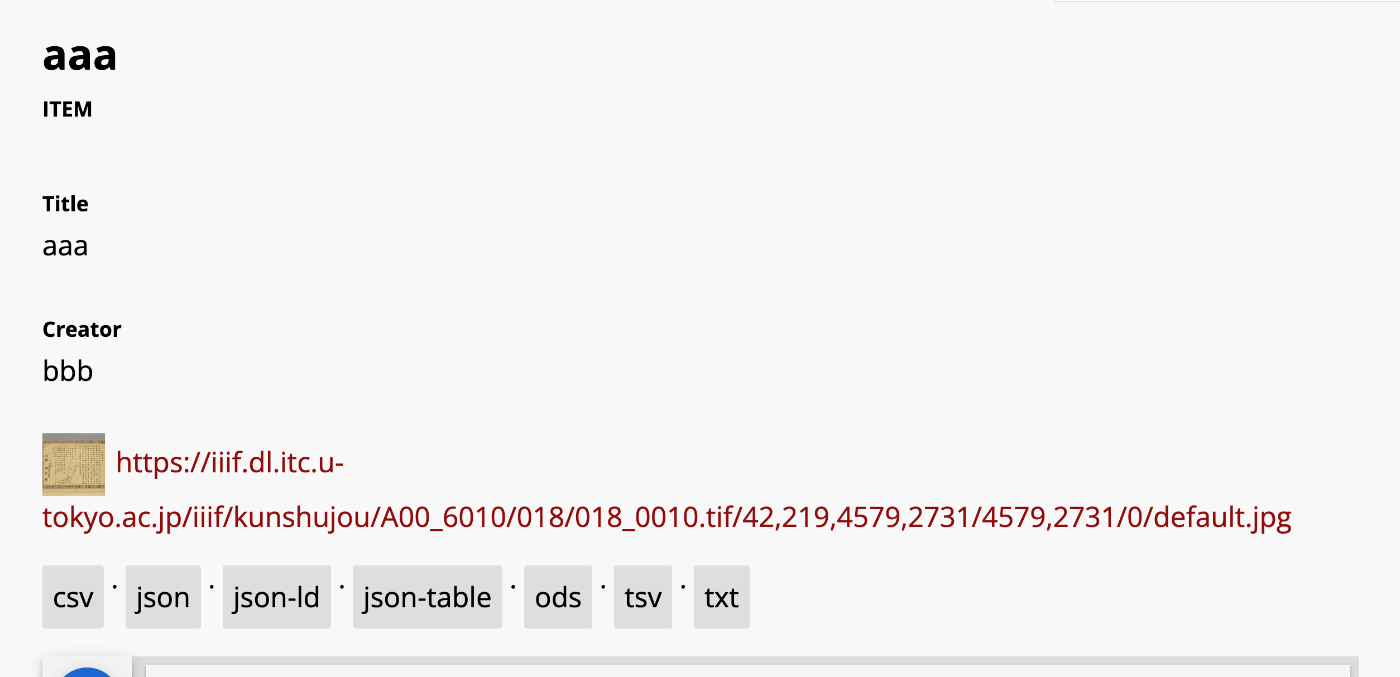
Overview In the following article, I introduced how to bulk export data using the BulkExport module. This module also provides functionality to display an export button on item detail pages. I will introduce how to use this feature. Usage The installation method is the same as for general modules. It is also briefly explained in the article above. After activating the module, export links in various formats are displayed on item detail pages as shown below. ...

[Omeka S Module Introduction] Advanced Search Adapter for Solr

[Omeka S Module Introduction] Advanced Search Adapter for Solr

Overview “Advanced Search adapter for Solr” is an Omeka S module that provides an advanced search adapter for Apache Solr. This enables you to leverage the full power of a search engine within Omeka. It provides features such as relevance-based (score) search, instant search, facets, autocomplete, and suggestions for both general users and administrators. https://github.com/Daniel-KM/Omeka-S-module-SearchSolr Setting Up Apache Solr ! Apache Solr can be installed on a server different from the one where Omeka S is installed. ...

[Omeka S Module Introduction] Scripto: Performing Transcription and Translation

[Omeka S Module Introduction] Scripto: Performing Transcription and Translation

Overview This article introduces “Scripto,” an Omeka S module that enables transcription and translation of media (images, etc.) registered in Omeka S. https://omeka.org/s/modules/Scripto/ Installation The installation of this module itself is the same as for other standard modules. However, in addition to installing this module, you need to set up MediaWiki. If your environment already runs Omeka S, it should have the necessary components for setting up MediaWiki. Download and set up MediaWiki using commands like the following: ...

[Omeka S Module Introduction] IiifPresentation: Adding IIIF Presentation API

[Omeka S Module Introduction] IiifPresentation: Adding IIIF Presentation API

Overview I tried the IiifPresentation module that adds IIIF Presentation API support, so here are my notes. https://omeka.org/s/modules/IiifPresentation/ As far as I could tell from a brief trial, there did not seem to be a significant difference from the features provided by the IIIF Server module below. https://omeka.org/s/modules/IiifServer/ One difference is that this module was developed by the Omeka Team, and it has the advantage of being usable without detailed configuration. ...

Omeka S Module Introduction: HistoryLog - Recording Change History

Omeka S Module Introduction: HistoryLog - Recording Change History

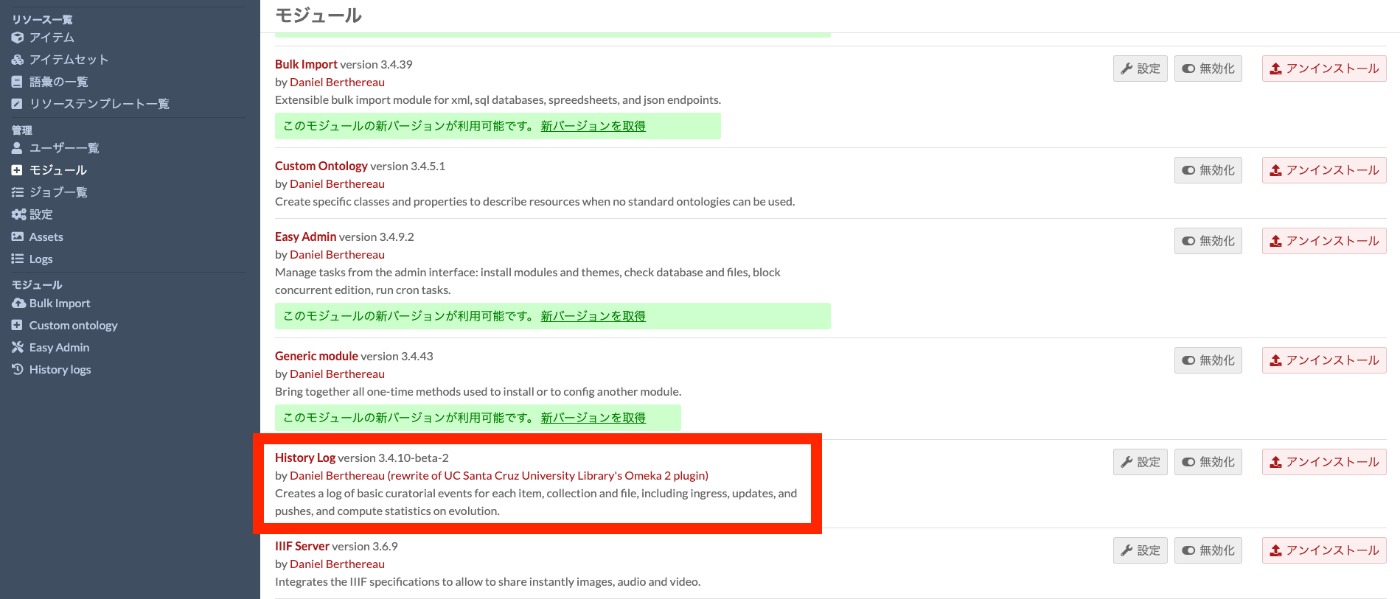
Overview As of 2023/07/20, this module appears to still be in beta, but I had the opportunity to try out “Omeka-S-module-HistoryLog,” a module for recording change history in Omeka S. Here are my notes. https://github.com/Daniel-KM/Omeka-S-module-HistoryLog Installation As noted in the documentation, you may need to install the Generic module beforehand. https://github.com/Daniel-KM/Omeka-S-module-HistoryLog#installation Otherwise, the installation procedure is the same as for standard modules. After installation, the module will appear in the module list as shown below. ...

Updated Mirador to 2.7 in the Omeka Classic IIIF Toolkit

Updated Mirador to 2.7 in the Omeka Classic IIIF Toolkit

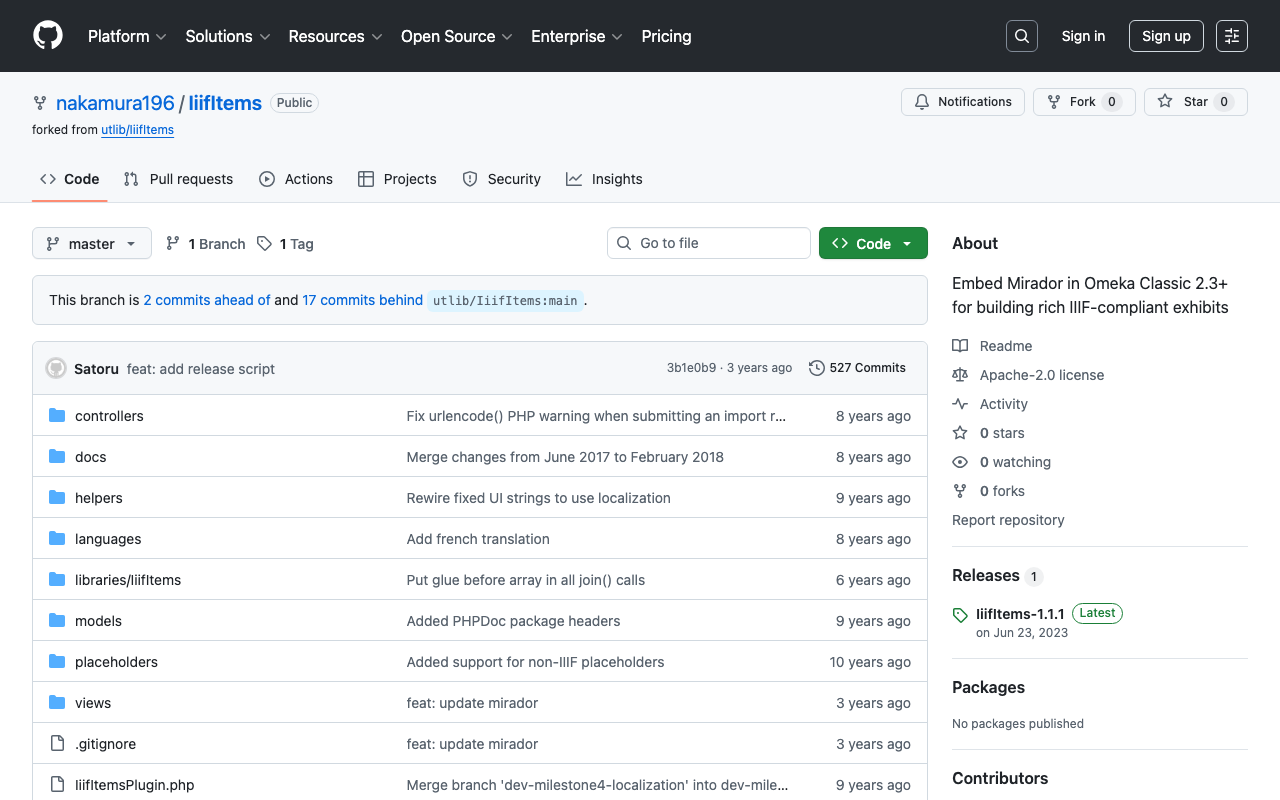
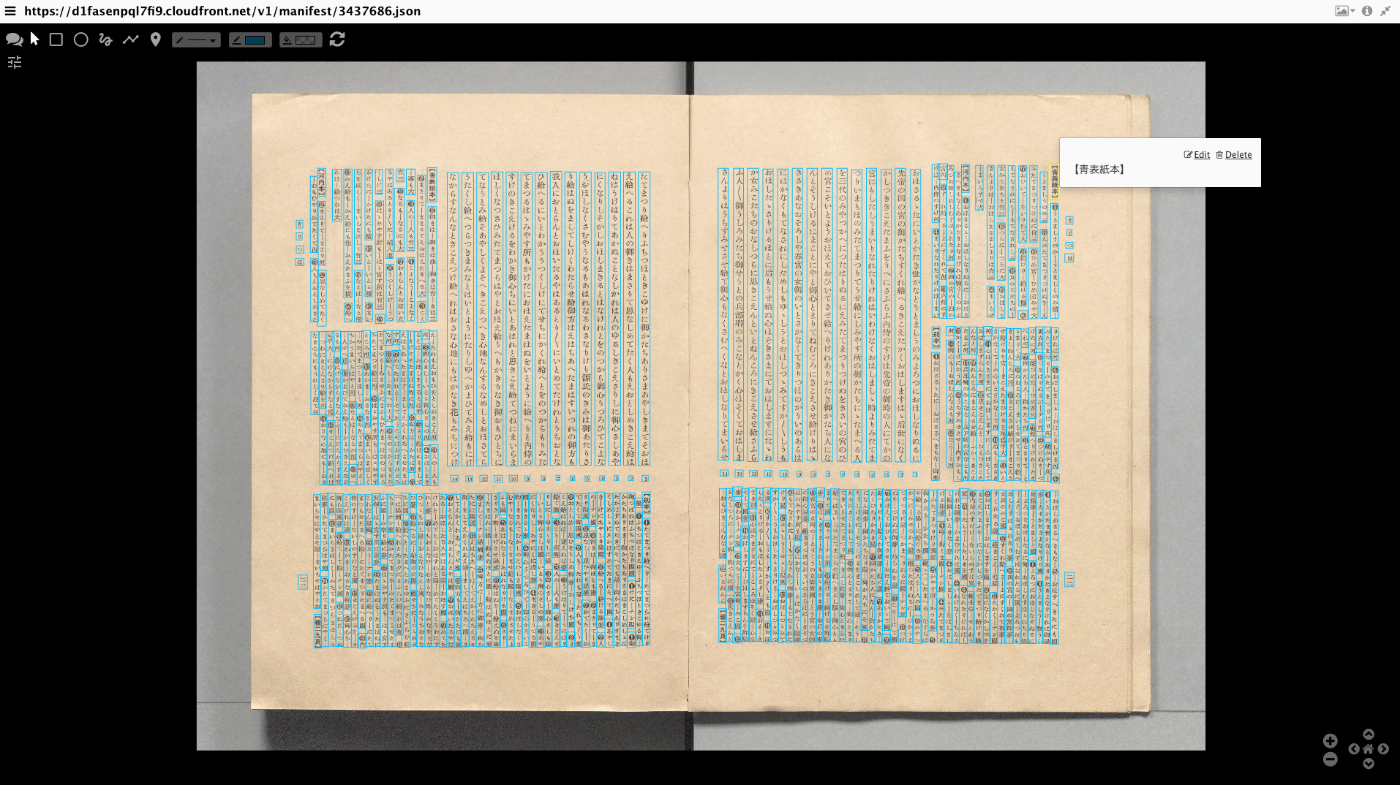
Overview I updated Mirador to 2.7 in the Omeka Classic IIIF Toolkit. You can check the source code on the following page. https://github.com/nakamura196/IiifItems You can also download the zip file from the following URL. https://github.com/nakamura196/IiifItems/releases/download/1.1.1/IiifItems-1.1.1.zip What This Enables By using Mirador 2.7, it becomes possible to display images in the viewer even if they do not support the IIIF Image API. This makes it possible to add and manage annotations using Mirador for publicly available images as well. ...

Batch Registering Data to Omeka Classic IIIF Toolkit

Batch Registering Data to Omeka Classic IIIF Toolkit

Overview This article explains how to batch register data to Omeka Classic IIIF Toolkit. For setting up Omeka Classic IIIF Toolkit, please refer to the following: This also builds on the content of the following article, making it easier to use by accepting Excel data as input. Preparing the Excel File Prepare an Excel file like the following: https://github.com/nakamura196/000_tools/blob/main/data/sample.xlsx Create three sheets: “collection,” “item,” and “annotation.” collection manifest_uri https://d1fasenpql7fi9.cloudfront.net/v1/manifest/3437686.json ...

How to Bulk Delete Collections in Omeka Classic

How to Bulk Delete Collections in Omeka Classic

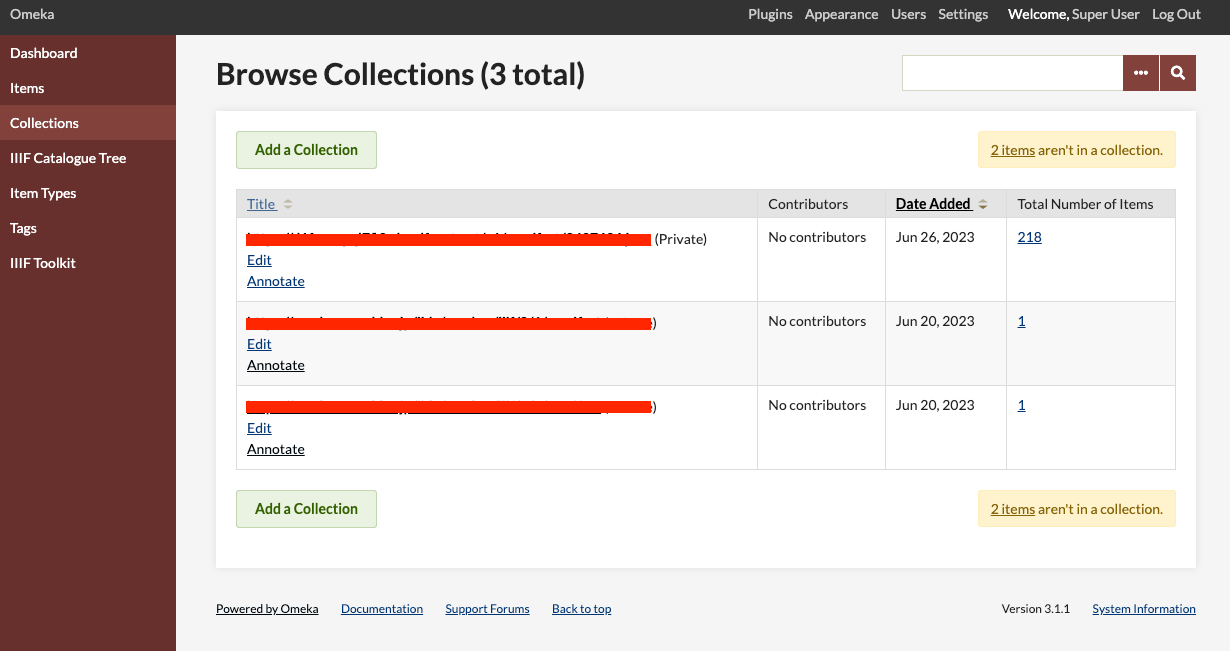
Overview This article introduces one approach for bulk deleting collections in Omeka Classic. In Omeka Classic (Version 3.1.1), there is no GUI for selecting and deleting multiple collections at once. However, this functionality is available for items. Therefore, we will use the API to perform bulk deletion of collections. Obtaining the API Key Follow the instructions below to enable the API and generate an API key: https://omeka.org/classic/docs/Admin/Settings/API_Settings/ Specifically, first access the following page: ...

Specifying the ImageMagick Path When Installing Omeka S on Sakura Rental Server

Specifying the ImageMagick Path When Installing Omeka S on Sakura Rental Server

Overview When installing Omeka S on Sakura Rental Server, it was necessary to specify the ImageMagick path. Modify the configuration file as follows. <?php return [ 'logger' => [ 'log' => false, 'priority' => \Laminas\Log\Logger::NOTICE, ], 'http_client' => [ 'sslcapath' => null, 'sslcafile' => null, ], 'cli' => [ 'phpcli_path' => null, ], 'thumbnails' => [ 'types' => [ 'large' => ['constraint' => 800], 'medium' => ['constraint' => 200], 'square' => ['constraint' => 200], ], 'thumbnailer_options' => [ 'imagemagick_dir' => '/usr/local/bin', # Modify this line ], ], 'translator' => [ 'locale' => 'en_US', ], 'service_manager' => [ 'aliases' => [ 'Omeka\File\Store' => 'Omeka\File\Store\Local', 'Omeka\File\Thumbnailer' => 'Omeka\File\Thumbnailer\ImageMagick', ], ], ];

About the Image Server Configuration for Omeka S

About the Image Server Configuration for Omeka S

Overview The Image Server for Omeka S is a module that enables image delivery compatible with the IIIF Image API. https://omeka.org/s/modules/ImageServer/ When used in combination with the IIIF Server module, it also enables delivery via IIIF manifests. The Image Server module allows various settings, including methods for creating tile images. This article shares the investigation results regarding these settings. Experimental Environment This time, I will use an Amazon Lightsail LAMP instance. I use a relatively low-spec environment with 2 GB RAM and 1 vCPU. ...

How to Register IIIF Images as Media in Omeka S

How to Register IIIF Images as Media in Omeka S

Overview This article introduces how to register IIIF images as media in Omeka S. Images published on external IIIF image servers can be registered in Omeka S. The official manual describes this at the following page. https://omeka.org/s/docs/user-manual/content/items/#media Specific Method In the media registration screen of the item edit page, enter values as shown below. You need to enter a URL ending with /info.json. The following uses the National Diet Library’s Koui Genji Monogatari as an example. ...

Adding Google Analytics 4 gtag.js to Omeka S

Adding Google Analytics 4 gtag.js to Omeka S

Overview The following module is available for setting up Google Analytics in Omeka S. https://omeka.org/s/modules/GoogleAnalytics/ As of April 2023, the above module also supports GA4, but as of April 2022, it was not supported as mentioned in the following post. https://forum.omeka.org/t/google-analytics-4-gtag-js/15034 Therefore, the following module was introduced, and I decided to try it. https://omeka.org/s/modules/AnalyticsSnippet/ Note that, as mentioned above, as of April 2023, the first module also supports GA4, so either module can be used for setting up Google Analytics. ...

Creating IIIF Presentation API v3 Manifest Files Using Omeka S

Creating IIIF Presentation API v3 Manifest Files Using Omeka S

Overview I needed to create IIIF Presentation API v3 manifest files, so I will introduce how to create them using Omeka S. Installing Omeka S and the IIIF Server Module Please install by referring to the following resource. https://zenn.dev/nakamura196/books/f4f87f9730e12e Creating Items in Omeka S This time, we will use the following image published by the National Diet Library. https://dl.ndl.go.jp/api/iiif/2585098/R0000003/full/full/0/default.jpg Create a new item and give it an appropriate title. ...

[Omeka S Theme Development] Updated the Bootstrap 5 Omeka S Theme

[Omeka S Theme Development] Updated the Bootstrap 5 Omeka S Theme

We have published an Omeka S theme using Bootstrap 5 at the following location. https://github.com/ldasjp8/Omeka-S-theme-Bootstrap5 Based on suggestions we received, we added creation date/update date as shown below. Additionally, as Omeka S version 4 has been released as shown below, we made it compatible. https://forum.omeka.org/t/omeka-s-version-4-0-0/16502 However, since there were methods that could not be used in common between version 3 and version 4 during the update, we created separate releases for version 3 and version 4. ...

Omeka Classic and Omeka S: Feature Comparison (Explained by GPT-4)

Omeka Classic and Omeka S: Feature Comparison (Explained by GPT-4)

Omeka Classic and Omeka S: Feature Comparison (Explained by GPT-4) Target Users: Omeka Classic: Primarily for individuals and small organizations to publish digital collections. Omeka S: Designed to handle multiple projects simultaneously for medium to large organizations. Site Management: Omeka Classic: Creates one website per instance. Omeka S: Can create and manage multiple websites from a single instance. Data Sharing: Omeka Classic: Basically creates independent sites. Omeka S: Supports Linked Data and Semantic Web technologies to facilitate data reuse and sharing. Extensions: ...

Omeka S User Permissions and Access to Private Resources

Omeka S User Permissions and Access to Private Resources

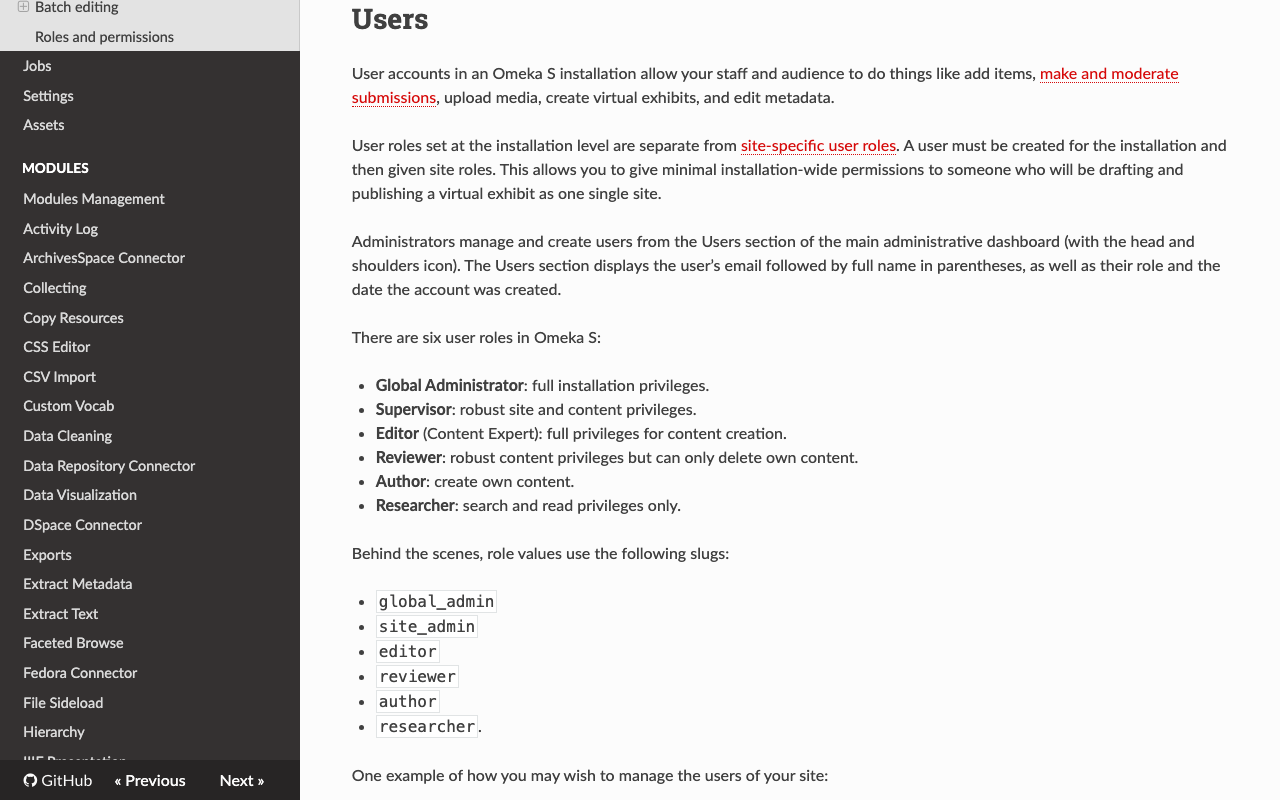
Overview I needed to create a user with viewing permissions for private resources in Omeka S, so this is a memo about that. Omeka S User Permissions Omeka S provides multiple user permission levels. Specifically, they are described on the following page. https://omeka.org/s/docs/user-manual/admin/users/#users Below is a summary with Japanese translations for reference. English Japanese Global Administrator full installation privileges. Global Administrator Full installation privileges Supervisor robust site and content privileges. Supervisor Robust site and content privileges Editor (Content Expert) full privileges for content creation. Editor Full privileges for content creation Reviewer robust content privileges but can only delete own content. Reviewer Robust content privileges but can only delete own content Author create own content. Author Can create own content Researcher search and read privileges only. Researcher Search and read privileges only Access to Private Resources: View Private Resources Module In the table above, Researcher has only search and read privileges, making it one of the possible permission levels to use when requesting review of private resources, for example. (Additionally, permissions can be extended using modules such as the Guest module.) ...

Updating Vocabularies Created with Omeka S Custom Ontology

Updating Vocabularies Created with Omeka S Custom Ontology

Overview Custom Ontology is a module that allows you to add custom vocabularies when standard ontologies such as LOV, schema.org, and W3C are not available. Its usage is introduced below. https://nakamura196.hatenablog.com/entry/2021/07/24/235050 The above article covers vocabulary creation, but does not address how to update existing vocabularies. This article explains how to update existing vocabularies. Creating a Vocabulary As an example, we will create the following vocabulary. https://omekas.aws.ldas.jp/omeka4/ns/myprefix/ Accessing the above URL will download the following TTL file. Here, we have added a custom property called myprefix:mySpecificProperty. ...

[Omeka S Module Introduction] Bulk Import: Batch Registration of Metadata and Images Using CSV Files (2023-03 Edition)

[Omeka S Module Introduction] Bulk Import: Batch Registration of Metadata and Images Using CSV Files (2023-03 Edition)

Overview I previously wrote the following article about how to use the “Bulk Import” module for batch registration of metadata (items) and images (media) into Omeka S. https://nakamura196.hatenablog.com/entry/2021/07/28/080952 However, due to updates to Omeka S and its modules, some behaviors differ as of March 2023. In this article, I will re-introduce the entire workflow from item set registration to media registration, while leaving the detailed explanations to the article above. ...