Home Articles Books Search About
日本語
DTS Viewer Update: Pagination Support

DTS Viewer Update: Pagination Support

Overview This is a note about adding pagination support to the DTS (Distributed Text Services) viewer. https://dts-viewer.vercel.app/ja/ Background When providing a large number of resources through DTS, it appears that the view property is used to present pagination information, as shown below. https://distributed-text-services.github.io/specifications/versions/unstable/#collection-endpoint { "@context": "https://distributed-text-services.github.io/specifications/context/1-alpha1.json", "dtsVersion": "1-alpha", "@id" : "lettres_de_poilus", "@type" : "Collection", "collection": "/api/dts/collection/{?id,page,nav}", "totalParents": 1, "totalChildren": 10000, "title": "Lettres de Poilus", "dublinCore": { "publisher": ["École Nationale des Chartes", "https://viaf.org/viaf/167874585"], "title": [ {"lang": "fr", "value" : "Lettres de Poilus"} ] }, "member": [ "..." ], "view": { "@id": "/api/dts/collection/?id=lettres_de_poilus&page=19", "@type": "Pagination", "first": "/api/dts/collection/?id=lettres_de_poilus&page=1", "previous": "/api/dts/collection/?id=lettres_de_poilus&page=18", "next": "/api/dts/collection/?id=lettres_de_poilus&page=20", "last": "/api/dts/collection/?id=lettres_de_poilus&page=500" } } I updated the DTS Viewer to support the view property described above. ...

Creating a CSV File Containing a List of Image URLs from a IIIF Manifest File

Creating a CSV File Containing a List of Image URLs from a IIIF Manifest File

Overview This is a note about creating an app that generates a CSV file containing a list of image URLs from a IIIF manifest file. You can access it from the following. https://iiif-demo-next.vercel.app/csv-converter Usage We will use “Koigenshimonogatari, Volume 1” from the National Diet Library collection as the target. https://dl.ndl.go.jp/api/iiif/3437686/manifest.json Enter the manifest file URL in the form below and press the “Download CSV” button. As a result, a CSV file containing URL and size information is downloaded as follows. ...

Hosting TEI/XML Files on S3-Compatible Object Storage

Hosting TEI/XML Files on S3-Compatible Object Storage

Overview This is a memo about hosting TEI/XML files on S3-compatible object storage. Specifically, we target the mdx I object storage. https://mdx.jp/mdx1/p/about/system Background We are building a web application (Next.js) that loads TEI/XML files and visualizes their content. When the number and size of files were small, they were stored in the public folder, but as these grew larger, we considered hosting them elsewhere. There are many options for storage locations, but this time we target mdx I’s S3-compatible object storage. ...

Prototyping a TEI/XML File Creation App Using Google Cloud Vision API and GakuNin RDM

Prototyping a TEI/XML File Creation App Using Google Cloud Vision API and GakuNin RDM

Overview I prototyped a TEI/XML file creation app using Google Cloud Vision API and GakuNin RDM, so this is a memo of that work. Background I needed an environment for creating TEI/XML files that reflect OCR results using Google Cloud Vision API. So I prototyped an environment that uses GakuNin RDM as the backend to manage files per user and execute OCR. How to Use Creating a Folder Access the following. ...

Added Route Registration Feature to the "Rekichizu x Next.js" Site

Added Route Registration Feature to the "Rekichizu x Next.js" Site

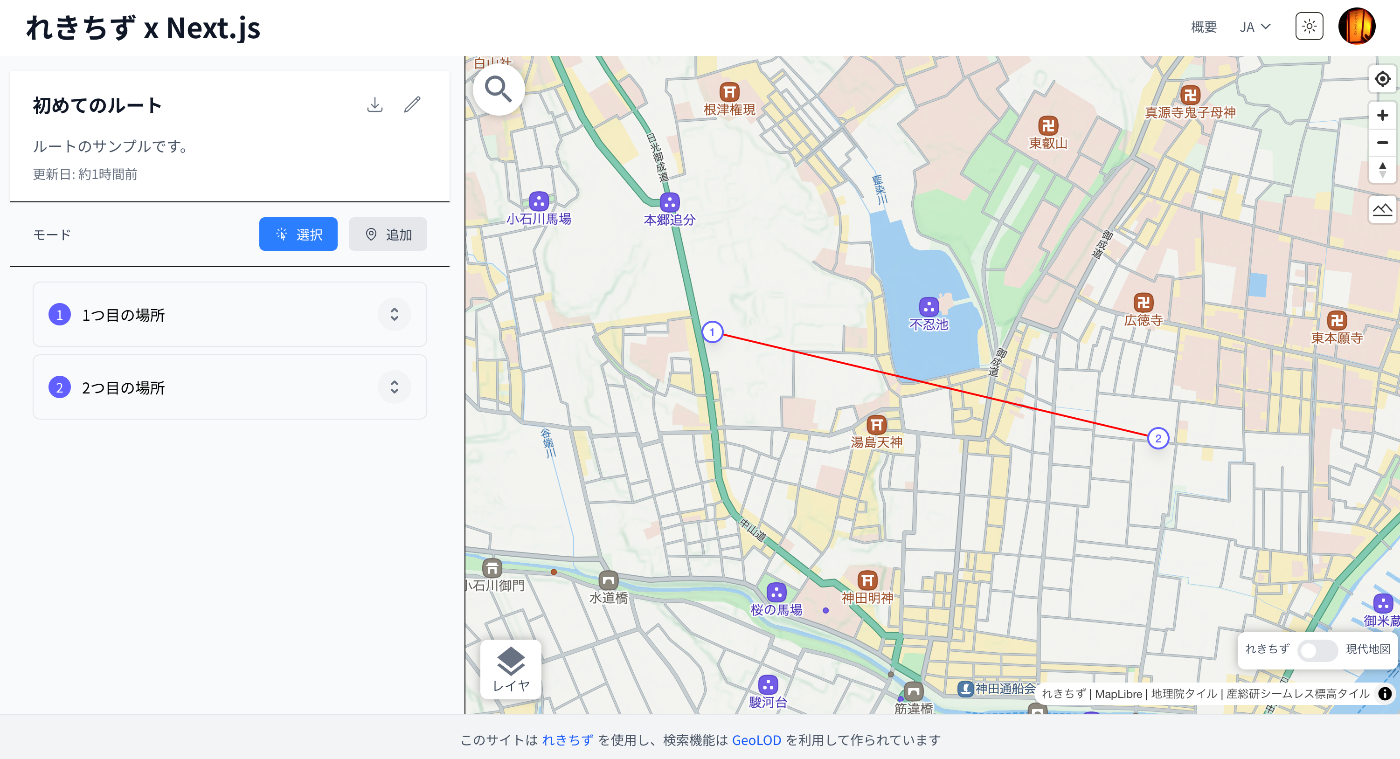
Overview I added a route registration feature to the “Rekichizu x Next.js” site. Below is a display example. References The “Rekichizu x Next.js” site is introduced in the following article. As a precedent for displaying routes using “Rekichizu”, the following example exists. https://codh.rois.ac.jp/edomi/route/ This time, I added a route creation feature based on the above example. Usage Access the site. https://rekichizu-next.vercel.app/ja/ Click “Manage My Routes”. Login is required, so log in using the button in the upper right. ...

Using Rekichizu with Next.js

Using Rekichizu with Next.js

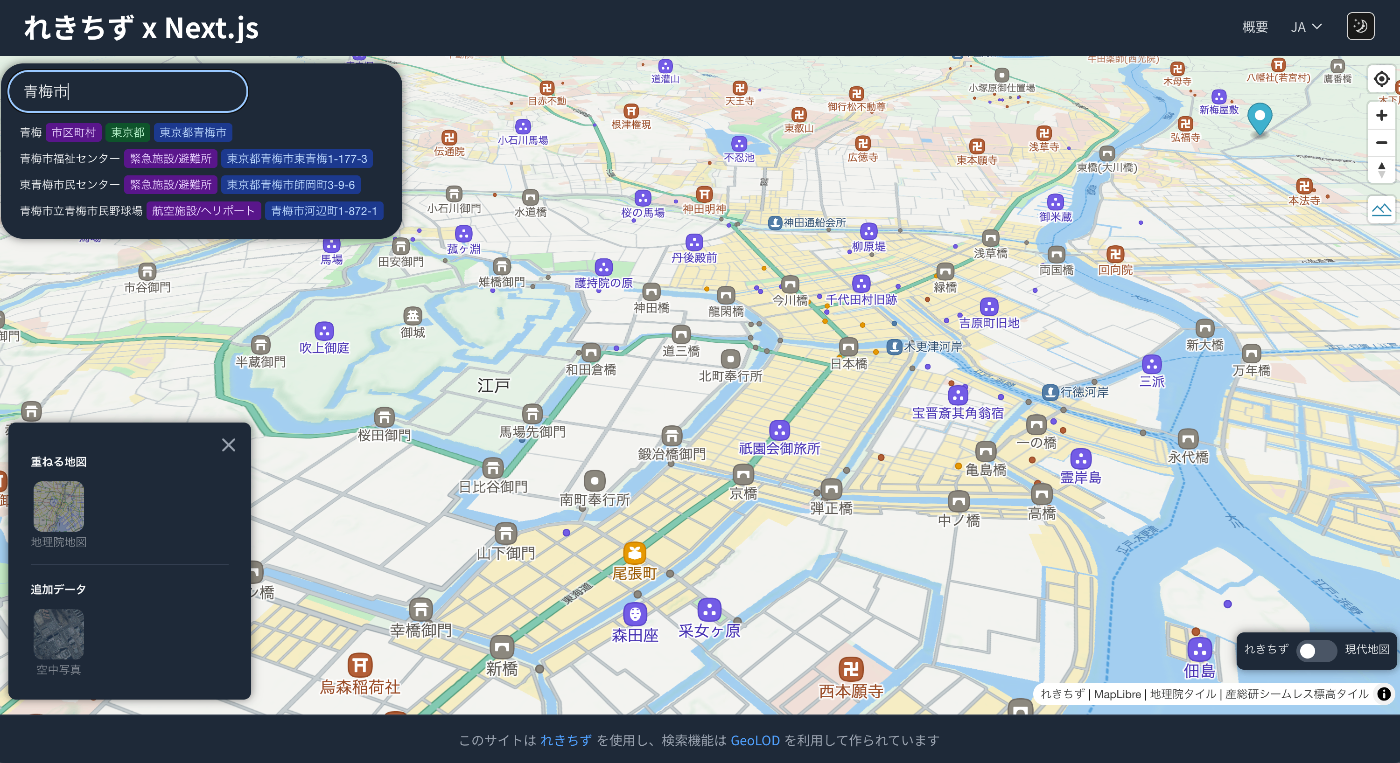
Overview I looked into how to use Rekichizu (historical maps) with Next.js, so here are my notes. Background In the following article, I introduced how to use “Rekichizu.” Then, I learned that the “nationwide version was released” on April 4, 2025. https://rekichizu.jp/ So I investigated how to integrate it into an application built with Next.js. Demo App I prototyped the following application. https://rekichizu-next.vercel.app/ja/ For the investigation, I aimed to reproduce features such as map switching, overlay, and search functionality provided on the official site. For this implementation, I used the following React library. ...

Building a Tool for Adding Polygon Annotations to IIIF Images

Building a Tool for Adding Polygon Annotations to IIIF Images

Overview I built a tool for adding polygon annotations to IIIF images. https://next-fb-anno.vercel.app/ This article explains this tool. Usage Below is the top page. Enter the URL of a IIIF manifest file. You can also try it using the “Use sample input” option. It uses “Hyakki Yako-zu” (Night Parade of One Hundred Demons) from the University of Tokyo General Library collection. The following annotation registration screen is displayed. ...

How to Add Dark Mode Using Tailwind CSS V4 with Next.js 15 App Router

How to Add Dark Mode Using Tailwind CSS V4 with Next.js 15 App Router

Overview This article describes how to add dark mode using Tailwind CSS V4 with the Next.js 15 App Router. The following article was helpful as a reference. https://sujalvanjare.vercel.app/blog/dark-mode-nextjs15-tailwind-v4 I was able to switch between dark mode and light mode as shown below. The following is a Japanese translation of the above article by ChatGPT. Learn how to implement dark mode and light mode using Tailwind CSS V4 in a Next.js 15 App Router project. This step-by-step guide covers the latest changes in Tailwind V4 and Next.js 15 to achieve a seamless theme switcher! ...

Handling the Error: Do not use <img>. Use Image from 'next/image' instead.

Handling the Error: Do not use <img>. Use Image from 'next/image' instead.

Overview The following article was helpful for handling the error: “Error: Do not use . Use Image from ’next/image’ instead.” https://stackoverflow.com/questions/68203582/error-do-not-use-img-use-image-from-next-image-instead-next-js-using-ht Based on the article above, I am posting a ChatGPT-generated response below. There may be some inaccuracies, but I hope it serves as a helpful reference. Changing Next.js ESLint Rules and Configuring Flat Config Since Next.js 11, ESLint configuration has been provided by default, and the @next/next/no-img-element rule was added. This rule restricts the use of regular <img> tags and recommends using Next.js’s next/image component. ...

Scrolling to a Specific Element Using CETEIcean and XPath

Scrolling to a Specific Element Using CETEIcean and XPath

Overview This is a memo on how to scroll to a specific element using CETEIcean and XPath. Demo You can try it at the following URL. https://next-ceteicean-router.vercel.app/xpath/ After accessing the page and scrolling, it is displayed as follows. Obtaining the XPath The above example targets the XML file from the “Koui Genji Monogatari Text DB.” https://kouigenjimonogatari.github.io/tei/01.xml The following XPath is specified. /TEI/text[1]/body[1]/p[1]/seg[267] To obtain this XPath, you can right-click on the target element in Oxygen XML Editor and select “Copy XPath.” ...

Using the Universal Viewer npm Package in Next.js

Using the Universal Viewer npm Package in Next.js

Overview Here are my notes on how to use the Universal Viewer npm package in Next.js. Installation Install with the following command. npm i universalviewer Implementation Since it uses useEffect, it appeared necessary to implement it as a client component. Also, by adding the uv class to the div tag, the CSS was applied correctly. 'use client' import { useEffect } from 'react' import dynamic from 'next/dynamic' interface ViewerProps { manifest: string cv?: number xywh?: string } // Component implementation function ViewerComponent({ manifest, cv, xywh }: ViewerProps) { useEffect(() => { // Import and initialize universalviewer const { init } = require('universalviewer') require('universalviewer/dist/esm/index.css') init('uv', { manifest, canvasIndex: cv, xywh }) }, [manifest, cv, xywh]) return ( <div id="uv" className="uv" style={{ width: '100%', height: '60vh' }}></div> ) } // Component that disables SSR and renders only on the client side const Viewer = dynamic(() => Promise.resolve(ViewerComponent), { ssr: false, loading: () => ( <div style={{ width: '100%', height: '60vh', display: 'flex', justifyContent: 'center', alignItems: 'center', background: '#f0f0f0', }} > Loading viewer... </div> ), }) export default Viewer There may be other available options, but I was able to specify the canvas index to initially load with cv and the display rectangle with xywh. ...

Searching Files in Linked Storage Using the GakuNin RDM API

Searching Files in Linked Storage Using the GakuNin RDM API

Overview In the following article, I introduced building applications using the GakuNin RDM API. In this article, I introduce how to search files in linked storage using the GakuNin RDM API. Implementation Example I implemented the search API as follows. Since directly accessing https://rdm.nii.ac.jp/api/v1/search/file/ from the client caused CORS errors, I implemented it as a Next.js API Route. import { NextResponse } from "next/server"; import { authOptions } from "@/app/api/auth/[...nextauth]/authOptions"; import { getServerSession } from "next-auth"; export async function GET(req: Request) { const session = await getServerSession(authOptions); // Get query parameters from URL const url = new URL(req.url); const query = url.searchParams.get("filter[fulltext]") || ""; const offset = parseInt(url.searchParams.get("page[offset]") || "0", 10); const size = parseInt(url.searchParams.get("page[limit]") || "20", 10); const accessToken = session?.accessToken; const apiUrl = "https://rdm.nii.ac.jp/api/v1/search/file/"; const params = { api_version: { vendor: "grdm", version: 2 }, sort: "created_desc", highlight: "title:30,name:30,user:30,text:124,comments.*:124", elasticsearch_dsl: { query: { filtered: { query: { query_string: { default_field: "_all", fields: [ "_all", "title^4", "description^1.2", "job^1", "school^1", "all_jobs^0.125", "all_schools^0.125", ], query, analyze_wildcard: true, lenient: true, }, }, }, }, from: offset, size, }, }; const res = await fetch(apiUrl, { method: "POST", headers: { "Content-Type": "application/json", Authorization: `Bearer ${accessToken}`, }, body: JSON.stringify(params), }); const data = await res.json(); return NextResponse.json(data); } Usage Example You can try it at the following URL. (Login to GakuNin RDM is required.) ...

Prototyping a TEI/XML File Editing Environment Using LEAF Writer and GakuNin RDM

Prototyping a TEI/XML File Editing Environment Using LEAF Writer and GakuNin RDM

Overview This is a memo about prototyping a TEI/XML file editing environment using LEAF Writer and GakuNin RDM. References The following article introduced how to use LEAF Writer from Next.js. In particular, the following npm package is used. https://www.npmjs.com/package/@cwrc/leafwriter For the input/output of TEI/XML files to be edited above, GakuNin RDM is used. The following article may also be helpful regarding how to use the GakuNin RDM API from JavaScript. ...

Developing a Viewer with Next.js + CETEIcean + React TEI Router

Developing a Viewer with Next.js + CETEIcean + React TEI Router

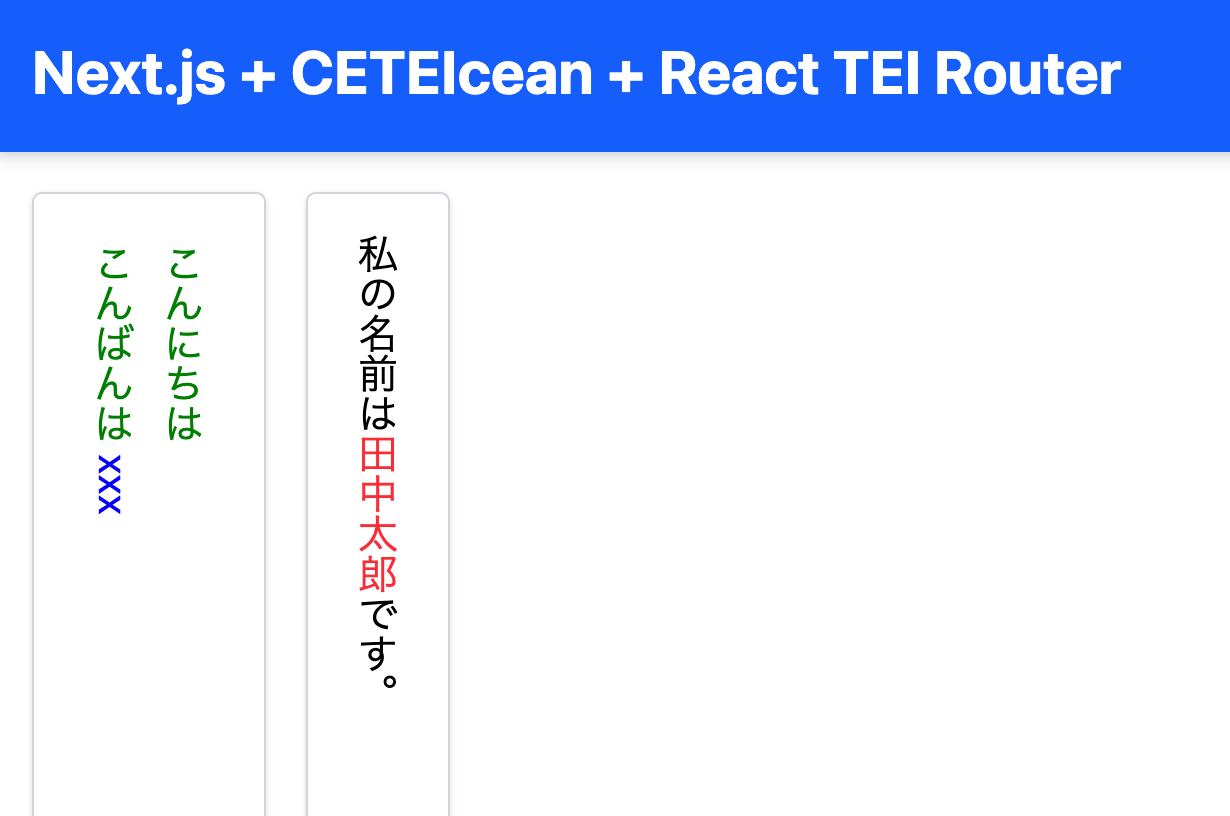
Overview This is a memo on developing a TEI/XML viewer combining Next.js, CETEIcean, and React TEI Router. Background CETEIcean is a JavaScript library that converts TEI/XML to HTML5. https://github.com/TEIC/CETEIcean React TEI Router is a library that enables structured display of TEI/XML using React components, based on CETEIcean. It is described as follows: https://github.com/pfefferniels/react-teirouter TEI for React using CETEIcean and routes By combining these, I created a viewer that can customize and display TEI/XML in Next.js. ...

Next.js for Drupal BASE_PATH Issue and Fix (Using patch-package)

Next.js for Drupal BASE_PATH Issue and Fix (Using patch-package)

Overview Next.js for Drupal v2.0.0 was released on 2025/2/11. https://next-drupal.org/ https://next-drupal.org/blog/next-drupal-2-0 When I tried it out, I found that the handling of BASE_PATH required attention, so this is a memo about it. Environment Variables The sample environment variables are as follows. # See https://next-drupal.org/docs/environment-variables # Required NEXT_PUBLIC_DRUPAL_BASE_URL=https://site.example.com NEXT_IMAGE_DOMAIN=site.example.com # Authentication DRUPAL_CLIENT_ID=Retrieve this from /admin/config/services/consumer DRUPAL_CLIENT_SECRET=Retrieve this from /admin/config/services/consumer # Required for On-demand Revalidation DRUPAL_REVALIDATE_SECRET=Retrieve this from /admin/config/services/next When specifying NEXT_PUBLIC_DRUPAL_BASE_URL with a base path included, such as https://site.example.com/xxx, API requests were sent to https://site.example.com/jsonapi/, failing to correctly retrieve resources. ...

Building a Multilingual Static Site with Next.js

Building a Multilingual Static Site with Next.js

Introduction This article was generated by GPT-4o. It explains how to build a multilingual static site using Next.js. In particular, it focuses on a configuration where the main language has no URL prefix while other languages have prefixes. It also includes configuration for deploying to GitHub Pages. Project Setup First, create a Next.js project. Initialize the project using create-next-app. npx create-next-app@latest next-intl-ssg Installing Required Packages Install next-intl for multilingual support. ...

Using clover-iiif with Next.js

Using clover-iiif with Next.js

Overview I created a sample repository for using clover-iiif with Next.js, so here are my notes. https://clover-iiif-demo.vercel.app/ Background clover-iiif is described as follows. https://github.com/samvera-labs/clover-iiif Extensible IIIF front-end toolkit and Manifest viewer. Accessible. Composable. Open Source. We will use this with Next.js. Data “Koui Genji Monogatari (held by the National Diet Library)” is used as sample data. https://dl.ndl.go.jp/pid/3437686 Repository It is published at the following link. https://github.com/nakamura196/clover-iiif-demo I referenced the following. ...

Using @react-three/fiber and drei with Next 15 (Using React 19)

Using @react-three/fiber and drei with Next 15 (Using React 19)

Overview When using @react-three/fiber with Next 15 (which uses React 19), the following is stated: R3F v8 is not compatible with React 19 or Next 15, which uses React 19. Use the R3F v9 RC instead which can be installed with @react-three/fiber@rc. However, when I added the following for mouse controls, it did not work well with @react-three/fiber@rc. https://www.npmjs.com/package/@react-three/drei This is a note on how to address this issue. ...

Using Drupal OAuth with NextAuth.js

Using Drupal OAuth with NextAuth.js

Overview This is a note about using Drupal OAuth with NextAuth.js. Behavior Access the app created with Next.js and press the “Sign in” button. If you are not logged into Drupal, you will be redirected to the login screen. If you are already logged in, an authorization button is displayed. Click to authorize. The login information is displayed. Drupal-Side Setup Module Installation Install the following module. ...

Creating Apps with Azure OpenAI Assistants API Using Gradio and Next.js

Creating Apps with Azure OpenAI Assistants API Using Gradio and Next.js

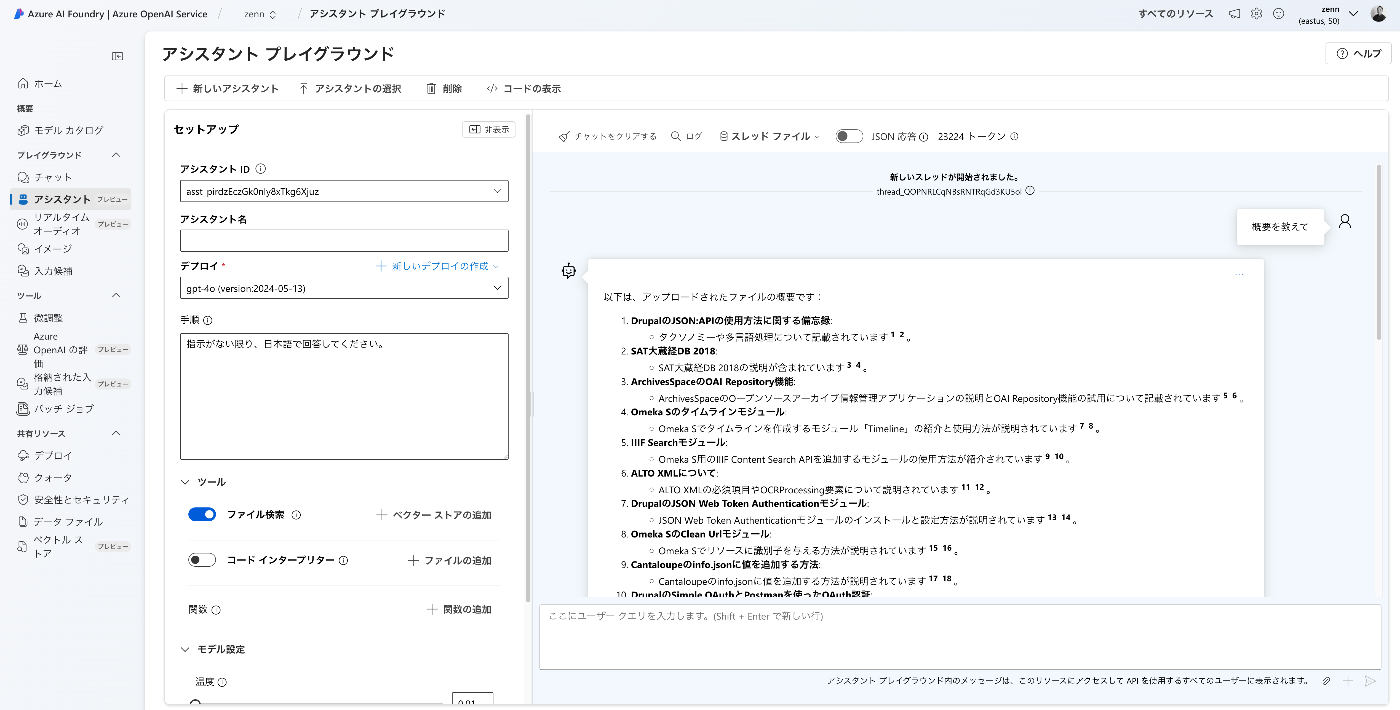
Overview I created apps using the Azure OpenAI Assistants API with Gradio and Next.js, so here are my notes. Target Data I used articles published on Zenn as the target data. First, I bulk downloaded them with the following code. import requests from bs4 import BeautifulSoup import os from tqdm import tqdm page = 1 urls = [] while 1: url = f"https://zenn.dev/api/articles?username=nakamura196&page={page}" response = requests.get(url) data = response.json() articles = data['articles'] if len(articles) == 0: break for article in articles: urls.append("https://zenn.dev" + article['path']) page += 1 for url in tqdm(urls): text_opath = f"data/text/{url.split('/')[-1]}.txt" if os.path.exists(text_opath): continue response = requests.get(url) soup = BeautifulSoup(response.text, "html.parser") html = soup.find(class_="znc") txt = html.get_text() os.makedirs(os.path.dirname(text_opath), exist_ok=True) with open(text_opath, "w") as f: f.write(txt) Registering to the Vector Store Upload data files with the following code. ...