Home Articles Books Search About
日本語
Uploading Multiple Files to mdx.jp Object Storage

Uploading Multiple Files to mdx.jp Object Storage

Overview This is a personal note on how to upload multiple files to mdx.jp object storage. It references the following video. https://youtu.be/IN_4NS9hO2Y Preparation Working on macOS. brew install s3cmd Configuration (please refer to the video for details.) s3cmd --configure Batch Registration (Sync) The following syncs files in the local rekion folder to s3://rekion/iiif/. s3cmd sync docs/rekion/ s3://rekion/iiif/ --exclude '.DS_Store' Reference find . -name '.DS_Store' -type f -delete Batch ACL Change s3cmd setacl s3://rekion/iiif/ --acl-public --recursive Note (CORS Permission) I prepared the following XML file and attempted to enable CORS. ...
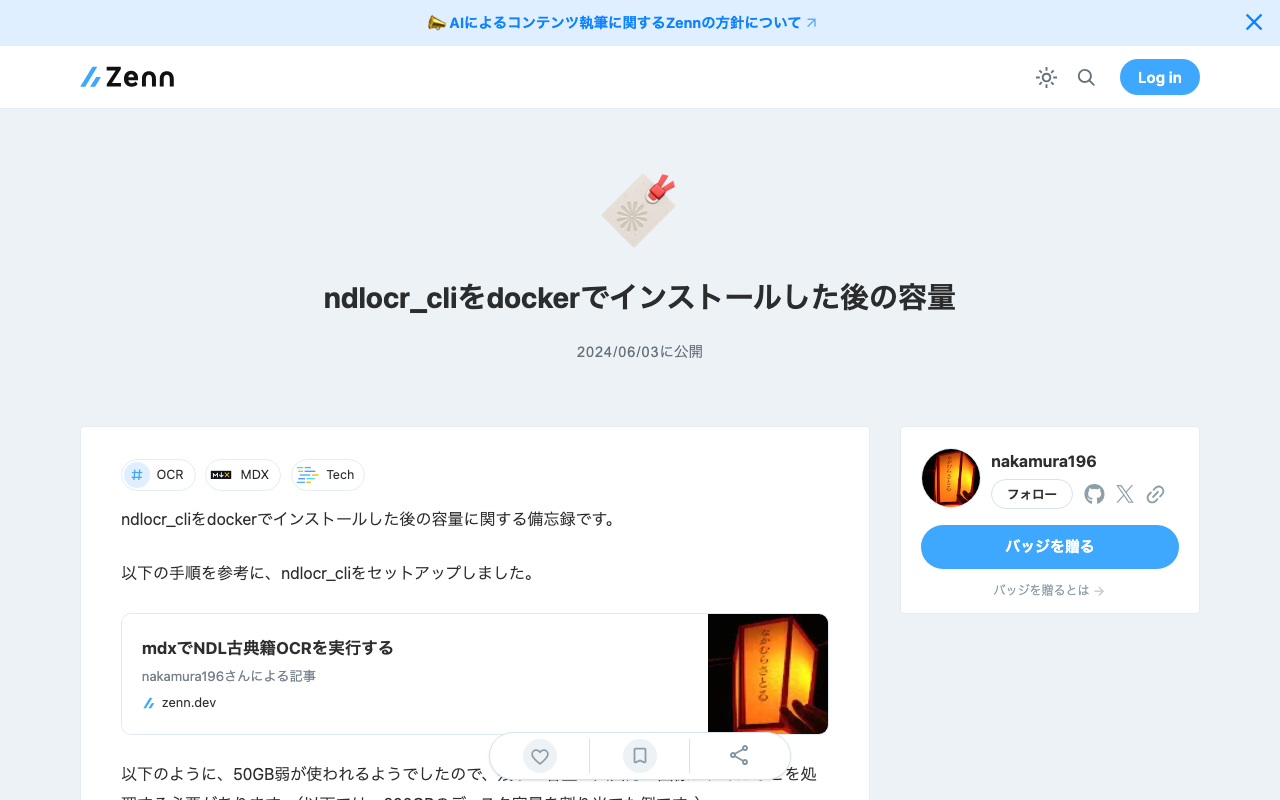
Disk Space After Installing ndlocr_cli with Docker

Disk Space After Installing ndlocr_cli with Docker

Notes on disk space after installing ndlocr_cli with Docker. I set up ndlocr_cli by following the steps described in the following article. As shown below, approximately 50GB of space is used, so you need to process input/output image files etc. with the remaining capacity. (The example below shows a case with 200GB of disk space allocated.) mdxuser@ubuntu-2204:~/ndlocr_cli$ df -h Filesystem Size Used Avail Use% Mounted on tmpfs 5.7G 1.4M 5.7G 1% /run /dev/sda2 196G 45G 143G 24% / tmpfs 29G 0 29G 0% /dev/shm tmpfs 5.0M 0 5.0M 0% /run/lock /dev/sda1 1.1G 6.1M 1.1G 1% /boot/efi tmpfs 5.7G 4.0K 5.7G 1% /run/user/1000 I hope this is helpful when specifying the virtual disk size (GB) when launching virtual machines on AWS (Amazon Web Services) or mdx (Data-Driven Society Creation Platform). ...

Launching Jupyter Lab on mdx

Launching Jupyter Lab on mdx

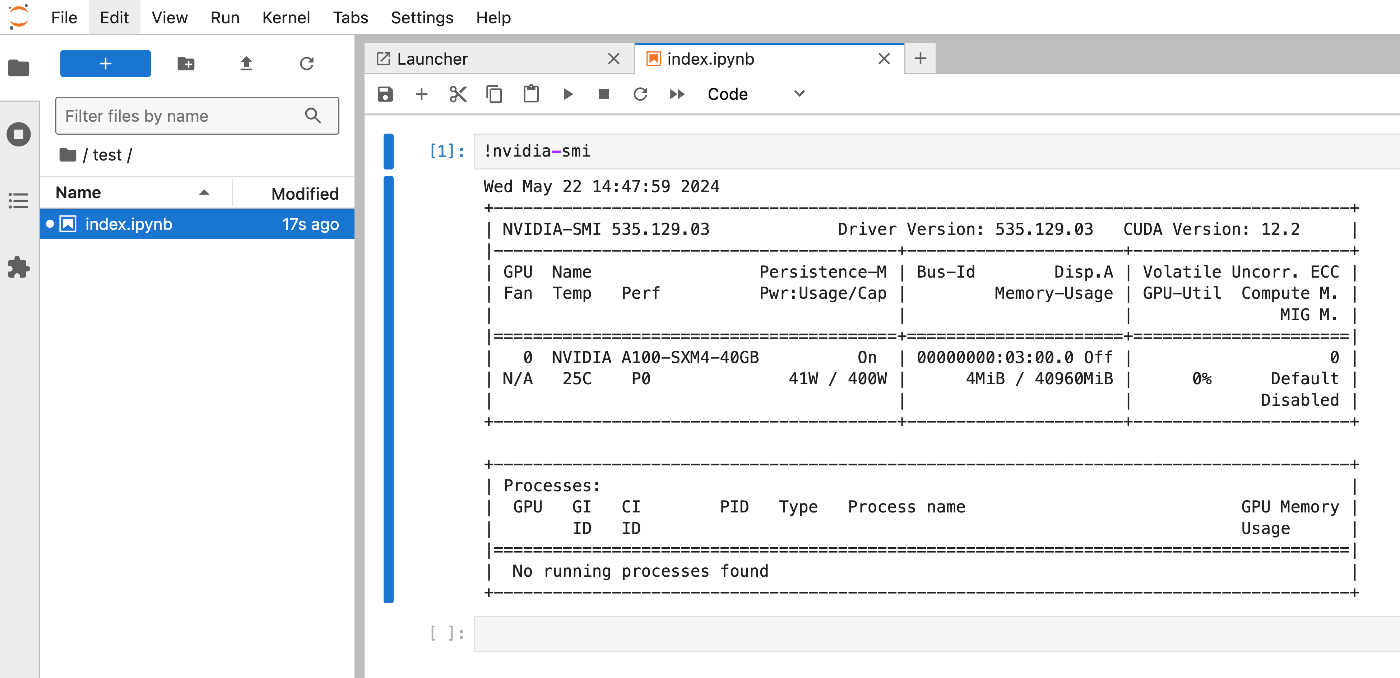
Overview I had an opportunity to launch Jupyter Lab on mdx, so here are my notes. Please also refer to the following for mdx setup. References The following video was very helpful. https://youtu.be/-KJwtctadOI?si=xaKajk79b1MxTpJ6 Setup On the Server Install pip sudo apt install python3-pip Add to the PATH nano ~/.bashrc export PATH="$HOME/.local/bin:$PATH" source ~/.bashrc The following command launches Jupyter Lab. jupyter-lab Local Machine Connect via SSH with the following command. ssh -N -L 8888:localhost:8888 mdxuser@xxx.yyy.zzz.lll -i ~/.ssh/mdx/id_rsa Then, access the address displayed in the server console. ...