Home Articles Books Search About
RSS 日本語
[Translation] How to Add Table of Contents Information in the Omeka S IIIF Server Module

[Translation] How to Add Table of Contents Information in the Omeka S IIIF Server Module

This is a Japanese translation of the manual on how to add table of contents information in the Omeka S IIIF Server module. The official manual is available below. github.com I hope this serves as a reference when adding table of contents information to IIIF manifests using this module. Config options for manifest Input format of the property for structures (table of contents) The default structure is a simple sequential list of IIIF media. ...
How to Embed Mirador 3 in a Specific Area of a Page

How to Embed Mirador 3 in a Specific Area of a Page

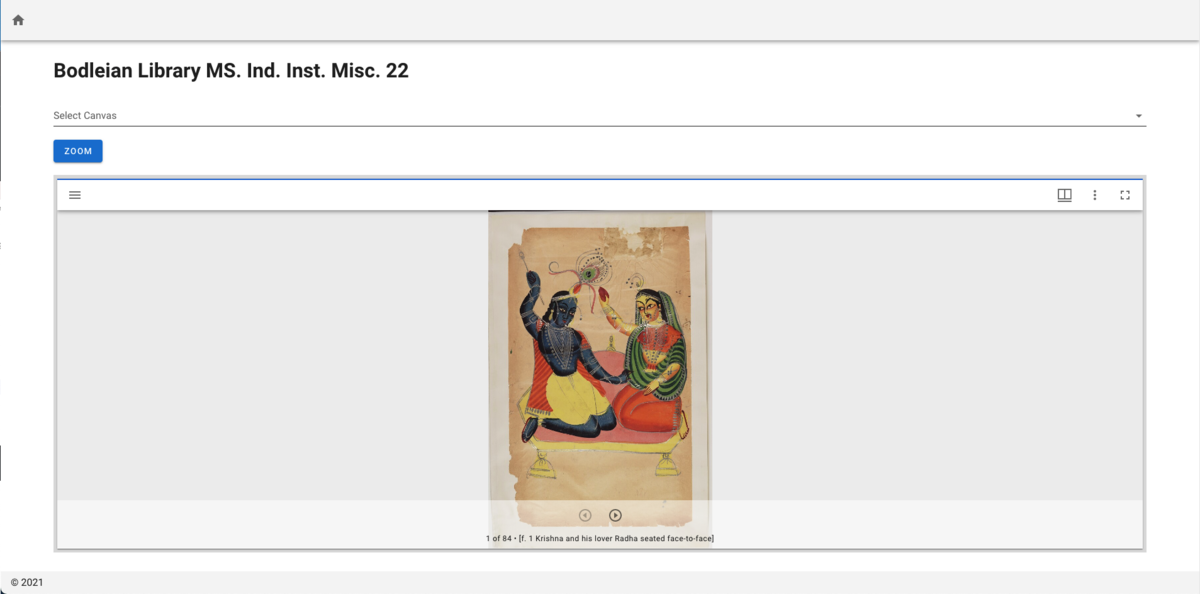
In a previous article, we introduced how to embed Mirador in a specific area of a page using Nuxt.js. nakamura196.hatenablog.com This time, we introduce how to embed Mirador without using frameworks like Vue.js. Specifically, please check the source code of the following page. https://nakamura196.github.io/nuxt-mirador/embedded2 The above is a simple HTML file. When embedding Mirador on a page, you specify the ID of the element where Mirador will be displayed (e.g., mirador). By applying the following CSS, you can embed it within a portion of the page. ...

How to Add a Line Break Before the lb Tag in Oxygen Auto-Formatting

How to Add a Line Break Before the lb Tag in Oxygen Auto-Formatting

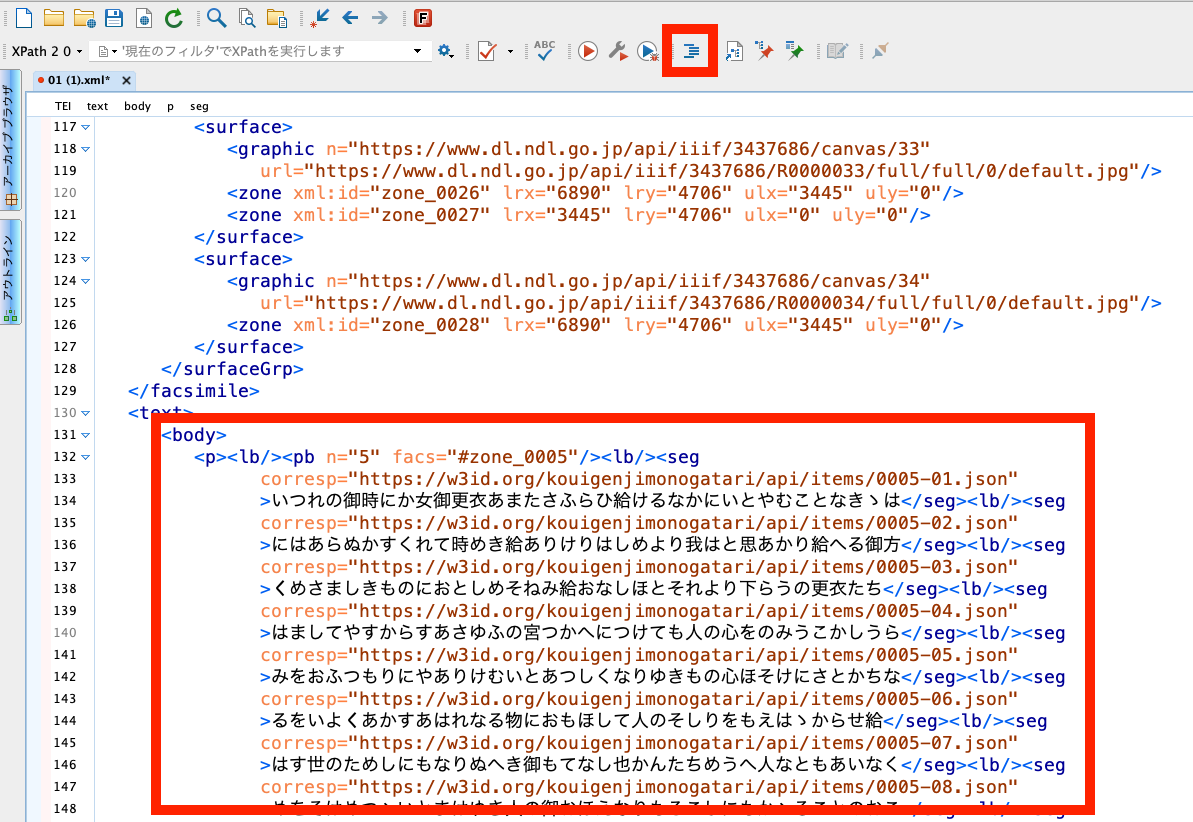
Overview This article introduces how to change the auto-formatting and indentation rules in “Oxygen XML Editor,” a useful tool for working with TEI/XML. Specifically, the goal is to ensure that a line break is inserted before the lb tag, which marks the beginning of a line. Background In “Oxygen XML Editor,” there is an auto-formatting and indentation feature. It is the icon shown at the top of the figure below. ...

Created a Repository Demonstrating How to Use Mirador 3 with Nuxt.js

Created a Repository Demonstrating How to Use Mirador 3 with Nuxt.js

Overview In the following article, I introduced how to use Mirador 3 with Vue. nakamura196.hatenablog.com Following up on that, I created a GitHub repository demonstrating how to use Mirador 3 with Nuxt.js. github.com In the above repository, I have prepared examples of displaying Mirador full-page as well as embedding it in a specific area within a page. https://nakamura196.github.io/nuxt-mirador/embedded This article provides an explanation of the above page and introduces some aspects of how to use Mirador. ...

[Omeka S Tips] Notes on Using the BulkImport Module on Windows

[Omeka S Tips] Notes on Using the BulkImport Module on Windows

Overview In the following article, I introduced the “BulkImport” module for batch registering metadata and images using CSV files. nakamura196.hatenablog.com That article introduced how to create and register CSV files. While this works without issues on macOS, there were reports of the following error occurring when creating CSV files on Windows and registering them in Omeka S: File “media_template.csv” has media type “application/vnd.ms-excel”, not “text/csv”. This error was resolved by registering with an ODS file instead. ...

[Omeka S Tips] About Auto-Adding New Items to Each Site

[Omeka S Tips] About Auto-Adding New Items to Each Site

Overview In the latest version of Omeka S, you can configure whether new items registered in Omeka S are automatically added as resources to each site. The official manual documents this at: https://omeka.org/s/docs/user-manual/sites/site_settings/#general-settings Since Omeka S is designed to manage multiple sites, you can change the items (resources) that are searchable on a per-site basis. However, when using Omeka S to manage only a single site, it is more efficient to have items automatically added to the site as searchable resources when they are registered in Omeka S. ...

[Omeka S Module Introduction] Numeric Data Types: Enabling Range Search for Date Data, and More

[Omeka S Module Introduction] Numeric Data Types: Enabling Range Search for Date Data, and More

Overview This article explains the “Numeric Data Types” module, which enables specific properties to be configured as numeric data. Properties can be specified as date and time (ISO) or as numbers. A key benefit is that it enables range searches on date data. github.com The official manual is available at: omeka.org Using the manual above as a reference, I will explain how to use this module. Creating or Editing a Resource Template To use this module, you need to create or edit a resource template to configure specific properties as numeric data types. Instructions for using resource templates are available at the following link, and I hope to write an introductory article about them in the future: ...

Created a GitHub Repository Demonstrating How to Use vis.js with Nuxt.js

Created a GitHub Repository Demonstrating How to Use vis.js with Nuxt.js

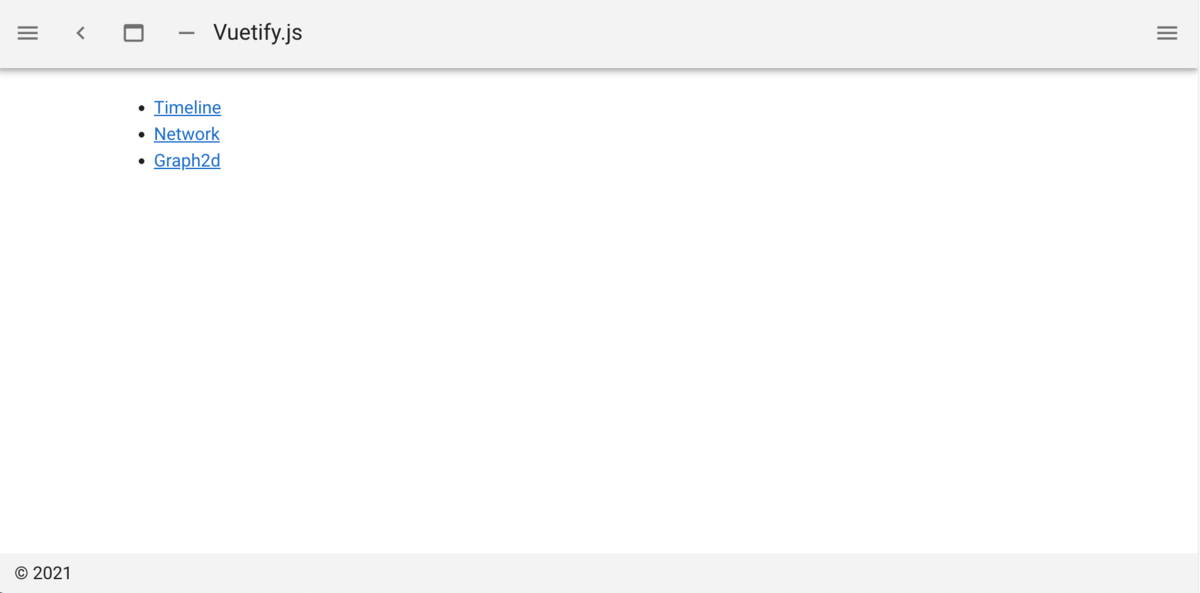
Overview We created a GitHub repository demonstrating how to use vis.js with Nuxt.js. github.com You can check the demo site from the following page: https://nuxt-visjs.netlify.app/ Details Nuxt.js is a framework that allows you to use Vue.js more effectively. vis.js is a visualization library that can create network diagrams and timelines. visjs.org We created a GitHub repository demonstrating how to use vis.js with Nuxt.js. The repository includes basic visualization examples using “Timeline,” “Network,” and “Graph2d.” ...

[Omeka S Module Introduction] Metadata Browse: Adding Links to Search for Items with the Same Metadata

[Omeka S Module Introduction] Metadata Browse: Adding Links to Search for Items with the Same Metadata

Overview This article introduces the “Metadata Browse” module, which adds links to item detail pages in Omeka S that allow searching for items with the same metadata. omeka.org For example, the following becomes possible: a “See all items with this value” link is added to the “Subject” value on the item detail page, and clicking this link navigates to a search results page showing items with the same metadata. ...

[Omeka S Module Customization] OaiPmhRepository: Creating Custom Vocabularies

[Omeka S Module Customization] OaiPmhRepository: Creating Custom Vocabularies

This article explains how to customize the OaiPmhRepository module for Omeka S to publish metadata by mapping it to DC-NDL (Simple). Please refer to the following GitLab repository as needed. gitlab.com Note: A separate introductory article on OaiPmhRepository is planned. File Modifications Please refer to the following commit. https://gitlab.com/nakamura196/Omeka-S-module-OaiPmhRepository/-/commit/702f1c693a62ae21ef03da495e3b4efd6060c561#d57ba0f1ebb8e2008538c451770f3fe535e1c2ca Specifically, modifications are made to the following files. OaiPmhRepository/config/module.config.php Add the information for the custom vocabulary. OaiPmhRepository/src/OaiPmh/Metadata/DCNDLSimple.php This file defines the mapping between Omeka S properties and the output fields. The mapping rules in the commit above are specific to that repository. You will need to modify them according to the metadata description rules of your own Omeka S installation. ...

【Omeka S モジュール紹介】Advanced Search Plus:詳細検索機能を拡張する

概要 Advanced Search PlusはOmeka Sでのより柔軟な検索を可能とするための、詳細検索に項目などを追加するモジュールです。 omeka.org 本記事では、本モジュールの使い方について説明します。 使い方 本モジュールをインストールすることにより、以下の項目が利用可能となります。 before/on/after creation/modification date/time of any resouce:日付や時間に対する範囲検索を可能とします。 has media (for item):画像を持つアイテムの絞り込み has original:オリジナル画像を持つアイテムの絞り込み has thumbnail:サムネイル画像を持つアイテムの絞り込み mutiple media types (for item) multiple media types for media (included in core since Omeka S 2.0.2 for a single value) visibility public/private:公開/非公開設定に基づく絞り込み media by item set:アイテムセットに基づくメディアの絞り込み 具体的には、例えば管理者画面のアイテムに対する詳細検索画面において、以下のような検索フォームが追加されます。「has media(画像を持つアイテムの絞り込み)」などはニーズが高い検索条件かと思います。 また、メタデータ別の検索フォームにおいて、以下の検索条件が追加されます。 start with end with in list (via api only). exclude one or multiple properties (except title):(タイトルを除く)単一または複数のプロパティを検索対象から除外する。 以下のように、検索条件の指定方法が拡張されます。 ...

[FOSS Memo] CollectiveAccess

[FOSS Memo] CollectiveAccess

The following is a partial translation of the GitHub README.md. github.com About CollectiveAccess CollectiveAccess is a web-based application suite that provides a framework for managing, describing, and discovering complex digital and physical collections in museum, archive, and research contexts. It consists of two applications. Providence is the “back-end” cataloging component of CollectiveAccess. It is highly configurable and supports a wide range of metadata standards, data types, and media formats. Pawtucket2 is CollectiveAccess’s general-purpose public-access publishing tool. It provides an easy way to create websites around data managed in Providence. (For more information on Pawtucket2, see https://github.com/collectiveaccess/pawtucket2.) ...

【Omeka S モジュール紹介】Custom Ontology:独自語彙を追加する

概要 Custom Ontologyは、LOV、schema.org、W3Cといった標準的なオントロジーが利用できないときに、独自の語彙を追加することができるモジュールです。内部プロパティを管理したり、新しいデータを作成している研究者にとって便利です。本記事では、このモジュールの具体的な使用方法について説明します。なお、文末に本モジュールのREADME.mdファイルの和訳も合わせて掲載します。 github.com なお、標準的な既存の語彙(オントロジー)を登録する場合には、以下の記事を参考にしてください。 nakamura196.hatenablog.com 概要 使用方法 設定 語彙の情報入力 クラスの入力 プロパティの入力 API まとめ README.mdの和訳 カスタムオントロジー(Omeka Sのモジュール) インストール 使用方法 使用方法 モジュールのインストール後、以下のメニューから編集画面にアクセスできます。 設定 ここでは、接頭語「ex」、名前空間のURIを「https://diyhistory.org/nakamura196/ns/ex/」とします。 この名前空間のURIは自由に設定できますが、今回のように推奨された形式(Omeka url + /ns/{prefix}/)で与えると、以下のURLでウェブページが利用可能となるといった利点があります。こちらの機能については後述します。 Omeka url + /ns/{prefix}?format=html 語彙の情報入力 以下の画面のように、語彙の作成に必要な情報を入力します。 続けて、クラスとプロパティを追加することもできますが、一旦ここまでの状態で作成することができます。画面右上の送信ボタンを押すと、語彙が作成されます。 作成された語彙は「語彙の一覧」ページから確認できます。 本ページの操作方法については、Omeka Sのコア機能の語彙操作に関する以下の記事を参考にしてください。 nakamura196.hatenablog.com なお、語彙の作成後に後述するクラスやプロパティを追加する場合、ここで入力した情報をスキップすることができます。 クラスの入力 ここでは独自の人物クラス「ex:Person」とイベントクラス「ex:Event」を作成します。下図のように、「Create specific classes」のフォームに値を入力します。各クラスについて一行毎に記述し、「prefix:クラス名,ラベル,コメント」の形で記述します。また「クラス名」の先頭は大文字にする必要があります(ex:person などはアラートが表示されます)。 プロパティの入力 ここでは独自のプロパティ「ex:name」を作成します。作成方法は「クラス」の時と同様です。違いとしては、「prefix:」に続くプロパティ名は小文字で始まる必要があります(ex:Name などはアラートが表示されます)。 API 作成した語彙は、上述した通り、Omeka Sのコア機能である語彙の一覧などから確認することができ、また他の語彙と同様に各機能から利用することができます。 それに加えて、本モジュールで推奨された形式(Omeka url + /ns/{prefix}/)で語彙を作成すると、サイトページとして語彙に関する情報を公開することができます。今回の例では、以下のURLから語彙に関する情報にアクセスできます。 https://diyhistory.org/nakamura196/ns/ex?format=html また以下のように、クエリ文字列を付けずに名前空間のURIにアクセスすると、Turtleファイルをダウンロードすることができます。 https://diyhistory.org/nakamura196/ns/ex 本Turtleを他の人やシステムと共有することにより、独自に作成した語彙の情報を共有することができます。Linked Dataの原則の一つである以下を満たす設計となっています。 When someone looks up a URI, provide useful information, using the standards (RDF, SPARQL) ...

[Omeka S Tips] How to Add Existing Standard Vocabularies

[Omeka S Tips] How to Add Existing Standard Vocabularies

Overview Omeka S uses RDF (Resource Description Framework) to describe information about resources (items, item sets, media, etc.). Therefore, it is necessary to import vocabularies, which are collections of RDF classes and properties. This article explains how to import existing vocabularies. The official manual is available at: omeka.org Specifically, we will use the following as examples: the National Diet Library Dublin Core Metadata Description (DC-NDL) provided by the National Diet Library, Schema.org, and the Japan Search Utilization Schema. ...

[App Introduction] Introducing IIIF pocket

[App Introduction] Introducing IIIF pocket

This article introduces “IIIF Pocket,” an application developed as part of the Cultural Japan project. pocket.cultural.jp The documentation for this application is available in the following Google Document: docs.google.com We hope this is helpful for managing and utilizing IIIF resources.

[Omeka S Manual Translation] Resources > Items

[Omeka S Manual Translation] Resources > Items

This is a Japanese translation of the Omeka S manual. It covers the “Resources” > “Items” page. omeka.org Items Items are the building blocks of the Omeka system. In Omeka S, you can make items available from the system administrator or add items to your own site. Items are listed in the Items tab (single box icon) in the left navigation of the admin dashboard. ...

[Omeka S Tips] How to Set Language Attributes for Metadata

[Omeka S Tips] How to Set Language Attributes for Metadata

This article introduces how to set language attributes for metadata. The official manual describes this in the following section: omeka.org On the metadata editing screen shown below, clicking the globe icon reveals an input form. By entering values such as “ja” or “en” here, you can assign language attributes to your metadata. These language attributes are displayed on the public site and can also be verified in the JSON-LD provided through the Omeka S API. ...

[Omeka S Module Introduction] Item Sets Tree

[Omeka S Module Introduction] Item Sets Tree

Overview Item Sets Tree is a module that allows you to configure a hierarchical structure for item sets. This article introduces how to use this module. omeka.org Overview Installation Data Feature Introduction Setting parent item sets Viewing the hierarchical structure Displaying descendant items in item set item list screens Display on sites Summary Installation After installing the module, the following settings screen is displayed. This is an option to specify whether to also display items from descendant item sets when viewing items of a given item set. We will examine the difference later. ...

[Omeka S Module Introduction] IIIF Server / Image Server / Universal Viewer

[Omeka S Module Introduction] IIIF Server / Image Server / Universal Viewer

The following video explains the IIIF-related Omeka S modules “IIIF Server,” “Image Server,” and “Universal Viewer,” along with their installation procedures. youtu.be We hope this serves as a useful reference for IIIF delivery with Omeka S.

Reference Materials for Introducing Omeka S

Reference Materials for Introducing Omeka S

I have compiled information on how to install Omeka S and how to add modules in the following resources. I hope they serve as useful references when introducing Omeka S. youtube.com