Home Articles Books Search About
RSS 日本語
Script for Initial Setup of Omeka S on Amazon Lightsail

Script for Initial Setup of Omeka S on Amazon Lightsail

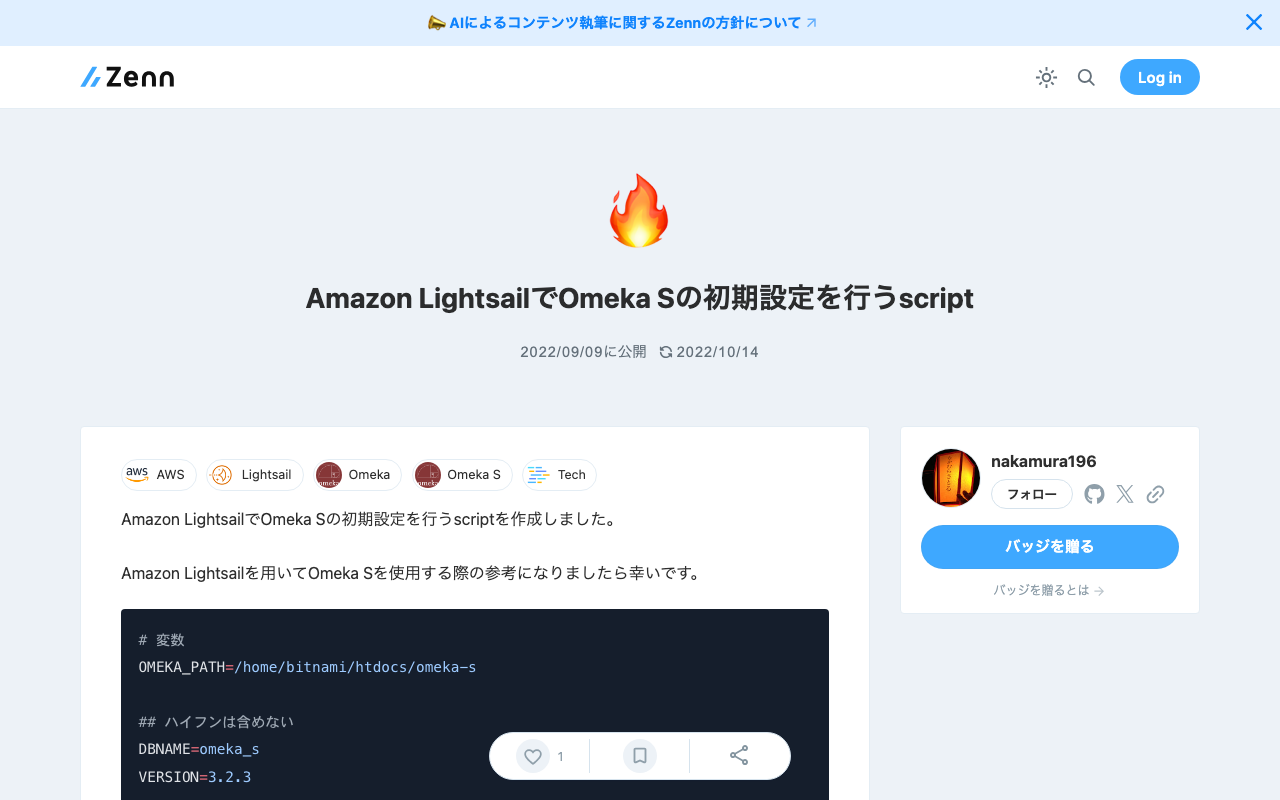
I created a script for the initial setup of Omeka S on Amazon Lightsail. I hope this serves as a useful reference when using Omeka S with Amazon Lightsail. # 変数 OMEKA_PATH=/home/bitnami/htdocs/omeka-s ## ハイフンは含めない DBNAME=omeka_s VERSION=3.2.3 ############# set -e mkdir $OMEKA_PATH # Omekaのダウンロード wget https://github.com/omeka/omeka-s/releases/download/v$VERSION/omeka-s-$VERSION.zip unzip -q omeka-s-$VERSION.zip mv omeka-s/* $OMEKA_PATH # .htaccessの移動 mv omeka-s/.htaccess $OMEKA_PATH # 不要なフォルダの削除 rm -rf omeka-s rm omeka-s-$VERSION.zip # 元からあったindex.htmlを削除(もし存在すれば) if [ -e $OMEKA_PATH/index.html ]; then rm $OMEKA_PATH/index.html fi # データベースの作成 cat <<EOF > sql.cnf [client] user = root password = $(cat /home/bitnami/bitnami_application_password) host = localhost EOF mysql --defaults-extra-file=sql.cnf -e "create database $DBNAME"; # Omeka Sの設定 cat <<EOF > $OMEKA_PATH/config/database.ini user = root password = $(cat bitnami_application_password) dbname = $DBNAME host = localhost EOF sudo chown -R daemon:daemon $OMEKA_PATH/files sudo apt install imagemagick -y

Specifying the Initial Specification to Display in Swagger UI Demo via GET Parameter

Specifying the Initial Specification to Display in Swagger UI Demo via GET Parameter

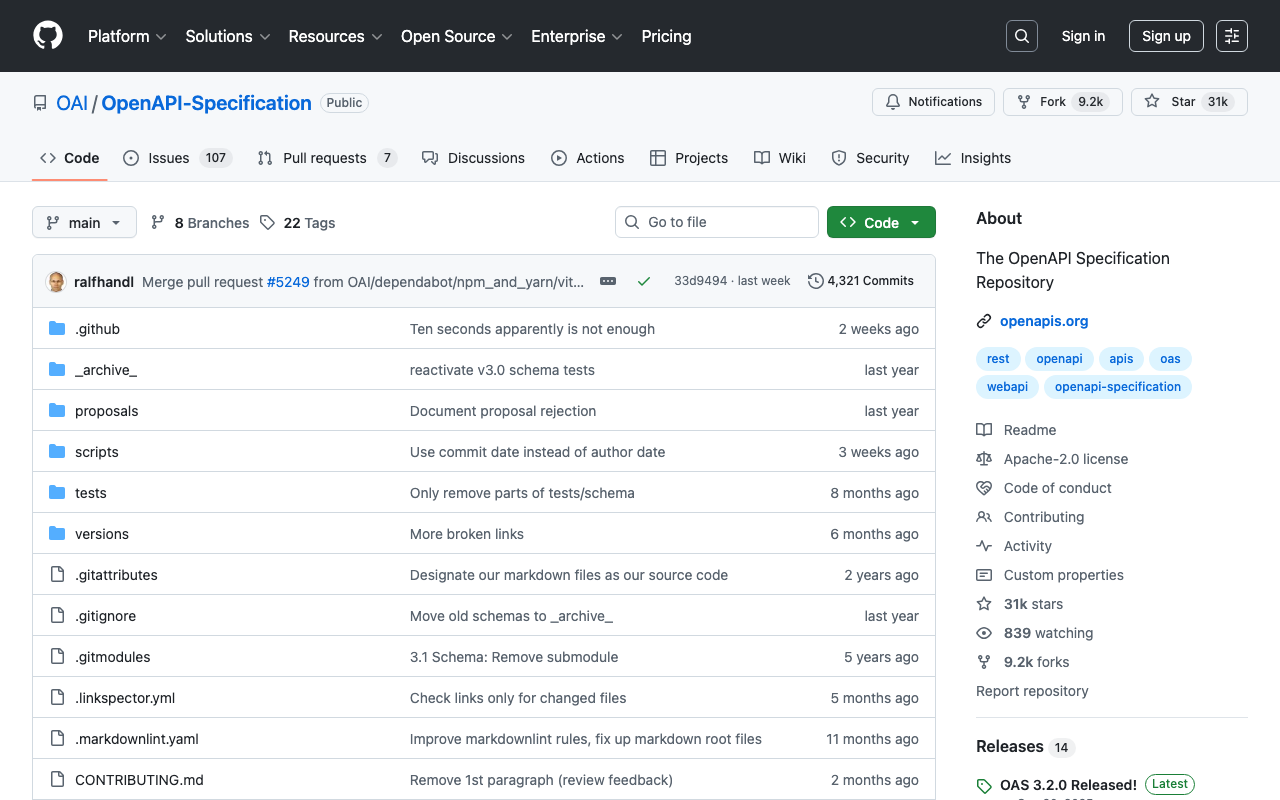
The Swagger UI demo is available at the following link. https://petstore.swagger.io/ By appending ?url=(URL to a JSON or YAML file) to the above URL, you can specify the initial specification to display. Here, we will use the following publicly available examples. https://github.com/OAI/OpenAPI-Specification For example, you can specify it as follows. https://petstore.swagger.io/?url=https://raw.githubusercontent.com/OAI/OpenAPI-Specification/main/examples/v3.0/api-with-examples.yaml I hope this serves as a useful reference when sharing specifications with others.

Output Content of IIIF Manifests (Version 2) from the Omeka S IIIF Server

Output Content of IIIF Manifests (Version 2) from the Omeka S IIIF Server

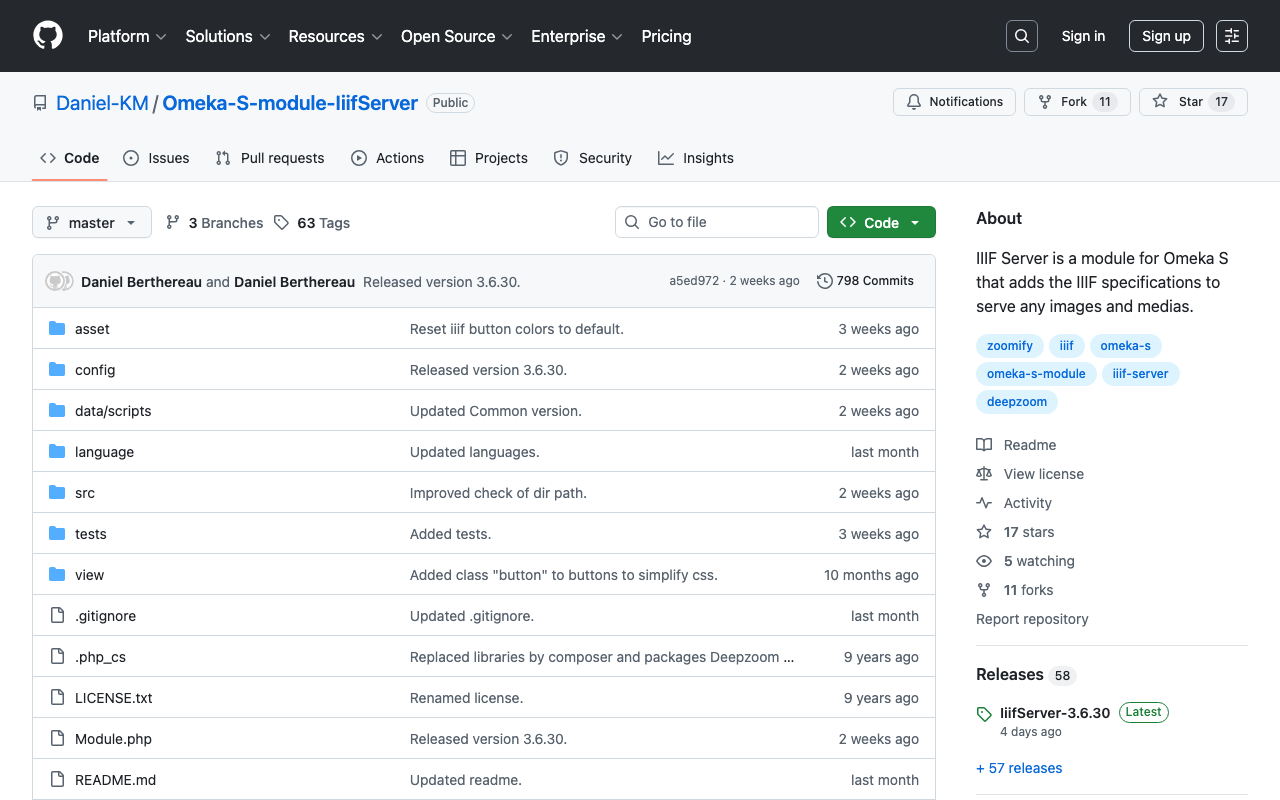
Overview IIIF Server is a module for delivering IIIF manifests from Omeka S. https://github.com/Daniel-KM/Omeka-S-module-IiifServer In this article, we examine the output content of these IIIF manifests (specifically, IIIF Presentation API version 2). Example The following is an example of a IIIF manifest for an item with ID test-111 on an Omeka S instance published at https://shared.ldas.jp/omeka-s. { "@context": "http://iiif.io/api/presentation/2/context.json", "@id": "https://shared.ldas.jp/omeka-s/iiif/test-111/manifest", "@type": "sc:Manifest", "label": "Sample Item", "thumbnail": { "@id": "https://iiif.dl.itc.u-tokyo.ac.jp/iiif/kunshujou/A00_6010/001/001_0001.tif/full/!200,200/0/default.jpg", "@type": "dctypes:Image", "format": "image/jpeg", "width": 200, "height": 200 }, "license": "https://shared.ldas.jp/omeka-s/s/test/page/reuse", "attribution": "サンプル機関", "related": { "@id": "https://shared.ldas.jp/omeka-s", "format": "text/html" }, "seeAlso": { "@id": "https://shared.ldas.jp/omeka-s/api/items/1270", "format": "application/ld+json" }, "metadata": [ { "label": "Title", "value": "Sample Item" }, { "label": "Identifier", "value": "test-111" } ], "sequences": [ { "@id": "https://shared.ldas.jp/omeka-s/iiif/test-111/sequence/normal", "@type": "sc:Sequence", "label": "Current Page Order", "viewingDirection": "left-to-right", "canvases": [ { "@id": "https://shared.ldas.jp/omeka-s/iiif/test-111/canvas/p1", "@type": "sc:Canvas", "label": "1", "thumbnail": { "@id": "https://iiif.dl.itc.u-tokyo.ac.jp/iiif/kunshujou/A00_6010/001/001_0001.tif/full/!200,200/0/default.jpg", "@type": "dctypes:Image", "format": "image/jpeg", "width": 200, "height": 200 }, "width": 6401, "height": 4810, "images": [ { "@id": "https://shared.ldas.jp/omeka-s/iiif/test-111/annotation/p0001-image", "@type": "oa:Annotation", "motivation": "sc:painting", "resource": { "@id": "https://iiif.dl.itc.u-tokyo.ac.jp/iiif/kunshujou/A00_6010/001/001_0001.tif/full/full/0/default.jpg", "@type": "dctypes:Image", "format": "image/jpeg", "width": 6401, "height": 4810, "service": { "@context": "http://iiif.io/api/image/2/context.json", "@id": "https://iiif.dl.itc.u-tokyo.ac.jp/iiif/kunshujou/A00_6010/001/001_0001.tif", "profile": "http://iiif.io/api/image/2/level1.json" } }, "on": "https://shared.ldas.jp/omeka-s/iiif/test-111/canvas/p1" } ] }, { "@id": "https://shared.ldas.jp/omeka-s/iiif/test-111/canvas/p2", "@type": "sc:Canvas", "label": "2枚目", "thumbnail": { "@id": "https://iiif.dl.itc.u-tokyo.ac.jp/iiif/kunshujou/A00_6010/001/001_0002.tif/full/!200,200/0/default.jpg", "@type": "dctypes:Image", "format": "image/jpeg", "width": 200, "height": 200 }, "width": 6401, "height": 4810, "images": [ { "@id": "https://shared.ldas.jp/omeka-s/iiif/test-111/annotation/p0002-image", "@type": "oa:Annotation", "motivation": "sc:painting", "resource": { "@id": "https://iiif.dl.itc.u-tokyo.ac.jp/iiif/kunshujou/A00_6010/001/001_0002.tif/full/full/0/default.jpg", "@type": "dctypes:Image", "format": "image/jpeg", "width": 6401, "height": 4810, "service": { "@context": "http://iiif.io/api/image/2/context.json", "@id": "https://iiif.dl.itc.u-tokyo.ac.jp/iiif/kunshujou/A00_6010/001/001_0002.tif", "profile": "http://iiif.io/api/image/2/level1.json" } }, "on": "https://shared.ldas.jp/omeka-s/iiif/test-111/canvas/p2" } ], "metadata": [ { "label": "Title", "value": "2枚目" } ] } ] } ] } Below, I will explain each type. ...

How to Set the xml:id Attribute with BeautifulSoup

How to Set the xml:id Attribute with BeautifulSoup

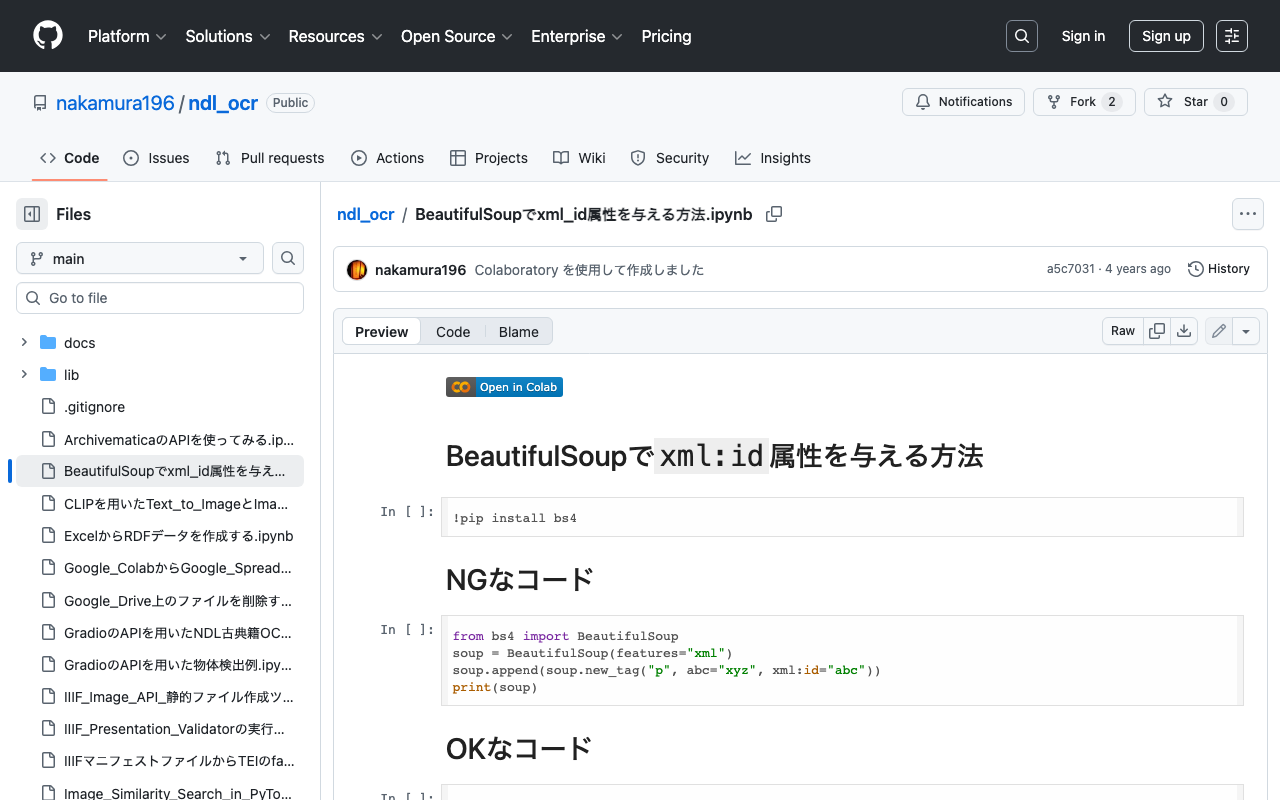
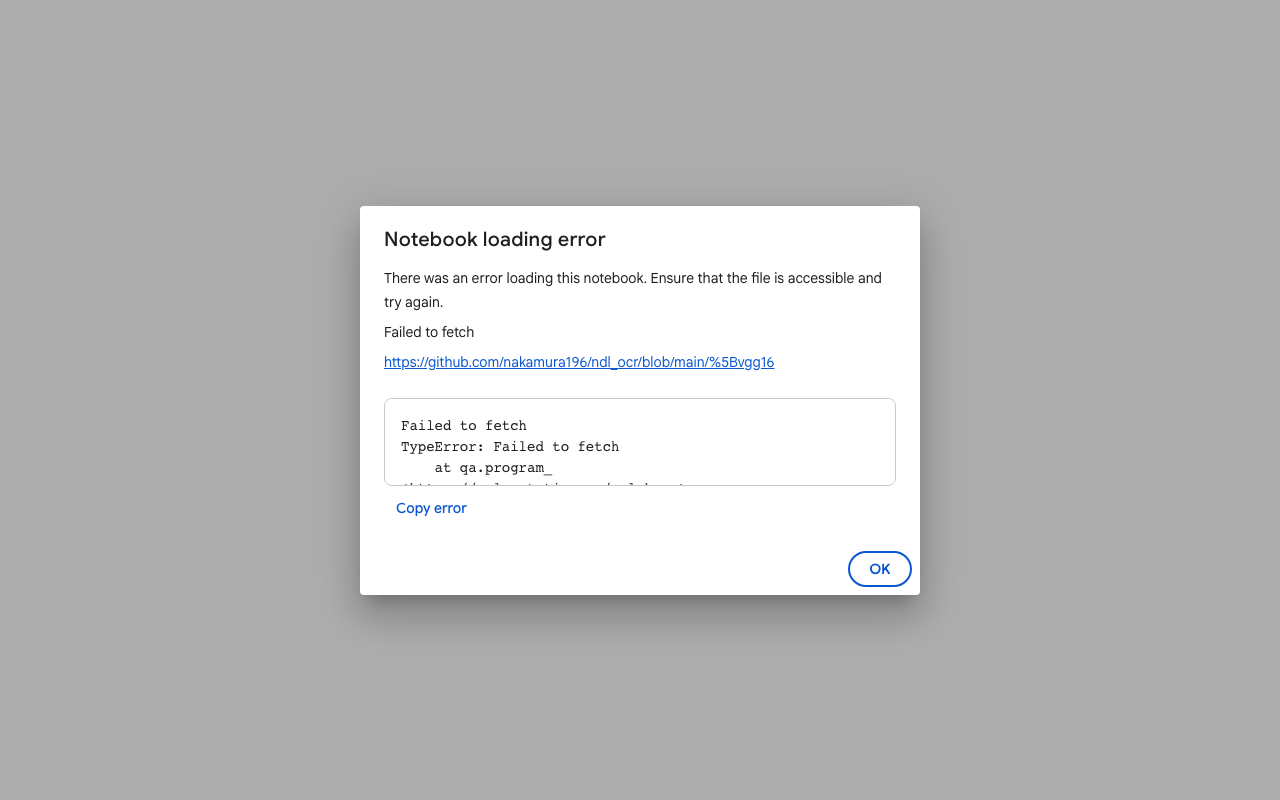
This is a memo on how to set the xml:id attribute with BeautifulSoup. The following method causes an error. from bs4 import BeautifulSoup soup = BeautifulSoup(features="xml") soup.append(soup.new_tag("p", abc="xyz", xml:id="abc")) print(soup) Writing it as follows works correctly. from bs4 import BeautifulSoup soup = BeautifulSoup(features="xml") soup.append(soup.new_tag("p", **{"abc": "xyz", "xml:id":"aiu"})) print(soup) An execution example on Google Colab is available below. https://github.com/nakamura196/ndl_ocr/blob/main/BeautifulSoupでxml_id属性を与える方法.ipynb We hope this is helpful.

[Omeka S] Created a Foundation S Theme That Works Around the Japanese Search Bug

[Omeka S] Created a Foundation S Theme That Works Around the Japanese Search Bug

As summarized in the following article, there are some issues with full-text search in Japanese in Omeka S with the default settings. https://nakamura196.hatenablog.com/entry/2022/03/07/083004 In the above article, I introduced “Workaround 2” as a simple solution to this issue. This time, I created a repository that applies this workaround to “Foundation S,” one of the themes for Omeka S. https://github.com/nakamura196/foundation-s I hope this is helpful for those using the “Foundation S” theme who are experiencing issues with Japanese search. ...

[Omeka S] Handling Bulk Import Bugs (Including Installation from Source Code)

[Omeka S] Handling Bulk Import Bugs (Including Installation from Source Code)

Overview Regarding Bulk Import, one of the modules for bulk data registration in Omeka S, the latest version as of August 21, 2022 (ver.3.3.33.4) appears to contain a bug. Specifically, the following issue describes a bug that occurs during bulk media registration. https://gitlab.com/Daniel-KM/Omeka-S-module-BulkImport/-/issues/11 This bug has already been addressed in the following commit. https://github.com/Daniel-KM/Omeka-S-module-BulkImport/commit/7d568a97f08459e22e7c5fbaa8163b17ab4ba805 However, as of today, a release version has not yet been published, so installation from source code is necessary. ...

[Memo] How to Use Virtuoso

[Memo] How to Use Virtuoso

This is a memo on how to use Virtuoso, an RDF store. Checking Registered Graph URIs Conductor > Linked Data > Graphs > Graphs Manually Uploading RDF Files Conductor > Linked Data > Quad Store Upload Enabling Federated Query The following article was helpful. The “Account Roles” configuration was required. https://community.openlinksw.com/t/enabling-sparql-1-1-federated-query-processing-in-virtuoso/2477 I hope this serves as a helpful reference.

How to Manually Restart or Stop Virtuoso from the Command Line

How to Manually Restart or Stop Virtuoso from the Command Line

Here is how to manually restart or stop Virtuoso from the command line. The following article was used as a reference. https://stackoverflow.com/questions/42575039/how-to-manually-restart-or-stop-virtuoso-from-commandline The following approach seems to work well. isql {host}:{port} {UID} {PWD} EXEC=shutdown A specific example is as follows. isql localhost:1111 dba dba EXEC=shutdown If isql is not found as shown below, change the path and execute. isql localhost:1111 dba dba EXEC=shutdown bash: isql: command not found find / -name isql /usr/local/bin/isql /root/virtuoso-opensource/binsrc/tests/isql /usr/local/bin/isql localhost:1111 dba dba EXEC=shutdown I hope this serves as a helpful reference. ...

Similar Image Search Using VGG16

Similar Image Search Using VGG16

In relation to the following article, I created a notebook for performing similar image search using VGG16. The notebook is available here: https://colab.research.google.com/github/nakamura196/ndl_ocr/blob/main/[vgg16]_Image_Similarity_Search_in_PyTorch.ipynb You can verify the operation by selecting “Runtime” > “Run all.” We hope this serves as a useful reference.

Similar Image Search Using an Autoencoder

Similar Image Search Using an Autoencoder

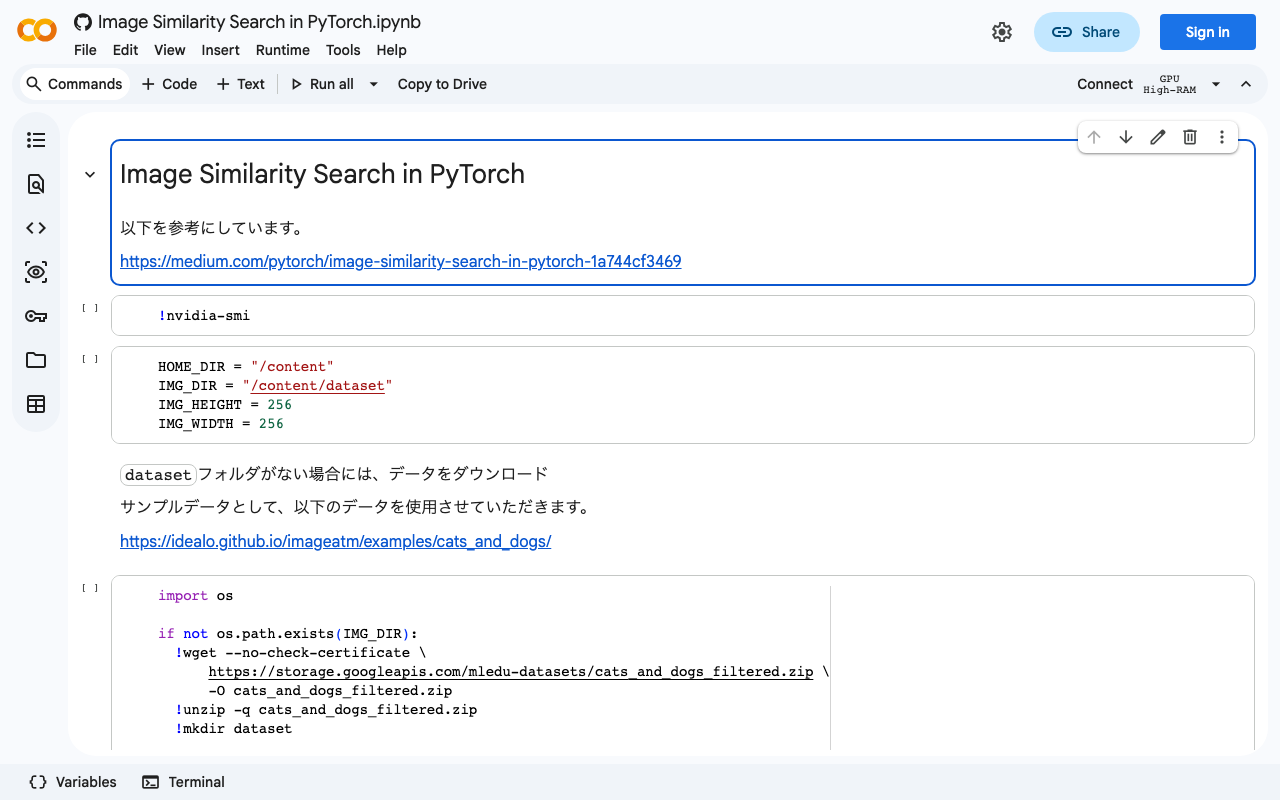
Based on the following article, I created a notebook for similar image search using an autoencoder. https://medium.com/pytorch/image-similarity-search-in-pytorch-1a744cf3469 The notebook is available below. https://colab.research.google.com/github/nakamura196/ndl_ocr/blob/main/Image_Similarity_Search_in_PyTorch.ipynb You can verify its operation by selecting “Runtime” > “Run all.” I hope this is helpful.

[RDF] Configuring URI Access to Redirect to the Snorql Interface

[RDF] Configuring URI Access to Redirect to the Snorql Interface

This is a continuation of the following article. This is a memo on configuring redirects so that accessing URLs like https://xxx.abc/data/123 redirects to https://xxx.abc/?describe=https://xxx.abc/data/123, using Japan Search’s RDF store as a reference. Japan Search example: https://jpsearch.go.jp/entity/chname/葛飾北斎 -> https://jpsearch.go.jp/rdf/sparql/easy/?describe=https://jpsearch.go.jp/entity/chname/葛飾北斎 Create a conf file like the following and place it in the appropriate location (e.g., /etc/httpd/conf.d/). RewriteEngine on RewriteCond %{HTTP_ACCEPT} .*text/html RewriteRule ^/((data|entity)/.*) https://xxx.abc/?describe=https://xxx.abc/$1 [L,R=303] Then restart Apache. systemctl restart httpd This enables redirecting to the Snorql interface. ...

Returning JSON from Hugging Face Spaces

Returning JSON from Hugging Face Spaces

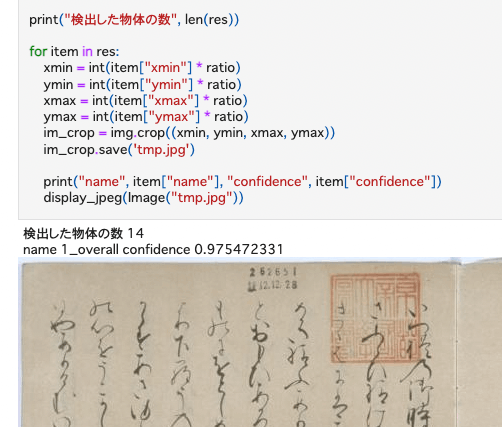
Previously, I built an inference app using Hugging Face Spaces and a YOLOv5 model (trained on the NDL-DocL dataset): This time, I modified the app above to add JSON output, as shown in the following diff: https://huggingface.co/spaces/nakamura196/yolov5-ndl-layout/commit/4d48b95ce080edd28d68fba2b5b33cc17b9b9ecb#d2h-120906 This enables processing using the returned results, as shown in the following notebook: https://github.com/nakamura196/ndl_ocr/blob/main/GradioのAPIを用いた物体検出例.ipynb There may be better approaches, but I hope this serves as a useful reference.

Building a Virtuoso RDF Store Using AWS EC2

Building a Virtuoso RDF Store Using AWS EC2

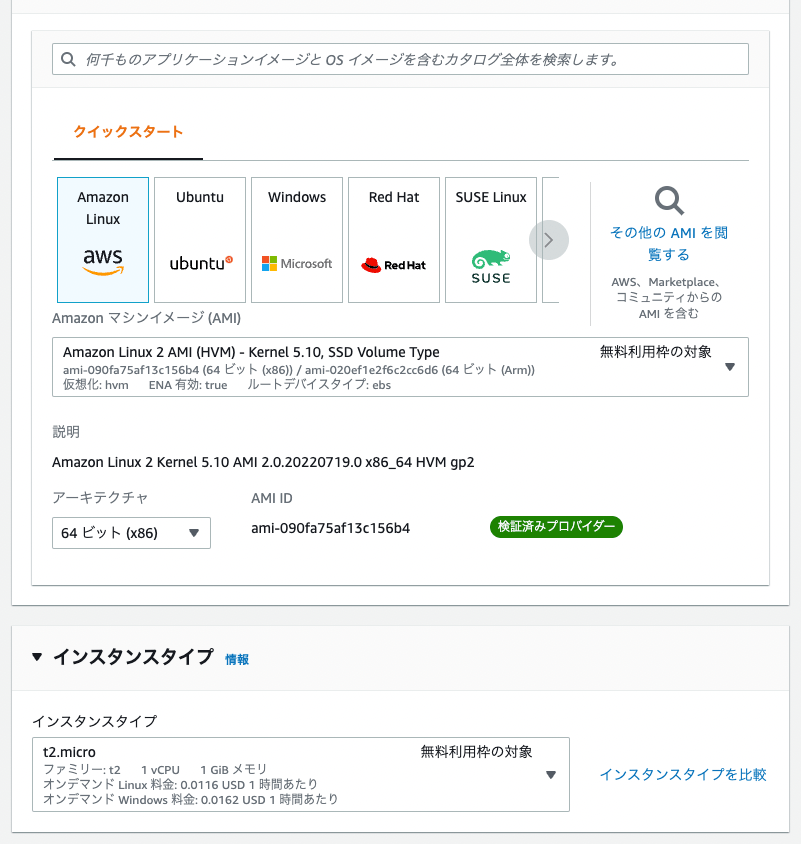
Introduction These are notes on building a Virtuoso RDF store using AWS EC2. This covers custom domain configuration, HTTPS connection, and Snorql installation. There are many other useful articles on building Virtuoso. Please refer to them as well: https://midoriit.com/2014/04/rdfストア環境構築virtuoso編1.html https://qiita.com/mirkohm/items/30991fec120541888acd https://zenn.dev/ningensei848/articles/virtuoso_on_gcp_faster_with_cos Prerequisites An ACM Certificate should already be created. Please refer to articles such as the following: https://dev.classmethod.jp/articles/specification-elb-setting/#toc-3 EC2 First, create an EC2 instance. Select Amazon Linux, and set the instance type to t2.micro. ...

How to Register and Delete RDF Files in Virtuoso RDF Store Using curl and Python

How to Register and Delete RDF Files in Virtuoso RDF Store Using curl and Python

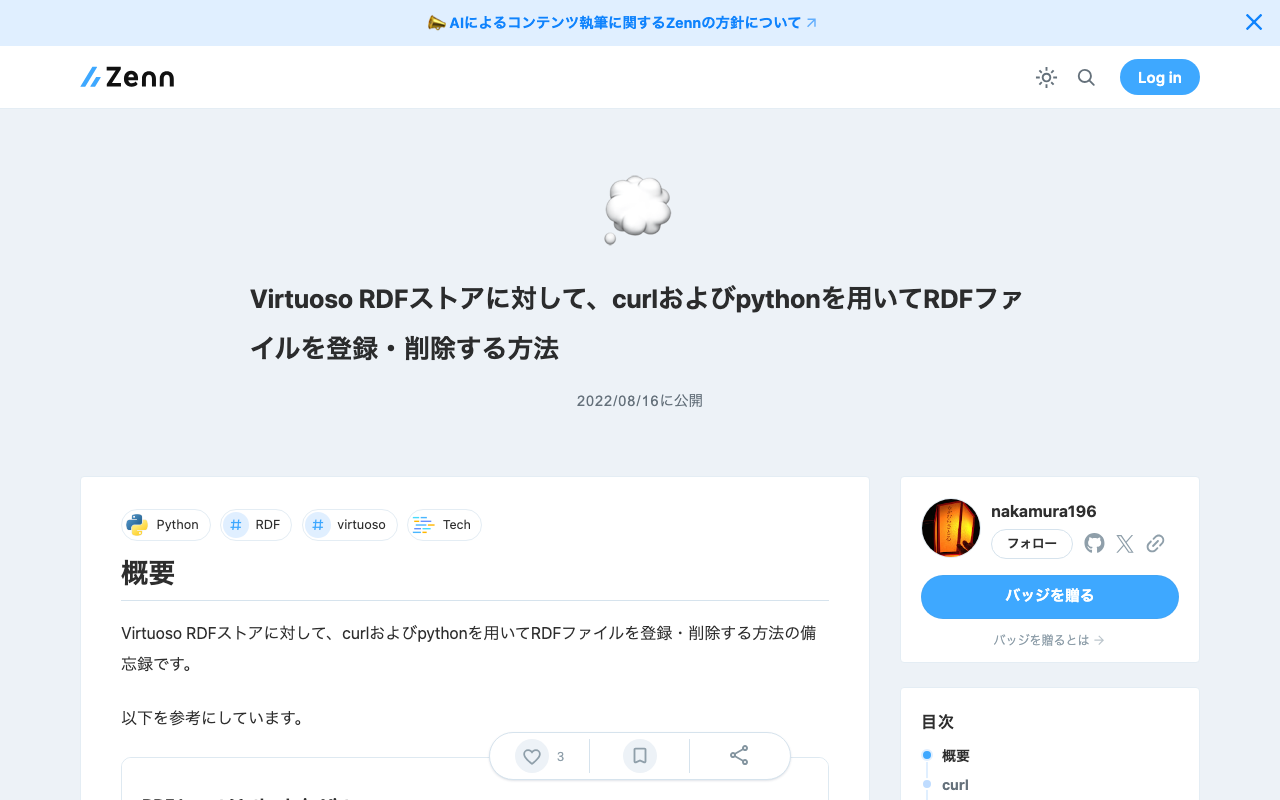
Overview Notes on how to register and delete RDF files in Virtuoso RDF store using curl and Python. The following was used as a reference. https://vos.openlinksw.com/owiki/wiki/VOS/VirtRDFInsert#HTTP PUT curl As described on the above page. First, create myfoaf.rdf as sample data for registration. <rdf:RDF xmlns:foaf="http://xmlns.com/foaf/0.1/"> <foaf:Person rdf:about="http://www.example.com/people/中村覚"> <foaf:name>中村覚</foaf:name> </foaf:Person> </rdf:RDF> Next, execute the following command. curl -T ${filename1} ${endpoint}/DAV/home/${user}/rdf_sink/${filename2} -u ${user}:${passwd} A specific example is as follows. curl -T myfoaf.rdf http://localhost:8890/DAV/home/dba/rdf_sink/myfoaf.rdf -u dba:dba Python Here is an execution example. The following uses rdflib to create the RDF file from scratch. Also, by setting the action to delete, you can perform deletion. ...

Building an Inference App Using Hugging Face Spaces and a YOLOv5 Model (Trained on the NDL-DocL Dataset)

Building an Inference App Using Hugging Face Spaces and a YOLOv5 Model (Trained on the NDL-DocL Dataset)

Overview I created an inference app using Hugging Face Spaces and the YOLOv5 model (trained on the NDL-DocL dataset) introduced in the following article. You can try it at the following URL. https://huggingface.co/spaces/nakamura196/yolov5-ndl-layout You can also download the source code and trained model from the following URL. We hope this serves as a reference when developing similar applications. https://huggingface.co/spaces/nakamura196/yolov5-ndl-layout The application development referenced the following Space. https://huggingface.co/spaces/pytorch/YOLOv5 Usage You can upload an image or select one from the Examples. The recognition results can be viewed as shown below. ...

Dumping Elasticsearch Data to Local

Dumping Elasticsearch Data to Local

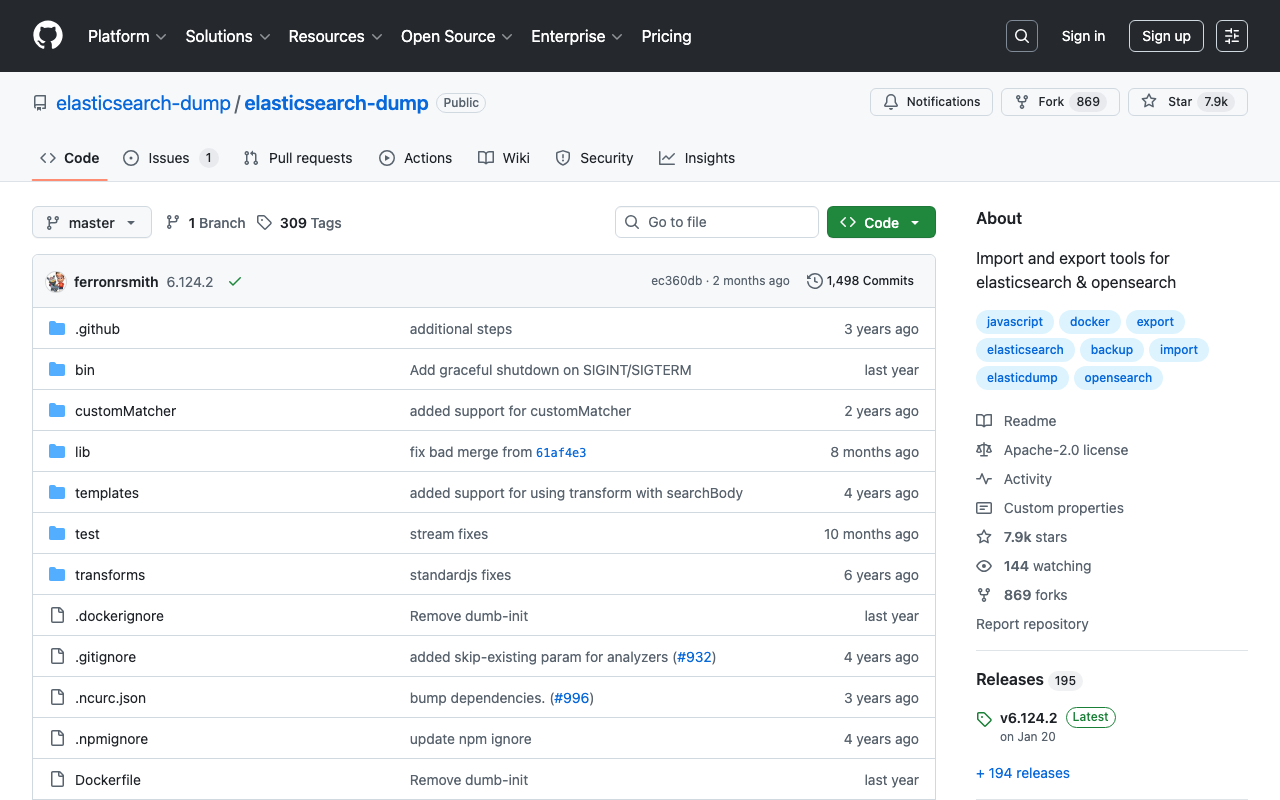
To dump data from Elasticsearch to local, I used elasticsearch-dump. Here are my notes. https://github.com/elasticsearch-dump/elasticsearch-dump By using the v option as shown below, files created in the container persist on the host side. The limit option and others are optional. docker run -v [absolute path of host directory]:[absolute path in container] --rm -ti elasticdump/elasticsearch-dump --input [source Elasticsearch index endpoint] --output=[absolute path in container]/[output file name].json --limit 10000 Specifically, it looks like the following. ...

Building a Layout Extraction Model Using the NDL-DocL Dataset and YOLOv5

Building a Layout Extraction Model Using the NDL-DocL Dataset and YOLOv5

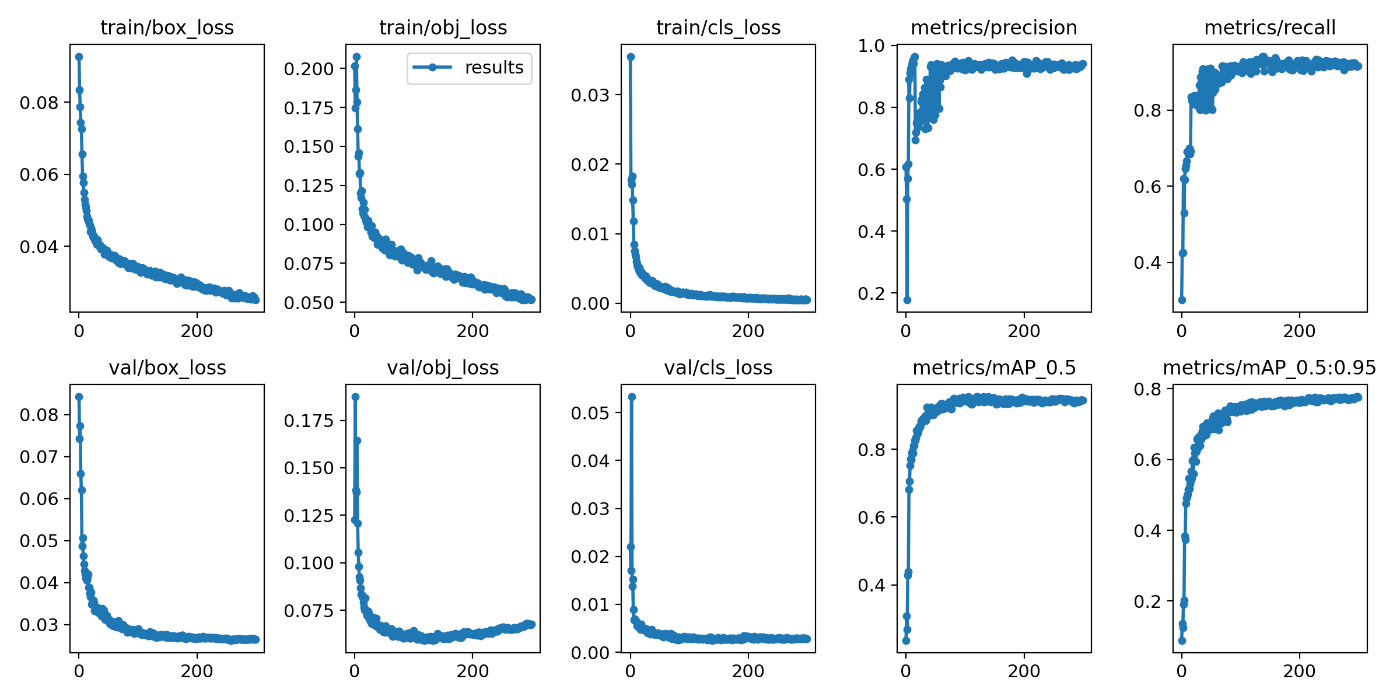
Overview I built a layout extraction model using the NDL-DocL dataset and YOLOv5. https://github.com/ndl-lab/layout-dataset https://github.com/ultralytics/yolov5 You can try this model using the following notebook. https://colab.research.google.com/github/nakamura196/ndl_ocr/blob/main/NDL_DocLデータセットとYOLOv5を用いたレイアウト抽出モデル.ipynb This article is a record of the training process above. Creating the Dataset The NDL-DocL dataset in Pascal VOC format is converted to YOLO format. For this method, refer to the following article. In addition to the conversion from Pascal VOC format to COCO format, conversion from COCO format to YOLO format was added. ...

Getting a Google Drive Folder ID from a Path Using Google Colab

Getting a Google Drive Folder ID from a Path Using Google Colab

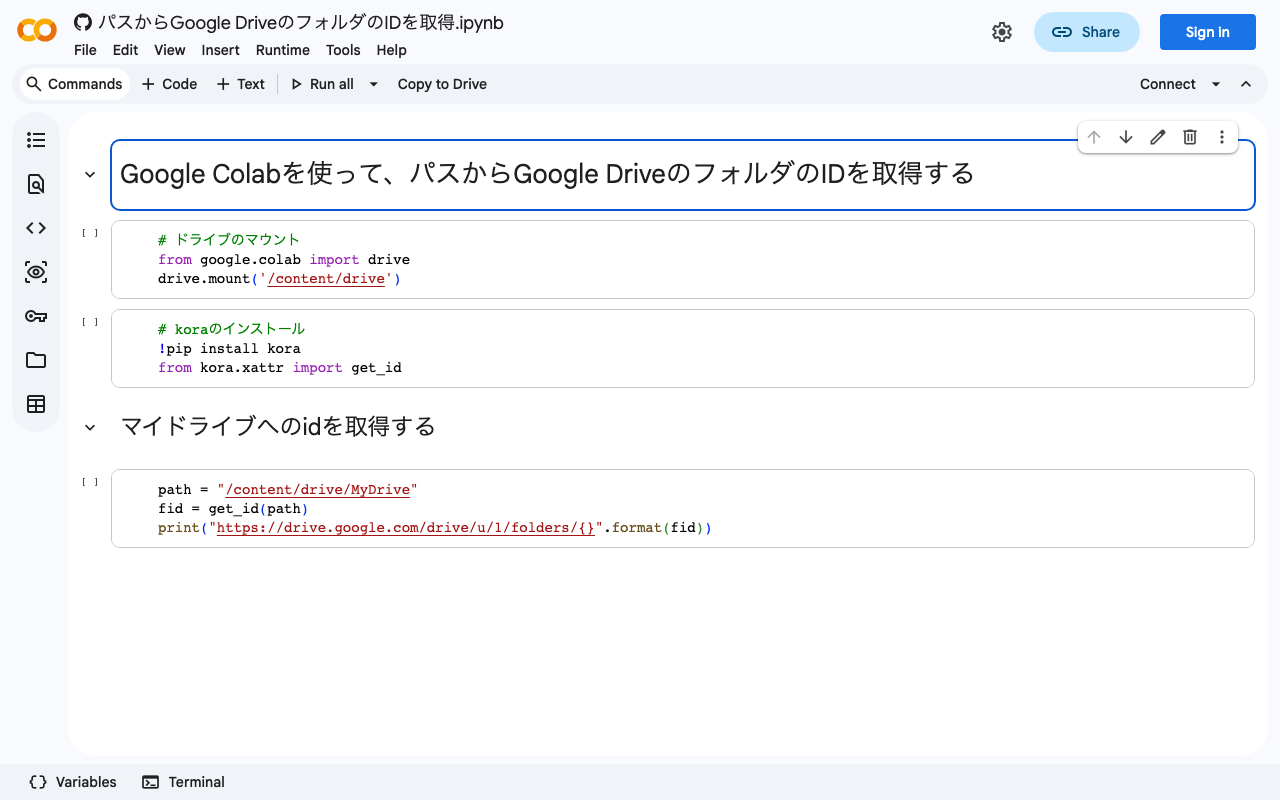
This is based on the following page. https://stackoverflow.com/questions/67324695/is-there-a-way-to-get-the-id-of-a-google-drive-folder-from-the-path-using-colab By writing the following code, you can get a Google Drive folder ID from a path. # ドライブのマウント from google.colab import drive drive.mount('/content/drive') # koraのインストール !pip install kora from kora.xattr import get_id # 例)マイドライブへのidを取得する path = "/content/drive/MyDrive" fid = get_id(path) print("https://drive.google.com/drive/u/1/folders/{}".format(fid)) You can also try it from the following notebook. I hope you find this helpful. https://colab.research.google.com/github/nakamura196/ndl_ocr/blob/main/パスからGoogle_DriveのフォルダのIDを取得.ipynb

Conversion and Visualization of the NDL-DocL Dataset (Document Image Layout Dataset)

Conversion and Visualization of the NDL-DocL Dataset (Document Image Layout Dataset)

I created a notebook that converts Pascal VOC format XML files to COCO format JSON files and visualizes the contents of the NDL-DocL Dataset (Document Image Layout Dataset) published by NDL Lab. https://github.com/nakamura196/ndl_ocr/blob/main/NDL_DocLデータセット(資料画像レイアウトデータセット)の変換と可視化.ipynb By opening the above notebook and pressing “Runtime” > “Run all cells,” you can perform the conversion and visualization. By using the “/content/img” folder and “/content/dataset_kotenseki.json” file created after execution, you can use the data in machine learning programs that require COCO format data. ...

Hosting Hugging Face Models on AWS Lambda for Serverless Inference

Hosting Hugging Face Models on AWS Lambda for Serverless Inference

Overview This is a personal note on hosting Hugging Face models on AWS Lambda for serverless inference, based on the following article. https://aws.amazon.com/jp/blogs/compute/hosting-hugging-face-models-on-aws-lambda/ Additionally, I cover providing an API using Lambda function URLs and CloudFront. Hosting Hugging Face Models on AWS Lambda Preparation For this section, I referred to the document introduced at the beginning. https://aws.amazon.com/jp/blogs/compute/hosting-hugging-face-models-on-aws-lambda/ First, run the following commands. I created a virtual environment called venv, but this is not strictly required. ...