Home Articles Books Search About
RSS 日本語
TODO Memo for EC2 Server Setup

TODO Memo for EC2 Server Setup

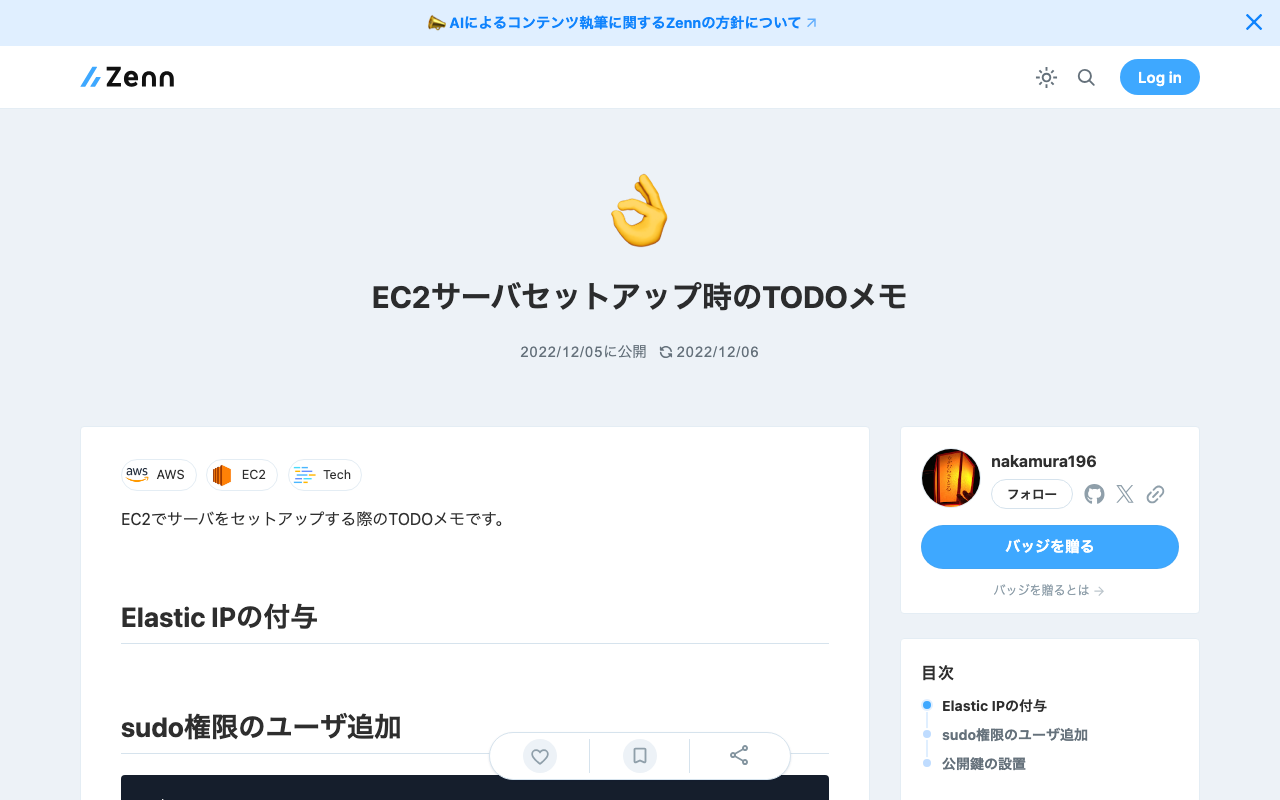
This is a TODO memo for setting up a server on EC2. Assign an Elastic IP Add a User with sudo Privileges sudo su useradd nakamura passwd nakamura usermod -G wheel nakamura Set Up Public Key cd /home/nakamura mkdir .ssh touch .ssh/authorized_keys chmod 700 .ssh chmod 600 .ssh/authorized_keys vi .ssh/authorized_keys chown -R nakamura:nakamura .ssh

Investigating Customization Methods for Snorql for Japan Search

Investigating Customization Methods for Snorql for Japan Search

Overview This article presents the results of investigating how to customize “Snorql for Japan Search,” which is used by Japan Search. This document will be updated as needed. Please note that it may contain errors. Menu Changing the Page Title snorql_def.js _poweredByLabel: "Cultural Japan", // "Japan Search", Changing the Query Endpoint snorql_def.js _endpoint: "https://ld.cultural.jp/sparql/", //"https://jpsearch.go.jp/rdf/sparql/", Changing the poweredByLink URL snorql_def.js _poweredByLink: "https://cultural.jp/", // "https://jpsearch.go.jp/", Editing Other Footer Sections ...

Using the Japan Search SPARQL Endpoint with Yasgui

Using the Japan Search SPARQL Endpoint with Yasgui

Overview Yasgui (Yet Another Sparql GUI) provides various advanced features for creating, sharing, and visualizing SPARQL queries and their results. https://github.com/TriplyDB/Yasgui This time, I attempt various visualizations using the Japan Search SPARQL endpoint with Yasgui. Results Table Display I visualize the number of items per dataset. First, here is a standard table display. Result Filtering and sorting of results is also possible. Chart Using the “Chart” tab, I attempt a chart display of the same results. ...

[Omeka S Module Introduction] Mapping Module

[Omeka S Module Introduction] Mapping Module

Overview This is an introduction to the “Mapping” module for integrating maps with Omeka S. https://omeka.org/s/modules/Mapping/ Installation This module can be installed using the standard method for Omeka S. Adding Location Information On the item editing screen, add location information from the “Mapping” tab. Map-based search and display are available on the public site.

[Omeka S Module Introduction] Timeline Module

[Omeka S Module Introduction] Timeline Module

Overview This is an introduction to the “Timeline” module for creating timelines in Omeka S. https://omeka.org/s/modules/Timeline/ Installation You can install this module using the standard method for Omeka S. Below is an example of the installation method. cd omeka-s/modules wget https://github.com/Daniel-KM/Omeka-s-module-Timeline/releases/download/3.4.16.3/Timeline-3.4.16.3.zip unzip Timeline-3.4.16.3.zip Usage To use this module, you need to create a page on your site. In the following example, a page named “Timeline” has been created. Then, select Timeline from “Add new block” on the right side of the screen. By default, mapping to the timeline is performed targeting values stored in dcterms:date. ...

[Omeka S Module Introduction] IIIF Search Module

[Omeka S Module Introduction] IIIF Search Module

Overview IIIF Search is a module for Omeka S that adds the IIIF Content Search API for full-text search. This article introduces the usage of the following module, which includes modifications for handling Japanese text. https://github.com/nakamura196/Omeka-S-module-IiifSearch Installation Clone the source code from GitHub. Replace omeka-s as appropriate for your environment. cd omeka-s/modules git clone https://github.com/nakamura196/Omeka-S-module-IiifSearch.git IiifSearch Note that when installing from GitHub, you need to rename the folder to the target module name as shown above. ...

[Omeka S Module Modification] IIIF Search Module

[Omeka S Module Modification] IIIF Search Module

Overview IIIF Search is a module for Omeka S that adds a IIIF Search API for full-text search. https://github.com/symac/Omeka-S-module-IiifSearch This time, I modified the above module. A pull request has been submitted, but the modified module is available in the following repository. https://github.com/nakamura196/Omeka-S-module-IiifSearch Specifically, the minimum query string length was set to 1 character, but I made it configurable through a settings form. The default was set to 3 characters, which prevented searching with a single kanji character, so this modification was made. ...

Running Tesseract on Google Colab (with Japanese Support)

Running Tesseract on Google Colab (with Japanese Support)

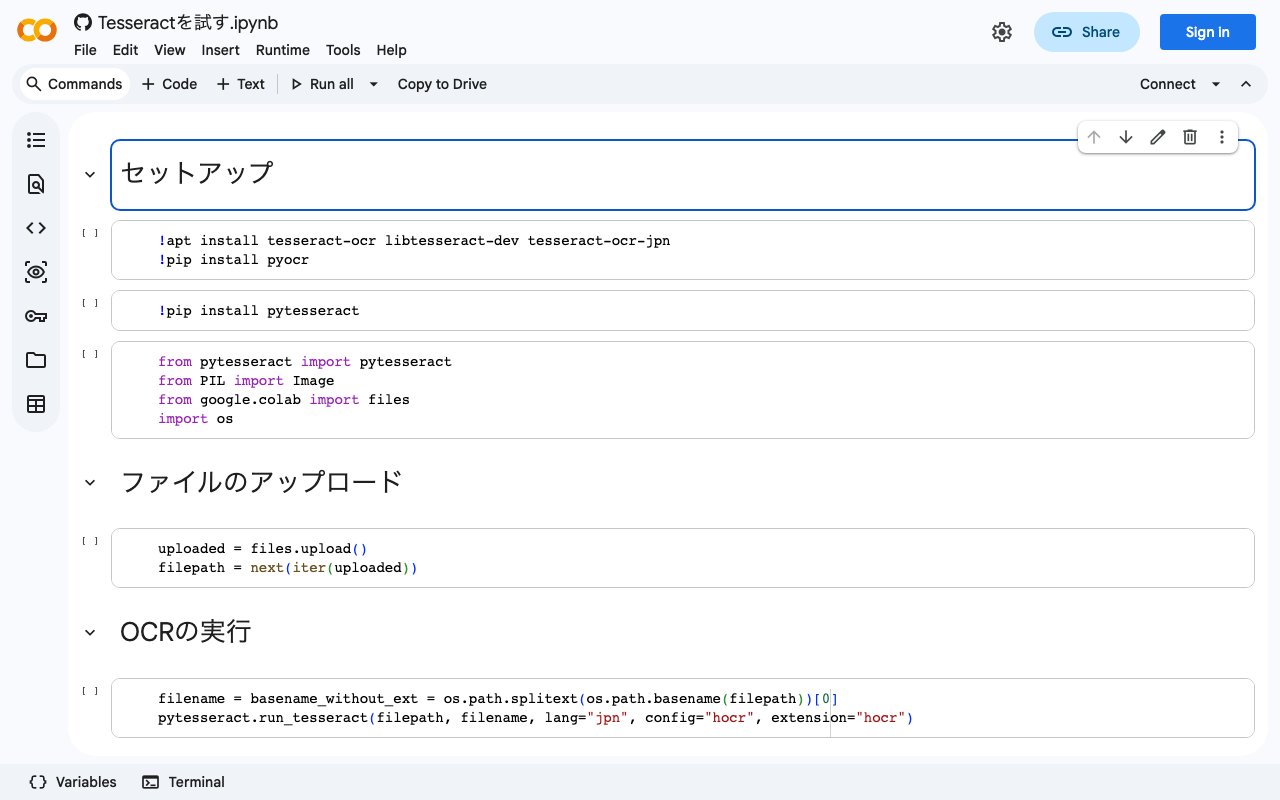
I created a notebook for running Tesseract on Google Colab. It also supports Japanese. We hope this serves as a useful reference. https://colab.research.google.com/github/nakamura196/ndl_ocr/blob/main/Tesseractを試す.ipynb At the end, I also introduce a flow for converting hocr files to alto format XML files. Specifically, the following tool is used: https://digi.bib.uni-mannheim.de/ocr-fileformat/ We hope this serves as a useful reference.

[Omeka S Module Introduction] "Extract Ocr" - A Module for Performing OCR on PDF Files

[Omeka S Module Introduction] "Extract Ocr" - A Module for Performing OCR on PDF Files

Overview This article introduces “Extract Ocr,” an Omeka S module that performs OCR on PDF files. Installation Refer to the following page. https://omeka.org/s/modules/ExtractOcr/ This module requires a command-line tool called pdftohtml. In the instructions below, replace omeka-s as appropriate for your environment. In an environment using AWS Lightsail, it could be installed with the following command: sudo apt install poppler-utils Additionally, you need to edit omeka-s/config/local.config.php. Change the base_uri portion according to your environment. Example: https://omekas.aws.ldas.jp/sandbox/files ...

Workaround for HuggingFace Trainer() Not Starting When Using Vertex AI Workbench

Workaround for HuggingFace Trainer() Not Starting When Using Vertex AI Workbench

I encountered an issue where HuggingFace’s Trainer() would not start when using Google Cloud’s Vertex AI Workbench. A similar bug was reported on the following page: https://stackoverflow.com/questions/73415068/huggingface-trainer-does-nothing-only-on-vertex-ai-workbench-works-on-colab Initially, I had selected the “PyTorch” environment as shown below, and this is where the bug occurred: As described in the article above, switching to the “Python” environment resolved the issue: Note that when using this environment, you first need to run the following: ...

Installing the Mroonga Search Module (Note: This Did Not Work Successfully)

Installing the Mroonga Search Module (Note: This Did Not Work Successfully)

Overview I attempted to install the Mroonga search module introduced in the following article on AWS Lightsail. https://nakamura196.hatenablog.com/entry/2022/03/07/083004 As a result, the installation did not succeed, but I am documenting it here for future reference. Setting Up Omeka S I set up Omeka S as described in the following article. Installing Mroonga I performed the installation following the instructions on the following page. https://mroonga.org/docs/install/debian.html sudo apt update sudo apt install -y -V apt-transport-https sudo apt install -y -V wget wget https://packages.groonga.org/debian/groonga-apt-source-latest-bullseye.deb sudo apt install -y -V ./groonga-apt-source-latest-bullseye.deb sudo apt update sudo apt install -y -V mariadb-server-10.5-mroonga After executing the above, enter mysql (mariadb). ...

Trying the ResourceSync Python Library

Trying the ResourceSync Python Library

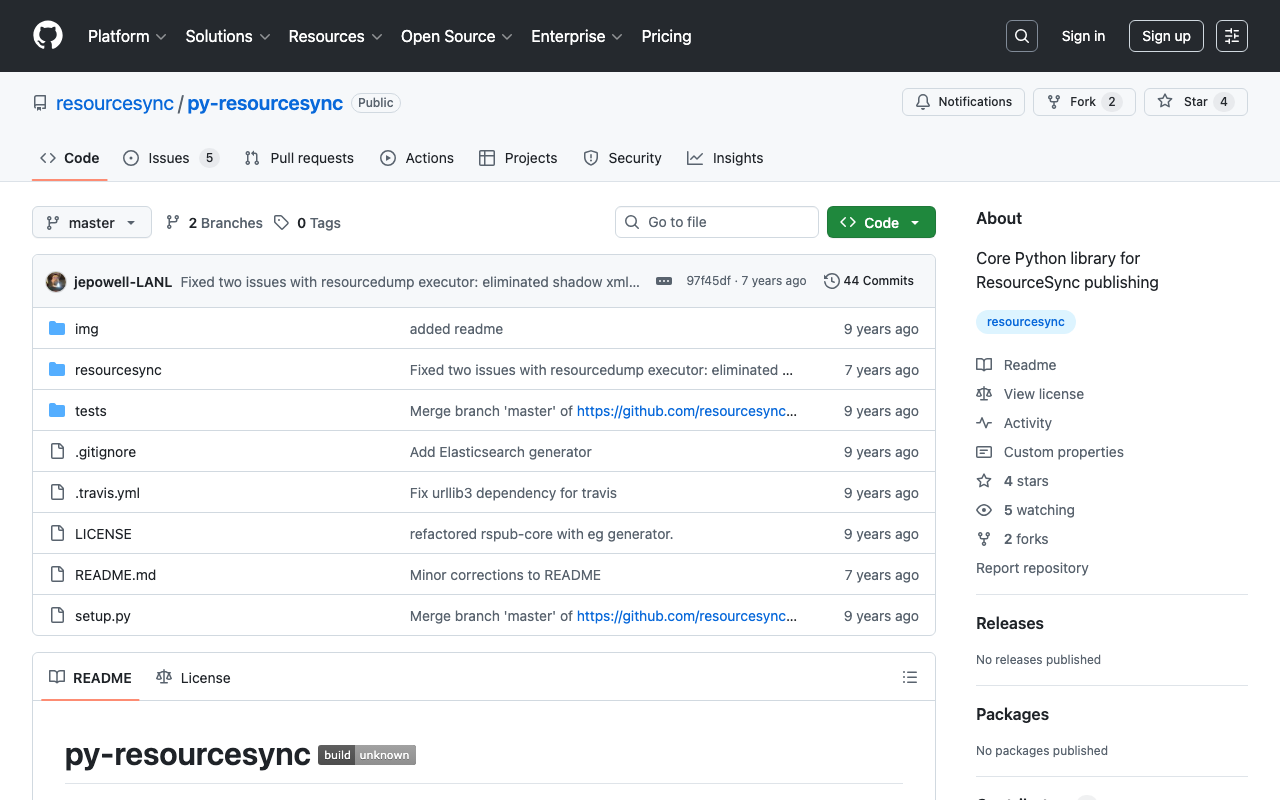
Overview This is a memo from trying out “py-resourcesync,” a Python library for ResourceSync. https://github.com/resourcesync/py-resourcesync Setup git clone https://github.com/resourcesync/py-resourcesync cd py-resourcesync python setup install Execution resourcelist First, create the output resource_dir directory. An ex_resource_dir folder will be created in the current directory. resource_dir = "ex_resource_dir" !mkdir -p $resource_dir Next, execute the following. You would modify the generator as needed, but here the sample EgGenerator is used. from resourcesync.resourcesync import ResourceSync # from my_generator import MyGenerator from resourcesync.generators.eg_generator import EgGenerator my_generator = EgGenerator() metadata_dir = "ex_metadata_dir" # Change as appropriate. rs = ResourceSync(strategy=0, resource_dir=resource_dir, metadata_dir=metadata_dir) rs.generator = my_generator rs.execute() As a result, .well_known, capabilitylist.xml, and resourcelist_0000.xml are created in ex_resource_dir/ex_metadata_dir. ...

[Omeka S Module Development] Adding Features to Sitemaps

[Omeka S Module Development] Adding Features to Sitemaps

In the following article, I introduced the “Sitemaps” module, which adds dynamic sitemap XML files for each site in Omeka S. I made a simple feature addition to the above module. Specifically, I added options to choose whether to include pages and itemsets in the sitemap XML. The forked repository is below. https://github.com/nakamura196/omeka-s-module-Sitemaps The changes can be reviewed at the following URL. https://github.com/nakamura196/omeka-s-module-Sitemaps/commit/03325f79e4e5b83c4ff7867fd37ed210fdf8eab2 I hope this serves as a useful reference for module modifications. ...

[Omeka S Module Introduction] Sitemaps

[Omeka S Module Introduction] Sitemaps

Overview This module adds dynamic sitemap XML files for each site in Omeka S. https://omeka.org/s/modules/Sitemaps/ Installation It can be installed using the standard Omeka S method. Configuration First, select the site where you want to add a sitemap. Then navigate to Site Admin > Settings as shown below. At the bottom of the settings screen, there is an option to enable dynamic sitemap generation as shown below. When enabled, a sitemap is generated as shown below. ...

Trying the IIIF Auth API

Trying the IIIF Auth API

Overview The following repository is provided as an environment for trying the IIIF Auth API. https://github.com/digirati-co-uk/iiif-auth-server In this article, we will use the above repository to try the IIIF Auth API. Starting Up Preparation git clone https://github.com/digirati-co-uk/iiif-auth-server cd iiif-auth-server python -m venv venv source venv/bin/activate pip install --upgrade pip pip install -r requirements.txt If version conflicts occur during pip install -r requirements.txt, try removing the version information and running again, as shown below: ...

Omeka S Module Introduction: Data Type RDF

Omeka S Module Introduction: Data Type RDF

Overview Data Type RDF is a module that adds data types (html, xml, boolean) to Omeka S. Its usage is similar to Numeric Data Types: https://nakamura196.hatenablog.com/entry/2021/08/01/070701 Below is an introduction to how to use it. Usage Installation Install it the same way as other Omeka modules. Editing Resource Templates Create a resource template. Next, select the Data Type RDF values for the data type of a specific property. Here, we add all three types provided by this module. ...

Introduction to "FairCopy": A TEI Text Creation Support Tool

Introduction to "FairCopy": A TEI Text Creation Support Tool

Overview A research colleague introduced me to “FairCopy,” a TEI text creation support tool. This tool allows you to create TEI texts through a GUI, and I found it very useful. It is a paid tool, but you can try it for free for 2 weeks, so I am sharing my findings here. Installation By submitting your information through the Sign Up page below, a trial code and the application download link will be displayed. ...

Registering ICA RiC-O Vocabulary in Omeka S

Registering ICA RiC-O Vocabulary in Omeka S

Overview I registered the ICA RiC-O vocabulary in Omeka S, so this is a memo of the process. https://www.ica.org/standards/RiC/RiC-O_v0-2.html Method On the Omeka S vocabulary registration screen, enter the information as follows. As a result, 106 classes and 485 properties were registered. Below is an example of the property list screen, where you can also check the comments for each property. Summary I hope this serves as a useful reference for utilizing ICA RiC-O and Omeka S. ...

How to Use the Text Markup Tool "CATMA"

How to Use the Text Markup Tool "CATMA"

Overview This article introduces how to use “CATMA,” one of the text markup tools. https://catma.de/ Annotation results can be exported in TEI format, making it possible to create highly interoperable data that can be utilized in other systems. Additionally, though still experimental, a JSON API is also provided. By using this, one could annotate with CATMA and then use the results in other systems via the API. The above includes some untested content and somewhat advanced approaches, but this article will serve as notes on the basic usage of CATMA. ...

Trying the MediaWiki TEI Extension (Result: Did Not Work)

Trying the MediaWiki TEI Extension (Result: Did Not Work)

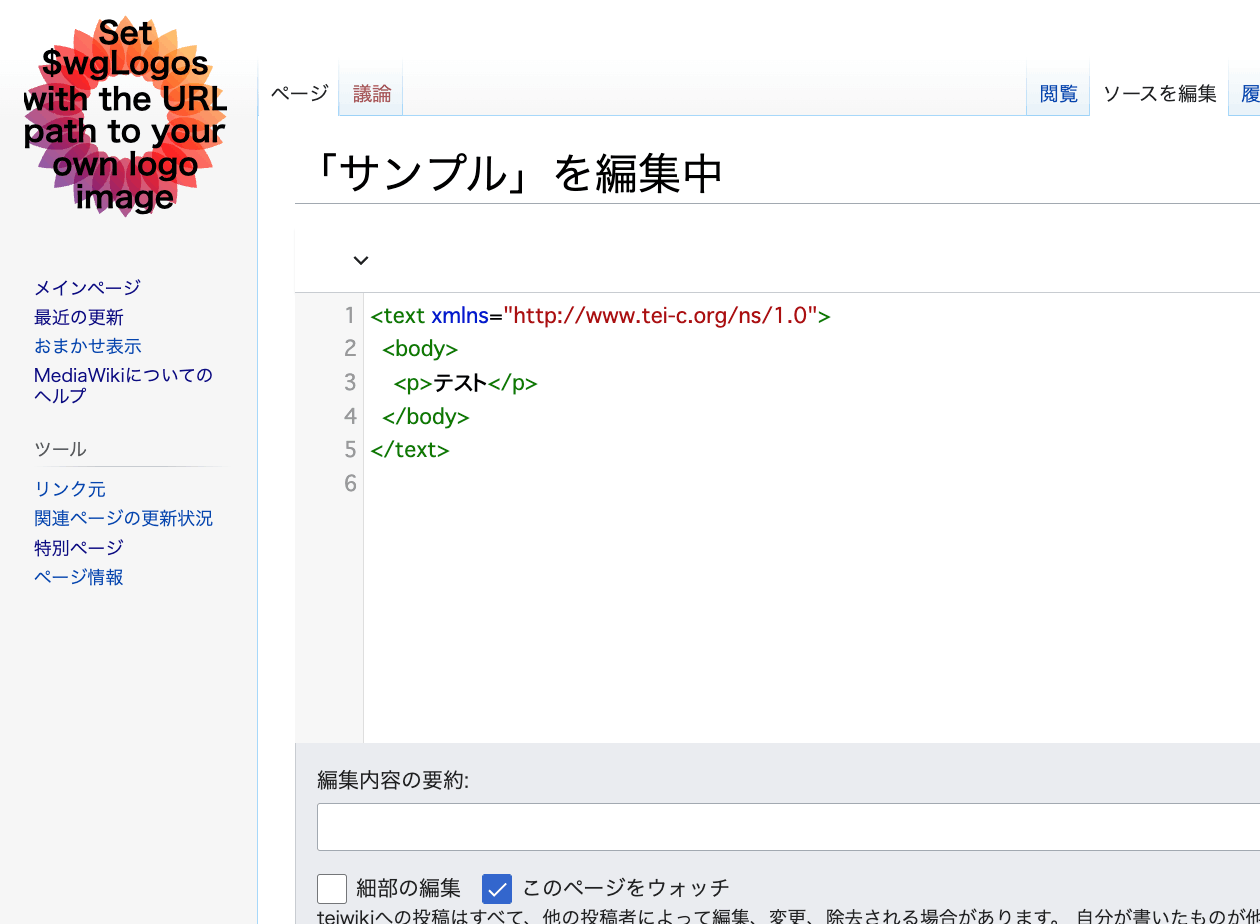
Overview An extension has been developed that enables TEI editing in MediaWiki. https://www.mediawiki.org/wiki/Extension:TEI An example of the editing screen is shown below. Scripto, a transcription support module for Omeka S, enables transcription of image data registered in Omeka S by linking Omeka S with MediaWiki. https://omeka.org/s/modules/Scripto/ I tried combining this environment with the TEI extension mentioned above to see if TEI-compliant transcription could be achieved. However, as a result, I was unable to get the TEI extension to work properly this time. ...