Home Articles Books Search About
RSS 日本語
Creating an Inline Marker Tool with Editor.js

Creating an Inline Marker Tool with Editor.js

Overview These are notes on how to create an inline marker tool with Editor.js. References The following pages were helpful: https://editorjs.io/creating-an-inline-tool/ https://note.com/eveningmoon_lab/n/n638b9541c47c For writing in TypeScript, the following was helpful: https://github.com/codex-team/editor.js/issues/900 Implementation Implemented with Nuxt. Create the following marker.ts: import type { API } from "@editorjs/editorjs"; class MarkerTool { button: null | HTMLButtonElement; state: boolean; api: API; tag: string; class: string; // 静的メソッドで許可されるHTMLタグと属性を指定 static get sanitize() { return { mark: { class: "cdx-marker", }, }; } // インラインツールとしての振る舞いを定義 static get isInline() { return true; } constructor({ api }: { api: API }) { this.api = api; this.button = null; this.state = false; this.tag = "MARK"; this.class = "cdx-marker"; } // ボタン要素を作成し、SVGアイコンを設定 render() { this.button = document.createElement("button"); this.button.type = "button"; this.button.innerHTML = '<svg width="20" height="18"><path d="M10.458 12.04l2.919 1.686-.781 1.417-.984-.03-.974 1.687H8.674l1.49-2.583-.508-.775.802-1.401zm.546-.952l3.624-6.327a1.597 1.597 0 0 1 2.182-.59 1.632 1.632 0 0 1 .615 2.201l-3.519 6.391-2.902-1.675zm-7.73 3.467h3.465a1.123 1.123 0 1 1 0 2.247H3.273a1.123 1.123 0 1 1 0-2.247z"/></svg>'; this.button.classList.add(this.api.styles.inlineToolButton); return this.button; } // 選択されたテキストを <mark> タグで囲む surround(range: Range) { if (this.state) { this.unwrap(range); return; } this.wrap(range); } // テキストを <mark> タグでラップ wrap(range: Range) { const selectedText = range.extractContents(); const mark = document.createElement(this.tag); mark.className = this.class; // class 属性の追加 mark.appendChild(selectedText); range.insertNode(mark); this.api.selection.expandToTag(mark); } // <mark> タグを解除 unwrap(range: Range) { const mark = this.api.selection.findParentTag(this.tag); const text = range.extractContents(); mark?.remove(); range.insertNode(text); } // ツールの状態をチェック checkState() { const mark = this.api.selection.findParentTag(this.tag, this.class); this.state = !!mark; if (this.state) { this.button?.classList.add("cdx-marker--active"); } else { this.button?.classList.remove("cdx-marker--active"); } } } export default MarkerTool; Call it as follows: ...

Changing the max-width of Editor.js

Changing the max-width of Editor.js

Overview When using Editor.js, large margins appear on the left and right sides by default. This article introduces how to solve this issue. Method The following was helpful. https://github.com/codex-team/editor.js/issues/1328 Specifically, add the following CSS. .ce-block__content, .ce-toolbar__content { max-width: calc(100% - 80px) !important; } .cdx-block { max-width: 100% !important; } The full source code is as follows. <script setup lang="ts"> import EditorJS from "@editorjs/editorjs"; import type { OutputData } from "@editorjs/editorjs"; const blocks = ref<OutputData>({ time: new Date().getTime(), blocks: [ { type: "paragraph", data: { text: "大明副使蒋 承奉すらく 、 欽差督察総制提督浙江等処軍務各衙門 、近年以来、日本各島小民、仮るに買売を以て名と為し 、 しばしば中国辺境を犯し、居民を刼掠するを因となし、旨を奉じて 、 浙江等処承宣布政使司 に議行し、本職に転行して 、 親しく貴国に詣り面議せしめん等の因あり。", }, }, ], }); const editor = () => { new EditorJS({ holder: "editorjs", data: blocks.value, onChange: async (api) => { blocks.value = await api.saver.save(); }, }); }; editor(); </script> <template> <div style="background-color: aliceblue"> <div id="editorjs"></div> <hljson :content="blocks" /> </div> </template> <style> .ce-block__content, .ce-toolbar__content { max-width: calc(100% - 80px) !important; } .cdx-block { max-width: 100% !important; } pre { background-color: #f4f4f4; border: 1px solid #ccc; padding: 10px; } </style> As a result, the left and right margins were reduced as shown below. ...

Checking Which Users Belong to a Specific Group on a Linux System

Checking Which Users Belong to a Specific Group on a Linux System

Overview ! This is an answer from ChatGPT 4. There are several ways to check which users belong to a specific group on a Linux system. Here, we explain how to list users belonging to specific groups (in this case, “group1” and “group2”) using the command line. Method 1: Check the /etc/group File On Linux, the /etc/group file stores information about all groups on the system and the users belonging to them. By checking this file, you can identify users in a specific group. ...

Released ver 4.0.2 of the Omeka S Theme Using Bootstrap 5

Released ver 4.0.2 of the Omeka S Theme Using Bootstrap 5

Overview I updated the Omeka S theme using Bootstrap 5. Here I introduce the features added in this update. https://github.com/ldasjp8/Omeka-S-theme-Bootstrap5/releases/tag/4.0.2 New Features Advanced Search Button Link Configuration I added an “Advanced Search URL” option to the theme settings screen. In the example above, a setting is configured to navigate to the “page/advanced” page. Specifically, when clicking the “Advanced Search” button shown below, it navigates to the URL configured here. (If not configured, it navigates to Omeka’s standard advanced search page.) ...

Partial Match Search with the Advanced Search Module in Omeka S

Partial Match Search with the Advanced Search Module in Omeka S

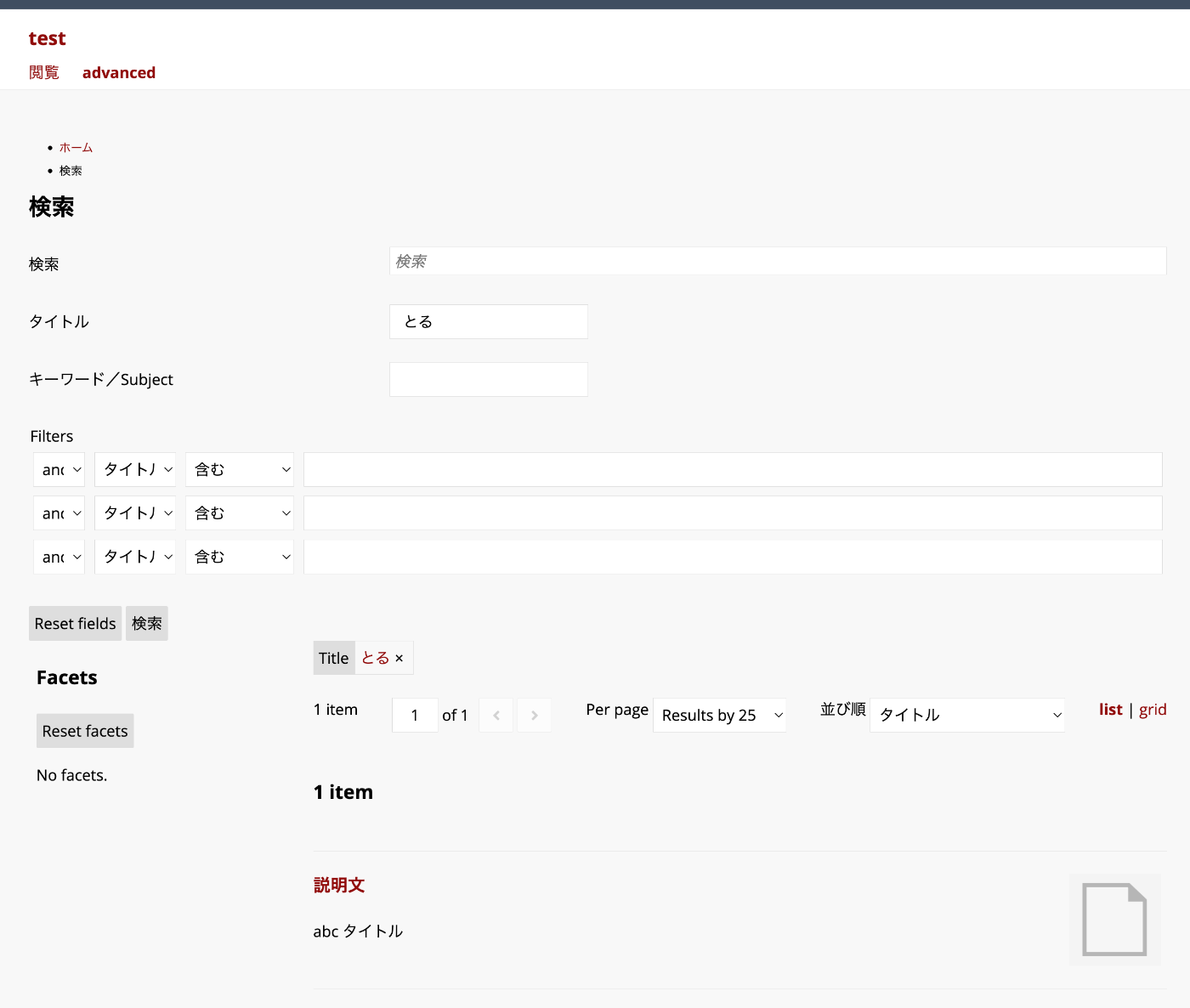
Overview This article explains how to perform partial match searches using filters added through the Advanced Search module. In the example above, the query string “toru” matches items with the title “abc title”. Background The Advanced Search module allows you to flexibly configure search conditions and facets. https://omeka.org/s/modules/AdvancedSearch/ In particular, when combined with the “Reference” module, faceted search like the following can be achieved. You can also add filters. However, when performing partial match searches with filters, additional configuration is required. ...

Specifying Items to Display in Omeka S Search Results

Specifying Items to Display in Omeka S Search Results

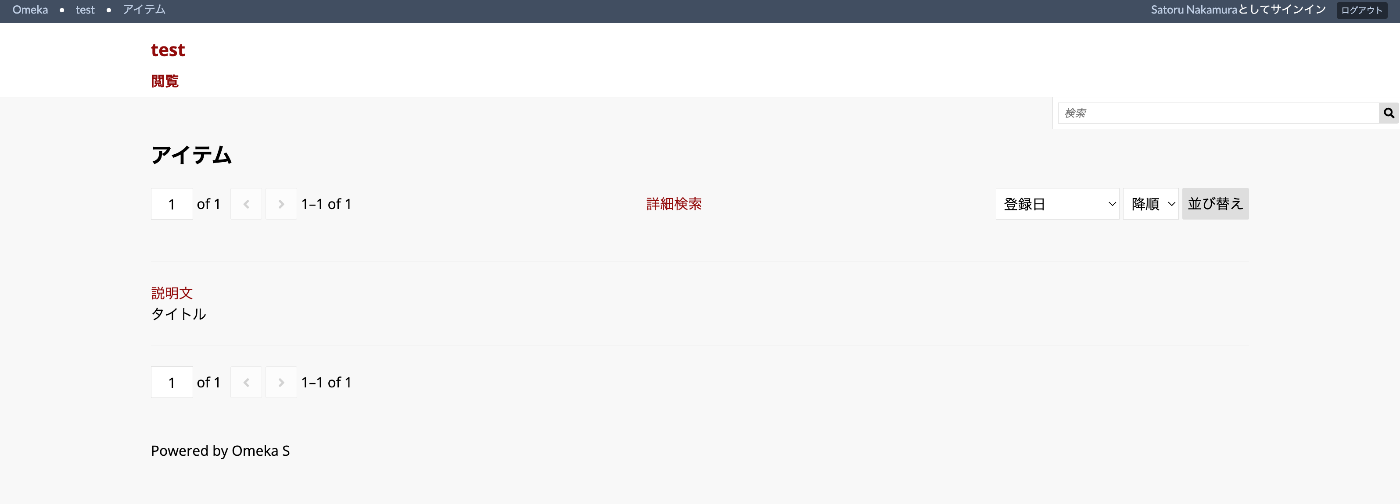
Overview This article explains how to specify which items to display in search results, as shown below. Configuration In the default settings, the “Heading” displays the title (dcterms:title) and the “Body” displays the description (dcterms:description), as shown below. You can configure which items to display for “Heading” and “Body” respectively by changing the following section in the per-site settings screen. For Advanced Search Even when using the Advanced Search module, these settings are inherited. ...

Creating a Custom Search Page in Omeka S

Creating a Custom Search Page in Omeka S

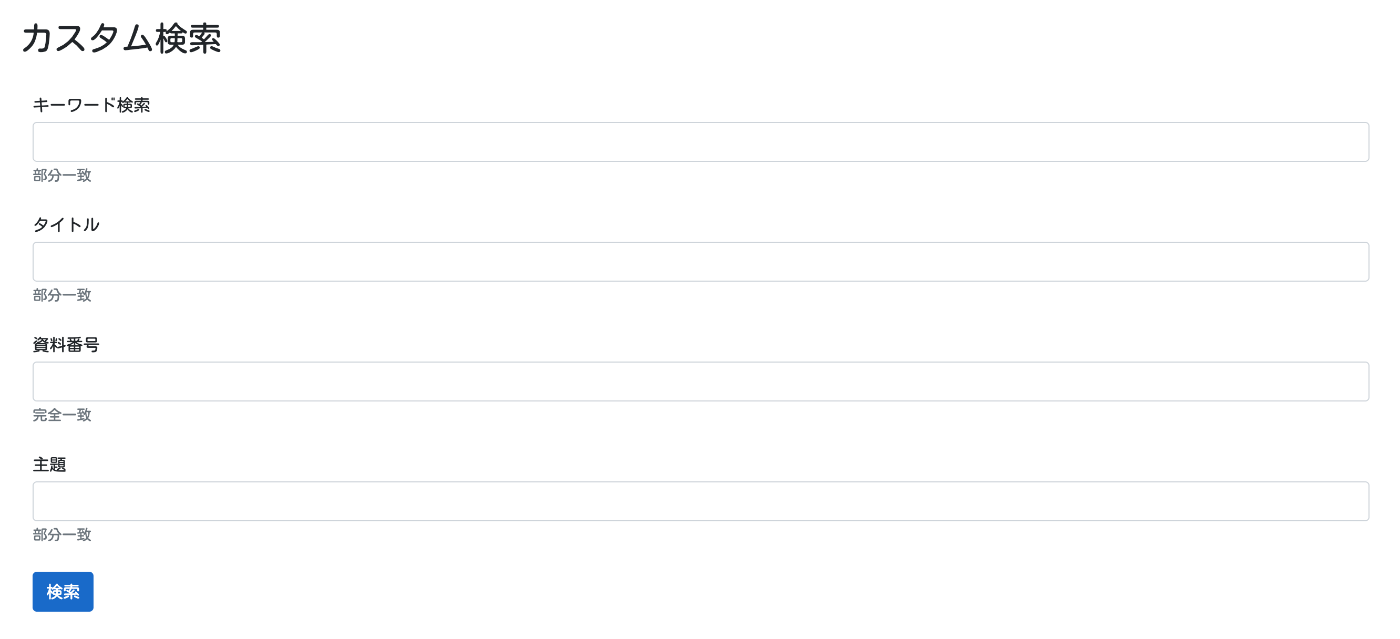
Overview This article introduces how to create a custom search page like the following in Omeka S. Background For creating search pages in Omeka S, I previously introduced a method to limit filter items on the advanced search screen. However, as shown in the overview, there are cases where you want to create a search screen that lists only specific items. For creating such a search page, you can use the “Advanced Search” module. ...

Using the API of the Curriculum Guidelines Code Recommendation App

Using the API of the Curriculum Guidelines Code Recommendation App

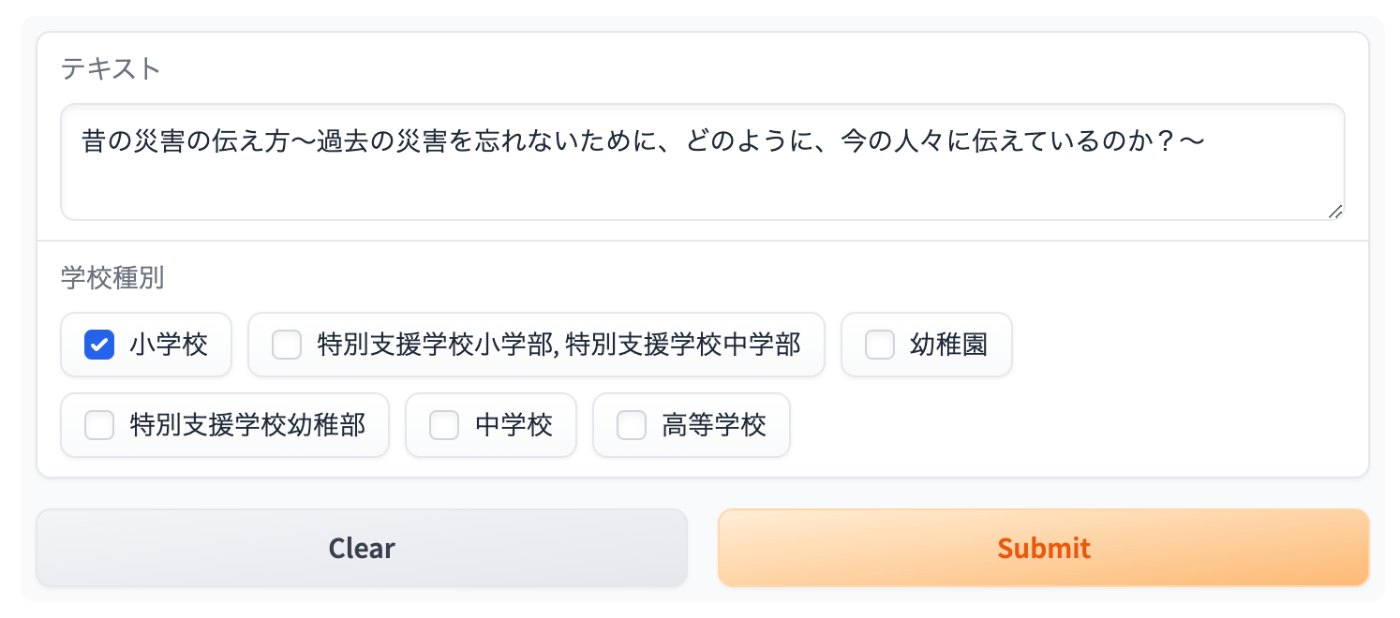
Overview In the following article, I introduced a recommendation app for Japan’s Curriculum Guidelines (Gakushu Shido Yoryo) codes. This time, I introduce how to use the above recommendation app via Gradio’s API. Usage Install the library. pip install gradio_client For example, let’s use the following data. Text School Type Investigate the mechanisms of air guns, water guns, bottle rockets, etc., and notice that as air is compressed and its volume decreases, the repulsive force increases, but water cannot be compressed. Elementary School Since the JSON data is stored in the second element of the result array, it is retrieved with result[1]. ...

Prototype of a Course of Study Code Recommendation App

Prototype of a Course of Study Code Recommendation App

Overview I created a Course of Study code recommendation app, and this is an introduction to it. You can try it on the following Hugging Face Space. It utilizes the Course of Study LOD. https://huggingface.co/spaces/nakamura196/jp-cos Usage Enter any text in the text form. “School Type” is an optional field. Results are displayed on the right side of the screen. Sample inputs are also provided, so please try them out. Information from NHK for School is used. ...

Using the researchmap API

Using the researchmap API

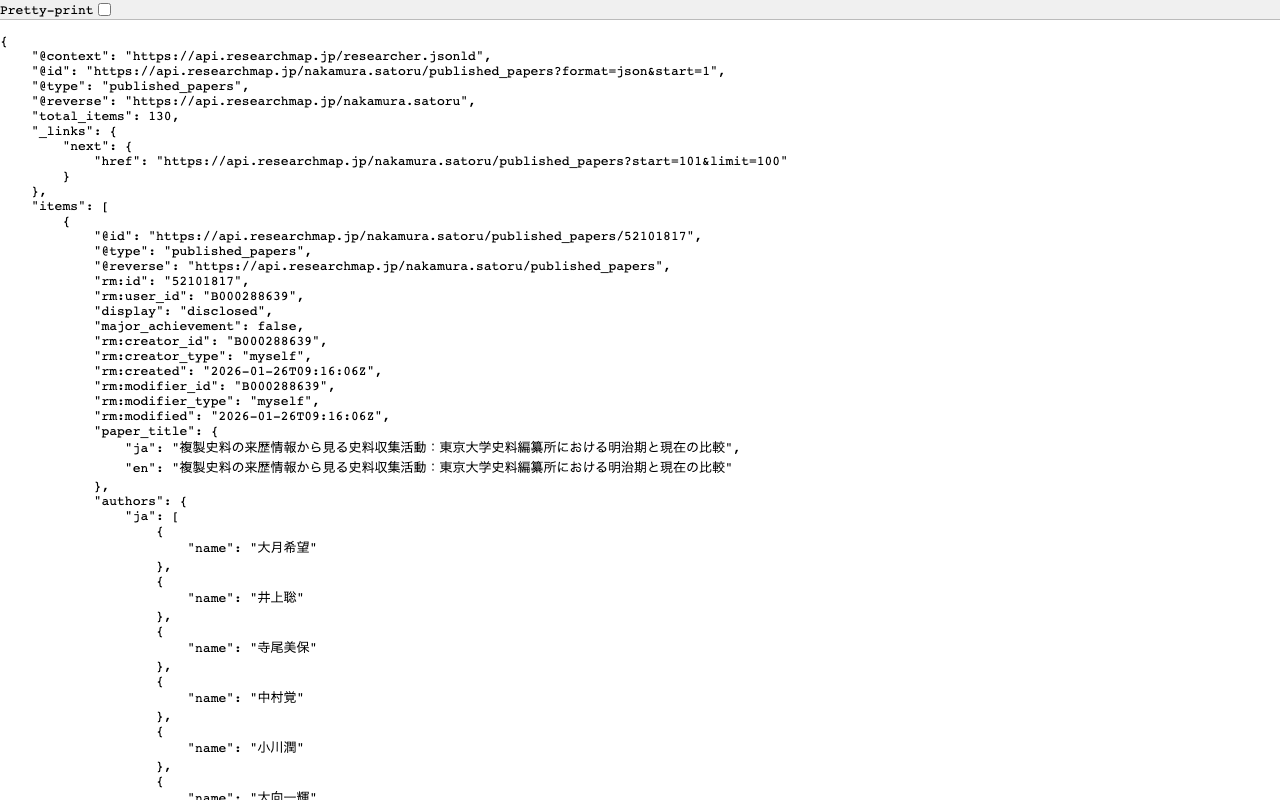
Overview I had the opportunity to create a publication list using the researchmap API, so here are my notes. Query Examples for the researchmap API Here are some query examples for the researchmap API. Retrieve a list of papers https://api.researchmap.jp/nakamura.satoru/published_papers Specify a limit (limit usage) https://api.researchmap.jp/nakamura.satoru/published_papers?limit=5 Retrieve results from a specific offset (start usage) https://api.researchmap.jp/nakamura.satoru/published_papers?limit=5&start=6 Specify publication dates (from_date and to_date) https://api.researchmap.jp/nakamura.satoru/published_papers?from_date=2023-04-01&to_date=2024-03-31 Python Usage Example Based on the specified user and publication dates, export published_papers and presentations to Excel. ...

Using the Course of Study LOD

Using the Course of Study LOD

Overview The Course of Study LOD is described as follows. The Course of Study LOD publishes the content, codes, and related information of the Course of Study and Education Guidelines published by the Ministry of Education, Culture, Sports, Science and Technology as Linked Open Data (LOD). The target for LOD conversion is the latest version of the code tables for all school types of current and former Courses of Study and Education Guidelines (including partial revisions) that are currently published. ...

TEI/XML Visualization Example: Map Display Using Leaflet

TEI/XML Visualization Example: Map Display Using Leaflet

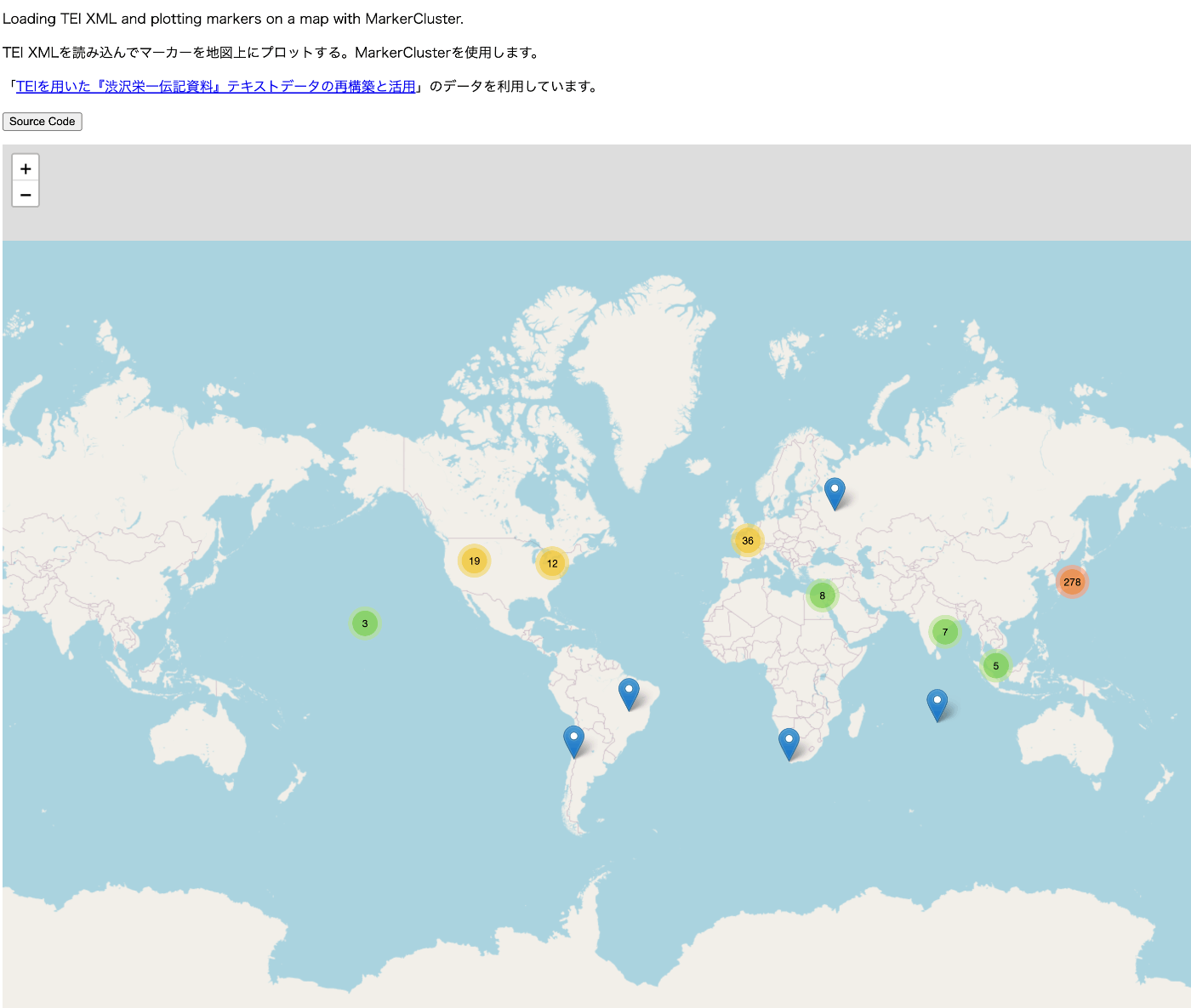
Overview For visualizing TEI/XML files, I created a repository that publishes visualization examples and source code. https://github.com/nakamura196/tei_visualize_demo You can see the visualization examples on the following page. https://nakamura196.github.io/tei_visualize_demo/ This time, I added an example of marker display using MarkerCluster, which I’ll introduce here. Prerequisites This assumes that you can already display markers using Leaflet (without using MarkerCluster). If you haven’t done so yet, please refer to the following visualization example and source code. ...

Converting Japanese Calendar Dates to Western Calendar Using HuTime Calendar Conversion Service

Converting Japanese Calendar Dates to Western Calendar Using HuTime Calendar Conversion Service

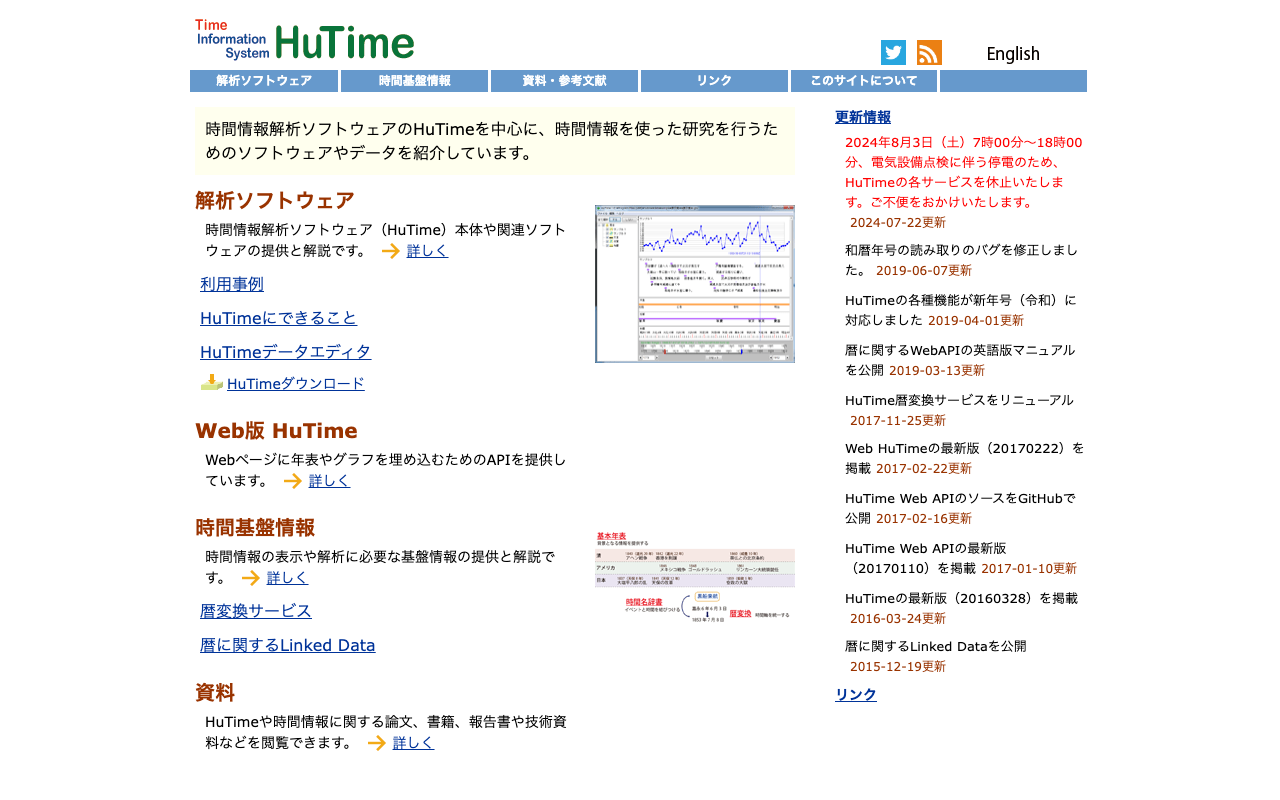
Overview I had the opportunity to convert Japanese calendar dates (wareki) to Western calendar dates using the calendar conversion service of HuTime, a temporal information analysis software, so here are my notes. https://www.hutime.jp/ Conversion Example Enter a Japanese calendar date in the {Japanese calendar date} field of the following URL: https://ap.hutime.org/cal/?method=conv&ical=1001.1&itype=date&ival={Japanese calendar date}&ocal=101.1&oform=yyyy-MM-dd&out=json For example, for “Keio 4, September 8” (the date the Meiji era began): https://ap.hutime.org/cal/?method=conv&ical=1001.1&itype=date&ival=慶応4年9月8日&ocal=101.1&oform=yyyy-MM-dd&out=json Other Usage Detailed instructions are available at the following page. Please refer to it for parameter specifications and other details. ...

Troubleshooting the CleanUrl Module Installation in Omeka S

Troubleshooting the CleanUrl Module Installation in Omeka S

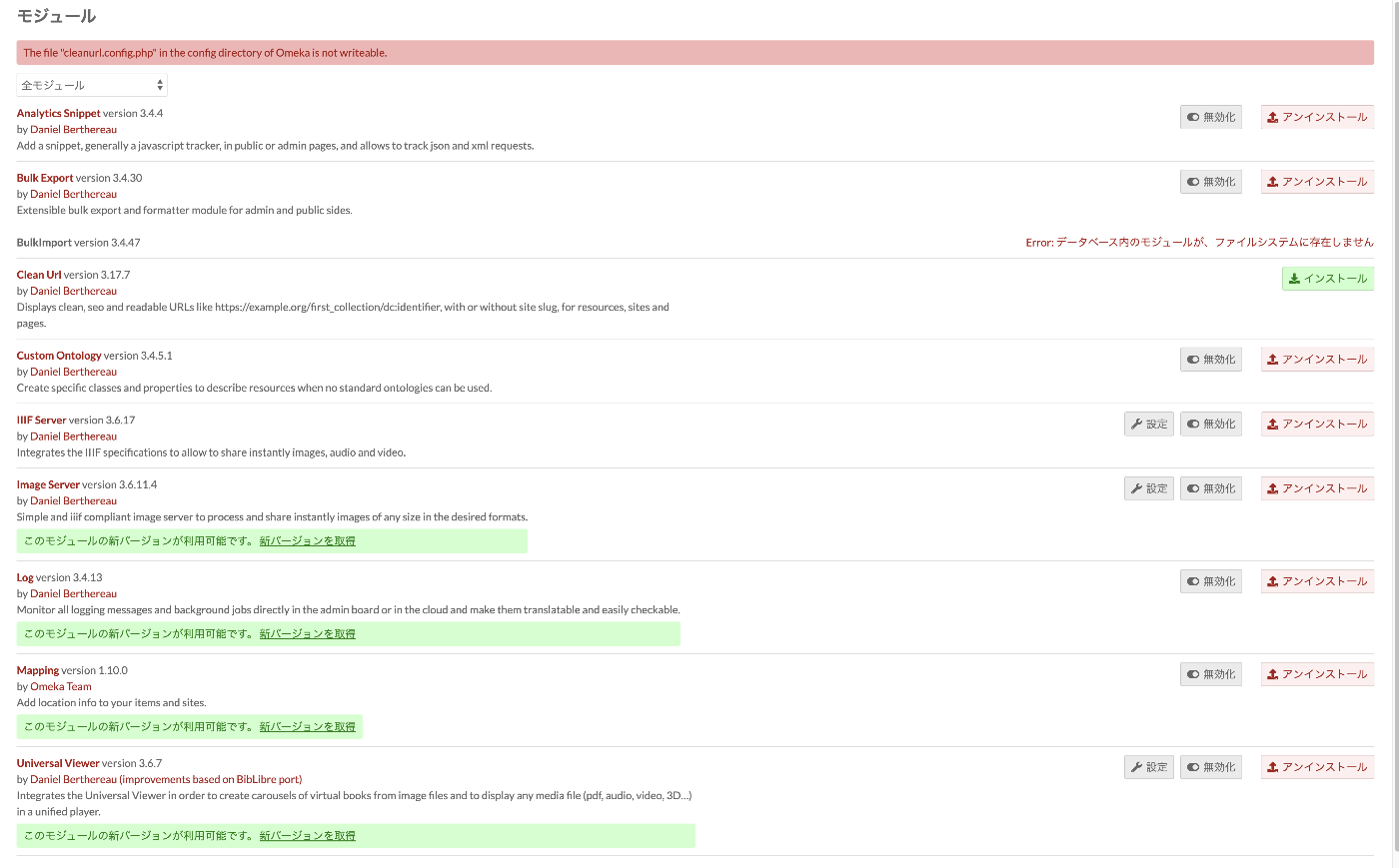
Overview When attempting to install the Clean Url module on Omeka S built with the following environment: PHP Version: 8.3.2 Omeka S Version: 4.0.4 Clean Url Version: 3.17.7 The following message was displayed: Deprecated: Creation of dynamic property CleanUrl\Router\Http\CleanRoute::$priority is deprecated in /var/www/html/vendor/laminas/laminas-router/src/SimpleRouteStack.php on line 285 To address this issue, the above message could be hidden by partially modifying the /modules/CleanUrl/src/Router/Http/CleanRoute.php file as described below. https://github.com/Daniel-KM/Omeka-S-module-CleanUrl/issues/19 If the SetEnv APPLICATION_ENV "production" line in the .htaccess file has not been changed to SetEnv APPLICATION_ENV "development", this message may not appear at all, but I hope this serves as a helpful reference. ...

File Sideload: Batch Uploading Images to Omeka S

File Sideload: Batch Uploading Images to Omeka S

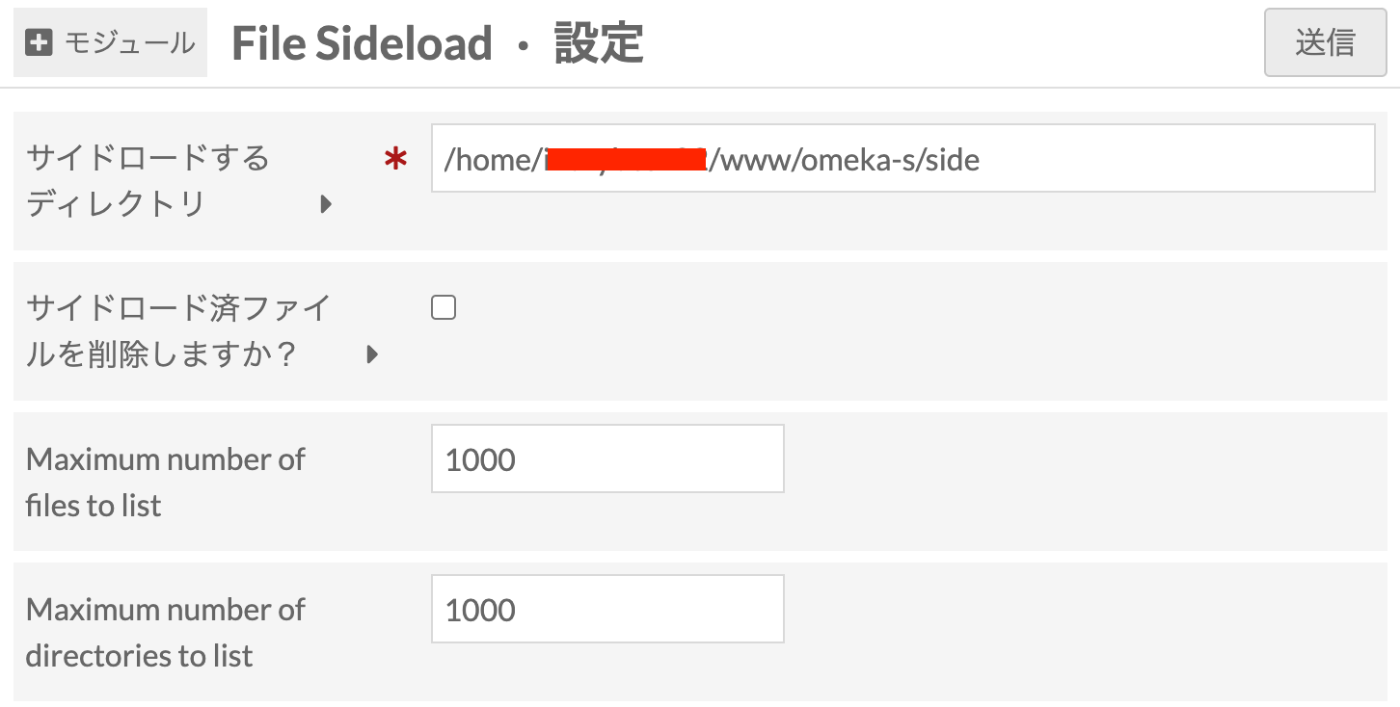
Overview This article explains the “File Sideload” module for batch uploading images to Omeka S. https://omeka.org/s/modules/FileSideload/ The official manual is available at the following URL: https://omeka.org/s/docs/user-manual/modules/filesideload/ Module Installation It can be installed using the standard method. https://omeka.org/s/docs/user-manual/modules/#installing-modules Module Configuration After installation, you will be navigated to the following configuration screen. Here, specify the path to the folder for uploading images for batch registration. Depending on permissions, you should be able to specify any arbitrary path. ...

Creating a Sitemap in Nuxt 3

Creating a Sitemap in Nuxt 3

Overview There are several ways to create a sitemap in Nuxt 3, so here are my notes. [1] @nuxtjs/sitemap Documentation https://sitemap.nuxtjs.org/ Reference Article https://zenn.dev/kumao/articles/3fe10078a7e9d2 Installation npm install -D @nuxtjs/sitemap Repository https://github.com/nuxt-community/sitemap-module [2] sitemap Reference Article https://zenn.dev/kakkokari_gtyih/articles/db1aed4fed6054 Installation npm install -D sitemap Repository https://github.com/ekalinin/sitemap.js [3] nuxt-simple-sitemap This package has the following note, so using @nuxtjs/sitemap from [1] seems to be the better choice: Package has been migrated to @nuxtjs/sitemap. https://www.npmjs.com/package/nuxt-simple-sitemap ...

Verifying OAuth Authentication Using Drupal's Simple OAuth and Postman

Verifying OAuth Authentication Using Drupal's Simple OAuth and Postman

Overview This article verifies OAuth authentication using Drupal’s Simple OAuth and Postman. I previously wrote the following article, but this time I will go into more detail. Setting Up Simple OAuth in Drupal Please refer to the following: https://tech.ldas.jp/en/posts/e4ce978db12227/#Creating an OAuth Client Postman When the grant type is password Send a POST request to /oauth/token with the following specified in Body > x-www-form-urlencoded: Key Value grant_type password client_id {your CLIENT_ID, e.g.: gt8UKlKltI4qs1XP5KLucIXiYw9ulGb0xS4RyO437dc} client_secret {your CLIENT_SECRET, e.g.: test} username {username, e.g.: yamato} password {password, e.g.: yamato} The following JSON was returned: ...

Trying Out METSFlask

Trying Out METSFlask

Overview I will try out the following METSFlask. https://github.com/tw4l/METSFlask It is described as follows: A web application for human-friendly exploration of Archivematica METS files Usage You can try it on the following site. http://bitarchivist.pythonanywhere.com/ Here is the result of uploading a METS file. In this case, since only one Word file was stored, information about one original file is displayed. Clicking the View button navigates to the detail screen. ...

Trying the Access to Memory RESTful API

Trying the Access to Memory RESTful API

Overview Let’s try some examples of the Access to Memory RESTful API. The official documentation is available here: https://www.accesstomemory.org/en/docs/2.8/dev-manual/api/api-intro/ Browse taxonomy terms https://demo.accesstomemory.org/api/taxonomies/34 [ { "name": "Collection" }, { "name": "File" }, { "name": "Fonds" }, { "name": "Item" }, { "name": "Part" }, { "name": "Record group" }, { "name": "Series" }, { "name": "Sous-fonds" }, { "name": "Subseries" } ] Browse information objects endpoint https://demo.accesstomemory.org/api/informationobjects { "total": 460, "results": [ { "reference_code": "CA ON00012 SC105", "slug": "kathleen-munn-fonds", "title": "Kathleen Munn fonds", "repository": "Art Gallery of Ontario", "level_of_description": "Fonds", "creators": [ "Munn, Kathleen Jean, 1887-1974" ], "creation_dates": [ "1912-[193-]" ] }, { "reference_code": "CA ON00012 SC069", "slug": "gallery-44-centre-for-contemporary-photography-fonds", "title": "Gallery 44 Centre for Contemporary Photography fonds", "repository": "Art Gallery of Ontario", "level_of_description": "Fonds", "creators": [ "Gallery 44 Centre for Contemporary Photography" ], "creation_dates": [ "[ca. 1979] - 2000" ], "place_access_points": [ "Toronto", "York, Regional Municipality of", "Ontario", "Canada" ] }, { "slug": "bitter-paradise-sell-out-of-east-timor-fonds", "title": "*Bitter Paradise: The Sell-Out of East Timor* fonds", "repository": "University of British Columbia Archives", "level_of_description": "Fonds", "creators": [ "Briere, Elaine" ], "creation_dates": [ "1985 - 1997" ] }, ... Read information object endpoint Let’s retrieve the record that was obtained via OAI in the following article through the API. ...

Trying the ArchivesSpace RESTful API

Trying the ArchivesSpace RESTful API

Overview Let’s try an example of the ArchivesSpace RESTful API. The official documentation is available here: https://archivesspace.github.io/archivesspace/api/#introduction List all corporate entity agents Documentation is available here: https://archivesspace.github.io/archivesspace/api/#list-all-corporate-entity-agents When using the demo site, you can access it at the following URL: https://sandbox.archivesspace.org/staff/api/agents/corporate_entities?page=1 The result is as follows: { "first_page": 1, "last_page": 3, "this_page": 1, "total": 27, "results": [ { "lock_version": 5, "publish": false, "created_by": "admin", "last_modified_by": "admin", "create_time": "2022-03-23T13:44:30Z", "system_mtime": "2024-02-25T06:02:12Z", "user_mtime": "2022-05-17T20:46:06Z", "is_slug_auto": false, "jsonmodel_type": "agent_corporate_entity", "agent_contacts": [ { "lock_version": 0, "name": "Manuscripts Repository", "created_by": "admin", "last_modified_by": "admin", "create_time": "2022-05-17T20:46:06Z", "system_mtime": "2022-05-17T20:46:06Z", "user_mtime": "2022-05-17T20:46:06Z", "is_representative": true, "jsonmodel_type": "agent_contact", "telephones": [ ], "notes": [ ] } ], "agent_record_controls": [ ], "agent_alternate_sets": [ ], "agent_conventions_declarations": [ ], "agent_other_agency_codes": [ ], "agent_maintenance_histories": [ ], "agent_record_identifiers": [ ], "agent_identifiers": [ ], "agent_sources": [ ], "agent_places": [ ], "agent_occupations": [ ], "agent_functions": [ ], "agent_topics": [ ], "agent_resources": [ ], "linked_agent_roles": [ ], "external_documents": [ ], "notes": [ ], "used_within_repositories": [ ], "used_within_published_repositories": [ ], "dates_of_existence": [ ], "used_languages": [ ], "metadata_rights_declarations": [ ], "names": [ { "lock_version": 0, "primary_name": "Allen Doe Research Center", "sort_name": "Allen Doe Research Center", "sort_name_auto_generate": true, "created_by": "admin", "last_modified_by": "admin", "create_time": "2022-05-17T20:46:06Z", "system_mtime": "2022-05-17T20:46:06Z", "user_mtime": "2022-05-17T20:46:06Z", "authorized": true, "is_display_name": true, "jurisdiction": false, "conference_meeting": false, "source": "local", "jsonmodel_type": "name_corporate_entity", "use_dates": [ ], "parallel_names": [ ] } ], "related_agents": [ ], "uri": "/agents/corporate_entities/1", "agent_type": "agent_corporate_entity", "is_linked_to_published_record": false, "display_name": { "lock_version": 0, "primary_name": "Allen Doe Research Center", "sort_name": "Allen Doe Research Center", "sort_name_auto_generate": true, "created_by": "admin", "last_modified_by": "admin", "create_time": "2022-05-17T20:46:06Z", "system_mtime": "2022-05-17T20:46:06Z", "user_mtime": "2022-05-17T20:46:06Z", "authorized": true, "is_display_name": true, "jurisdiction": false, "conference_meeting": false, "source": "local", "jsonmodel_type": "name_corporate_entity", "use_dates": [ ], "parallel_names": [ ] }, "title": "Allen Doe Research Center", "is_repo_agent": "Allen Doe Research Center" }, { ... In the GUI, the corresponding page is: ...