Home Articles Books Search About
日本語
Authenticating with Drupal Using Nuxt 3 and @sidebase/nuxt-auth

Authenticating with Drupal Using Nuxt 3 and @sidebase/nuxt-auth

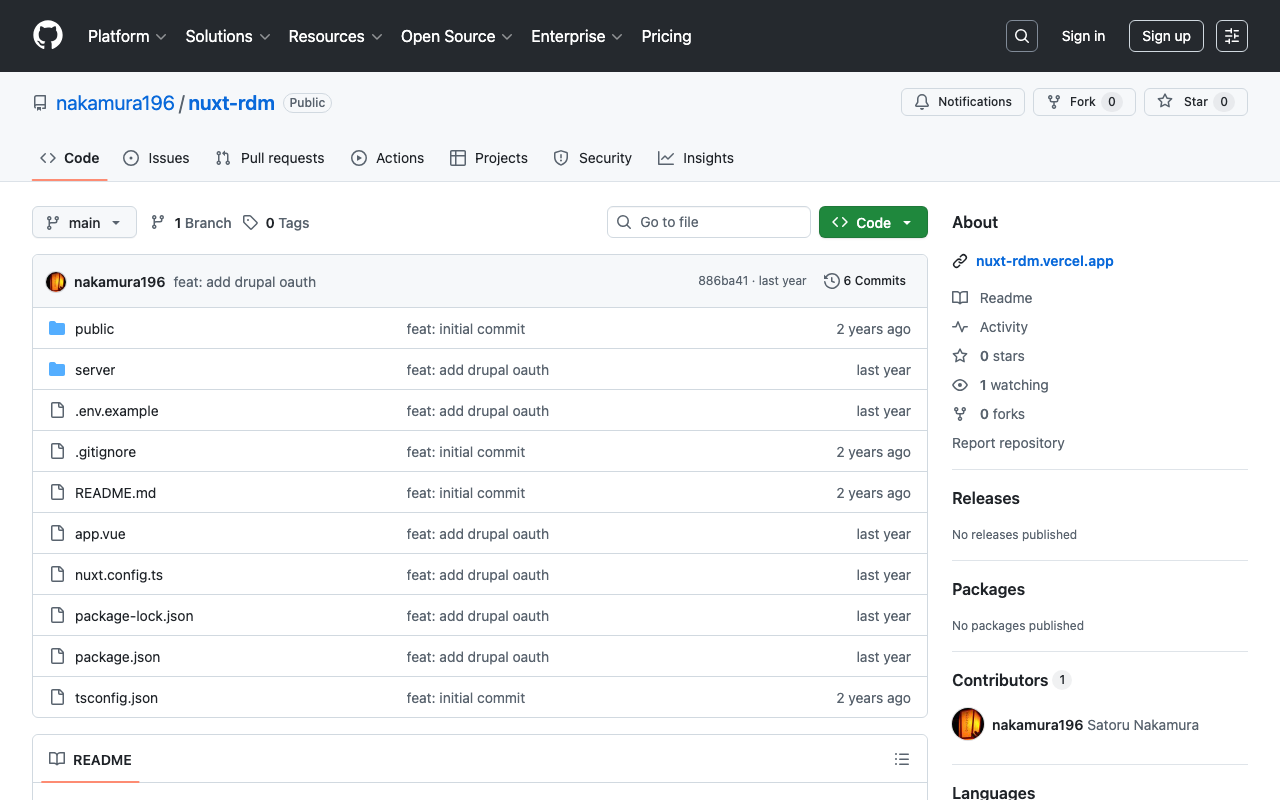
Overview This describes how to authenticate with Drupal using Nuxt 3 and @sidebase/nuxt-auth. Background The following article introduced a method for authenticating with GakuNin RDM. The following article introduced a method for using Drupal OAuth from Next.js. Using these as reference, we use Drupal OAuth from Nuxt 3. Method The source code can be found in the following repository. https://github.com/nakamura196/nuxt-rdm Specifically, the implementation is here. https://github.com/nakamura196/nuxt-rdm/blob/main/server/api/auth/[…].ts { id: "drupal", name: "Drupal", type: "oauth", clientId: useRuntimeConfig().drupalClientId, clientSecret: useRuntimeConfig().drupalClientSecret, authorization: { url: process.env.DRUPAL_AUTH_URL, params: { scope: process.env.DRUPAL_SCOPE, response_type: "code", redirect_uri: `${ useRuntimeConfig().nextAuthUrl }/api/auth/callback/drupal`, }, }, token: { async request(context) { const body = new URLSearchParams({ client_id: useRuntimeConfig().drupalClientId, client_secret: useRuntimeConfig().drupalClientSecret, code: context.params.code || "", grant_type: "authorization_code", redirect_uri: `${ useRuntimeConfig().nextAuthUrl }/api/auth/callback/drupal`, }); const res = await fetch(process.env.DRUPAL_TOKEN_URL || "", { method: "POST", headers: { "Content-Type": "application/x-www-form-urlencoded", }, body, }); const json = await res.json(); // Parse the response body once if (!res.ok) { throw new Error(`Token request failed: ${res.statusText}`); } return { tokens: json }; }, }, profile(profile) { return { id: profile.sub, // Use "sub" as the user's unique ID name: profile.name || profile.preferred_username || "Unknown User", // Set name priority email: profile.email || "No Email Provided", // Fallback when no email image: profile.profile || null, // Use profile URL as image (adjust as needed) }; }, }, Summary There may be some errors, but I hope this serves as a helpful reference. ...
Omeka S: Finding Themes Compatible with the Advanced Search Module

Omeka S: Finding Themes Compatible with the Advanced Search Module

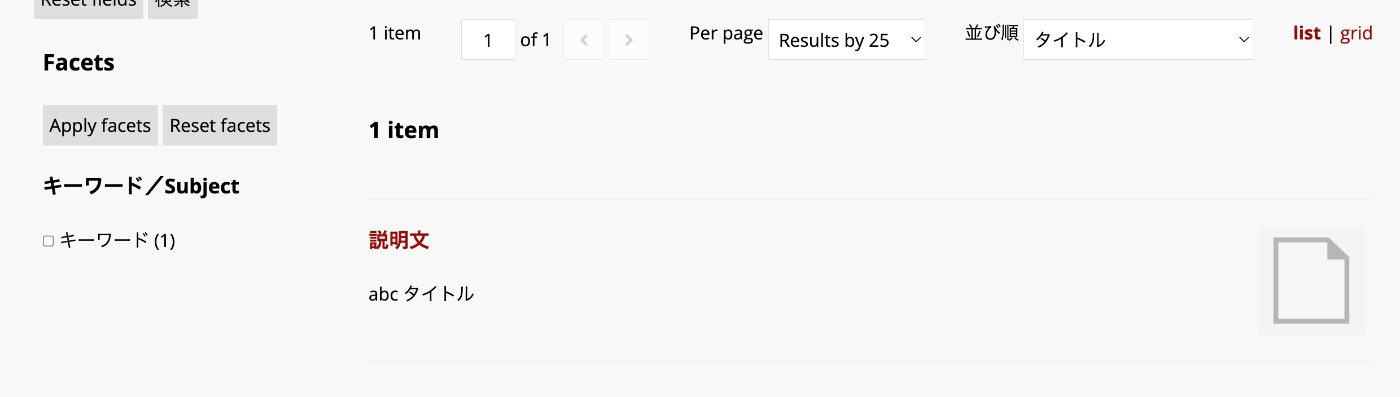
Overview This article introduces one approach for finding themes compatible with the Advanced Search module in Omeka S. Background By using the Advanced Search module for Omeka S, you can customize the search interface as introduced in the following article: In particular, the ability to add facets is a notable advantage. However, if the theme you are using does not support the Advanced Search module, the display may break in some cases. One way to check whether a theme supports the Advanced Search module is to look for an “advanced-search” directory under the theme’s “view/common” folder, as shown below: ...

Using Drupal OAuth with NextAuth.js

Using Drupal OAuth with NextAuth.js

Overview This is a note about using Drupal OAuth with NextAuth.js. Behavior Access the app created with Next.js and press the “Sign in” button. If you are not logged into Drupal, you will be redirected to the login screen. If you are already logged in, an authorization button is displayed. Click to authorize. The login information is displayed. Drupal-Side Setup Module Installation Install the following module. ...

Building a Digital Collection Using AppSheet

Building a Digital Collection Using AppSheet

Overview I prototyped a digital collection using AppSheet, so this is a memo of the process. Target Data The same data as in the following article is used. Specifically, “Bird’s-eye View of the University of Tokyo Main Campus and Faculty of Agriculture Buildings” (held by the University of Tokyo Agricultural and Life Sciences Library) is used as sample data. https://iiif.dl.itc.u-tokyo.ac.jp/repo/s/agriculture/document/187cc82d-11e6-9912-9dd4-b4cca9b10970 Output It can be accessed from the following URL. ...

Trying Azure Logic Apps

Trying Azure Logic Apps

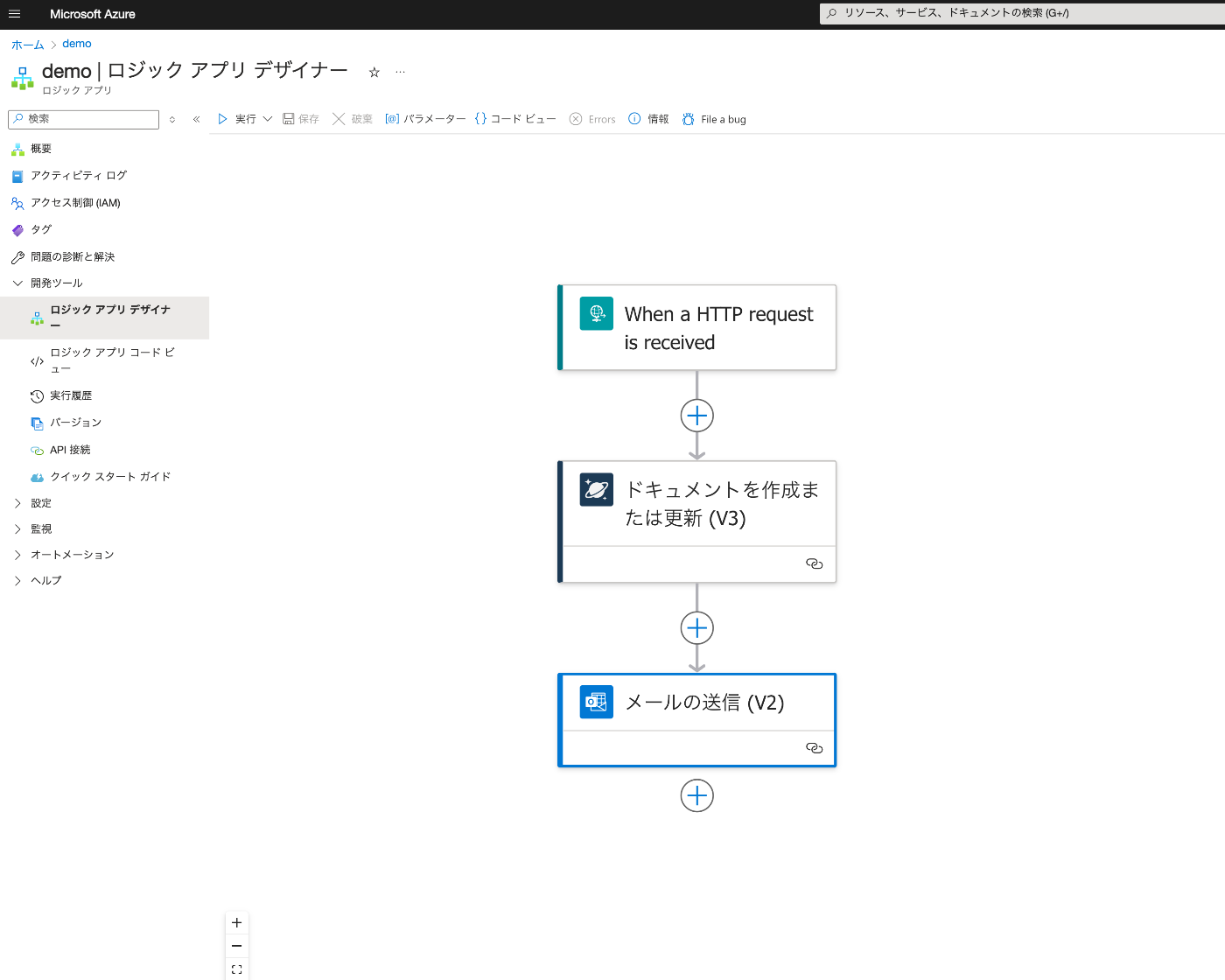
Overview This is a note from trying Azure Logic Apps for the purpose of investigating no-code or low-code development. Result Below is the Logic App Designer screen. We create a workflow that receives an HTTP request, saves data to Cosmos DB, and sends an email upon success. Creating Azure Cosmos DB Everything except “Account name” was left as default. It was created with the name “my-first-azure-cosmos-db-account.” Create an “Items” container. ...

Creating Apps with Azure OpenAI Assistants API Using Gradio and Next.js

Creating Apps with Azure OpenAI Assistants API Using Gradio and Next.js

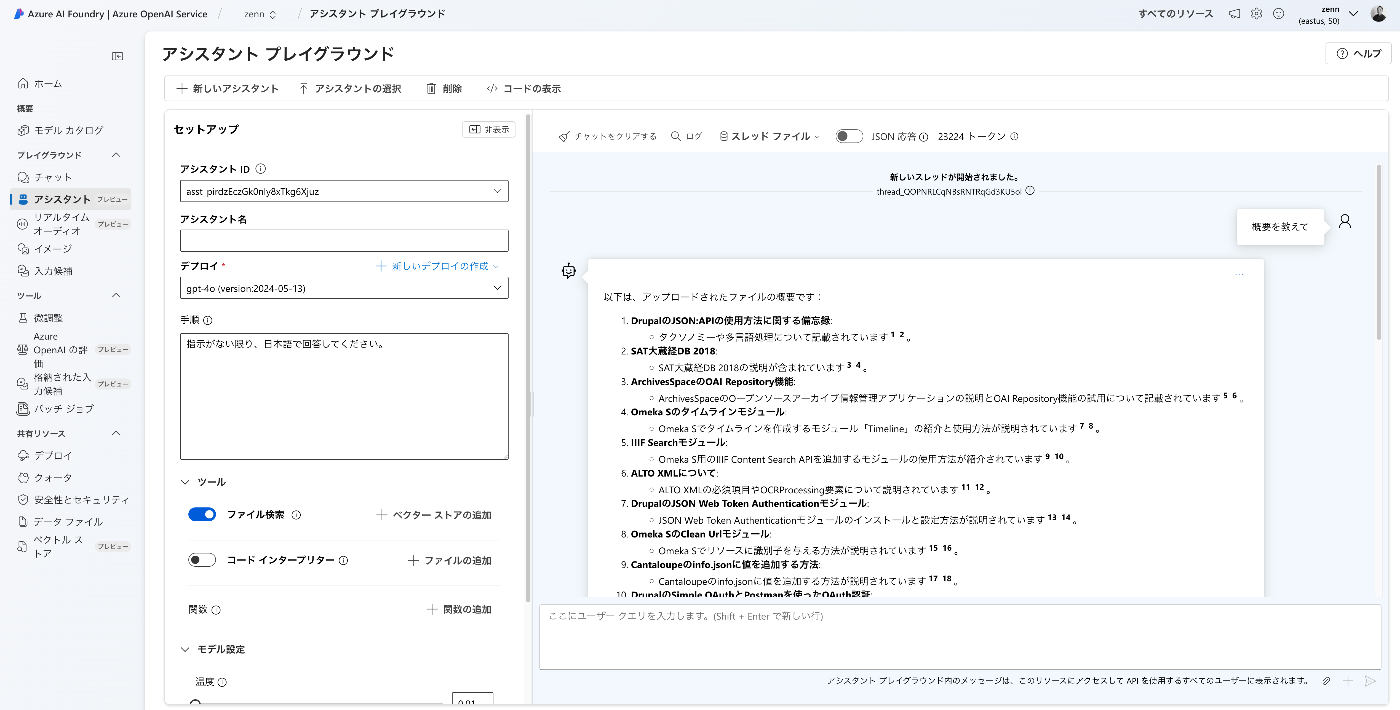
Overview I created apps using the Azure OpenAI Assistants API with Gradio and Next.js, so here are my notes. Target Data I used articles published on Zenn as the target data. First, I bulk downloaded them with the following code. import requests from bs4 import BeautifulSoup import os from tqdm import tqdm page = 1 urls = [] while 1: url = f"https://zenn.dev/api/articles?username=nakamura196&page={page}" response = requests.get(url) data = response.json() articles = data['articles'] if len(articles) == 0: break for article in articles: urls.append("https://zenn.dev" + article['path']) page += 1 for url in tqdm(urls): text_opath = f"data/text/{url.split('/')[-1]}.txt" if os.path.exists(text_opath): continue response = requests.get(url) soup = BeautifulSoup(response.text, "html.parser") html = soup.find(class_="znc") txt = html.get_text() os.makedirs(os.path.dirname(text_opath), exist_ok=True) with open(text_opath, "w") as f: f.write(txt) Registering to the Vector Store Upload data files with the following code. ...

Trying Kompakkt Standalone Viewer

Trying Kompakkt Standalone Viewer

Overview I had an opportunity to try Kompakkt Standalone Viewer, so here are my notes. It is described as follows: This repository hosts a JavaScript file which can be included on any website to use the Kompakkt Viewer without needing to use the Kompakkt Repository or the Kompakkt Server. Repository It is published at: https://github.com/Kompakkt/StandaloneViewer You can also access the viewer via GitHub Pages: https://kompakkt.github.io/StandaloneViewer/ Display Example I was able to display a 3D model and annotations as shown below: ...

How to Upload Media to Omeka S Using Python

How to Upload Media to Omeka S Using Python

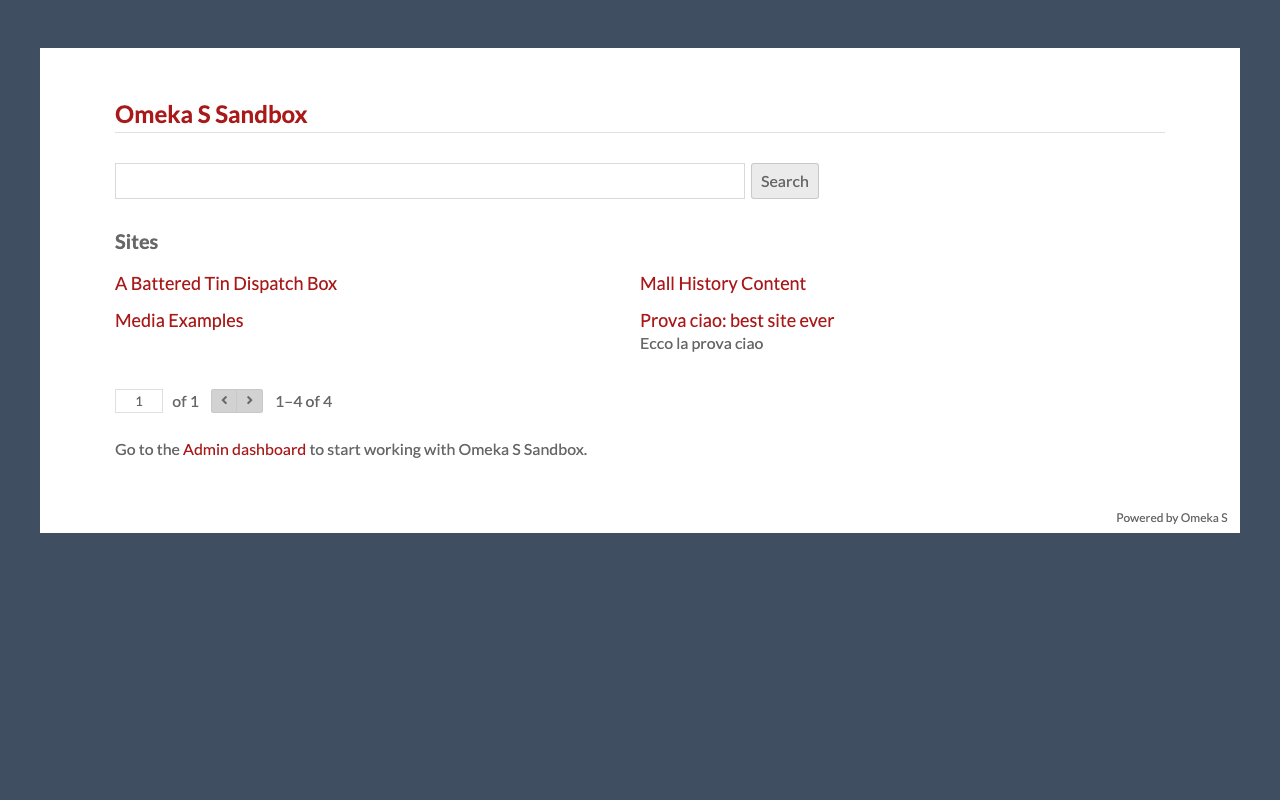
Overview This is a personal note on how to upload media to Omeka S using Python. Preparation Prepare environment variables. OMEKA_S_BASE_URL=https://dev.omeka.org/omeka-s-sandbox # Example OMEKA_S_KEY_IDENTITY= OMEKA_S_KEY_CREDENTIAL= Initialize. import requests from dotenv import load_dotenv import os def __init__(self): load_dotenv(verbose=True, override=True) OMEKA_S_BASE_URL = os.environ.get("OMEKA_S_BASE_URL") self.omeka_s_base_url = OMEKA_S_BASE_URL self.items_url = f"{OMEKA_S_BASE_URL}/api/items" self.media_url = f"{OMEKA_S_BASE_URL}/api/media" self.params = { "key_identity": os.environ.get("OMEKA_S_KEY_IDENTITY"), "key_credential": os.environ.get("OMEKA_S_KEY_CREDENTIAL") } Uploading a Local File def upload_media(self, path, item_id): files = {} payload = {} file_data = { 'o:ingester': 'upload', 'file_index': '0', 'o:source': path.name, 'o:item': {'o:id': item_id} } payload.update(file_data) params = self.params files = [ ('data', (None, json.dumps(payload), 'application/json')), ('file[0]', (path.name, open(path, 'rb'), 'image')) ] media_response = requests.post( self.media_url, params=params, files=files ) # Check the response if media_response.status_code == 200: return media_response.json()["o:id"] else: return None Uploading a IIIF Image Specify a IIIF image URL like the following to register it. ...

Trying Annotations in Sketchfab

Trying Annotations in Sketchfab

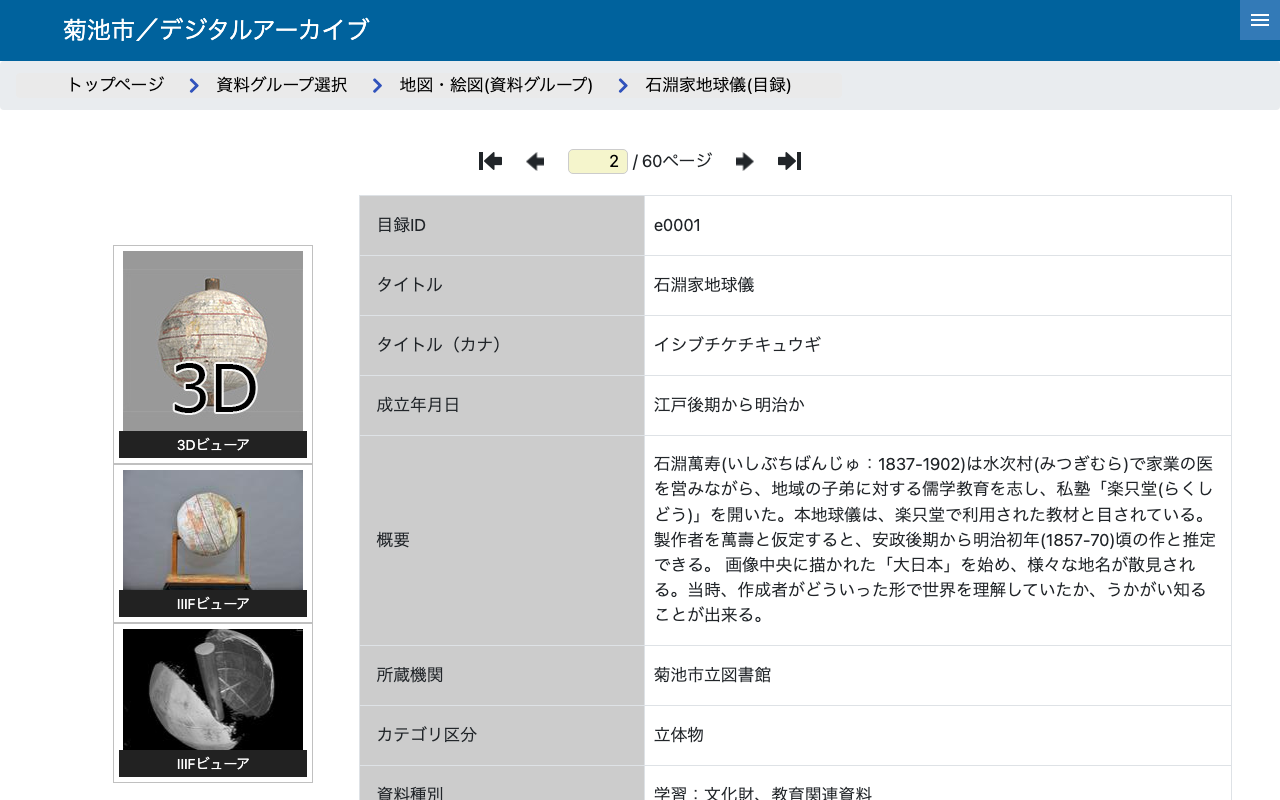
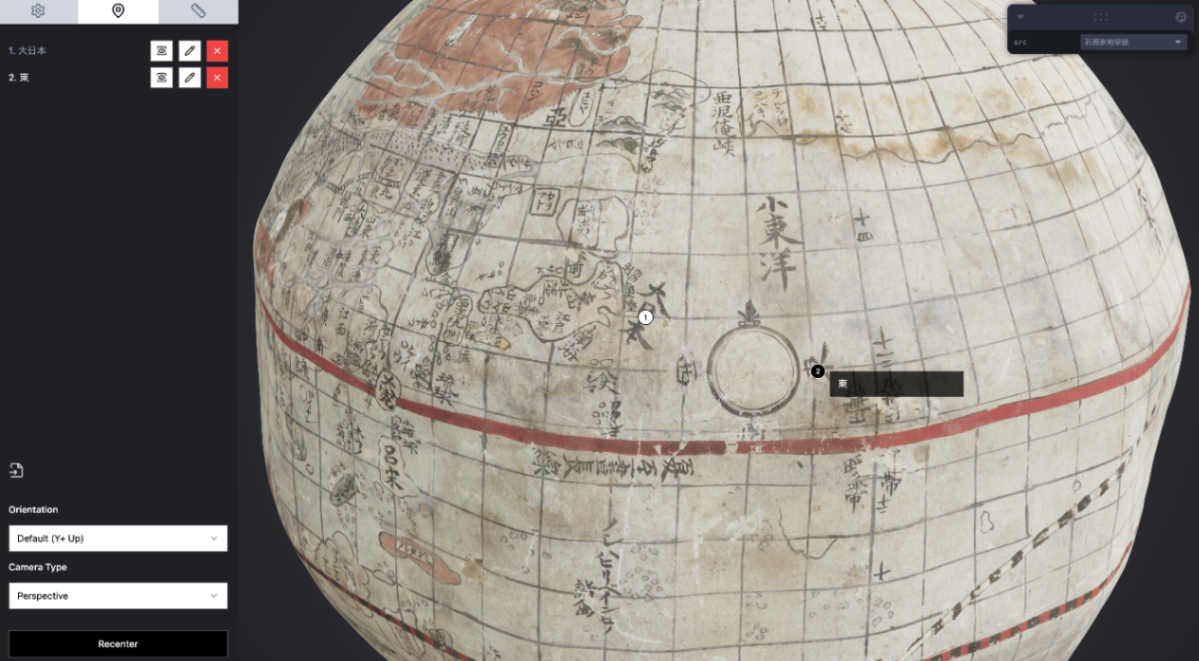
Overview I tried out annotations in Sketchfab, so this is a personal note for future reference. Ultimately, I created the following viewer. https://nakamura196.github.io/SketchfabAnnotationViewer/ https://youtu.be/iEe6TbI3X70 Data Used We will use the “Ishibuchi Family Globe” from the “Kikuchi City / Digital Archive.” https://adeac.jp/kikuchi-city/catalog/e0001 Usage Example First, I uploaded the 3D data to Sketchfab. https://skfb.ly/pt8oU Then I added annotations. As a result, the following page was prepared. Using the API Please also refer to the following repository. ...

Converting OBJ Files to glTF and GLB Files

Converting OBJ Files to glTF and GLB Files

Overview These are notes on how to convert OBJ files to glTF and GLB files. Target Data The target is the “Ishibuchi Family Globe” from the “Kikuchi City / Digital Archive.” https://adeac.jp/kikuchi-city/catalog/e0001 The OBJ file can be accessed from the following URL. https://adeac.jp/viewitem/kikuchi-city/viewer/3d/dc-e0097/models/Kikuchi_Globe_180820.obj Downloading the Target Data Download the library. npm i axios Prepare the following file. const axios = require('axios'); const fs = require('fs'); const path = require('path'); // Function to download a file from a specified URL async function downloadFile(url, outputPath) { const writer = fs.createWriteStream(outputPath); const response = await axios({ url, method: 'GET', responseType: 'stream', }); response.data.pipe(writer); return new Promise((resolve, reject) => { writer.on('finish', resolve); writer.on('error', reject); }); } // Load .obj file and download related files async function processObjFile(objUrl, outputDir) { try { // Download .obj file and get its content const objResponse = await axios.get(objUrl); const objContent = objResponse.data; // Save .obj file const objFileName = path.basename(objUrl); const objFilePath = path.join(outputDir, objFileName); fs.writeFileSync(objFilePath, objContent); console.log(`Downloaded OBJ file: ${objFilePath}`); // Search for .mtl file path const mtlMatch = objContent.match(/^mtllib\s+(.+)$/m); if (mtlMatch) { const mtlFileName = mtlMatch[1]; const mtlUrl = new URL(mtlFileName, objUrl).href; const mtlFilePath = path.join(outputDir, mtlFileName); // Download .mtl file await downloadFile(mtlUrl, mtlFilePath); console.log(`Downloaded MTL file: ${mtlFilePath}`); // Get .mtl file content and find related files const mtlContent = fs.readFileSync(mtlFilePath, 'utf-8'); const textureMatches = [...mtlContent.matchAll(/^map_Kd\s+(.+)$/gm)]; for (const match of textureMatches) { const textureFileName = match[1]; const textureUrl = new URL(textureFileName, objUrl).href; const textureFilePath = path.join(outputDir, path.basename(textureFileName)); // Download texture image await downloadFile(textureUrl, textureFilePath); console.log(`Downloaded texture file: ${textureFilePath}`); } } else { console.log('No MTL file referenced in the OBJ file.'); } } catch (error) { console.error(`Error processing OBJ file: ${error.message}`); } } // Usage example const objUrl = 'https://adeac.jp/viewitem/kikuchi-city/viewer/3d/dc-e0097/models/Kikuchi_Globe_180820.obj'; const outputDir = './downloads'; if (!fs.existsSync(outputDir)) { fs.mkdirSync(outputDir, { recursive: true }); } processObjFile(objUrl, outputDir); Execute it. ...

Trying aleph-r3f

Trying aleph-r3f

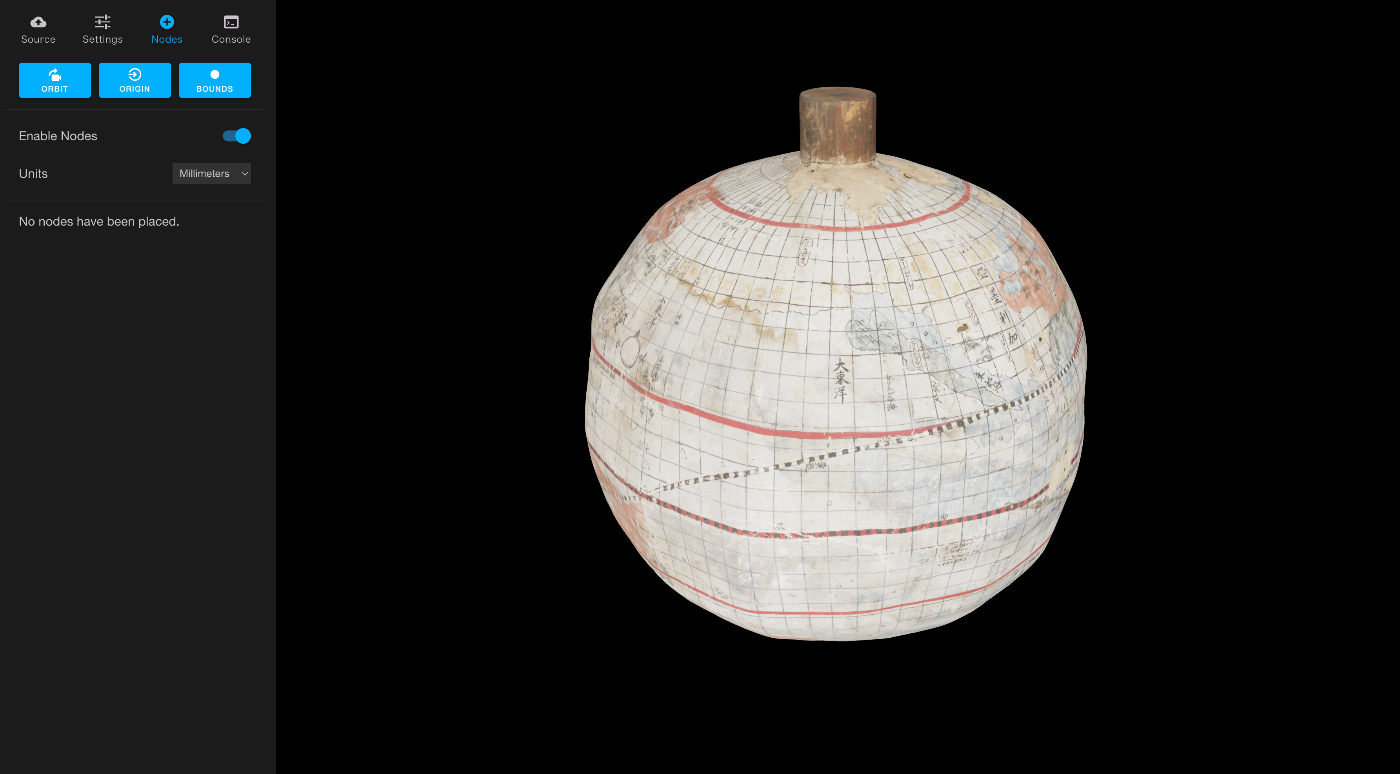
Overview In the following article, I introduced the Aleph 3D viewer. After further investigation, I also discovered the following repository. https://github.com/aleph-viewer/aleph-r3f It is described as follows, with the key difference being its use of react-three-fiber and shadcn/ui. Aleph is a 3D object viewer and annotation/measurement tool built with react-three-fiber and shadcn/ui The annotation features also appeared to be improved, as shown below. In this article as well, I use 3D data of the “Ishibuchi Family Globe” published in the Kikuchi City Digital Archive. ...

Trying the Aleph 3D Viewer

Trying the Aleph 3D Viewer

Overview This is a note about trying out Aleph, one of the 3D object viewers. https://github.com/aleph-viewer/aleph The 3D data of the “Ishibuchi Family Globe” published on the Kikuchi City Digital Archive is used. https://adeac.jp/kikuchi-city/catalog/e0001 Background While researching IIIF-compatible 3D viewers, I came across the following article. https://pro.europeana.eu/post/iiif-for-3d-making-web-interoperability-multi-dimensional Through this article, I learned about Aleph as one of the introduced viewers. Usage I forked the GitHub repository and deployed it to Vercel. ...

Cantaloupe: Serving Images Stored in Microsoft Azure Blob Storage

Cantaloupe: Serving Images Stored in Microsoft Azure Blob Storage

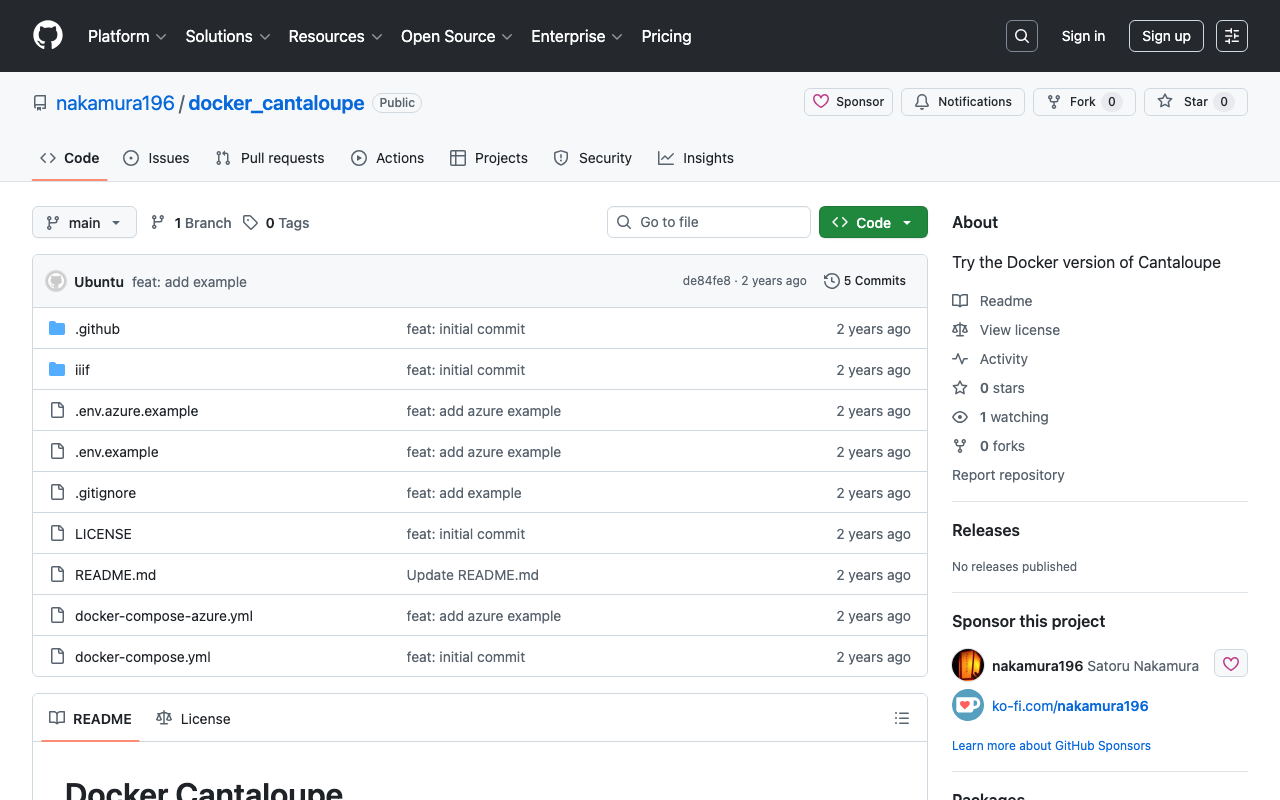
Overview This is a memo on how to serve images stored in Microsoft Azure Blob Storage using Cantaloupe Image Server, one of the IIIF image servers. This is the Microsoft Azure Blob Storage version of the following article. Method This time we will use the Docker version. Please clone the following repository. https://github.com/nakamura196/docker_cantaloupe In particular, rename .env.azure.example to .env and set the environment variables. # For Microsoft Azure Blob Storage CANTALOUPE_AZURESTORAGESOURCE_ACCOUNT_NAME= CANTALOUPE_AZURESTORAGESOURCE_ACCOUNT_KEY= CANTALOUPE_AZURESTORAGESOURCE_CONTAINER_NAME= # For Traefik CANTALOUPE_HOST= LETS_ENCRYPT_EMAIL= The last two settings also include HTTPS configuration using Traefik. ...

Building an NDLOCR Gradio App Using Azure Virtual Machines

Building an NDLOCR Gradio App Using Azure Virtual Machines

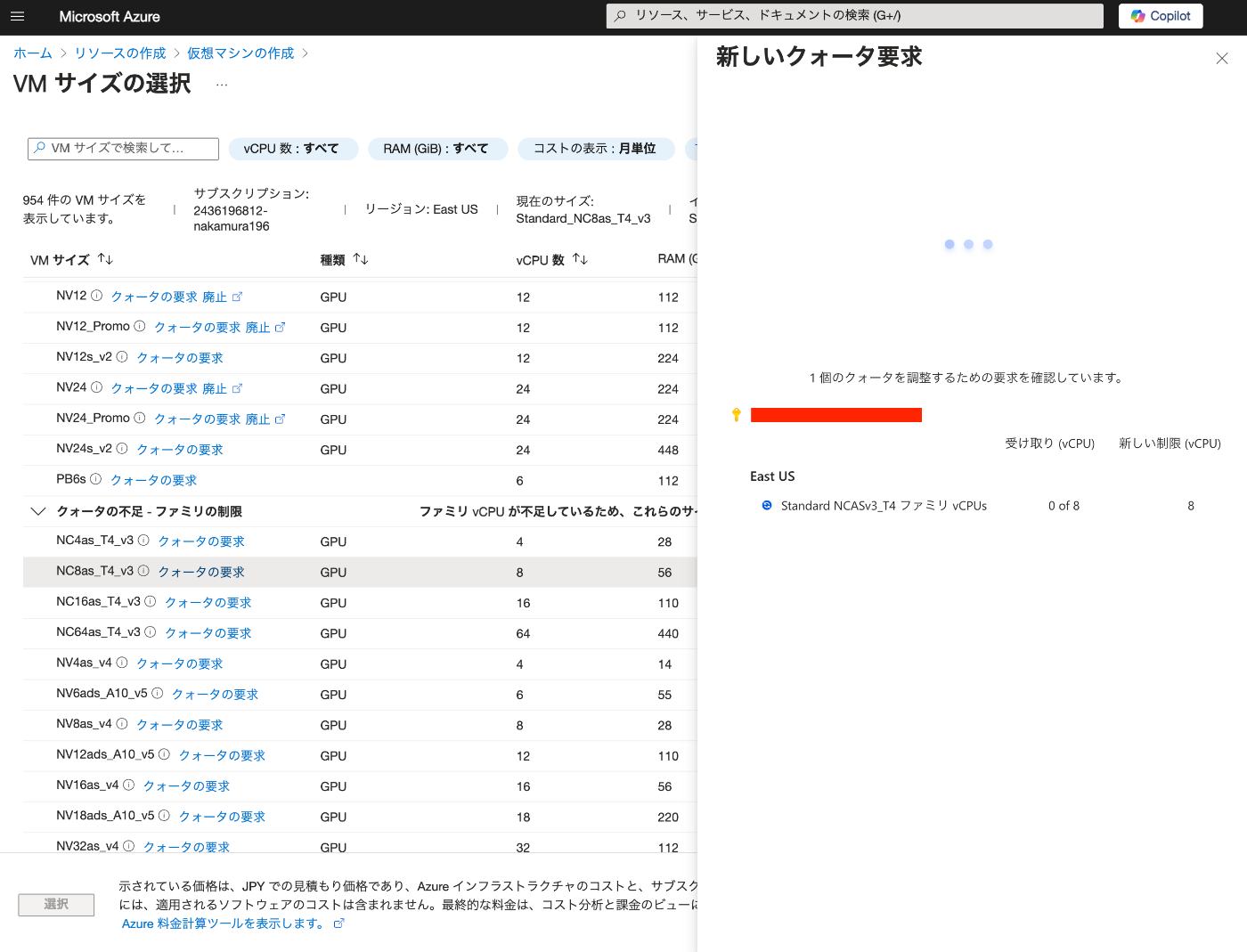
Overview In the following article, I introduced a Gradio app using Azure virtual machines and NDLOCR. This article provides notes on how to build this app. Building the Virtual Machine To use a GPU, it was necessary to request a quota. After the request, “NC8as_T4_v3” was used for this project. Building the Docker Environment The following article was used as a reference. https://zenn.dev/koki_algebra/scraps/32ba86a3f867a4 Disabling Secure Boot The following is stated: ...

Created a Gradio App to Try ndlocr_cli (NDLOCR ver.2.1) Application

Created a Gradio App to Try ndlocr_cli (NDLOCR ver.2.1) Application

Overview I created a Gradio app that allows you to try the ndlocr_cli (NDLOCR ver.2.1) application. Please try it at the following URL. https://ndlocr.aws.ldas.jp/ Notes Currently, only single image uploads are supported. I plan to add options such as PDF upload functionality in the future. It uses the “NVIDIA Tesla T4 GPU” installed in the “NC8as_T4_v3” VM available on Azure. Summary I’m not sure how long I can continue providing this in its current form, but I hope it will be useful for verifying the accuracy of the ndlocr_cli (NDLOCR ver.2.1) application. ...

Trying Out CollectionBuilder

Trying Out CollectionBuilder

Overview I had an opportunity to try CollectionBuilder, so here are my notes. https://collectionbuilder.github.io/ It is described as follows: CollectionBuilder is an open source framework for creating digital collection and exhibit websites that are driven by metadata and powered by modern static web technology. Output The following is the site I built as a prototype using CollectionBuilder. https://nakamura196.github.io/collectionbuilder-gh/ The repository is here: https://github.com/nakamura196/collectionbuilder-gh The same data from the following article was used. ...

Authenticating with GakuNin RDM Using Nuxt 3 and @sidebase/nuxt-auth

Authenticating with GakuNin RDM Using Nuxt 3 and @sidebase/nuxt-auth

Overview This article describes how to authenticate with GakuNin RDM using Nuxt 3 and @sidebase/nuxt-auth. Demo App https://nuxt-rdm.vercel.app/ Repository https://github.com/nakamura196/nuxt-rdm Notes Initially, the following warning was displayed. AUTH_NO_ORIGIN: No origin - this is an error in production, see https://sidebase.io/nuxt-auth/resources/errors. You can ignore this during development Therefore, based on the following reference: https://auth.sidebase.io/resources/error-reference I configured it as follows, which resulted in an error. ... auth: { baseURL: process.env.NEXTAUTH_URL, }, ... The cause was that I was using an rc version of the library. ...

Building a RAG-based Chat Using Azure OpenAI, LlamaIndex, and Gradio

Building a RAG-based Chat Using Azure OpenAI, LlamaIndex, and Gradio

Overview I tried building a RAG-based chat using Azure OpenAI, LlamaIndex, and Gradio, so here are my notes. Azure OpenAI Create an Azure OpenAI resource. Then, click “Endpoint: Click here to view endpoint” to note down the endpoint and key. Then, navigate to the Azure OpenAI Service. Go to “Model catalog” and deploy “gpt-4o” and “text-embedding-3-small”. The result is displayed as follows. Downloading the Text This time, we target “The Tale of Genji” published on Aozora Bunko (a free digital library of Japanese literature). ...

Using the "Tale of Genji in Textbooks LOD"

Using the "Tale of Genji in Textbooks LOD"

Overview This is a memo about trying out the “Tale of Genji in Textbooks LOD” (Kyokasho no Naka no Genji Monogatari LOD). https://linkdata.org/work/rdf1s10294i It is described as follows. The “Tale of Genji in Textbooks LOD” is an LOD conversion of data on The Tale of Genji published in post-war authorized textbooks for the classical literature section of high schools. I would like to thank all those involved in creating and publishing the “Tale of Genji in Textbooks LOD”. ...

Trying Out Peripleo

Trying Out Peripleo

Overview I investigated how to use “Peripleo,” so here are my notes. “Peripleo” is described as follows. Peripleo is a browser-based tool for the mapping of things related to place. https://github.com/britishlibrary/peripleo This time, I will introduce how to use it in combination with “Rekichizu” (Historical Maps), which was introduced in the following article. Result You can try it out at the following URL. https://nakamura196.github.io/peripleo/ The repository is available here. ...