Home Articles Books Search About
日本語
Updates to the IIIF Georeference Extension Visualization Tool

Updates to the IIIF Georeference Extension Visualization Tool

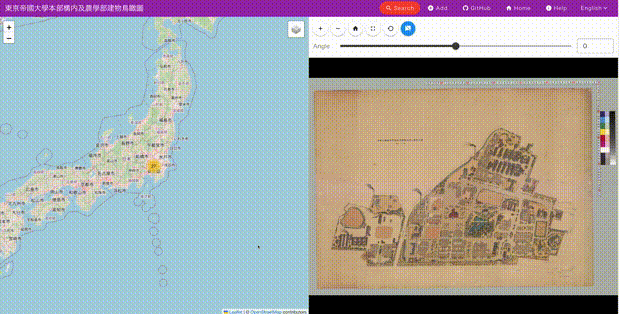
Overview This is a memo about updates made to the IIIF georeference extension visualization tool. The tool is published at the following location. https://github.com/nakamura196/iiif_geo It provides a side-by-side display of modern maps and images, as shown below. Update Details Allmaps is a tool that supports data creation based on the IIIF georeference extension. https://allmaps.org/ Its usage is introduced in the following article. In this update, support was added to load data created by the above tool. ...

Using Route 53 DNS Records with Sakura Rental Server (Shared SSL)

Using Route 53 DNS Records with Sakura Rental Server (Shared SSL)

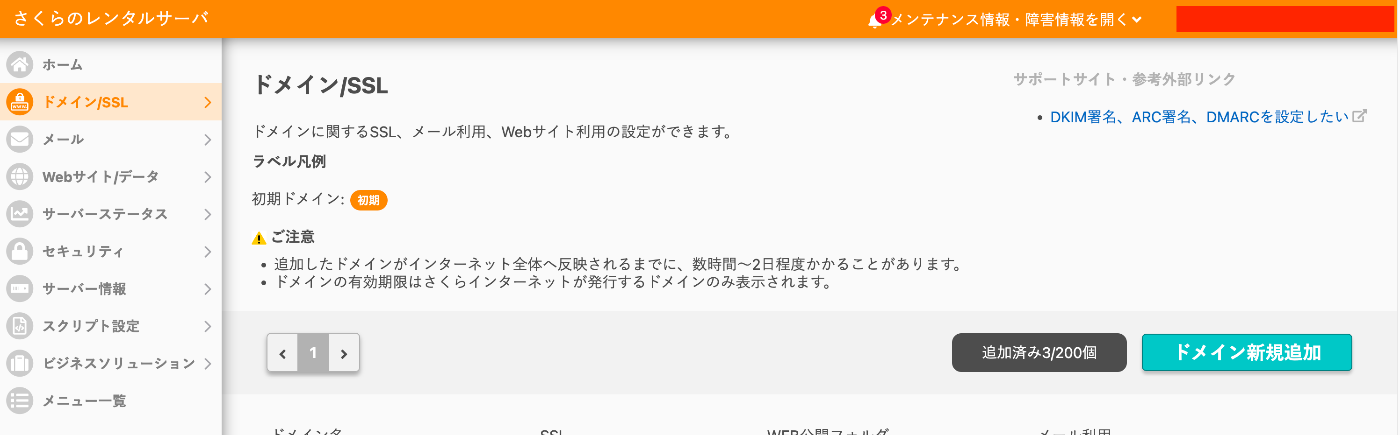
Overview This is a memo on using DNS records configured in AWS Route 53 with Sakura Rental Server. Additionally, we use free SSL with Let’s Encrypt. Sakura Rental Server Go to Domain/SSL and click the “Add New Domain” button. Click the “Add” button under “Use a domain acquired from another provider without transferring” at the bottom of the screen. Enter the custom domain and click the “Add” button. In the following example, “aaa.example.org” is used. ...

Application of DTS (Distributed Text Services) dts:wrapper When Building Search Systems from TEI/XML

Application of DTS (Distributed Text Services) dts:wrapper When Building Search Systems from TEI/XML

Overview This is a note on the application of the DTS (Distributed Text Services) dts:wrapper tag when building search systems from TEI/XML. DTS (Distributed Text Services) is described as follows: Cayless, H., Clérice, T., Jonathan, R., Scott, I., & Almas, B. Distributed Text Services Specifications (Version 1-alpha) [Computer software]. https://github.com/distributed-text-services/specifications` References As an example of building DTS, the following may also be helpful. Example The following “Digital Engishiki” is used as an example. ...

A Sample App Displaying Images with Mirador and Text with CETEIcean

A Sample App Displaying Images with Mirador and Text with CETEIcean

Overview I created a sample app that loads TEI/XML files, displays images with Mirador, and displays text with CETEIcean. You can try it from the following URL. Demo Site https://nakamura196.github.io/ceteicean-mirador/ Background I have previously developed applications that provide similar functionality. Implementation example using Next.js Implementation example using XSLT This time, I introduce an approach using only HTML and plain JavaScript. Target Data The target is the following Koui Genji Monogatari Text DB. ...

Sharing Private Sites in Omeka S

Sharing Private Sites in Omeka S

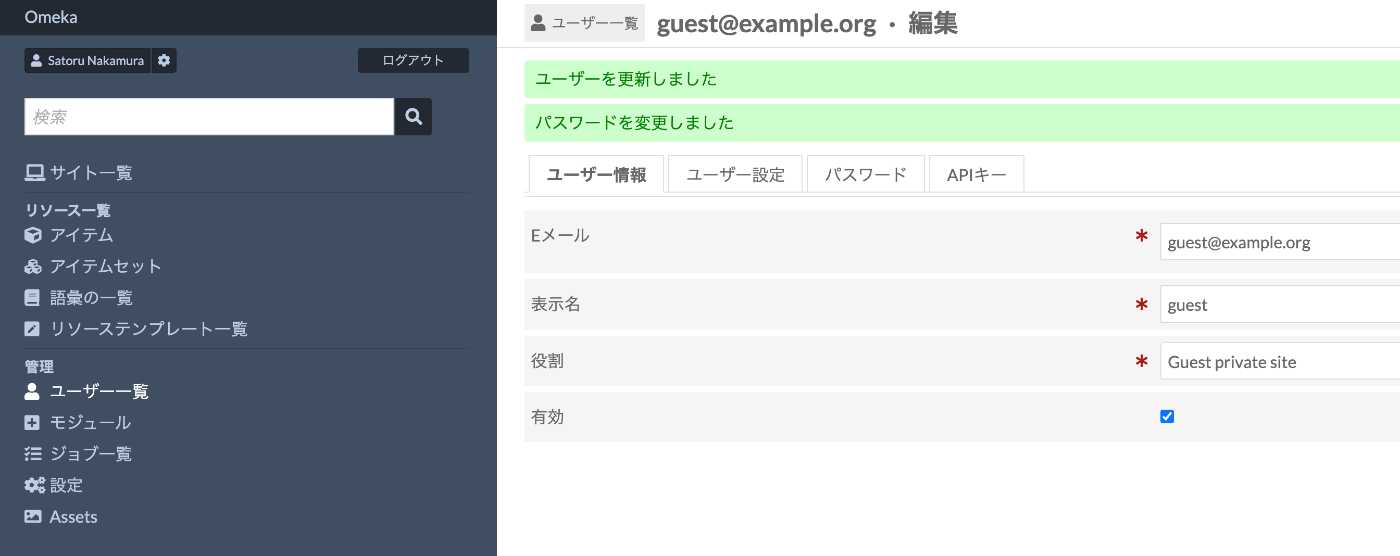
Overview I had the opportunity to share a private site in Omeka S, so this is a personal note for future reference. Related Modules First, I checked the following module. https://omeka.org/s/modules/Guest/ The above also introduces the Guest Private module, and I asked ChatGPT about how to differentiate between them. Here is an explanation of the differences between the Guest module and the Guest Private module in Omeka S. 1. Guest Module Adds the guest role, allowing users to register as guest users. No access to the admin panel. Login, logout, registration, password update, etc. are possible via API. Only public sites are viewable (private sites and private pages cannot be seen). Use case: Register general users on a public site and provide login functionality. 2. Guest Private Module Adding this module provides two additional roles: ...

Registering Objects Using the AtoM (Access to Memory) API

Registering Objects Using the AtoM (Access to Memory) API

Overview This is a memo on how to register objects using the AtoM (Access to Memory) API. Enabling the API Access the following. /sfPluginAdminPlugin/plugins Enable arRestApiPlugin. Obtaining an API Key The following explains how to generate an API key. https://www.accesstomemory.org/en/docs/2.9/dev-manual/api/api-intro/#generating-an-api-key-for-a-user While it appears you can also connect to the API with a username and password, this time I issued a REST API Key. Endpoints AtoM provides multiple menus such as “Authority records” and “Functions,” but it appears that only the following are available via the API. ...

Running AtoM (Access to Memory) with Docker

Running AtoM (Access to Memory) with Docker

Overview I had the opportunity to run AtoM (Access to Memory) with Docker, so here are my notes. Manual The documentation is available at the following link. https://www.accesstomemory.org/es/docs/2.9/dev-manual/env/compose/ git clone -b qa/2.x https://github.com/artefactual/atom.git atom cd atom export COMPOSE_FILE="$PWD/docker/docker compose.dev.yml" docker compose up -d Then, run the following. docker compose exec atom php symfony tools:purge --demo This started AtoM on port 63001. Additionally, the manual includes instructions for Compile Theme Files, but there were cases where it started without running this and cases where it did not. ...

Cases Where ImageMagick May Not Work Properly for Creating Pyramidal TIFFs?

Cases Where ImageMagick May Not Work Properly for Creating Pyramidal TIFFs?

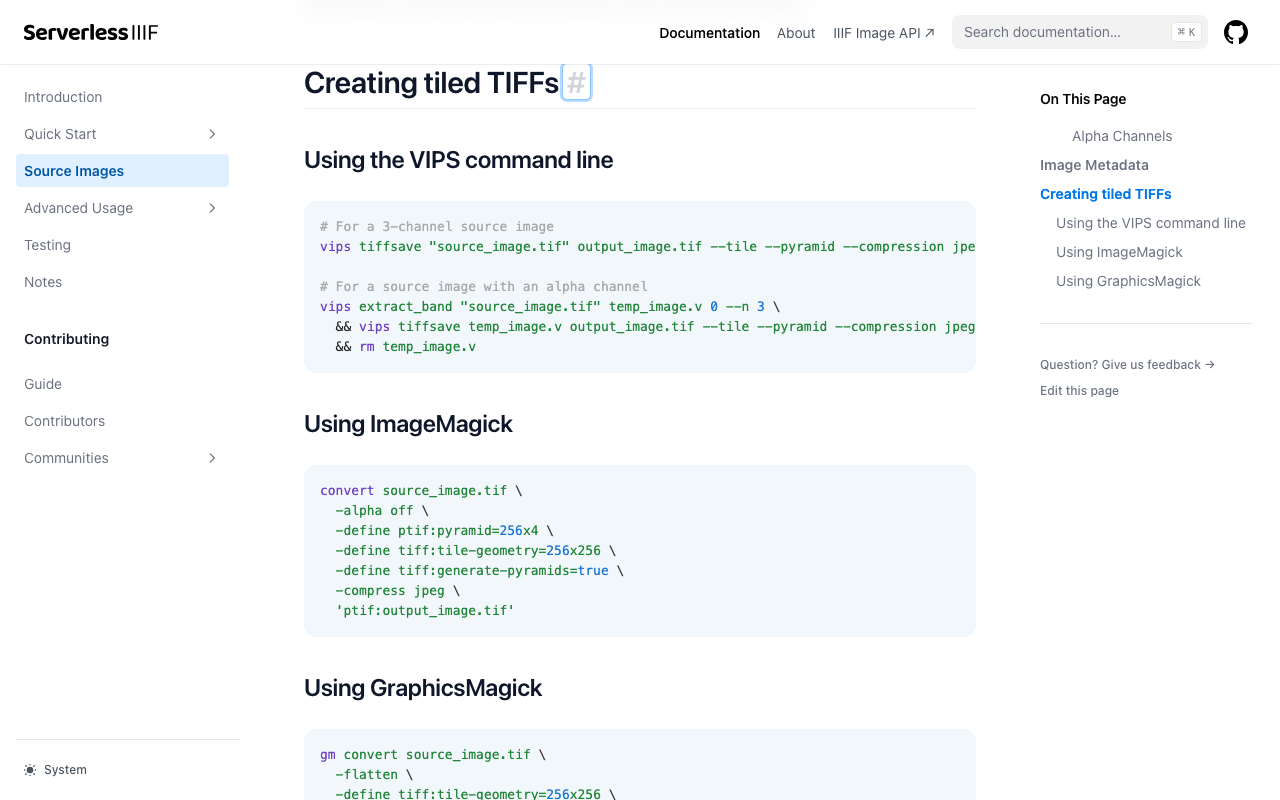
Overview I investigated cases where ImageMagick does not work properly when creating pyramidal TIFFs for IIIF image delivery. References Conversion methods are explained on pages like the following. https://samvera.github.io/serverless-iiif/docs/source-images#creating-tiled-tiffs Using the VIPS command line # For a 3-channel source image vips tiffsave source_image.tif output_image.tif --tile --pyramid --compression jpeg --tile-width 256 --tile-height 256 # For a source image with an alpha channel vips extract_band source_image.tif temp_image.v 0 --n 3 \ && vips tiffsave temp_image.v output_image.tif --tile --pyramid --compression jpeg --tile-width 256 --tile-height 256 \ && rm temp_image.v Using ImageMagick convert source_image.tif -alpha off \ -define tiff:tile-geometry=256x256 \ -define tiff:generate-pyramids=true \ -compress jpeg \ 'ptif:output_image.tif' Target Data The following image was used. ...

Running ArchivesSpace with Docker

Running ArchivesSpace with Docker

Overview I had an opportunity to run ArchivesSpace with Docker, so here are my notes. Method Instructions are described at the following link. https://docs.archivesspace.org/administration/docker/ Clone and start the containers as follows. git clone https://github.com/archivesspace/archivesspace cd archivesspace docker compose up --detach The documentation states the following, but I was able to access the Public User interface on port 3001, the Staff User Interface on port 3000, and the backend system on port 4567. ...

Storing Omeka S Files in mdx.jp Object Storage

Storing Omeka S Files in mdx.jp Object Storage

Overview This is a memo on how to store Omeka S files in mdx.jp object storage. Base Module We use the following module as a base, which enables integration with Amazon S3. https://omeka.org/s/modules/AmazonS3/ This module provides an extension for storing media files such as images and videos handled by Omeka S in Amazon S3. However, since it did not support specifying an endpoint, it was not possible to target object storage services like mdx.jp. ...

Serving IIIF Images Using mdx.jp Object Storage and IIP Image (IIIF Image Server)

Serving IIIF Images Using mdx.jp Object Storage and IIP Image (IIIF Image Server)

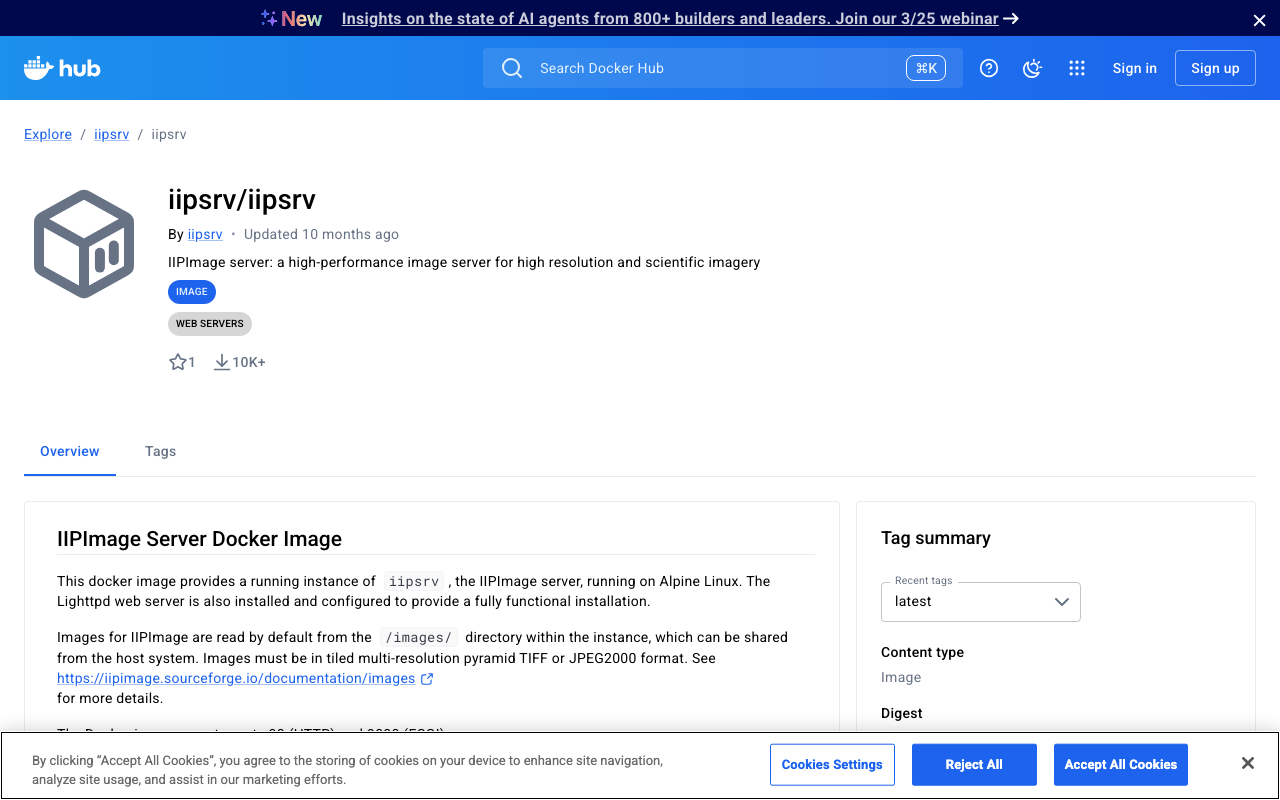
Overview This is a note on my experiment with serving IIIF images using mdx.jp object storage and IIP Image (IIIF Image Server). This is a continuation of the following article. Docker Version of IIP Image A Docker image for the IIPImage server is available at the following link, so I will use that. https://hub.docker.com/r/iipsrv/iipsrv Refer to the following article and others for installing Docker. https://qiita.com/Marron-chan/items/570c7c7baaae3b4d6b11 Execution Following the previous article, mount the mdx.jp object storage as follows. ...

How to Mount mdx.jp Object Storage as a File System Using s3fs

How to Mount mdx.jp Object Storage as a File System Using s3fs

Overview I had the opportunity to mount mdx.jp object storage as a file system using s3fs, so this is a memo of the process. 1. Prerequisites This guide targets Ubuntu. Installing s3fs sudo apt update sudo apt install s3fs Setting up authentication credentials Save the access key and secret key for mdx.jp object storage to ~/.passwd-s3fs. echo “ACCESS_KEY:SECRET_KEY” > ~/.passwd-s3fs chmod 600 ~/.passwd-s3fs # Change permissions for security 2. Mount S3 Storage Locally Create a mount point ...

Investigating Partial Match Search with AND Conditions Across Fields in Algolia

Investigating Partial Match Search with AND Conditions Across Fields in Algolia

This article was created by AI with some human edits. Introduction Among full-text search engines, Typesense, MeiliSearch, and Algolia are gaining attention as options for small-scale projects. However, whether partial match search with “field a contains x AND field b contains y” is possible is an important consideration for project requirements. This article examines the feasibility of partial match search in Algolia and compares it with Elasticsearch. Partial Match Search in Algolia Algolia offers full-text search (query), but there are limitations when performing partial match searches on specific fields. ...

How to Convert Word Files to TEI XML: A Guide to Using the TEIgarage API

How to Convert Word Files to TEI XML: A Guide to Using the TEIgarage API

This article was created by AI with some human modifications. Introduction In the world of digital humanities, it has become common to store documents in TEI (Text Encoding Initiative) format. TEI is a standard for structuring scholarly texts. This article explains how to convert documents created in Microsoft Word to TEI XML format using Python. What is TEIgarage? TEIgarage is an online service for converting documents in various formats to TEI XML. The service provides an API that can be called directly from programs. In this article, we will call this API from Python to convert Word files. ...

Using Drupal's Sortableviews Module to Reorder Content and Save the Result to a Field

Using Drupal's Sortableviews Module to Reorder Content and Save the Result to a Field

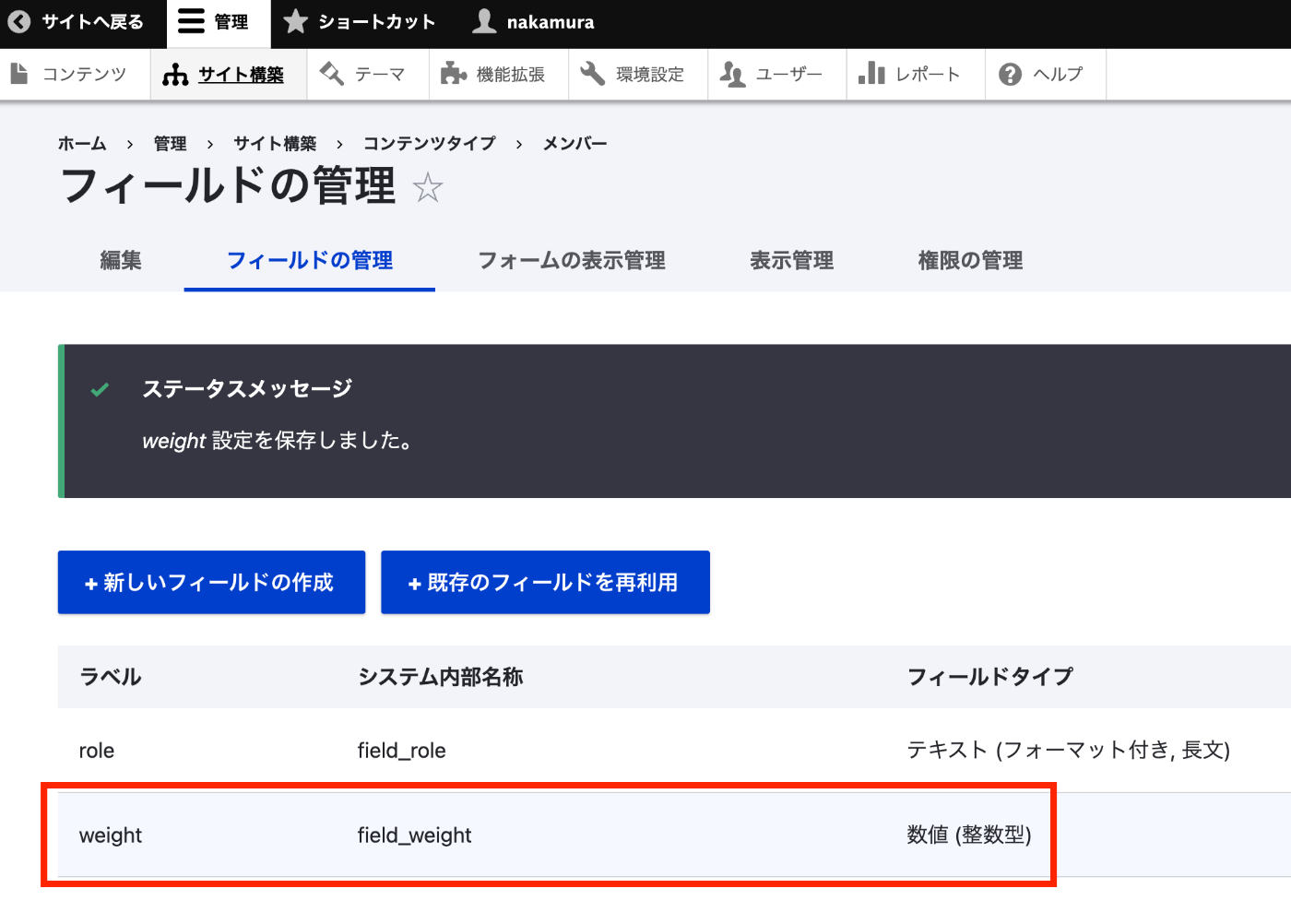
Overview This article introduces how to use Drupal’s Sortableviews module to reorder content and save the result to a field. https://www.drupal.org/project/sortableviews It is described as follows. This one is similar to Draggableview module except it can save the position value ( After drag and drop the question ) into custom content type field. Installation It could be installed using the standard method. Creating a Content Type Create the content type to be sorted. Here, we target a content type called team. ...

Developing a Viewer with Next.js + CETEIcean + React TEI Router

Developing a Viewer with Next.js + CETEIcean + React TEI Router

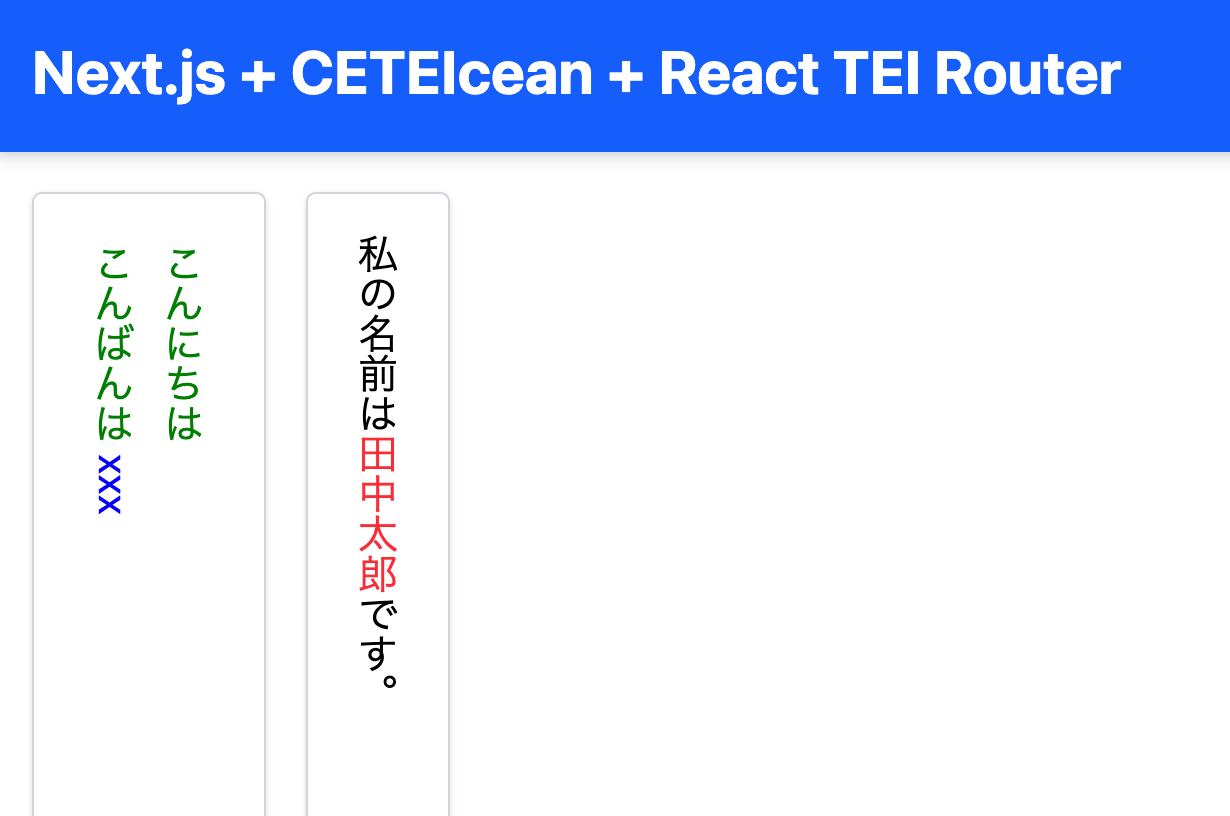
Overview This is a memo on developing a TEI/XML viewer combining Next.js, CETEIcean, and React TEI Router. Background CETEIcean is a JavaScript library that converts TEI/XML to HTML5. https://github.com/TEIC/CETEIcean React TEI Router is a library that enables structured display of TEI/XML using React components, based on CETEIcean. It is described as follows: https://github.com/pfefferniels/react-teirouter TEI for React using CETEIcean and routes By combining these, I created a viewer that can customize and display TEI/XML in Next.js. ...

Next.js for Drupal BASE_PATH Issue and Fix (Using patch-package)

Next.js for Drupal BASE_PATH Issue and Fix (Using patch-package)

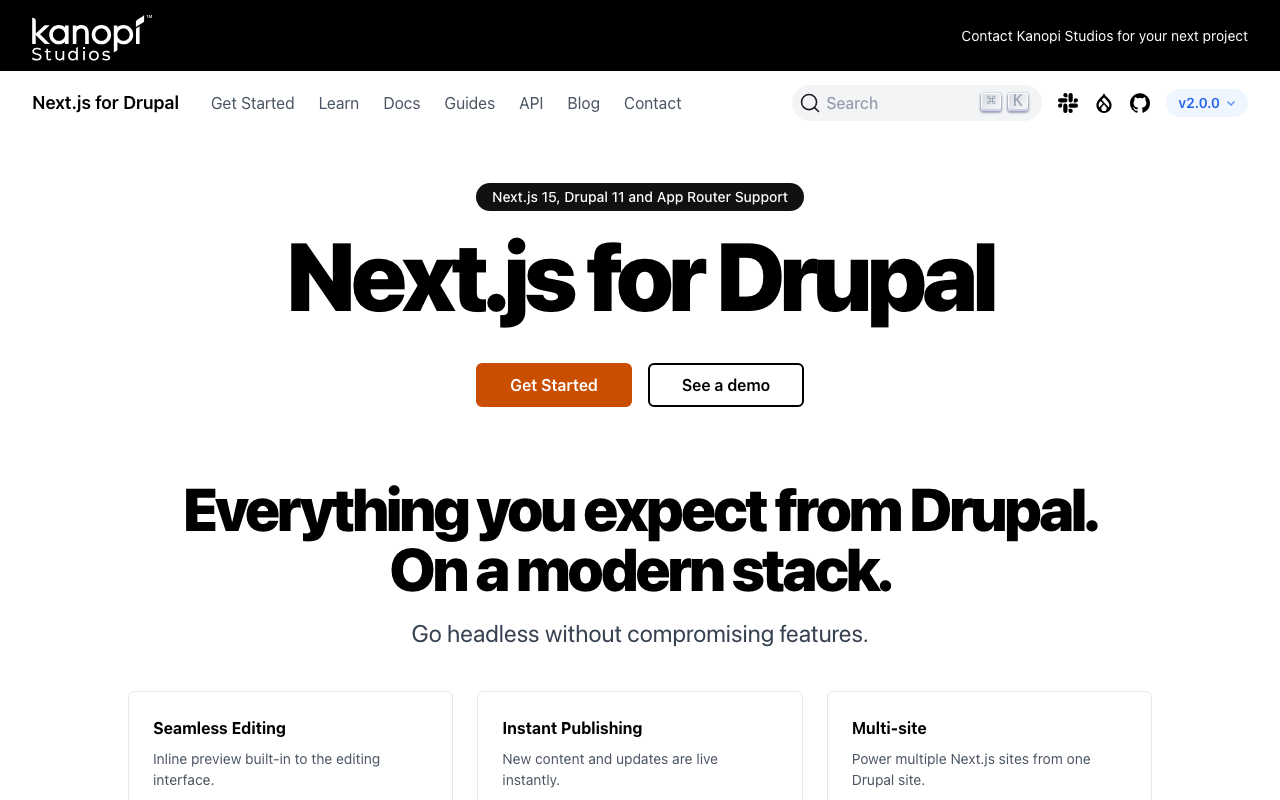
Overview Next.js for Drupal v2.0.0 was released on 2025/2/11. https://next-drupal.org/ https://next-drupal.org/blog/next-drupal-2-0 When I tried it out, I found that the handling of BASE_PATH required attention, so this is a memo about it. Environment Variables The sample environment variables are as follows. # See https://next-drupal.org/docs/environment-variables # Required NEXT_PUBLIC_DRUPAL_BASE_URL=https://site.example.com NEXT_IMAGE_DOMAIN=site.example.com # Authentication DRUPAL_CLIENT_ID=Retrieve this from /admin/config/services/consumer DRUPAL_CLIENT_SECRET=Retrieve this from /admin/config/services/consumer # Required for On-demand Revalidation DRUPAL_REVALIDATE_SECRET=Retrieve this from /admin/config/services/next When specifying NEXT_PUBLIC_DRUPAL_BASE_URL with a base path included, such as https://site.example.com/xxx, API requests were sent to https://site.example.com/jsonapi/, failing to correctly retrieve resources. ...

Trying the Search API Algolia Module for Drupal

Trying the Search API Algolia Module for Drupal

Overview I had the opportunity to try the Search API Algolia module for Drupal, so this is a memo of my experience. https://www.drupal.org/project/search_api_algolia Installation On Drupal 11, it could be installed with the following command. composer require 'drupal/search_api_algolia:^3.1' Configuration After installing the module, configure the server and index. Add server Create a server based on the configuration information available on the Algolia settings screen. Here, I used the Write API Key. ...

Registering Data with Drupal's JSON:API Using Username and Password

Registering Data with Drupal's JSON:API Using Username and Password

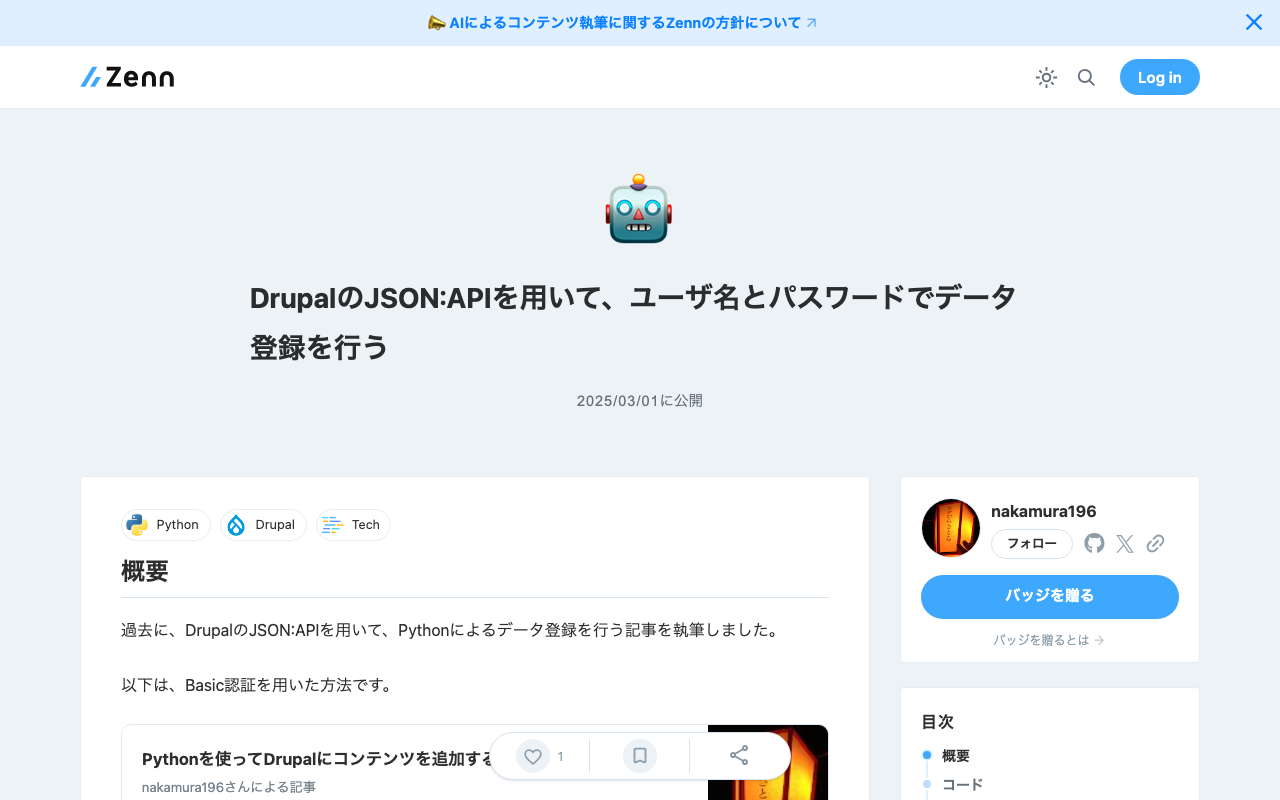
Overview In the past, I wrote articles about registering data using Drupal’s JSON:API with Python. The following uses Basic authentication. And the following uses an API Key. In addition to these methods, I was able to register data using regular login authentication, so this is a memo of that process. Code The code is as follows. It logs in, obtains a CSRF token, and then registers content. import requests import json import os from dotenv import load_dotenv class ApiClient: def __init__(self): load_dotenv(override=True) # DrupalサイトのURL(例) self.DRUPAL_BASE_URL = os.getenv("DRUPAL_BASE_URL") # エンドポイント(JSON:API) # self.JSONAPI_ENDPOINT = f"{self.DRUPAL_BASE_URL}/jsonapi/node/article" # 認証情報(Basic認証) self.USERNAME = os.getenv("USERNAME") self.PASSWORD = os.getenv("PASSWORD") def login(self): # ログインリクエスト login_url = f"{self.DRUPAL_BASE_URL}/user/login?_format=json" login_response = requests.post( login_url, json={"name": self.USERNAME, "pass": self.PASSWORD}, headers={"Content-Type": "application/json"} ) if login_response.status_code == 200: self.session_cookies = login_response.cookies def get_csrf_token(self): # CSRFトークンを取得 csrf_token_response = requests.get( f"{self.DRUPAL_BASE_URL}/session/token", cookies=self.session_cookies # ここでログインセッションを渡す ) if csrf_token_response.status_code == 200: # return csrf_token_response.text # self.csrf_token = csrf_token_response.text self.headers = { "Content-Type": "application/vnd.api+json", "Accept": "application/vnd.api+json", "X-CSRF-Token": csrf_token_response.text, } else: # raise Exception(f"CSRFトークン取得失敗: {csrf_token_response.status_code} {csrf_token_response.text}") self.csrf_token = None def create_content(self, data: dict): # 記事作成リクエスト url = f"{self.DRUPAL_BASE_URL}/jsonapi/{data['data']['type'].replace('--', '/')}" response = requests.post( # self.JSONAPI_ENDPOINT, url, headers=self.headers, cookies=self.session_cookies, json=data ) if response.status_code == 201: print("コンテンツが作成されました!") else: print("エラー:", response.status_code, response.text) With this, content can be registered as follows. ...

Building a Multilingual Static Site with Next.js

Building a Multilingual Static Site with Next.js

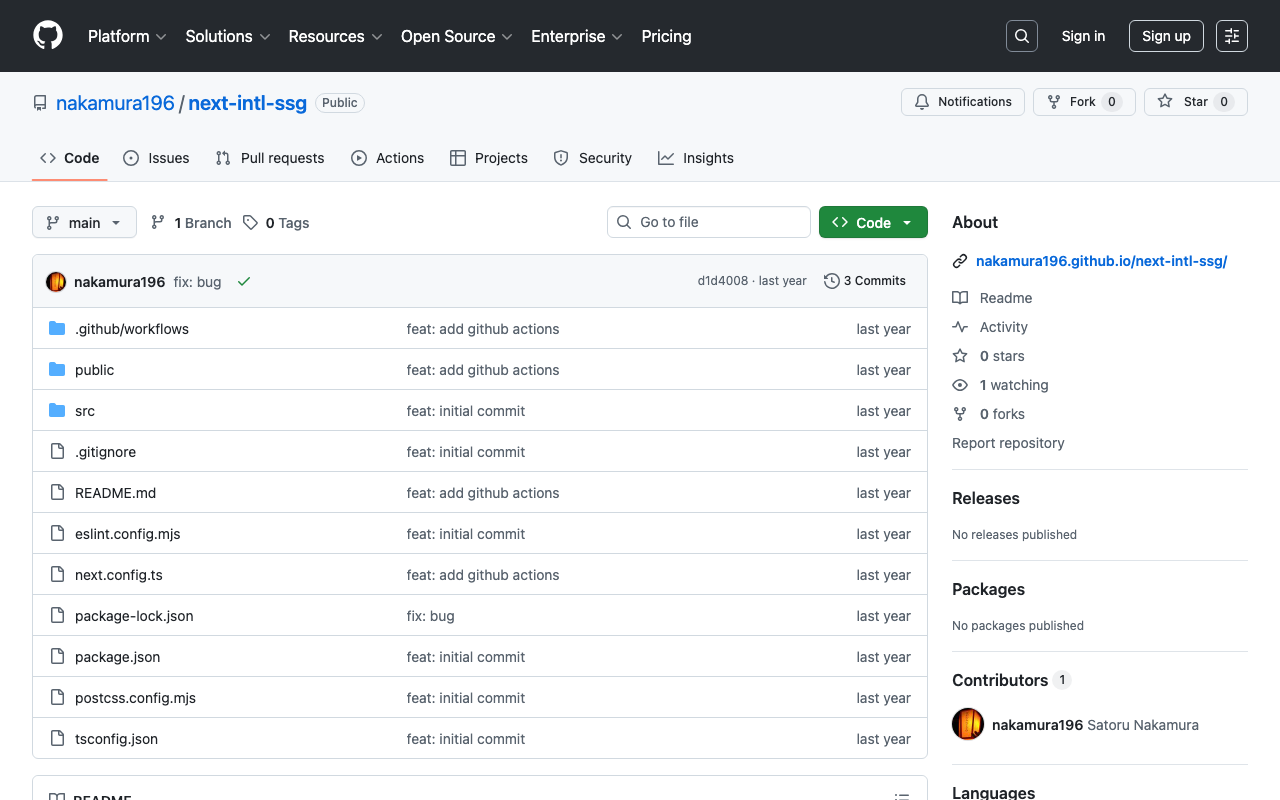
Introduction This article was generated by GPT-4o. It explains how to build a multilingual static site using Next.js. In particular, it focuses on a configuration where the main language has no URL prefix while other languages have prefixes. It also includes configuration for deploying to GitHub Pages. Project Setup First, create a Next.js project. Initialize the project using create-next-app. npx create-next-app@latest next-intl-ssg Installing Required Packages Install next-intl for multilingual support. ...