I created a program for batch updating file owners in Google Drive.
Below, I explain the process separately for the person transferring ownership and the person receiving ownership.
Please note that this program cannot transfer ownership of PDF or image files. The workaround for this is described later.
Person Transferring Ownership
Access the Google Apps Script at the following link and follow the instructions.
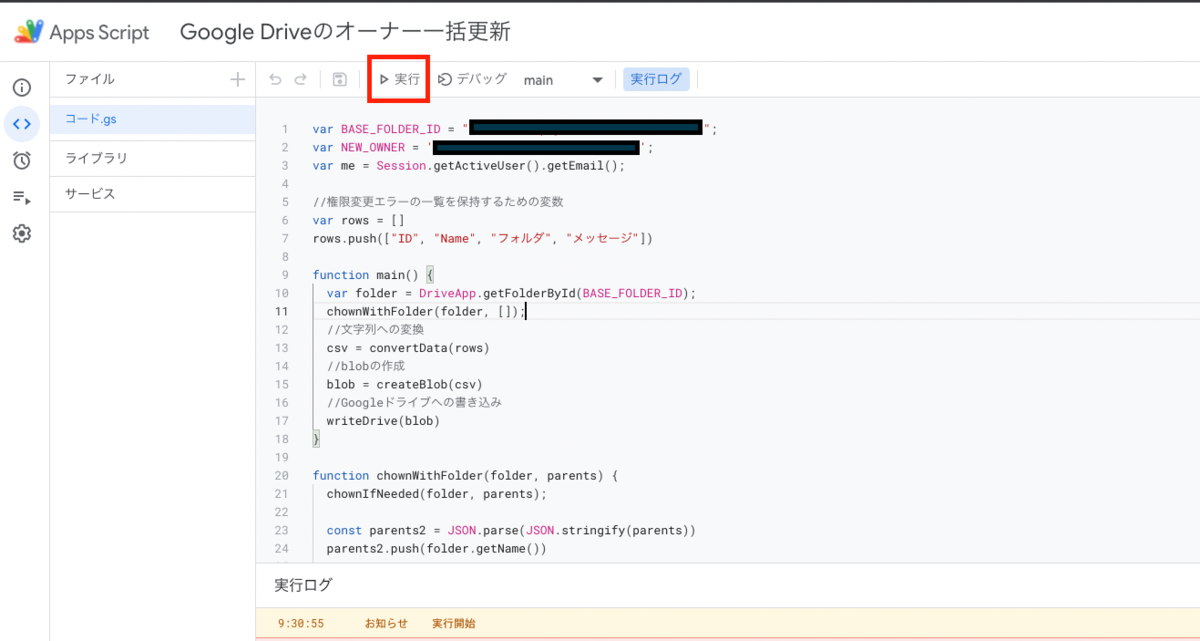
After navigating to the Apps Script page, press the “Run” button.
If needed, modify the value of “BASE_FOLDER_ID” on the first line. The script recursively searches folders under the folder specified here.
After execution, authorization will be requested. Please grant permission by following the screen captures below.
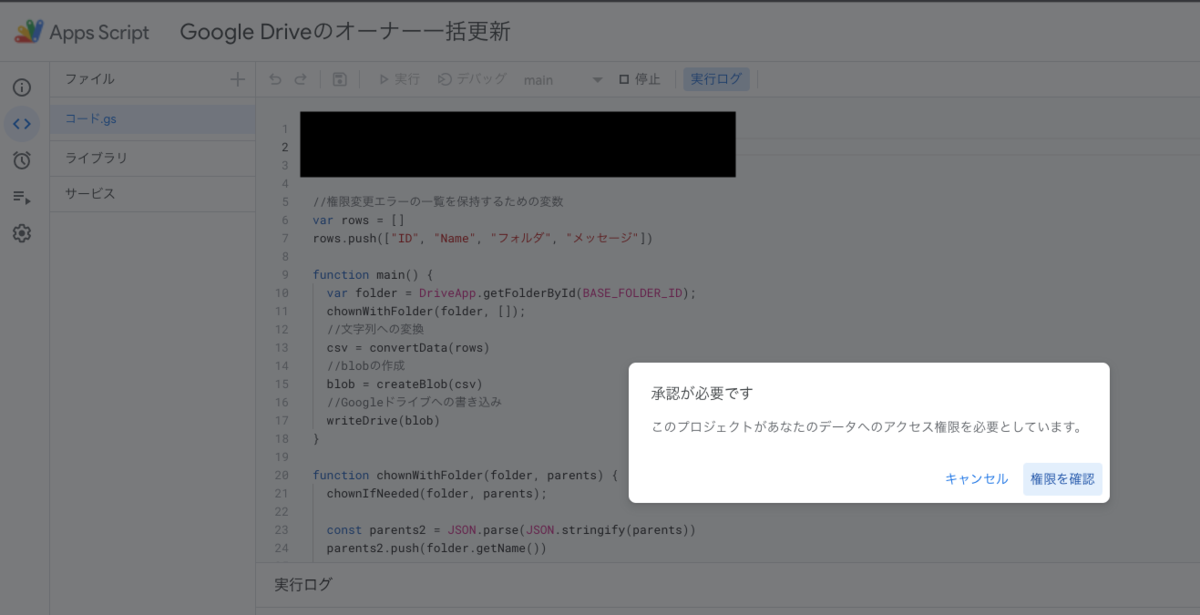
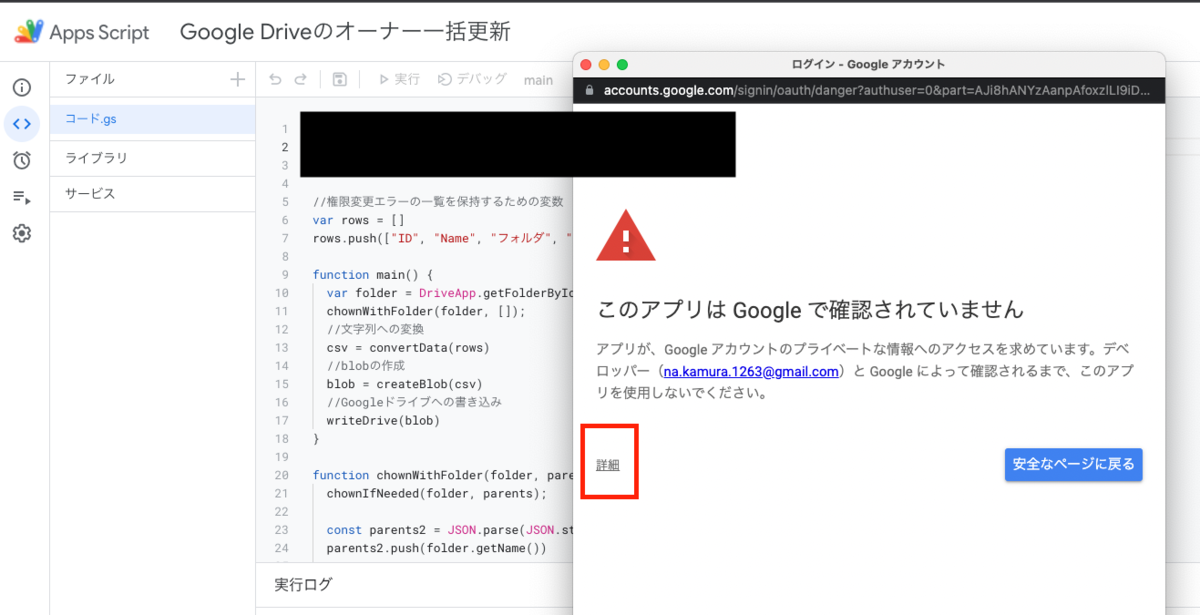
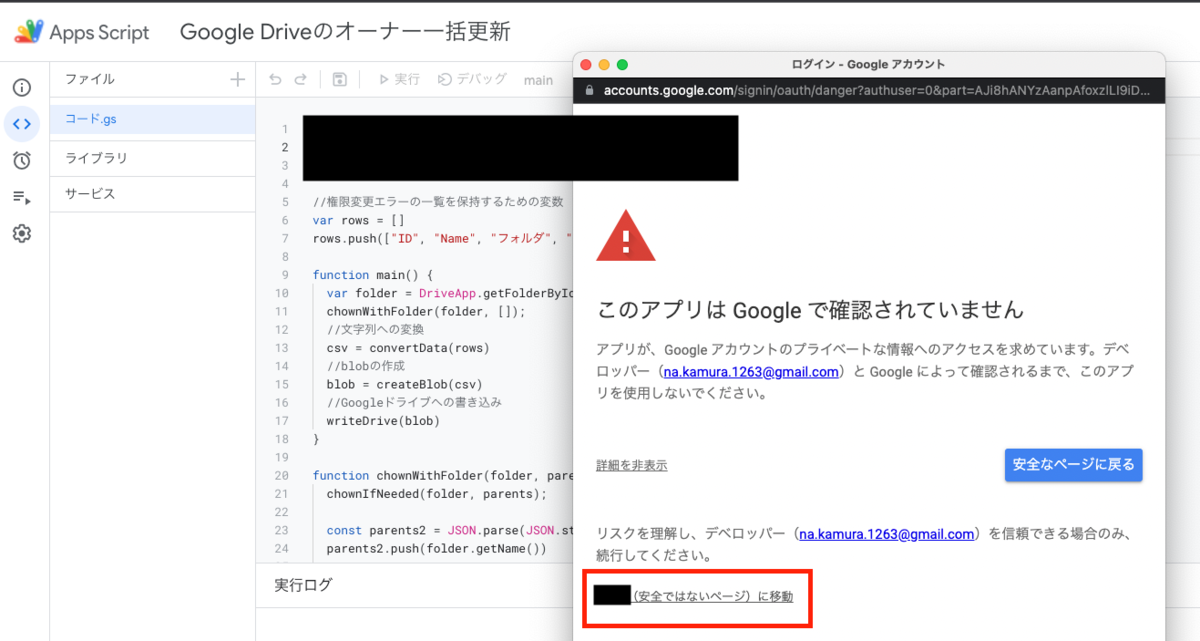
After execution, click “Execution log” at the top of the screen to display the execution log at the bottom. The process is complete when “Execution completed” is displayed.
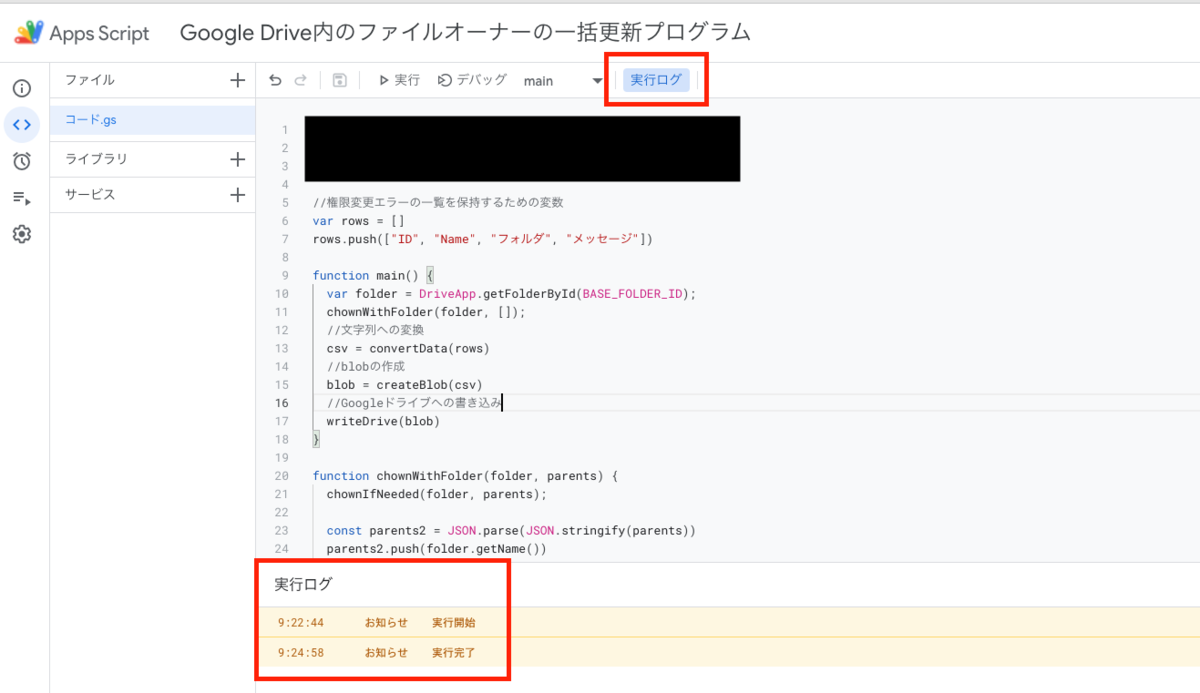
Note that this method cannot transfer ownership of PDF or image files. A list of files whose ownership could not be transferred is output to the root of your My Drive with a filename in the format “Google Drive Batch Owner Update Error_yyyy-MM-dd HH:mm:ss.csv.”
You can access your My Drive at:
https://drive.google.com/drive/my-drive
The CSV file can be opened with Google Sheets or similar applications. Files listed in this file require manual ownership transfer.
Note that as of March 9, 2022, cross-domain ownership transfer does not appear to be possible. Therefore, while there are no issues with files created under personal accounts, please note that files created under University of Tokyo accounts (g.ecc.u-tokyo.ac.jp) cannot have their ownership transferred to users in other domains.
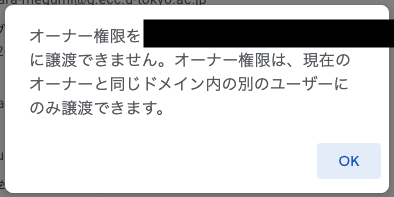
Person Receiving Ownership
The person receiving ownership will receive a (large number of) emails like the following.

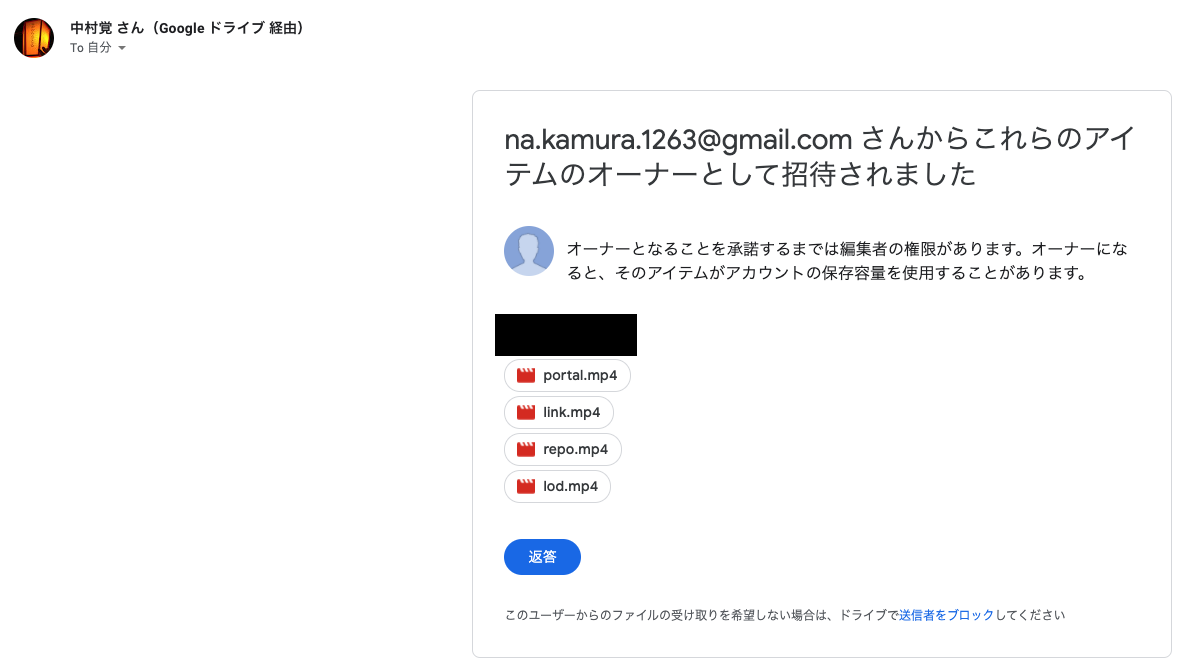
Clicking the “Accept” button one by one for each of these is cumbersome.
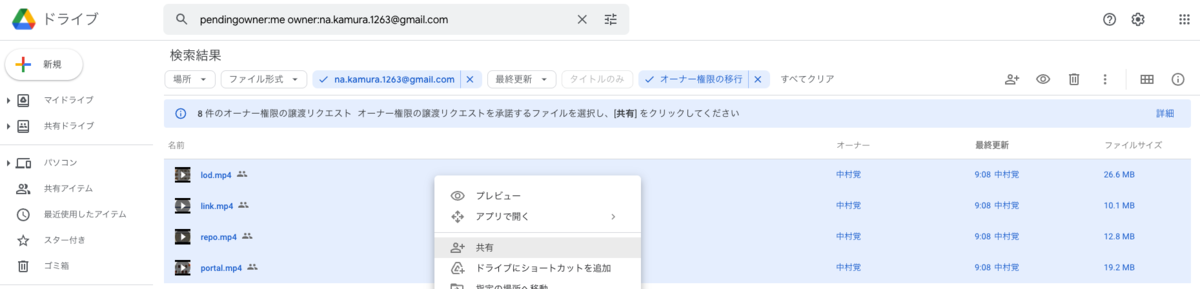
Instead, access Google Drive and enter the following in the search form:
pendingowner:me
This will list only files with pending ownership transfer requests.
Additionally, you can filter by the requesting user by adding owner:(email address) as shown below. The following example specifies “na.kamura.1263@gmail.com”:
pendingowner:me owner:na.kamura.1263@gmail.com
This lists only files with ownership transfer requests from the specified email address.

From this list, you can select multiple files at once and batch “Accept” them from the “Share” button available after right-clicking.
Summary
I hope this is helpful for those considering batch updating file owners in Google Drive.