Overview
This article introduces how to change the auto-formatting and indentation rules in “Oxygen XML Editor,” a useful tool for working with TEI/XML.
Specifically, the goal is to ensure that a line break is inserted before the lb tag, which marks the beginning of a line.
Background
In “Oxygen XML Editor,” there is an auto-formatting and indentation feature. It is the icon shown at the top of the figure below.
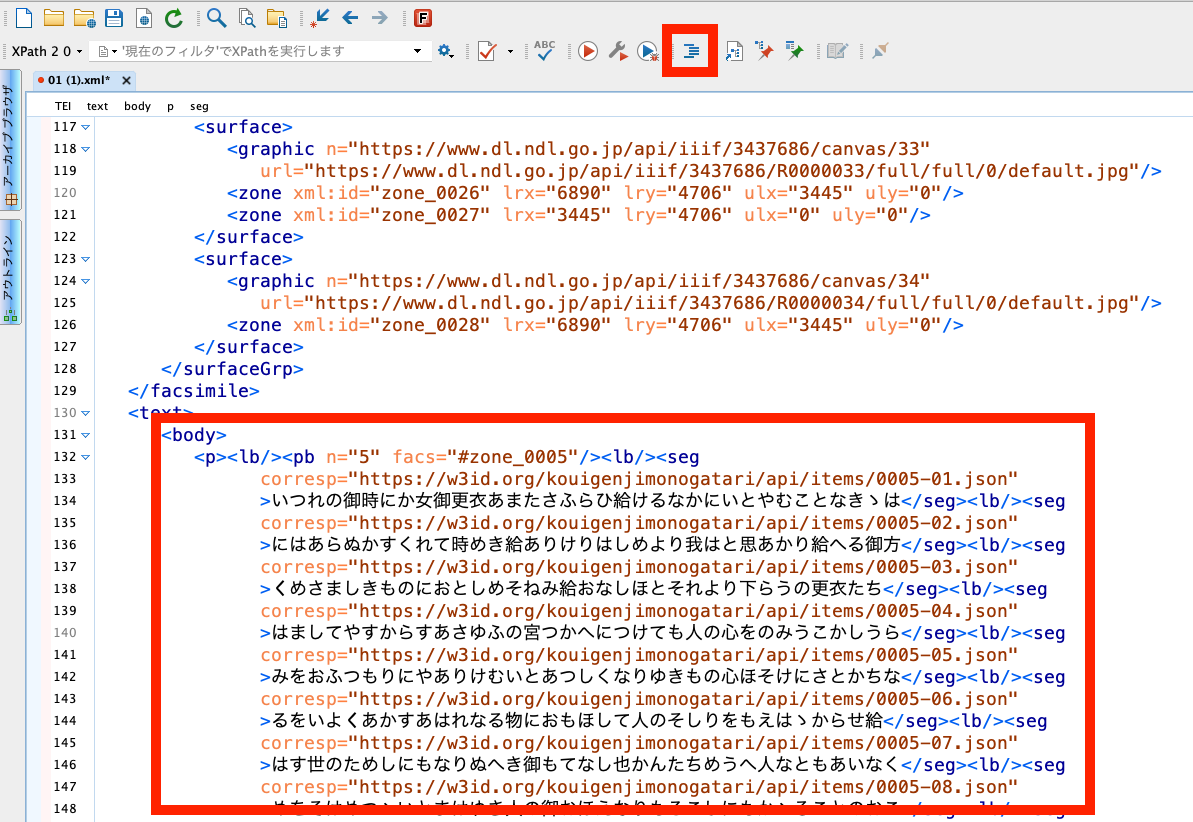
Using this feature formats the text based on a set of rules, but sometimes you may want to edit these rules.
For example, the figure above shows text data from “Koui Genji Monogatari” (Textual Variants of The Tale of Genji). There is an lb (line beginning) tag that marks the beginning of a line, but with the default formatting rules (in my environment), the lb tag is placed in the middle of a line.
While this is not a problem when processing the text data programmatically, there was a need to have a line break inserted before the lb tag, especially when manually creating and editing text data.
Editing Formatting Rules
From the “Options” menu in Oxygen, open the following screen and select “Editor” > “Format” > “XML” from the navigation on the left.
The figure below shows my default settings. You can always return to the default settings by clicking the “Default” button at the bottom right.
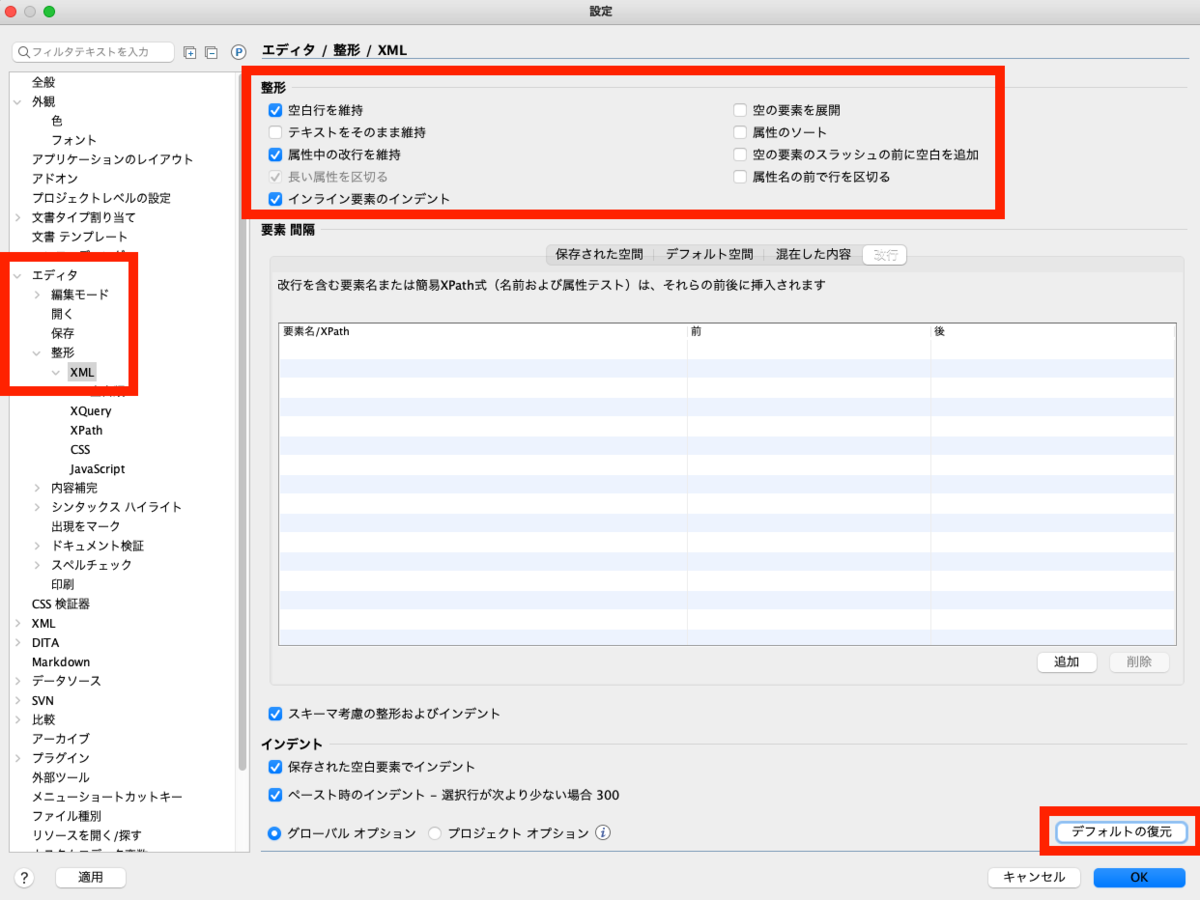
Make the following setting changes as shown in the figure below.
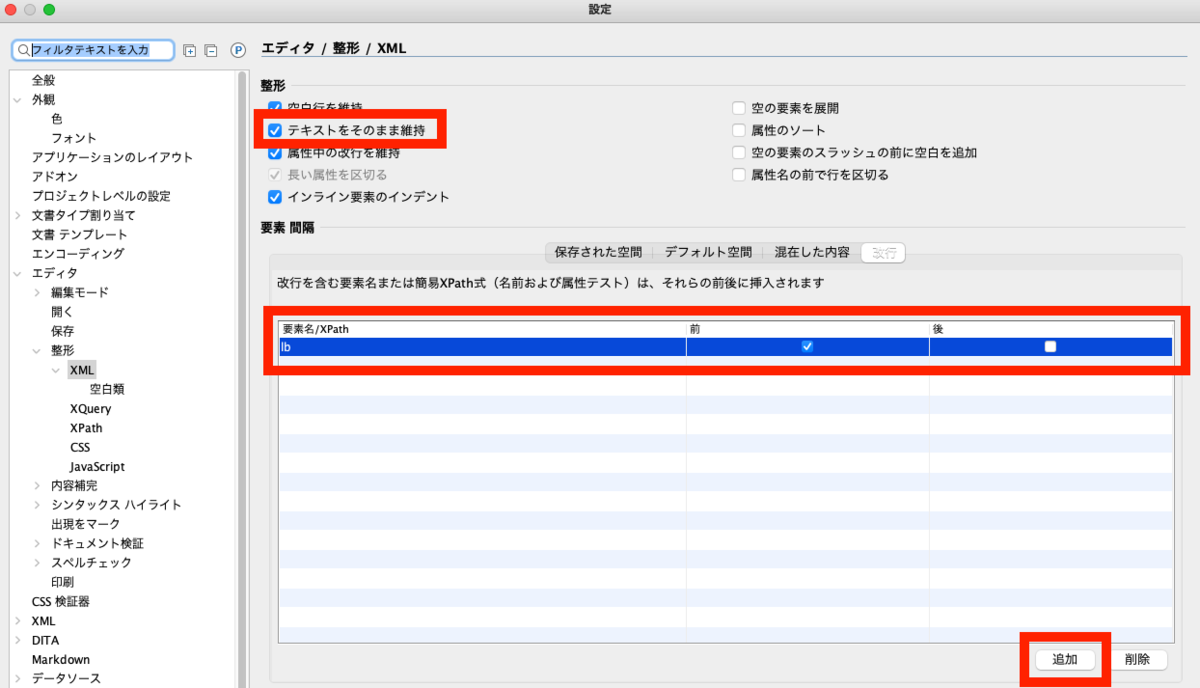
First, in the “Element Spacing” section in the center of the screen, select “New line” on the right end, and add the lb element using the “Add” button at the bottom right. When the “Before” column is checked, a line break will be inserted before the lb tag during auto-formatting.
Next, in the “Format” section, check “Preserve text as-is.” I confirmed that without this checked, depending on the markup method, a blank line would be inserted before the lb tag each time auto-formatting was applied.
For other settings, please experiment as needed.
Result
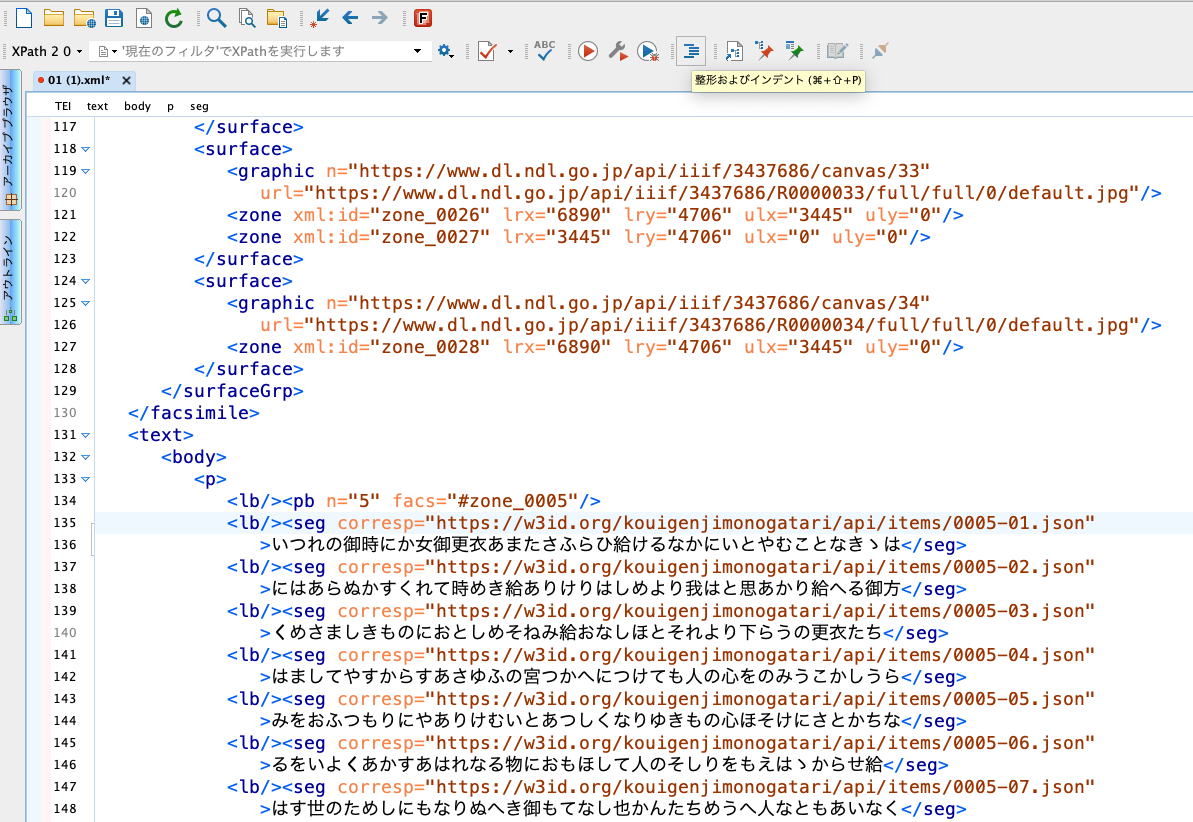
After applying the above settings and running auto-formatting, a line break is now inserted before the lb tag, as shown in the figure below.
I hope this article is helpful, especially when manually creating and editing TEI/XML files.