Overview
This article explains the “Numeric Data Types” module, which enables specific properties to be configured as numeric data. Properties can be specified as date and time (ISO) or as numbers.
A key benefit is that it enables range searches on date data.
The official manual is available at:
Using the manual above as a reference, I will explain how to use this module.
Creating or Editing a Resource Template
To use this module, you need to create or edit a resource template to configure specific properties as numeric data types. Instructions for using resource templates are available at the following link, and I hope to write an introductory article about them in the future:
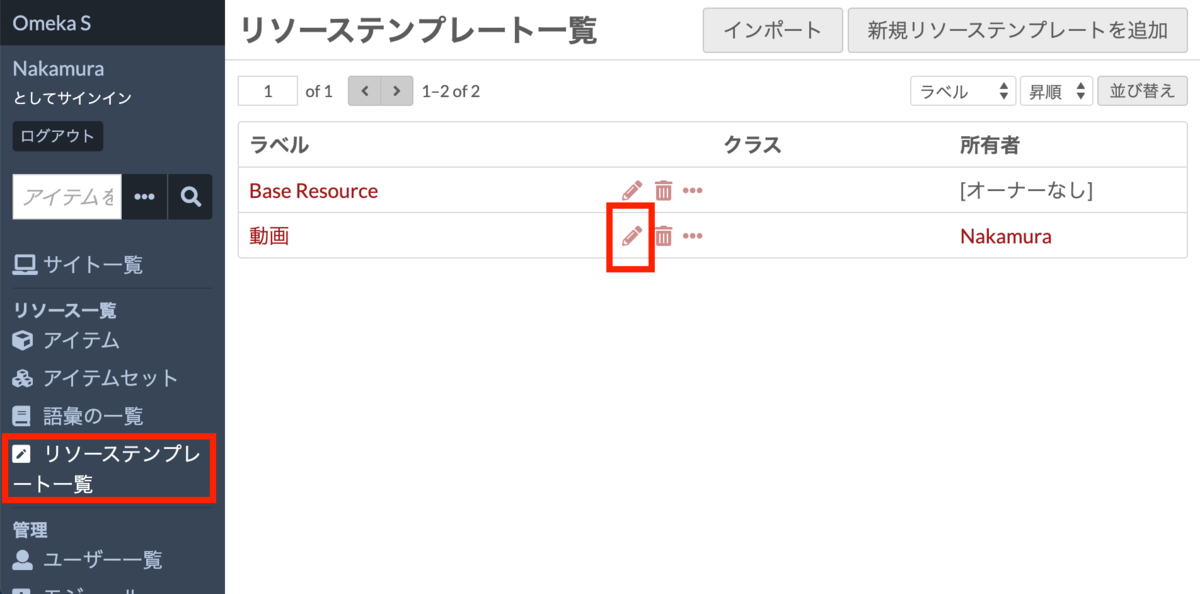
For this example, we will create a resource template called “Video” for video-related resources. As shown below, create a resource template called “Video” and open its edit screen.
This module adds the following Data types:
- Timestamp (xsd:date)
- Integer (o-module-numeric-xsd:integer)
- Duration (xsd:duration)
- Interval
Therefore, we create properties with these types in the resource template. Specifically, the following settings were configured:
- Publication Date (ex:date): Timestamp
- Version (ex:version): Integer
- Playback Duration (ex:duration): Duration
- Preparation Time (ex:prepare): Interval
For information on creating custom vocabularies like “ex”, please refer to the following article:
Here is how to set the Data type for a property. Open the resource template edit screen and click the “pencil” icon for the property you want to configure. In the panel that appears on the right side, select “Numeric” > “Timestamp” under “Other options” > “Data types.”
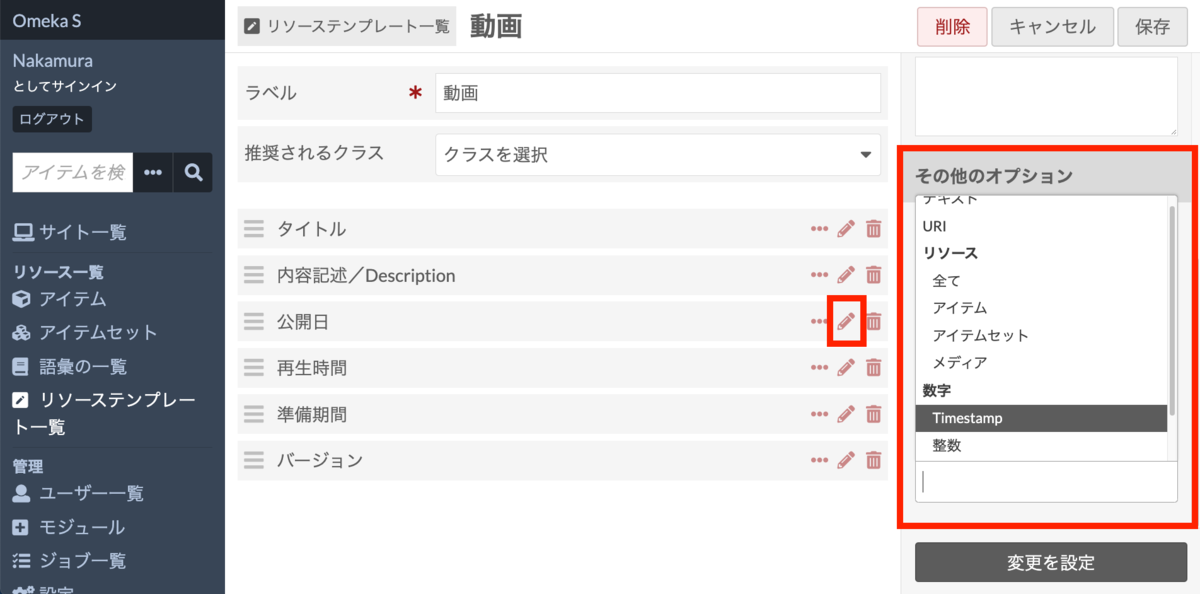
As a result, we will use the following resource template:
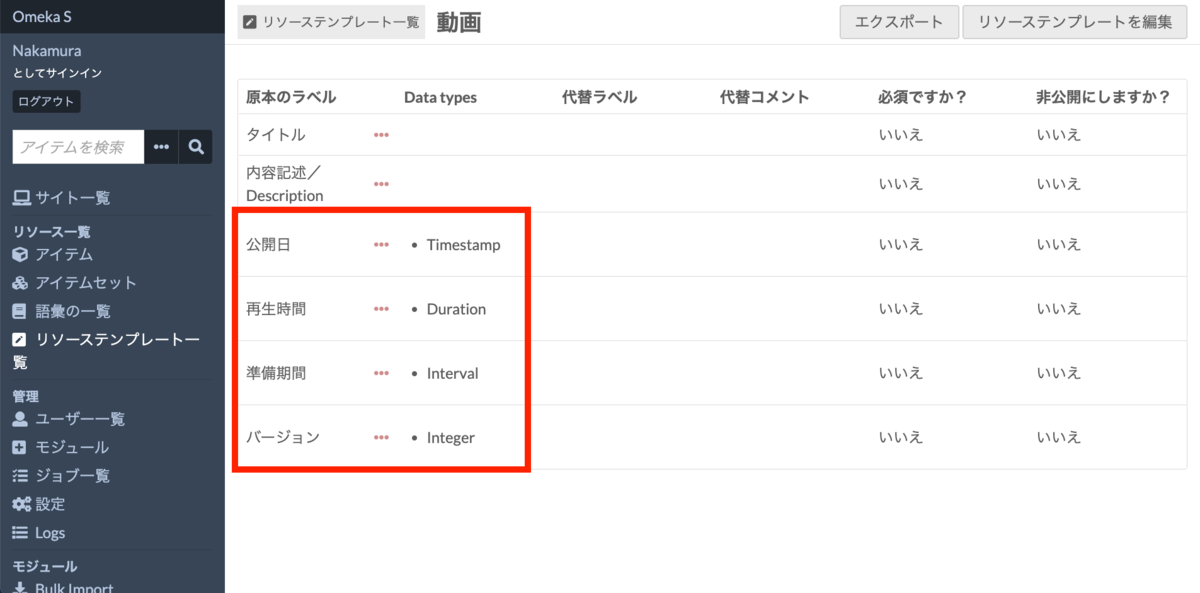
Below, we describe the input forms and stored data for each property configured here.
Data Registration
For this example, we create data like the one shown below. For a video published on March 11, 2021, we enter the playback duration, version, preparation period, etc.

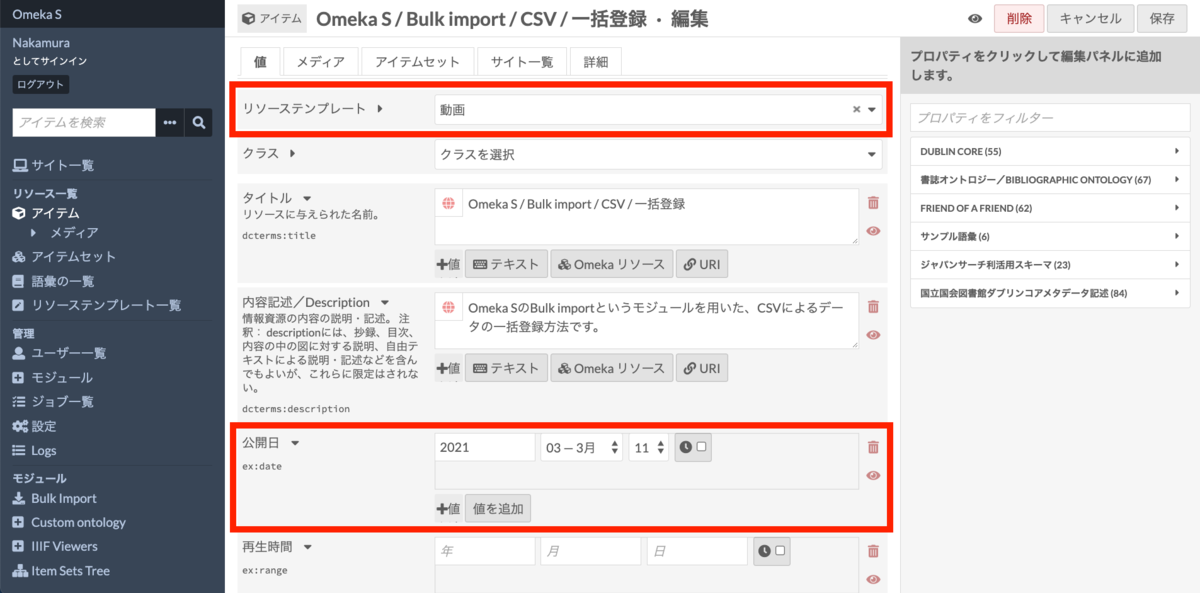
On the item registration or editing screen, select the previously created “Video” template from the resource template selection form.
This will display input forms tailored to the Data types configured for each property.
For example, the property “Publication Date” configured with the Timestamp type displays a form specialized for date (and time) input, as shown below.
Search
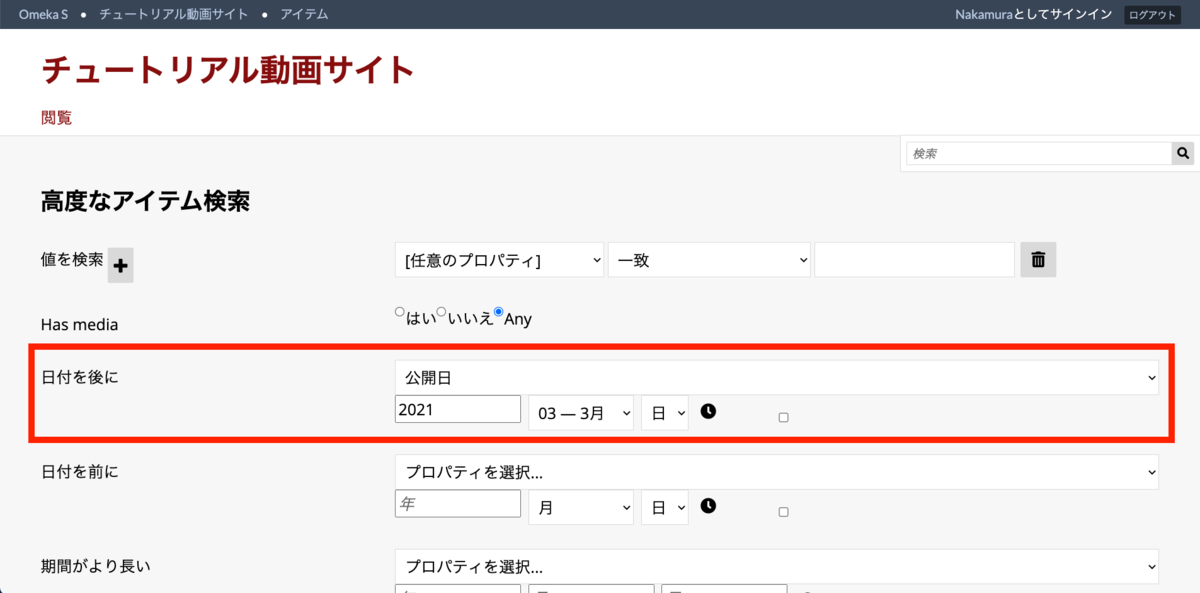
With the above settings, search forms are added to both the admin interface and the public site.
For example, as shown below, you can search for values in the “Publication Date” property that are after “2021-03.”
Other Notes
API
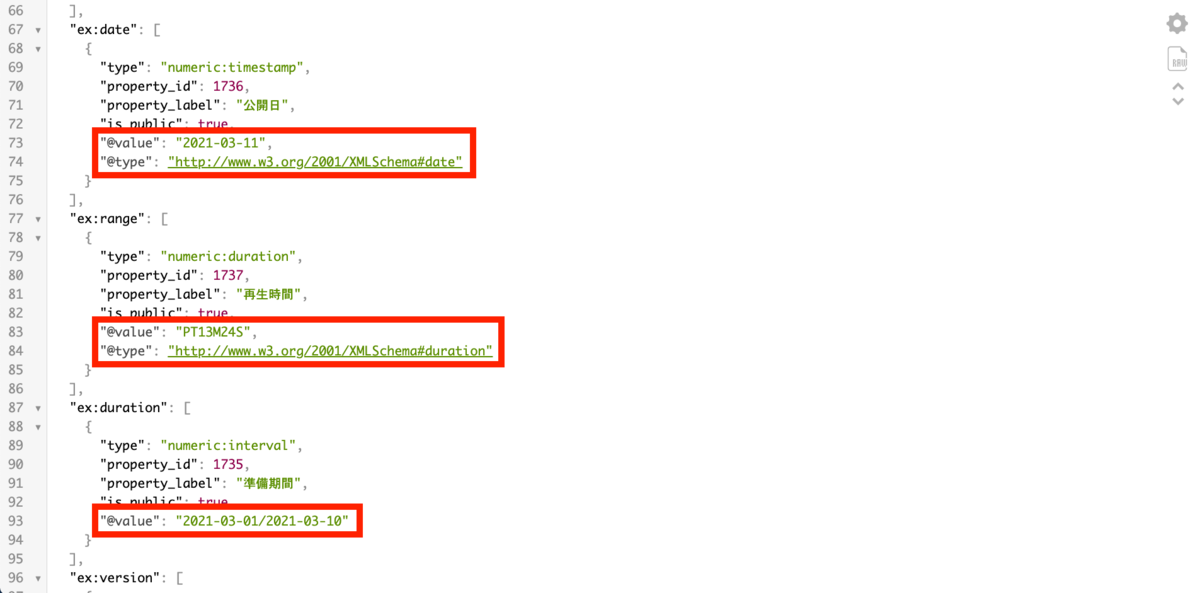
Through the REST API, you can view the registered data (JSON-LD) at the following URL. As shown below, you can confirm that the types are also described using RDF (xsd:date, xsd:duration, etc.).
https://diyhistory.org/nakamura196/api/items/13
Batch Registration Using the “Bulk Import” Module
Using the separate “Bulk Import” module, you can batch register data with the types described here. For instructions on using “Bulk Import,” please refer to the following article:
Specifically, prepare a CSV file like the one shown below. The key point is that by adding “^^numeric:timestamp” to the header row, you can batch register data with specified Data types.
https://github.com/omeka-j/Omeka-S-module-BulkImport-Sample-Data/blob/main/item_with_datatype.csv

Summary
In this article, I explained the “Numeric Data Types” module, which enables specific properties to be configured as numeric data.
A key benefit of introducing this module is that it enables range searches on date data.
I hope this module and this article are helpful for handling numeric (date, time, integer) data in Omeka S.