Overview
Omeka S uses RDF (Resource Description Framework) to describe information about resources (items, item sets, media, etc.). Therefore, it is necessary to import vocabularies, which are collections of RDF classes and properties. This article explains how to import existing vocabularies. The official manual is available at:
Specifically, we will use the following as examples: the National Diet Library Dublin Core Metadata Description (DC-NDL) provided by the National Diet Library, Schema.org, and the Japan Search Utilization Schema.
As a representative vocabulary, Dublin Core Terms (dcterms:) is commonly used. In the default settings immediately after installing Omeka S, in addition to Dublin Core, Dublin Core Type (dctype:), Bibliographic Ontology (bibo:), and FOAF / Friend of a Friend (foaf:) are registered.
By using existing vocabularies as much as possible, data sharing becomes easier. On the other hand, if you want to use custom vocabularies, the Custom Ontology module is available. Its usage is introduced in the following article:
Obtaining RDF Schema Files
To register vocabularies, you need to obtain the RDF schema files for each vocabulary.
DC-NDL
This can be obtained from:
https://www.ndl.go.jp/jp/dlib/standards/meta/2020/12/ndl-terms.rdf
It is listed on the following page:
The prefix is “dcndl” and the namespace URI is “http://ndl.go.jp/dcndl/terms/".
Schema.org
This can be obtained from:
https://schema.org/version/latest/schemaorg-current-https.rdf
It is listed on the following page, where you can specify the format (JSON-LD, RDF/XML, Turtle, etc.):
The prefix is “schema” and the namespace URI is “https://schema.org/".
Japan Search Utilization Schema
Examples of vocabularies related to the Japan Search Utilization Schema include:
- jps: https://jpsearch.go.jp/term/property#
- type: https://jpsearch.go.jp/term/type/
- chname: https://jpsearch.go.jp/entity/chname/
Here, we focus on the vocabulary with the prefix “jps”. This vocabulary can be obtained from:
https://jpsearch.go.jp/term/property
Importing into Omeka S
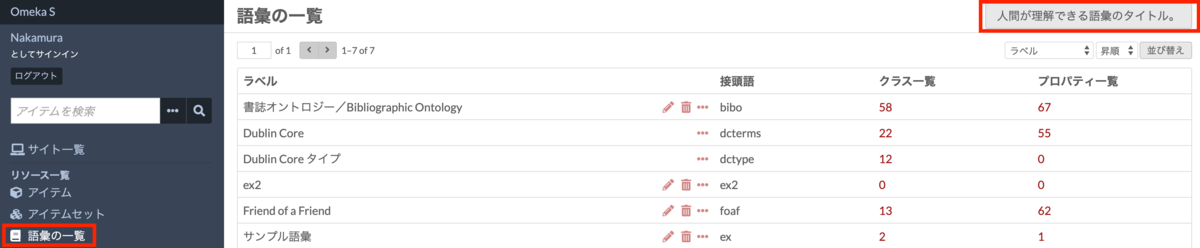
Access the “Vocabularies” menu on the left side of the screen and click the button at the top right of the screen. Note that as of July 2021, there was an error in the Japanese translation of this button, which I hope to correct in the future.
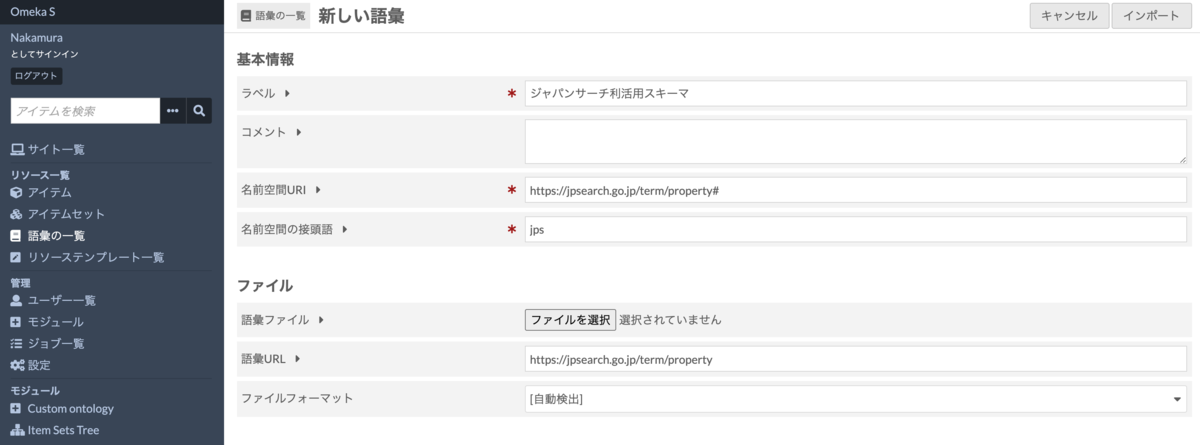
An input form like the following will then appear, where you enter basic information and file details. For the file, you can either upload it or load it by specifying a URL. Below is an example of registering the “Japan Search Utilization Schema.”
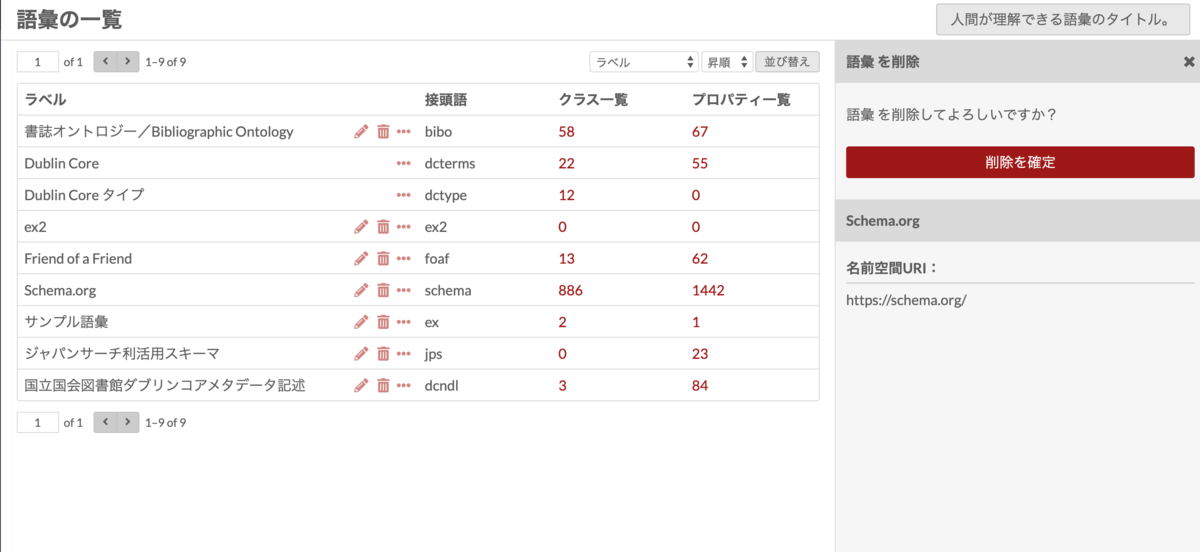
The results of also registering “DC-NDL” and “Schema.org” using this method can be confirmed on the “Vocabularies” screen below.
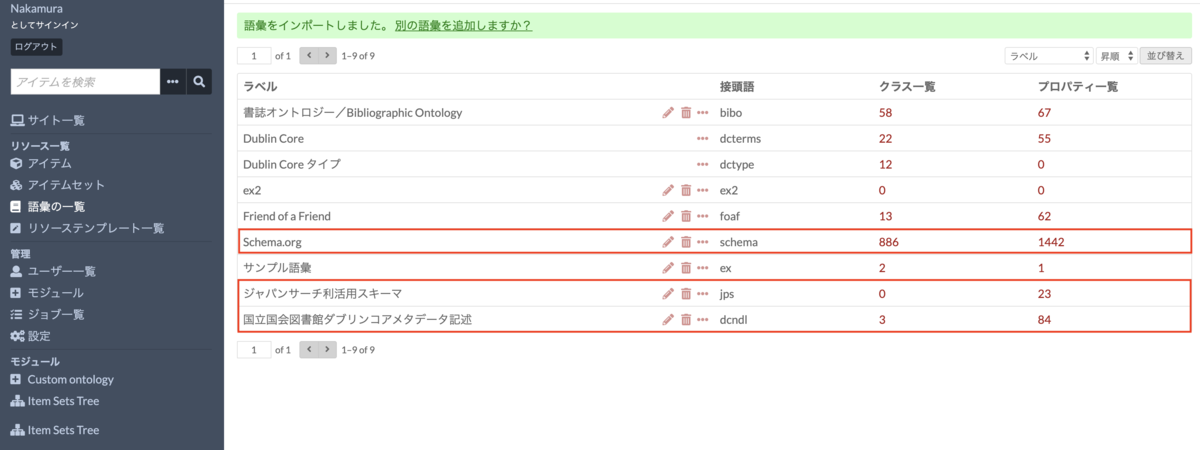
You can see that Schema.org defines a large number of classes and properties.
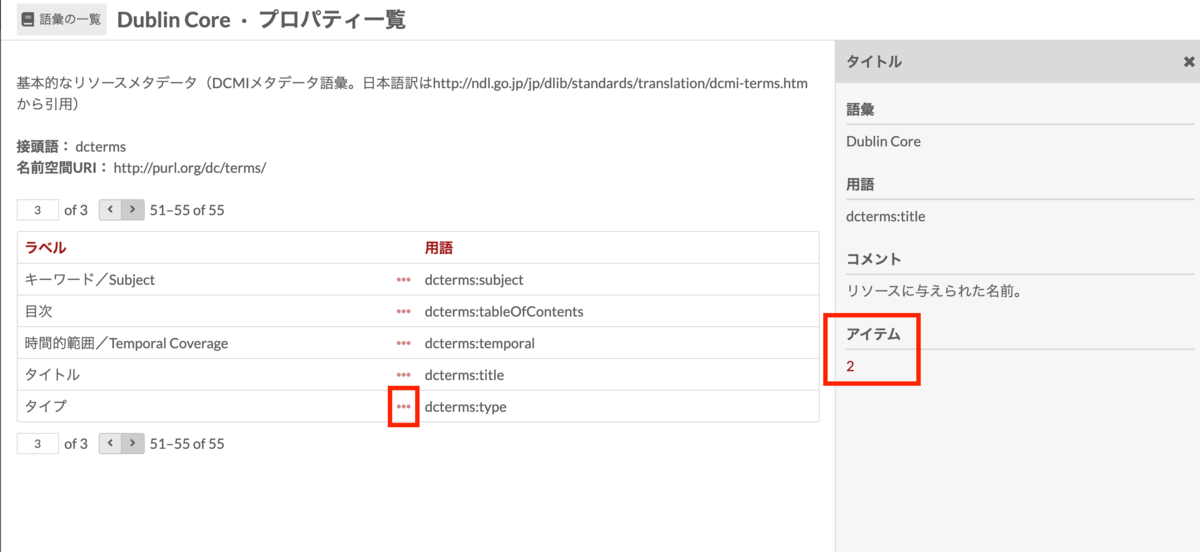
Clicking the number in the classes and properties columns for each vocabulary navigates to the class or property list screen for that vocabulary. Additionally, clicking the ellipsis icon next to a label displays a detailed description of that class or property, and you can also view a list of items using that class or property. In the example below, you can confirm that “dcterms:title” is used in two items.
Updating
To update a vocabulary, click the pencil icon displayed on the “Vocabularies” page to enter the edit screen. Then specify a new vocabulary file or URL and click “Save” at the top right.
A screen showing the changes before and after the update will then appear. In this example, the label of the “schema:highPrice” property in “Schema.org” has been experimentally changed. If everything looks correct, click “Confirm changes” at the top right to complete the update.
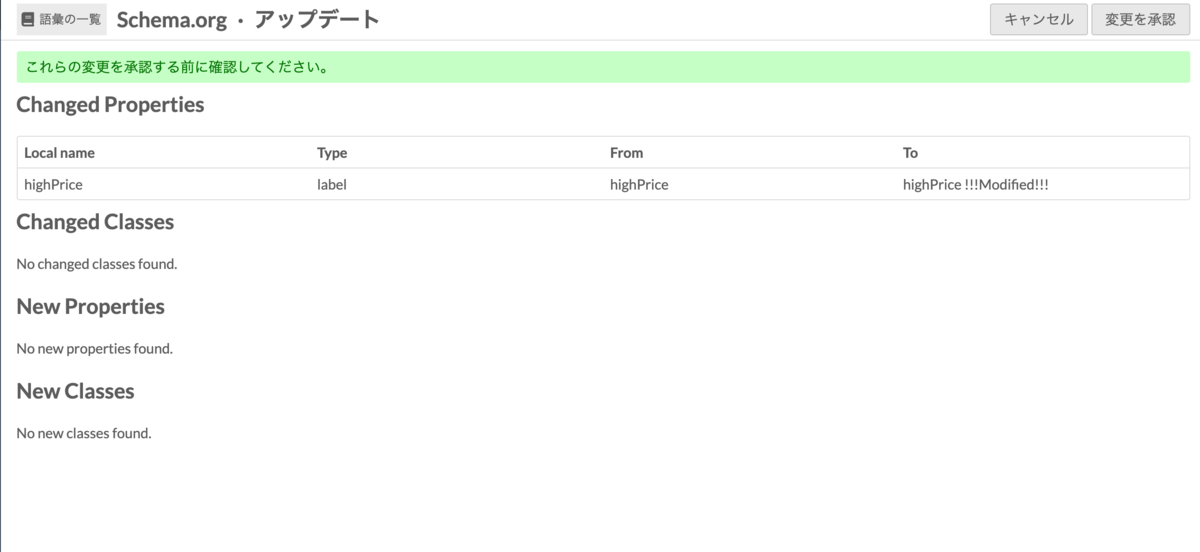
Note that as of July 2021, only adding and modifying classes and properties is supported; deleting specific classes or properties is not supported.
Deleting
To delete a vocabulary, click the trash can icon displayed on the “Vocabularies” page. A confirmation panel appears on the right side of the screen; press “Confirm delete” to complete the operation.
Summary
Above, I explained how to add, update, and delete existing vocabularies.
By using existing vocabularies as much as possible, data sharing becomes easier. On the other hand, if you want to use custom vocabularies, the Custom Ontology module is available. Please refer to the following article for its usage: