This is a Japanese translation of the Omeka S manual. It covers the “Resources” > “Items” page.
Items
Items are the building blocks of the Omeka system.
In Omeka S, you can make items available from the system administrator or add items to your own site.
Items are listed in the Items tab (single box icon) in the left navigation of the admin dashboard.
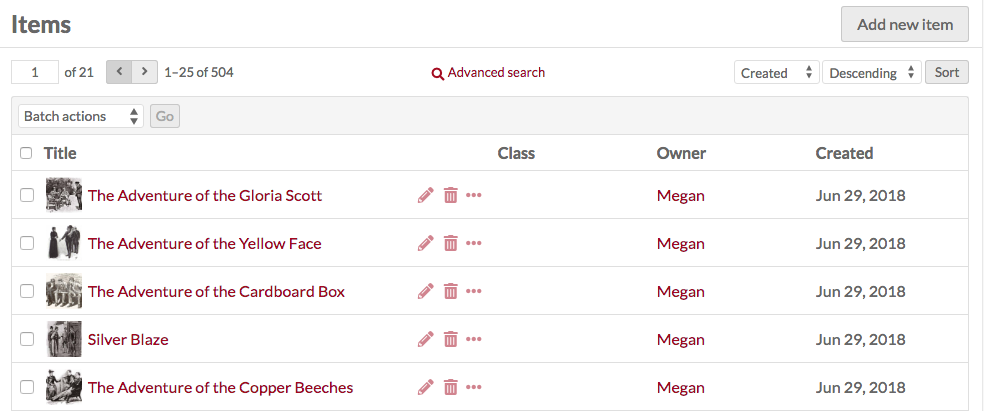
Each item is displayed as a row with the following columns:
- Title
- Icons to Edit (pencil), Delete (trash can), or View details (ellipsis)
- Class
- Owner of the item
- Date the item was Created
Options for navigating and creating items are displayed above the items table.
In the upper right of the Items window is the Add new item button.
On the left, the number of pages of items is displayed with forward and back arrows. The current page number is an editable field. Enter a valid page number and press the Return/Enter key to navigate to that page.
At the top center is a button for Advanced Search.
Just above the table on the right are options for sorting the items table, with two dropdown menus. The first lets you select from Title, Identifier, Class, Owner, and (Date) Created. The second lets you sort in ascending or descending order. Click the Sort button to apply.
Between these controls and the table on the left is a dropdown for batch actions such as editing selected, editing all, deleting all selected, and deleting all.
(Additional content to be added in the future.)