Overview
Item Sets Tree is a module that allows you to configure a hierarchical structure for item sets.
This article introduces how to use this module.
- Overview
- Installation
- Data
- Feature Introduction
- Setting parent item sets
- Viewing the hierarchical structure
- Displaying descendant items in item set item list screens
- Display on sites
- Summary
Installation
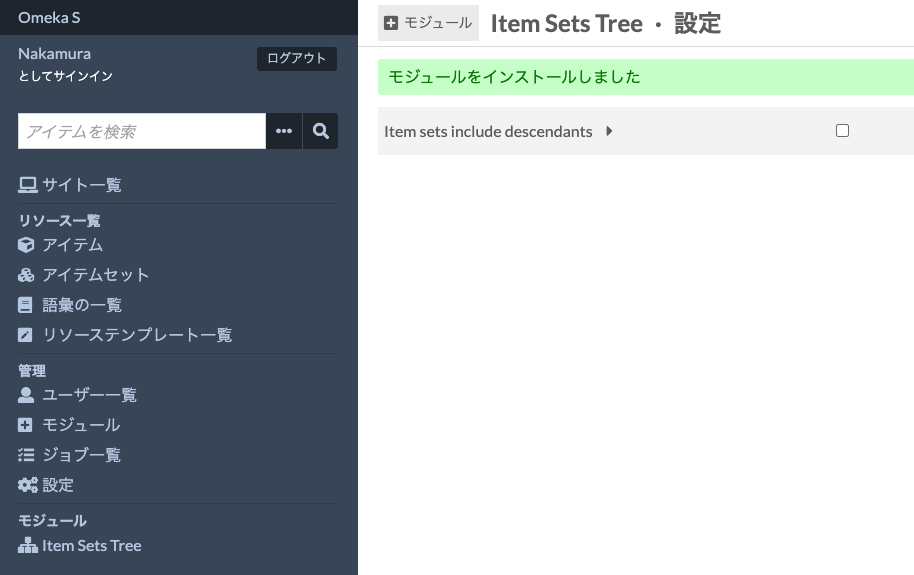
After installing the module, the following settings screen is displayed. This is an option to specify whether to also display items from descendant item sets when viewing items of a given item set. We will examine the difference later.
Data
For this example, we use images published on “Irasutoya” (a popular Japanese free illustration site).
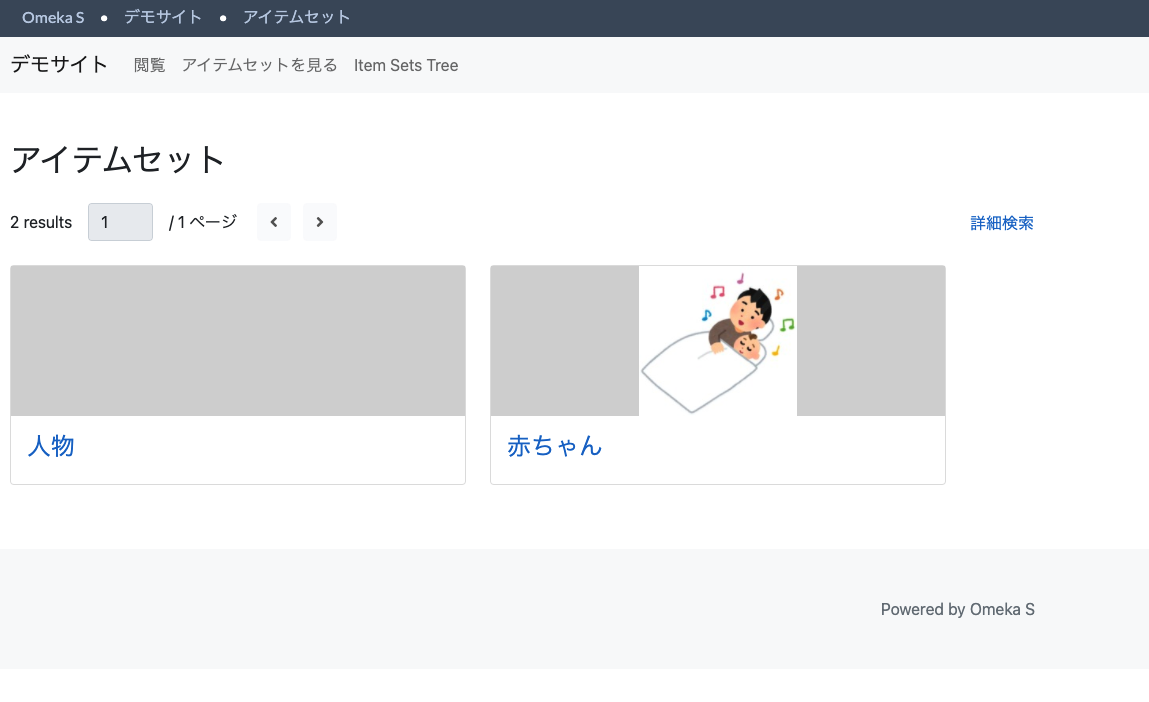
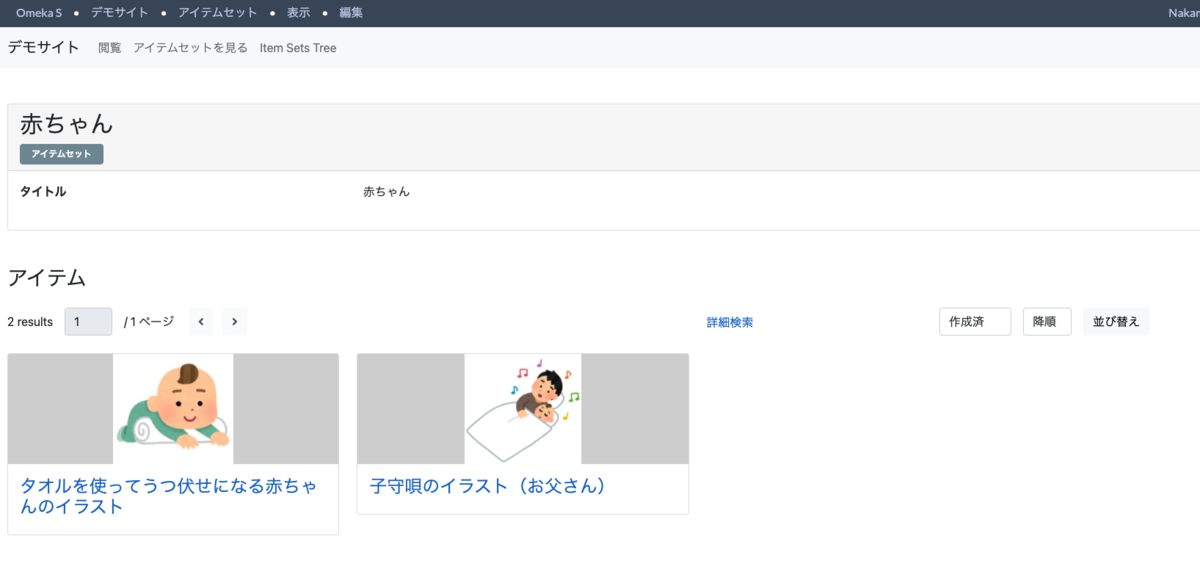
“Irasutoya” has a hierarchical structure like “People” > “Babies” > “Lullaby Illustration.” Therefore, we treat “People” and “Babies” as item sets, and “Lullaby Illustration” and “Illustration of a Baby Lying Face Down Using a Towel” as items.
On the Omeka S screen, it looks like the following:
Item List Screen for Item Set “Babies”
There are item sets “People” and “Babies,” and the item set “Babies” contains two illustrations.
Feature Introduction
Setting Parent Item Sets
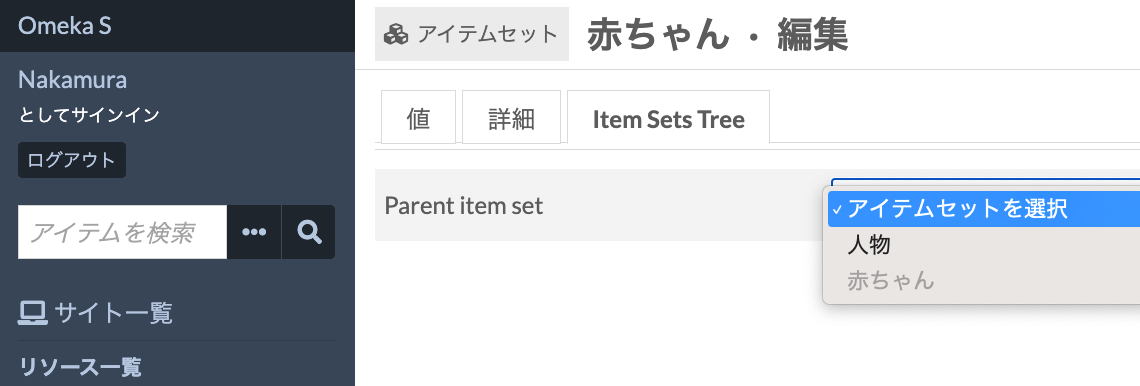
By installing this module, an “Item Sets Tree” tab appears on each item set’s edit screen. Here, you can specify the parent item set.
Viewing the Hierarchical Structure
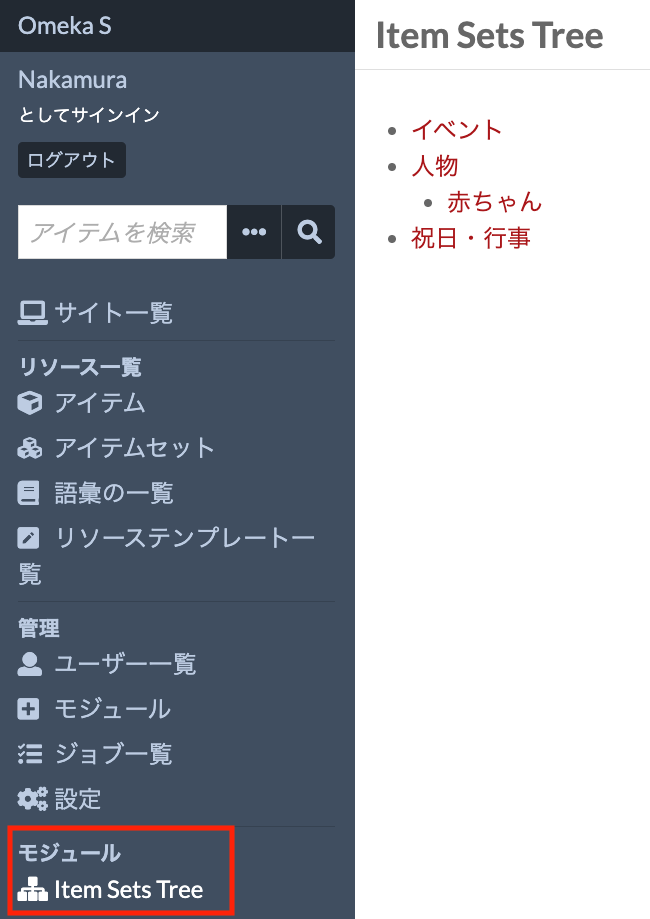
You can view the configured hierarchical structure of item sets from the menu “Modules” > “Item Sets Tree.” To make the differences clearer, the item sets “Events” and “Holidays & Celebrations” have also been added alongside “People.”
Displaying Descendant Items in Item Set Item List Screens
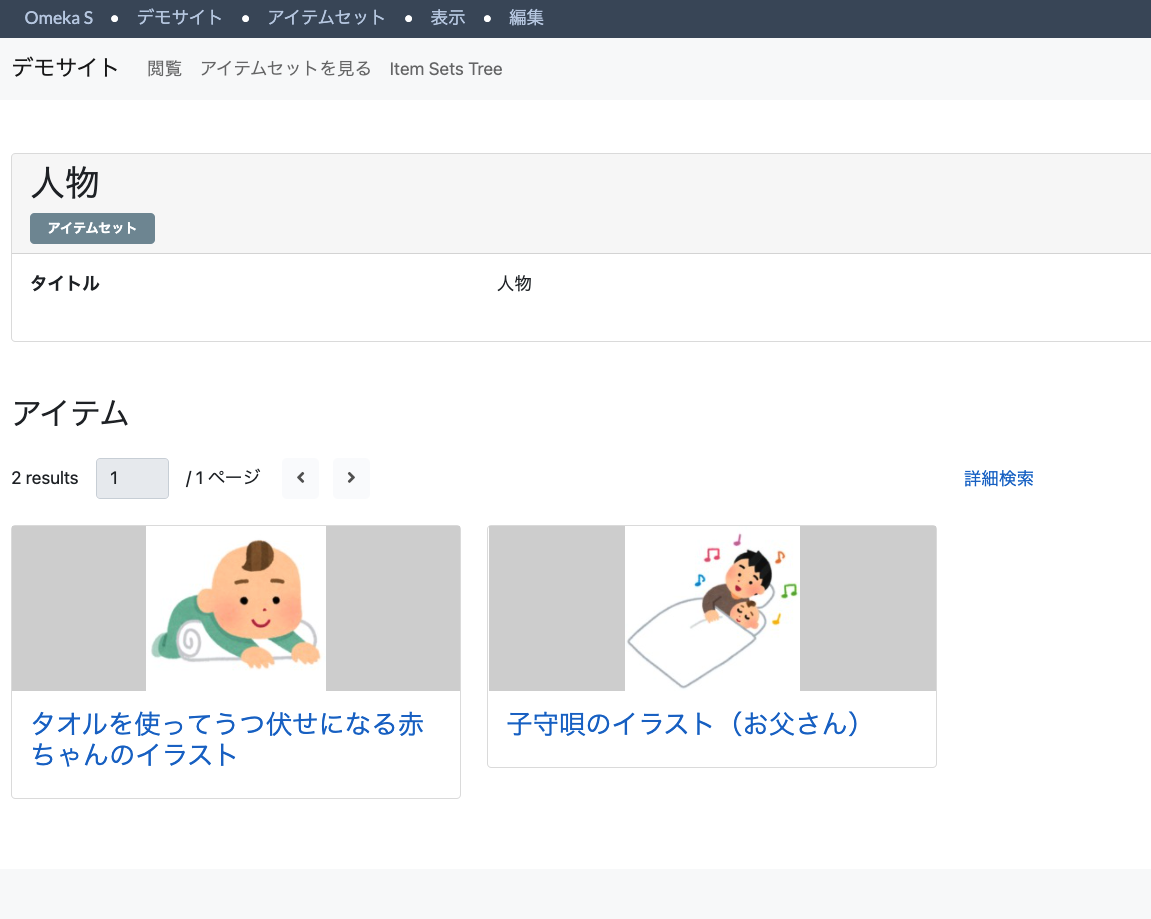
Enabling the “Item sets include descendants” option mentioned in the installation section above allows descendant items to be displayed in the item list screen for each item set.
The items shown in the example below are not directly included in the item set “People,” but are displayed through the child item set “Babies” of “People.”
Display on Sites
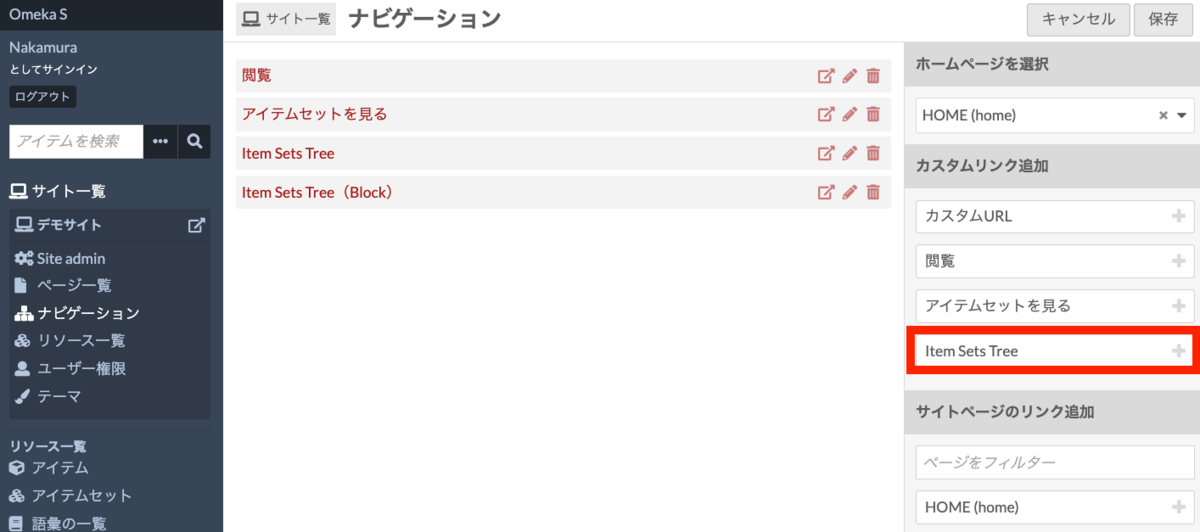
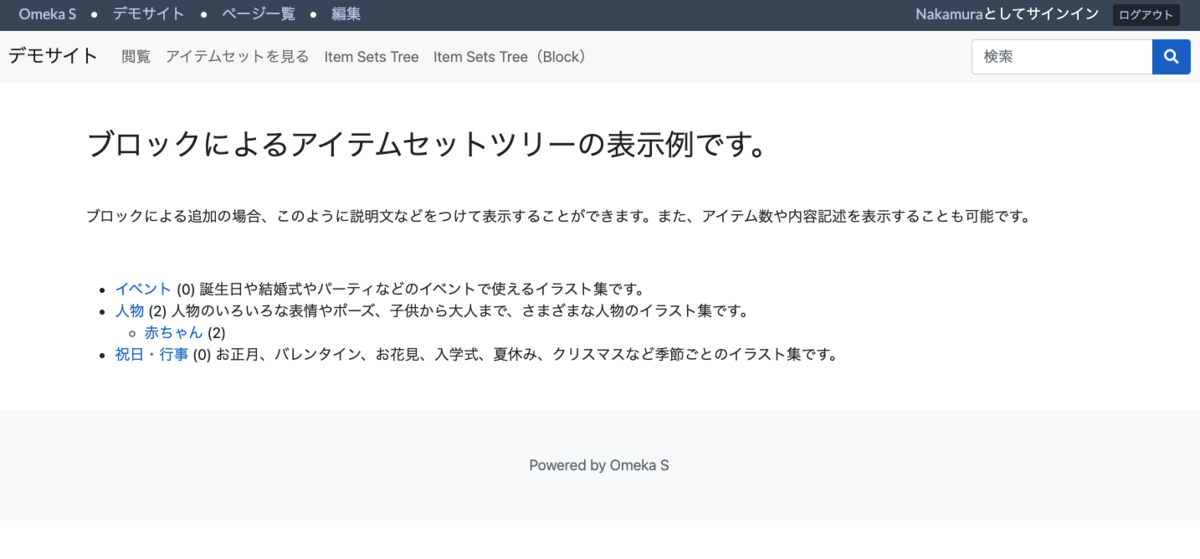
There are two ways to display the hierarchical structure of item sets on a site: adding a custom link, and embedding an Item Sets Tree block in a site page.
The former can be added from the navigation menu below. If you do not need any particular customization, this method is the simplest.
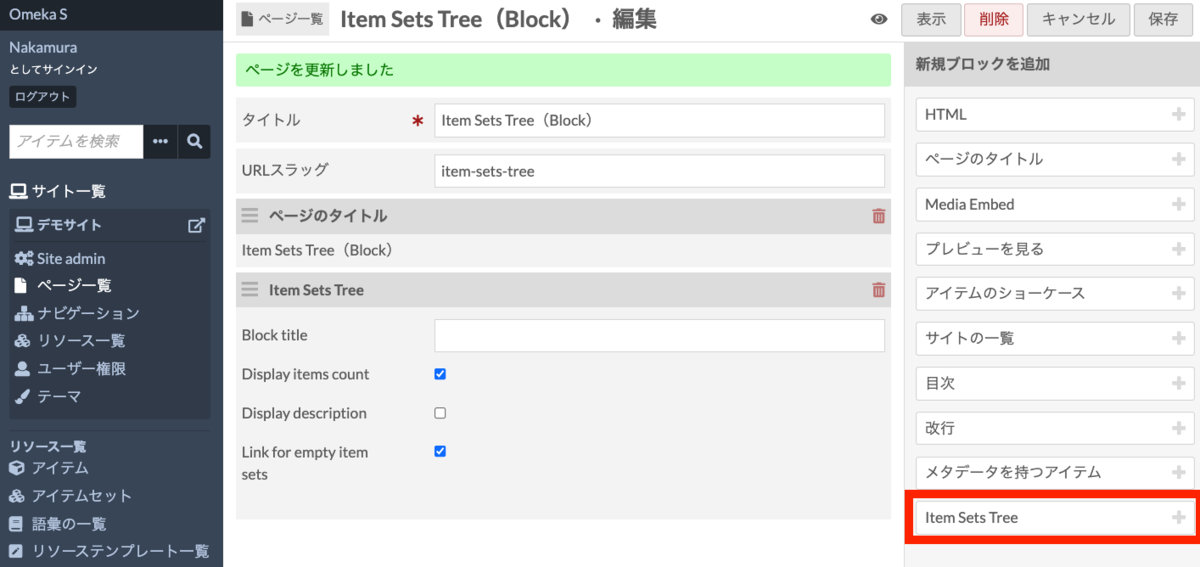
For the latter, on the site page edit screen, add an Item Sets Tree from the “Add new block” panel on the right side. With this method, you can configure the page title, descriptions for each item set, and whether to display the number of items contained in each item set.
An example of a site page created using the latter method is shown below.
https://diyhistory.org/nakamura196/s/main/page/item-sets-tree
Summary
Above, I explained the Item Sets Tree module, which allows you to configure hierarchical structures for item sets. I hope this is helpful for managing collections with hierarchical structures.