Overview
In this article, we will start the latest version (25.3.0) of Alfresco Governance Services Community Edition (hereinafter AGS) with Docker and experience the entire records management lifecycle using the REST API.
Specifically, we assume the following business scenario.
Scenario: Contract Management
- The business department creates and registers a contract
- The records manager declares it as a record and classifies it in the file plan
- A retention schedule is configured
- After the contract ends, a cutoff (active to inactive) is executed
- After the retention period (3 years) has elapsed, disposal is performed
- If litigation arises, a hold (freeze) is placed to stop disposal
The following builds on the previous article and introduces setup procedures and API usage for the latest version.
Environment
- acs-deployment: v10.2.0 (Released February 2026)
- Alfresco Governance Repository Community: 25.3.0
- Alfresco Governance Share Community: 25.3.0
- Alfresco Search Services: 2.0.17
- Traefik: 3.6
- PostgreSQL: 16.5
Setup
Cloning the Repository
git clone https://github.com/Alfresco/acs-deployment
cd acs-deployment
git checkout v10.2.0
cd docker-compose
Creating the Compose File
Create a compose file for Governance Services based on community-compose.yaml. The changes are the following three:
1. Image Replacement
| Service | Before | After |
|---|---|---|
| alfresco | alfresco/alfresco-content-repository-community:25.3.0 | alfresco/alfresco-governance-repository-community:25.3.0 |
| share | alfresco/alfresco-share:25.3.0 | alfresco/alfresco-governance-share-community:25.3.0 |
2. Authentication Ticket Timeout Countermeasure (described later)
3. DB Connection Pool Validation Settings (described later)
Below is the compose file that was created.
services:
  alfresco:
    image: docker.io/alfresco/alfresco-governance-repository-community:25.3.0
    mem_limit: 1900m
    environment:
      JAVA_TOOL_OPTIONS: >-
        -Dencryption.keystore.type=JCEKS
        -Dencryption.cipherAlgorithm=DESede/CBC/PKCS5Padding
        -Dencryption.keyAlgorithm=DESede
        -Dencryption.keystore.location=/usr/local/tomcat/shared/classes/alfresco/extension/keystore/keystore
        -Dmetadata-keystore.password=mp6yc0UD9e
        -Dmetadata-keystore.aliases=metadata
        -Dmetadata-keystore.metadata.password=oKIWzVdEdA
        -Dmetadata-keystore.metadata.algorithm=DESede
      JAVA_OPTS: >-
        -Ddb.driver=org.postgresql.Driver
        -Ddb.username=alfresco
        -Ddb.password=alfresco
        -Ddb.url=jdbc:postgresql://postgres:5432/alfresco
        -Dsolr.host=solr6
        -Dsolr.port=8983
        -Dsolr.http.connection.timeout=1000
        -Dsolr.secureComms=secret
        -Dsolr.sharedSecret=secret
        -Dsolr.base.url=/solr
        -Dindex.subsystem.name=solr6
        -Dshare.host=localhost
        -Dshare.port=8080
        -Dalfresco.host=localhost
        -Dalfresco.port=8080
        -Dcsrf.filter.enabled=false
        -Daos.baseUrlOverwrite=http://localhost:8080/alfresco/aos
        -Dmessaging.broker.url="failover:(nio://activemq:61616)?timeout=3000&jms.useCompression=true"
        -Ddeployment.method=DOCKER_COMPOSE
        -DlocalTransform.core-aio.url=http://transform-core-aio:8090/
        -Dauthentication.ticket.ticketsExpire=true
        -Dauthentication.ticket.expiryMode=AFTER_INACTIVITY
        -Dauthentication.ticket.validDuration=PT8H
        -Dauthentication.ticket.useSingleTicketPerUser=false
        -Ddb.pool.validate.query=SELECT\ 1
        -Ddb.pool.evict.interval=600
        -XX:MinRAMPercentage=50
        -XX:MaxRAMPercentage=80
    healthcheck:
      test:
        [
          "CMD",
          "curl",
          "-f",
          "http://localhost:8080/alfresco/api/-default-/public/alfresco/versions/1/probes/-ready-",
        ]
      interval: 30s
      timeout: 3s
      retries: 5
      start_period: 1m
    volumes:
      - /usr/local/tomcat/alf_data
    extends:
      file: commons/base.yaml
      service: alfresco
  transform-core-aio:
    image: alfresco/alfresco-transform-core-aio:5.3.0
    mem_limit: 1536m
    environment:
      JAVA_OPTS: >-
        -XX:MinRAMPercentage=50
        -XX:MaxRAMPercentage=80
    ports:
      - "8090:8090"
    healthcheck:
      test: ["CMD", "curl", "-f", "http://localhost:8090/ready"]
      interval: 20s
      timeout: 2s
      retries: 3
      start_period: 10s
    depends_on:
      activemq:
        condition: service_healthy
  share:
    image: docker.io/alfresco/alfresco-governance-share-community:25.3.0
    mem_limit: 1g
    environment:
      CSRF_FILTER_ORIGIN: http://localhost:8080
      CSRF_FILTER_REFERER: http://localhost:8080/share/.*
      REPO_HOST: "alfresco"
      REPO_PORT: "8080"
      JAVA_OPTS: >-
        -XX:MinRAMPercentage=50
        -XX:MaxRAMPercentage=80
        -Dalfresco.host=localhost
        -Dalfresco.port=8080
        -Dalfresco.context=alfresco
        -Dalfresco.protocol=http
    healthcheck:
      test: ["CMD", "curl", "-f", "http://localhost:8080/share"]
      interval: 20s
      timeout: 2s
      retries: 3
      start_period: 15s
    depends_on:
      alfresco:
        condition: service_healthy
    extends:
      file: commons/base.yaml
      service: share
  postgres:
    image: postgres:16.5
    mem_limit: 512m
    environment:
      - POSTGRES_PASSWORD=alfresco
      - POSTGRES_USER=alfresco
      - POSTGRES_DB=alfresco
    command: postgres -c max_connections=300 -c log_min_messages=LOG
    ports:
      - "5432:5432"
    healthcheck:
      test: ["CMD-SHELL", "pg_isready -d $$POSTGRES_DB -U $$POSTGRES_USER"]
      interval: 10s
      timeout: 3s
      retries: 3
      start_period: 5s
  solr6:
    image: docker.io/alfresco/alfresco-search-services:2.0.17
    mem_limit: 2g
    environment:
      SOLR_ALFRESCO_HOST: "alfresco"
      SOLR_ALFRESCO_PORT: "8080"
      SOLR_SOLR_HOST: "solr6"
      SOLR_SOLR_PORT: "8983"
      SOLR_CREATE_ALFRESCO_DEFAULTS: "alfresco,archive"
      ALFRESCO_SECURE_COMMS: "secret"
      JAVA_TOOL_OPTIONS: >-
        -Dalfresco.secureComms.secret=secret
    ports:
      - "8083:8983"
  activemq:
    image: alfresco/alfresco-activemq:5.18-jre17-rockylinux8
    mem_limit: 1g
    ports:
      - "8161:8161"
      - "5672:5672"
      - "61616:61616"
      - "61613:61613"
    healthcheck:
      test:
        [
          "CMD",
          "/opt/activemq/bin/activemq",
          "query",
          "--objname",
          "type=Broker,brokerName=*,service=Health",
          "|",
          "grep",
          "Good",
        ]
      interval: 10s
      timeout: 5s
      retries: 5
      start_period: 5s
  content-app:
    image: alfresco/alfresco-content-app:7.2.0
    mem_limit: 128m
    environment:
      APP_BASE_SHARE_URL: "http://localhost:8080/aca/#/preview/s"
    healthcheck:
      test: ["CMD", "curl", "-f", "http://localhost:8080/"]
      interval: 10s
      timeout: 1s
      retries: 3
      start_period: 1s
    extends:
      file: commons/base.yaml
      service: content-app
  control-center:
    image: quay.io/alfresco/alfresco-control-center:10.2.0
    mem_limit: 128m
    environment:
      APP_CONFIG_PROVIDER: "ECM"
      APP_CONFIG_AUTH_TYPE: "BASIC"
      BASE_PATH: ./
    healthcheck:
      test: ["CMD", "curl", "-f", "http://localhost:8080/"]
      interval: 10s
      timeout: 1s
      retries: 3
      start_period: 1s
    extends:
      file: commons/base.yaml
      service: control-center
  proxy:
    extends:
      file: commons/base.yaml
      service: proxy
Startup
docker compose -f governance-community-compose.yaml up -d
After startup, verify that all containers are healthy.
docker compose -f governance-community-compose.yaml ps
NAME                                  STATUS
docker-compose-activemq-1             Up (healthy)
docker-compose-alfresco-1             Up (healthy)
docker-compose-content-app-1          Up (healthy)
docker-compose-control-center-1       Up (healthy)
docker-compose-postgres-1             Up (healthy)
docker-compose-proxy-1                Up (healthy)
docker-compose-share-1                Up (healthy)
docker-compose-solr6-1                Up
docker-compose-transform-core-aio-1   Up (healthy)
The following URLs are available for access. The default login credentials are admin / admin.
| URL | Purpose |
|---|---|
| http://localhost:8080/share/ | Alfresco Share (Governance Services UI) |
| http://localhost:8080/content-app/ | Alfresco Content App |
| http://localhost:8080/control-center/ | Alfresco Control Center |
| http://localhost:8080/alfresco/ | Alfresco Repository |
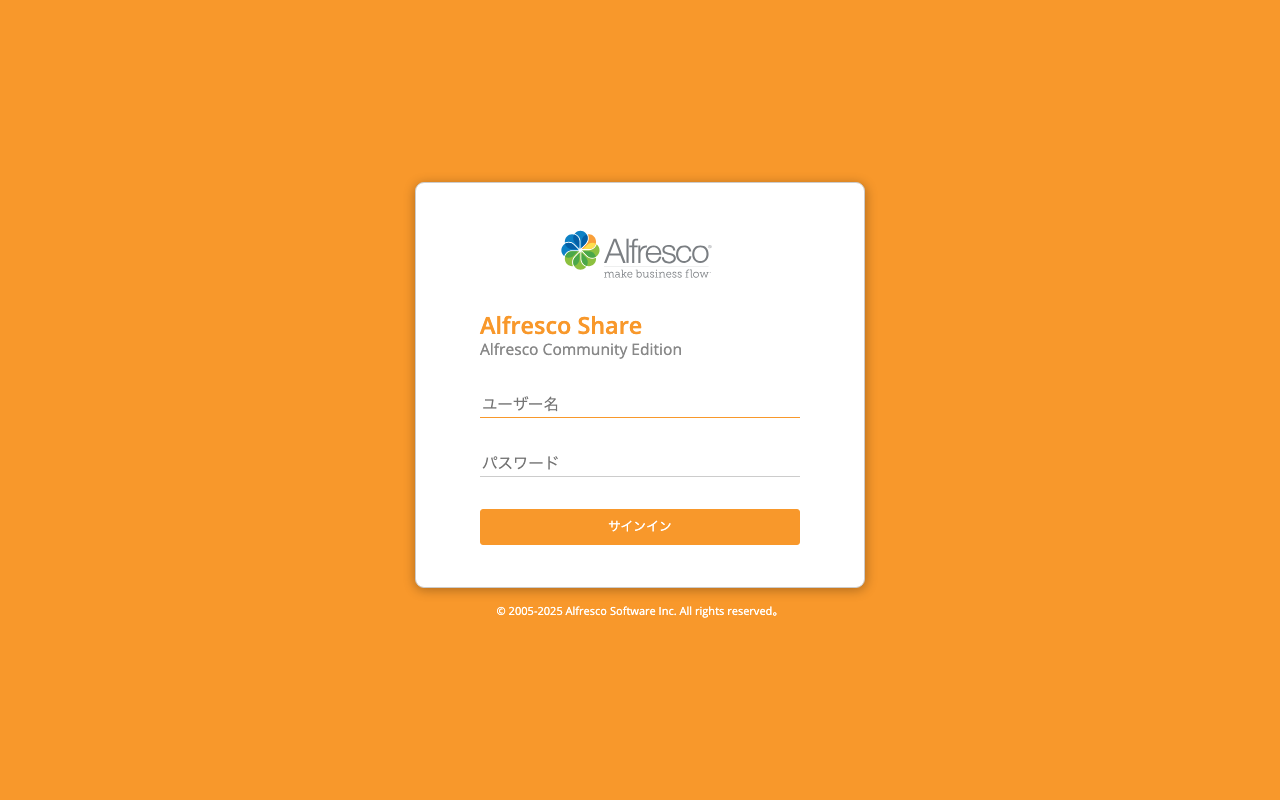
The Alfresco Share login screen is displayed.
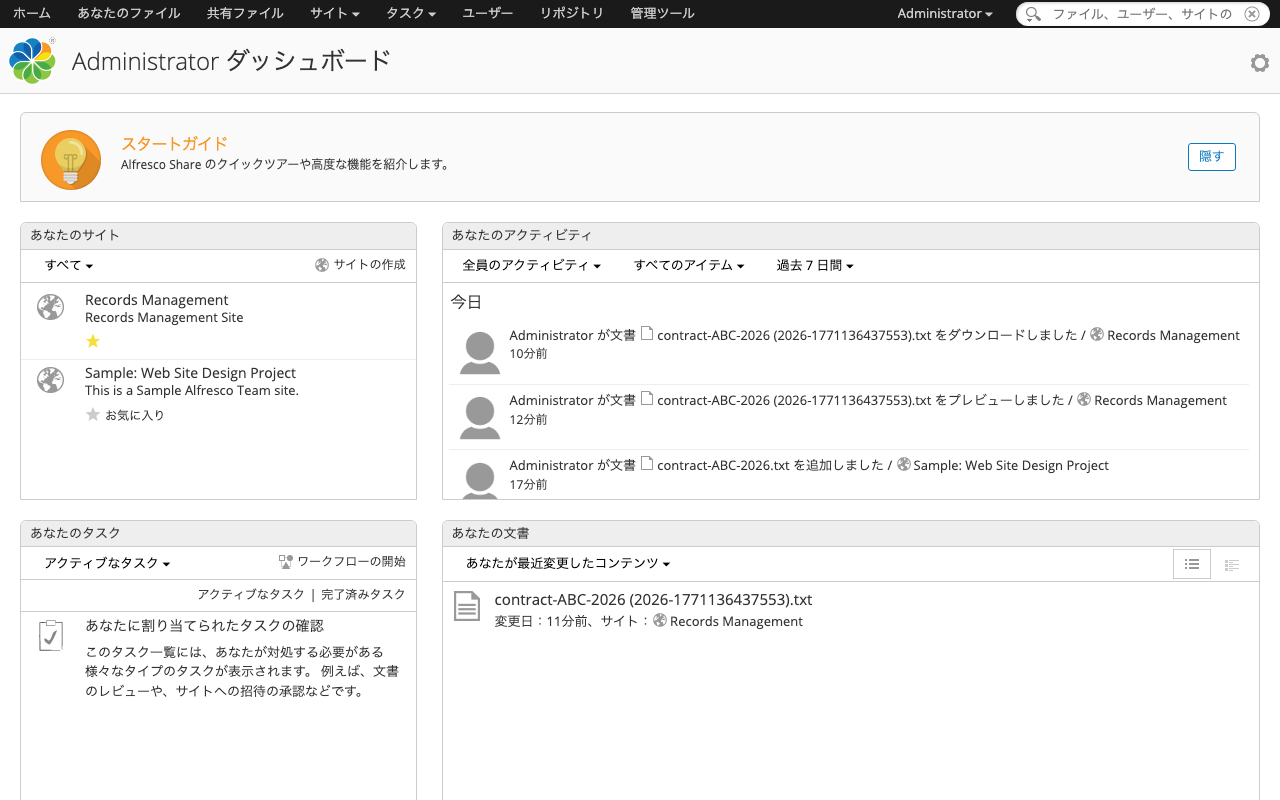
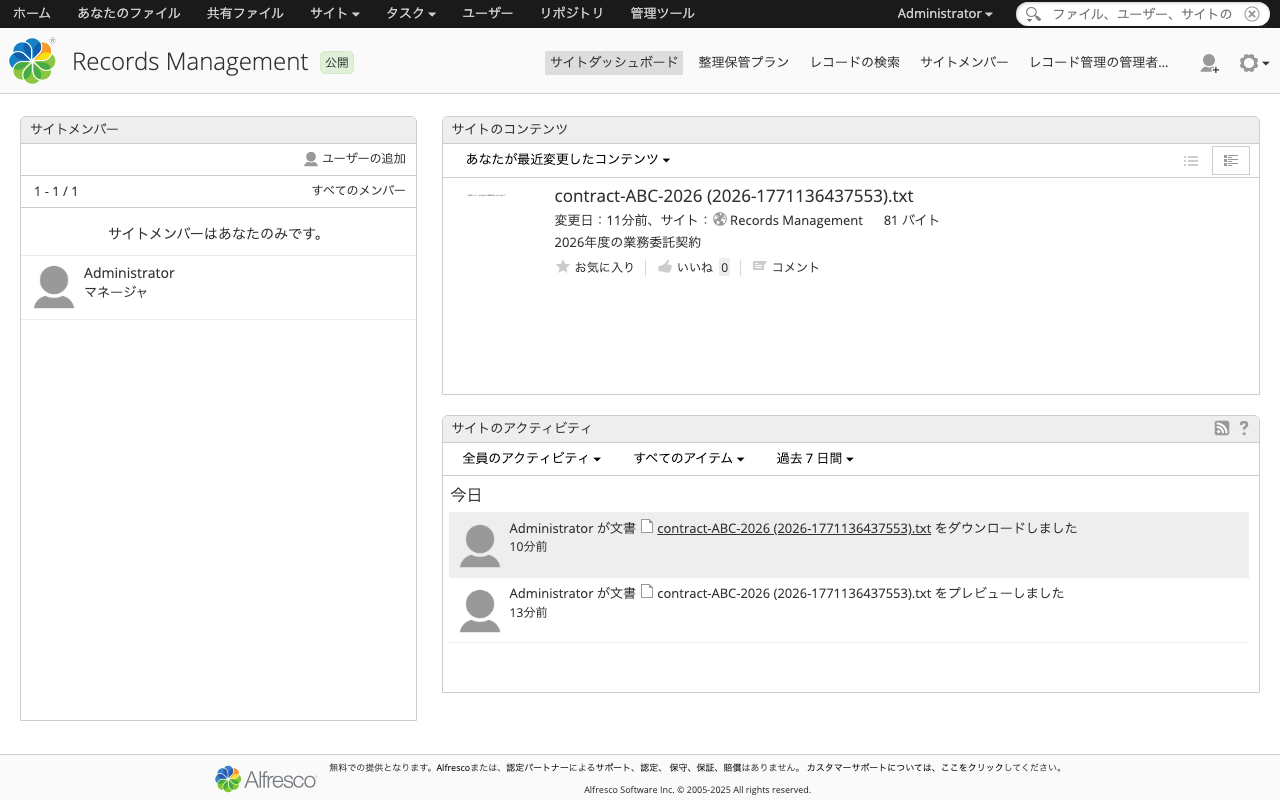
After logging in, the dashboard is shown. The Records Management site is displayed.
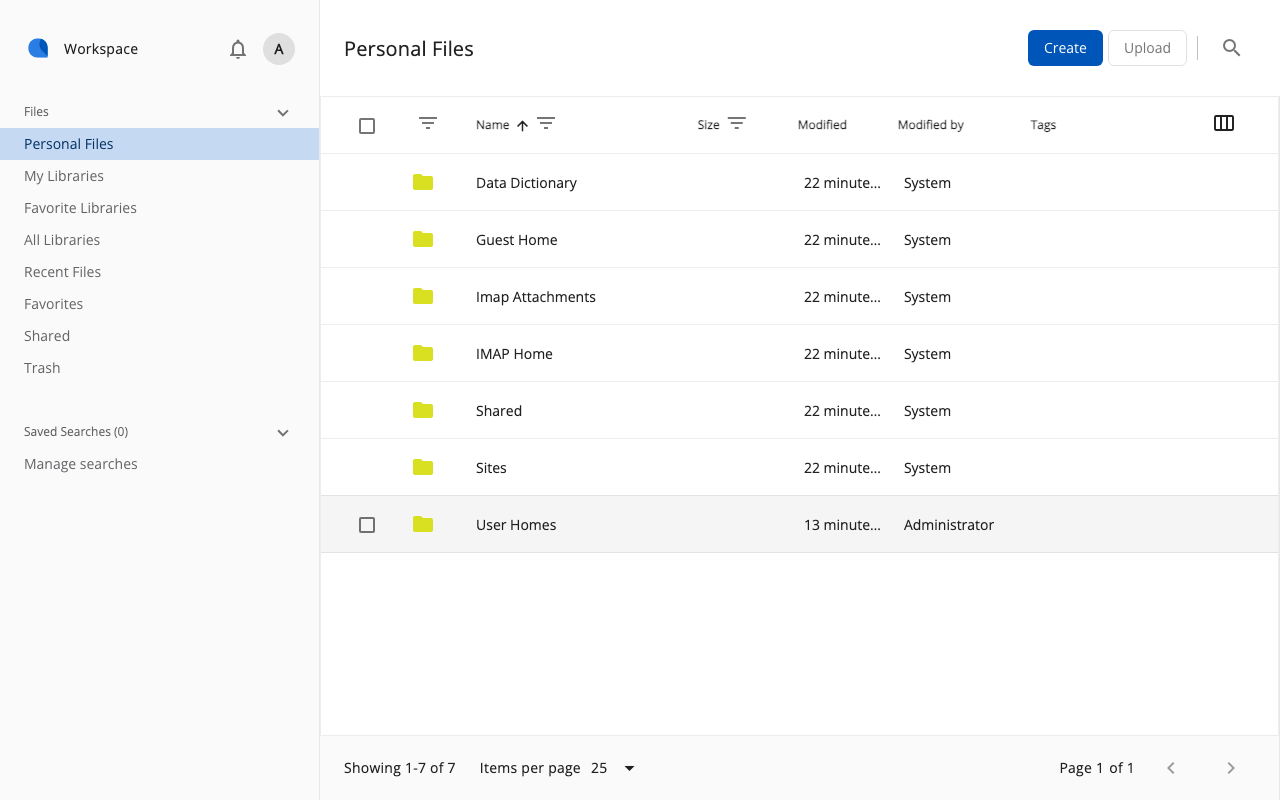
The system is also accessible from the Content App.
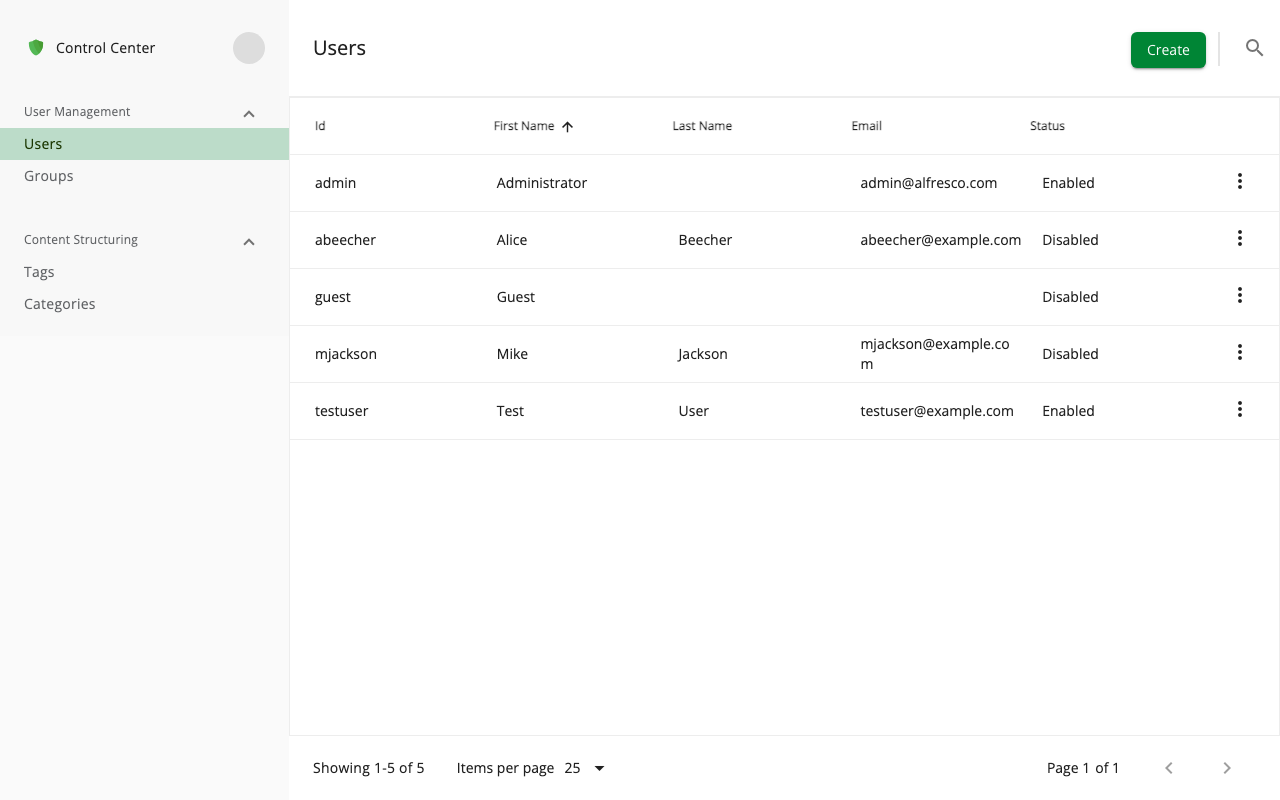
The Control Center allows management of users and groups.
Experiencing Records Management via REST API
From here, we will use the REST API to walk through the contract management business scenario.
All API commands can be executed with curl. Authentication uses Basic authentication (admin:admin).
1. Connection Verification
First, verify the API connection and the logged-in user.
curl -s -u admin:admin \
  "http://localhost:8080/alfresco/api/-default-/public/alfresco/versions/1/people/-me-" \
  | python3 -m json.tool
{
    "entry": {
        "firstName": "Administrator",
        "capabilities": {
            "isGuest": false,
            "isAdmin": true,
            "isMutable": true
        },
        "displayName": "Administrator",
        "id": "admin",
        "enabled": true,
        "email": "admin@alfresco.com"
    }
}
2. Creating a Records Management Site
To use Governance Services features, you first need to create an RM site. Instead of the regular site creation API, use the GS-specific API.
!
compliance can be selected from STANDARD and DOD5015. DOD5015 is a mode that complies with the US Department of Defense records management standard. Here we use STANDARD.
3. Verifying the File Plan
When an RM site is created, a File Plan is automatically generated. The File Plan is the top-level structure for records management and serves as the root of the classification system.
The following structures are auto-generated within the File Plan:
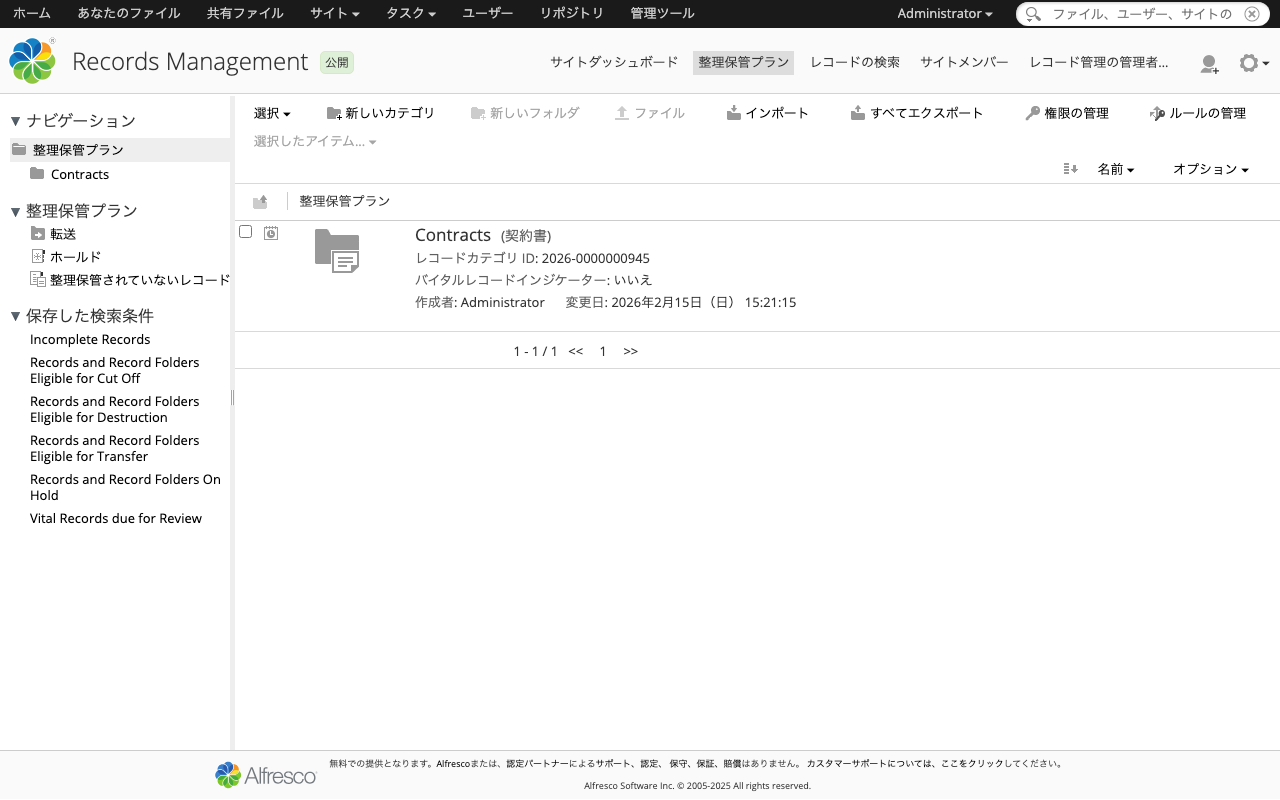
| Node Type | Name | Description |
|---|---|---|
rma:recordCategory | Contracts | Record category (created later) |
rma:holdContainer | Holds | Hold (legal preservation) container |
rma:transferContainer | Transfers | Transfer container |
rma:unfiledRecordContainer | Unfiled Records | Unfiled records container |
4. Creating a Record Category
Create a record category according to the business classification system. Here we create a “Contracts” category.
5. Creating a Record Folder
Create a record folder within the category.
6. Uploading a Document
Upload a contract document.
7. Declaring as Record
Declare the document as a record using the GS API.
8. Filing the Record (Classification)
File the record into the appropriate record folder.
9. Retention Schedule Configuration
A retention schedule defines the lifecycle of a record. It is set on a category and applies to the folders and records under it.
9-1. Creating a Retention Schedule
!
isRecordLevel specifies whether the retention schedule is applied at the record level or the folder level. Here we select folder level (false). For categories that already contain folders, the record level (true) cannot be set.
9-2. Adding Retention Actions
Add specific actions (steps) to the retention schedule. Here we use the Legacy API.
!
Adding retention actions may cause a 500 error with the v1 GS REST API due to issues with the period format. Using the Legacy API (/alfresco/s/api/...) ensures reliable operation.
The available retention actions are the following 5 types:
| Action | Description |
|---|---|
cutoff | Cutoff (transition from active to inactive) |
retain | Retain (storage for a specified period) |
transfer | Transfer (moving to another storage location) |
accession | Accession (transfer to archive) |
destroy | Destroy |
10. Completing the Record
To execute a cutoff, all records within the folder must be in “Complete” status.
!
In Alfresco, the term “declare” is used in two senses:
- Declare as Record: The operation of making a regular document into a record (GS API
/files/{id}/declare) - Declare Record / Complete Record: The operation of finalizing record metadata entry and making it immutable (Legacy API
declareRecordaction)
11. Executing the Cutoff (Active to Inactive)
In the business scenario, we assume the contract has ended. Complete the “Case Closed” event and execute the cutoff.
11-1. Completing the Event
After confirming the next action status, eventsEligible becomes true.
11-2. Executing the Cutoff
After cutoff, the following changes occur to the record:
- The
rma:cutOffaspect is applied rma:cutOffDateis set- The record’s content and metadata become immutable
11-3. Checking the Next Action
The next action is Retain, with asOf set to February 15, 2029 (3 years later). After this date, the retention period expires and the next step (disposal) becomes executable.
12. Hold (Legal Preservation)
When disposal of specific records needs to be temporarily suspended due to litigation or other reasons, the “Hold” feature is used.
12-1. Creating a Hold
12-2. Adding Records to a Hold
Records added to a hold cannot be disposed of even after the retention period has expired.
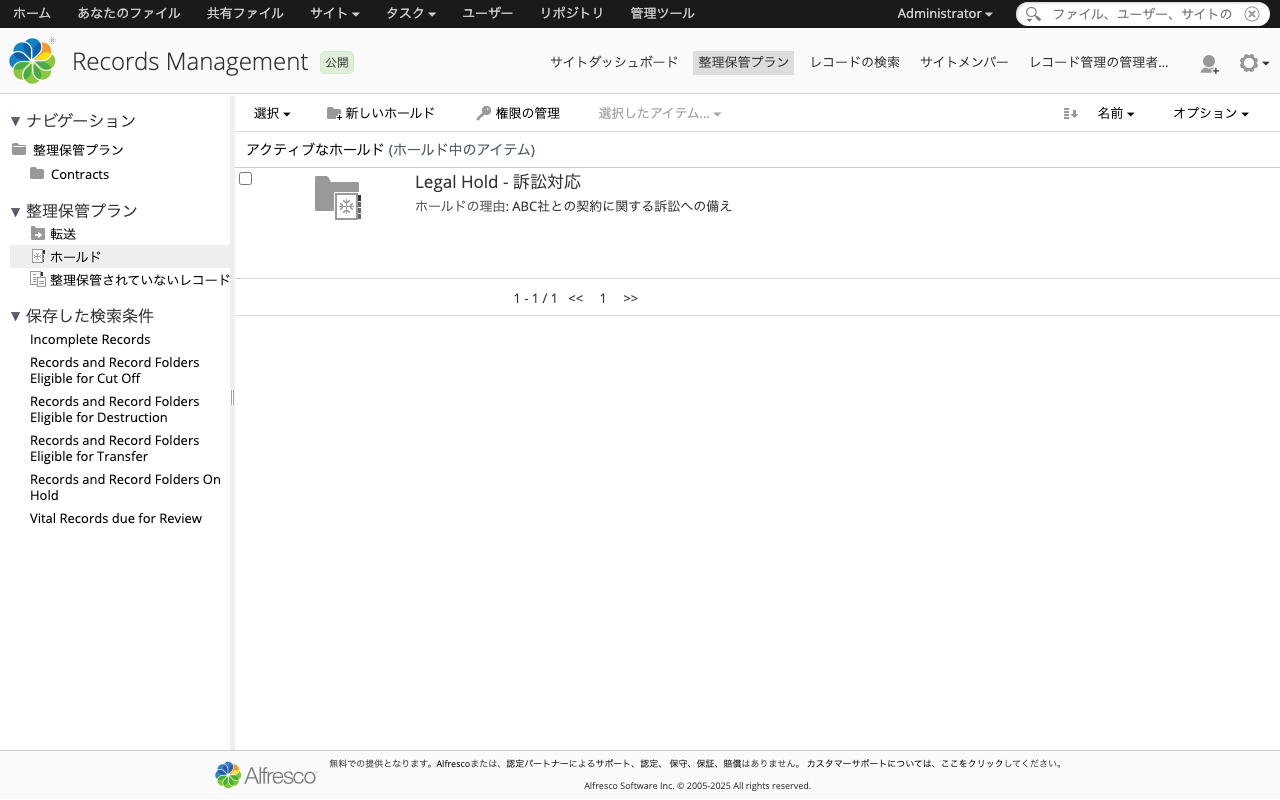
12-3. Checking Hold Contents
The Share UI Holds screen allows you to view the created holds and the records within them.
12-4. Releasing from Hold
When litigation is resolved, release the record from the hold.
HTTP 204 (No Content) indicates success.
13. User and Group Management
In actual operations, users and groups involved in records management need to be properly configured.
13-1. Creating Users
13-2. Creating Groups and Adding Members
14. Checking Audit Logs
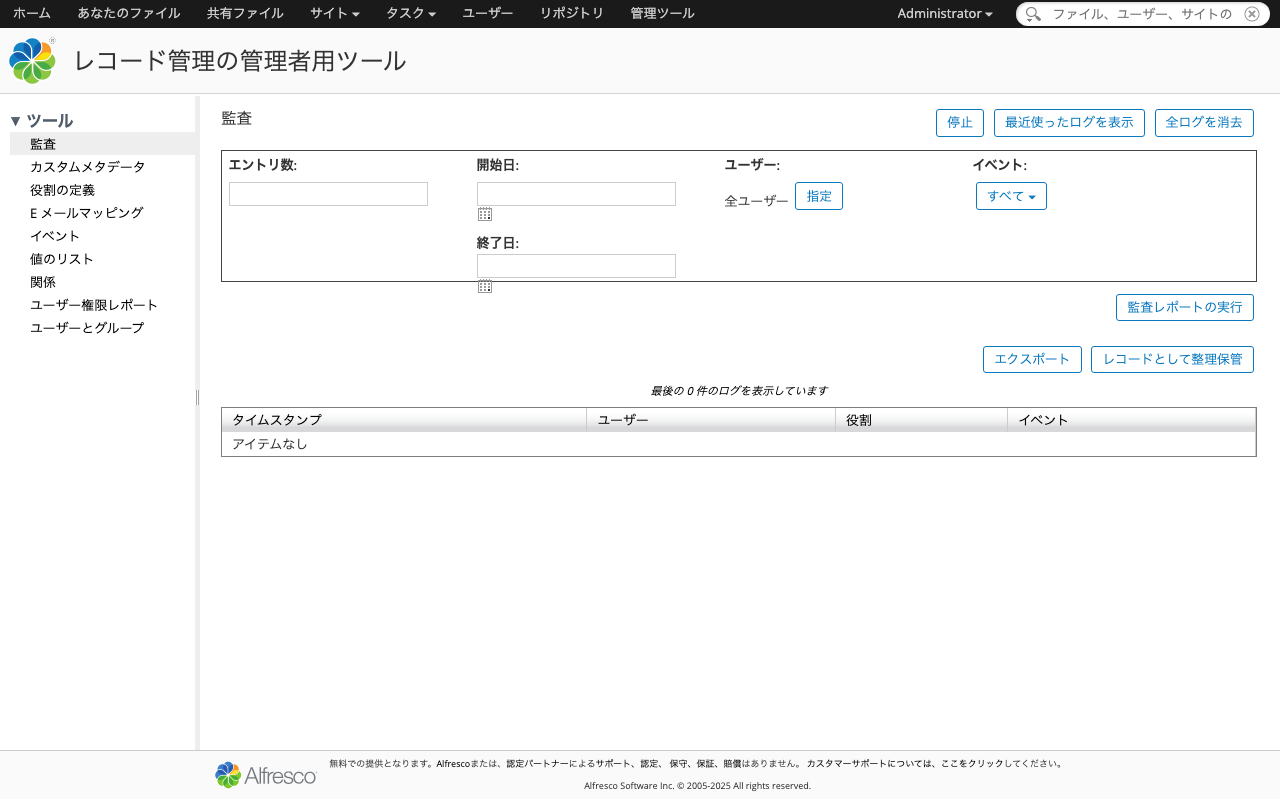
Records Management operations are automatically recorded in audit logs. They can also be checked from the RM management console.
15. Retrieving Record Content (Download)
Lifecycle Overview
The records management lifecycle we experienced in this article can be illustrated as follows.
State Changes at Each Stage
| Stage | Operation | Applied Aspect | Main Properties |
|---|---|---|---|
| Record declaration | declare | rma:record | rma:identifier |
| Filing | file | - | rma:dateFiled |
| Record completion | declareRecord | rma:declaredRecord | rma:declaredAt, rma:declaredBy |
| Cutoff | cutoff | rma:cutOff | rma:cutOffDate |
| Hold | hold | rma:frozen | rma:frozenAt |
API Reference
The following is a list of APIs used in this article.
GS REST API (v1)
| Operation | Method | Endpoint |
|---|---|---|
| Create RM site | POST | /api/-default-/public/gs/versions/1/gs-sites |
| Get file plan | GET | /api/-default-/public/gs/versions/1/file-plans/-filePlan- |
| Create category | POST | /api/-default-/public/gs/versions/1/file-plans/-filePlan-/categories |
| Create record folder | POST | /api/-default-/public/gs/versions/1/record-categories/{id}/children |
| Declare record | POST | /api/-default-/public/gs/versions/1/files/{id}/declare |
| File record | POST | /api/-default-/public/gs/versions/1/records/{id}/file |
| Create retention schedule | POST | /api/-default-/public/gs/versions/1/record-categories/{id}/retention-schedules |
| Create hold | POST | /api/-default-/public/gs/versions/1/file-plans/-filePlan-/holds |
| Add record to hold | POST | /api/-default-/public/gs/versions/1/holds/{id}/children |
| Release record from hold | DELETE | /api/-default-/public/gs/versions/1/holds/{holdId}/children/{recordId} |
| Check hold contents | GET | /api/-default-/public/gs/versions/1/holds/{id}/children |
Legacy API
| Operation | Method | Endpoint |
|---|---|---|
| Add retention action | POST | /alfresco/s/api/node/workspace/SpacesStore/{id}/dispositionschedule/dispositionactiondefinitions |
| Update retention action | PUT | /alfresco/s/api/node/workspace/SpacesStore/{id}/dispositionschedule/dispositionactiondefinitions/{actionId} |
| Check retention schedule | GET | /alfresco/s/api/node/workspace/SpacesStore/{id}/dispositionschedule |
| Check next action | GET | /alfresco/s/api/node/workspace/SpacesStore/{id}/nextdispositionaction |
| Execute action | POST | /alfresco/s/api/rma/actions/ExecutionQueue |
| Check audit log | GET | /alfresco/s/api/rma/admin/rmauditlog |
| List available values | GET | /alfresco/s/api/rma/admin/listofvalues |
Alfresco REST API (v1)
| Operation | Method | Endpoint |
|---|---|---|
| Get user info | GET | /api/-default-/public/alfresco/versions/1/people/-me- |
| Upload file | POST | /api/-default-/public/alfresco/versions/1/nodes/{id}/children |
| Get node info | GET | /api/-default-/public/alfresco/versions/1/nodes/{id} |
| Get content | GET | /api/-default-/public/alfresco/versions/1/nodes/{id}/content |
| Version history | GET | /api/-default-/public/alfresco/versions/1/nodes/{id}/versions |
| Create user | POST | /api/-default-/public/alfresco/versions/1/people |
| Create group | POST | /api/-default-/public/alfresco/versions/1/groups |
| Add group member | POST | /api/-default-/public/alfresco/versions/1/groups/{id}/members |
| List sites | GET | /api/-default-/public/alfresco/versions/1/sites |
Login Failure After Extended Operation
On the Azure virtual machine (8 GiB RAM) used in the previous article, an issue was observed where login became impossible after extended operation. The results of investigating the cause are summarized below.
Cause: Swapping Due to Insufficient Memory
The total mem_limit of all containers is as follows:
| Service | mem_limit |
|---|---|
| alfresco | 1,900 MB |
| transform-core-aio | 1,536 MB |
| share | 1,024 MB |
| solr6 | 2,048 MB |
| activemq | 1,024 MB |
| postgres | 512 MB |
| content-app | 128 MB |
| control-center | 128 MB |
| proxy (traefik) | 128 MB |
| Total | Approx. 8.4 GB |
On an 8 GiB VM, the OS itself uses 1-2 GB, so the memory available for containers is effectively only 6-7 GB. This triggers a chain of issues.
Countermeasures
1. Increase VM Memory (Recommended)
At minimum 12 GB, recommended 16 GB of memory is needed.
2. Extend Authentication Ticket Expiry
By default, authentication tickets expire after 1 hour. The following settings extend it (already included in this article’s compose file).
3. Enable DB Connection Pool Validation
In long-running environments, connection leaks may prevent authentication requests from being processed (already included in this article’s compose file).
4. Diagnostic Steps
If issues occur, follow the diagnostic steps to check container health, memory usage, and database connection status.
Summary
In this article, we experienced the entire records management lifecycle using REST API with Alfresco Governance Services Community Edition 25.3.0.
- Built a classification system of File Plan -> Category -> Record Folder
- Document record declaration -> filing -> record completion
- Retention schedule configuration (cutoff -> retain -> destroy)
- Cutoff execution for transitioning from active to inactive
- Hold for legal preservation (temporary suspension of disposal)
- User/group management and audit log verification
There were many things that could only be learned by actually trying them, such as the need to distinguish between the GS REST API (v1) and the Legacy API. In particular, the finding that adding retention actions works more reliably with the Legacy API is useful knowledge for actual operations.
Additionally, the cause and countermeasures for the login failure due to insufficient memory were also summarized. When operating Alfresco in a Docker environment, ensuring sufficient memory is important.