Overview
This article introduces how to use “CATMA,” one of the text markup tools.
Annotation results can be exported in TEI format, making it possible to create highly interoperable data that can be utilized in other systems. Additionally, though still experimental, a JSON API is also provided. By using this, one could annotate with CATMA and then use the results in other systems via the API.
The above includes some untested content and somewhat advanced approaches, but this article will serve as notes on the basic usage of CATMA.
Usage
Access the following URL and sign up. Logging in with a Google account should be smooth.
The screen after logging in looks like this:

Creating a Project
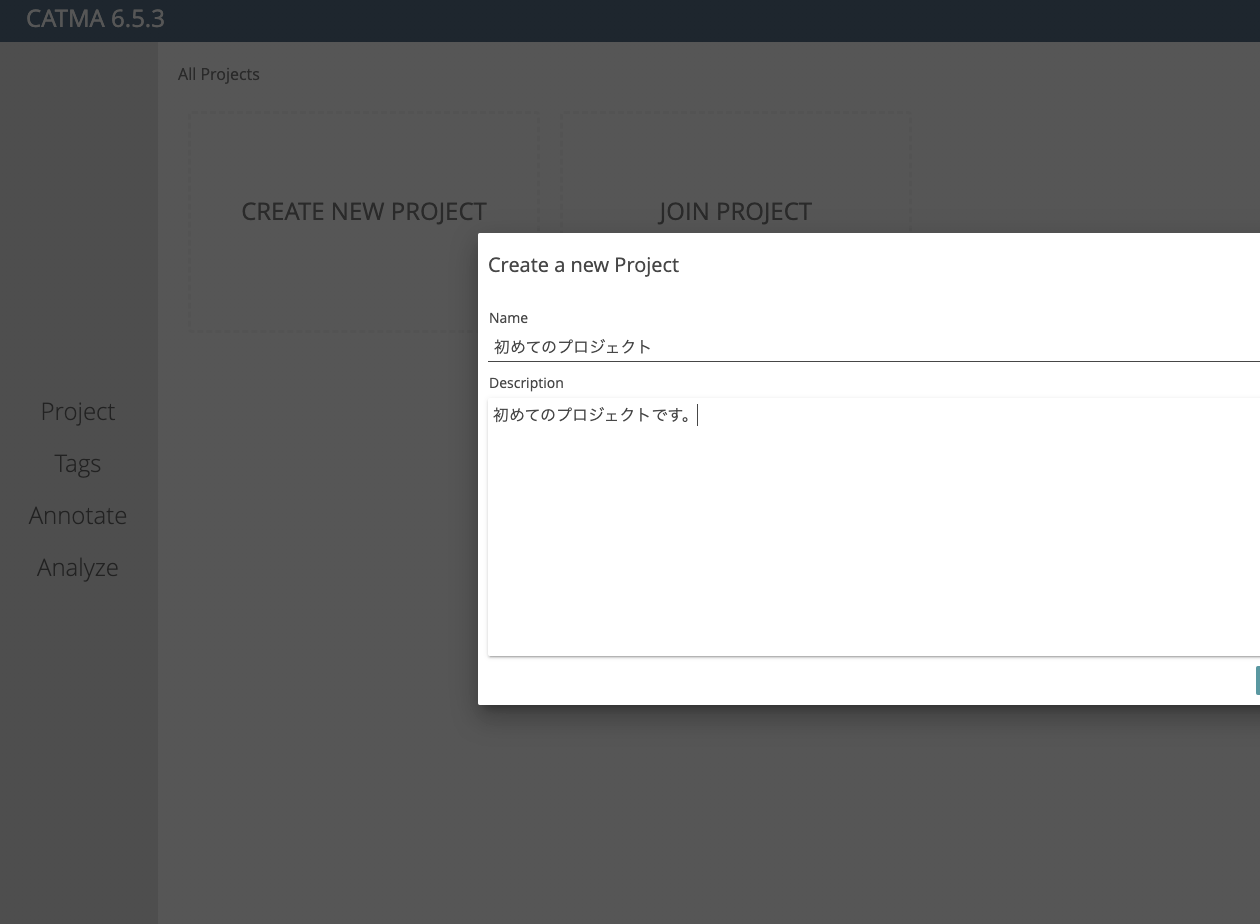
Create a new project from “Create New Project.”
Registering a Document
Press the “+” button and select “Add Document” as shown below.

This time, we will try a simple txt file like the following:
私の名前は中村覚です。
The subsequent options can mostly be left as default, but it might be good to set the language to “Japanisch” (Japanese) as shown below.

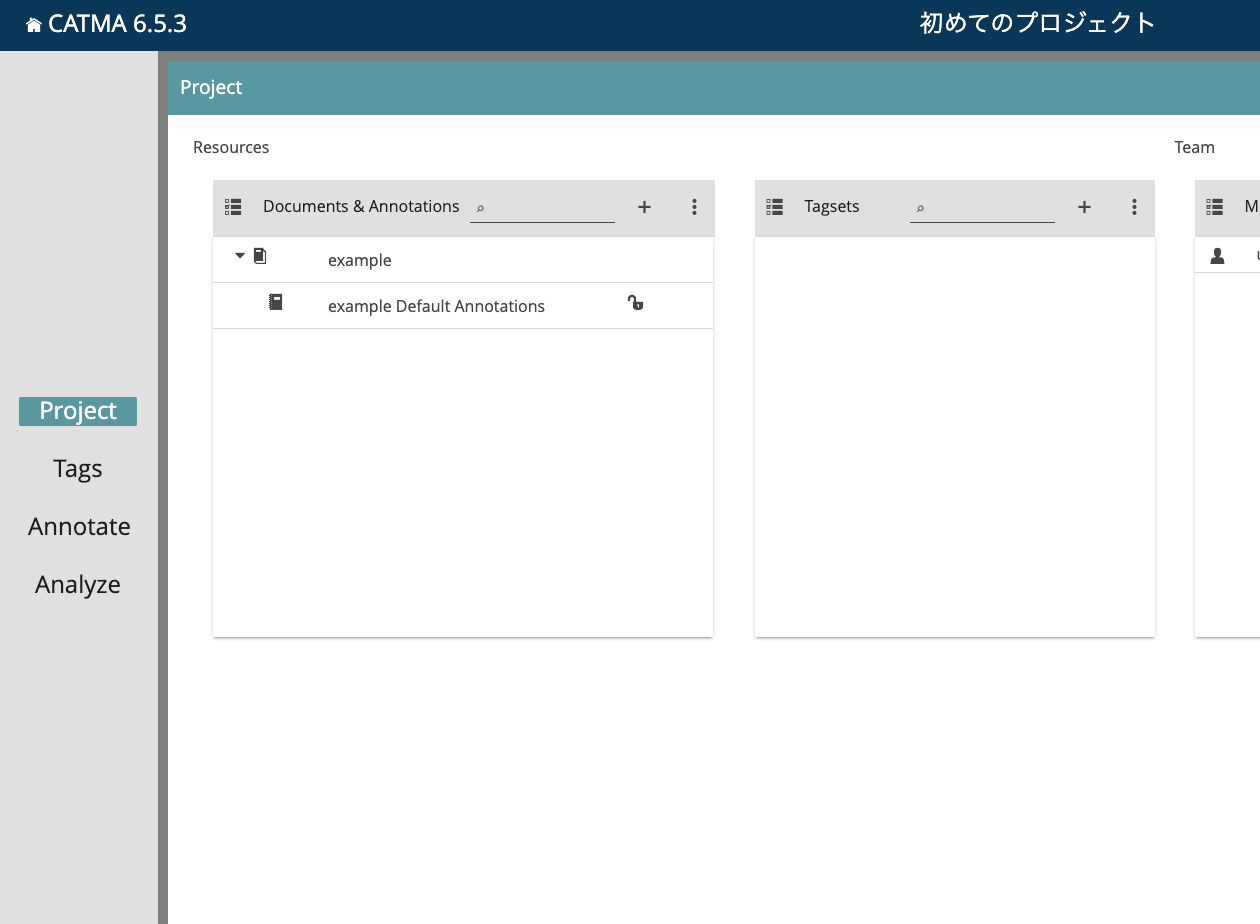
A document named example and a collection named example Default Annotations for storing annotations are created as follows.
Creating a Tagset
Next, create a tagset. Select “Tags” from the left menu, then press the “+” button at the top right of the screen and select “Add Tagset.”

Here, I created a tagset named “My First Tagset.” Furthermore, press the “+” button at the top right of the screen and select “Add Tag.”

Then, select the target tagset for adding the tag, and this time, I will add a tag named “persName.” While additional settings such as “Properties” can be configured, we will skip them this time.

Annotation
Navigate to “Annotate” from the left menu, and select “example” as the target document for annotation and “My First Tagset” as the tagset as shown below.

Select the text to annotate, then choose the tag to apply from the right panel. An underline in the color set during tag creation will be drawn.

Export
Return to “Project” from the left menu, select “example Default Annotations,” and choose “Export Documents & Collections” from the menu icon.
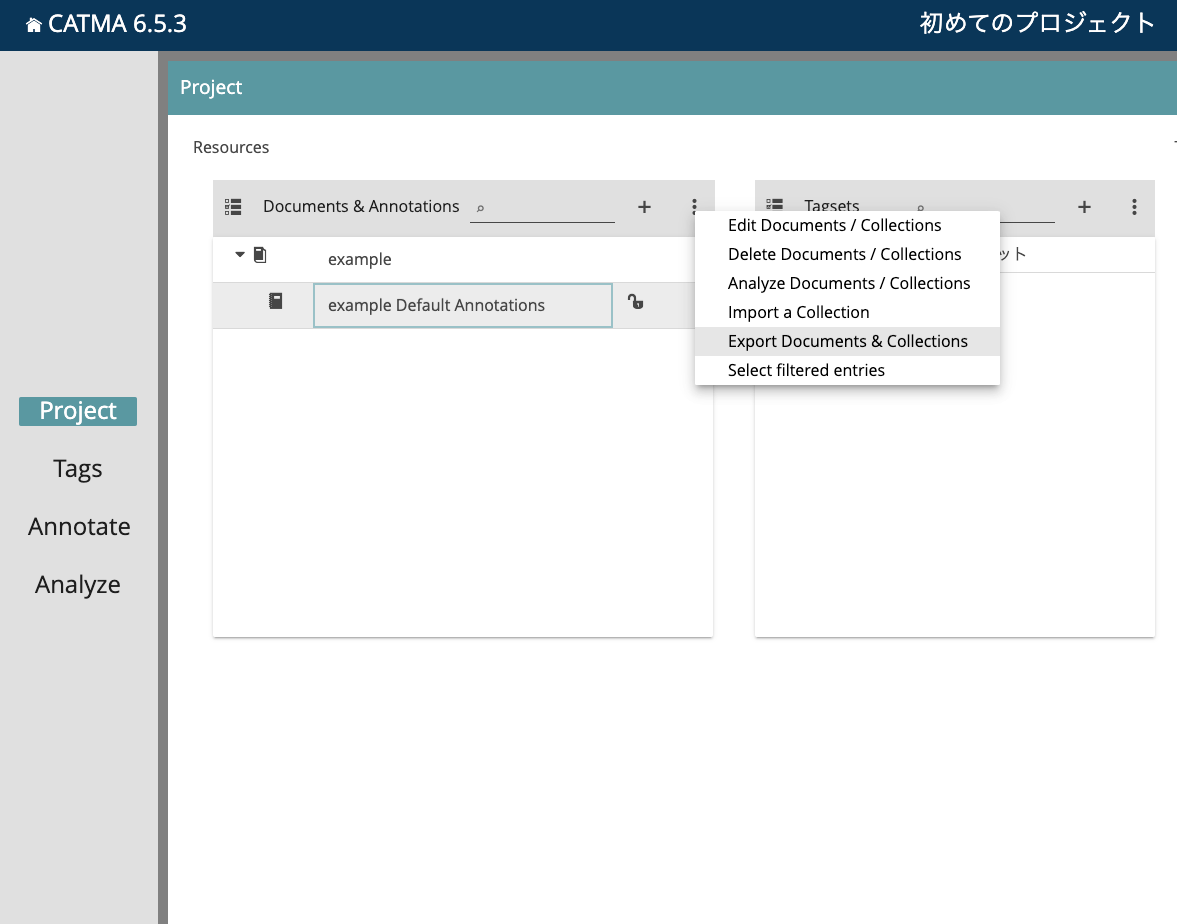
A zip file is downloaded, which extracts the original text file and an XML file containing the annotation results.
The XML file is output in TEI format as shown below. The tags used, specifically persName, are indicated in <encodingDesc>.
Additionally, the <body> section stores information about which tags are applied to which character positions.
<TEI xmlns="http://www.tei-c.org/ns/1.0" xml:lang="en">
    <teiHeader>
        <fileDesc>
...
        </fileDesc>
        <encodingDesc>
            <fsdDecl xml:id="T_876E9B9F-B41D-4DD7-B54A-A225A75A8F50" n="はじめてのタグセット b51b9866b96ff38f059b7b5b38b8383dfc53f27c">
                <fsDecl xml:id="CATMA_BDA41946-07EF-403E-BDE9-D2E60C48D093" n="2022-11-10T02:05:19.000+0100" type="CATMA_BDA41946-07EF-403E-BDE9-D2E60C48D093">
                    <fsDescr>persName</fsDescr>
                    ...
                </fsDecl>
            </fsdDecl>
        </encodingDesc>
    </teiHeader>
    <text>
        <body>
            <ab type="catma">
                <ptr target="D_FB58A2B3-EC15-42B8-8DAC-E9A28B3D1FDC#char=0,5" type="inclusion"/>
                <seg ana="#CATMA_E1AE48BF-903B-451B-8723-FAD8FD182CFE">
                    <ptr target="D_FB58A2B3-EC15-42B8-8DAC-E9A28B3D1FDC#char=5,8" type="inclusion"/>
                </seg>
                <ptr target="D_FB58A2B3-EC15-42B8-8DAC-E9A28B3D1FDC#char=8,13" type="inclusion"/>
            </ab>
        </body>
        <fs xml:id="CATMA_E1AE48BF-903B-451B-8723-FAD8FD182CFE" type="CATMA_BDA41946-07EF-403E-BDE9-D2E60C48D093">
            ...
        </fs>
    </text>
</TEI>
The structured data above can be leveraged for various applications.
JSON API
From the menu at the top right of the project screen, select “Share project resources.”
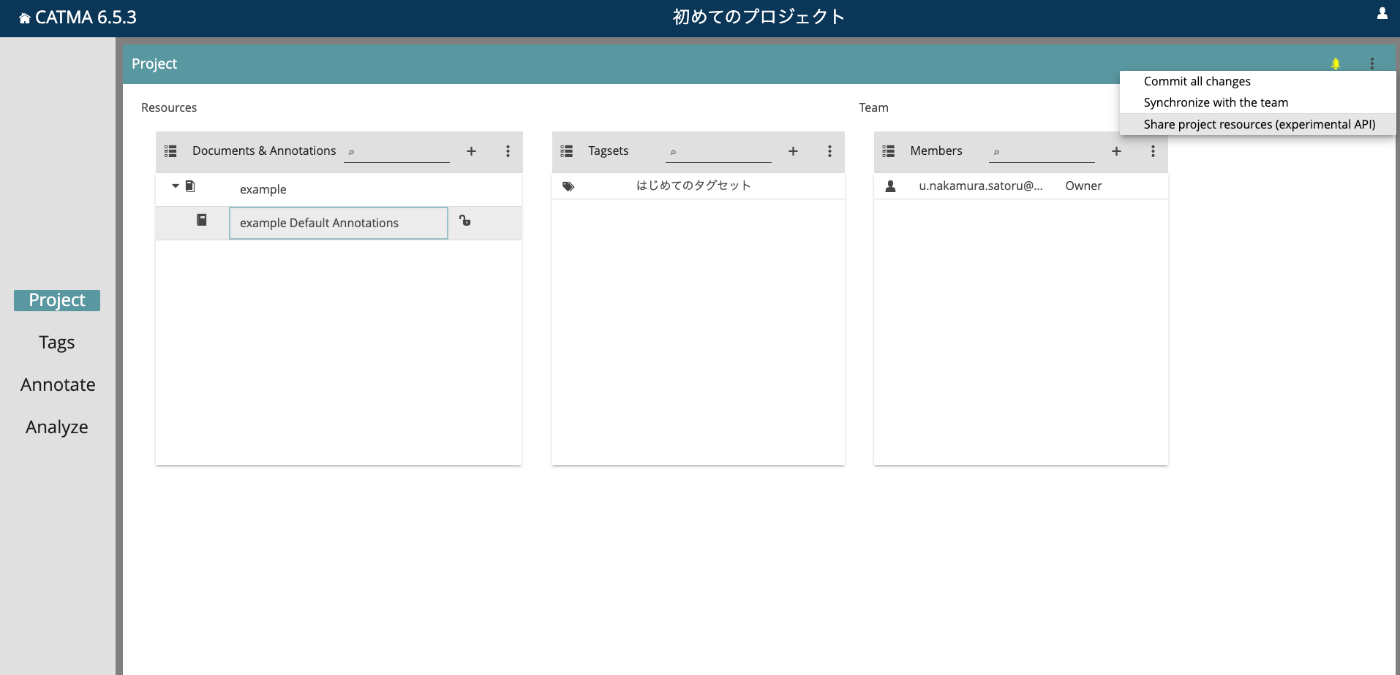
By setting it to “Enable,” the JSON API becomes active.
As a result, you can access JSON like the following, where you can confirm that the persName tag has been applied to the string “Nakamura Satoru.”
{
  "exportDocuments": [
    {
      "annotations": [
        {
          "endOffset": 8,
          "id": "CATMA_E1AE48BF-903B-451B-8723-FAD8FD182CFE",
          "phrase": "中村覚",
          "properties": [

          ],
          "sourceDocumentId": "D_FB58A2B3-EC15-42B8-8DAC-E9A28B3D1FDC",
          "startOffset": 5,
          "tagId": "CATMA_BDA41946-07EF-403E-BDE9-D2E60C48D093",
          "tagName": "persName"
        }
      ],
      "sourceDocument": {
        "bodyUrl": "https://app.catma.de/catma/api/pre/beta/catma_8394b1dd-c46a-45c5-a57f-1762722157ff/doc/d_fb58a2b3-ec15-42b8-8dac-e9a28b3d1fdc",
        "crc32bChecksum": "4ae29eb9",
        "id": "D_FB58A2B3-EC15-42B8-8DAC-E9A28B3D1FDC",
        "size": 35,
        "title": "example"
      },
      "tags": [
        {
          "colour": "#dd79df",
          "id": "CATMA_BDA41946-07EF-403E-BDE9-D2E60C48D093",
          "name": "persName",
          "parentId": "",
          "properties": [

          ]
        }
      ]
    }
  ],
  "exportId": "E_A814CD0C-1867-454A-8BAA-44355B93E35E"
}
Although it is an experimental service, it could be useful for integration with external systems.
Summary
I have explained the basic usage of CATMA.
While this time I registered a txt file, it is also possible to register XML files that are already marked up in TEI.
I hope this serves as a useful reference.