Home Articles Books Search About
RSS 日本語

Latest Articles

Omeka.net(Classic)の使い方:チャプター3 アイテムの追加

Omeka.netの使い方を説明します。チャプター3以降は、Omeka Classicの使用方法と共通です。 Creative Commons - BY – 2014 Use Case: Scholars, Omeka.net, http://info.omeka.net/omeka-net-help/use-case-scholars/ (翻訳&改訂:中村覚) nakamura196.hatenablog.com アイテムはOmekaを構成するブロックです。デジタルアーカイブを構築するには、まずアイテムを追加する必要があります。 アイテムを追加する前に 「Site Planning Tips(サイトの作成のヒント, http://omeka.org/codex/Site_Planning_Tips )」ページを参照して、サイトを構築する方法とアイテムで何をしたいのかを考えることができます。アイテムには、Dublin Core Metadata Initiativeに基づいて、メタデータ、またはその特定のものを記述するデータが含まれます。アイテムはコレクションに属し、複数のキーワードでタグ付けされ、複数の展示で使用されます。 ダブリンコアでの作業の詳細については、Omeka.orgの関連文書( http://omeka.org/codex/Working_with_Dublin_Core )を参照してください。 アイテムの追加と管理の概要については、スクリーンキャスト( https://vimeo.com/102040466 )もご覧ください。 アイテムを追加する アイテムページ( mysite.omeka.net/admin/items )からアイテムの追加ボタンをクリックします。 これにより、admin/items/add ページが表示され、上のナビゲーションバーに項目を追加するさまざまなタブが示されます。アイテムフォームの右側にある”Public(公開)”および/または”Featured(特集)”ボックスをいつでもチェックすることができます。個々のアイテムを再度開くことなく、/admin/items ページからこのステータスを変更することもできます。 最初のタブにはDublin Coreのフィールドが表示されます。これらはアーカイブ内のすべてのアイテムで使用できます。各フィールドは複数の値を持つことができます。各フィールドのタイトルの横にある”Add Input(入力を追加)”ボタンをクリックすることで、新しい入力フォームを追加できます。 “Item Type Metadata(アイテムタイプのメタデータ)”タブでは、追加するオブジェクトの特定のアイテムタイプを選択できます。プルダウンメニューを使用してタイプを選択すると、関連するメタデータフィールドが表示されます。(アイテムタイプの追加/編集については、アイテムタイプの管理( http://info.omeka.net/build-a-website/manage-item-types )を参照してください)。 “Files(ファイル)”タブでは、ファイルをアイテムにアップロードできます。”Add Another File(ファイルを追加)”リンクをクリックすると、ファイルを追加するための別のフィールドが表示されます。任意の数のファイルを項目に関連付けることができます。詳細はファイルの管理( http://info.omeka.net/build-a-website/managing-files )を参照してください。 “Tag(タグ)”タブでは、アイテムにキーワードタグを追加できます。 アイテムをコレクションに割り当てる:ページの右側にある”Add Item(アイテムを追加)”ボタンの下には、アイテムをコレクションに割り当てることができるドロップダウンメニューがあります。各アイテムは1つのコレクションにしか属することができません。 データを保存するには、”Add Item(アイテムを追加)”ボタンをクリックしてください。 アイテムへのHTML要素の追加 各メタデータフィールドのテキストは、基本的なHMTLタグを使用して拡張できます。HTMLエディタを有効にするには、テキストボックスの下のHTMLボックスをチェックします。詳細は、HTMLエディタ-TinyMCEの使用( http://info.omeka.net/build-a-website/use-the-html-editor )を参照してください。 アイテムのプロパティ アイテム:各アイテムにはダブリンコアとアイテムタイプのメタデータが含まれています。アイテムは一度に1つのコレクションにのみ属し、無限のタグ数を持つことができます。項目には、ファイルが多く含まれていてもなくてもかまいません。 コレクション:複数アイテムから構成される可能性があります。アイテムは1つのコレクションにしか属しません。 タグ:タグはどのアイテムにも追加でき、アイテムは無限のタグを持つことができます。 アイテムを編集する ダッシュボードの左側のナビゲーションバーにあるタブから”Items(アイテム)”にアクセスし、”Items Browse(アイテム)”ページ(/admin/items)に移動します。アイテムは、”Title(タイトル)”、”Creator(製作者)”、”Item Type(タイプ)”、”Date Created(追加した日付)”などの限られたメタデータとともに表示されます。そのアイテムに関連する他のメタデータを表示するには、そのアイテムのタイトルの下にある”Details(詳細)”リンクを使用します。また、青色の”Show Details(詳細を表示)”タブを使用して、ページ上のすべての項目の詳細を表示することもできます。 アイテムのリストから、もしくはアイテムを検索することにより、編集したいアイテムを見つけてください。1つのアイテムのみを編集するには、アイテムのタイトルの下にある”Edit(編集)”リンクを使用します。編集ページが開き、編集が可能になります。変更内容を失わないように”Save Changes(変更を保存する)”ボタンをクリックしてください。 ...

Omeka.net(Classic)の使い方:チャプター2 サインアップとプラン選択

Omeka.netの使い方を説明します。チャプター3以降は、Omeka Classicの使用方法と共通です。 Creative Commons - BY – 2014 Use Case: Scholars, Omeka.net, http://info.omeka.net/omeka-net-help/use-case-scholars/ (翻訳&改訂:中村覚) nakamura196.hatenablog.com アカウントにサインアップするのは、入力フォームを埋め、サインアップボタンをクリックするだけの簡単な作業です。 1.プランを選択してください: Omeka.netは5種類のプランを用意しています。Omeka.netのウェブサイトのユーザー/協力者になるには、無料アカウントにサインアップする必要があります。 Trial(無料) ストレージ:500 MB サイト数:1 8個のプラグイン:COinS, CSV Import, Exhibit Builder, Library of Congress Suggest, Locale, OAI-PMH Harvester, SharedShelfLink, Simple Pages 2テーマ:Berlin, Season Plus($ 35 /年) ストレージ:2 GB サイト数:2 20プラグイン:COinS, Commenting, Contribution, CSV Import, Exhibit Builder, Google Analytics, Hide Elements, Item Order, Library of Congress Suggest, Locale, OAI-PMH Harvester, Omeka API Import, PDF Embed, PDF Text, Reports, SharedShelfLink, Simple Contact Form, Simple Pages, Simple Vocab, Social Bookmarking ...

Omeka.net(Classic)の使い方:チャプター1 概要

Omeka.netの使い方を説明します。チャプター3以降は、Omeka Classicの使用方法と共通です。 Creative Commons - BY – 2014 Use Case: Scholars, Omeka.net, http://info.omeka.net/omeka-net-help/use-case-scholars/ (翻訳&改訂:中村覚) nakamura196.hatenablog.com デジタル展示を行い、主要なソースコレクションを共有し、他の人と協力してデジタルアーカイブを作成します。 アカウントにサインアップしてください。あなたの研究のトピックを反映するドメイン名を選択して、ウェブ上でこのトピックに興味を持つ他の人があなたをよりよく見つけられるようにします。 利用可能なプラグイン、ストレージオプション、サイト数を確認して、ニーズに合ったプランを選択してください。または、基本的な無料プランを最初に試して、後でアップグレードしてください。 写真やデジタル化された文書をアップロードして、デジタルアーカイブを構築します。 アイテムにタグを付けると、訪問者はあなたのサイトのコンテンツを理解しやすくなります。 “Exhibit Builder”プラグインを使用するか、または”Simple Pages”(プラグイン)を使用し、アップロードされたアイテムと説明を組み合わせたデジタル展示を作成します。 他人を管理者になるように招待することで、仲間と協力してWebサイトの構築と管理を行います。

[Google Colab] Retrieving Article Lists Using the Hatena Blog AtomPub API

[Google Colab] Retrieving Article Lists Using the Hatena Blog AtomPub API

I created a sample program for retrieving article lists using the Hatena Blog AtomPub API. You can try it on the following Google Colab. https://colab.research.google.com/drive/15z0Iime9Bbma7HW09__Fq_fRkcWP6nyS?usp=sharing After running the above program, an Excel file like the following will be downloaded. https://docs.google.com/spreadsheets/d/14myDqZTxocwOT0Mw3ZzKLO81E6r15R-49oUh2dG9Rbo/edit?usp=sharing The “metadata” sheet stores blog information, and the “items” sheet stores the list of articles. Some aspects may be unclear due to the notation in column A of the “metadata” sheet, the heading rows, and the heading rows of the “items” sheet (which are designed for connection with other applications), but I hope this is helpful when using the Hatena Blog AtomPub API. ...

【AWS関連】Flaskを用いてyolo5モデルを公開するリポジトリのECRとAWS App Runnerでの使用方法

(こちらにも同じの内容を記載しています。) 本記事では、AWS App Runnerとyolo5を用いた物体検出APIの構築例について紹介します。 Amazon ECR 以下で公開されている、Flaskを用いてyolo5モデルを公開するリポジトリについて、 https://github.com/robmarkcole/yolov5-flask Amazon ECR(Elastic Container Registry)のパブリックレジストリにイメージを登録しました。 https://gallery.ecr.aws/b8m8i5m3/yolov5-flask 元のリポジトリから一部ソースコードを変更しています。フォークしたリポジトリは以下です。 https://github.com/ldasjp8/yolov5-flask 以下では、本イメージの利用例として、App Runnerでの使用方法を説明します。 AWS App Runner App Runnerにアクセスして、画面右上の「サービスの作成」をクリックします。 次の「ソースおよびデプロイ」画面において、以下のように選択します。「コンテナイメージのURI」には、以下を与えてください。 public.ecr.aws/b8m8i5m3/yolov5-flask:latest 次の「サービスを設定」画面において、サービス名を入力し、ポートを5000に変更します。 その後の設定はデフォルトのまま進めると、以下の画面に遷移します。 5分から10分程度待つと、「ステータス」が「Running」となったら成功です。 「デフォルトドメイン」のドメイン「 https://XXXX.us-east-1.awsapprunner.com/ 」を用いて、以下のURLにアクセスしてください。 https://XXXX.us-east-1.awsapprunner.com/detect?url=https://raw.githubusercontent.com/ultralytics/yolov5/master/data/images/zidane.jpg 以下に示すような物体検出結果のJSONデータが返却されます。 まとめ AWS App Runnerを用いて、yolo5を用いた物体検出APIを簡単に構築することができました。 App Runnerを用いたAPI構築の一例として、参考になりましたら幸いです。

How to Use a Flask-Based YOLOv5 Model Repository with ECR and AWS App Runner

How to Use a Flask-Based YOLOv5 Model Repository with ECR and AWS App Runner

This article introduces an example of building an object detection API using AWS App Runner and YOLOv5. Amazon ECR I registered the following repository, which publishes a YOLOv5 model using Flask, to the Amazon ECR (Elastic Container Registry) public registry. https://github.com/robmarkcole/yolov5-flask https://gallery.ecr.aws/b8m8i5m3/yolov5-flask I made some modifications to the source code from the original repository. The forked repository is here: https://github.com/ldasjp8/yolov5-flask Below, I will explain how to use this image with App Runner as an example. ...

【AWS関連】AWS App Runner + ECR 利用時におけるHealth check on port "XXXX"の対処方法の一つ

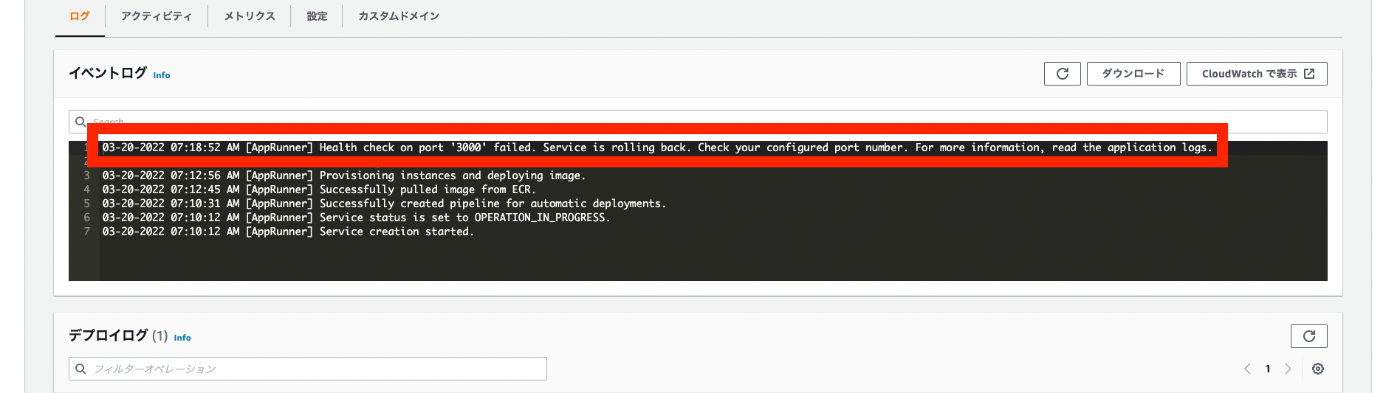
AWS App RunnerにおけるソースとしてECRを利用した際、以下のように、Health check on port “XXXX"が発生しました。 03-20-2022 07:18:52 AM [AppRunner] Health check on port '3000' failed. Service is rolling back. Check your configured port number. For more information, read the application logs. 上記について、以下の「アプリケーションログ」を確認したところ、 以下が出力されていました。 exec user process caused: exec format error 上記について、以下のstack overflowがみつかりました。 https://stackoverflow.com/questions/67361936/exec-user-process-caused-exec-format-error-in-aws-fargate-service 上記の中で、以下の回答がありました。 docker buildx build --platform=linux/amd64 -t <image-name> . こちらを試したところ、正しくデプロイすることができました。 同様のことでお困りの方の参考になりましたら幸いです。

Health Check on Port Issue When Using AWS App Runner + ECR

Health Check on Port Issue When Using AWS App Runner + ECR

When using ECR as the source in AWS App Runner, the following Health check on port “XXXX” error occurred. 03-20-2022 07:18:52 AM [AppRunner] Health check on port '3000' failed. Service is rolling back. Check your configured port number. For more information, read the application logs. Regarding the above, I checked the “Application logs” as follows. The following was output. exec user process caused: exec format error Regarding the above, I found the following Stack Overflow post. ...

Generating IIIF Collections Using the Omeka S IIIF Server Module

Generating IIIF Collections Using the Omeka S IIIF Server Module

Overview The Omeka S IIIF Server module can automatically generate IIIF collections (a grouping of IIIF manifests into one) in addition to IIIF manifest files. https://omeka.org/s/modules/IiifServer/ This article explains how to use this IIIF collection feature. Preparing Data (Item Sets) In Omeka S, there is a unit called “item sets” for managing groups of items. For example, in this case, we create three item sets: “tei”, “iiif”, and “oss”. ...

Building an IIIF Image Server with AWS Serverless Application

Building an IIIF Image Server with AWS Serverless Application

Notice I have documented the usage instructions as of 2024 in the following article. Please refer to it. Overview This article introduces how to build an IIIF Image Server using an AWS serverless application, as featured in Awesome IIIF. https://github.com/samvera-labs/serverless-iiif Please note that following the procedures in this article will incur AWS service charges, so please be cautious if you try it. Target Audience The above repository describes the following prerequisites: ...

[For Developers] Setting Up a Search Application Development Environment Using AWS x Nuxt.js x Elasticsearch

[For Developers] Setting Up a Search Application Development Environment Using AWS x Nuxt.js x Elasticsearch

This article explains how to set up a development environment for a search application using AWS x Nuxt.js x Elasticsearch. This is primarily a personal reference note. We aim for the following architecture. While there may be better configurations and approaches, this at least provides a working development environment for a Nuxt.js web application using Elasticsearch as the search engine on AWS. The Cultural Japan project also uses a nearly identical architecture. ...

Registering Resource Classes with Bulk Import and Editing Settings

Registering Resource Classes with Bulk Import and Editing Settings

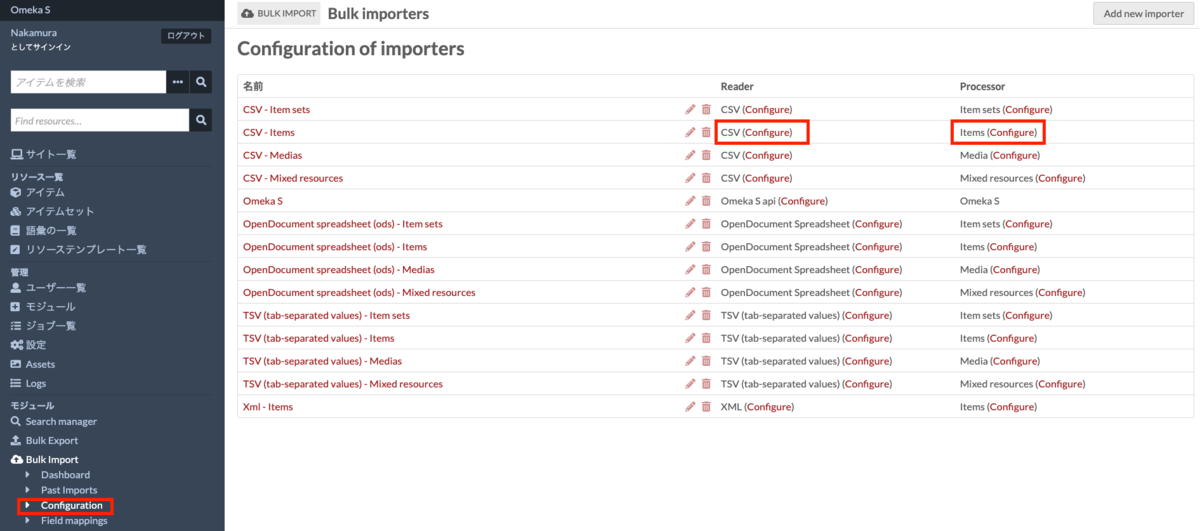
I have written the following articles about batch registration and updating using Bulk Import. nakamura196.hatenablog.com nakamura196.hatenablog.com Since the above articles did not cover how to register resource classes, I address this here. I also provide supplementary information on how to edit Bulk Import module settings. Registering Resource Classes I have prepared a sample CSV file for registering resource classes at the following link. https://github.com/omeka-j/Omeka-S-module-BulkImport-Sample-Data/blob/main/resource_class/sample.csv The key point is to set the column name to “o:resource_class.” The cell values should be the Term values that can be confirmed in Omeka S. For example, enter values such as dctype:Collection. ...

Created a Program for Batch Updating File Owners in Google Drive

Created a Program for Batch Updating File Owners in Google Drive

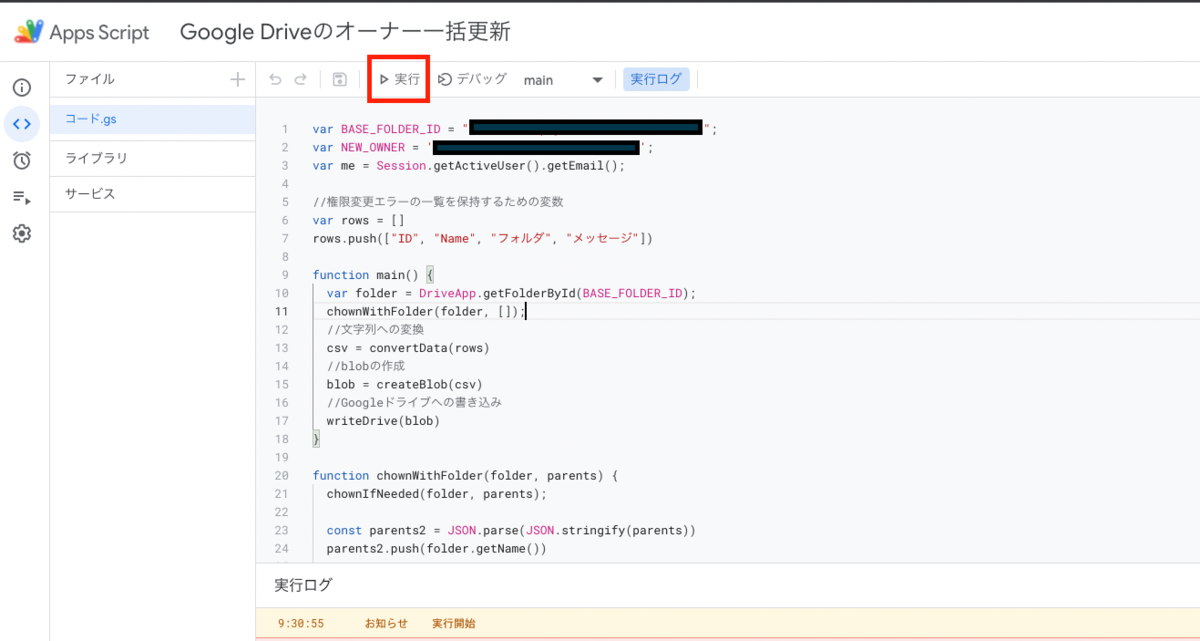
I created a program for batch updating file owners in Google Drive. Below, I explain the process separately for the person transferring ownership and the person receiving ownership. Please note that this program cannot transfer ownership of PDF or image files. The workaround for this is described later. Person Transferring Ownership Access the Google Apps Script at the following link and follow the instructions. https://script.google.com/d/1k6ZiwHNeJSvc4W7uRmc_DfSSmwGOWCbUriLBy0MpuoEAgWvcVNdyRMDa/edit?usp=sharing After navigating to the Apps Script page, press the “Run” button. ...

[Memo] Created a Program for Batch Deleting Folders on Google Drive

[Memo] Created a Program for Batch Deleting Folders on Google Drive

Background While working with a kuzushiji (classical Japanese character) dataset, a data processing error resulted in creating a large number of folders with Unicode names directly under My Drive. To address this issue, this article explains a program for batch deleting multiple folders on Google Drive. Note that this article primarily serves as a personal memo. Target Audience Those with knowledge of Google Cloud Platform Solution To solve this problem, we created a sample program for batch deleting folders on Google Drive. You can try it in the following Google Colaboratory notebook: ...

How to Install Omeka S Modules

How to Install Omeka S Modules

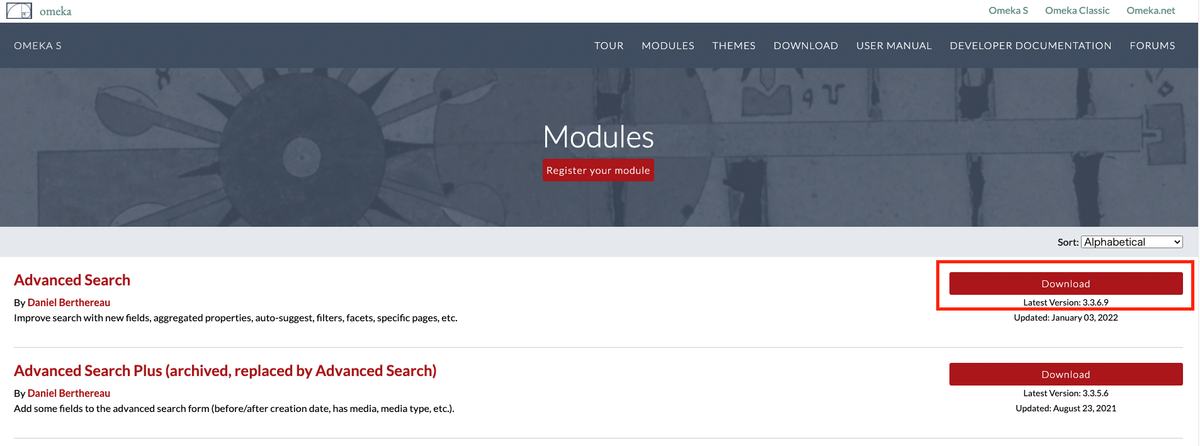
This article summarizes how to install Omeka S modules. A. From the Official Site First, you can download zip files from the official site below. https://omeka.org/s/modules/ Clicking the download button above will download a zip file. Extract the folder and place it in the modules folder within the Omeka S installation directory. This is the most basic method. An explanatory video is also available, so if this is your first time, please refer to the following video: ...

Batch Updating Metadata Using CSV Files with Bulk Import

Batch Updating Metadata Using CSV Files with Bulk Import

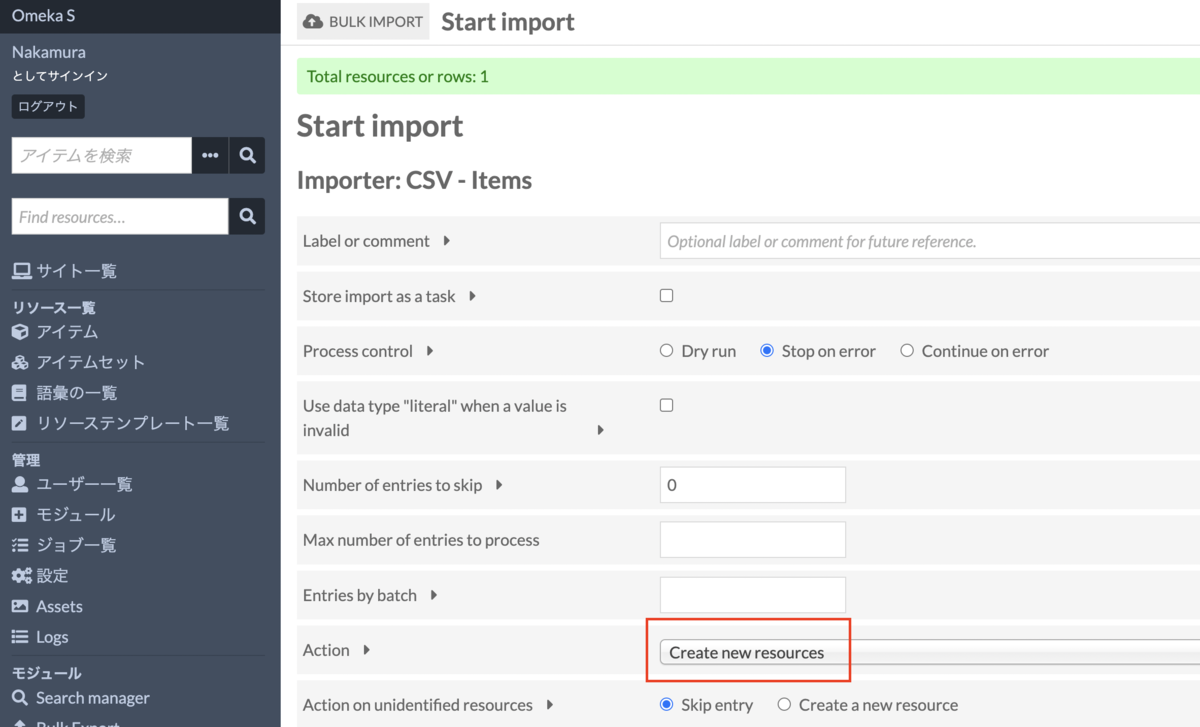
Introduction In the following article, I explained how to batch register metadata and images using CSV files with Bulk Import. nakamura196.hatenablog.com This article explains how to batch update already registered metadata. Procedure Bulk Import offers the following five options: Create new resources Append data to resources Revise data of resources Update data of resources Replace all data of resources Delete resources Below, we examine the behavior of each option. 1. Create new resources First, as with the batch registration method shared earlier, we use the “Create new resources” option. ...

Notes on Japanese Full-Text Search in Omeka S and the Mroonga Search Module

Notes on Japanese Full-Text Search in Omeka S and the Mroonga Search Module

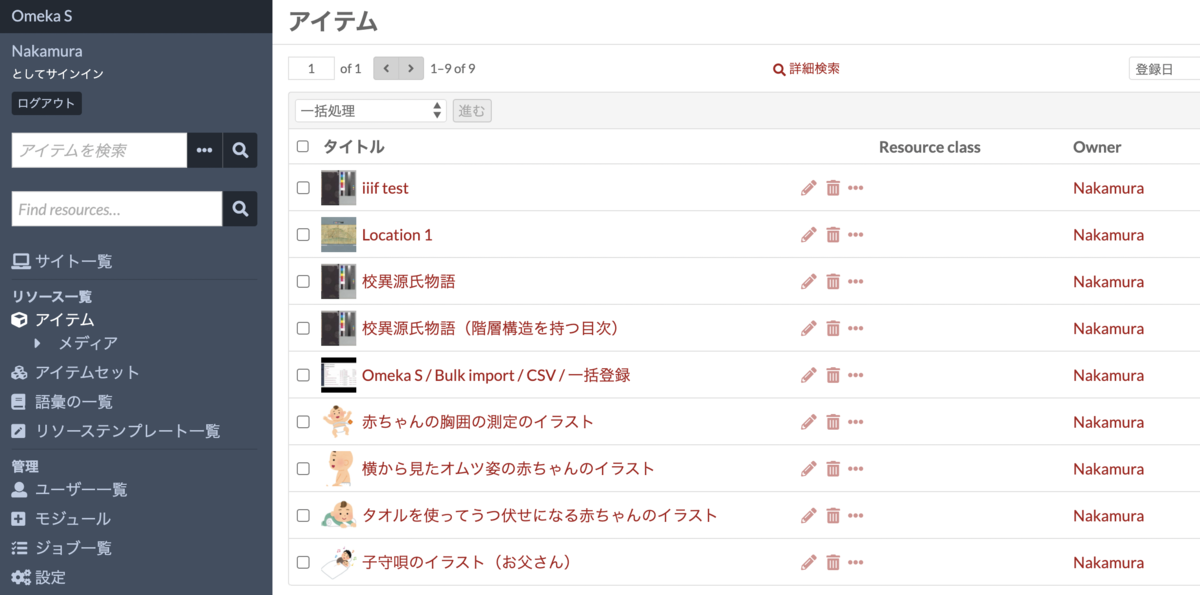
Issue Omeka S provides full-text search functionality, but unfortunately, Japanese search does not work properly with default settings. Specifically, partial match search does not function correctly. For example, assume that multiple items with titles containing the string “Koui” (校異) are registered, as shown below. When entering “校異” (Koui) in the full-text search form at the top left, the search returns 0 results. On the other hand, entering “校異源氏物語” (Koui Genji Monogatari) returns the correct search results. ...

Created a Sample Program for Analyzing TEI/XML Files with Python

Created a Sample Program for Analyzing TEI/XML Files with Python

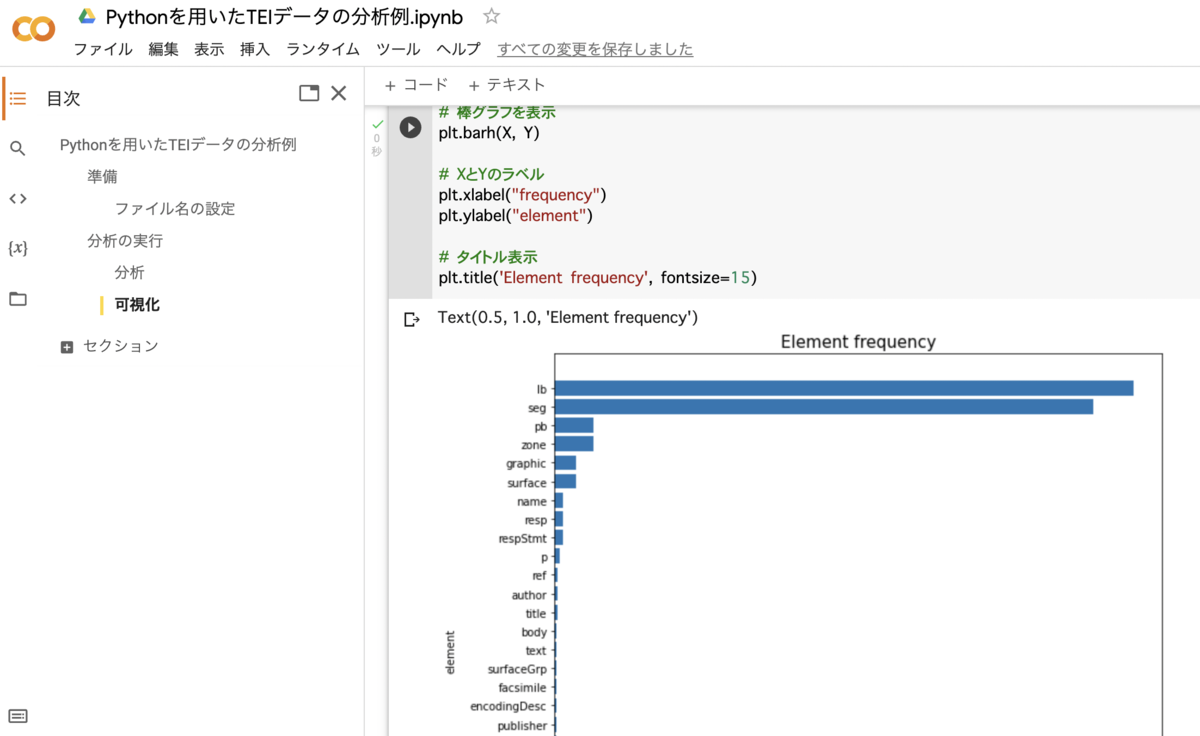
We created a sample program for analyzing TEI/XML files with Python. You can use it from the following Google Colab notebook: https://colab.research.google.com/drive/1fji80KZW8typjJMi01fyUWjrdYrNldsK We hope this serves as a useful reference for those considering the utilization of TEI data.

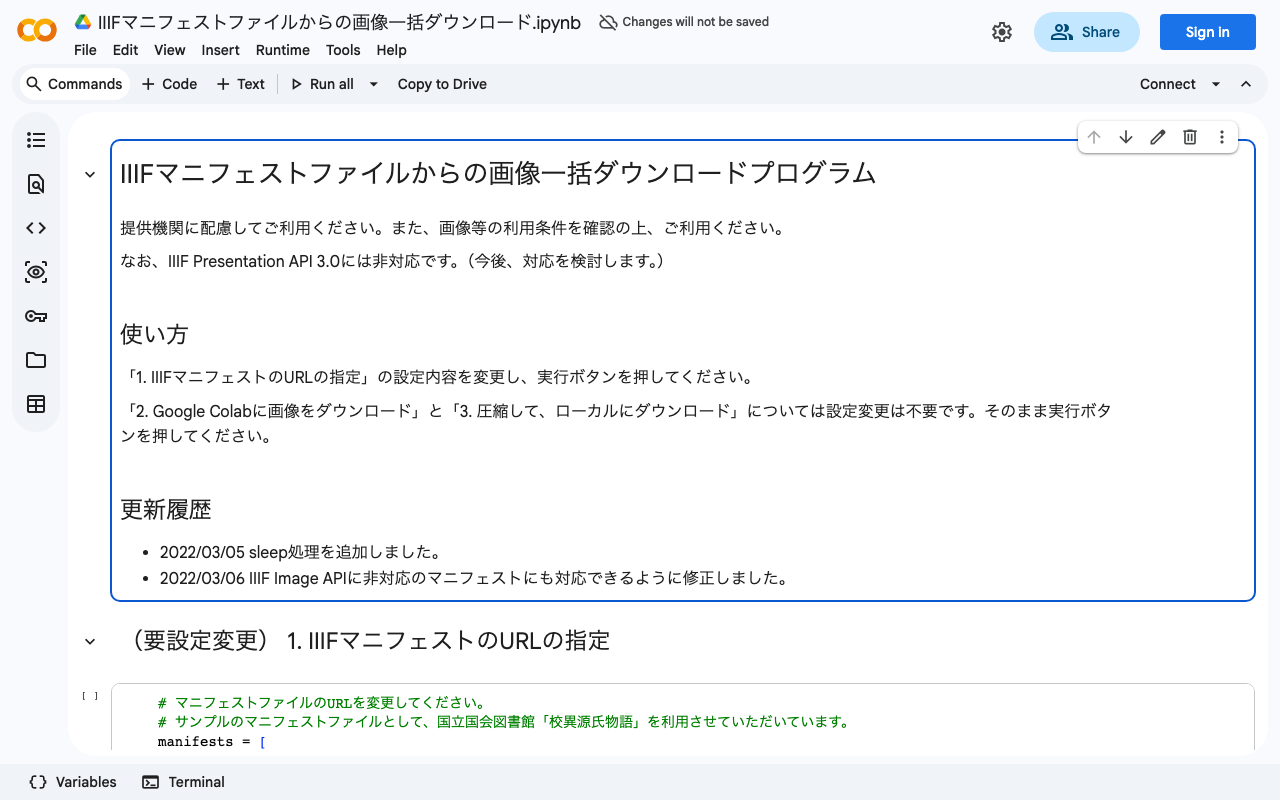
Created a Program for Batch Downloading Images from IIIF Manifest Files

Created a Program for Batch Downloading Images from IIIF Manifest Files

We created a program for batch downloading images from IIIF manifest files. You can use it from the following Google Colab notebook: https://colab.research.google.com/drive/1XL6cnY6fdtYTB5EdNA_B_EfqKHXZMDQJ?usp=sharing Please use it with consideration for the providing institutions. Also, please check the terms of use for the IIIF manifest before using it.

Omeka S IIIF Serverモジュールにおいて、外部のImage Serverを利用する方法

概要 本記事では、Omeka S IIIF Serverモジュールにおいて、外部のImage Serverを利用する方法について説明します。 以下、本記事で使用する用語の整理です。 IIIF Image API: https://iiif.io/api/image/3.0/ IIIF Presentation API: https://iiif.io/api/presentation/3.0/ (Omeka S)Image Server モジュール: https://omeka.org/s/modules/ImageServer/ (Omeka S)IIIF Server モジュール: https://omeka.org/s/modules/IiifServer/ 背景 Omeka SではImage Serverモジュールを用いてIIIF Image APIに対応したImage Server機能を持つことができます。 一方、Image ServerはIIPImage ServerやCantaloupeなどの専用サーバで対応しつつ、Omeka SではIIIF Presentation APIにのみ対応する(マニフェストファイルを自動生成する)ことができます。 このような構成を取ることにより、Omeka Sはレンタルサーバ上に構築し運用コストを軽減させる、といったことが可能となります。 ※ 冒頭で述べたImage Serverモジュールを利用することで、レンタルサーバ上で動作するOmeka SのみでImage Serverに対応することも可能です。ただしこの場合、レンタルサーバのスペック不足により、画像の返却に時間がかかってしまう場合があります。そのため、レンタルサーバ上でIIIFに対応したOmeka Sを構築する際は、この記事が対象とする構成のようにImage Serverを別途立てるか、以下の記事にあるように、IIIF ServerモジュールにおいてImage APIを使用しないオプションを設定することをお勧めします。(この場合、Image APIに非対応となり利便性が下がるデメリットはありますが、レンタルサーバのみでデジタルアーカイブシステムを運用することが可能となり、運用コストが軽減するメリットなどがあります。 ) nakamura196.hatenablog.com ※ なお、VPSやオンプレミス、クラウドなどのサーバ上でOmeka Sを運用する場合には、サーバのスペックが高いことが期待されるため、Omeka SのみでImage Serverの構築(Image Serverモジュールを導入し、IIIF Image APIへ対応する)と、IIIFマニフェストの自動生成(IIIF Serverモジュールを導入し、IIIF Presentation APIへ対応する)ことも有効かと思います。 前置きが長くなりましたが、以下で具体的な方法を説明します。 外部のImage Serverを利用する方法 外部のIIIF画像の利用は、Omeka Sの標準機能で対応することができます。以下のように、メディアの登録画面において、IIIF画像オプションを選択し、IIIF画像のURLを登録します。注意点として、info.json までを含むURLを使用してください。 以下は、国立国会図書館のIIIF画像を登録している例です。 上記のようにメディアを登録した上で、かつOmeka SにIIIF Serverモジュールがインストールされていれば、以下のように、Omeka SでIIIFマニフェストを自動生成しつつ、IIIF画像は外部機関(例:国立国会図書館)が提供してくださっているものを利用することができます。 https://diyhistory.org/nakamura196/iiif/879/manifest まとめ 外部のImage Serverを使用しつつ、Omeka SでIIIFマニフェストを配信する、といった構成を検討されている方の参考になりましたら幸いです。 ...