Home Articles Books Search About
RSS 日本語

Latest Articles

Using The New York Public Library API

Using The New York Public Library API

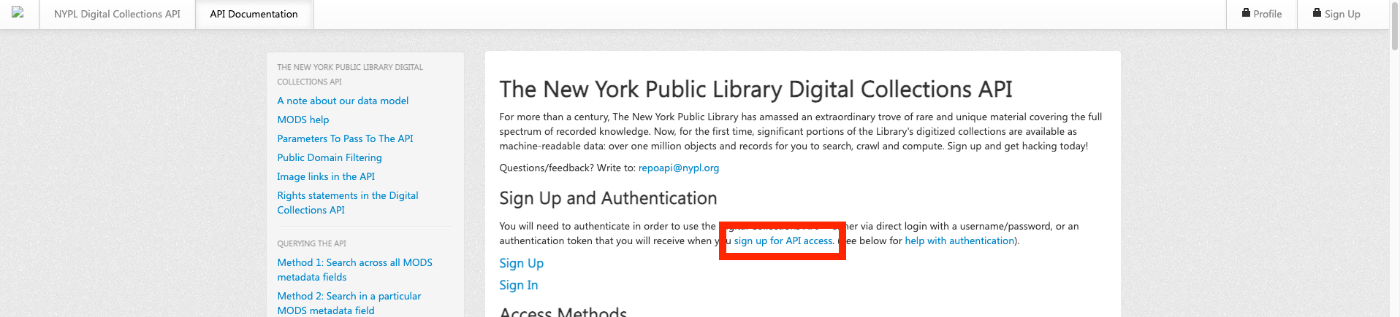
Overview The New York Public Library provides a Digital Collections API. http://api.repo.nypl.org/ This article explains an example of how to use this API. Sign Up First, click the following link to sign up. A form like the following will be displayed, so enter the required information. After entering your information, you will receive an email with the subject Welcome to NYPL API. This email contains the Authentication Token. ...
How to Register, Update, and Delete researchmap Achievements Using CSV Files

How to Register, Update, and Delete researchmap Achievements Using CSV Files

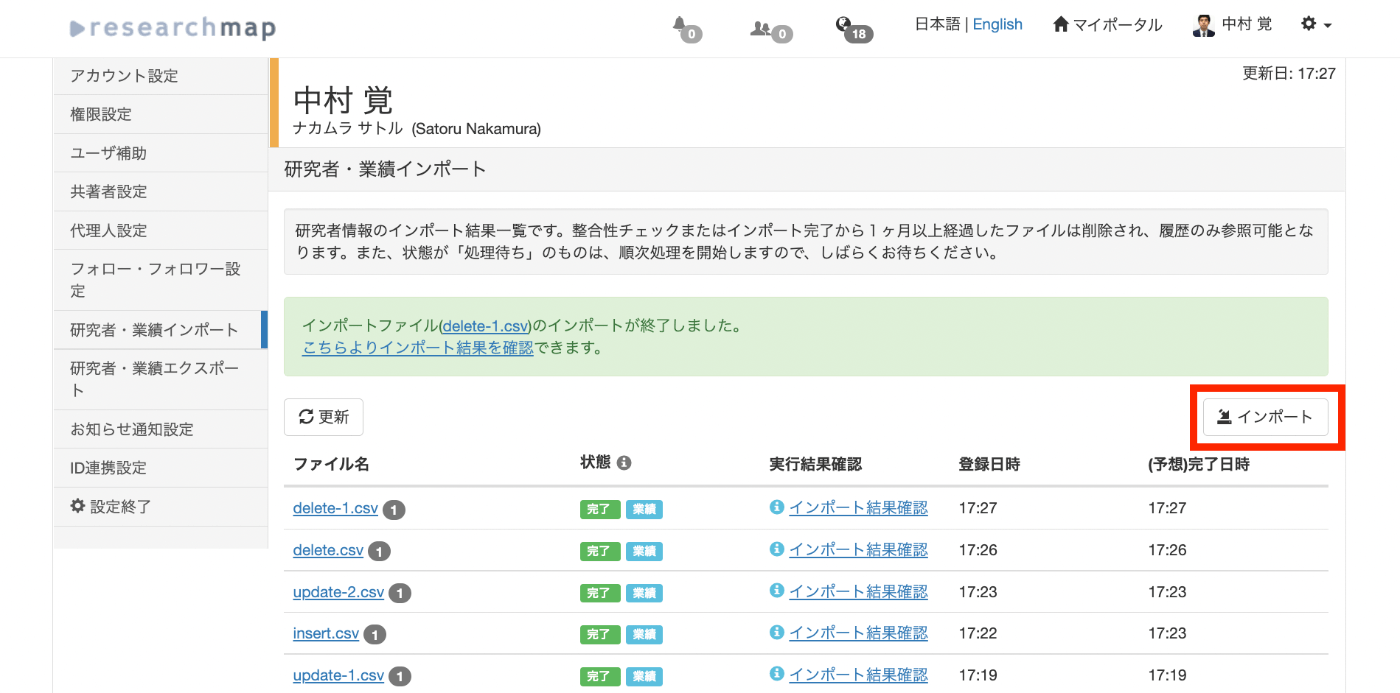
Overview I performed new registration, updating, and deletion of achievements on researchmap using CSV files. This article shares the method and the data used. Sample data used this time https://github.com/ldasjp8/researchmap New Registration First, click the “Import” button. When the import dialog appears, select the CSV file for new registration and press the “Consistency Check” button. An example CSV file for registration is stored below. This is an example of new registration to “published_papers.” ...

Added TEI/XML Download Functionality to the "NDL OCR x IIIF" App

Added TEI/XML Download Functionality to the "NDL OCR x IIIF" App

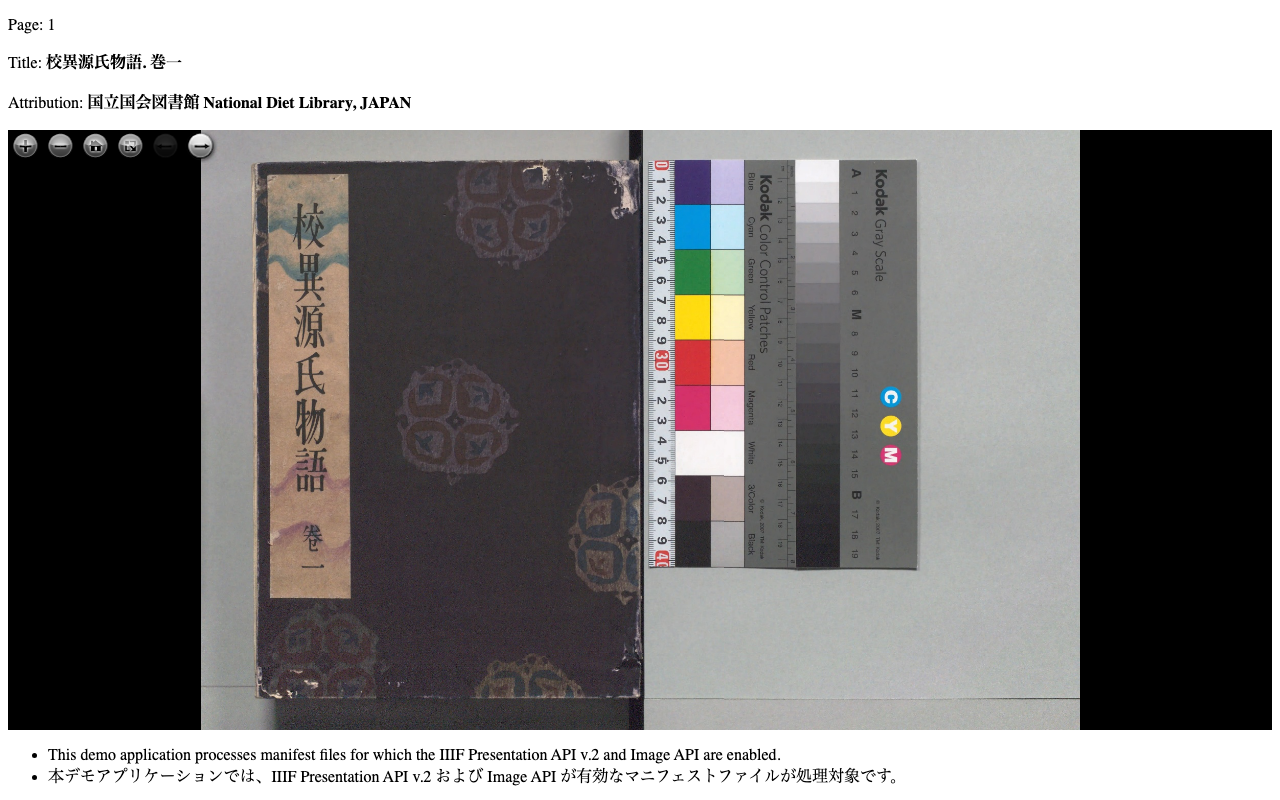
I added the ability to download OCR results in TEI/XML format to the app that allows viewing OCR results published in the National Diet Library’s “Next-Generation Digital Library” using an IIIF viewer. https://static.ldas.jp/ndl-ocr-iiif/ Please also refer to the following article about this app. In adding this feature, I updated the UI. The results are divided into “Viewer” and “Data.” For “Viewer,” in addition to the previously provided “Mirador” and “Curation Viewer,” I added “Universal Viewer” and “Image Annotator.” I also added a link to the “Next-Generation Digital Library” and implemented a page called “TEI Viewer” as a simple viewer for TEI/XML files. ...

Experiments on Image Sizes Supported by serverless-iiif

Experiments on Image Sizes Supported by serverless-iiif

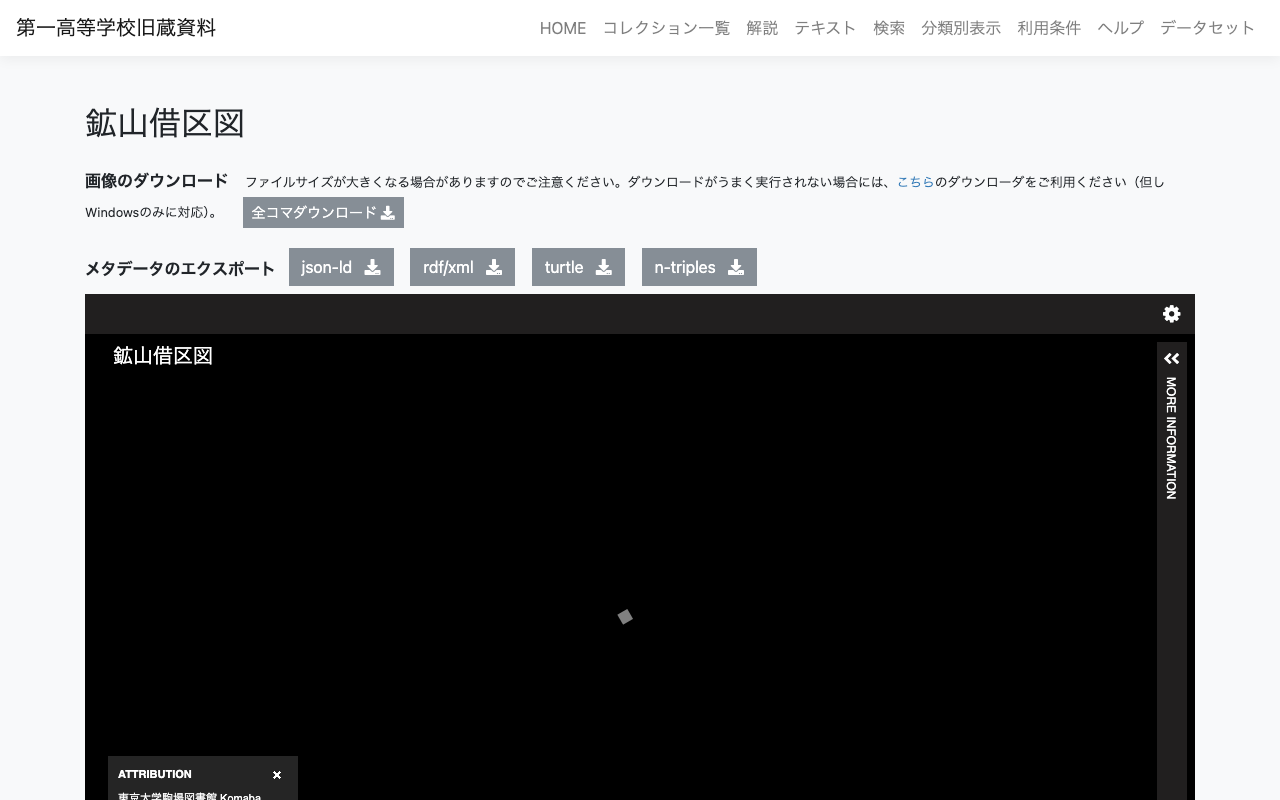
Overview In the following article, I explained how to build an IIIF Image Server using an AWS serverless application. This time, I register a relatively large image and verify whether tile image delivery is possible. Target This time, the target is “Mining Claim Maps” (held by the University of Tokyo Komaba Library). https://iiif.dl.itc.u-tokyo.ac.jp/repo/s/ichiko/document/4120a330-2f1c-4e2c-5d48-21aed4d42704 The original image is a TIF file of nearly 300 MB. Creating Pyramidal Tiled TIFF Referencing the following site, I tried both VIPS and ImageMagick. ...

Usage Example of Leaflet with Vue 3 (Including Coordinate Range Retrieval)

Usage Example of Leaflet with Vue 3 (Including Coordinate Range Retrieval)

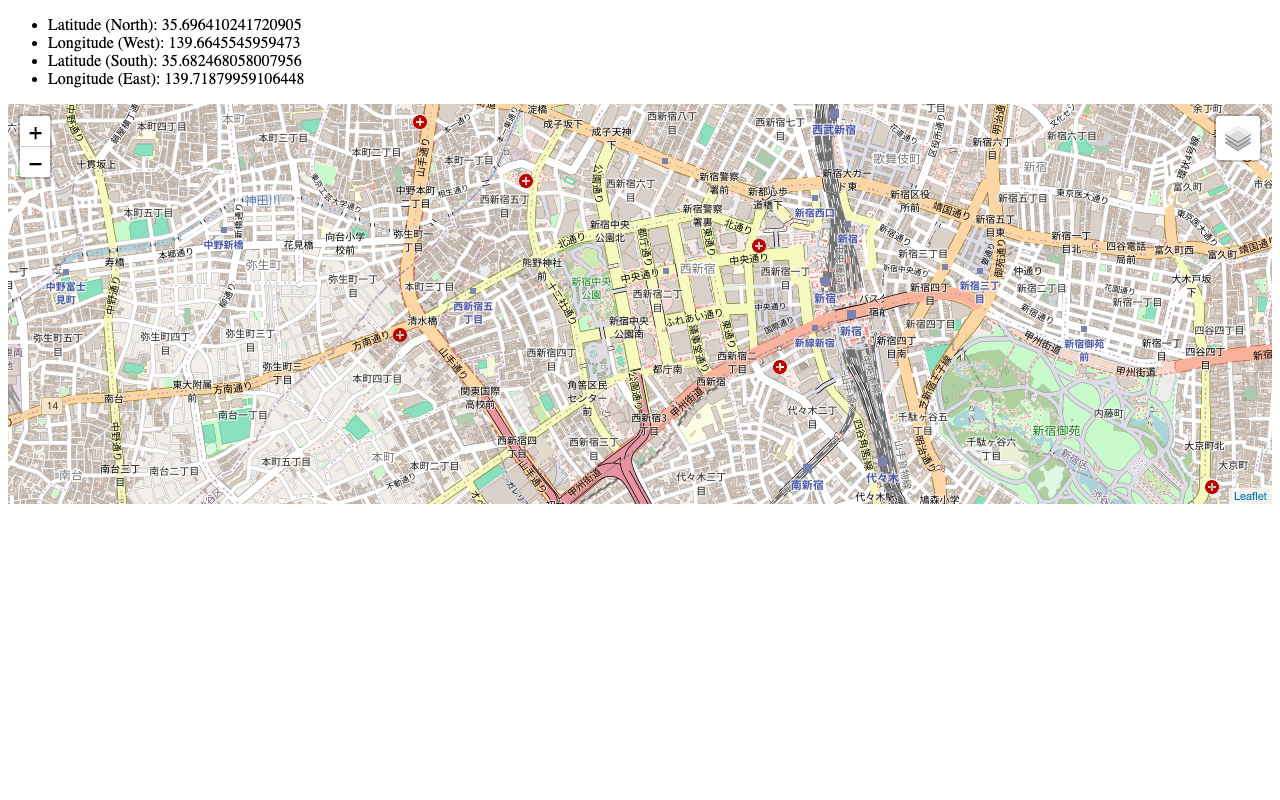
I created a repository introducing a usage example of Leaflet with Vue 3 (including coordinate range retrieval). The working example is available here: https://static.ldas.jp/vue3-leaflet/ The source code is available here: https://github.com/ldasjp8/vue3-leaflet As a Vue 3 beginner, there may be errors, but we hope this serves as a useful reference.

Created a Sample Repository for Using OpenSeadragon with Vue3

Created a Sample Repository for Using OpenSeadragon with Vue3

I created a sample repository for using OpenSeadragon with Vue3. Here is a working example. https://static.ldas.jp/vue3-osd/ The source code is available below. https://github.com/ldasjp8/vue3-osd As I am a Vue3 beginner, there may be some errors, but I hope this is helpful.

[Omeka S] How to Set Custom Identifiers in the IIIF Server Module

[Omeka S] How to Set Custom Identifiers in the IIIF Server Module

With the default settings of the Omeka S IIIF Server module, you can access IIIF manifest files using URLs like the following. /iiif///manifest Example (version 2): https://shared.ldas.jp/omeka-s/iiif/2/1267/manifest Example (version 3): https://shared.ldas.jp/omeka-s/iiif/3/1267/manifest However, since this uses Omeka’s internal ID, it is recommended to use custom identifiers. The solution is to additionally install the Clean Url module and enable Use the identifiers from Clean Url in the IIIF Server module settings screen shown below. ...

[Omeka S] How to Configure Attribution in the IIIF Server Module

[Omeka S] How to Configure Attribution in the IIIF Server Module

The IIIF Server module for Omeka S allows you to configure various settings. One of these is the attribution setting. As shown below, the value entered in Default attribution will be displayed in the attribution field of IIIF manifest files and similar resources. I recommend changing it to an appropriate value such as your organization’s name. Alternatively, as shown just above the field mentioned above, you can specify a property for entering attribution values, which allows you to change the attribution value for each item individually. ...

Created a Sample Repository for Running XSLT in Node.js

Created a Sample Repository for Running XSLT in Node.js

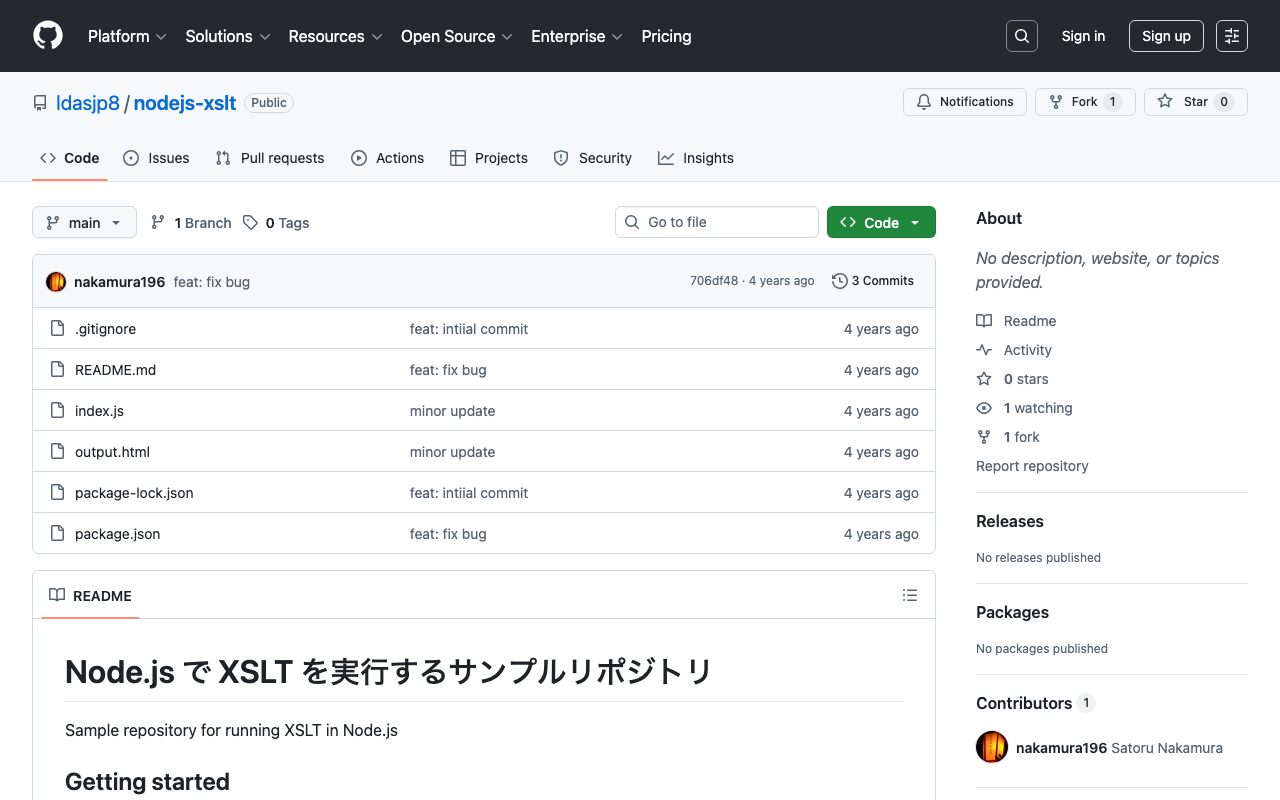
I created a sample repository for running XSLT in Node.js. https://github.com/ldasjp8/nodejs-xslt We hope this is helpful when processing TEI/XML files and similar in Node.js.

Setting Focus on a Text Field Inside a Dialog When Opening It in Vuetify

Setting Focus on a Text Field Inside a Dialog When Opening It in Vuetify

The following was helpful. https://stackoverflow.com/questions/59407003/set-focus-text-field-inside-dialog-when-dialog-opened By accessing $refs after a short delay when opening the dialog, it worked successfully. watch: { dialog: function(value) { if (value) { setTimeout(() => { this.$refs.name.focus(); }, 200); } } }

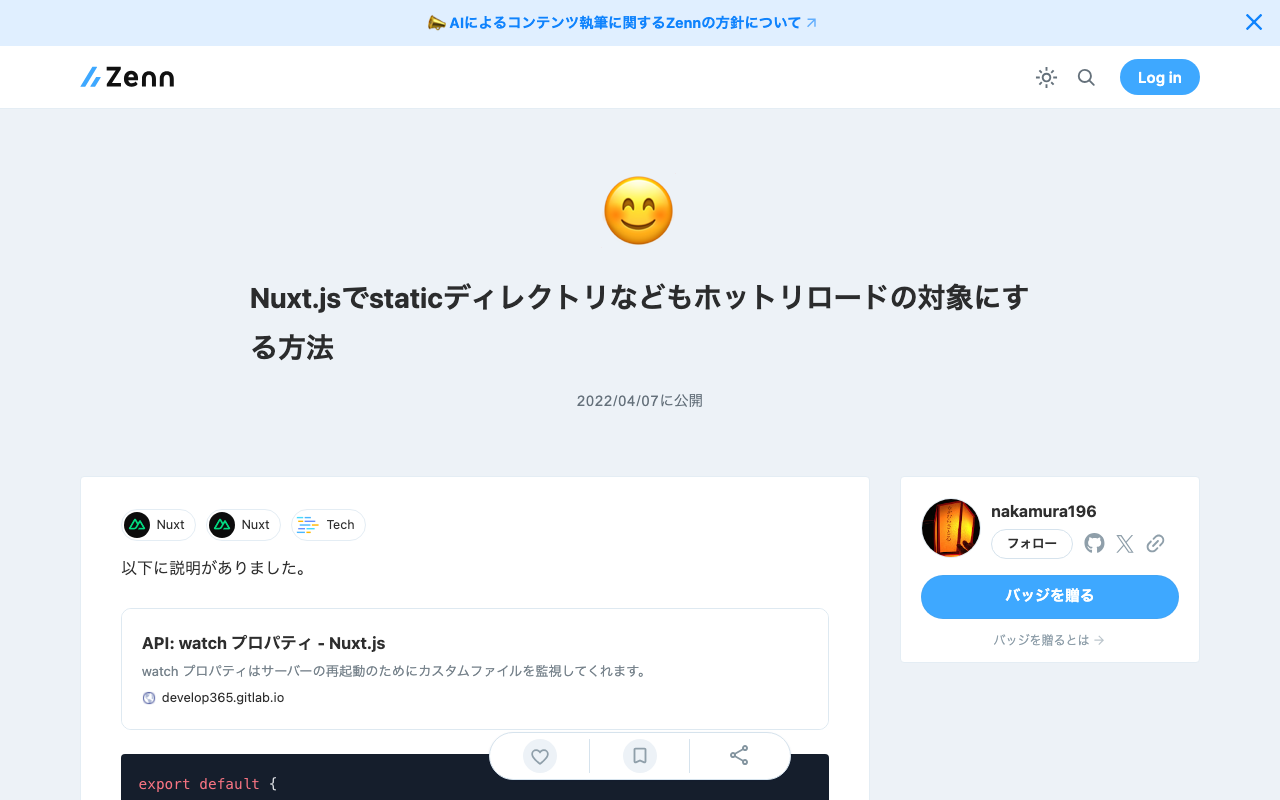
How to Enable Hot Reload for the static Directory in Nuxt.js

How to Enable Hot Reload for the static Directory in Nuxt.js

The explanation was found at the following link. https://develop365.gitlab.io/nuxtjs-2.8.X-doc/ja/api/configuration-watch/ export default { ..., generate: { fallback: true, }, watch: ['static'], } By providing watch in the nuxt.config.js file as shown above, the target directory became a watch target as well.

Introduction to IIIF Presentation API Validation Methods with Practical Examples

Introduction to IIIF Presentation API Validation Methods with Practical Examples

Overview As described in a previous article, I developed an application that delivers IIIF manifest files and provides the IIIF Content Search API. https://zenn.dev/nakamura196/articles/76bdc86b1b7524 However, there were parts that did not conform to the API specifications. This article shares the corrections made and introduces how to use the Presentation API Validator with practical examples. https://presentation-validator.iiif.io/ Manifest File Corrections Access the Presentation API Validator site above, enter the manifest file URL in URL of Manifest to Validate, and select the corresponding API version (in this case, 3.0). ...

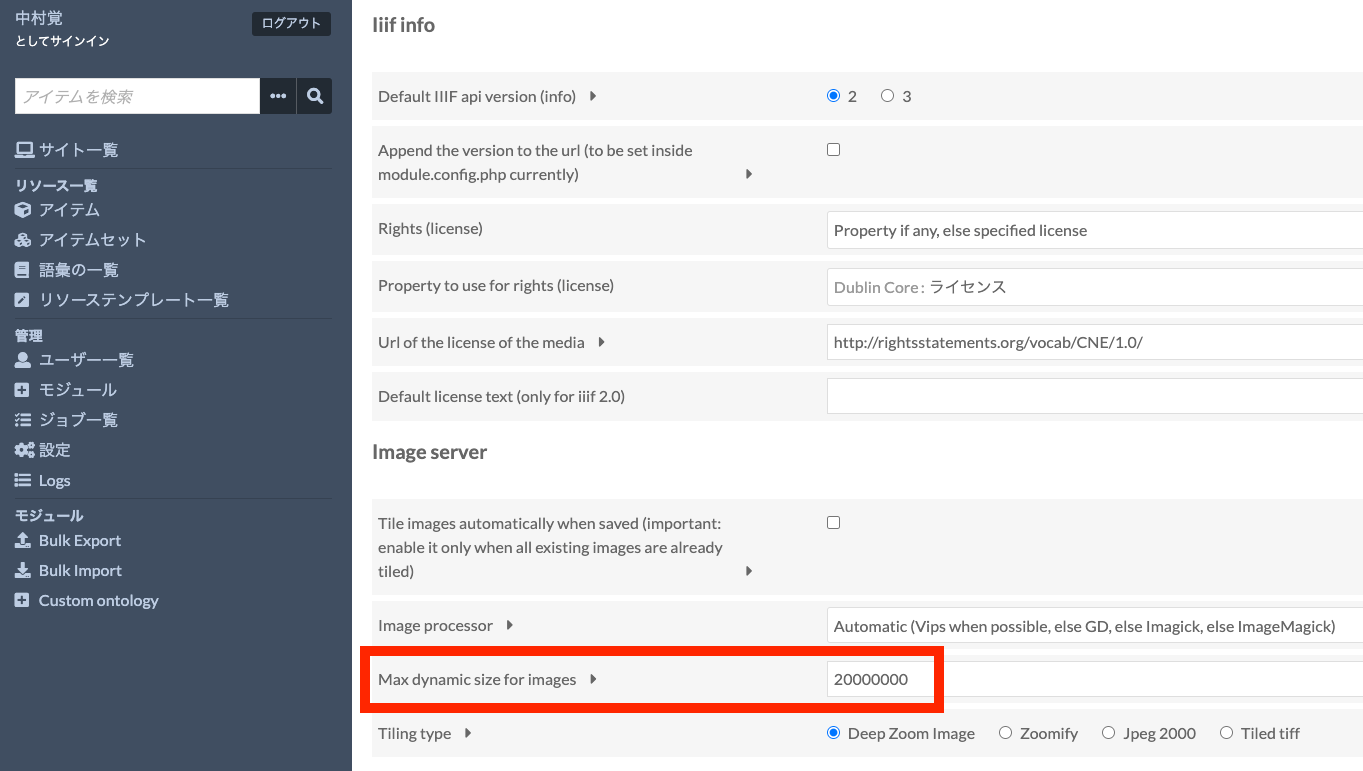
About Image Size Limits for Dynamic Tile Image Generation in the Omeka S Image Server Module

About Image Size Limits for Dynamic Tile Image Generation in the Omeka S Image Server Module

The Omeka S Image Server module has a feature that dynamically generates tile images for uploaded images. By using this feature, users can simply upload JPG or PNG images, and Omeka will dynamically generate tile images according to requests, delivering images compliant with the IIIF Image API. Note: On the other hand, when server specifications are limited, this dynamic tile image generation process may take time. In such cases, an option to pre-generate tile images is also available. This will be discussed later. ...

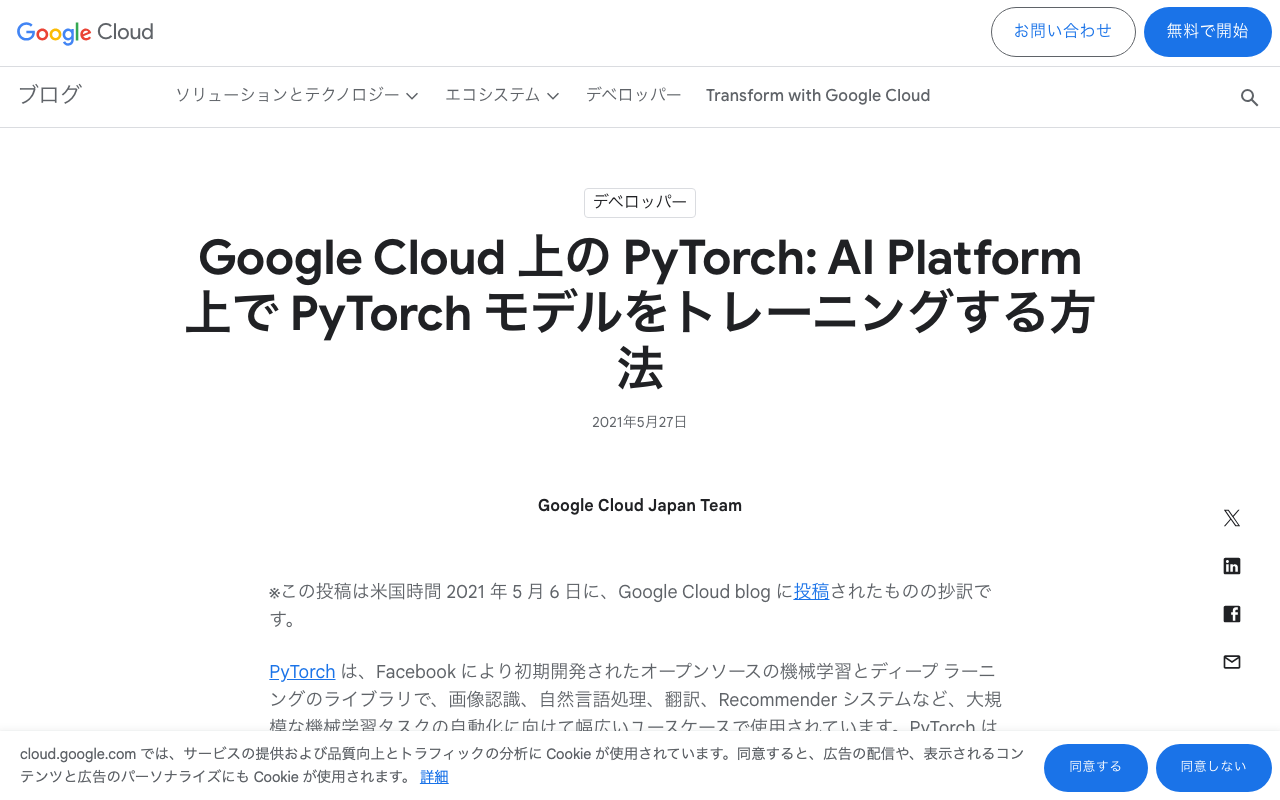
GCP: Handling Errors When Creating AI Platform Notebooks

GCP: Handling Errors When Creating AI Platform Notebooks

I created a notebook instance using the following as a reference. https://cloud.google.com/blog/ja/topics/developers-practitioners/pytorch-google-cloud-how-train-pytorch-models-ai-platform gcloud notebooks instances create example-instance \ --vm-image-project=deeplearning-platform-release \ --vm-image-family=pytorch-1-7-cu110-notebooks \ --machine-type=n1-standard-4 \ --location=us-central1-a \ --boot-disk-size=100 \ --accelerator-core-count=1 \ --accelerator-type=NVIDIA_TESLA_T4 \ --install-gpu-driver \ --network=default At that time, I was unable to create the notebook instance due to the following error. ERROR: (gcloud.notebooks.instances.create) The zone 'projects/{project}/zones/us-central1-a' does not have enough resources available to fulfill the request. '(resource type:compute)'. Therefore, I changed the location from us-central1-a to us-central1-b, and was able to create the instance. ...

How to Delete a Feature Store in GCP Vertex AI

How to Delete a Feature Store in GCP Vertex AI

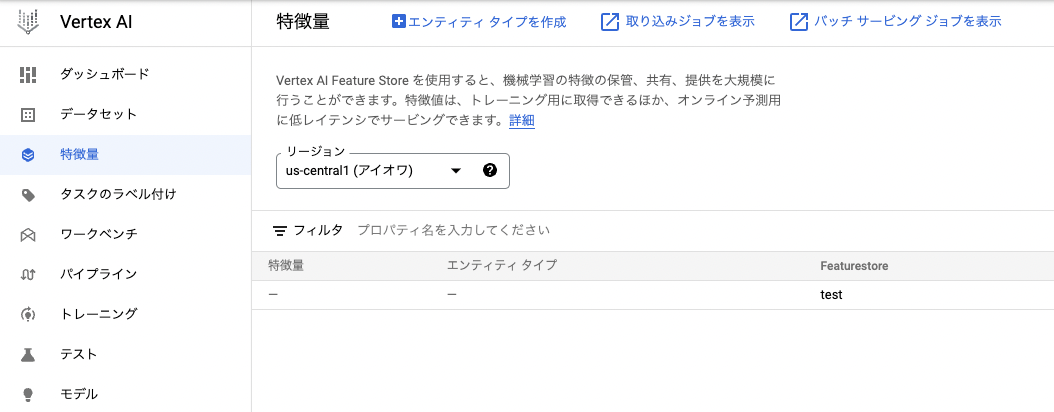
Overview This is a note on how to delete a feature store in Vertex AI on GCP (Google Cloud Platform). I later noticed that official documentation was available at the following link. https://cloud.google.com/vertex-ai/docs/featurestore/managing-featurestores#delete_a_featurestore Method In this example, I will attempt to delete a feature store called test as shown below. It could be deleted by executing the following command. (I was unable to find a way to delete it from the GUI.) ...

【使い方編】国立国会図書館「次世代デジタルライブラリー」で公開されているOCR結果をIIIFビューアで閲覧するアプリを作成しました。

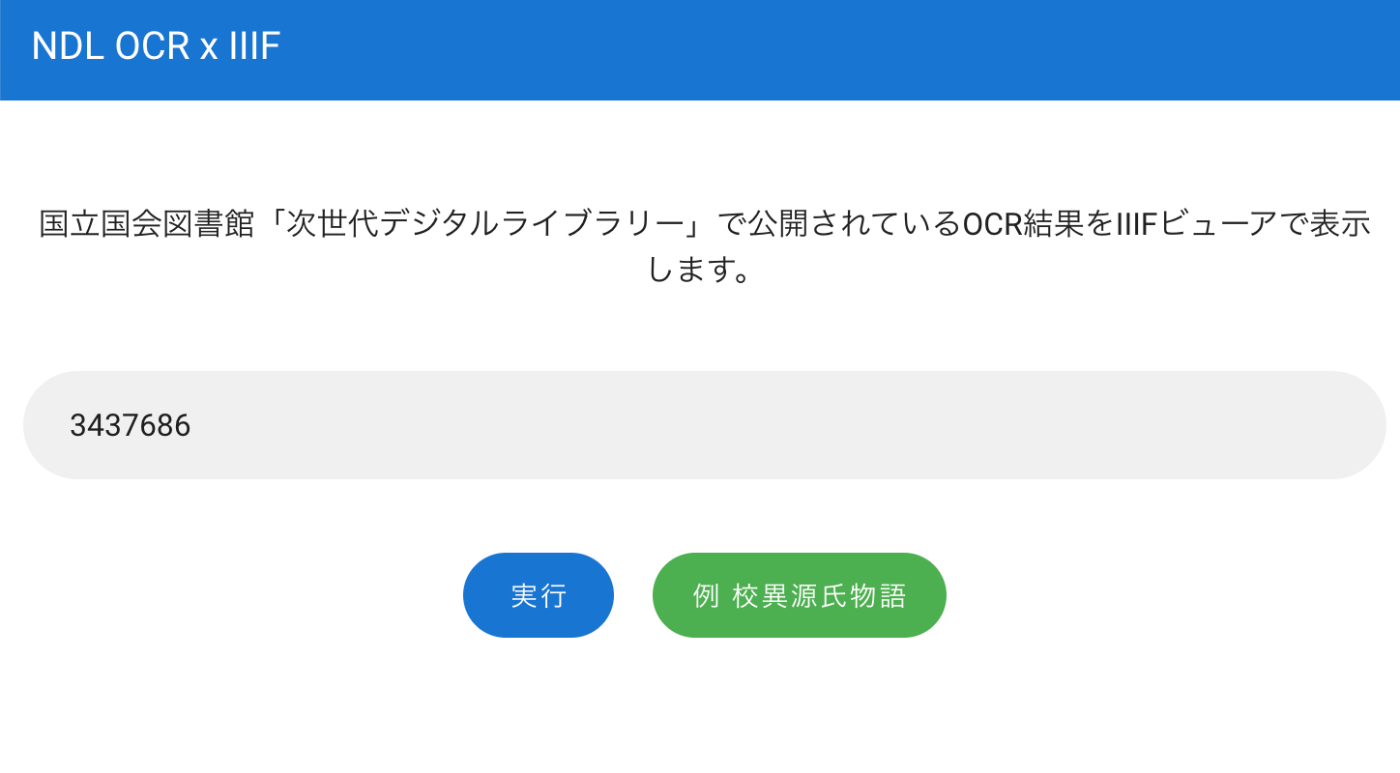
概要 使い方 Miradorでの表示例 Curation Viewerでの表示例 まとめ 概要 国立国会図書館「次世代デジタルライブラリー」で公開されているOCR結果をIIIFビューアで閲覧するアプリを作成しました。 以下のURLからお試しいただけます。 https://static.ldas.jp/ndl-ocr-iiif/ 使い方 入力フォームに、「次世代デジタルライブラリー」で公開されている資料のIDを入力します。 しばらくすると、「Mirador」とCODHが公開する「Curation Viewer」のボタンが表示されます。それぞれのビューアで、OCR結果をご確認いただけます。 Miradorでの表示例 特に、「Mirador」については、「IIIF Content Search API」にも対応し、資料内検索が可能です。 https://iiif.io/api/search/1.0/ Curation Viewerでの表示例 まとめ 本記事では本アプリの使い方について説明しました。以下の記事では、本アプリの構築方法について説明しています。こちらも参考になりましたら幸いです。 nakamura196.hatenablog.com

[Development Guide] I Created an App to View OCR Results Published by the National Diet Library's Next-Generation Digital Library in an IIIF Viewer

[Development Guide] I Created an App to View OCR Results Published by the National Diet Library's Next-Generation Digital Library in an IIIF Viewer

Overview I created an app to view OCR results published by the National Diet Library’s “Next-Generation Digital Library” in an IIIF viewer. The usage instructions are summarized in the following article. This time, I will explain how to build the above app. Build Method Backend I used AWS. The system was primarily built using SAM (Serverless Application Model). Creating IIIF Manifests & Curation Lists The flow for generating IIIF manifests and curation lists reflecting the OCR results published by the Next-Generation Digital Library is as follows. ...

An App for Viewing OCR Results from the NDL "Next-Generation Digital Library" in an IIIF Viewer

An App for Viewing OCR Results from the NDL "Next-Generation Digital Library" in an IIIF Viewer

Overview I created an app for viewing OCR results published on the National Diet Library’s “Next-Generation Digital Library” in an IIIF viewer. You can try it at the following URL. https://static.ldas.jp/ndl-ocr-iiif/ Usage Enter the ID of a material published on the “Next-Generation Digital Library” in the input form. After a short while, buttons for “Mirador” and CODH’s “Curation Viewer” will appear. You can view the OCR results in each viewer. ...

【AWS関連】AWS Lambda + Docker + pyvipsを用いたPyramid Tiled Tiffファイルの作成

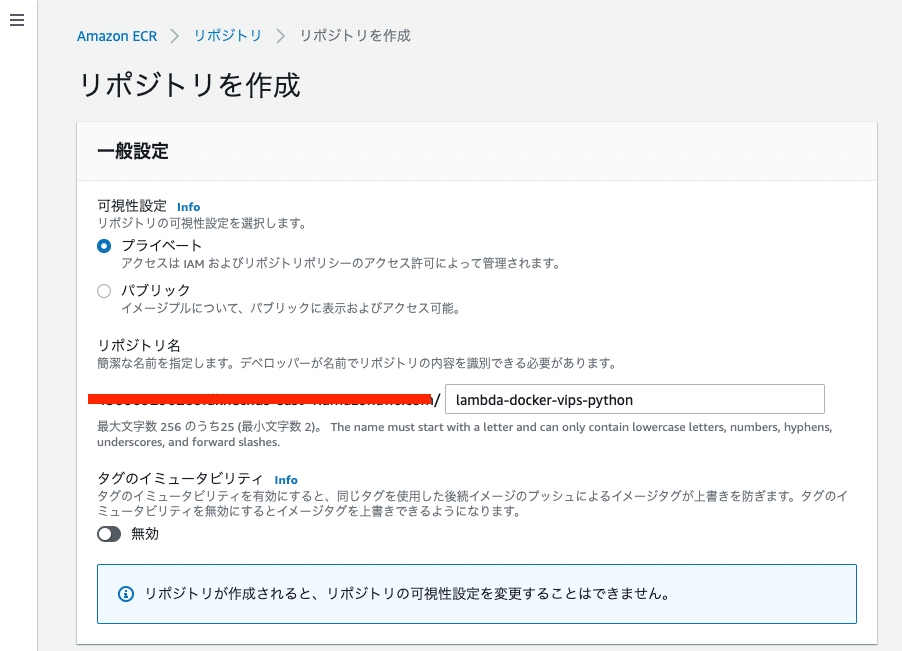
概要 Amazon ECRリポジトリの作成 Lambda関数の作成 S3 バケットの作成 イベント通知設定 Lambda関数の設定 環境変数の設定 アクセス権限 基本設定 試す まとめ 概要 AWS LambdaとDockerとpyvipsを用いて、S3に格納された画像から、Pyramid Tiled Tiffファイルを作成するイメージを作成しました。 Amazon ECR Public Galleryは以下です。 https://gallery.ecr.aws/nakamura196/lambda-docker-vips-python ソースコードは以下です。 https://github.com/ldasjp8/lambda-docker-vips-python 以下、使用方法について説明します。 Amazon ECRリポジトリの作成 まず、ECRリポジトリを作成します。 次に、「プッシュコマンドの表示」から、コマンドを確認して、イメージをpushします。 以下、コマンドの例です。 git clone https://github.com/ldasjp8/lambda-docker-vips-python.git cd lambda-docker-vips-python aws ecr get-login-password --region us-east-1 | docker login --username AWS --password-stdin XXXX.dkr.ecr.us-east-1.amazonaws.com docker build -t lambda-docker-vips-python . docker tag lambda-docker-vips-python:latest XXXX.dkr.ecr.us-east-1.amazonaws.com/lambda-docker-vips-python:latest docker push XXXX.dkr.ecr.us-east-1.amazonaws.com/lambda-docker-vips-python:latest 結果、以下のようにイメージがECRリポジトリに表示されます。 そして、以下の「イメージのURI」をコピーしておきます。 Lambda関数の作成 次にLambda関数を作成します。今回は、my-lambda-docker-vips-pythonという関数名にしました。「コンテナイメージURI」に、先ほどコピーしたURIを入力します。 そして、「関数を作成」ボタンを押して、関数を作成します。 S3 バケットの作成 今回、画像を登録するためのバケットと、上記の関数により変換した画像を格納するバケットの2つを用意します。 今回は、my-lambda-docker-vips-python-inputとmy-lambda-docker-vips-python-outputの2つを作成しました。 ...

Creating Pyramid Tiled TIFF Files Using AWS Lambda + Docker + pyvips

Creating Pyramid Tiled TIFF Files Using AWS Lambda + Docker + pyvips

Overview I created a Docker image that uses AWS Lambda and pyvips to generate Pyramid Tiled TIFF files from images stored in S3. The Amazon ECR Public Gallery is available here: https://gallery.ecr.aws/nakamura196/lambda-docker-vips-python The source code is available here: https://github.com/ldasjp8/lambda-docker-vips-python Below, I will explain how to use it. Creating an Amazon ECR Repository First, create an ECR repository. Next, check the commands from “View push commands” and push the image. ...